By the end of this article, you will know every step in the Add a step list and which one to pick for each job in your shop.
Every flow is a list of steps, and you add each one from a single list called Add a step. The list is grouped by what the step is about, such as the customer, the items, the schedule or photos. You only see the steps that fit the flow you are editing, so an order flow and a close of day flow offer different steps. For each step, you also decide whether staff must complete it, can skip it, or can open it any time they need it. You can also show a step only when another answer matches, so staff are never asked for something that does not apply.
## Before You Start
- Read [Introduction to Flows](/docs/introduction-to-process-flows) first. It explains what a flow is and where each kind of step is set up.
- You need to be the account owner, or have access to **Library & templates** in Settings, to open the Flows page.
- To offer your own questions as steps (for example "Fabric type"), set them up first as custom fields.
- No customer details are needed. Steps are set up once and then run on every order.
Your existing steps carry over. If a step no longer fits its flow type, a warning at the top of the flow lists it so you can remove it and add the right one.
---
## Open the Add a Step List
The same list opens wherever you add steps: on the Flows page, and on a business unit's Selling and Handover tabs. On the Flows page:
1. Click the ⚙️ Settings icon in the top-right corner.
2. Under the **Library & templates** section, click **Flows**.
3. Click the flow you want to edit.
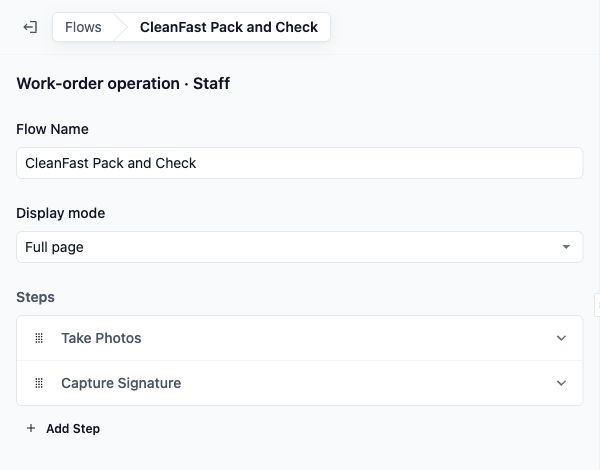
4. Under **Steps**, click Add Step .
The **Add a step** window opens. Each row shows the step name, a small tag that says where it comes from, and a short hint about what the person does.
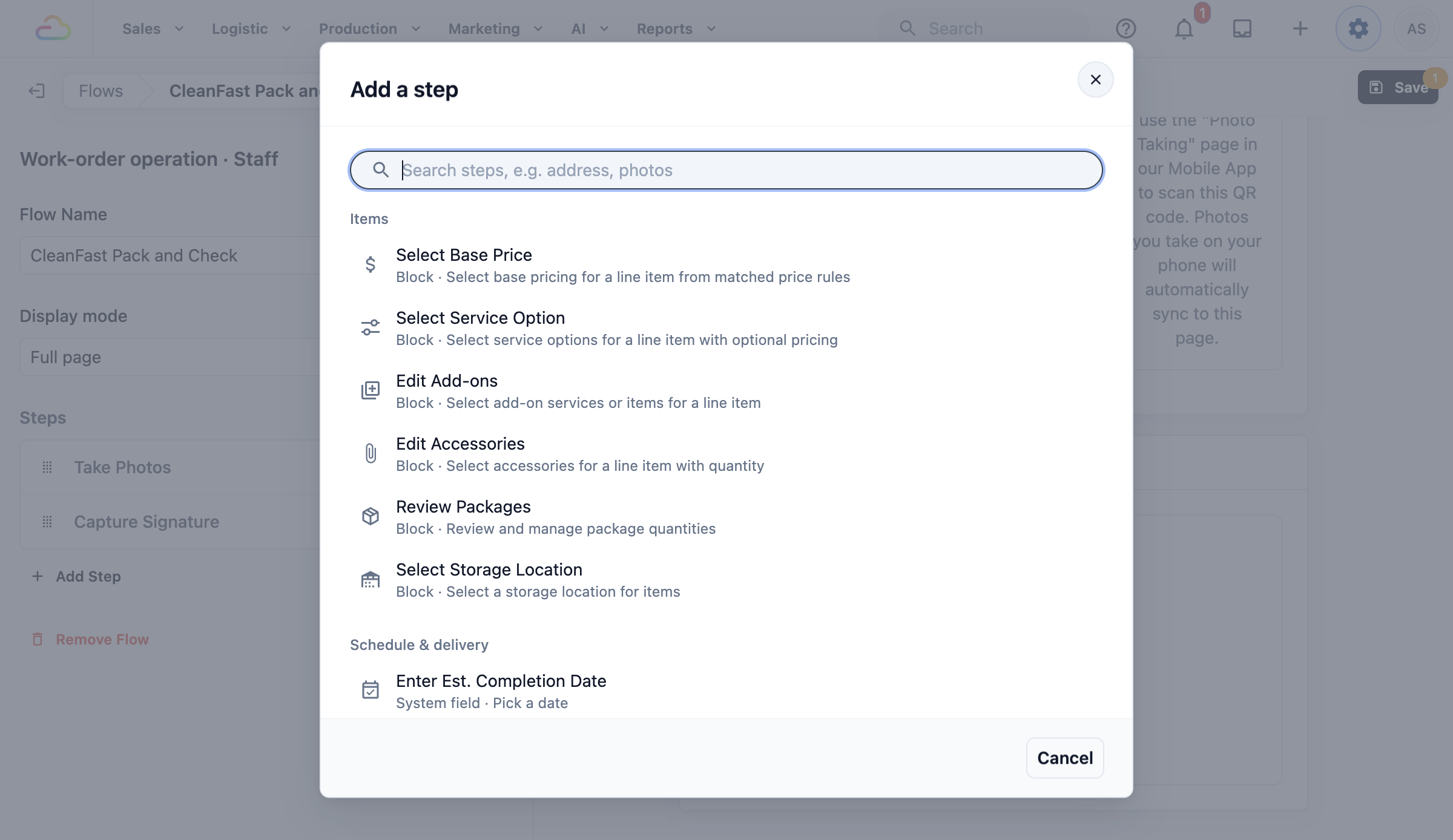
**Step tags**
| Tag | What it means |
|---|---|
| Block | A ready-made screen, such as choosing a customer or scheduling a booking. Some have their own settings on the step. |
| System field | A detail EasyBiz already keeps, such as Note, Photos or Return Date. |
| Custom field | One of your own questions, set up as a custom field. |
Click a step to add it. It goes to the end of your list, and you can drag it into place.
---
## Search for a Step
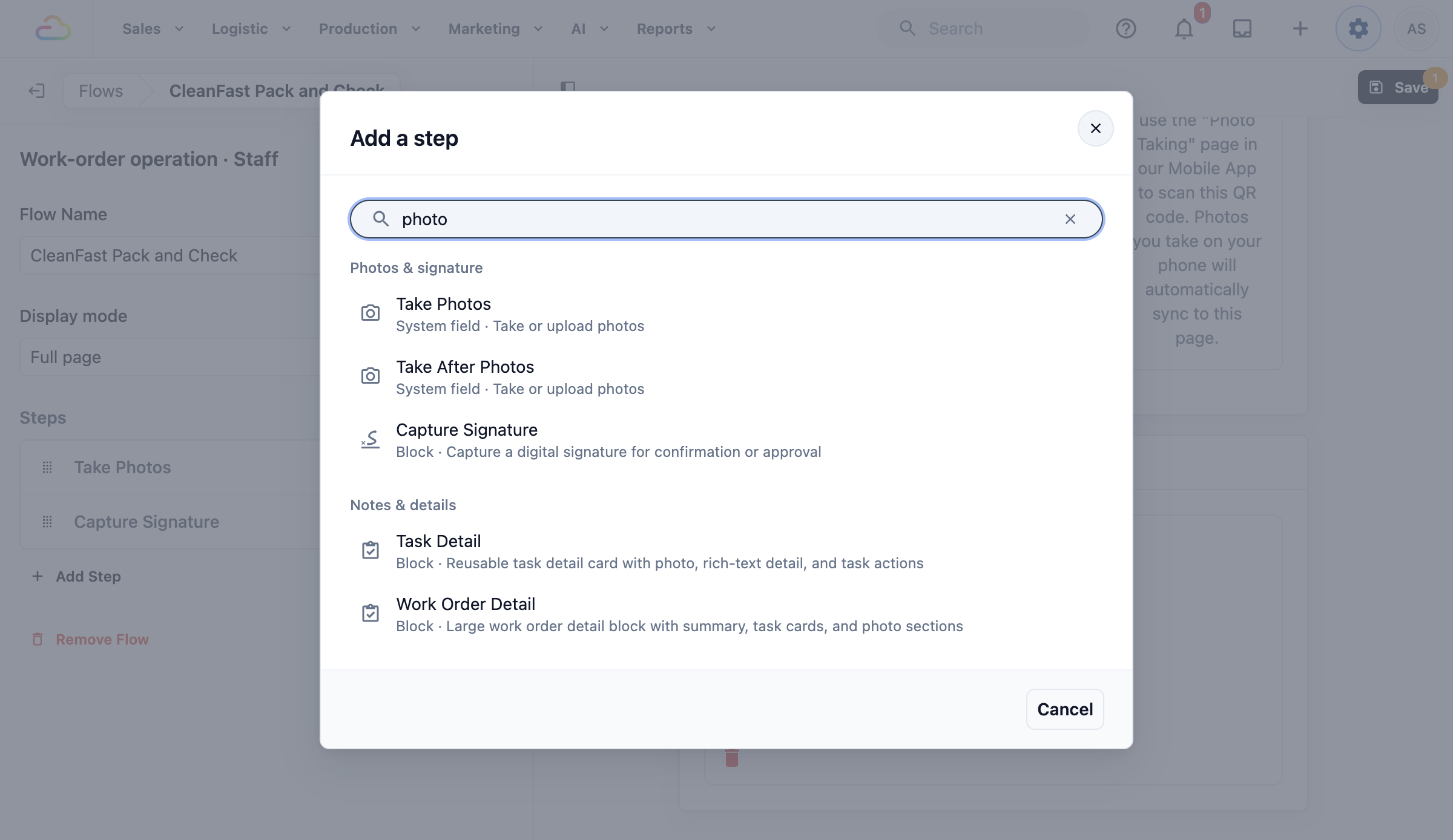
Type into the **Search steps, e.g. address, photos** box. The list narrows to steps whose name, hint, group or tag matches. If nothing matches, you see "No steps match your search".
---
## Every Step, by Group
The groups appear in the same order as in the product. A group only shows when it has at least one step for your flow.
### Customer
| Step | What it does | Shows in |
|---|---|---|
| Select Customer | Staff search for and pick the customer. | Order intake, staff |
| Select Address | Staff pick or enter the customer's address. | Order intake, staff |
| Enter Address | Customers type the address for their booking. | Order intake, customer |
| Contact Details | Customers confirm the name and mobile number for this booking. | Order intake, customer |
### Items
| Step | What it does | Shows in |
|---|---|---|
| Edit Order Items | Staff add, remove or change items from a price list. | Order intake, staff |
| Select Product | Staff pick a product from your catalog. | Line item, staff |
| Select Base Price | Staff pick the starting price for an item from your price rules. | Line item and Work-order operation, staff |
| Select Service Option | Staff pick the service an item gets, with its price if it has one. | Line item and Work-order operation, staff |
| Edit Add-ons | Staff add extra services or items to an item. | Line item and Work-order operation, staff |
| Edit Accessories | Staff record accessories that come with an item, with a quantity. | Line item and Work-order operation, staff |
| Price Breakdown | Staff view and adjust how an item's price is made up. | Line item, staff |
| Review Packages | Staff check and adjust package quantities. | Work-order operation, staff |
| Select Storage Location | Staff record where items are stored. | Work-order operation, staff |
| Confirm Packages | Drivers tick the packages handed over at a stop. | Job processing, staff |
| Choose Service Options | Customers choose which service options the booking is for. | Order intake, customer |
| Choose Items | Customers pick items from your price list. | Order intake, customer |
| Choose Item | Customers pick an item and its type. | Line item, customer |
| Choose Service | Customers pick the service an item gets. | Line item, customer |
### Schedule & delivery
| Step | What it does | Shows in |
|---|---|---|
| Schedule Booking | Staff or customers pick the pickup, delivery or service time. | Order intake, staff and customer |
| Enter Receiving Date | Staff record the date items were received. | Order intake, staff |
| Enter Fulfillment Date | Staff record the date the order will be fulfilled. | Order intake, staff |
| Enter Return Date | Staff record the date items go back to the customer. | Order intake, staff |
| Enter Est. Completion Date | Staff record when the work should be done. | Line item and Work-order operation, staff |
### Payment & price
| Step | What it does | Shows in |
|---|---|---|
| Enter Fixed Amount | Staff type a set amount for the whole order. | Order intake, staff |
| Enter Quoted Amount | Staff record the price quoted to the customer. | Order intake and Work-order operation, staff |
| Enter Unit Price | Staff type the price for one unit of an item. | Line item and Work-order operation, staff |
| Cash Drawer | Staff count and close the cash drawer. | Close of day, staff |
### Photos & signature
| Step | What it does | Shows in |
|---|---|---|
| Take Photos | Staff take or upload photos, for example of stains before cleaning. | All staff flows except Close of day |
| Take After Photos | Staff take photos after the work, as proof of the result. | Job processing and Work-order operation, staff |
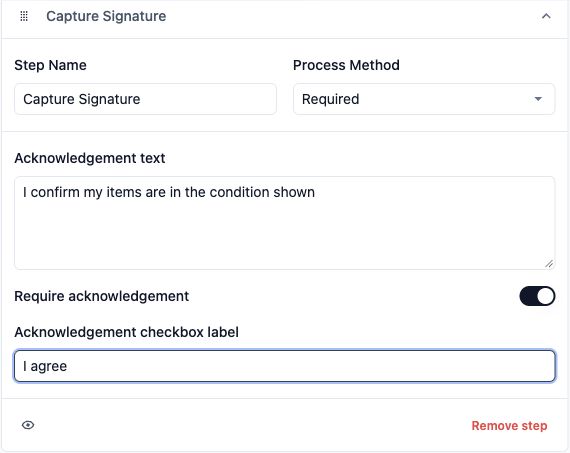
| Capture Signature | The customer or staff signs on the screen. | All staff flows |
Capture Signature has its own settings. Turn on **Require acknowledgement** to make the person tick a checkbox before signing. Enter what they agree to in **Acknowledgement text**, and the checkbox wording in **Acknowledgement checkbox label**.
### Notes & details
| Step | What it does | Shows in |
|---|---|---|
| Enter Note | Staff type a free note. | All staff flows |
| Enter Order Number | Staff type an order number, for example from a partner's slip. | Order intake, staff |
| Enter Tracking Number | Staff type a courier or tracking number. | Order intake, staff |
| Enter Fixed Quantity | Staff type a set item count for the order. | Order intake, staff |
| Enter Quantity | Staff type how many of an item. | Line item and Work-order operation, staff |
| Enter Pieces | Staff type how many pieces an item has, for example a 3-piece suit. | Line item and Work-order operation, staff |
| Enter Package Quantity | Staff type how many packages there are. | Work-order operation, staff |
| Task Detail | Staff see a task card with its photo, details and actions. | Work-order operation, staff |
| Work Order Detail | Staff see the full work order with its summary, tasks and photos. | Work-order operation, staff |
### Your custom fields
Each of your own questions appears here with a name that says what the person does, such as "Enter Fabric Type", "Select Stain Type" or "Take Damage Photos".
| Kind of custom field | What staff or customers do |
|---|---|
| Text or number | Type an answer or enter a number. |
| Amount | Enter an amount (staff only, not in Job processing or Close of day). |
| Date | Pick a date (not in Job processing or Close of day). |
| Choice list | Choose from a list. |
| Photo | Take or upload photos (staff only, not in Close of day). |
Customer flows offer only text, number, date and choice list custom fields, plus the customer steps above.
---
## Why Some Steps Don't Show Up
The list only offers steps that fit the flow you are editing. Two things decide this.
**Flow type**
| Flow type | When it runs |
|---|---|
| Order intake | When an order is taken. |
| Line item | When staff add one item to an order. |
| Job processing | At a pickup, delivery or on-site visit. You set these steps on the business unit's Handover tab. |
| Work-order operation | While staff work on or pack an item. |
| Close of day | When staff close the day at the POS. |
**Used by**
| Option | What it means |
|---|---|
| Staff | Staff complete the steps on the Console, POS or EasyBiz app. |
| Customer | Customers complete the steps when they book online. Order intake and Line item flows only. |
A few steps that need a screen still being built, such as collecting a payment or scanning a QR code, are not offered yet.
Some steps need another step before them. For example, Schedule Booking needs Enter Address before it, so the flow shows a warning until you move Enter Address higher.
Your shop's online checkout is a customer flow that belongs to a business unit. You edit it in the Online Store editor, and customers see changes when you publish the store. See [Choosing What Customers Fill In When Booking Online](/docs/setting-up-customer-checkout).
---
## Choose Required, Optional or On Demand
For staff flows, every step has a **Process Method**. New steps start as Required.
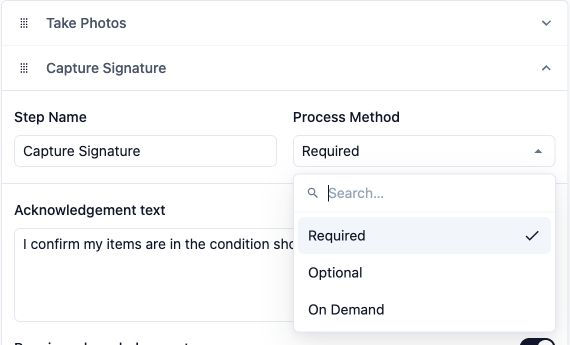
**Process Method**
| Option | What staff see |
|---|---|
| Required | Staff cannot tap Next until they complete the step. A short message tells them what is missing. |
| Optional | Staff can tap Next without answering. Use this only if the answer is nice to have, such as an extra note. |
| On Demand | The step is not in the order of steps. It shows as a button above the step title, so staff open it any time, for example to add a photo only when they spot damage. |
You can also rename any staff step in **Step Name**. Leave it empty to keep the name from the list.
For customer flows, the setting works differently:
- Built-in customer steps such as Enter Address and Schedule Booking are always required.
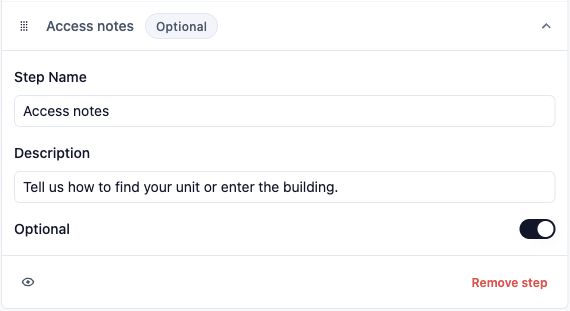
- Steps for your custom fields have an **Optional** switch. Turn it on to let customers skip the question.
- There is no On Demand for customers.
- Custom field steps have a **Step Name**, the question customers see. Every customer step has a **Description**, the line shown under the step name.
---
## Show a Step Only When Another Answer Matches
Every step is always shown unless you add a condition. Use this only if a step applies to some orders and not others.
1. Open the step in the Steps list.
2. Click the eye icon next to Remove step .
3. Click Add Condition .
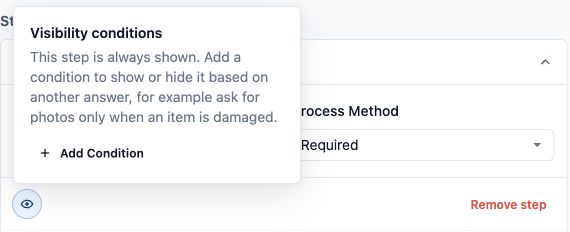
4. In the **Add Condition** window, under **When**, click Add Condition and choose the answer to check, how to compare it and the value. For example, Stain Type Is Heavy.
5. Under **Then Do**, choose Show Step or Hide Step .
6. Click OK .
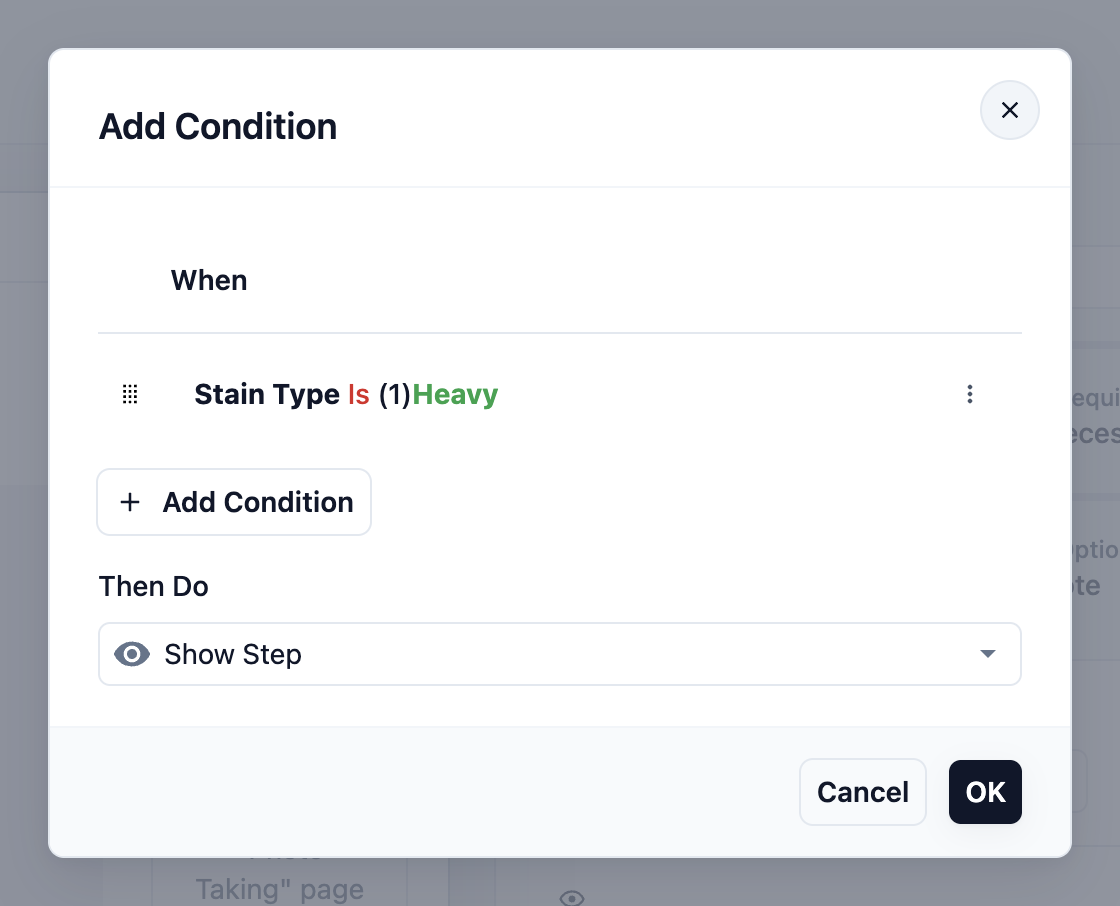
The step now lists its conditions under **Visibility conditions**, where you can edit or delete them.
For a choice list question, you can also hide some of its choices. Under **Option visibility**, add a rule to hide or show certain choices when another answer matches.
---
## Example: CleanFast Laundry's Item Check
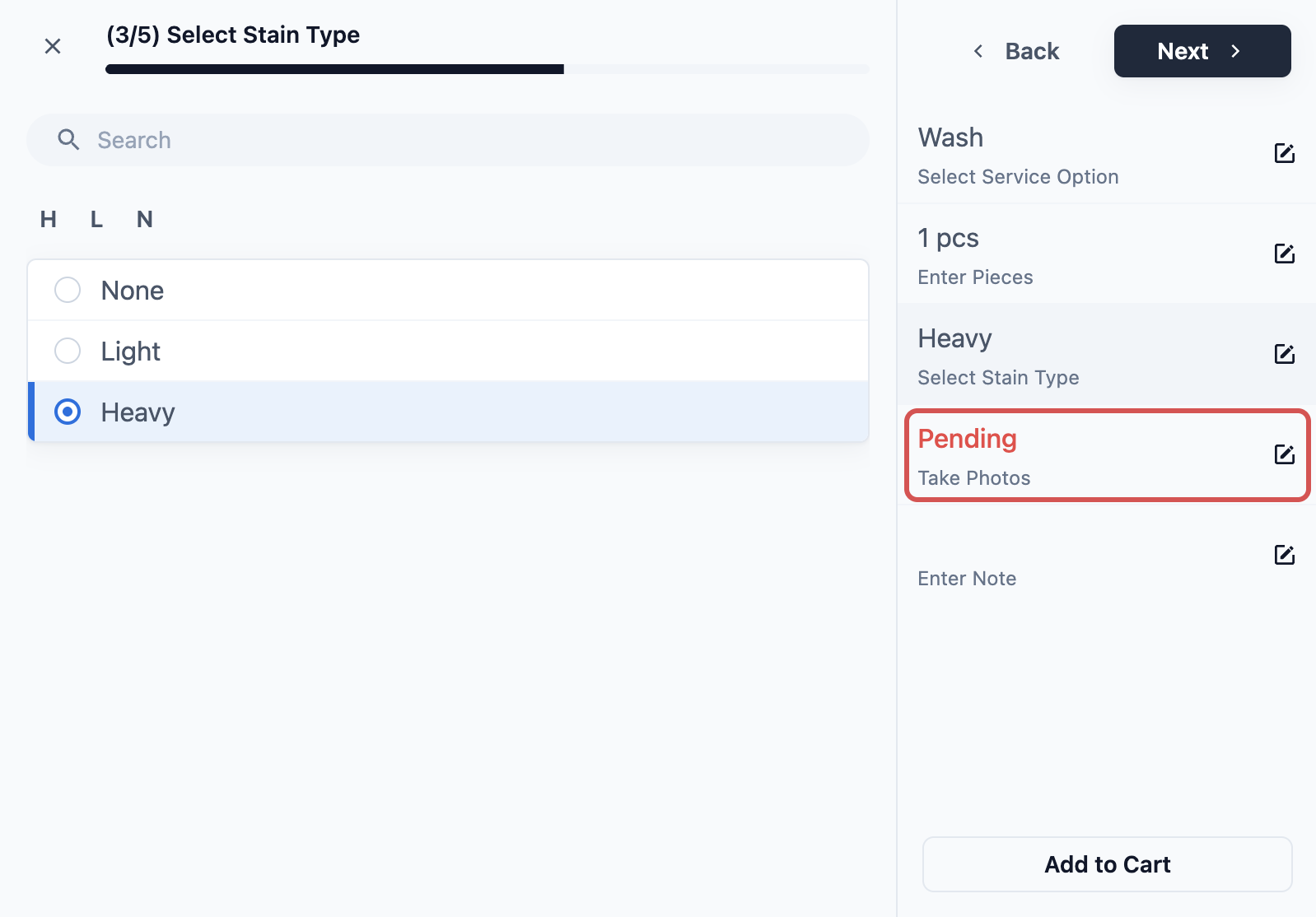
CleanFast Laundry wants staff to check every item before cleaning. The owner sets up these line item steps for staff on the business unit:
1. Select Service Option, Required.
2. Enter Pieces, Required.
3. Select Stain Type (a custom choice list), Required.
4. Take Photos, Required, shown only when Stain Type Is Heavy.
5. Enter Note, Optional.
Click Save . Staff get the new steps the next time they add an item.
When staff add a shirt at the counter, they pick the service, enter the pieces and choose the stain type. If they choose Heavy, the photo step appears before they can move on. They can skip the note.
---
## FAQs
**Do I need to add a condition to every step?**
> No. Most steps never need one. Add a condition only when a step applies to some orders and not others.
**Why can't I find a step I used to have?**
> The list only offers steps that fit the flow type and who uses it. If an older step no longer fits, a warning at the top of the flow names it. Remove it and pick the matching step.
**Can I change a step to ask for something else?**
> No. Once added, a step keeps what it asks for. Remove it and add the one you need.
**Will drivers see every step on the mobile app?**
> Handover flows on the driver app support up to 30 steps of text, number, choice list, photo, signature and Confirm Packages. If a step is not supported, the flow shows a warning naming it.
**Why can't customers skip the address or booking step?**
> Built-in customer steps are always required, because the booking needs that information. Only your own custom field questions can be optional.
**Will changing steps affect orders already taken?**
> No. Orders already saved keep what staff recorded at the time. The new steps apply from the next order or item.
---
## What's Next
You now know every step in the Add a step list and how to make each one required, optional, on demand or shown only when needed. Next, put these steps together into a real flow for your packing table in [Building a Packing Flow](/docs/building-a-packing-flow).