## Before You Start
- Connect your WhatsApp Business number to EasyBiz. See [Connect and Configure WhatsApp](/docs/connect-and-configure-whatsapp).
- Have at least one message template that Meta has approved. See [Introduction to WhatsApp Message Templates](/docs/introduction-to-whatsapp-message-templates).
- You need access to the Inbox in the Console or on the POS.
---
## Overview
WhatsApp has a rule that decides when your shop can type a normal message to a customer. You can chat freely for 24 hours after the customer's last message. After that, or when you message someone first, you must send a template: a ready-made message that Meta, the company behind WhatsApp, has checked and approved. EasyBiz shows you when a chat is locked and lets you send a template in a few clicks, with the customer's details filled in for you. Once the customer replies, the chat opens again and you can type as normal.
**Where it works**
- **Console:** the Inbox, where you start new chats and send templates.
- **POS:** the Inbox on your POS works the same way.
- **Customers:** get your message on WhatsApp, from your business number.
---
## Why it matters
- **Reach customers days later.** Tell a customer their items are ready, or remind them about an unpaid bill, long after their last message.
- **Message customers first.** Start a chat with someone who walked in or phoned, even if they have never messaged you.
- **No more switching phones.** Without templates, a chat older than 24 hours stays locked. Your staff would have to call, or use a personal phone that the rest of the team can't see.
---
## The 24-hour rule in plain words
The 24-hour window is the 24 hours after the customer's last message. Every new message from the customer starts a fresh 24 hours. Your own messages, including templates, don't.
| **Chat status** | **What it means** |
|---|---|
| Window open | The customer messaged you in the last 24 hours. Type and send messages, photos, files and quick replies freely. |
| Window closed | The customer's last message is more than 24 hours old. The text box is locked and says "This conversation is outside the 24-hour window. Use a template message to re-engage." Only the template button works. |
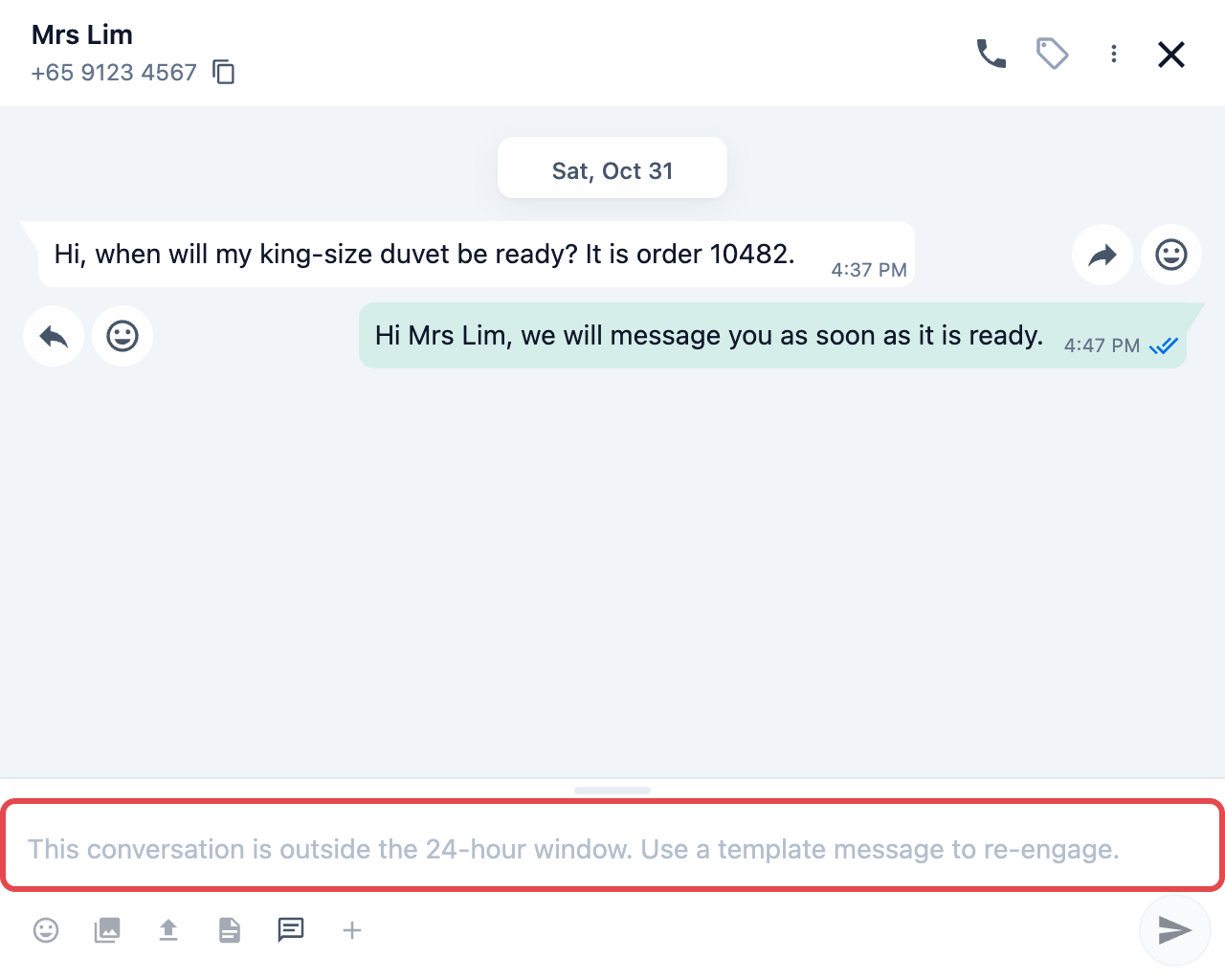
Quick replies are normal messages, so they also stop working once the window closes. Send a template instead.
---
## Start a new chat
Use this to message a customer who has no open chat with you, including someone who has never messaged your shop.
1. In the top navigation bar, click the Inbox icon.
2. Don't select any chat. The new conversation panel shows on the right.
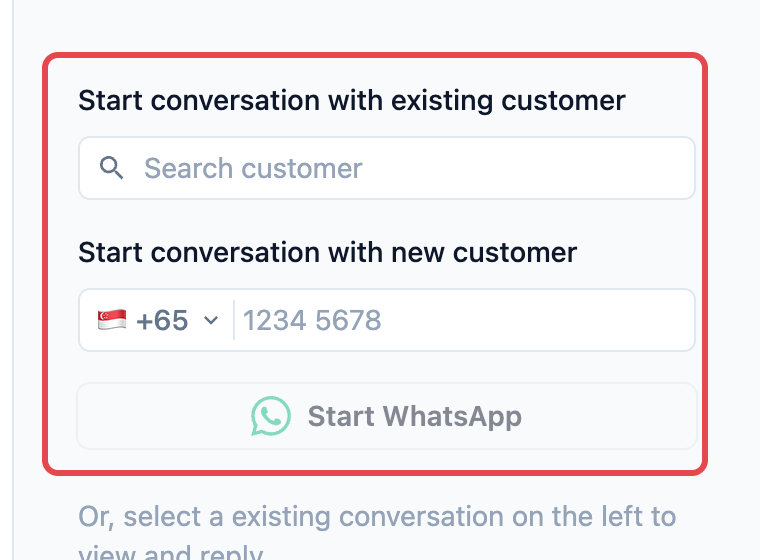
3. Choose who to message, using one of the two boxes below.
4. If your shop has more than one WhatsApp account or number, choose which one to send from.
5. Click Start WhatsApp . The chat opens, ready for a template.
6. Send an approved template. See **Send a template** below.
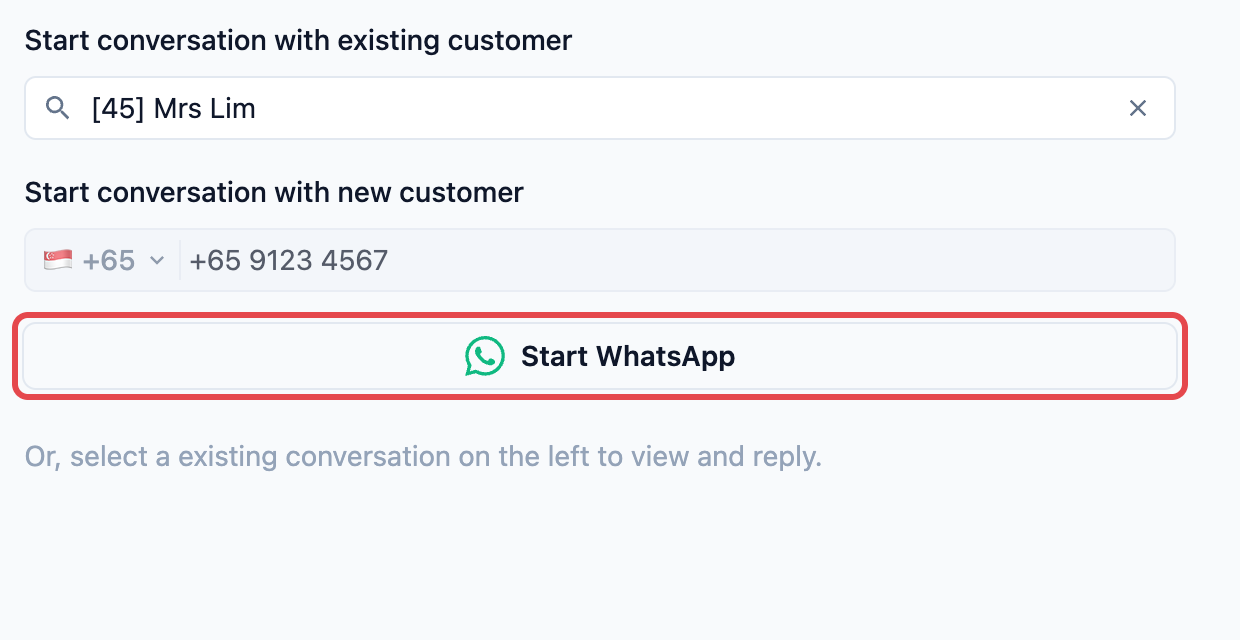
**Start conversation with existing customer**
Type the customer's name and pick them from the list. Their saved phone number fills in for you. If the customer has no phone number saved, EasyBiz shows "Customer does not have a phone number." Add one to their customer record first.
**Start conversation with new customer**
Type the phone number of someone who isn't in your customer list yet. Check the country code is right. This box is greyed out while an existing customer is selected.
**WhatsApp Account**
Shows only when your shop has more than one WhatsApp Business account. Choose the account the message should come from.
**Phone Number**
Shows only when the chosen account has 2 or more numbers. Choose the number the customer will see the message come from. For more on this, see [Connect Multiple WhatsApp Numbers](/docs/connect-multiple-whatsapp-numbers).
You can't type a normal message to start a chat. WhatsApp only allows an approved template until the customer replies.
---
## Send a template
Use a template to start a new chat, or to reopen a chat whose window has closed.
1. Click the template button (the speech bubble) below the text box.
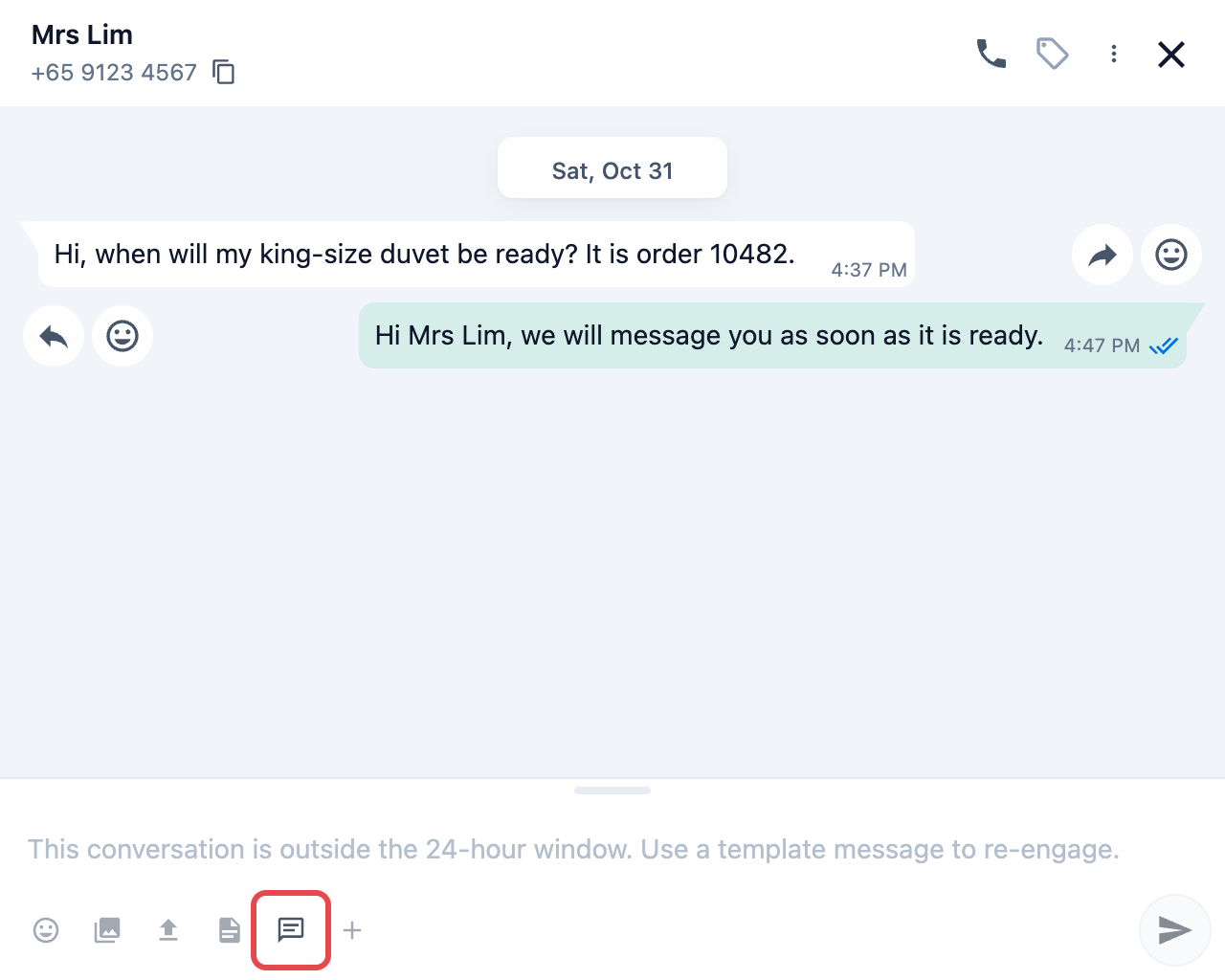
2. Search for a template by name, or scroll the list. Only templates Meta has approved are listed, with Utility templates first, then Authentication, then Marketing.
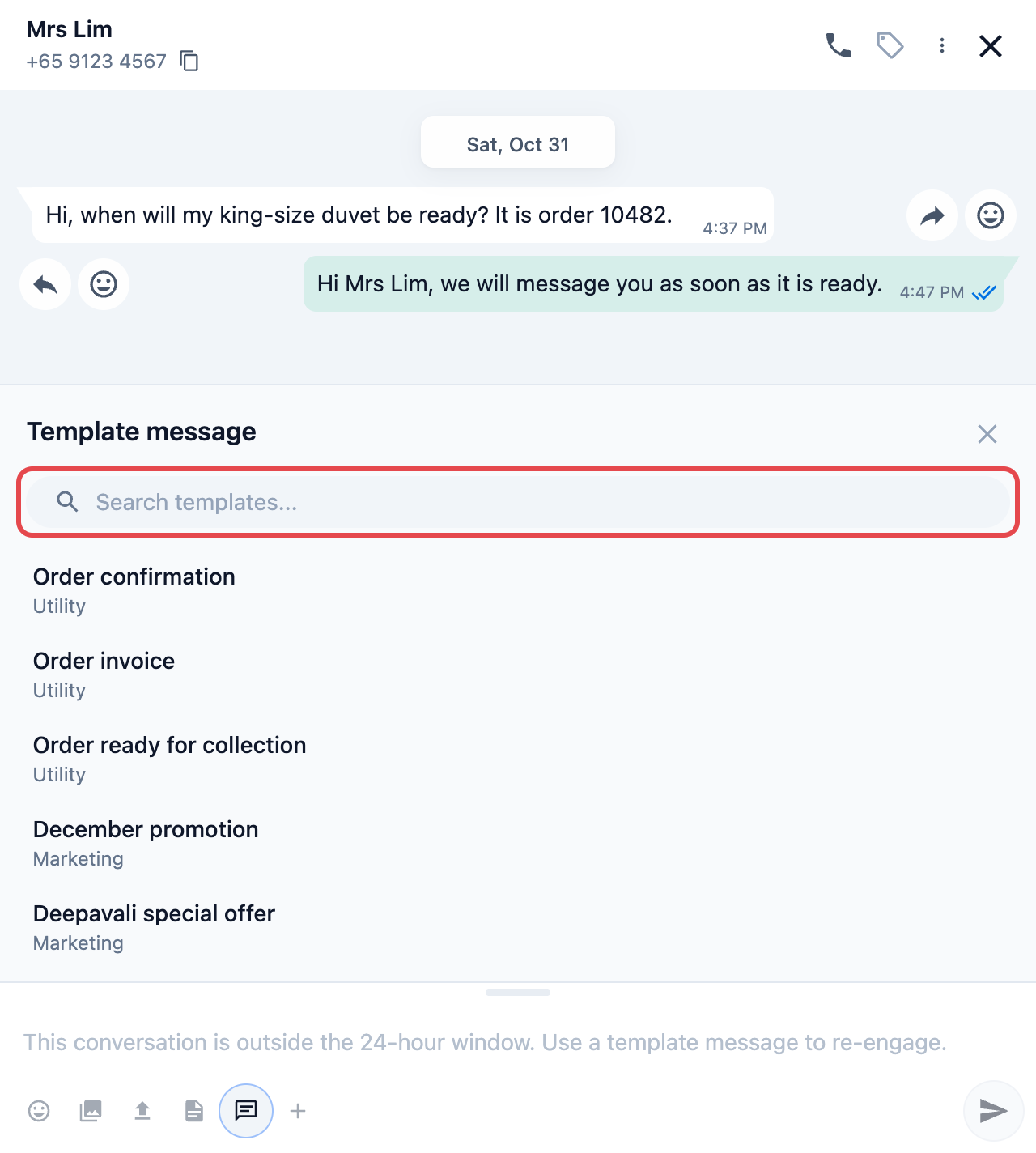
3. Pick a template. The customer's details fill in automatically.
4. If the template includes order details, choose the order under **Select Order**. The list shows the orders under the customer's phone number.
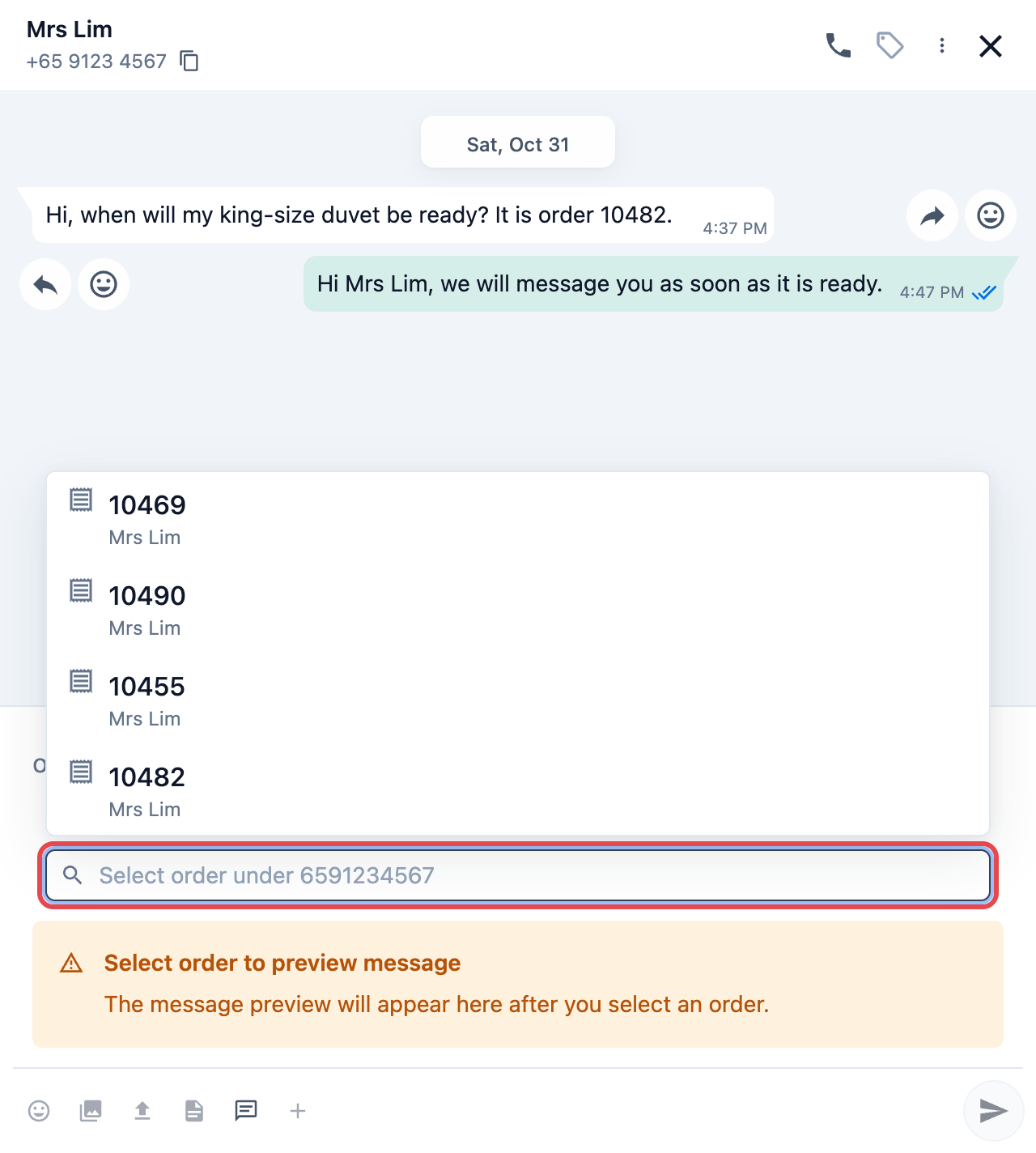
5. Check the preview, then click the send button or press Enter.
**Template types**
| **Type** | **What it's for** |
|---|---|
| Utility | Messages about an order or account, such as "your items are ready" or a payment reminder. |
| Marketing | Promotions, offers and news about your shop. |
| Authentication | One-time codes that let customers sign in. |
Every template must be approved by Meta before you can send it. You create and submit templates in Settings, as explained in [Introduction to WhatsApp Message Templates](/docs/introduction-to-whatsapp-message-templates).
Meta charges a small fee for template messages, such as each one you send to reopen a locked chat. The fee is paid to Meta, not EasyBiz, so it doesn't appear on your EasyBiz Billing page.
---
## Example: a duvet ready 3 days later
CleanFast Laundry's Tampines shop takes in a king-size duvet from Mrs Lim on Monday, 2 November, as order 10482. She messages the shop on WhatsApp that afternoon to ask when it will be ready. The duvet is ready on Thursday, 5 November.
1. Aisha at the counter opens Mrs Lim's chat in the Inbox. Her last message was 3 days ago, so the text box is locked.
2. Aisha clicks the template button and searches "ready".
3. She picks "Order ready for collection" (Utility) and chooses order 10482 under **Select Order**.
4. The preview reads: "Hi Mrs Lim, your order 10482 is ready for collection at CleanFast Laundry Tampines." Aisha sends it.
5. At 4:15 PM, Mrs Lim replies "Thanks, I'll come on Saturday."
The window is open again until 4:15 PM on Friday, 6 November. Aisha can now type a normal reply, such as the shop's Saturday opening hours.
---
## What staff and customers see
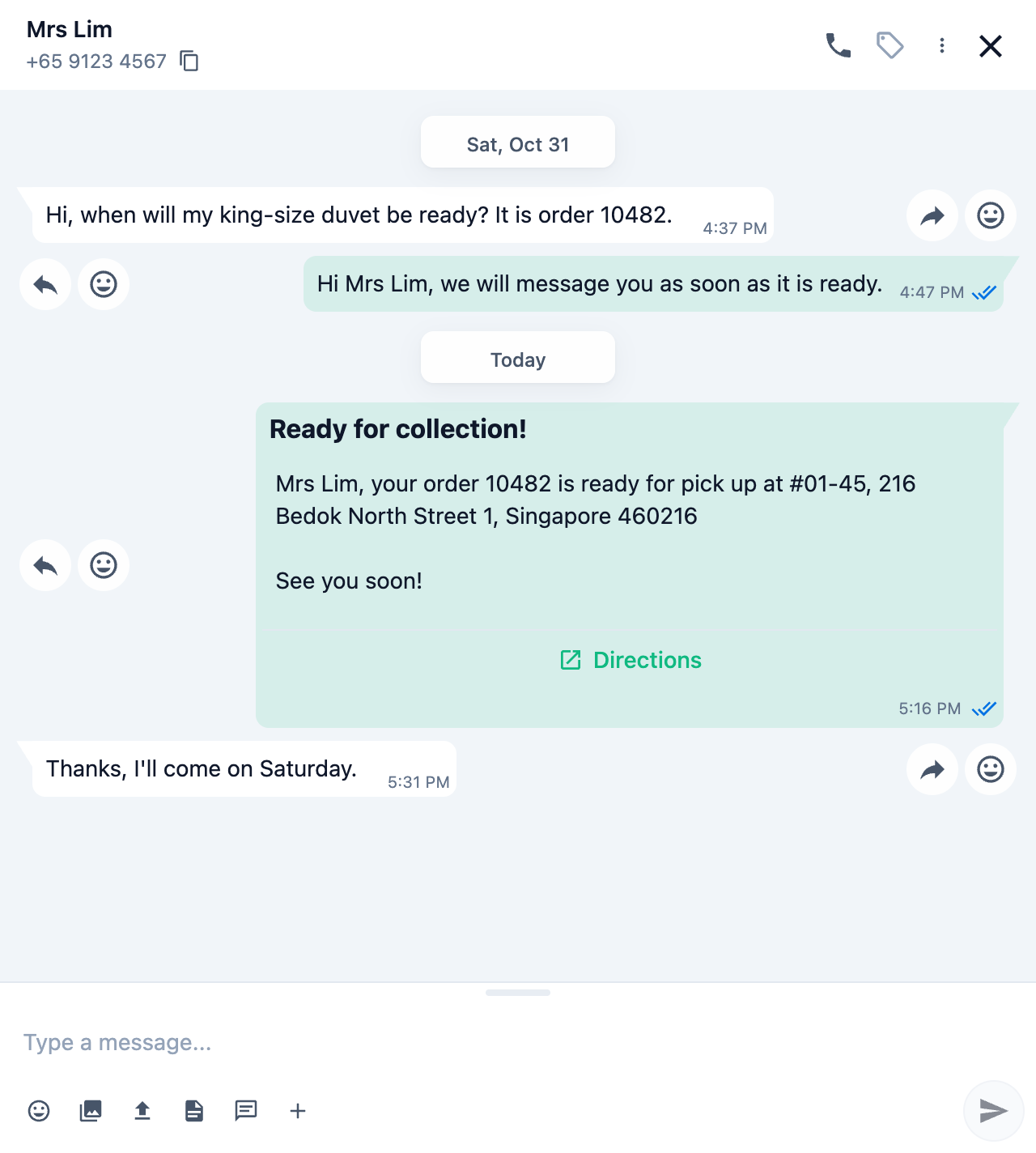
- **Staff** see the sent template in the chat, with the customer's name and order details filled in. The text box stays locked until the customer replies, then unlocks by itself.
- **Customers** get the message on WhatsApp from your business number, the same as any other message from your shop.
---
## FAQs
**Why is my template missing from the list?**
> Only templates Meta has approved appear. A new template, or one waiting for Meta to approve it, won't show yet. Check its status in Settings under WhatsApp Templates. If you have more than one WhatsApp account, the list shows the templates of the account the chat belongs to.
**The customer replied. What now?**
> The chat opens again for 24 hours from their reply, so type and send as normal. Every new message from the customer starts a fresh 24 hours.
**Can I message a customer who has never chatted with us?**
> Yes. Enter their number under Start conversation with new customer, click Start WhatsApp and send an approved template. You can type freely once they reply.
**I edited a template. Which version goes out?**
> The last version Meta approved. Your changes are only sent after Meta approves them.
**Does EasyBiz charge me for templates?**
> No. Meta charges for template messages and bills your WhatsApp account directly. EasyBiz adds nothing on top.
---
## What's Next
You can now start a WhatsApp chat with any customer and reopen chats after the 24-hour window closes. Next, learn how to keep your Inbox tidy by closing finished chats and reopening them when a customer comes back, in [Close and Reopen a Chat](/docs/close-and-reopen-a-chat).