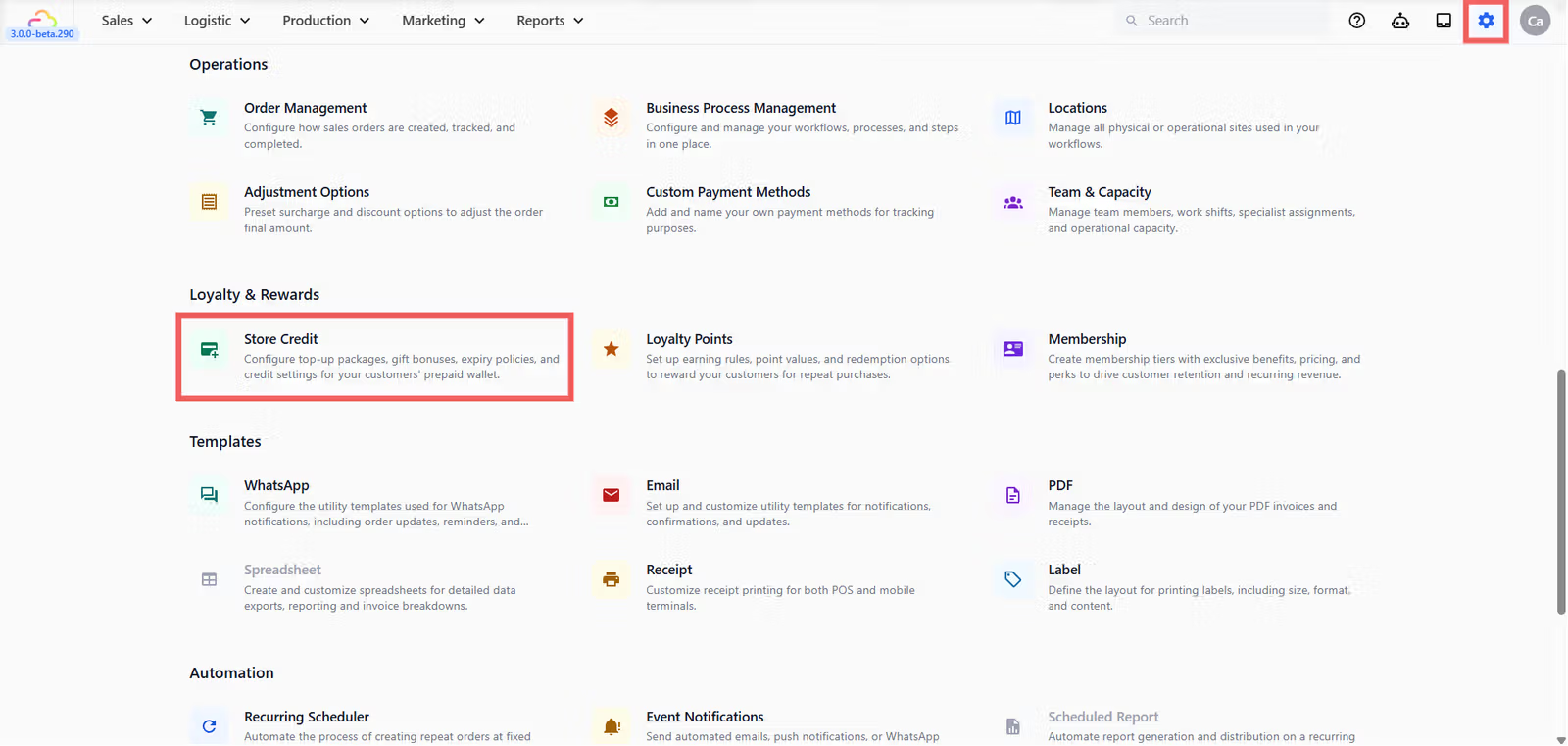
## Where to Find Store Credit Settings
1. Click the ⚙️ Settingsicon in the top-right corner.
2. Under the **Marketing** section, click Store Credit.
---
## General Settings
This section sets the default expiry on credit added to customer wallets.
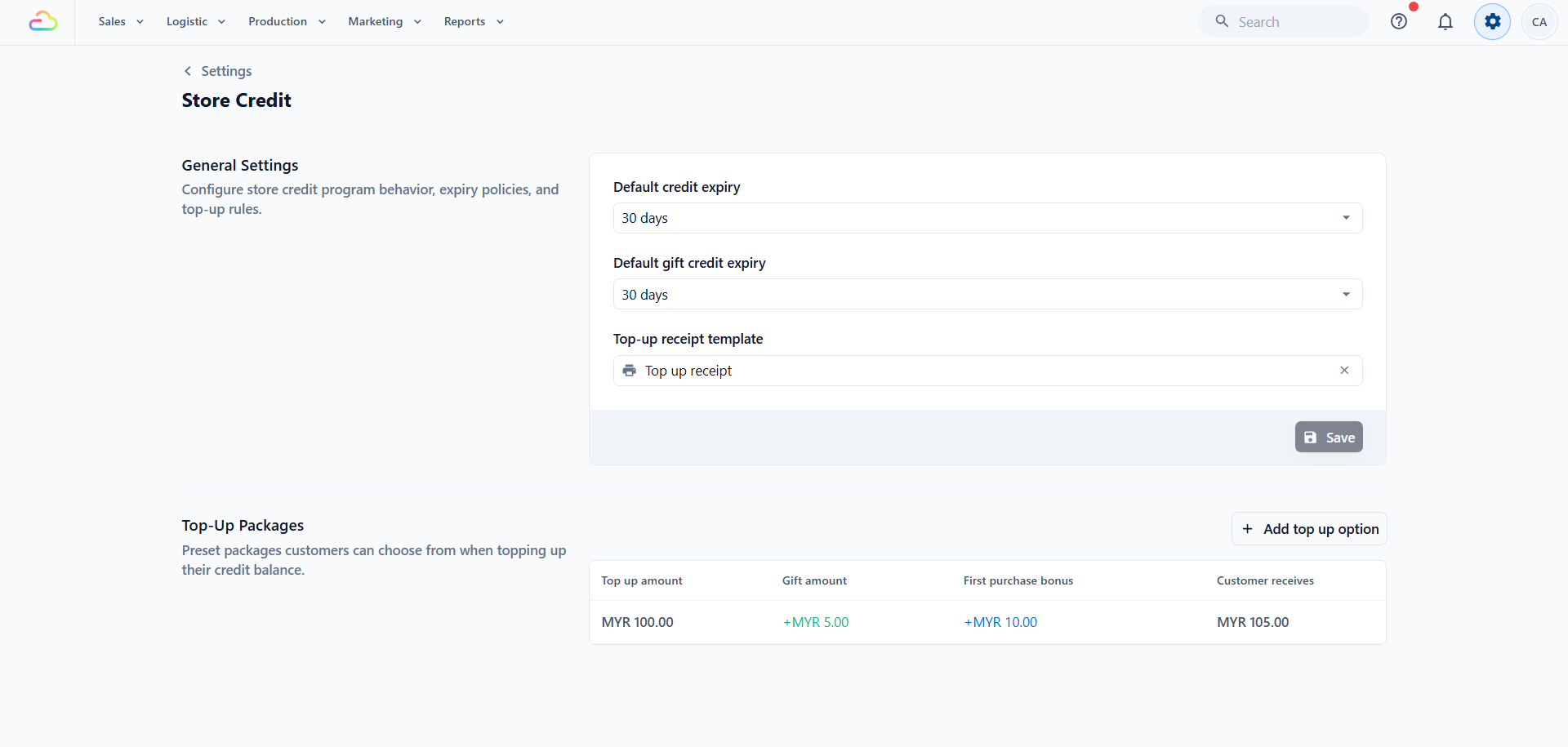
**Default credit expiry**
| Pick this | Result |
| --- | --- |
| No expiry | Credit never expires after being added |
| 30 days | Credit expires 30 days after it is added |
| 60 days | Credit expires 60 days after it is added |
| 90 days | Credit expires 90 days after it is added |
| 6 months | Credit expires 6 months after it is added |
| 1 year | Credit expires 1 year after it is added |
| 2 years | Credit expires 2 years after it is added |
| 3 years | Credit expires 3 years after it is added |
| 5 years | Credit expires 5 years after it is added |
This applies to the regular top-up amount the customer pays for.
**Default gift credit expiry**
Same options as Default credit expiry above. This applies separately to the bonus gift portion added on top of a customer's payment, so you can give bonus credit a shorter shelf life to encourage faster spending.
Setting a different expiry on gift credit lets you run promotions where the bonus must be used soon while keeping the customer's paid balance valid for longer.
---
## Choose Your Top-Up Receipt Template
Below the expiry settings, **Top-up receipt template** decides what your staff can print after a customer tops up.
Only saved top-up receipt templates appear in this list. If the list is empty, or the template you want is missing, create and save it first: see [Setting Up Your Top-Up Receipt Template](/docs/setting-up-your-top-up-receipt-template).
Once the template is saved, return here, choose it under **Top-up receipt template**, and click Save.
This is one setting for your whole business. Every outlet and every POS device prints the same top-up receipt.
## Top-Up Packages
A top-up package is a preset amount your staff can sell at the counter. The table shows: Top up amount, Gift amount, First purchase bonus, and Customer receives.
Click **+ Add top-up option** to open the new package dialog.
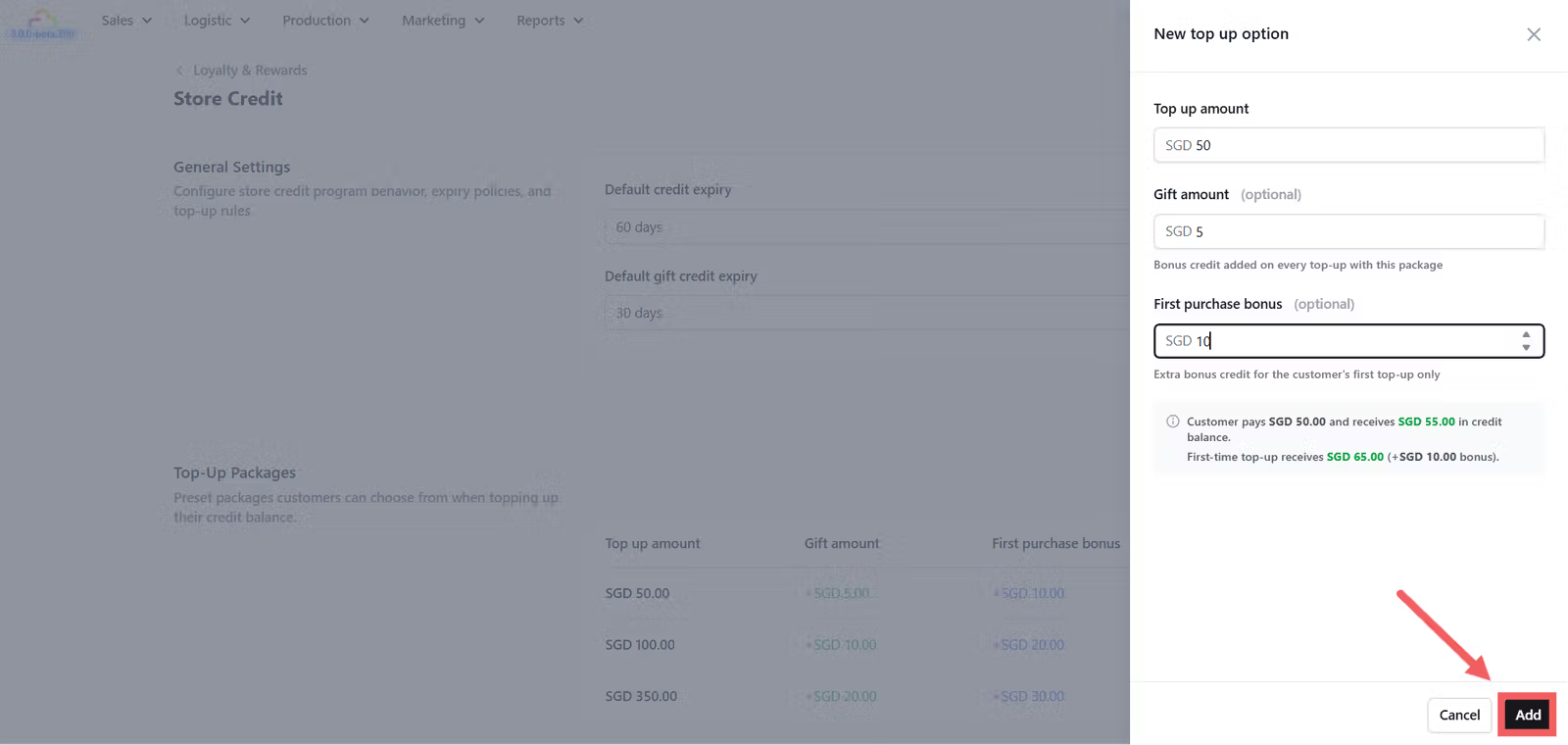
**Top up amount**
| Pick this | Result |
| --- | --- |
| Any amount | Required. The amount the customer hands over at the counter. |
**Gift amount** (optional)
| Pick this | Result |
| --- | --- |
| Empty | The customer receives only the top-up amount they paid. |
| Any amount | Bonus credit added on every top-up using this package. |
**First purchase bonus** (optional)
| Pick this | Result |
| --- | --- |
| Empty | No first-time bonus is given |
| Any amount | An extra one-time bonus added only on the customer's first top-up using this package. |
The **Customer receives** column in the table shows the top-up amount plus the gift amount. The first purchase bonus is not included in that column because it only applies to a single customer's first top-up.
A laundry shop creates a $100 package with a $10 gift amount and a $20 first purchase bonus. A first-time customer pays $100 and receives $130 in their wallet. The same customer's next top-up of $100 gives them $110.
---
## How the Balance Is Tracked
Think of a customer's Store Credit wallet like a stack of gift cards rather than one big pile of money. Each top-up creates separate lots — one for the paid amount and one for the gift amount — each with its own expiry date. When a customer pays with credit, the system always uses the lot expiring soonest first, so bonus credit gets spent before it expires and paid credit stays safe until later.
A customer tops up $100 with a $10 gift bonus. Paid credit has no expiry, gift credit expires in 90 days. When they next pay $14 with credit, the system takes $10 from the gift lot first and $4 from the paid lot. If the gift lot expires before they spend it, only the $100 paid lot remains.
---
## How Staff Top Up Credit at the POS
To enable the Credit tab on your POS, see [Set Up Store Credit on Your POS](/docs/set-up-store-credit-on-your-pos).
---
## FAQs
**Do I need to set up top-up packages before I can take credit at the counter?**
> No. Even with no packages defined, staff can use + Custom Amount to top up any value. Packages are useful when you want to reward bigger payments with bonus credit.
**Can I shorten the expiry of credit that has already been added?**
> No. The expiry is set when the credit lot is created. Changing the default expiry later only applies to credit added after that change.
**Do I need to choose a receipt template before staff can top up credit?**
> No. Top-ups work either way. Without a chosen template, staff simply have no printable slip to hand over on newer POS apps, and older apps fall back to EasyBiz's fixed built-in slip.
**Does the first purchase bonus apply once per customer or once per package?**
> Once per customer per package. If you have two packages with first purchase bonuses, a customer can receive a first-time bonus the first time they buy each package.
**Which lot is spent first when a customer pays with credit?**
> The lot that expires soonest. Lots with no expiry are spent last, so customers never lose dated bonus credit while their no-expiry paid credit sits unused.
**What happens if a customer tries to pay with credit that has expired?**
> Expired lots cannot be used. The expired credit disappears from their balance. Staff need to accept another payment method or add new credit before the order can be completed.
---
## What's Next?
Now that your packages and expiry rules are set, continue to [Set Up Store Credit on Your POS](/docs/set-up-store-credit-on-your-pos) to make the Credit tab visible to your counter staff.