## What Is the Laundry Business Unit?
It is the setup page where all sections come together into one running shop: your price list, your stages, your flows, and your documents. Required sections come first, optional sections come at the end. By the end, your counter will be ready to take laundry orders.
---
## What You Can Try Now
These sections are ready to set up:
- [Catalog](/docs/setting-up-your-business-unit-for-laundry#catalog) (your price list)
- [Documents](/docs/setting-up-your-business-unit-for-laundry#documents) (receipts, invoices, and label templates)
- [Line Item Flows](/docs/setting-up-your-business-unit-for-laundry#line-item-flows) (for items like curtains that need measurements)
---
## Catalog
The Catalog section controls what appears on screen when staff create an order.
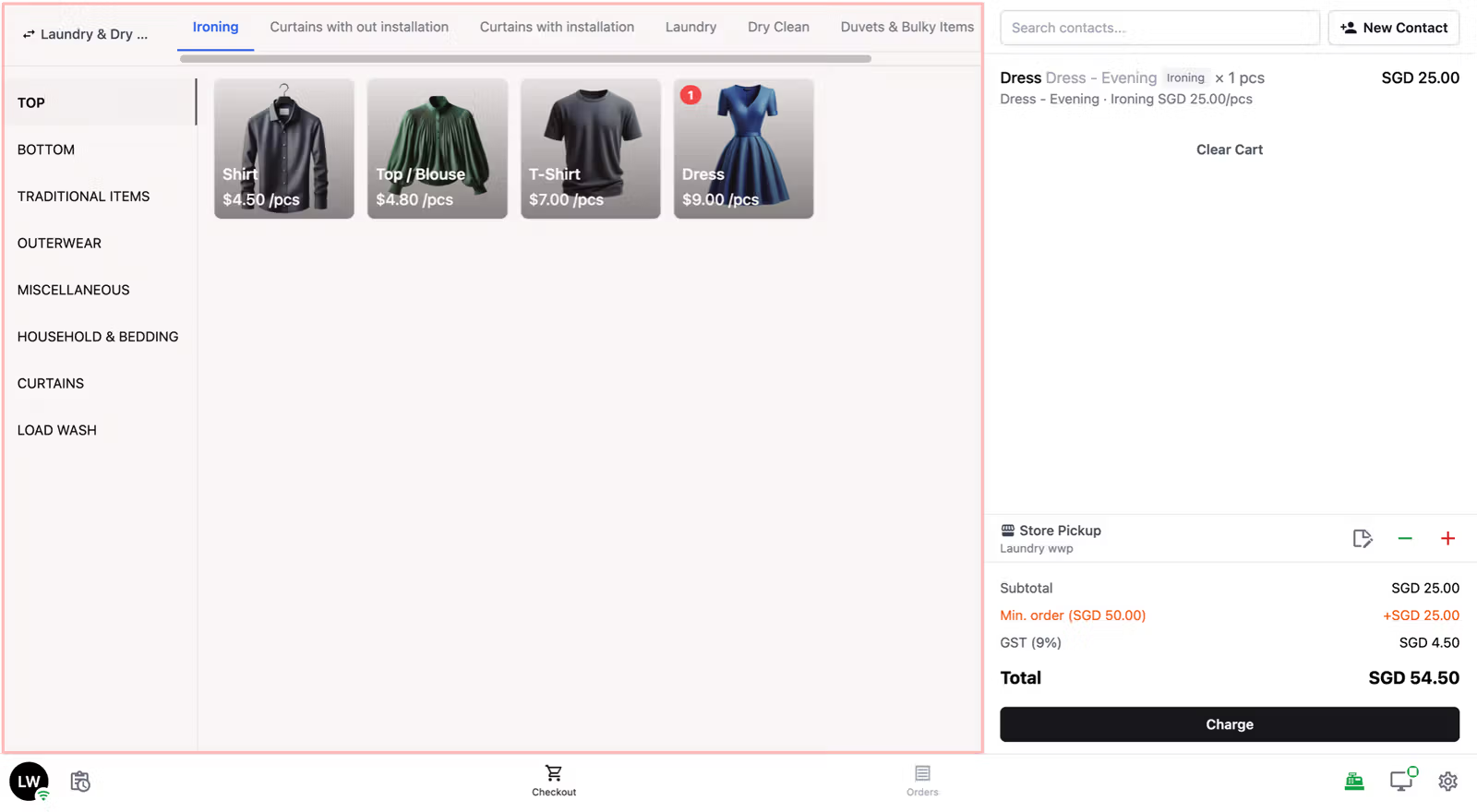
This Catalog step connects the business unit to the price list that already exists for it. Do not create services, catalog items, or a new price list from this section.
### Step 1: Choose your product source
| Option | What it means | Best for |
| --- | --- | --- |
| Price List | A fixed price per item — Shirt $2.50, Pants $4.00. Staff tap and the price is already filled in. | ✅ Laundry and dry cleaning shops |
| Products | A catalog of individual items with variable pricing — useful when prices differ per item or condition. | Bag repair and specialist services |
| Service Options | Pricing based on service type first (e.g. Dry Clean, Express Wash) rather than individual items. | Service-led pricing models |
### Step 2: Choose the sales channel scope
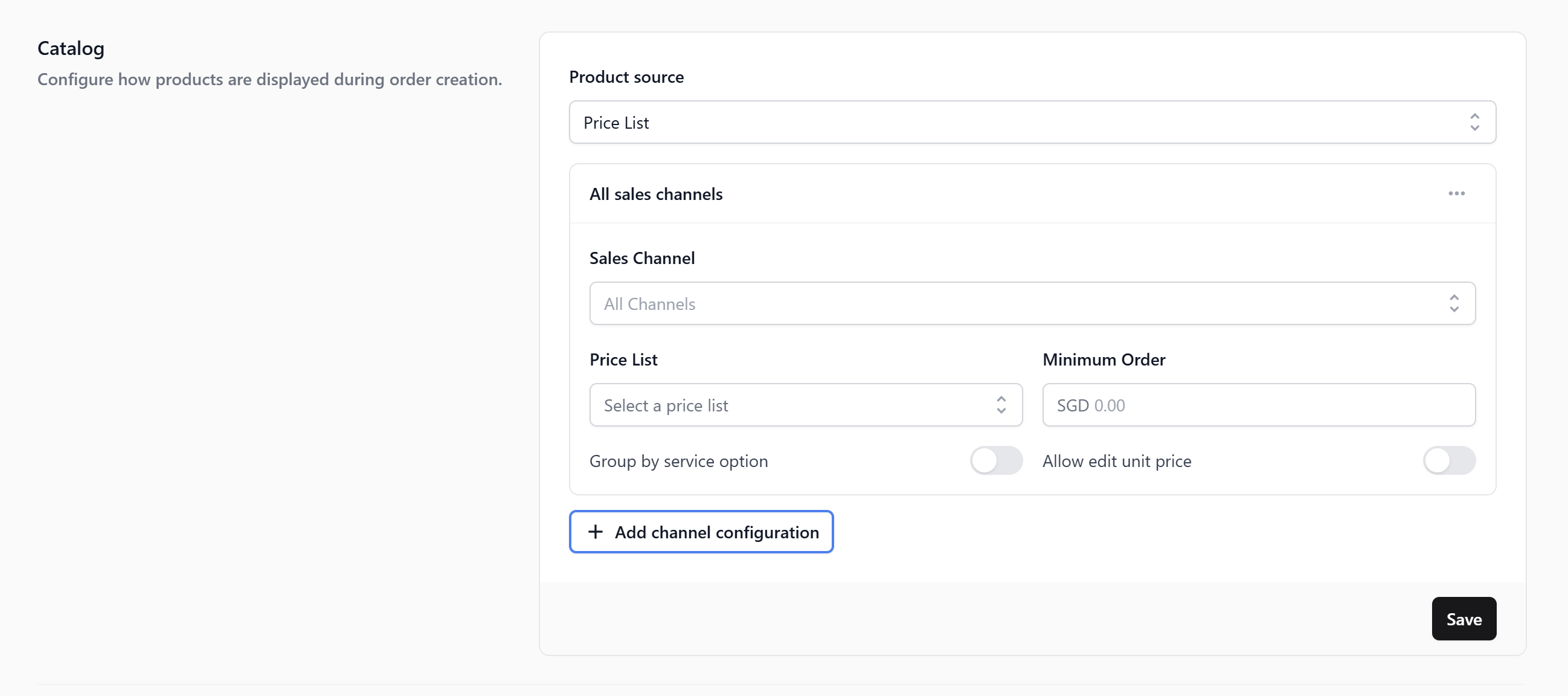
After selecting Price List, a table appears. Click + Add channel configuration and fill in the following:
- **Sales channel** → who this price list applies to:
- All Stores (POS): every physical counter you have
- All Online: all your online storefronts
- Or choose a specific counter or online store for different pricing
- **Price list** → select the existing/default price list for this business unit
- **Minimum order** → the minimum order value for this channel (e.g. SGD 40). Set to $0.00 if you do not want one.
- **Group by service option** → turn on to group items by service type (e.g. Dry Clean, Laundry, Ironing) as separate sections. Useful if your price list covers multiple service types.
- **Allow edit unit price** → turn on if staff sometimes need to change an item's price manually. Turn off to keep prices fixed.
Click Save when done.
Use one row when one scope covers the shop. Add another row only when a different channel scope needs different catalog behavior or a different price list.
---
## Line Item Flows
A Line Item Flow is a short form that appears the moment staff add a specific item. Staff enter the measurement and the number of physical items, and the system calculates the price and generates the right number of labels automatically.
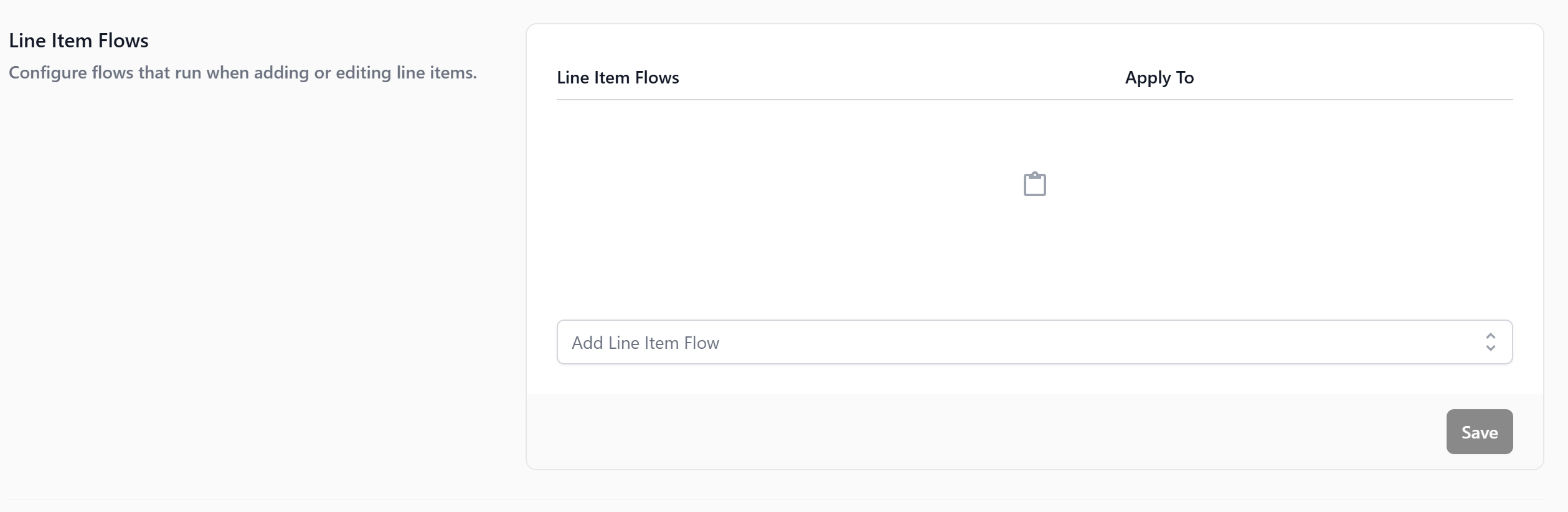
This is useful for items where the price depends on a measurement taken at drop-off for example curtain size, bulk linen weight, rug length. The measurement (Quantity) determines the price. The item count (Pieces) determines how many labels the system prints for that order line. Without it, staff would have to calculate the price by hand and the system would not know how many labels to generate.
Skip this entirely if all your items have a fixed price per piece. You only need it for curtains, duvets, rugs, or any item charged by measurement or weight.
A customer drops off 5 curtain panels. Staff tap Curtain and a short form appears. They enter 25 sqft and 5 pieces. The system calculates 25 sqft × $3.50 = $87.50 automatically and adds the item to the cart. For a bulk laundry bag, staff enter 5 kg, and the system calculates 5 kg × $4.50 = $22.50. No manual price entry needed in either case.
> Full setup: [Setting Up Line Item Flows for Measurement-Based Items](/docs/setting-up-line-item-flows-for-measurement-based-items)
---
## Checkout Flows
A Checkout Flow is an optional form that appears once per order, just before the order is created. Use it only when you need to collect extra information beyond the standard cart.
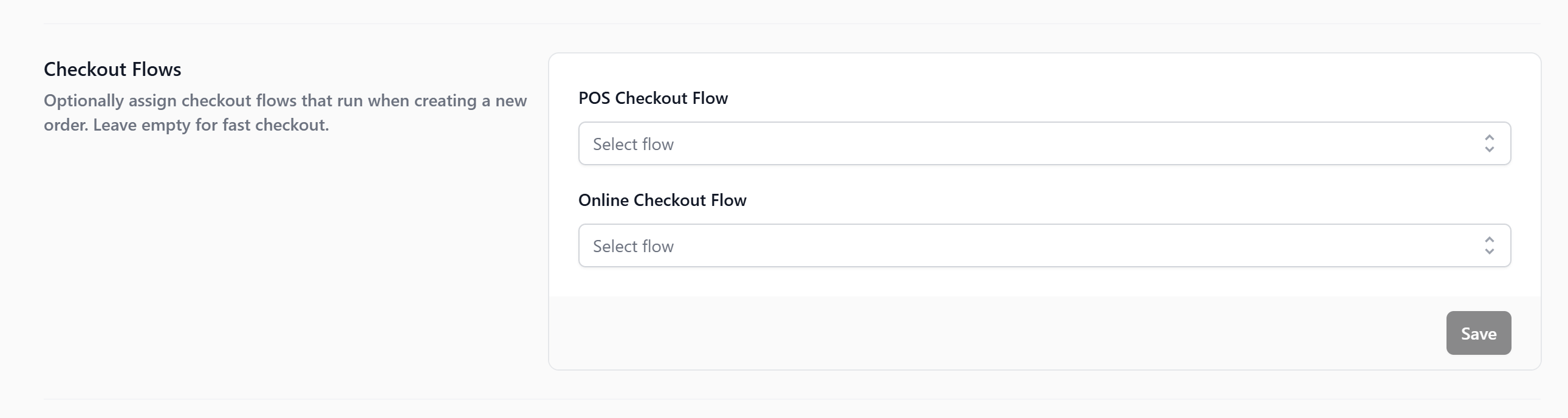
- **POS Checkout Flow** → runs when staff create an order at the counter
- **Online Checkout Flow** → runs when a customer places an order through your online store
> Full setup: Setting Up Checkout Flows _(guide coming soon)_
---
## Order Pipeline
An Order Pipeline defines the stages an order moves through, from when it is created to when the customer collects. Each stage is a checkpoint your team can see at a glance.
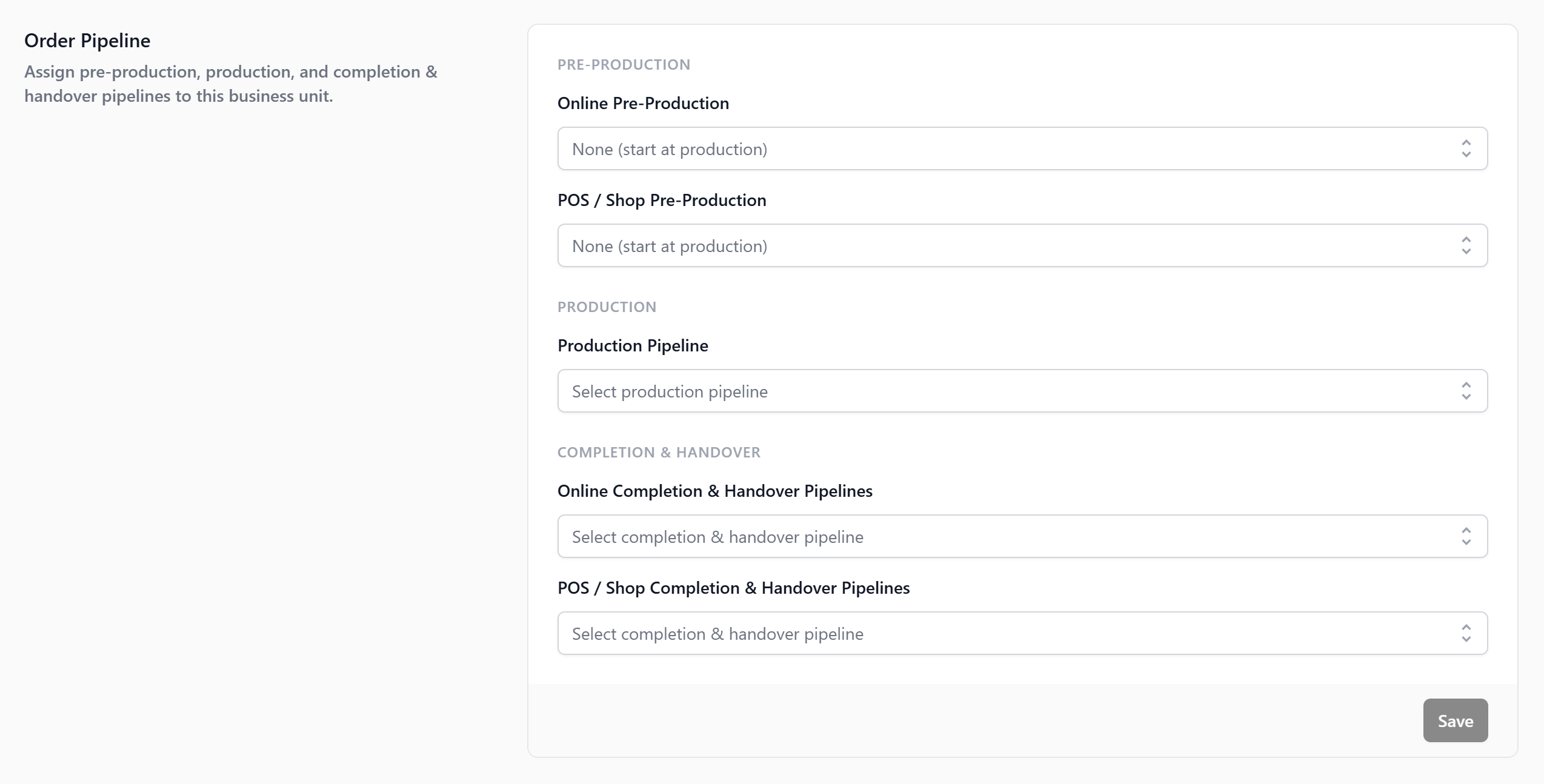
Without a Pipeline, your staff cannot see what stage an order is in, customers cannot be notified when their order is ready, and the POS will not let staff select store pickup or home delivery at checkout.
A customer drops off their laundry. The order moves through Pending Service, Service In Progress, Pending Packing, Ready for Collection, Order Completed. Each stage is visible on the orders list, and some stages advance on their own when the right thing happens.
> Full setup: Understanding Order Pipelines _(guide coming soon)_
---
## Work Orders
Work Orders is a task that EasyBiz creates at a specific production stage. Your team completes the task, and the order advances to the next stage on its own.

This is for a detailed per-stage tracking. Lets you break a single Production stage into fine-grained steps like Washing, Pressing, Bagging, Sorting, and Packed, assign each to a role, and scan each item as it moves through.
A high-volume laundry shop turns on Work Orders for each production stage. Washers scan each shirt when they finish washing, and the shirt moves from Washing to Pressing automatically. No one has to tap through the order screen.
> Full setup: [Configuring Work Orders](/docs/configuring-work-orders)
---
### Packing Flows
Packing flow is a per-item packing steps that run during prep, before fulfillment is confirmed e.g. bagging, tagging, quality check, photo.
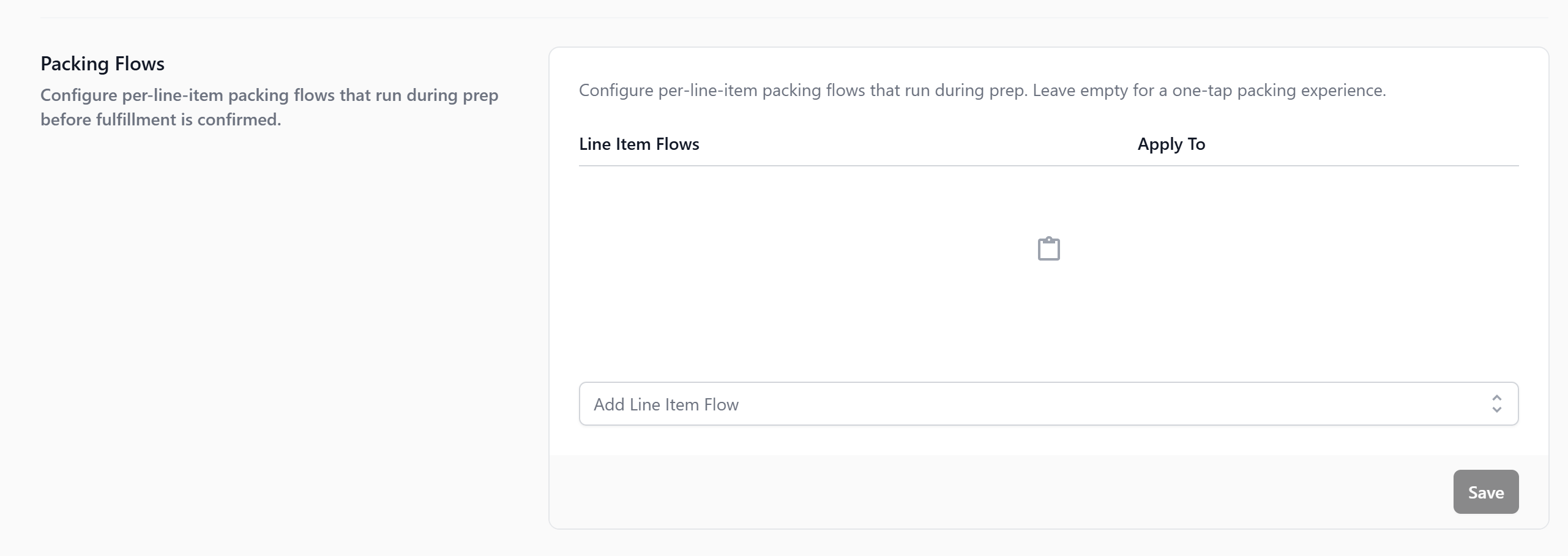
Use this for a structured flow which ensures every item is tagged, bagged, and checked before it goes out.
For each item — tag with order number, bag, take a photo of the packed bag, mark ready.
> Full setup: Setting Up Packing Flows _(guide coming soon)_
---
### Completion & Handover Flows
Completion & Handover are the steps taken at completion, collection, delivery, or on-site handover e.g. signature, photo, payment confirmation.
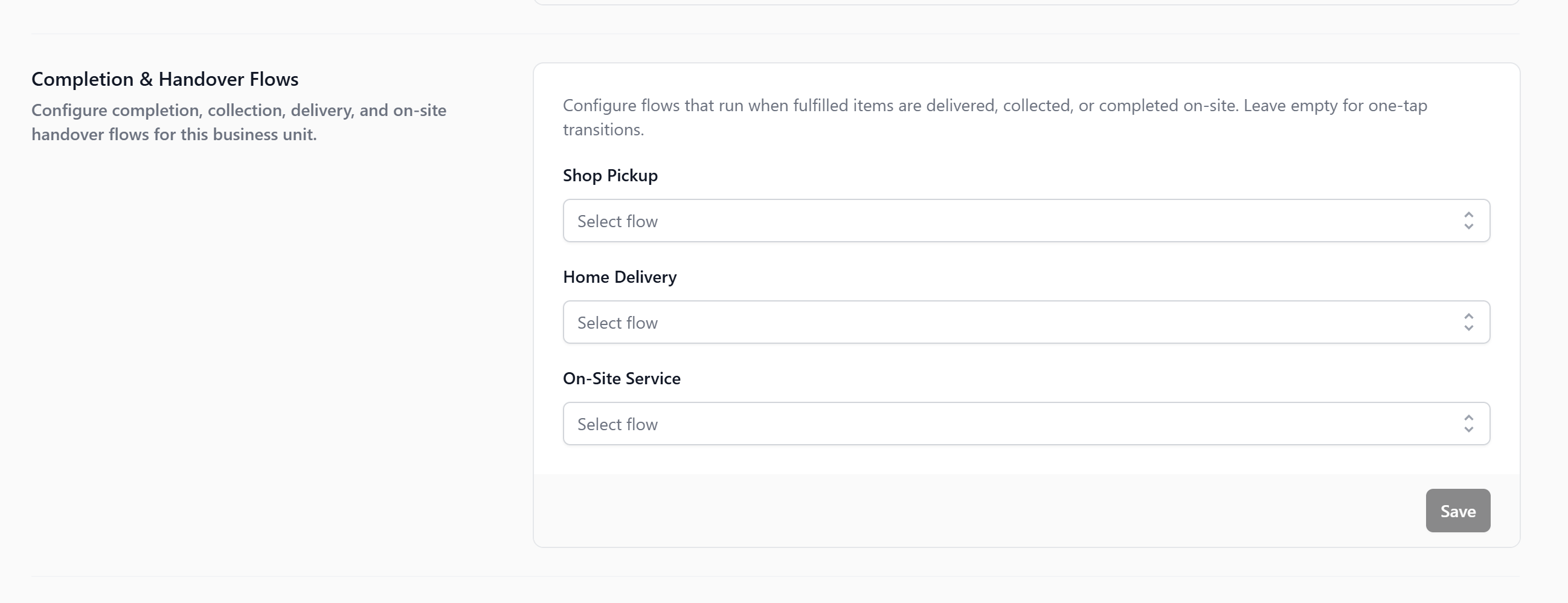
Use this if you need a consistent flow that prevents disputes and captures proof of delivery or collection.
Home delivery driver captures recipient signature and a photo of the delivered bags. Store pickup staff scans the order, customer signs on the POS, receipt prints.
> Full setup: Setting Up Completion & Handover Flows _(guide coming soon)_
---
## Documents
The Documents section is where you link your business unit to its print and digital templates — receipts, invoices, and item labels. Without this, orders can still be created, but no receipts or labels will be generated.
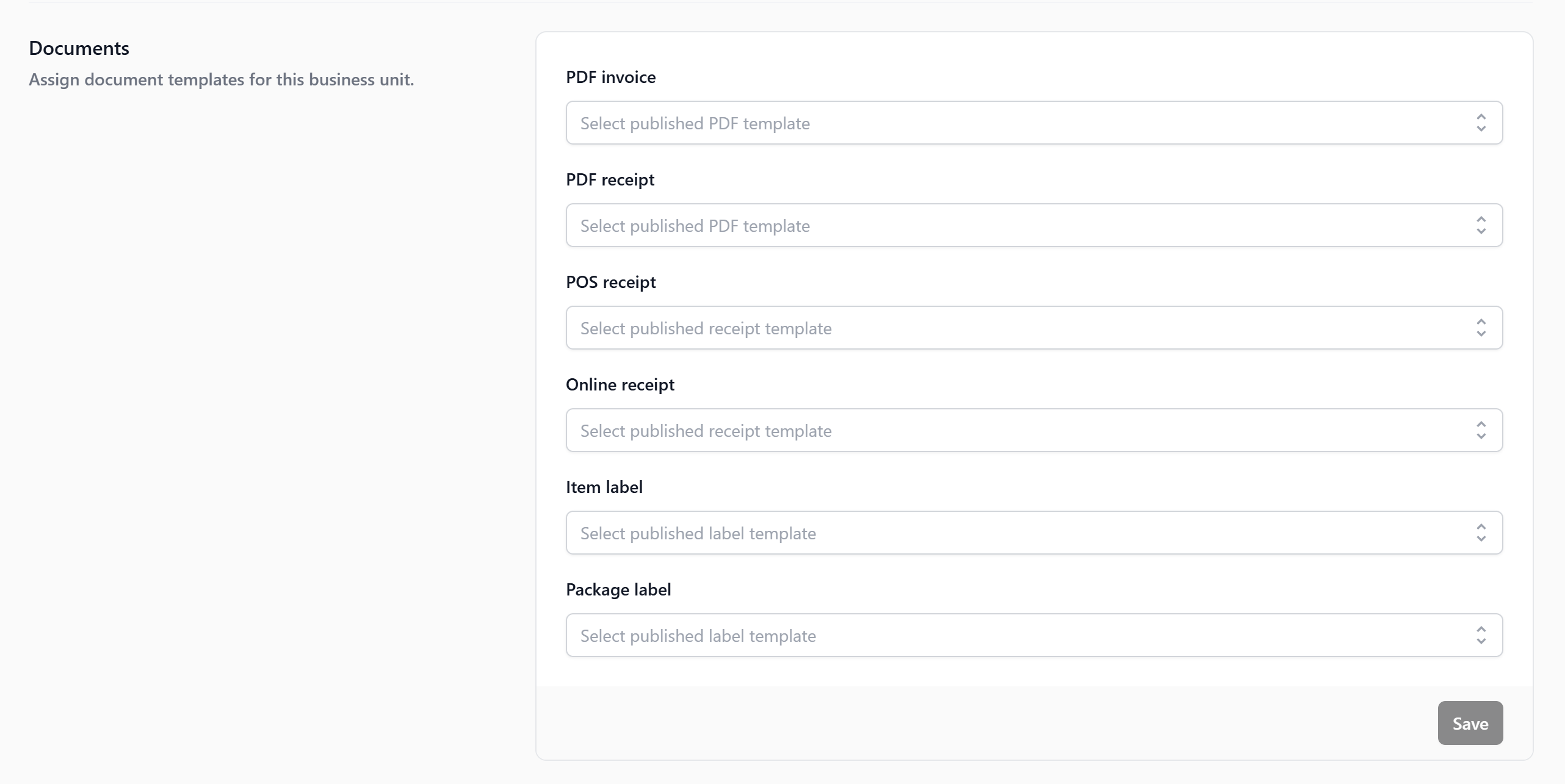
Here are the document types you can assign:
| Field | What it is for |
| --- | --- |
| POS Receipt | Prints at the counter when an order is created |
| Online Receipt | Sent to customers who order online |
| PDF Receipt | A printable PDF for emailing or record-keeping |
| PDF Invoice | A formal invoice for corporate or bulk clients |
| Item Label | A label attached to each individual garment at drop-off |
| Package Label | A label for the full order bag or package |
### Create your templates
Each document type needs a published template before it can be assigned. The steps are the same for all types:
1. Go to Settings→ scroll to **Templates** → click the relevant template type (**PDF Templates**, **Receipt Templates**, or **Label Templates**).
2. Click + Add Template and select a pre-configured template as your starting point:
- **PDF Templates** → add **Order Receipt** for receipts and **Order Invoice** for invoices. If you don't issue formal invoices, just add the Order Receipt.
- **Receipt Templates** → select **POS Receipt** for your counter or **Online Receipt** for online orders. Add both if you use both channels.
- **Label Templates** → for item labels, choose **Single line**, **Multi-line tight**, **Multi-line normal**, or **Multi-line large**. For order packages, select **Package label**. You can add both.
3. Customize the design to your preference. Type `@` to insert placeholders like `@Order Number`, `@Customer Name`, or `@Store Name`.
4. Click Publish.
For Label Templates only — before publishing, set the **Label Width** and **Label Height** to match your physical label printer dimensions. If they don't match, labels will print at the wrong size.
Once published, the template will appear in the list with an **Active** status.
### Assign your templates
1. Go to Settings→ **Administration** → Business Units.
2. Select your **Laundry Business Unit** and scroll down to the **Documents** section.
3. For each field, select the matching template you just published — for example, your POS Receipt template in the **POS Receipt** field, your Item Label template in the **Item Label** field, and so on.
4. Click Save.
At minimum, set up a **POS Receipt** before opening your counter. Everything else can be added as you need it.
---
## 🚧 More Coming Soon
These sections are still being finalized. Full guides will be available soon:
- Order Pipeline (Production) → Setting Up Your Production Pipeline for Laundry _(guide coming soon)_
- Order Pipeline (Fulfillment) → Setting Up Your Fulfillment Pipeline _(guide coming soon)_
- Order Pipeline (Pre-Production) → Setting Up Your Pre-Production Pipeline _(guide coming soon)_
- Checkout Flow (for custom steps at checkout) → Setting Up Your Checkout Flow _(guide coming soon)_
- Work Orders (for detailed per-stage tracking) → [Configuring Work Orders](/docs/configuring-work-orders)
- Packing Flows (for structured packing steps per item) → Setting Up Your Packing Flows _(guide coming soon)_
- Completion & Handover Flows (for guided steps at delivery or collection) → Setting Up Your Completion & Handover Flows _(guide coming soon)_
Fulfillment cannot activate without Production stages defined. Even a simple 3-stage Production pipeline is enough to make Home Delivery and Store Pickup available at checkout.