## What the Job Map is for
The Job Map is the geographic view of your pickup, delivery, and on-site jobs. It helps dispatchers see where jobs are, compare nearby stops, check driver positions, and open a job without leaving the map.
In Console 3.0, the Job Map is a dedicated map-only page. Calendar views such as Day, Week, and Month are no longer part of this page.
For a multi-market business, the Job Map displays one **Location** at a time. Each Location belongs to a **Market**, such as Singapore or Malaysia. Switch Locations to move between the operating areas in your account.
A Market is the country or commercial region where you operate. A Location is the city or operational area inside that Market. For example, Malaysia may be the Market, while Kuala Lumpur and Johor Bahru are separate Locations.
---
## Before you start
Make sure each operating area has been created under **Settings > Markets & Locations**.
Every Location used by the Job Map needs:
- A Location name.
- City Center Coordinates.
- A Catchment Radius.
- The correct Market.
A job automatically keeps the Market and Location of its parent order. You do not need to assign the Market again on the Job Map.
The Job Map cannot display a Location correctly if its City Center Coordinates are missing.
---
## Open the Job Map
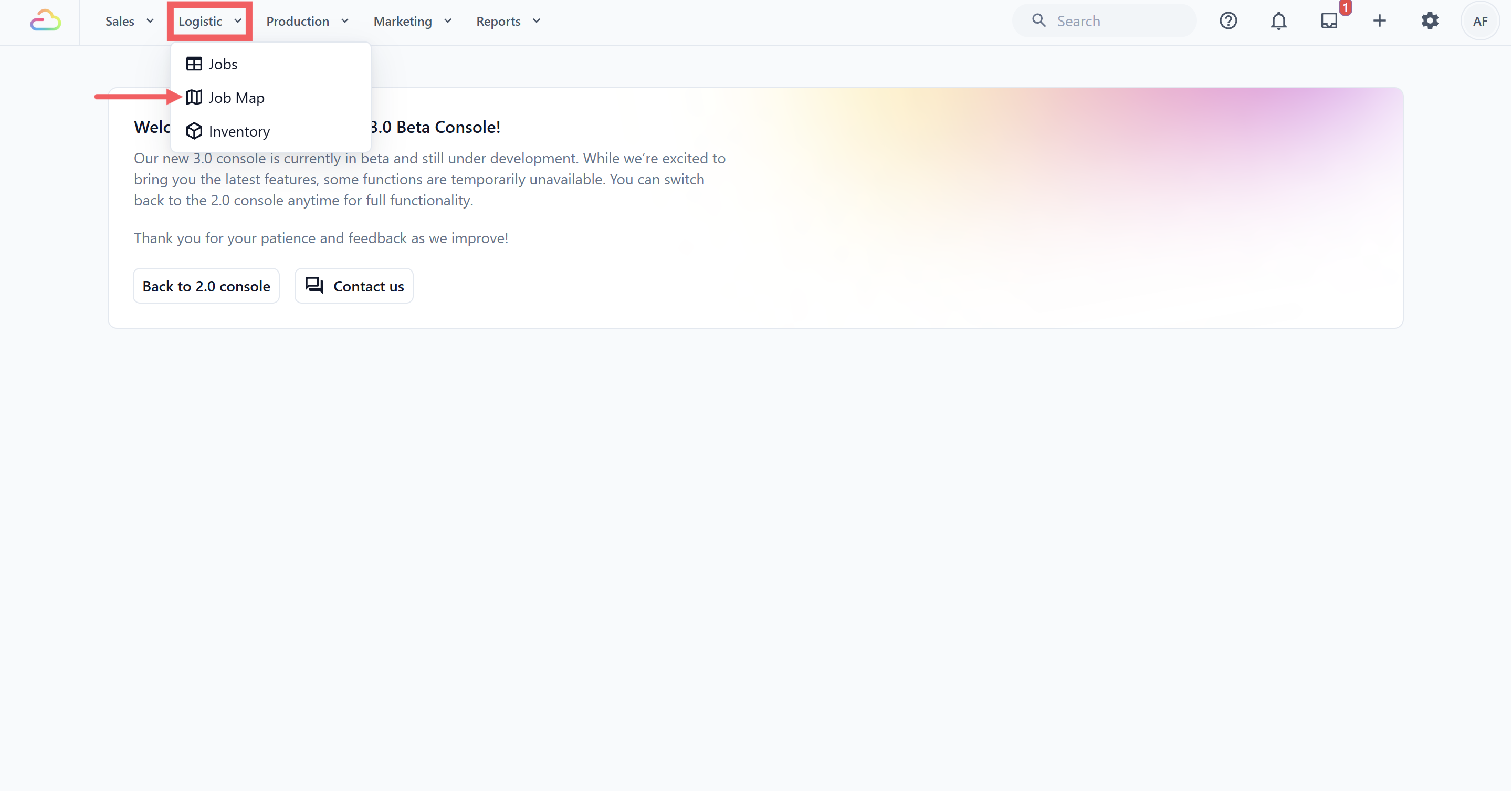
1. In the top navigation bar, click the **Logistic** dropdown.
2. Click **Job Map**.
3. Check the **Location** selector in the top-right corner of the page. The map opens using your assigned or default Location. If neither is available, it uses the first configured Location.
---
## Select a Market and Location
Use the **Location** selector in the top-right corner to choose the operating area you want to view.
Each option shows the Location name together with its Market. For example:
| Location | Market |
| --- | --- |
| Singapore | Singapore |
| Kuala Lumpur | Malaysia |
| Johor Bahru | Malaysia |
When you select another Location, the map:
- Moves to that Location’s configured city center.
- Adjusts its starting zoom using the Location’s Catchment Radius.
- Shows jobs belonging to that Location for the selected date or date range.
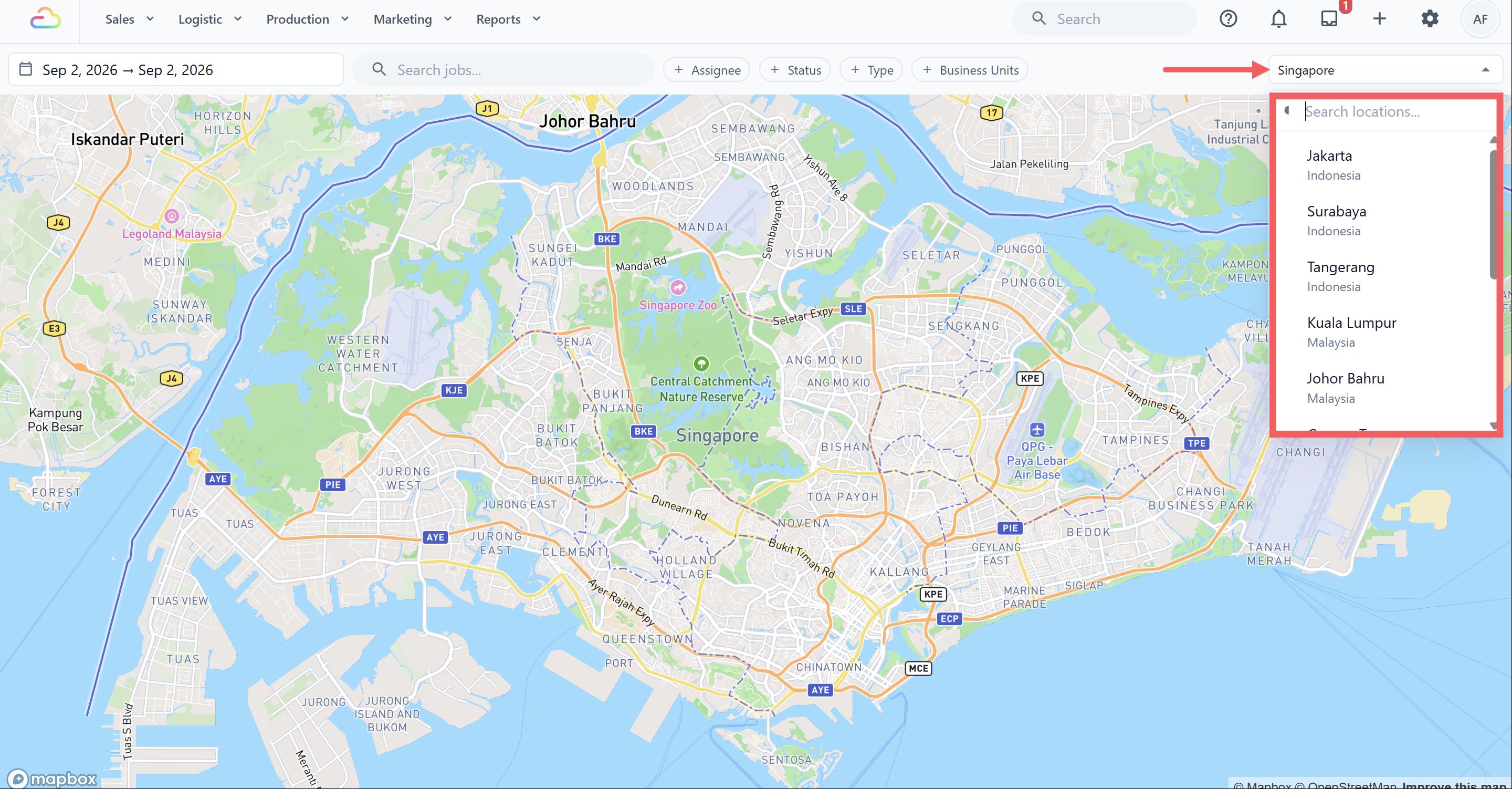
Changing the Location selector only changes what you are viewing. It does not move jobs between Locations or Markets.
---
## Find and filter jobs
Use the controls above the map to narrow down the jobs you need.
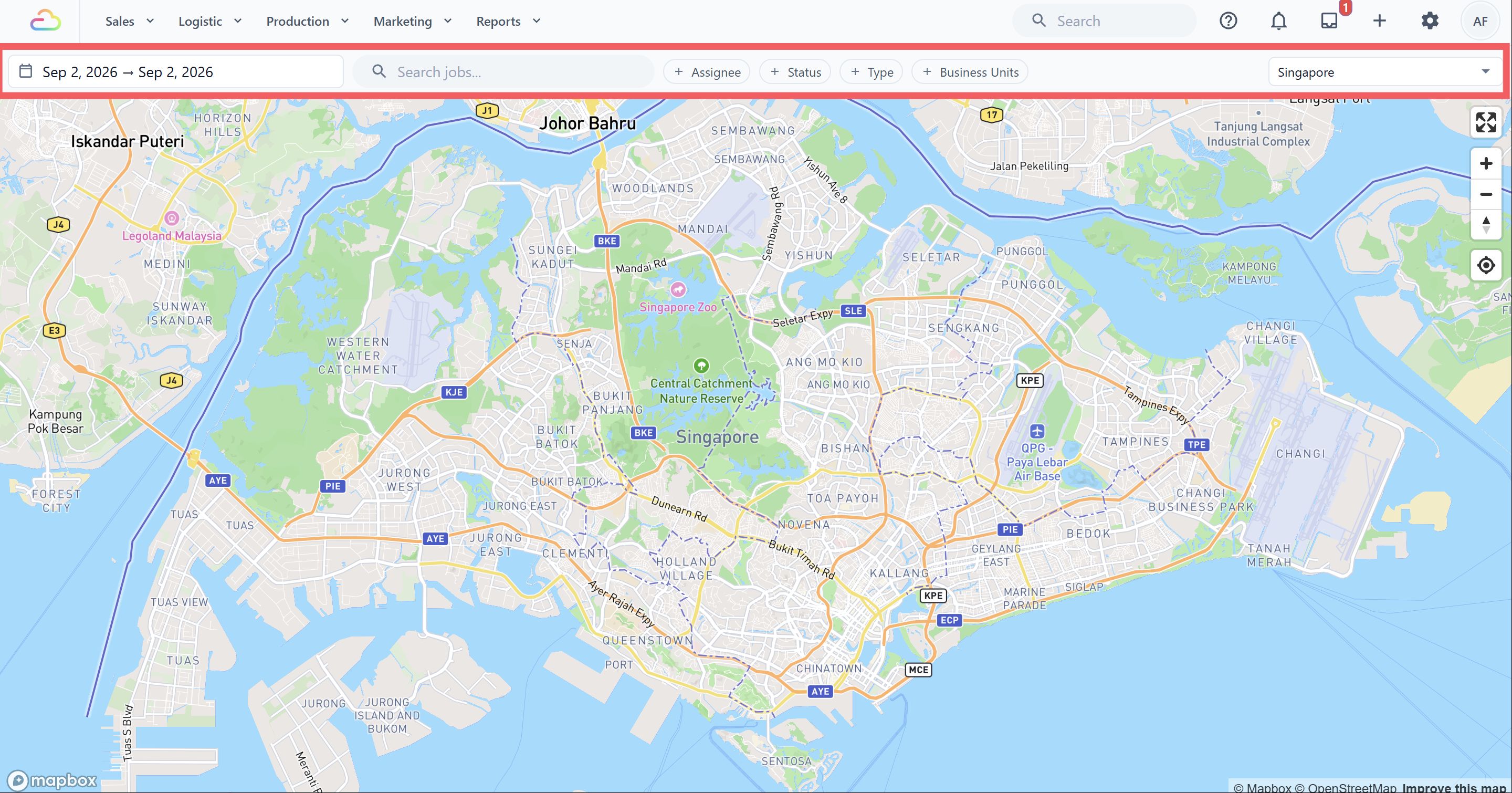
| Control | What it does |
| --- | --- |
| Date range | Shows jobs for one day or a selected range of dates. |
| Search jobs | Finds jobs by details such as order number, customer, address, assignee, job type, status, Business Unit, or note. Select a result to move directly to its pin. |
| Assignee | Shows jobs assigned to selected workers, including unassigned jobs when applicable. |[10:22 AM]| Status | Shows selected job statuses only. |
| Type | Shows only selected pickup, delivery, or on-site service jobs. |
| Business units | Shows jobs for selected lines of business, such as Laundry and Garment Care or Bag Repair. |
| Job status legend | Shows the number of jobs in each status. Select a status to show or hide it on the map. |
| Location | Changes the active operating Location and its Market. |
Select **Clear filters** to remove the Assignee, Status, Type, and Business Unit filters. The selected Location remains active.
Staff with assigned-only job access see only the jobs assigned to them.
---
## Map and job markers
Every job with a valid mapped address appears as a marker. Each marker displays the order number or job type, the assignee, and an icon and colour representing its status.
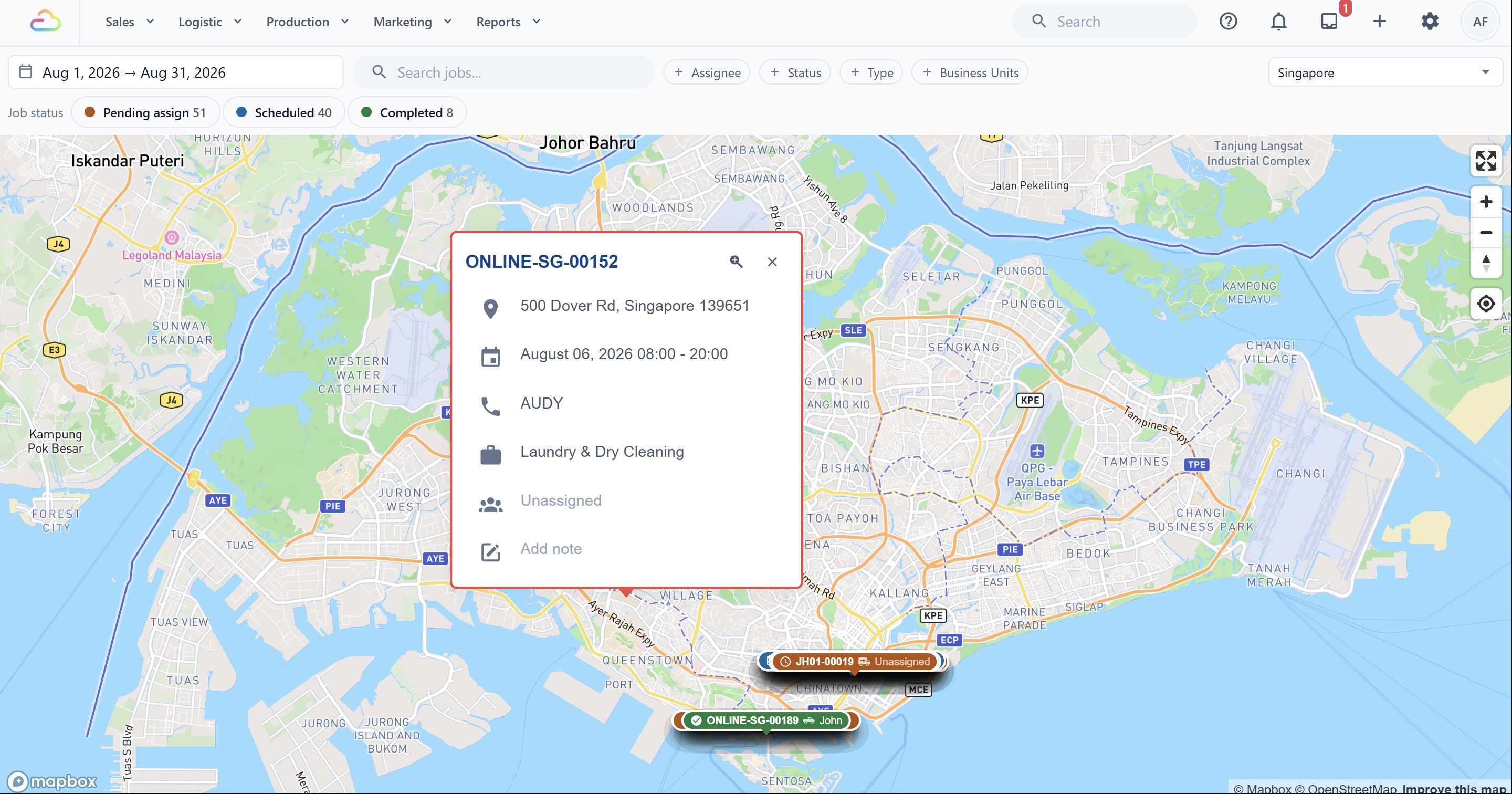
The job status may include:
| Status | Meaning |
| --- | --- |
| Pending assign | The job does not currently have a driver or worker. |
| Scheduled | The job has been scheduled or assigned. |
| Driver collected | The driver has collected the order. |
| Completed | The job has been completed. |
| Failed | The job could not be completed. |
| Cancelled | The job was cancelled. |
Select a job marker to open its detail panel. From there, you can review its order, address, date, customer contact, Business Unit, service details, assignee, and note. When an order link is available, select the order number to open the full order.
---
## Update a job from the map
Select a job marker to open its details. From the detail panel, you can update the job’s address, date, assigned worker, or note.
1. Select the job marker on the map.
2. Select the detail you want to update.
3. Enter or select the new value. For an address change, click **Save** after entering the new address.
4. Repeat these steps if you want to update other details or jobs.
5. Click **Confirm updates** at the top of the page. This button appears after you make a change.
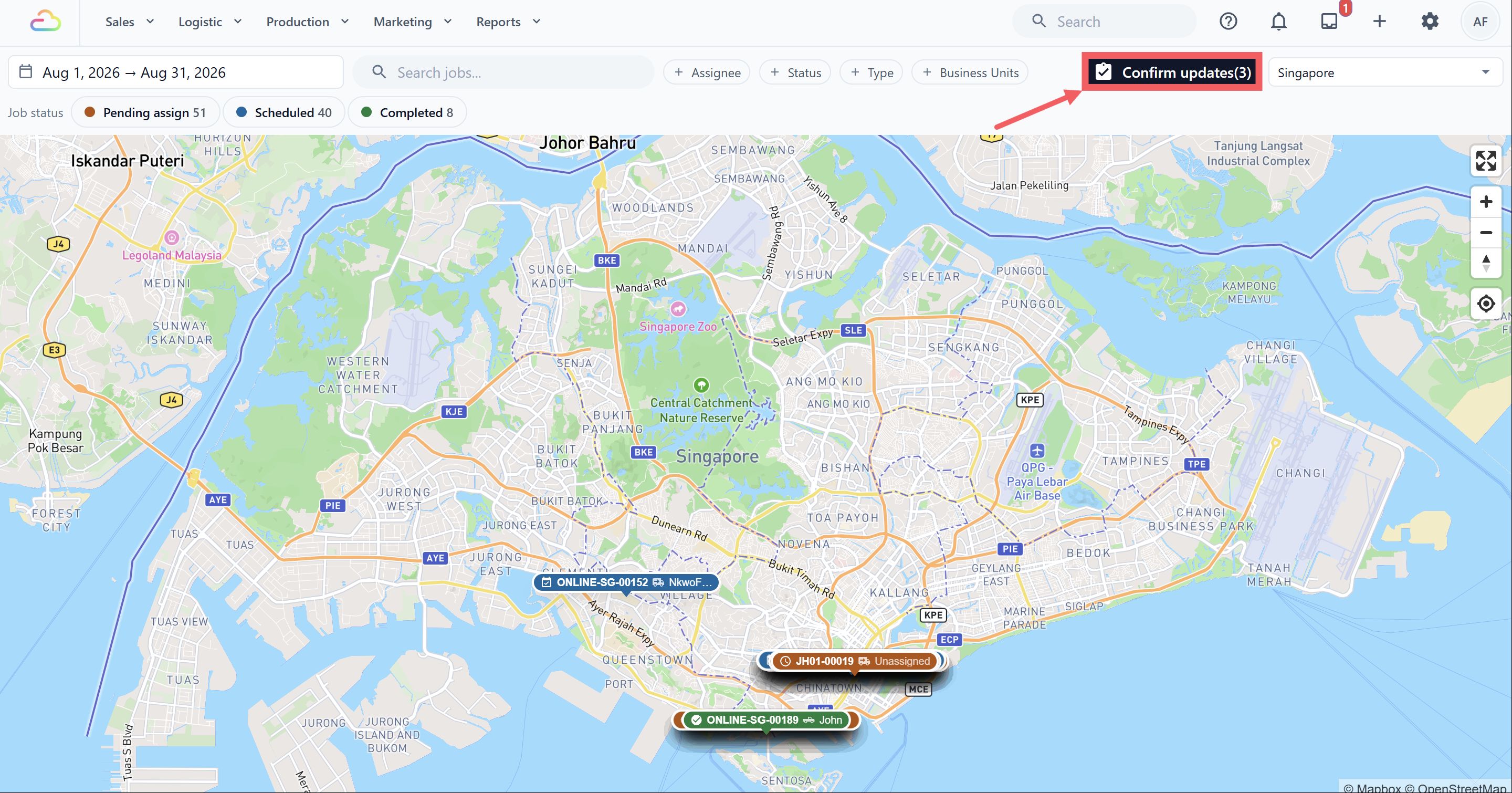
6. Review the original and updated values in the **Confirm schedule updates** window.
7. Click **Confirm** to apply all listed changes.
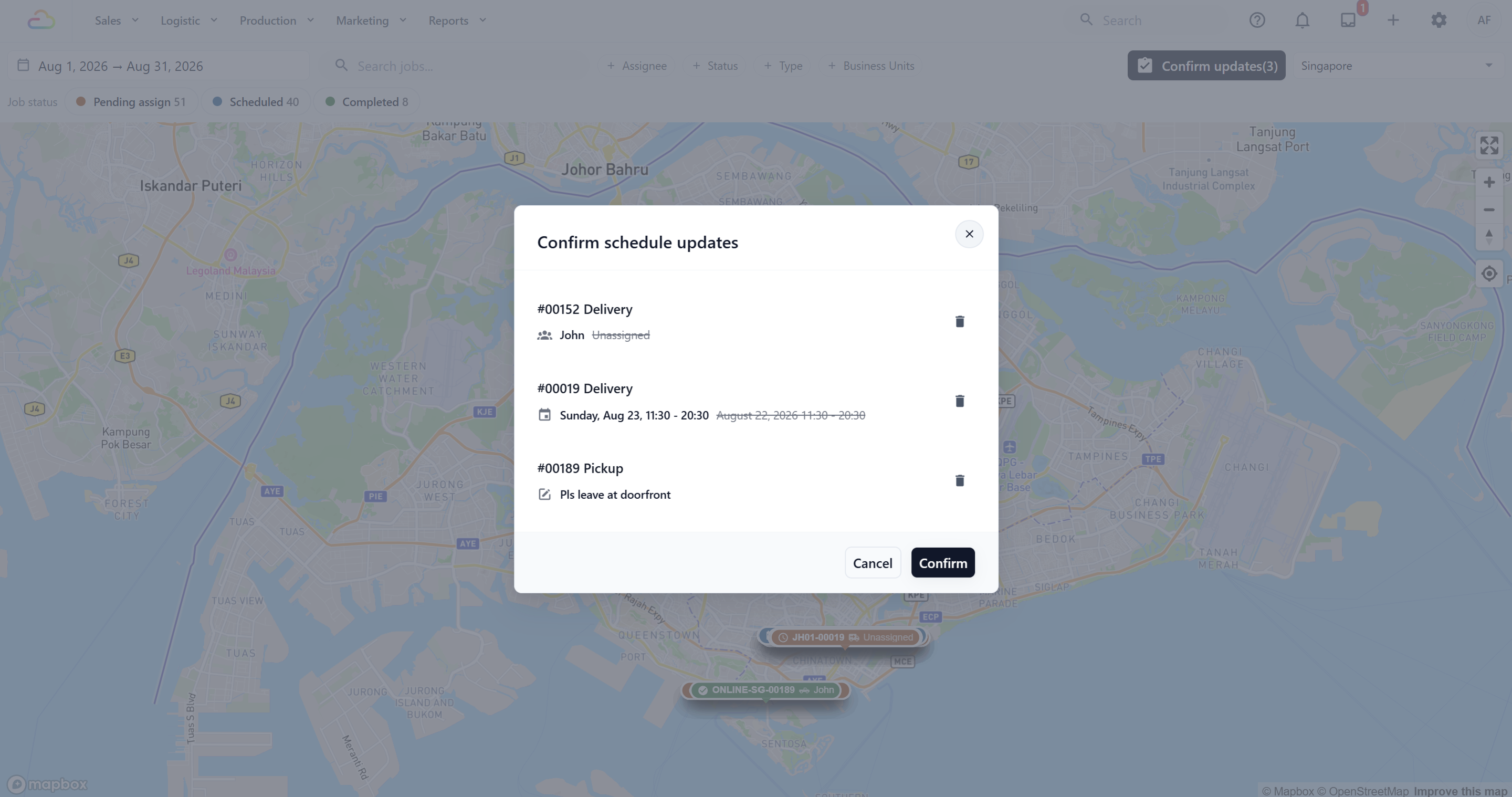
Changes remain pending until you click **Confirm updates** and then **Confirm**. Leaving the page before confirming may discard them.
Assigning a worker changes an unassigned job to **Scheduled**. Removing the assigned worker changes it to **Pending assign**.
A dispatcher selects a pickup marker, changes its assigned worker, and corrects the pickup address. The dispatcher then clicks **Confirm updates**, reviews both changes, and confirms them together.
---
## FAQs
**Why can’t I see a job on the map?**
>Check the selected date range, Location, filters, and status legend. A job belonging to another Location or Market appears only after you switch to that Location. The job also needs a valid mapped address before a marker can be displayed.
**Why is the map blank for a Location?**
>Open **Settings > Markets & Locations**, select the Location, and check its City Center Coordinates. The Job Map needs valid latitude and longitude values to open that Location.
**Can I view all Markets and Locations on one map?**
>No. The Job Map shows one Location at a time so jobs from different cities or countries are not mixed together. Use the Location selector to switch operating areas.
**What is the difference between a Market and a Location?**
>A Market is a country or commercial region with its own currency and regional settings. A Location is a city or operational catchment area inside that Market. The Job Map selects a Location because that determines the map center and the jobs displayed.
**Why can’t I see my driver on the map?**
>The driver must have the EasyBiz mobile app installed, be logged in, allow location access, and have reported a location within the last 72 hours. The driver may also be outside the part of the map currently visible.
**What is the difference between Jobs and the Job Map?**
>They use the same job records. Use **Jobs** for a list view, bulk work, and exports. Use the **Job Map** for geographic planning, driver positions, and quick job updates within a selected Location.
**Why didn’t my changes save?**
>Changes made from a marker are staged first. Click **Confirm updates**, review the changes, and click **Confirm** before leaving the page.
**Does assigning a different driver send a notification?**
>The reassigned job appears in the new driver’s mobile app after you confirm the update. A separate push notification depends on your Event Notification setup.
**Do I need both Jobs and the Job Map?**
>No. They show the same jobs in different formats. Use whichever view suits the task: the table for administrative and bulk work, or the map for dispatching and geographic planning.
---
## What's next
Now that your jobs are visible on the map, invite your drivers and turn on their app access so they can take those jobs on their phone. Continue to [Inviting Your Team and Managing Access](/docs/inviting-your-team-and-managing-access).