## Before You Start
- Your POS app must already be set up. If not, follow [Create Your POS App](/docs/create-your-pos-app) first.
- If you want staff to count the cash, set up the cash drawer first in [Set Cash Drawer on Your POS](/docs/set-cash-drawer-on-your-pos).
- Read [Steps You Can Add to a Flow](/docs/steps-you-can-add-to-a-flow) so you know how steps work in any flow.
- You need access to **Point of Sale** in Settings. Shop owners have this by default.
- No customer details are needed. Close of Day covers the whole shop's day, not a customer.
---
## Where the Close of Day Flow Is Set Up
The Close of Day Flow belongs to the **Daily Sales** feature of each POS app. Daily Sales is the screen on the POS where staff see the day's totals and close the day. Each POS app has its own Close of Day Flow, so two shops can close the day differently.
Set the steps up inside Daily Sales, as shown below. A flow you add under Settings › Flows is not linked to any POS, so staff will not see it at closing time.
---
## Turn On Daily Sales
1. Click the ⚙️ Settings icon in the top-right corner.
2. Under the **Sales Channels** section, click **Point of Sale**.
3. Choose the POS app you want to set up, then click Edit .
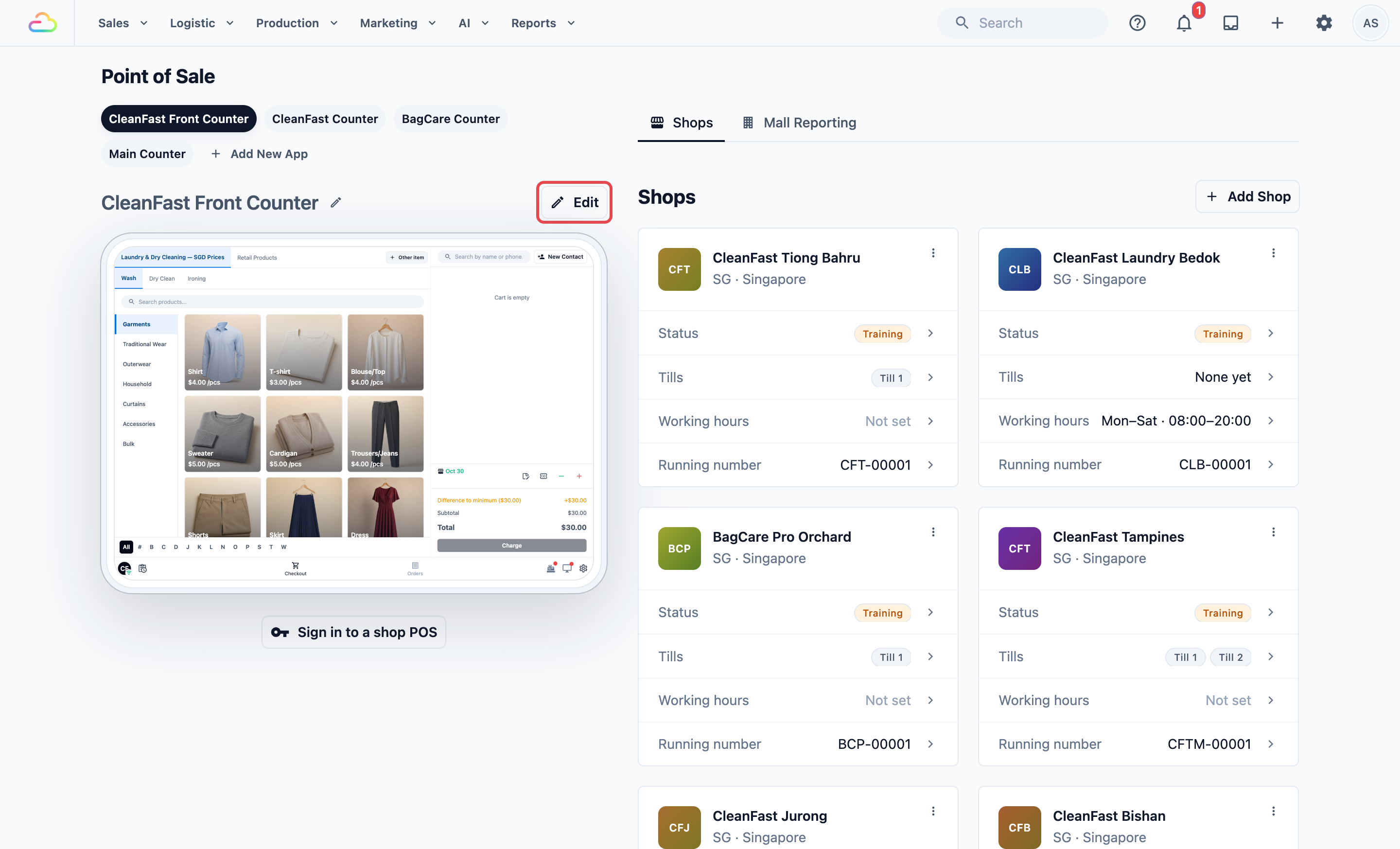
4. In the left-hand panel, under **Features**, click Daily Sales .
5. Turn on **Enabled**.
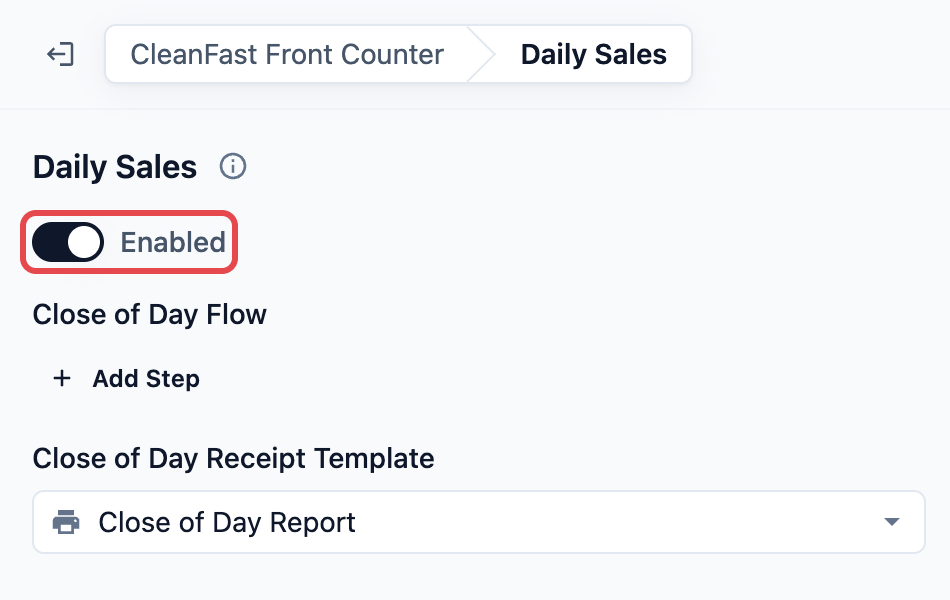
Daily Sales has two settings:
- **Close of Day Flow:** the checks your staff complete before they submit the day. You add them in the next section.
- **Close of Day Receipt Template:** the layout of the printed Close of Day report. To choose or change it, see [Setting Up the Close of Day Report Template](/docs/setting-up-the-close-of-day-report-template).
If you leave the Close of Day Flow empty, staff can still see the day's totals in Daily Sales, but there is no Close of Day button. The day is never submitted, and no Close of Day report is saved.
---
## Add Your Close of Day Steps
1. Under **Close of Day Flow**, click Add Step .
2. Pick a step from the list.
3. Repeat for each check you want your staff to do.
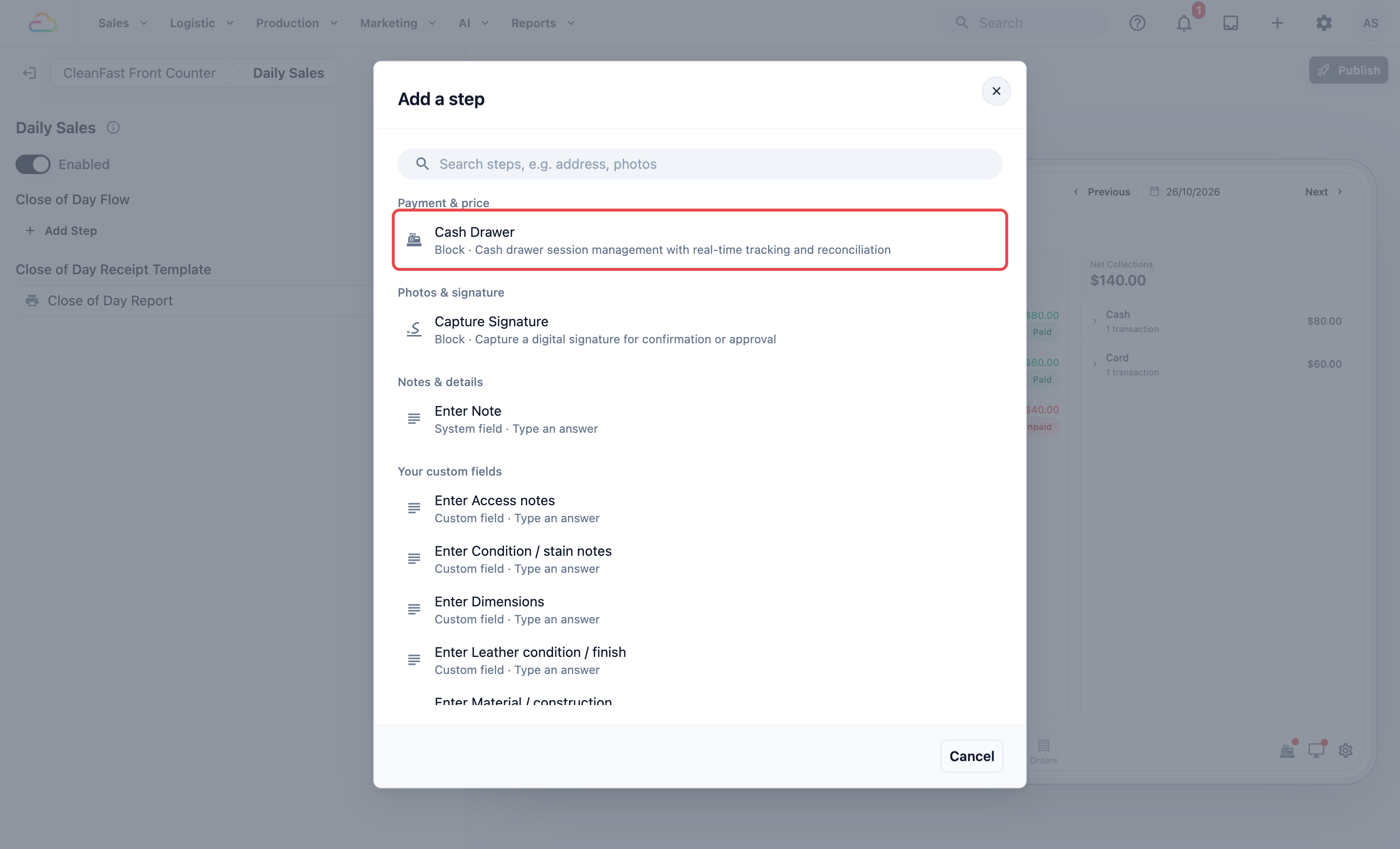
These are the steps you can add:
- **Cash Drawer:** staff close the drawer and count the cash, and the POS shows the expected amount, the actual count and any difference. Use this only if your POS uses the cash drawer.
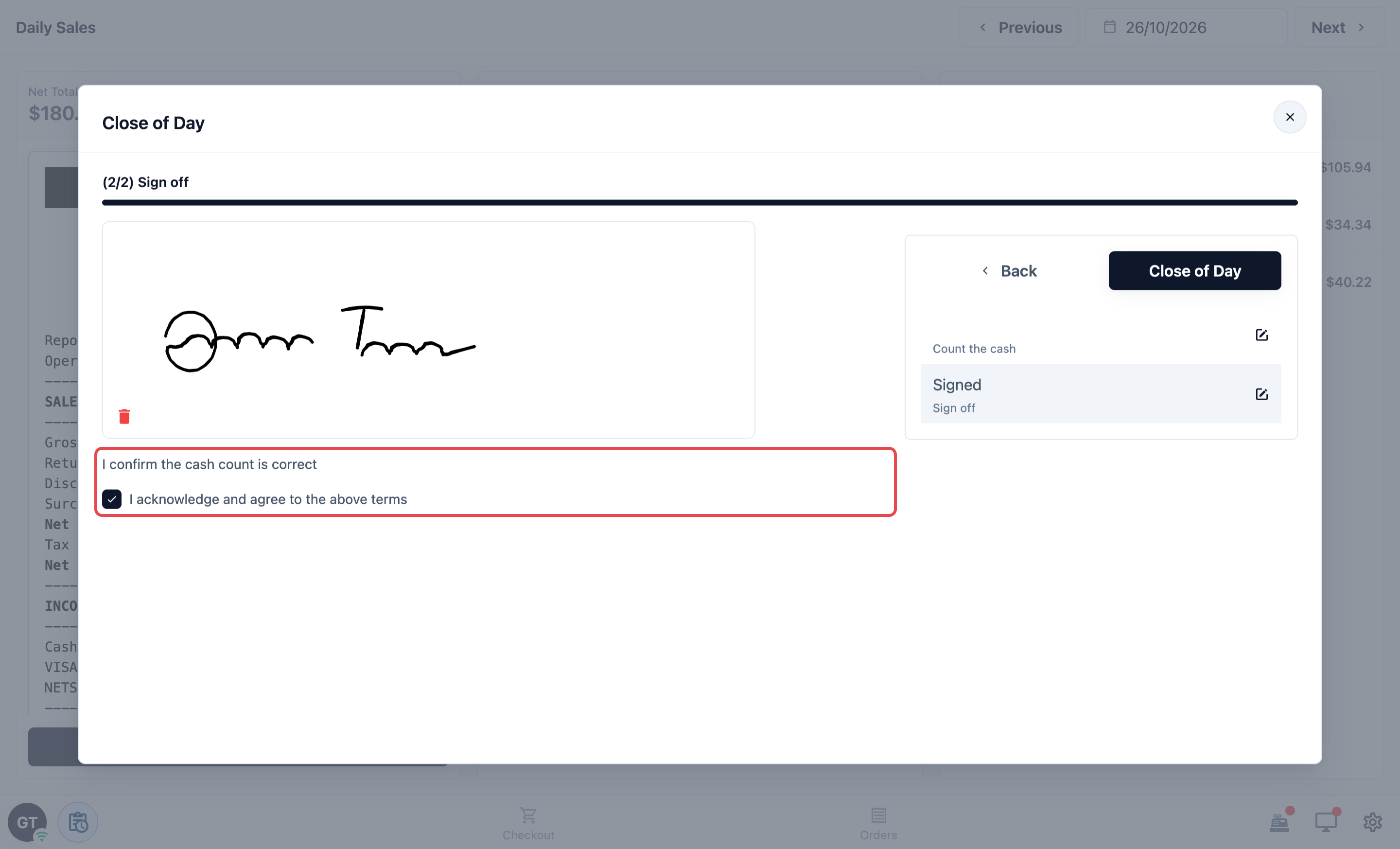
- **Capture Signature:** the staff member closing the day signs on the screen. The signature prints on the Close of Day report.
- **Enter Note:** staff write anything you should know, such as a refund given from the drawer or a faulty card terminal. The note is saved with the day's report but does not print on it.
Click a step to open its settings.
**Step Name**
The name staff see for this step on the POS, for example "Count the cash". Leave it empty to use the standard name.
**Process Method**
| Option | What it does |
|---|---|
| Required | Staff must complete this step before they can submit the day. |
| Optional | Staff see the step and can skip it. |
| On demand | The step is hidden until staff choose to open it. |
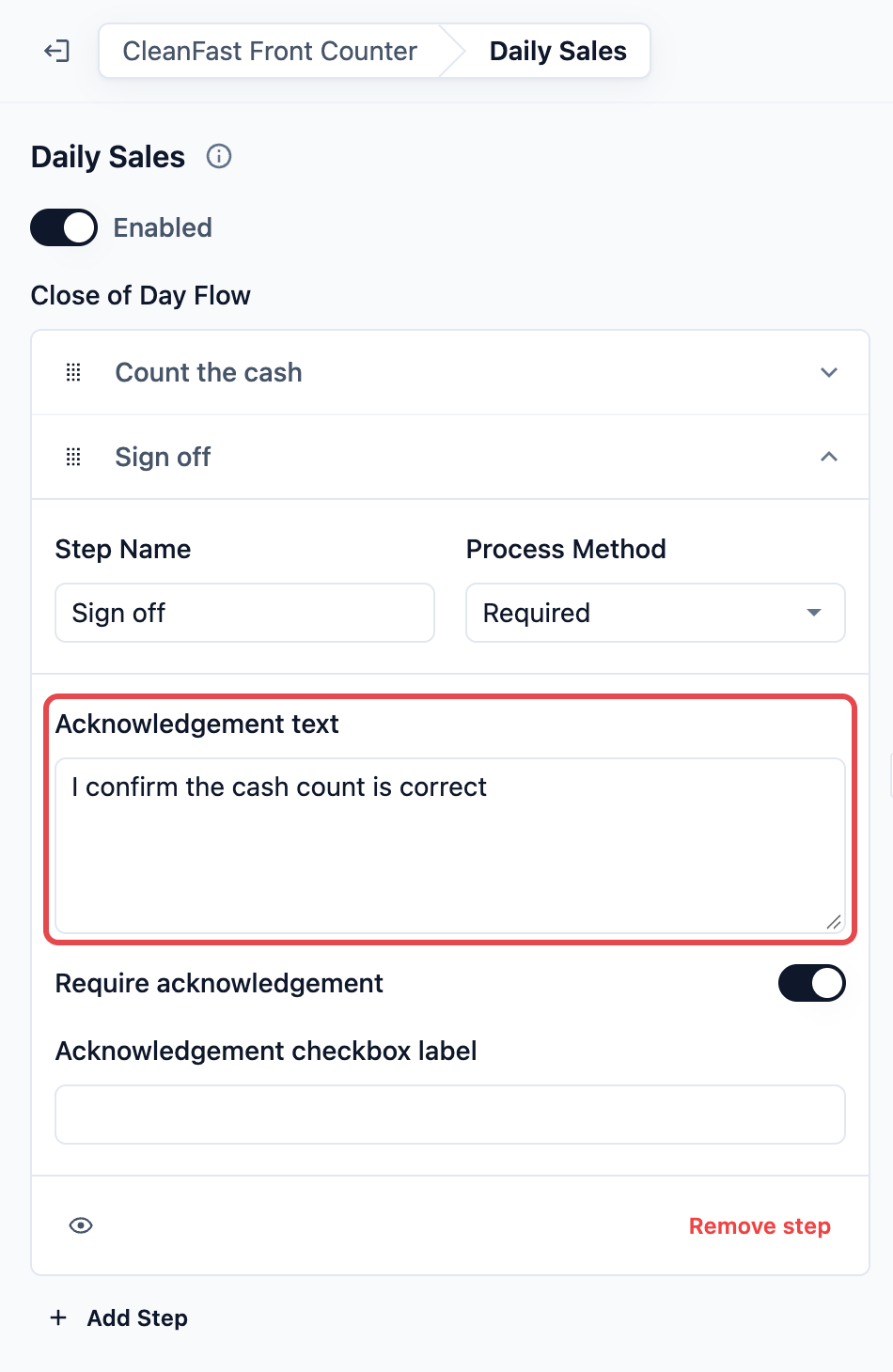
For **Capture Signature**, you can also add **Acknowledgement text**, such as "I confirm the cash count is correct", and turn on **Require acknowledgement** so staff must tick a box before they sign.
To change the order of the steps, drag them up or down. To take one out, open it and click Remove step .
### Example setup
CleanFast Laundry wants every shop to count the cash and sign off at closing. Its owner adds two steps: Cash Drawer named "Count the cash" (Required) and Capture Signature named "Sign off" (Required), with the acknowledgement text "I confirm the cash count is correct".
When the steps are in place:
1. Click Publish in the top-right corner.
2. In **Review your changes**, click Publish again.
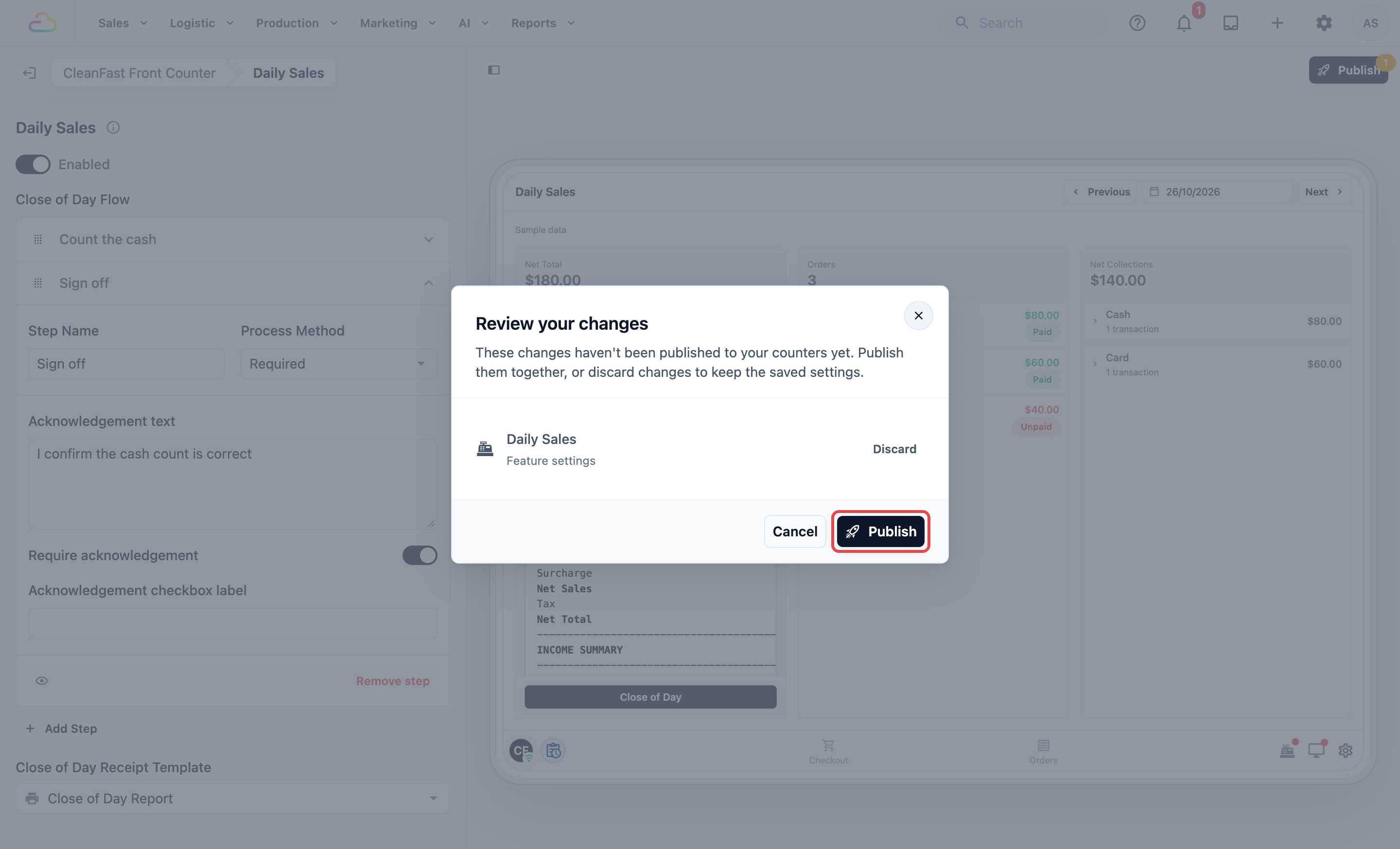
Your counters get the new steps once you publish.
---
## What Your Staff See at Closing Time
1. On the POS, staff tap the Daily Sales icon at the bottom-left of the screen.
2. Daily Sales shows today's **Net Total** with a preview of the report, the day's **Orders**, and **Net Collections** by payment method.
3. Staff check the totals, then tap Close of Day at the bottom of the report.
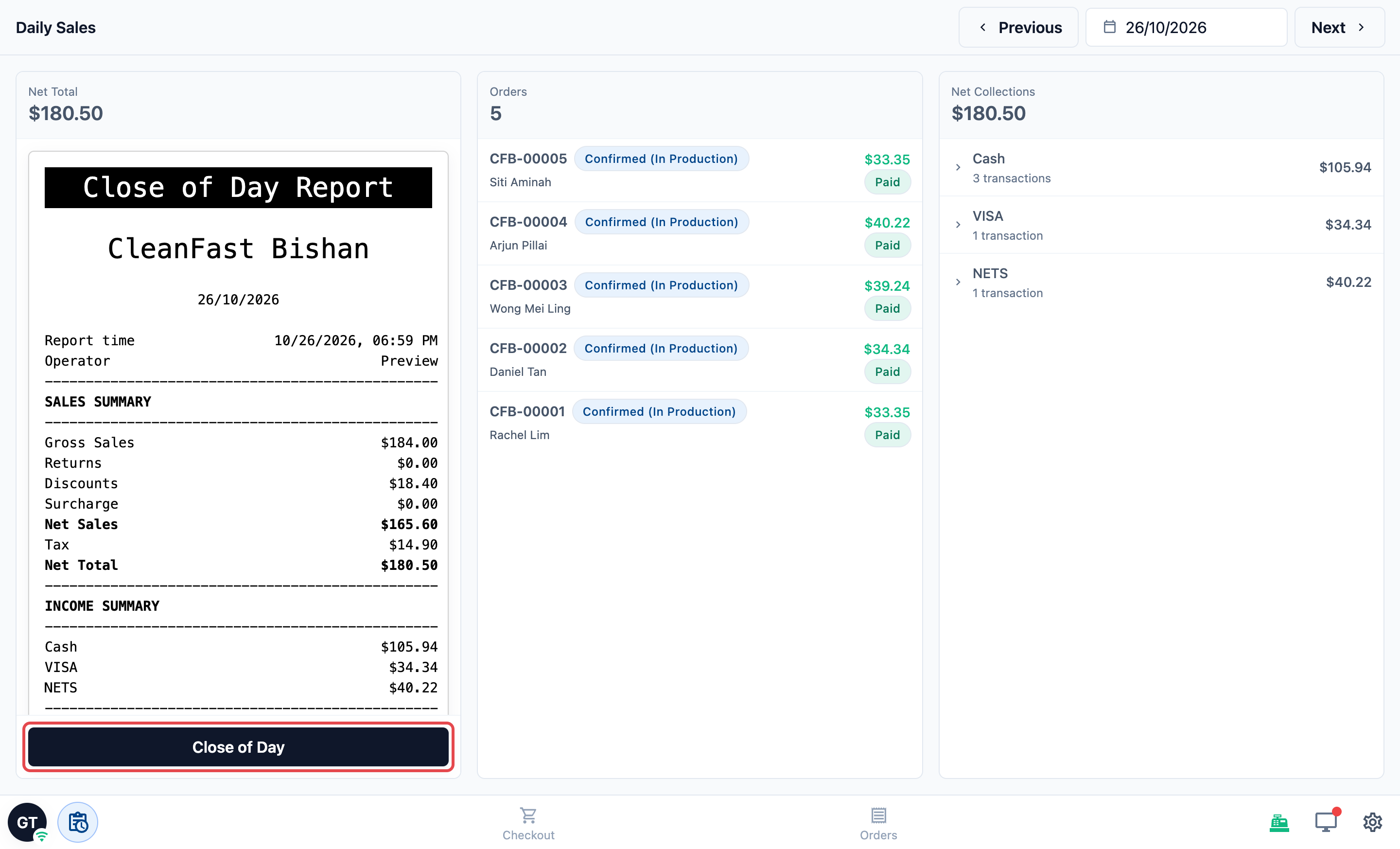
The Close of Day window opens with your steps in order.
### The Cash Drawer step
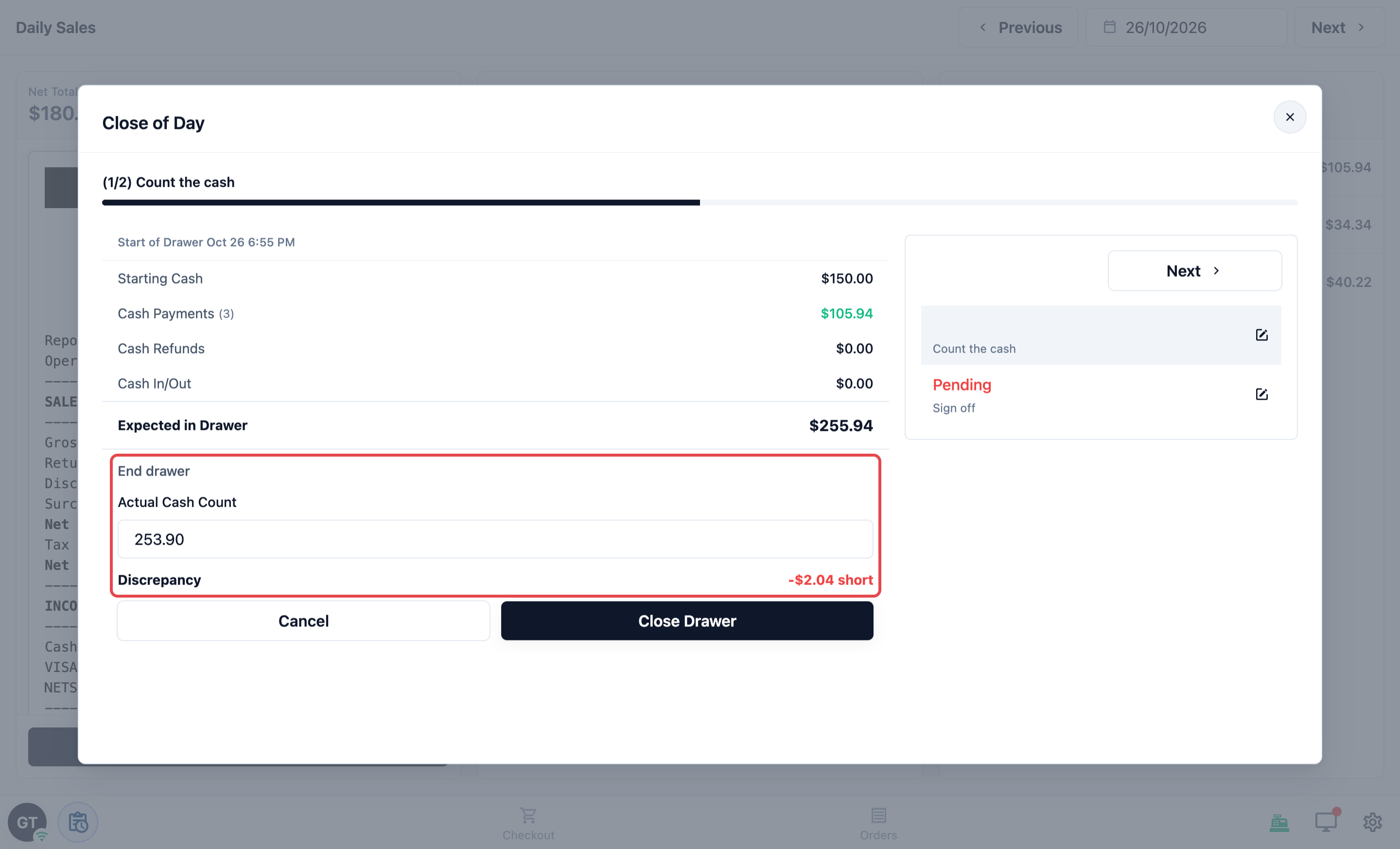
If the drawer is still open, staff see the drawer's figures and close it here. They tap End drawer , enter the **Actual Cash Count**, check the **Discrepancy** (shown as over or short), then tap Close Drawer .
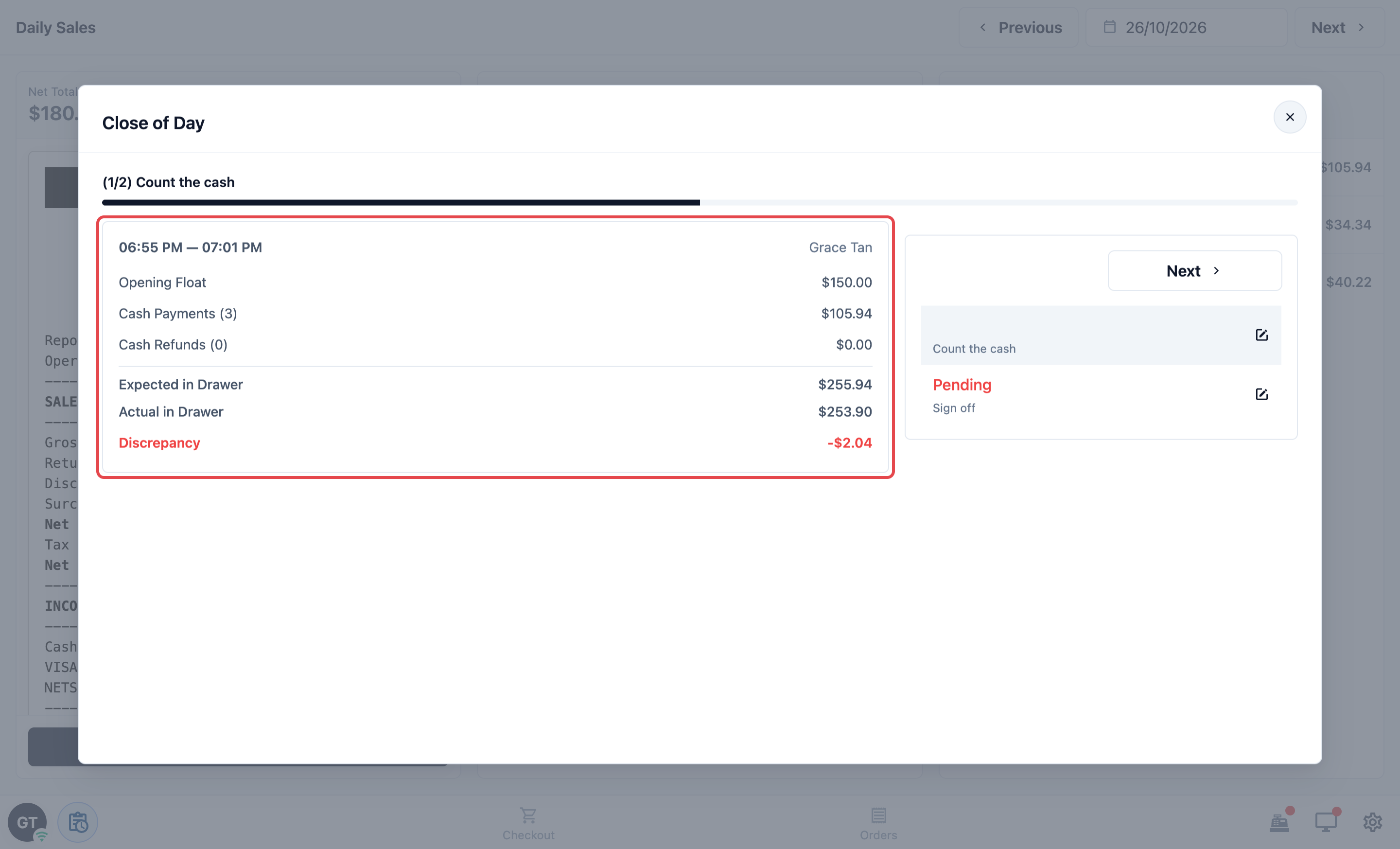
If the drawer was already closed, staff see a summary of each drawer session that day: **Opening Float**, **Cash Payments**, **Cash Refunds**, **Cash In/Out**, **Expected in Drawer**, **Actual in Drawer** and **Discrepancy**.
If no drawer was used that day, the step shows "No cash drawer sessions for this date."
### The Capture Signature step
Staff tick the acknowledgement if you added one, then sign on the screen.
### Submitting the day
When the last step is done, staff tap Close of Day . The POS shows "Close of Day completed" and prints the Close of Day report.
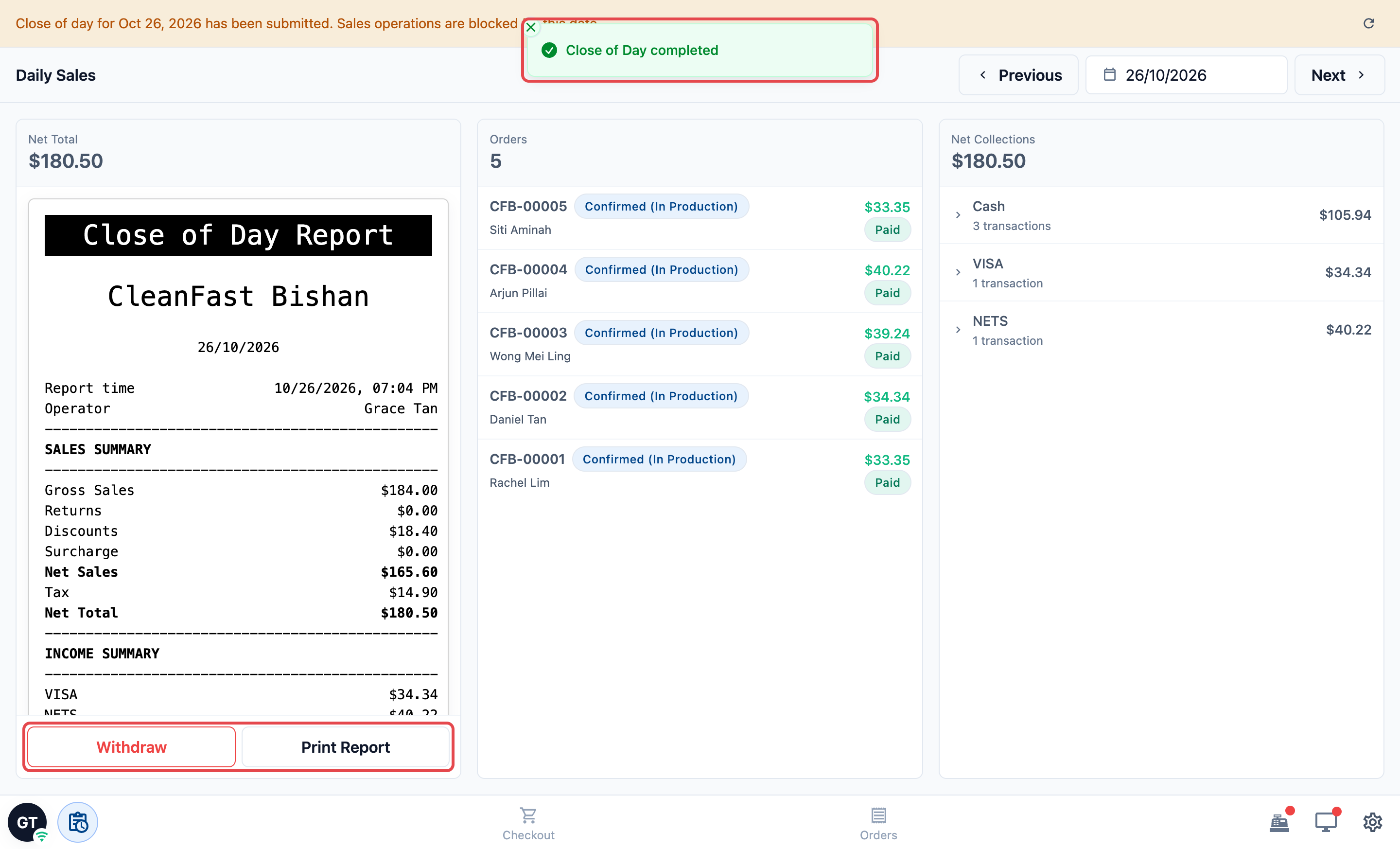
To read the report itself, see [Introduction to the Close of Day Report](/docs/introduction-to-the-close-of-day-report).
---
## After the Day Is Closed
Once the day is submitted, that shop's POS stops taking sales for the date. Staff see this banner: "Close of day for [date] has been submitted. Sales operations are blocked for this date." Checkout and collecting payment on orders are turned off until the next day.
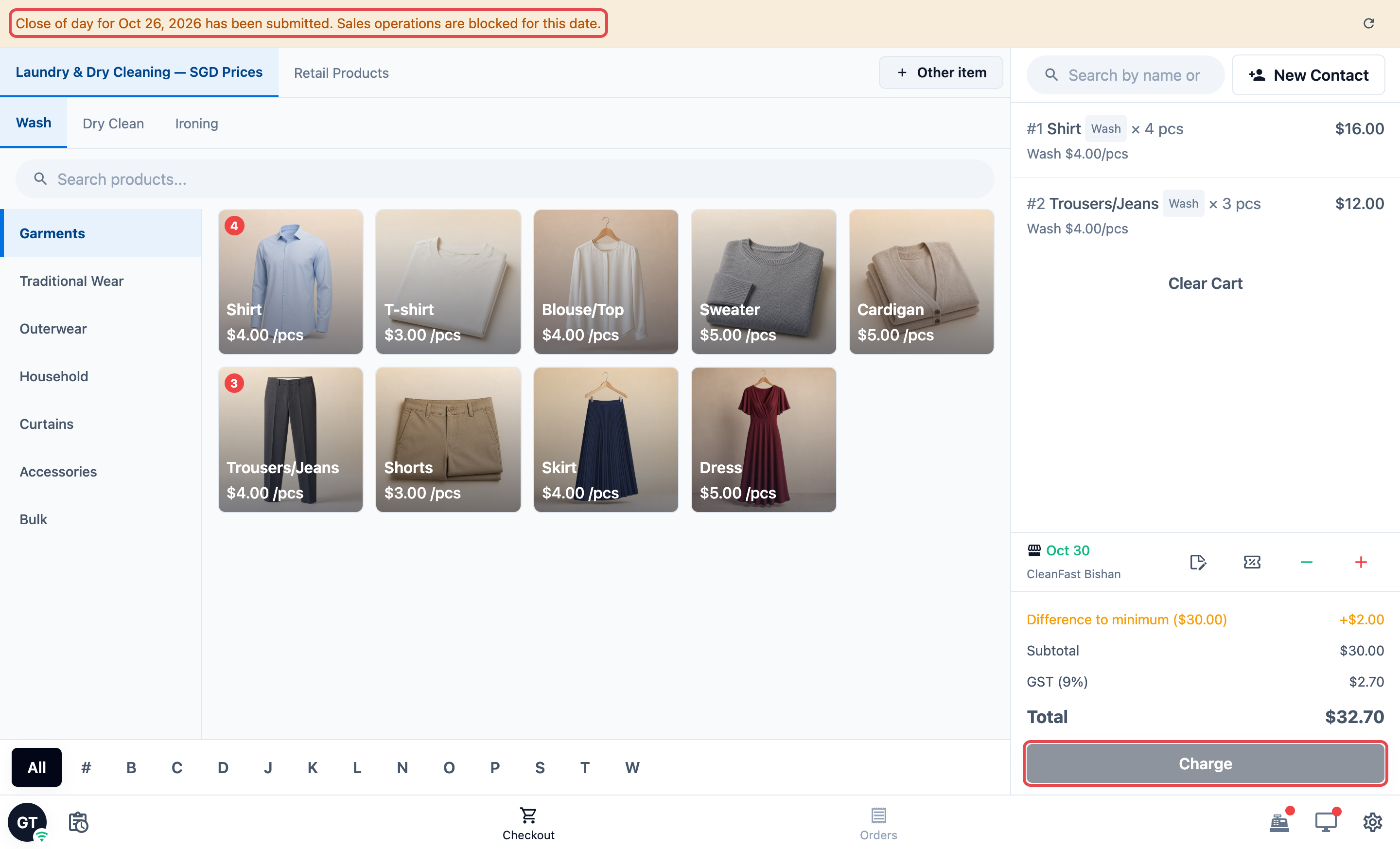
Closing the day only affects the shop that submitted it. Your other shops keep selling.
### Withdrawing a submitted day
If staff closed the day too early, they can undo it on the same day.
1. Open Daily Sales on the POS.
2. Tap Withdraw .
3. Read the message, then tap Confirm Withdraw .
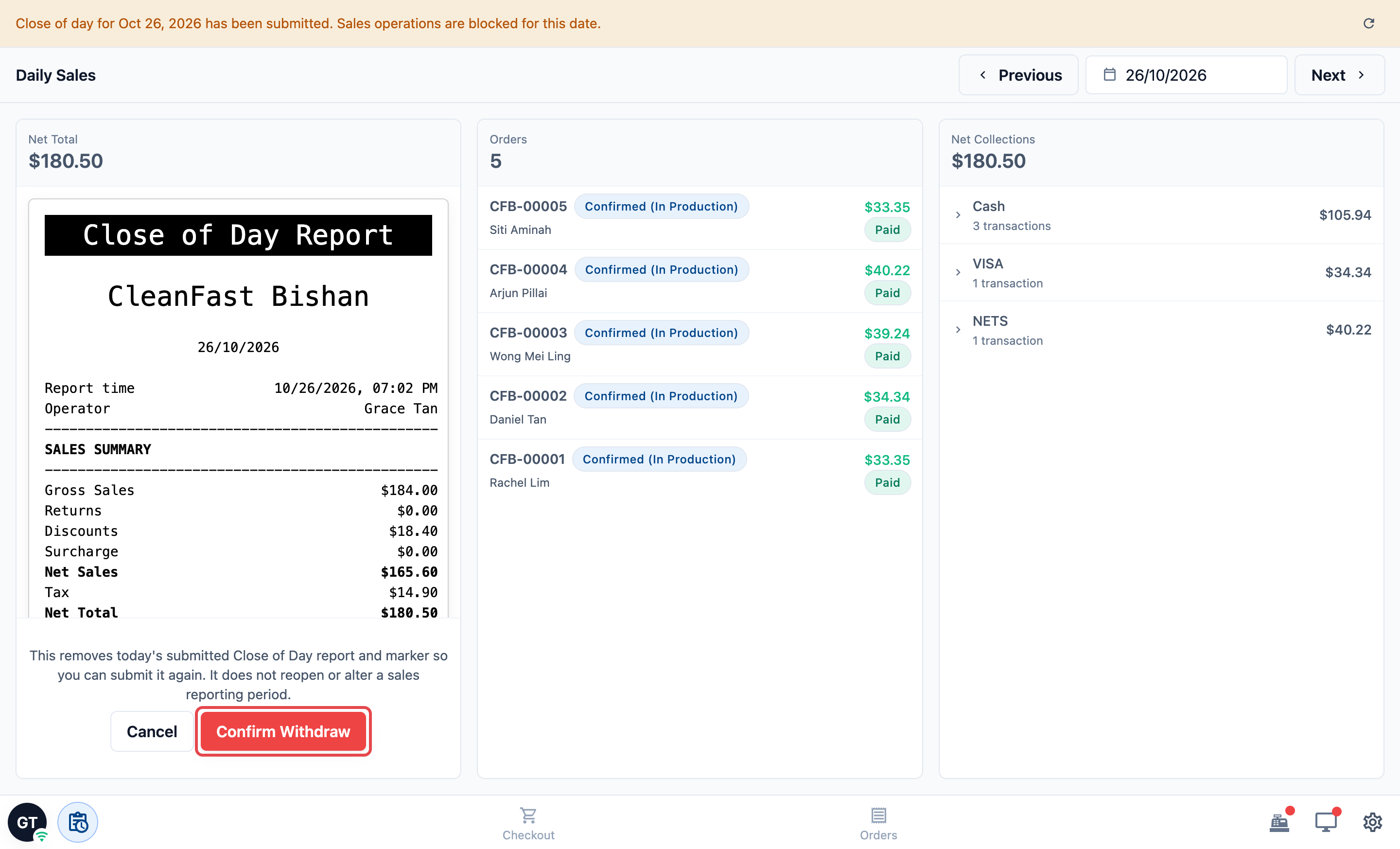
The POS shows "Close of Day withdrawn". The report is removed, and staff can sell again and close the day later. Withdrawing does not reopen or change a sales period.
Withdraw is only available for today. A day submitted yesterday or earlier cannot be withdrawn from the POS.
---
## FAQs
**Do I need a Close of Day Flow?**
> Only if you want staff to close the day and keep a daily report. Without steps, there is no Close of Day button, so no day is ever submitted or blocked.
**Can staff close a day they forgot to close?**
> No. The Close of Day button only shows for today. If staff forget, that day has no Close of Day report, so remind them to close before they leave.
**Can I add a step that asks for a photo of the drawer?**
> Not in a Close of Day Flow. Ask staff to note anything unusual with an Enter Note step instead.
**I added my own question as a step. Where is the answer?**
> Answers to your own custom questions are not saved with the Close of Day report yet. Use an Enter Note step for anything you want kept.
**I'm moving from the older version. Do my closing steps carry over?**
> Open Daily Sales in each POS app after you move. If the Close of Day Flow is empty, add your steps and publish, or staff will not see the Close of Day button.
**Does closing the day lock my sales reports?**
> No. Closing the day only stops that shop's POS from selling for the date. Sales periods for your reports are managed separately in [Managing Sales Periods](/docs/managing-sales-periods).
**Do staff need to close the cash drawer before Close of Day?**
> No. If the drawer is still open, the Cash Drawer step lets staff count and close it during Close of Day.
---
## What's Next
You have finished the Flows & Steps series. You know how flows and their steps work, and your staff now follow the same checklists from packing an order to closing the day. To go further with your daily records, see [Introduction to the Close of Day Report](/docs/introduction-to-the-close-of-day-report).