## Open the Service Options page
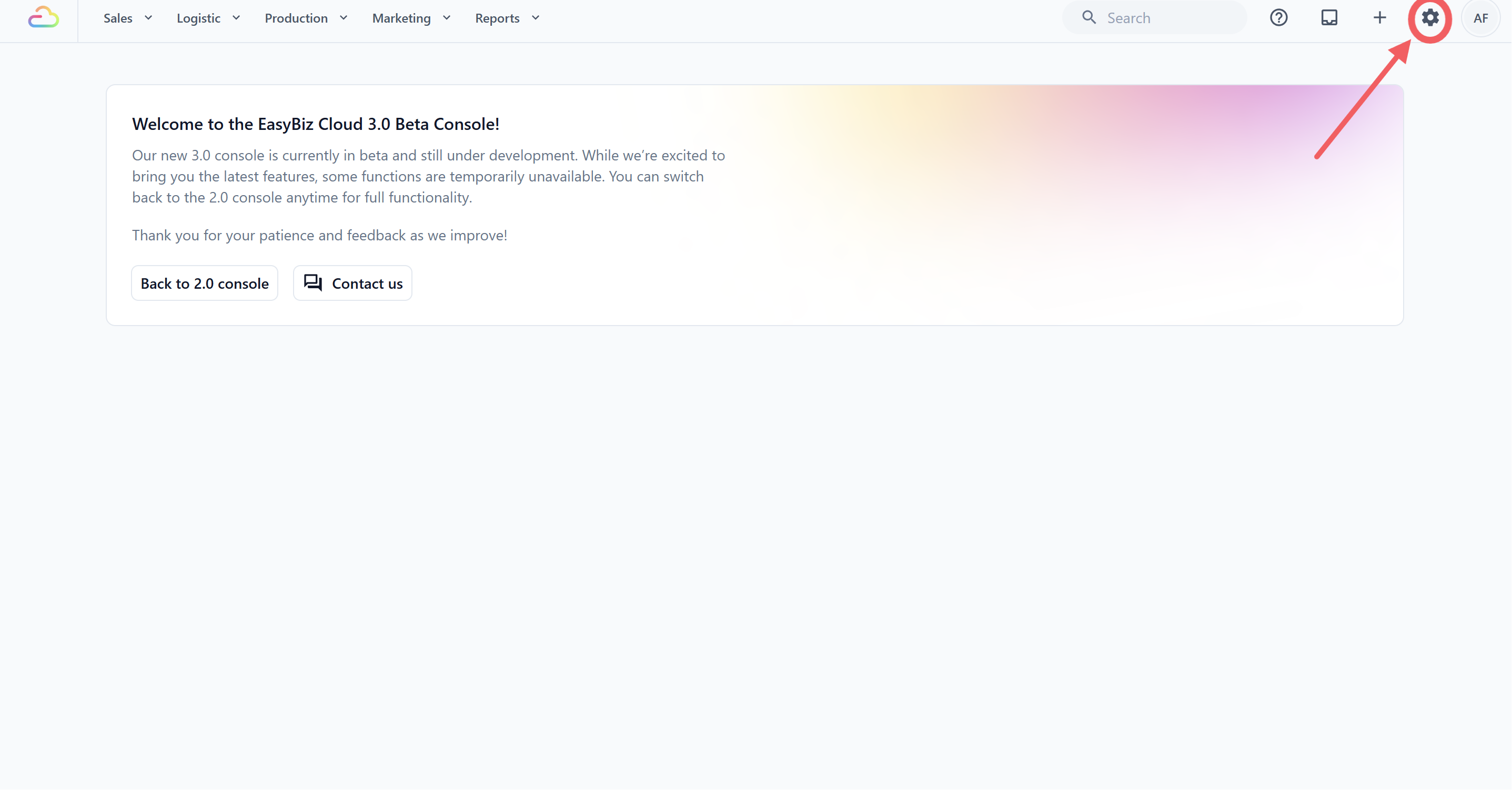
1. Click the ⚙️ Settings icon in the top-right corner.
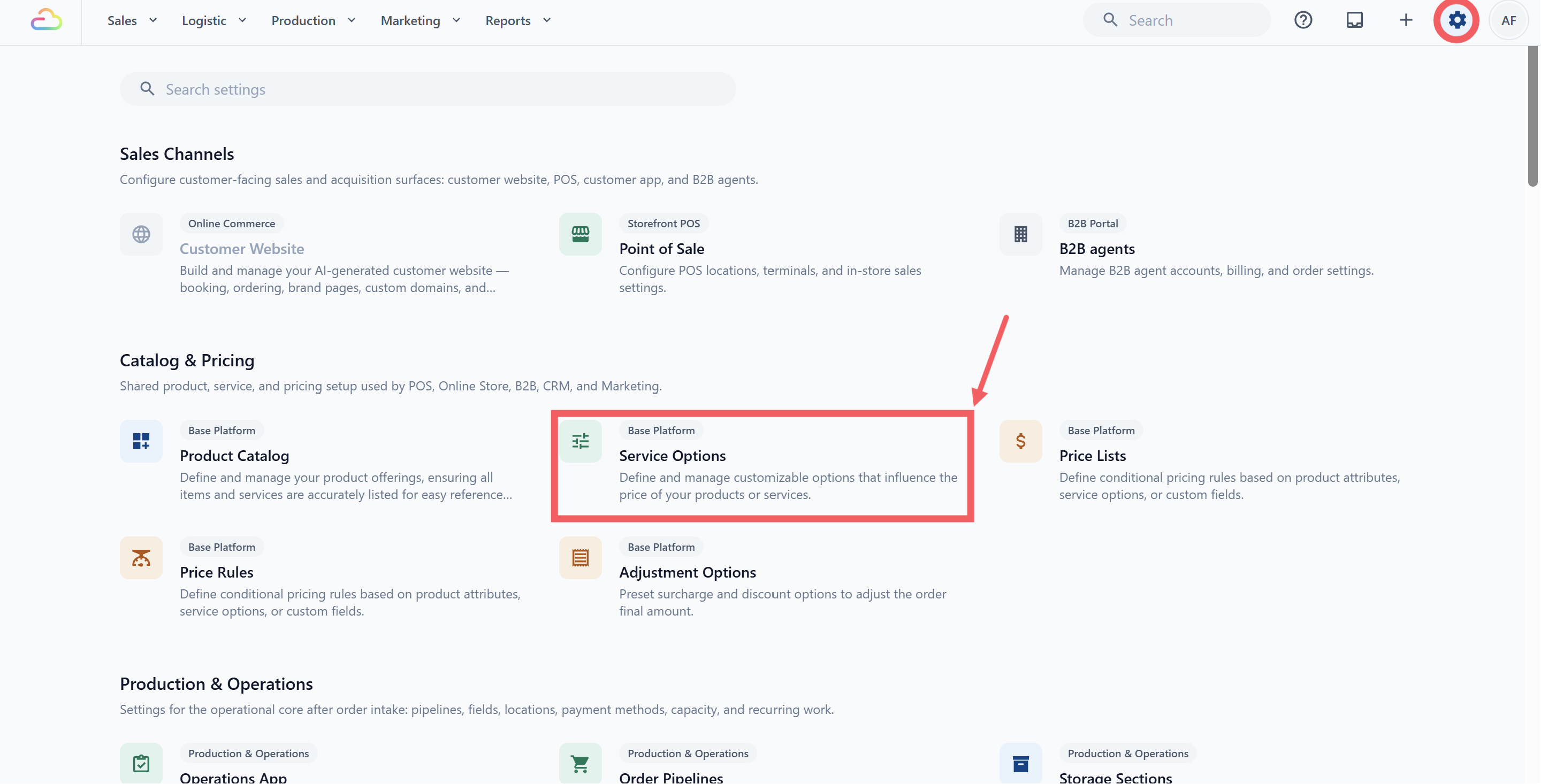
2. Under the **Catalog & Pricing** section, click Service Options.
---
## How to Add a Service Option
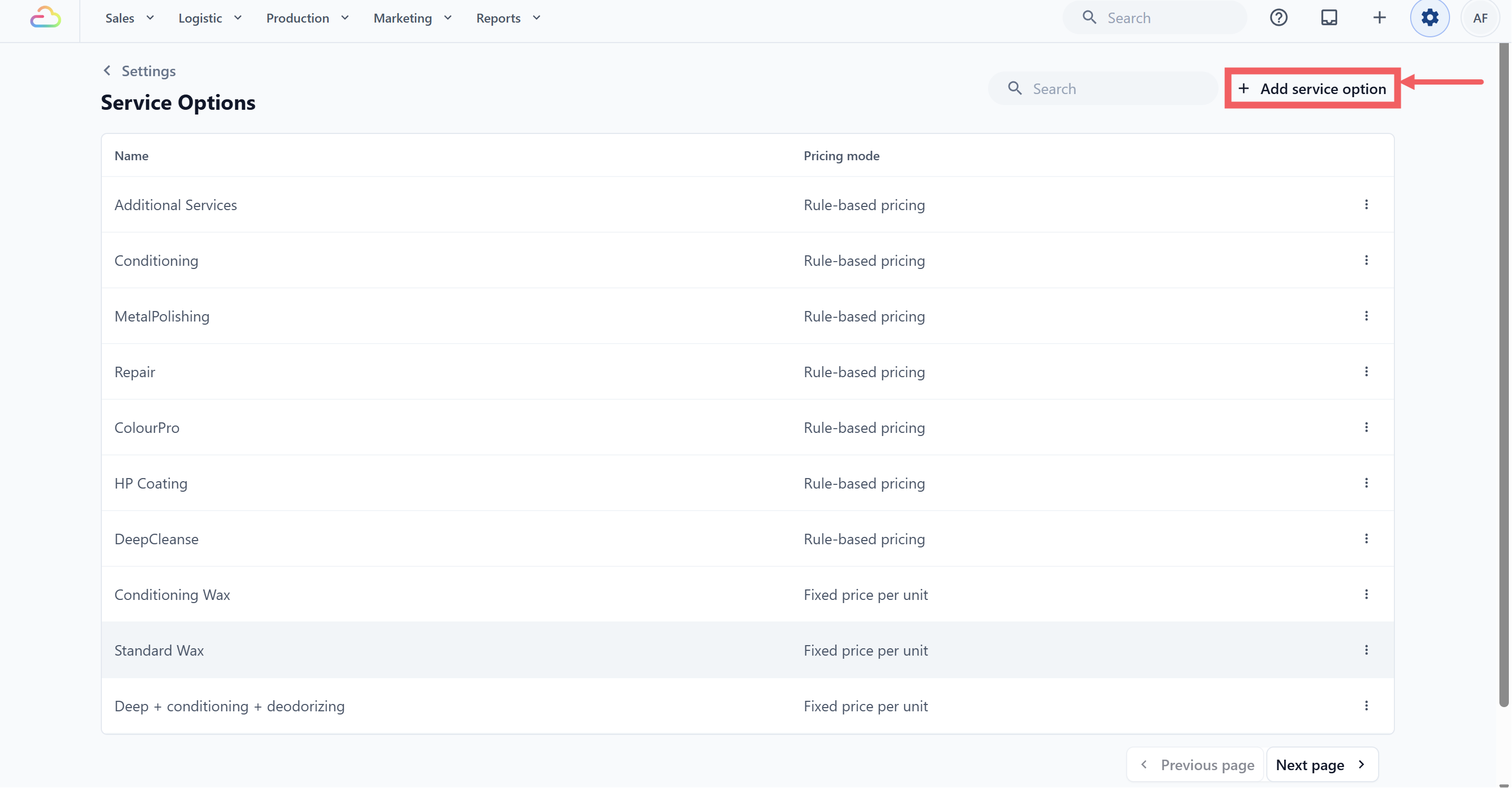
1. Click Add service option at the top-right of the page.
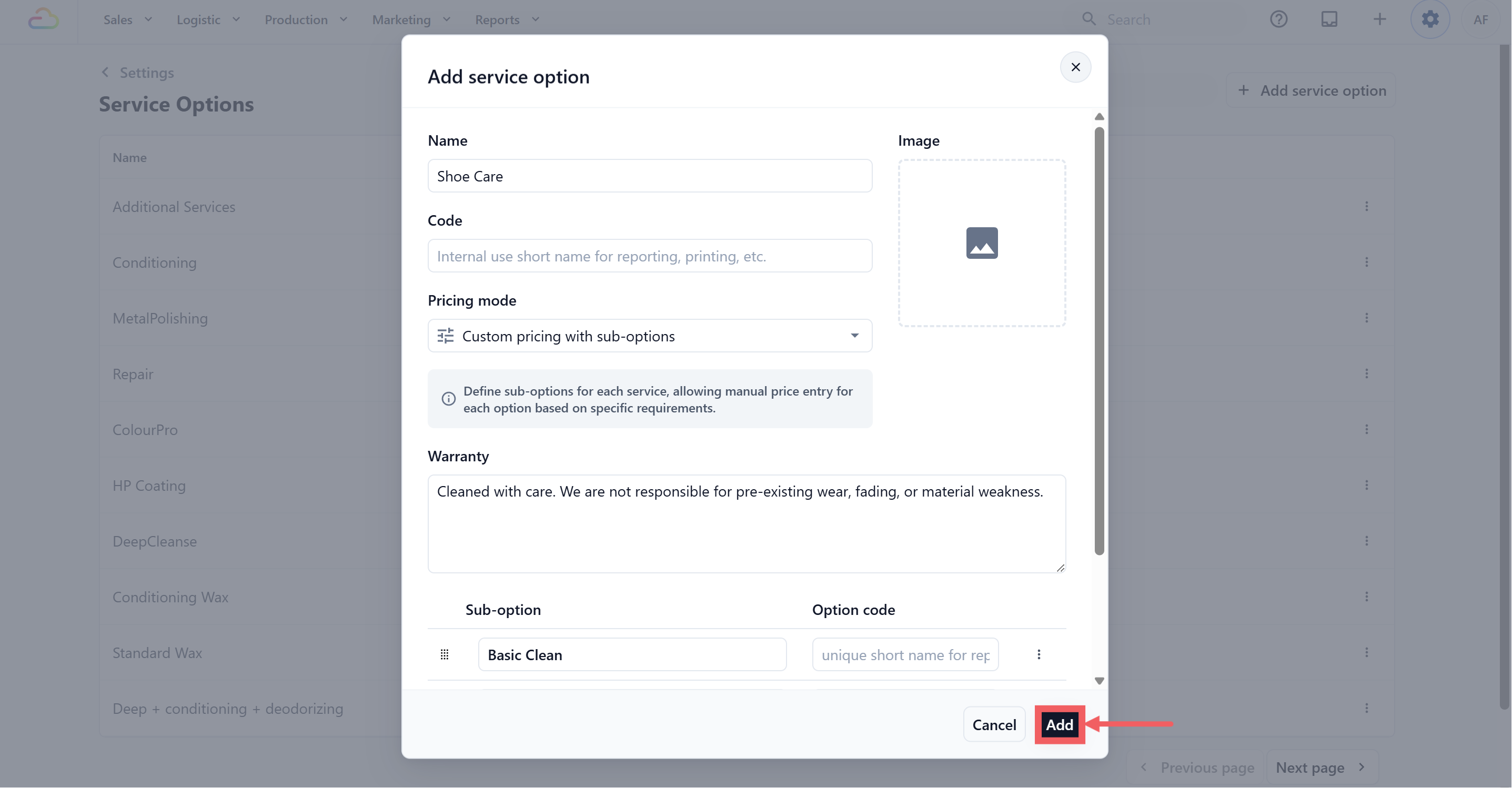
2. Fill in the fields in the dialog, [described below](/docs/setting-up-service-options#service-option-fields).
3. Click Add to save.
---
### Service Option fields
**Name**
> The customer-facing name of the service. Required.
Laundry, Dry Clean, Conditioning Wax, Bag Deep Cleaning.
**Code**
> A short internal name used on reports and printouts. Optional. Auto-converts to uppercase. Not shown to customers.
LAUNDRY, DRY, BAG-DC.
**Pricing mode**
> How the price is calculated. Required. There are five modes:
| Pricing mode | What it means |
| --- | --- |
| Fixed price per unit | One fixed price for each unit. Total is unit price multiplied by quantity. |
| Custom pricing with sub-options | Define named tiers under one parent service, each priced separately. Staff pick the parent, then the tier. |
| Rule-based pricing | Conditions decide the price based on item attributes like size, fabric, or material. The system applies the first matching rule. |
| Tiered rate by units | A flat package price for a specific quantity, not a per-unit rate. |
| Hourly rate | Price based on how many hours the service takes, in 30-minute increments from 0.5 to 12 hours. |
The Pricing mode is locked once saved. To switch modes, delete the option and create a new one.
Not sure which mode fits? Pick the one that matches how you actually charge:
| My situation | Use this mode |
| --- | --- |
| I charge the same flat price per piece, every item, every time | Fixed price per unit |
| My service has multiple levels (Basic, Premium, Hand Wash) each with its own price | Custom pricing with sub-options |
| The price depends on item attributes (size, fabric, material) | Rule-based pricing |
| I charge a set total based on how many pieces are brought in | Tiered rate by units |
| I charge by the hour or session length | Hourly rate |
Start with Fixed price per unit for most services. It is the simplest to configure and the easiest for staff. You can add more complex modes later for specific services.
**Image**
> An icon shown wherever the option appears on the POS. Optional. Helpful when you have many services.
**Warranty**
> Warranty terms shown to customers when this service is selected. Optional. Most shops leave this blank.
---
### Sub-options
If you pick **Custom pricing with sub-options**, an extra panel appears at the bottom of the same dialog where you list the named tiers. The other four modes do not show extra fields in this dialog. Their actual prices are set later in the Price List.
Staff can also pick more than one sub-option for the same item (for example Wash plus Iron) and the system adds the prices together.
1. Enter the **Sub-option name** that staff will see, for example Basic Clean.
2. Enter an optional **Option Code**, for example BC.
3. Click + Add sub-option to add more tiers.
4. Drag rows to reorder. Use the three-dots menu to delete a sub-option.
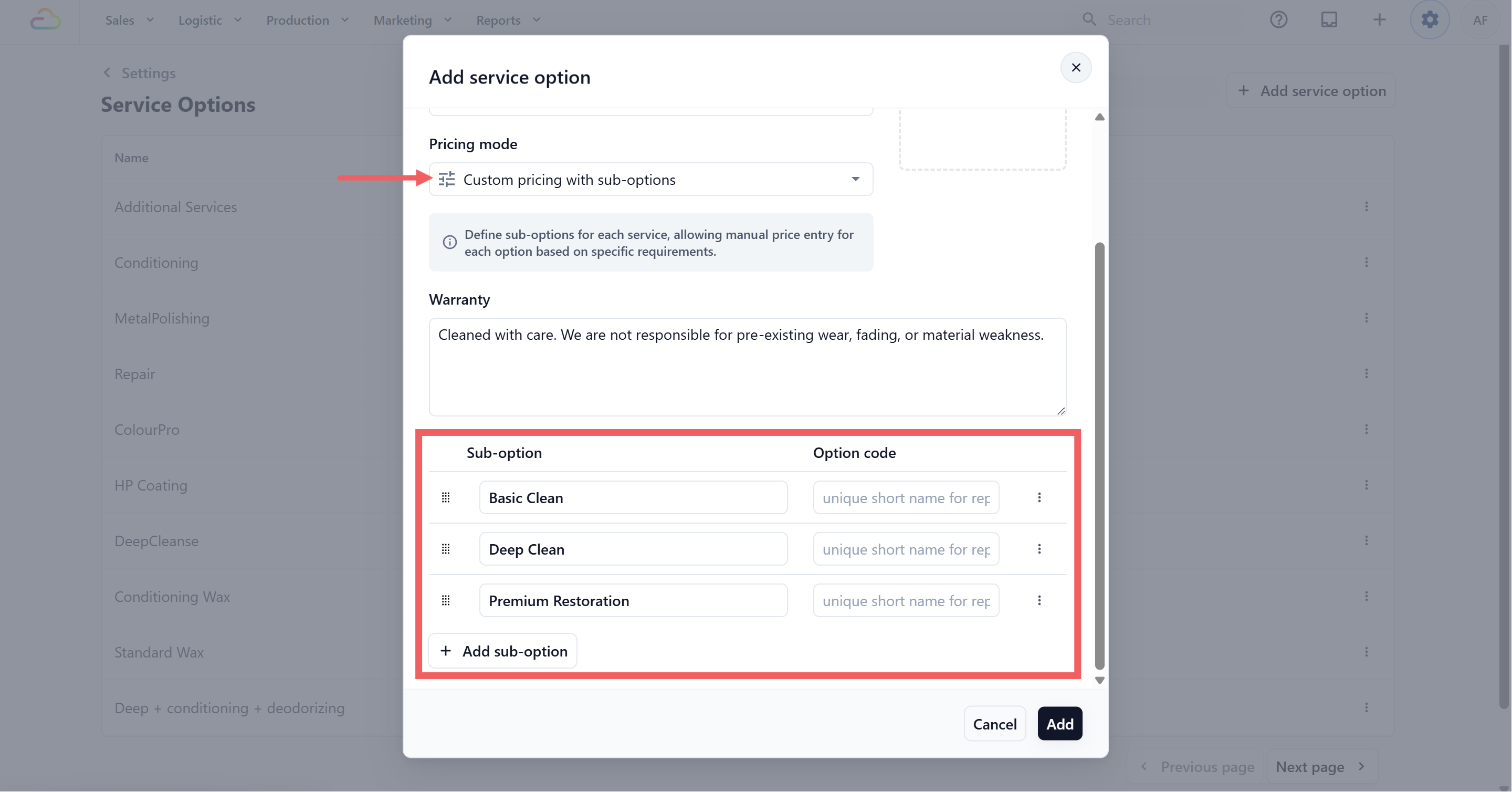
You are only setting up the tier names here. Actual prices for each sub-option are set in your Price List after saving the service option.
---
## Pricing mode examples
| Pricing mode | Example |
| --- | --- |
| Fixed price per unit | Laundry at SGD 3.50 per piece. A customer drops 8 pieces, the system shows SGD 28.00. |
| Custom pricing with sub-options | Bag Cleaning with three tiers, Surface Clean (SGD 20), Deep Clean (SGD 45), and Full Restoration (SGD 80). Staff pick Bag Cleaning, then the tier. |
| Rule-based pricing | Dry cleaning where a silk blouse is SGD 14 and a cotton shirt is SGD 6. |
| Tiered rate by units | Curtain cleaning where 1 curtain is SGD 30, 2 curtains are SGD 55, 3 curtains are SGD 75, and 5 curtains are SGD 110. |
| Hourly rate | On-site laundry assistant at SGD 25 for 1 hour, SGD 45 for 2 hours, SGD 80 for a half day. |
---
## Edit a Service Option
1. Click the option's name in the table. The **Update Service Option** dialog opens.
2. Change the fields you need. The Pricing mode field is greyed out and cannot be changed.
3. Click Update to save.
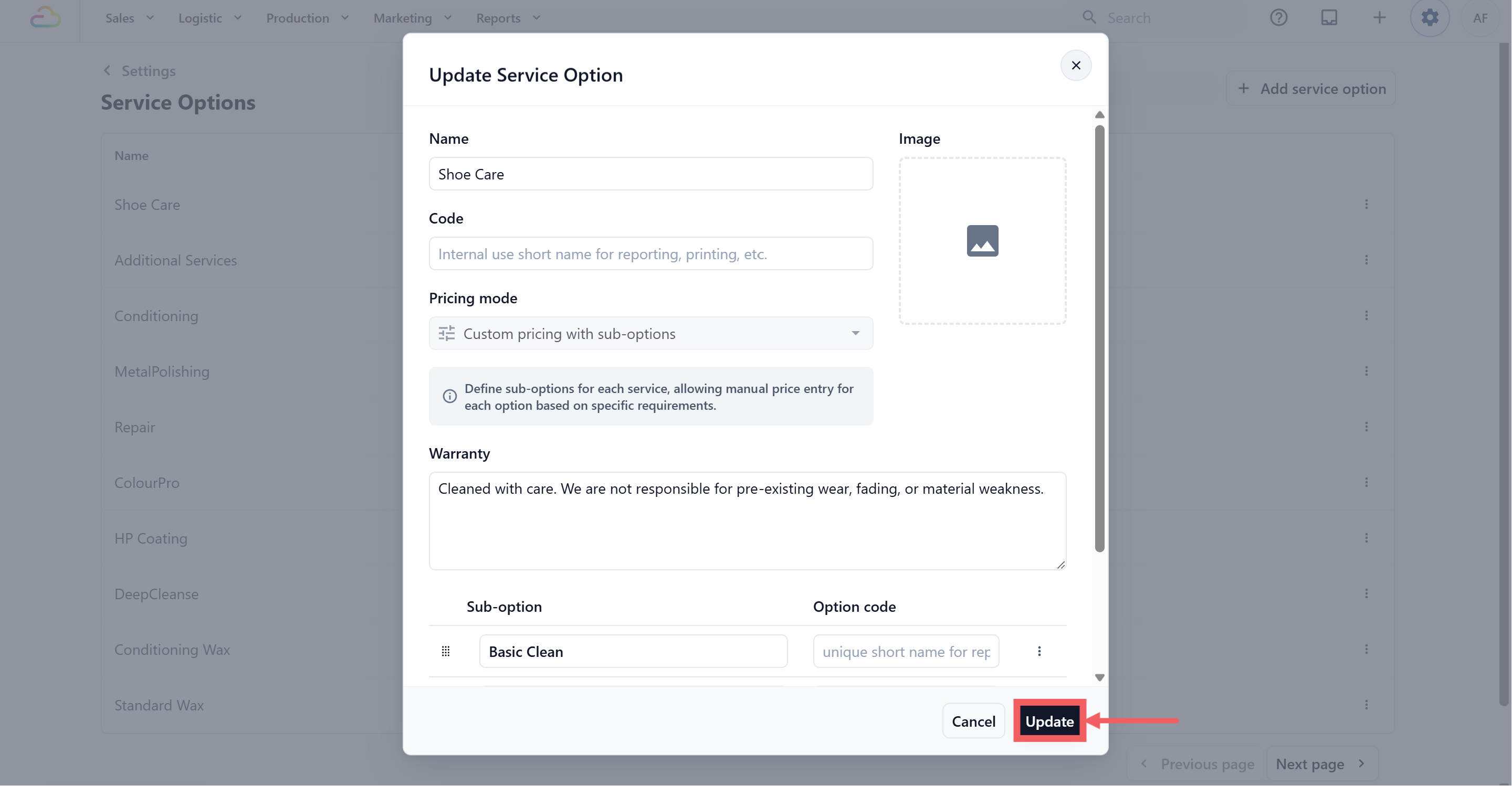
If the option is already used in an active Price List, you see a confirmation step before saving. Confirming pushes your changes to every Price List that uses this option.
---
## Delete a Service Option
1. Click the ••• three-dots menu at the end of the row.
2. Click Delete.
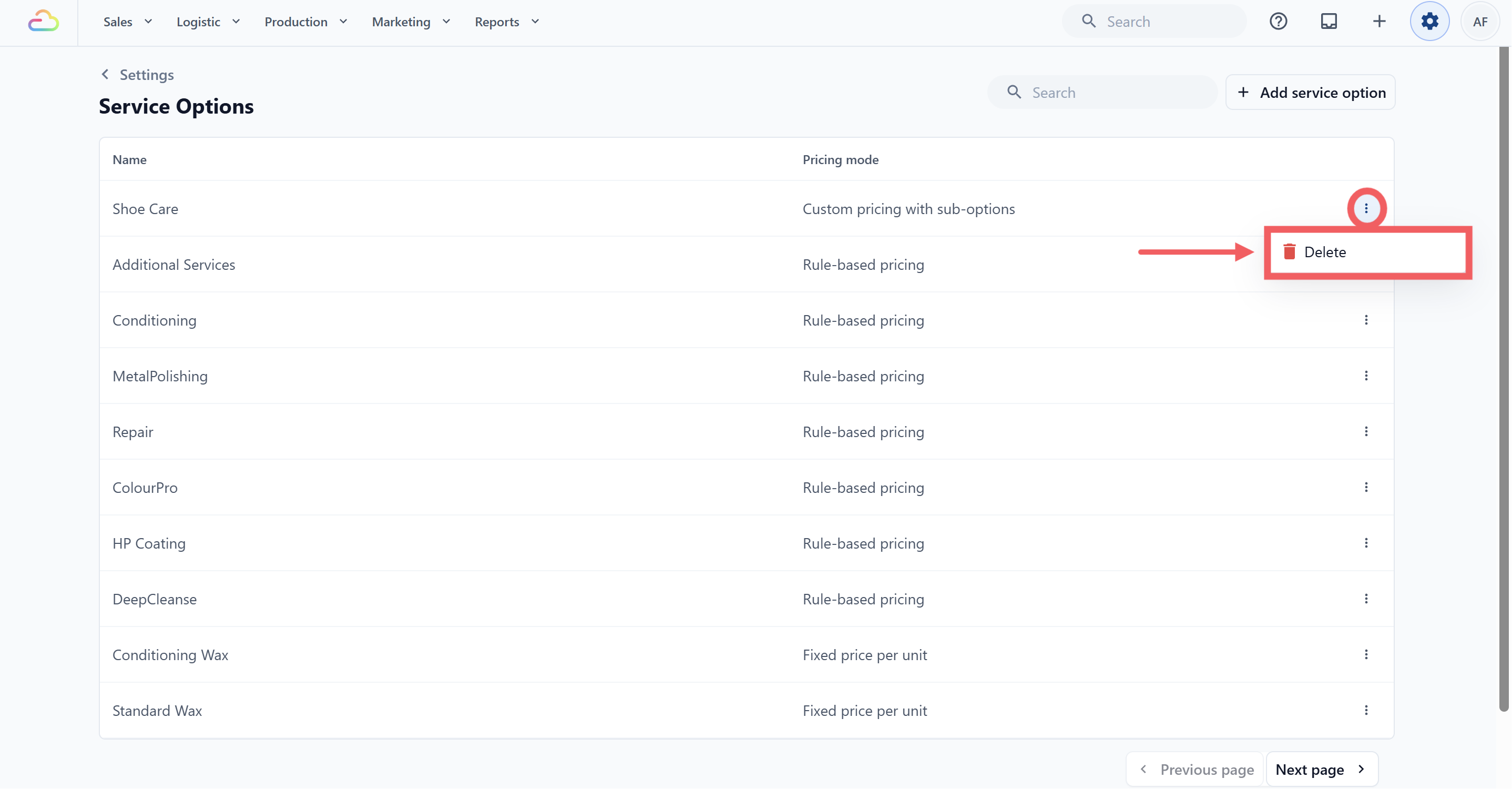
If the option is unused, you see "Service option not in use, you can safely delete it." If it is in use, a warning lists the Price Lists that reference it. You can still delete. Existing orders are unaffected, but the option is no longer available for new orders.
Do not delete a Service Option for a temporary pause. A Price List-backed POS has no one-click temporary-disable control or scheduler. Use the [temporary-hide workflow in Setting Up Consumer Price Lists](/docs/setting-up-consumer-price-lists): deselect the option through the **Service Options** selector on every applicable product and variant, preview and publish, then reselect and publish again when the service resumes. Selector deselection preserves the saved prices; **Clear/X** does not.
Deleting a Service Option can affect Price Lists, booking options, and pricing rules that use it. Existing Price Lists are not updated automatically, so open the affected Price Lists and remove the Service Option there as well. Booking options limited to this Service Option may also be removed. If you are unsure, use Edit to rename it instead.
---
## Where Service Options Are Used
After you create service options, use them anywhere EasyBiz needs to separate one business unit into different service types.
A laundry business unit can use service options such as Dry Clean, Laundry, Ironing, or Express Wash.
Service options are mainly used in these areas:
| Area | How service options are used | Full setup |
| --- | --- | --- |
| Order catalog | Service options can appear as tabs or selection groups when staff add items to an order. Staff choose a service type, such as Dry Clean or Ironing, to show or price the items for that service type. This can apply in POS and console order-taking/catalog screens, depending on the business unit setup. | [Setting Up Your Business Unit for Laundry](/docs/setting-up-your-business-unit-for-laundry) |
| Price lists | Service options help organize prices by service type, so the same item can be priced differently depending on the service selected. | [Create Price Lists](/docs/create-price-lists) |
| Booking options | Service options can limit when a pickup, delivery, surcharge, or rescheduling option appears. For example, an Express option can appear only when the cart includes Express Wash. | [Setting Up Booking Options](/docs/setting-up-booking-options) |
If you only offer one type of service, you may not need service options. Use them when your team needs separate tabs, separate pricing, or separate booking rules for different service types under the same business unit.
---
## FAQs
**The Add button stays greyed out. What did I miss?**
> The Name field is empty, or the Pricing mode is not selected. Both are required. Code, Image, and Warranty can be left blank.
**Can I change the pricing mode after I save?**
> No. Changing modes after the option is in use would invalidate every Price List that references it. Delete the option and create a new one with the right mode.
**Why is there no price field in the dialog?**
> The Service Option only defines the name and the pricing logic. Actual price values are set per product inside the Price List. Custom pricing with sub-options is the one exception, where you list the tier names inside this dialog.
**What is the difference between a sub-option and a separate Service Option?**
> Sub-options share the parent service's grouping at the POS, so staff see one tap leading to a tier picker. Separate Service Options are listed as siblings. Use sub-options when the work is the same job at different intensities. Use separate options when the work is genuinely different.
**Do I need to set up Service Options separately for each business unit?**
> No. Service Options are shared across the whole shop account. Each Price List controls which business unit and products use them, and at what price.
**Will my changes appear on the customer side right away?**
> Yes, once you save. If the option is attached to an active Price List, confirm the update prompt and the new values apply to new orders. Existing orders are not changed.
---
## What's Next
Now that your Service Options are defined, continue to [Create Price Lists](/docs/create-price-lists) to attach actual prices to each one and decide which products and business units they apply to.