## When You Need Custom Zones
Use Custom Zones only if one area needs different rules from another. You can skip this entire section if every customer is covered by the same rules, the same minimum order, and the same driver.
A shop that delivers everywhere at the same price with one driver does not need zones. On the other side, a shop that charges more for far-away areas or splits deliveries between two drivers needs zones.
---
## The Three Ways to Create a Zone
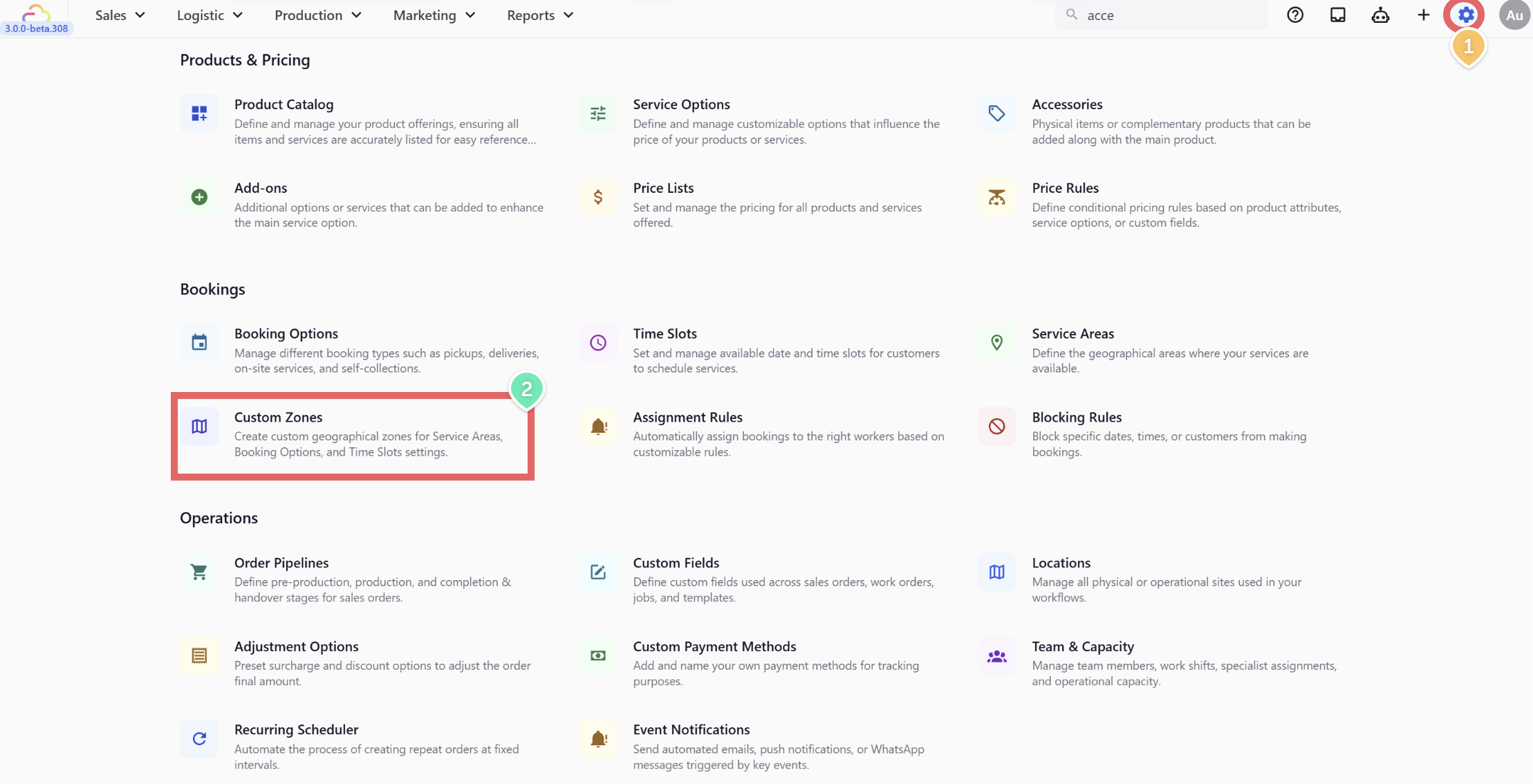
1. Click the ⚙️ Settings icon in the top-right corner.
2. Under the **Bookings** section, click Custom Zones.
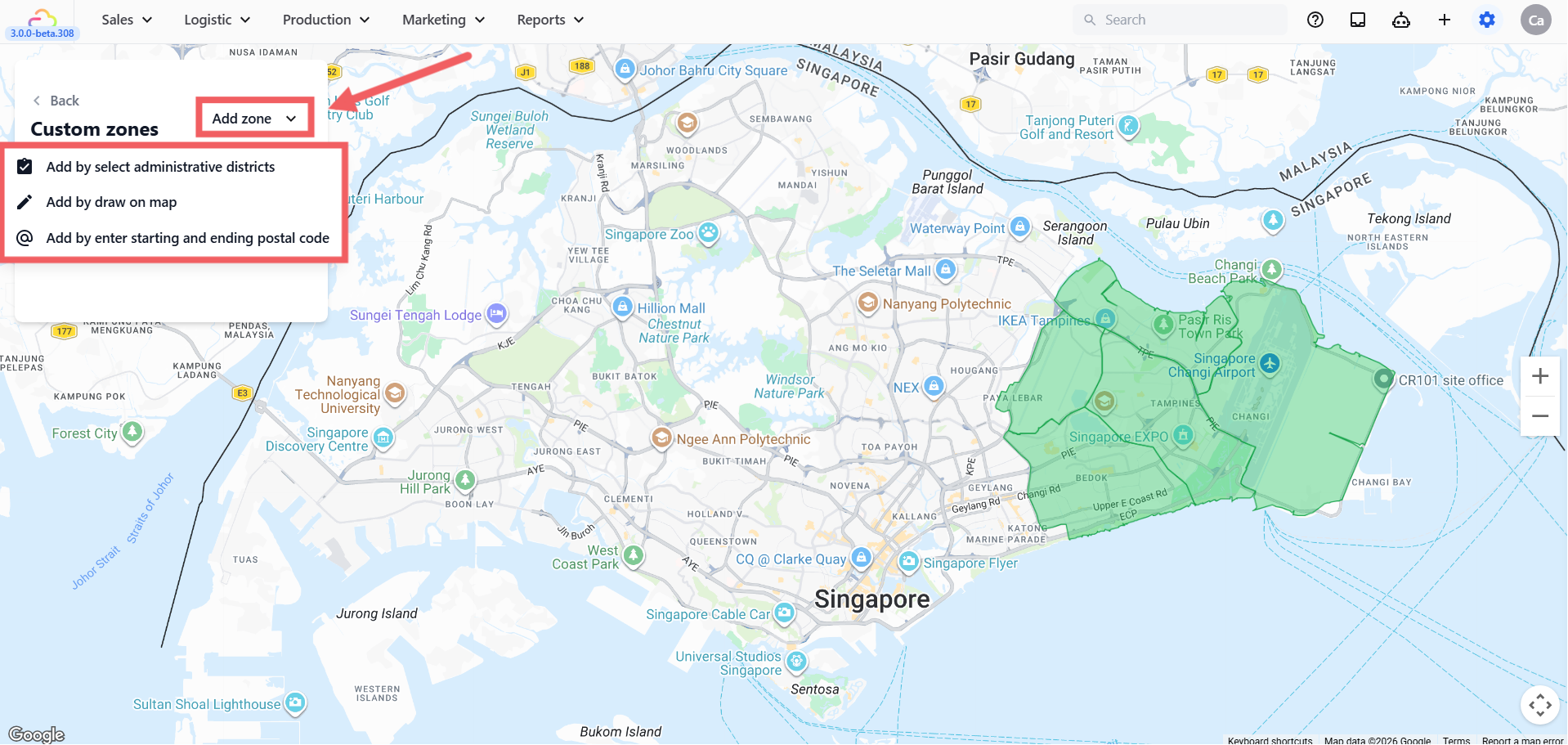
3. Click + Add Zone and pick one method.
| Method | How it works | When to use |
| --- | --- | --- |
| Administrative districts | Pick from a pre-built list of government regions | Fast setup when your country has clean district names |
| Draw on Map | Tap points on the map to draw any shape | Neighborhoods or driver routes that do not match a district |
| Postal code range | Enter a start and end postal code | Dense housing estates or a specific area |
---
## Method 1: Administrative Districts
1. Click + Add Zone → Add by select administrative districts.
2. Enter a Zone ID.
3. Tick one or more districts from the list.
4. Click Create.
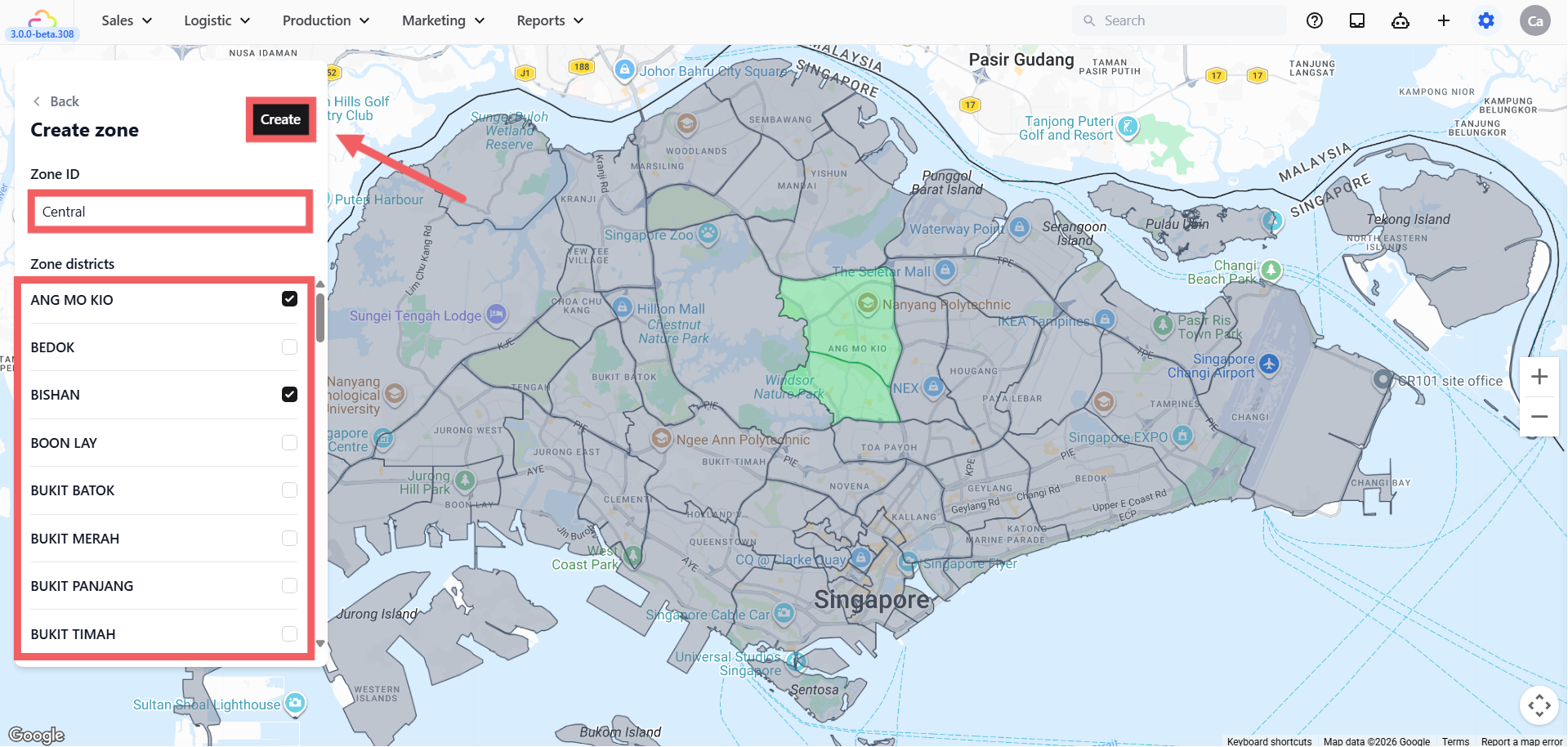
Broad coverage — grouping several nearby districts into one zone.
---
## Method 2: Draw on Map
1. Click + Add Zone → Add by draw on map
2. Enter a Zone ID.
3. Tap points on the map to form a closed shape (at least 3 points).
4. Click Create.
Keep the shape simple. Four to six points is enough for most areas. Too many points makes the shape hard to edit later.
---
## Method 3: Postal Code Range
1. Click + Add Zone → Add by enter postal code range.
2. Enter a Zone ID.
3. Enter the start and end postal codes.
4. Click Create.
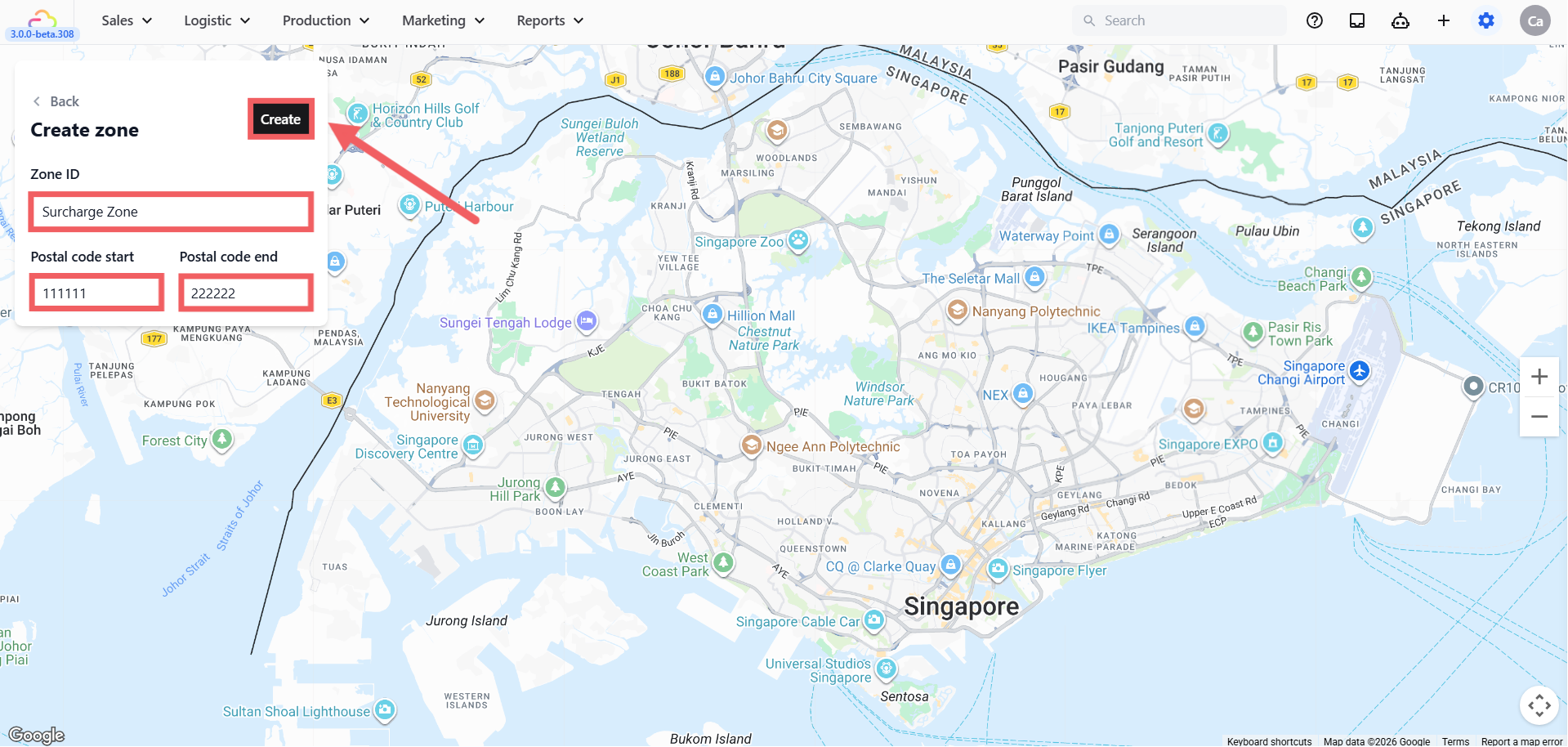
Enter postal codes exactly as your customers type them at checkout. Only addresses with a postal code inside that range will match.
---
## How to Name Your Zones
The Zone Name is how you will recognize the zone in every other setting.
| Name style | Example | Verdict |
| --- | --- | --- |
| Area name | NORTH, CBD, EAST | Good |
| Area and purpose | REMOTE-WEST, CBD-SURCHARGE | Good |
| Driver name | DRIVER-A-ZONE | Fine if that driver always covers this area |
| Random code | Z1, A, area1 | Avoid, since it will be easier to forget what it means |
Once you save a zone, the Zone Name is locked. If you need a different name, delete the zone and create a new one. Any rules that already reference the old zone will need to be updated.
---
## FAQs
**Do I need Custom Zones before I go live?**
> Use this only if you want to limit service by area, charge different minimums per area, or auto-assign drivers by area. If you serve everywhere at the same price, skip this section.
**Can two zones overlap?**
> Yes. When a customer's address is inside more than one zone, the system picks the first match. Keep zones separate unless you deliberately want overlap.
**What happens if a customer's address is outside every zone?**
> By itself nothing. The customer will only be blocked if a Service Area is configured with specific zones. See [Setting Up Service Areas](/docs/setting-up-service-areas).
**Can I rename a zone without breaking existing rules?**
> No. Zone Name is locked after save. Delete and recreate if you must rename, then update the rules that reference it.
---
## What's Next
Now that your zones are drawn and named, continue to [Setting Up Service Areas](/docs/setting-up-service-areas) to tell each business unit which zones it covers and what the minimum order is per area.