## Before You Start
- Read [Setting Up Discounts Staff Add at Checkout](/docs/setting-up-staff-discounts) first. An automatic discount uses the same **Add Discount Option** dialog, with the same **Option name** and value.
- Decide the conditions before you start. An automatic discount with no conditions comes off every new order.
- For a birthday discount, your customers need a birthday saved on their contact. Customers without one don't get it.
- For an offer on certain items, such as "2nd Curtain 50% off" or "3 Shirts for $10", those items must be in your price list. See [Introduction to Price Lists](/docs/introduction-to-price-lists). To count every product of a collection instead, such as your Curtains collection, make the collection first. See [Adding Collections](/docs/adding-collections).
- For a discount your staff choose case by case, use a staff discount instead.
There is no extra charge for automatic discounts. They come with your POS and Online Store.
---
## Where It Works
- POS: the discount comes off in the cart on its own, with an Auto tag. Your staff can switch it off for one order.
- Console: the same happens when your staff create an order. On an order that already exists, your staff can switch it off in the order's line items, but editing never adds a new one.
- Online Store and Mobile App: the discount comes off the booking on its own, and the customer sees it on the booking review before they confirm.
- WhatsApp mini-app: bookings get the discount on their own when the order is made, and it prints on the receipt.
- Customers cannot pick or type an automatic discount. Only you decide when it applies.
If you set this up before: the discounts you saved on the old Adjustment Options page are on Discounts › Added by staff. Automatic discounts have their own Applied automatically tab next to it. The bundle prices you saved in Price Rules › **Bundle Price Rules** are now item offers on the Applied automatically tab, and that Price Rules page is gone.
---
## What an Automatic Discount Is
An automatic discount is a discount with conditions. When a new order meets every condition, it comes off.
It can take money off the whole order, like 10% off a first order. It can also take money off certain items only, like 50% off the second curtain or 3 shirts for $10. A discount on certain items is called an item offer.
Why set them up:
- Your staff don't need to remember who is new, whose birthday it is or which sale is on.
- Every customer who qualifies gets the same discount, at the counter and online.
- Online customers see the discount before they book, which gives them a reason to order.
- Item offers reward customers for bringing more pieces, without your staff working out the price of a deal by hand.
If you skip this, no discount comes off on its own. Your staff can still add discounts by hand at checkout.
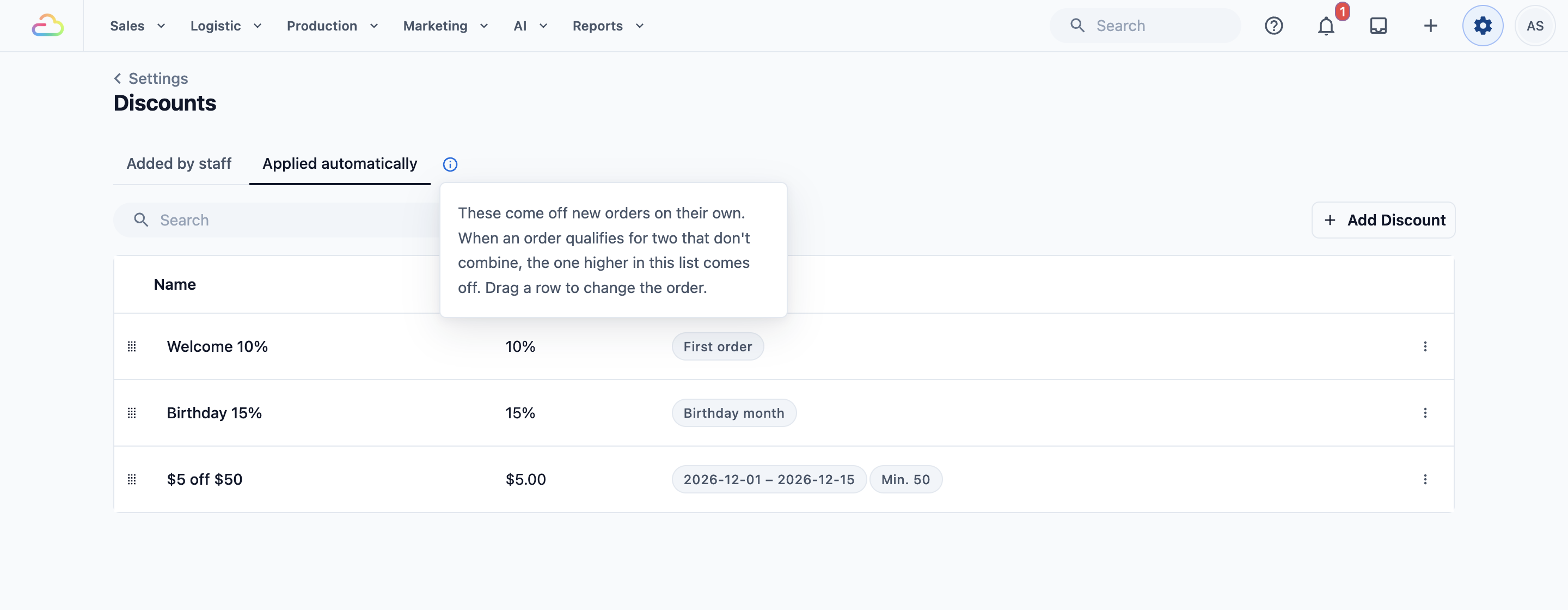
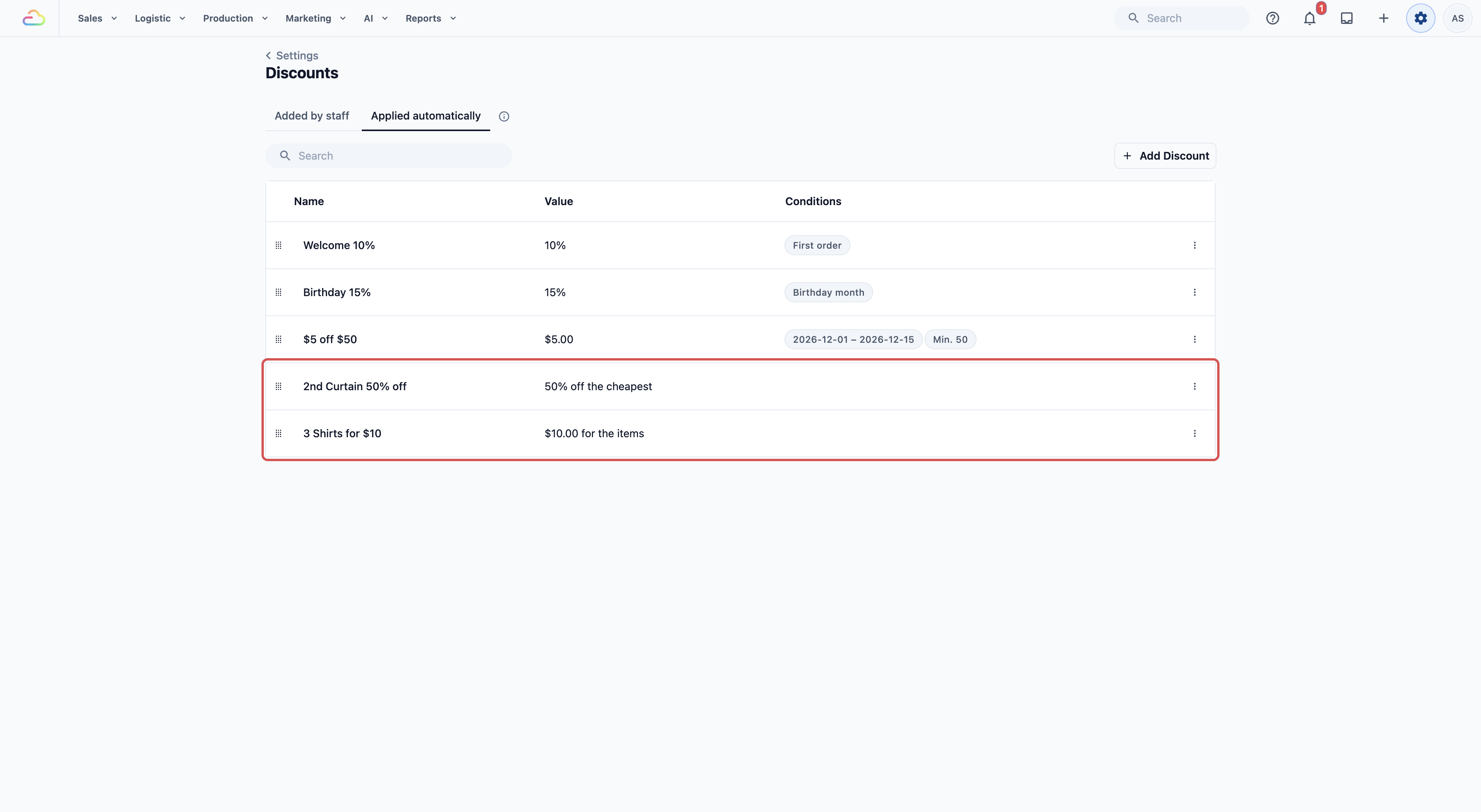
CleanFast Laundry runs five automatic discounts: "Welcome 10%" on a customer's first order, "Birthday 15%" in the customer's birthday month, "$5 off $50" during its December sale, "2nd Curtain 50% off" and "3 Shirts for $10". Staff never type a discount for these. The right one comes off when the order qualifies.
---
## Create an Automatic Discount
1. Click the ⚙️ Settings icon in the top-right corner.
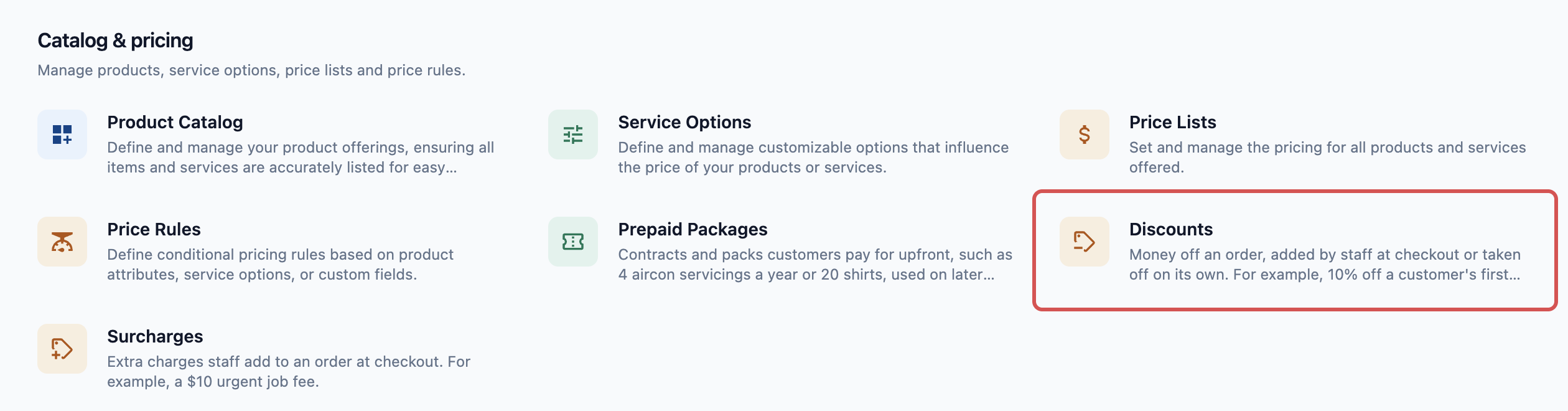
2. Under the **Catalog & Pricing** section, click Discounts.
3. Click the Applied automatically tab.
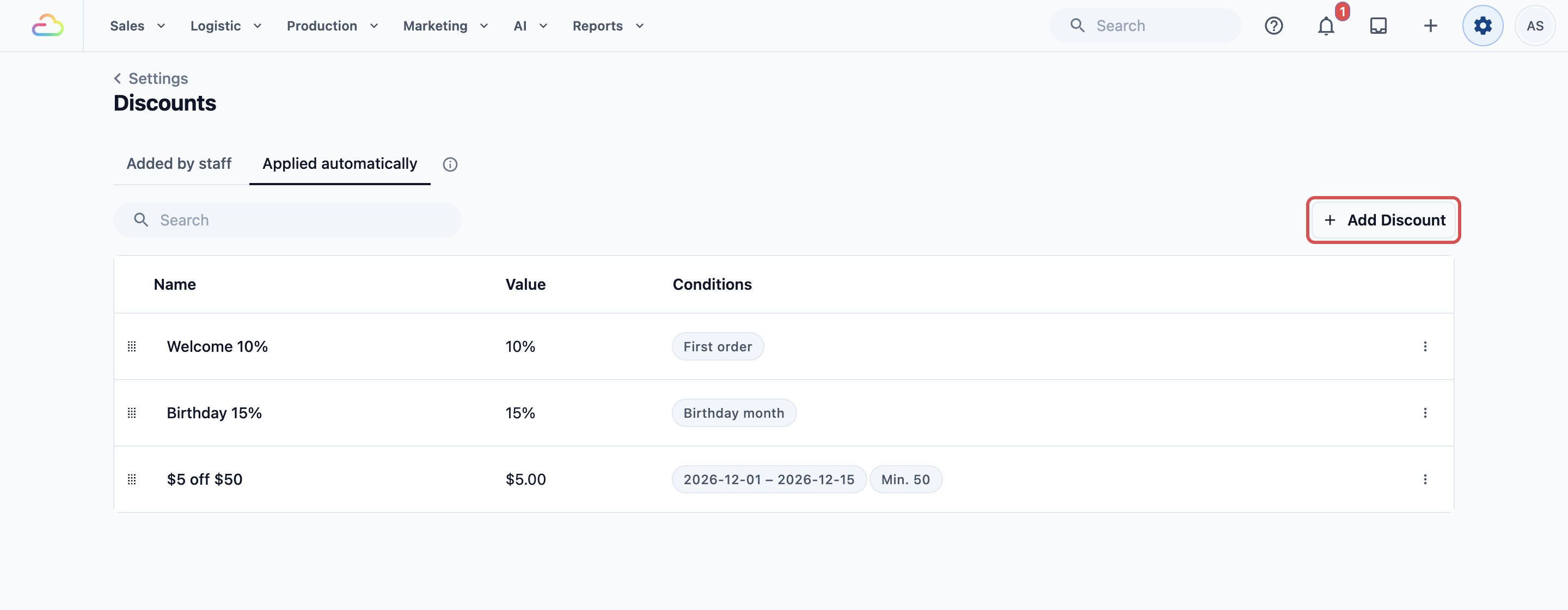
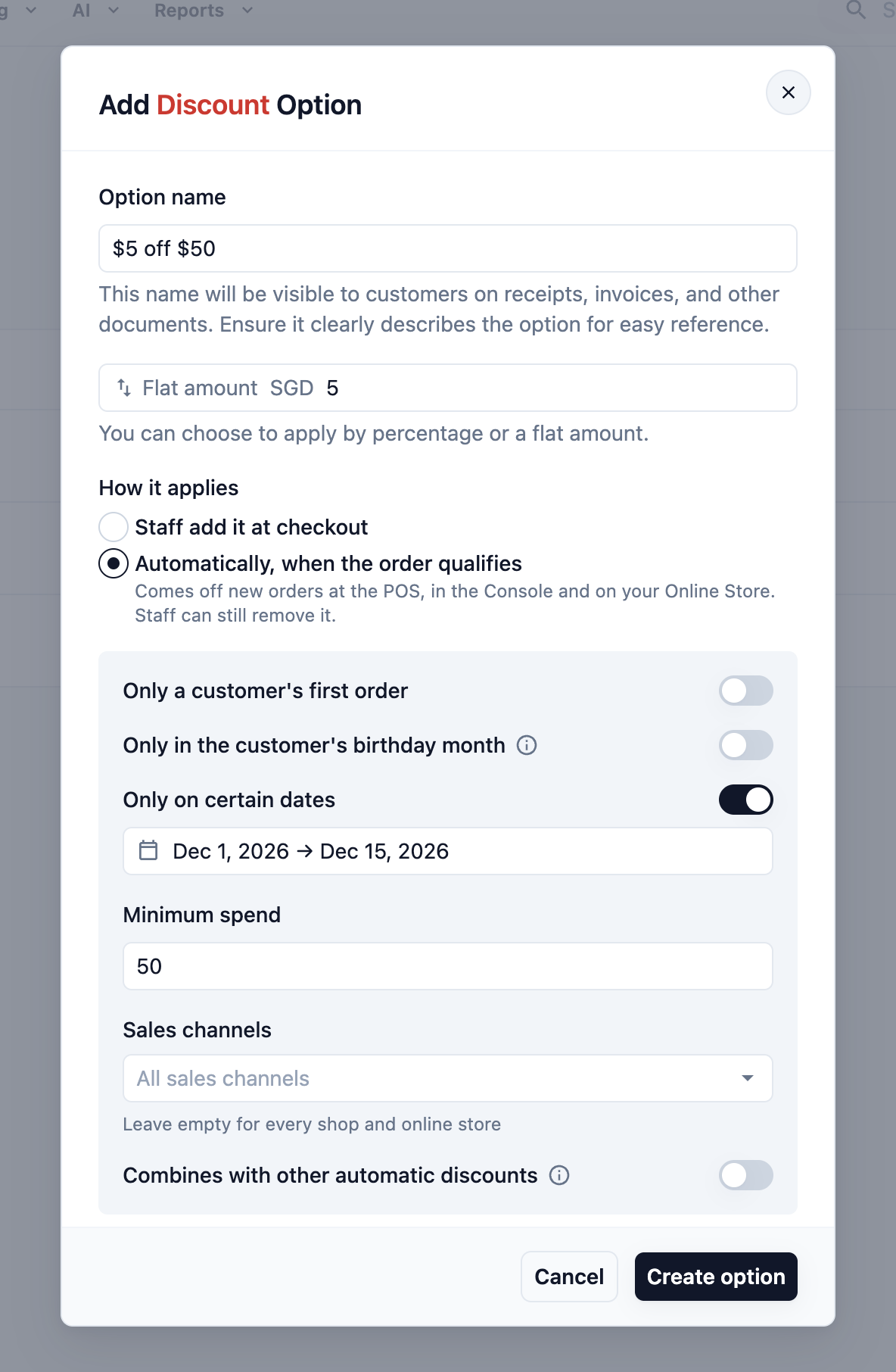
4. Click Add Discount. The **Add Discount Option** dialog opens with **How it applies** already set to **Automatically, when the order qualifies**.
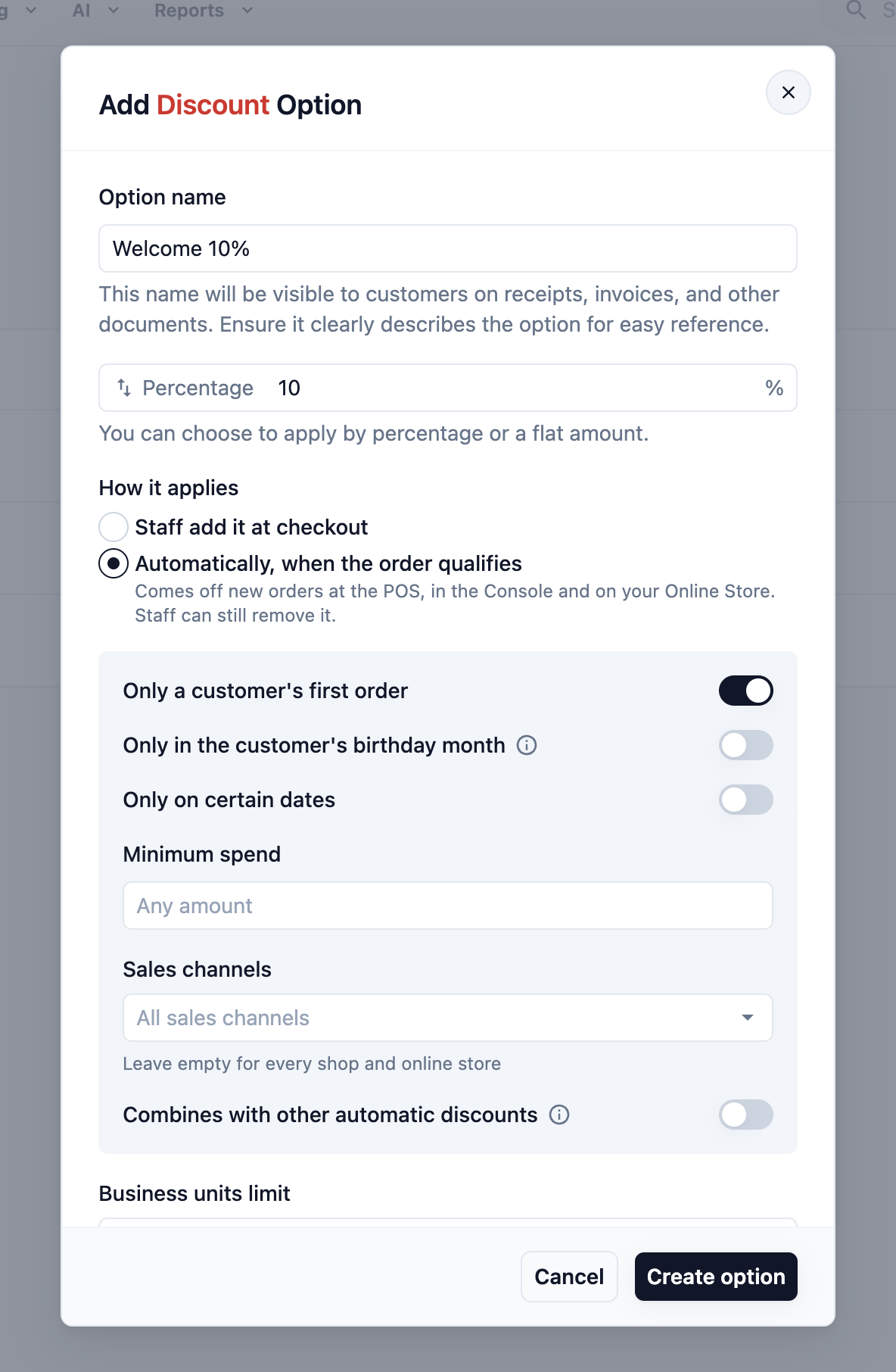
5. Enter the **Option name**. Customers see it on the receipt, for example "Welcome 10%" or "3 Shirts for $10".
6. Under **What comes off**, pick what the discount takes money off: the whole order, the cheapest matching item, or matching items for a set price. Each choice is explained in the next section.
7. For **Money off the order**, enter the value. Click the swap arrows to switch between a percentage and a flat amount. The value must be more than 0, and a percentage cannot be more than 100%. For the two item offers, add the items and the percentage or price instead, as the next section shows.
8. Set the conditions, explained in the Conditions section.
9. _Optional._ Pick the business units it applies to in **Business units limit**. A business unit is a line of service in your shop, for example Laundry or Bag Repair. Leave it on **No limit** for all.
10. Click Create option.
The discount appears in the list. Its **Conditions** column shows tags such as **First order**, **Birthday month**, the sale dates, **Min. 50**, and the sales channels and business units you picked. Item offers show their value as "50% off the cheapest" or "$10.00 for the items".
You can also turn a staff discount into an automatic one. Open it on the Added by staff tab and change **How it applies** to **Automatically, when the order qualifies**. It moves to the Applied automatically tab and takes money off the order.
---
## What Comes Off
**What comes off** sits under **How it applies**. It decides what the discount takes money off.
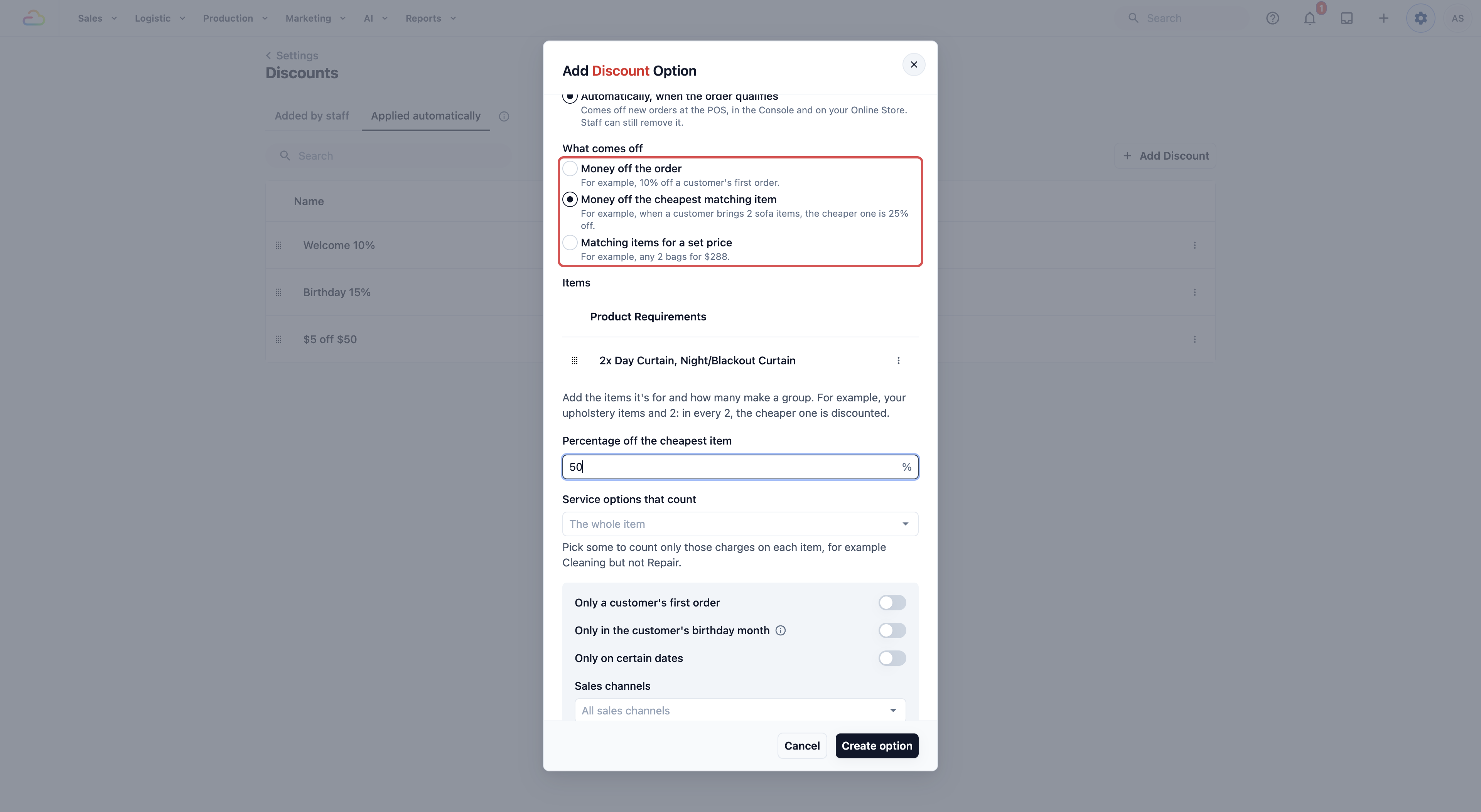
| Pick this | What it does | CleanFast example |
| --- | --- | --- |
| Money off the order | Takes a percentage or a flat amount off the whole order | Welcome 10% on a first order |
| Money off the cheapest matching item | In every group of matching items, takes a percentage off the cheapest one | 2nd Curtain 50% off |
| Matching items for a set price | Charges one price for a set of matching items | 3 Shirts for $10 |
You pick **What comes off** when you create the discount. Later you can switch an item offer between the two item choices, but not to **Money off the order**, and a discount on the order cannot become an item offer. To change it, add a new discount and delete the old one.
### Money off the order
This is the usual discount. Enter its value as a percentage or a flat amount. A percentage is worked out on the items in the order, not on delivery or Express fees. Only this choice has a **Minimum spend**.
### Money off the cheapest matching item
Use this for deals like "2nd item half price". The items you pick make groups, and in every group the cheapest piece gets the percentage off.
1. Under **Items**, click Add Product Requirement.
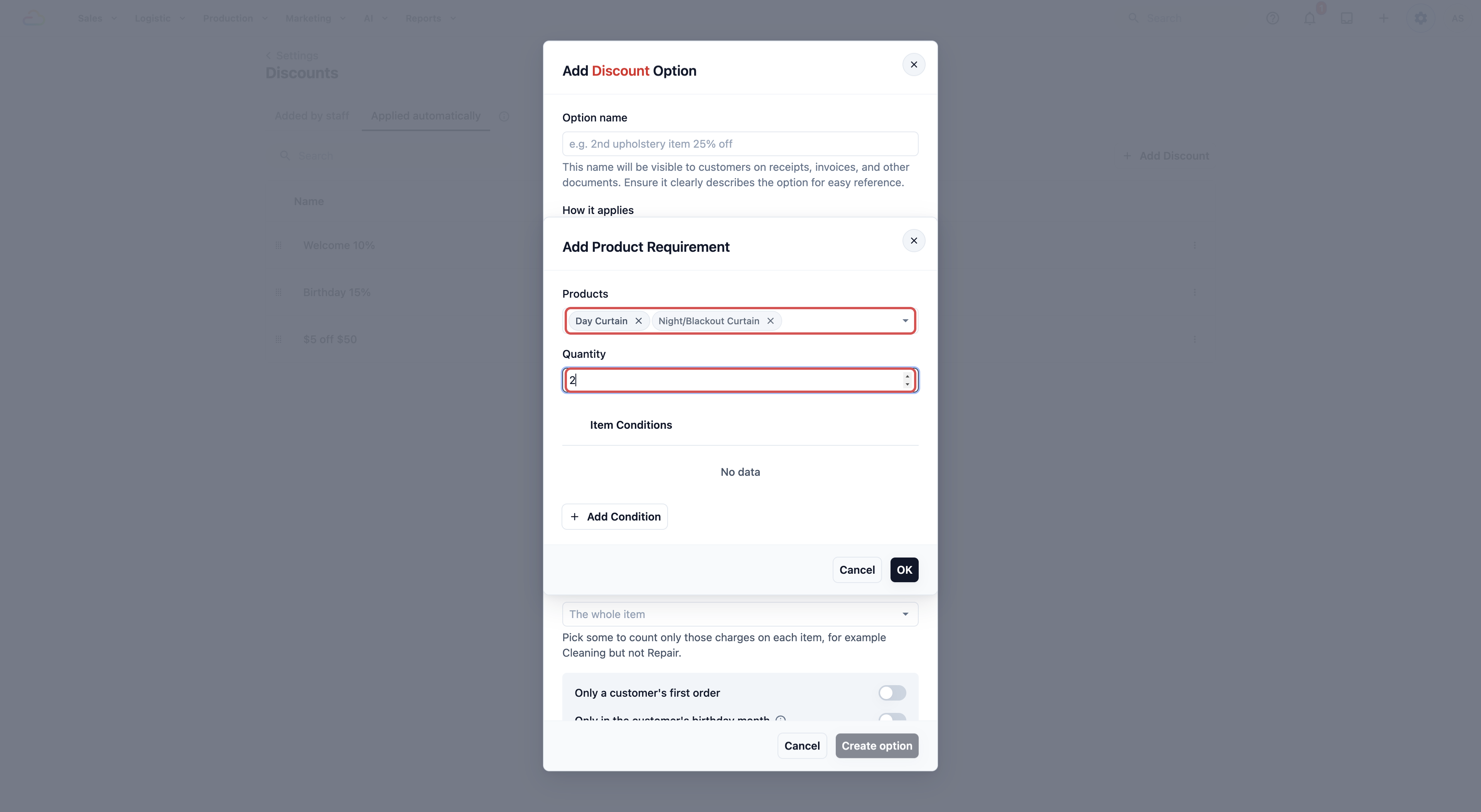
2. Leave **Which items count** on **Products you pick**. In **Products**, pick the items the offer is for. Pick several if any of them can make a group, for example Day Curtain and Night/Blackout Curtain. To count a whole collection instead, see [Counting a collection](#counting-a-collection).
3. In **Quantity**, enter how many pieces make a group, for example 2. It must be at least 2.
4. Leave **Item Conditions** empty to count every piece of those items, then click OK.
5. In **Percentage off the cheapest item**, enter the percentage, for example 50.
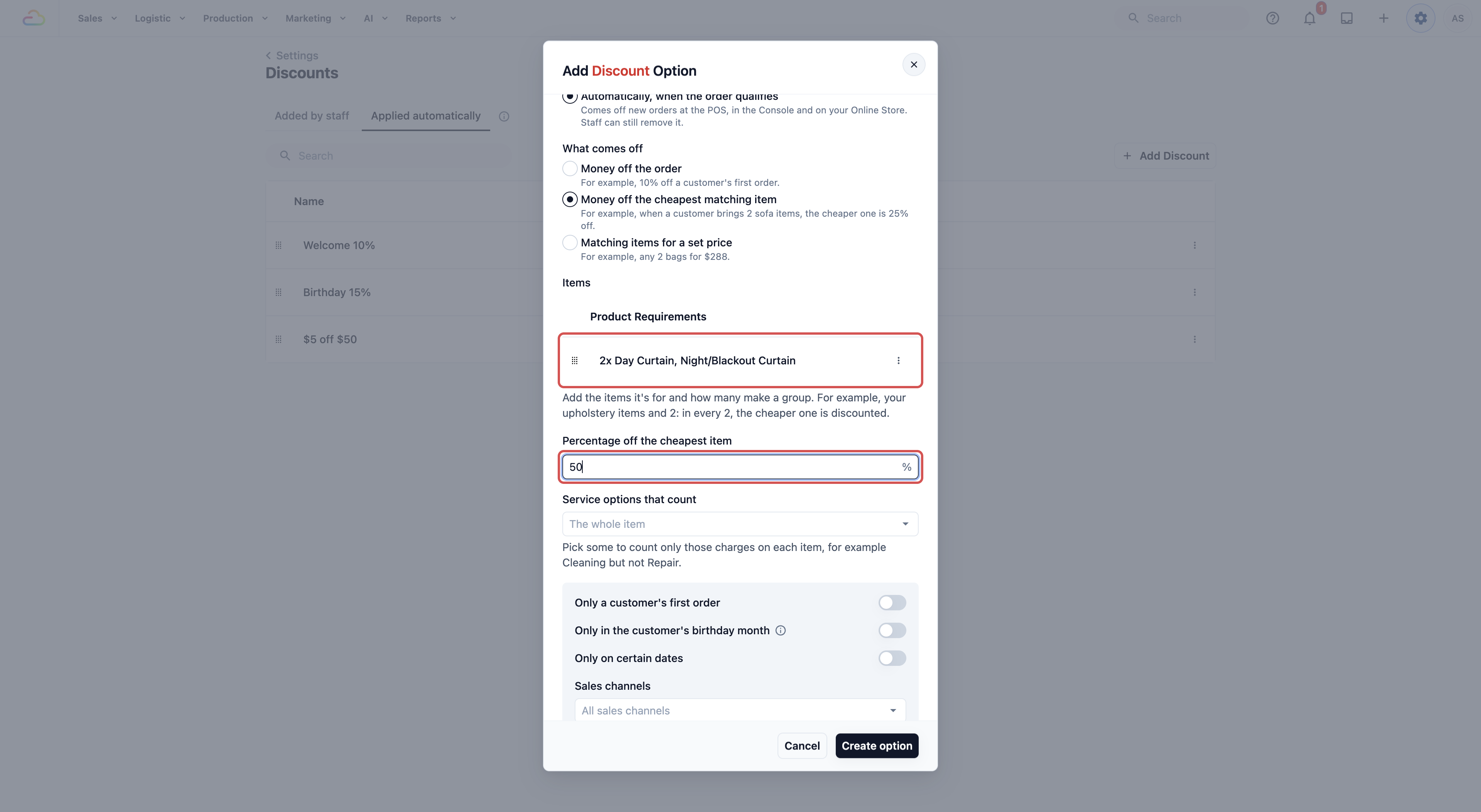
This offer has one item row. To edit or remove the row, use the three-dot menu next to it.
How the groups work, with "2nd Curtain 50% off" (groups of 2):
- A Night/Blackout Curtain at $36.00 and a Day Curtain at $24.00 make one group. The cheaper one, the $24.00 Day Curtain, gets 50% off: −$12.00.
- 3 curtains still make only one group of 2, so one curtain gets 50% off.
- 4 curtains make two groups, so the two cheapest curtains each get 50% off.
### Matching items for a set price
Use this for deals like "3 Shirts for $10" or "1 bag and 1 wallet for $288". When the order has every item the set needs, those items cost the set price instead.
1. Under **Items**, click Add Product Requirement.
2. Leave **Which items count** on **Products you pick**. In **Products**, pick the item, and in **Quantity**, enter how many the set needs. For example, Shirt and 3. Click OK.
3. If the set needs another item, click Add Product Requirement again. For example, 1 bag and then 1 wallet.
4. In **Price for the items**, enter the price of the whole set, for example 10.
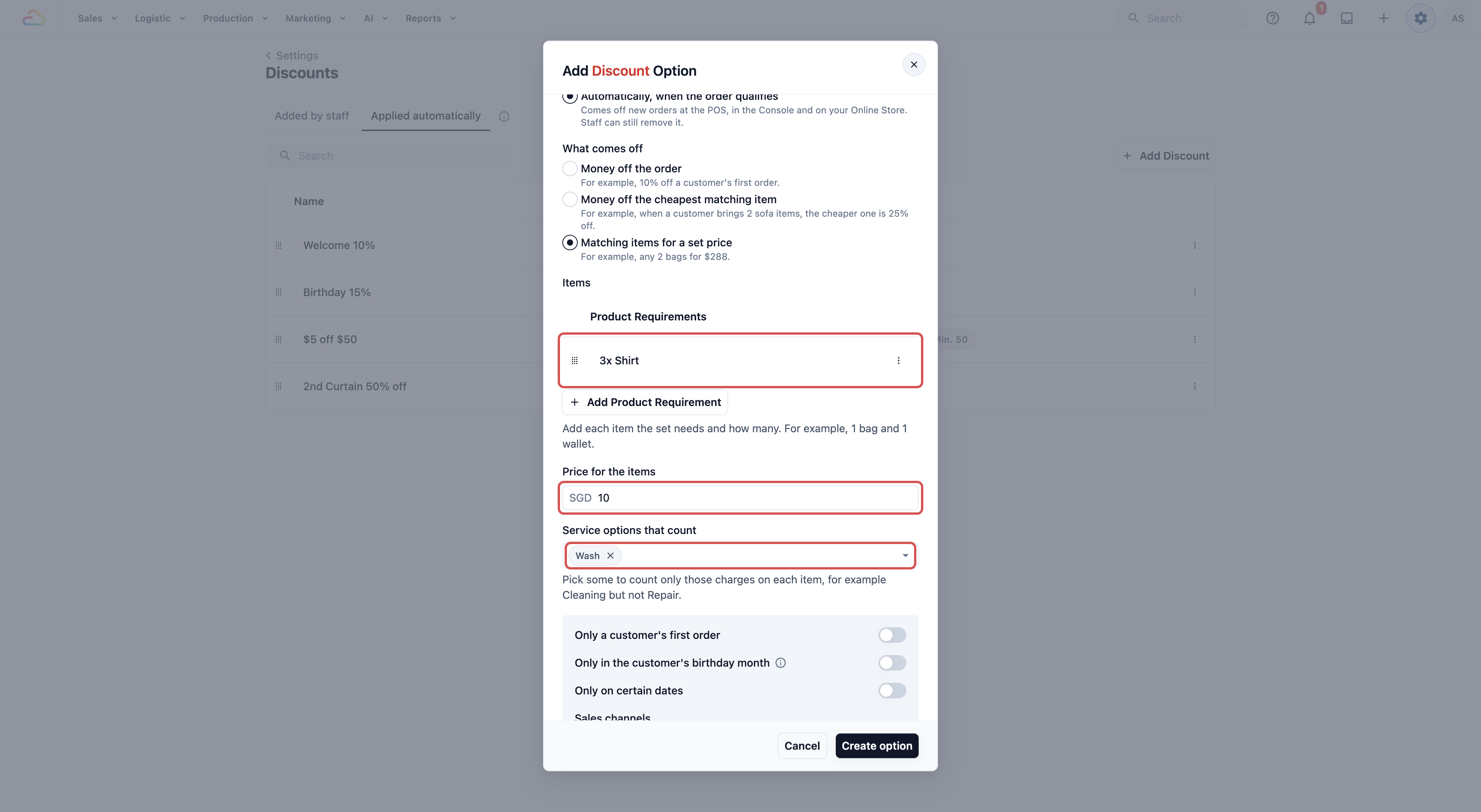
How sets work, with "3 Shirts for $10" and Shirt Wash at $4.00 a piece:
- 3 shirts cost $12.00. The set price is $10.00, so −$2.00 comes off.
- It counts pieces, not cart lines. A single "Shirt × 3" line makes a set, and so do 3 separate shirt lines.
- 6 shirts make two sets: $20.00 instead of $24.00.
- 4 shirts make one set and one shirt at its normal price: $10.00 + $4.00 = $14.00.
- An item priced by weight or size, such as 4 kg of Wash & Fold, counts as one item, not 4.
### Counting a collection
A collection is a group of your products, such as Curtains or Household, kept in Settings › **Collections**. Both item offers can count every product in a collection, so you don't pick the products one by one. A product you add to the collection later counts on orders taken from then on.
1. Under **Items**, click Add Product Requirement.
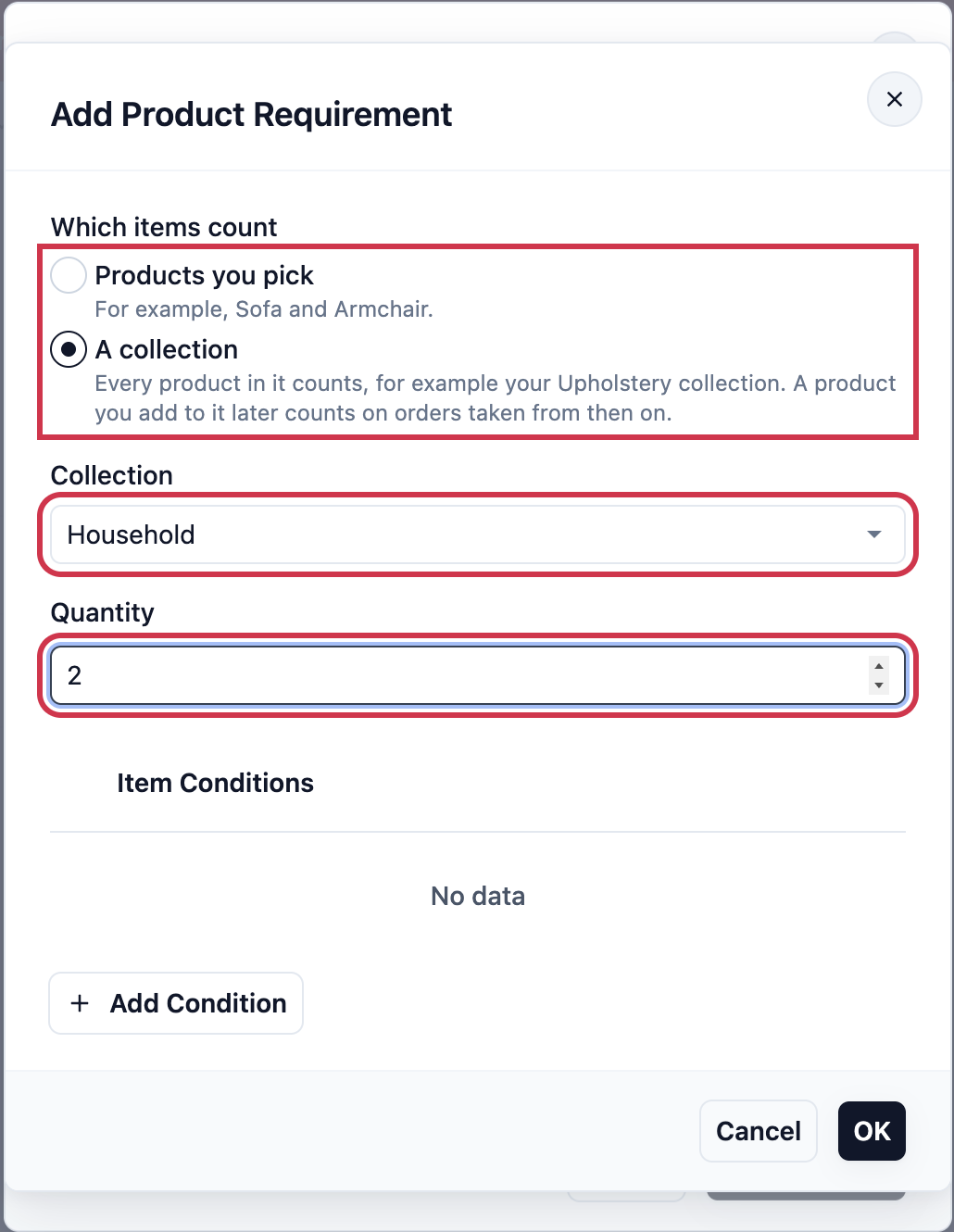
2. Under **Which items count**, pick **A collection**.
3. In **Collection**, pick the collection, for example Household.
4. In **Quantity**, enter how many pieces make a group or a set, for example 2, then click OK.
The item row then reads "2x from the Household collection".
How a collection counts:
- Each item counts with the collections it was in when it was added to the order. An order keeps its price when you change the collection later, even when your staff edit the order.
- New orders count the collection as it is today. For example, take Rug out of Household, and the rug in a new order no longer counts toward "2nd Household item 50% off". A rug already in an earlier order still does.
- While a discount counts a collection, the collection can't be deleted. The collection's page lists the discount under **Used in**.
### Service options that count
A service option is the kind of service done on an item, for example Wash, Dry Clean or Ironing. Both item offers have this field.
| Pick this | Result |
| --- | --- |
| Leave empty (**The whole item**) | Every piece of the items you picked counts, whatever service it gets |
| One service option | Only pieces done with that service option count. For example, pick Wash and a Dry Clean shirt does not count toward "3 Shirts for $10" |
| Mix and match | Pieces done with any of the service options you picked count |
When one item has several charges, for example Cleaning and Repair on a bag, only the charges for the service options you picked count toward the offer.
"3 Shirts for $10" counts Wash only. A customer brings 3 shirts for Wash and 3 shirts for Dry Clean. The 3 Wash shirts make a set and cost $10.00. The 3 Dry Clean shirts stay at $8.00 each.
---
## Conditions
The conditions sit in a panel under the discount's value or items. Every condition you turn on must be met for the discount to come off. Leave a condition off, or a field empty, to skip it.
- **Only a customer's first order**
If you turn this on, the discount comes off only when the customer has no earlier order. Cancelled orders and training orders don't count as an earlier order. An order without a customer selected doesn't get it, so your staff should select the customer before checkout.
- **Only in the customer's birthday month**
If you turn this on, the discount comes off for the whole month of the birthday saved on the customer's contact. Customers without a birthday saved don't get it. You can have only one birthday discount. If you try to save a second one, EasyBiz tells you which discount is already the birthday discount.
- **Only on certain dates**
If you turn this on, a date range appears. Pick a start date and an end date, for example 1 to 15 December. The discount comes off only on orders made between those dates, in your shop's time zone. You need both dates before you can save.
- **Minimum spend**
The minimum spend is the amount the items in the order must reach before the discount comes off. It counts the items only, not delivery or Express fees. Leave it empty for **Any amount**. If you enter 50, an order of $48.00 in items doesn't get the discount, and your staff see how much more is needed. Item offers don't have a minimum spend, because the items themselves decide when they come off.
- **Sales channels**
A sales channel is a place where orders come from, for example your Tampines POS, your Jurong POS or your Online Store. Pick the ones this discount works on. Leave it empty for every shop and online store.
| Pick this | Result |
| --- | --- |
| Leave empty | The discount works on every POS and online store |
| Online Store only | Only online bookings get it, to grow online orders |
| Mix and match | For example Tampines POS and Online Store, but not Jurong POS |
- **Combines with other automatic discounts**
If you turn this on, this discount can come off together with another automatic discount on the same order, including item offers. If you leave it off, only one of them comes off. See the next section.
An automatic discount has no **Allow value modification during use**, **Allow multiple applications** or **Service options limit**. A discount on the order comes off once, at the value you set. An item offer comes off once for every group or set the order makes.
---
## When Two Discounts Qualify
When an order qualifies for two automatic discounts, whether on the order or on items:
- Both come off only if both have **Combines with other automatic discounts** turned on.
- Otherwise, only the one higher in your Applied automatically list comes off.
Drag a row up or down to change the order. Put the discount you want to win at the top.
A first-order 10% sits above a weekend sale 15%, and neither combines. A new customer ordering on the weekend gets the 10%. Move the weekend sale to the top and they get the 15% instead. Turn on **Combines with other automatic discounts** on both, and they get both.
When two item offers both combine and want the same pieces, each piece counts toward one offer only. EasyBiz splits the pieces the way that saves the customer the most.
If you use Price Rules › **Item Adjustments**, an item adjustment with **Combine with bundle deals** turned off is taken back on an order where an item offer comes off. See [Setting Up Price Rules](/docs/setting-up-price-rules).
---
## What Staff and Customers See
**In the Discounts list**
Item offers sit in the same Applied automatically list as your other automatic discounts, so dragging decides which one wins for them too.
**At the POS and in the Console**
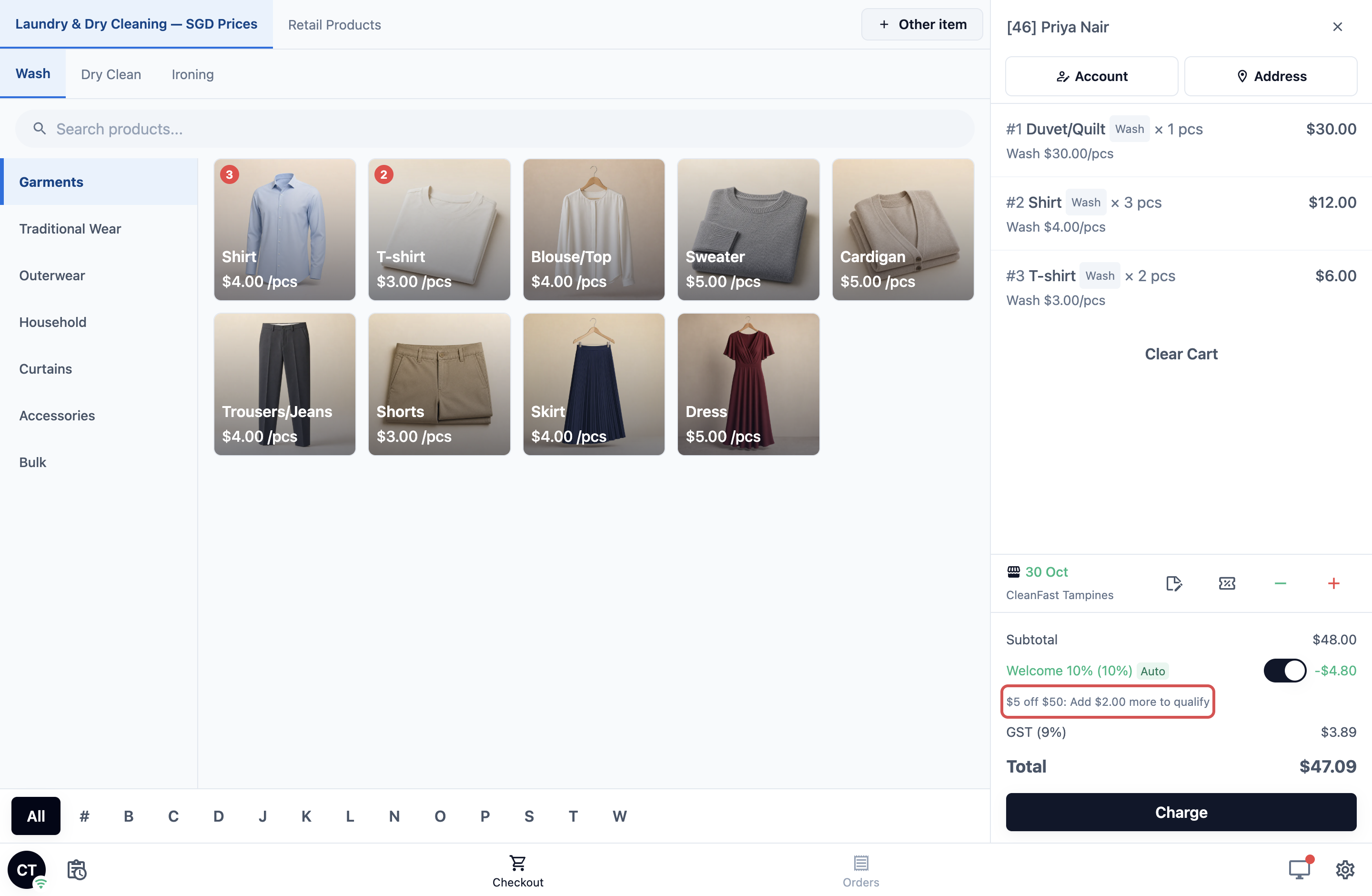
- The discount shows in the cart under the Subtotal with an Auto tag. An item offer shows the same way, with its own row and amount.
- Your staff can switch it off for one order with the switch next to it. The total updates straight away.
- When the order is short of the minimum spend, the cart shows a hint such as "$5 off $50: Add $2.00 more to qualify".
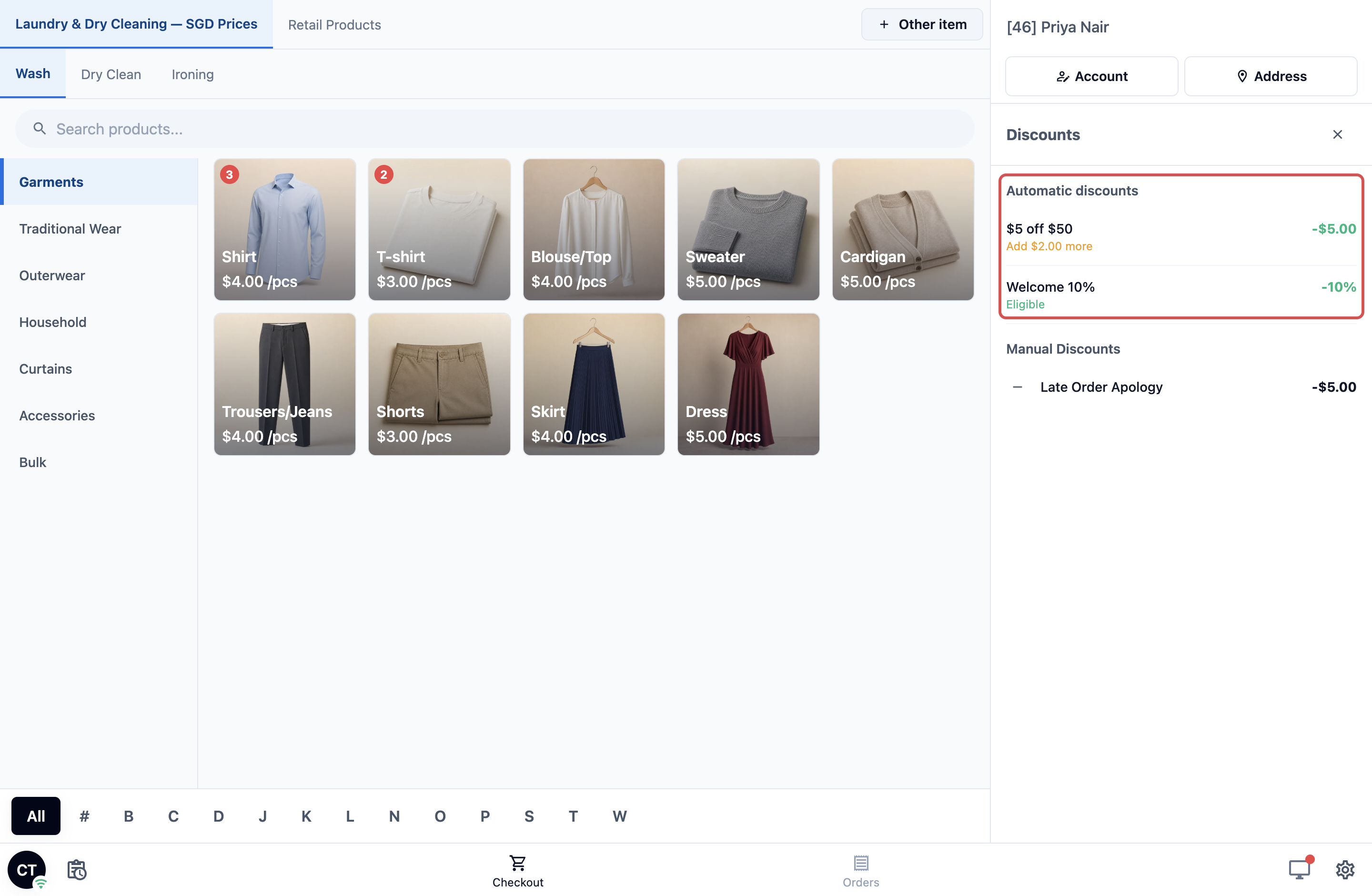
- The green − button opens the discount panel. It lists your automatic discounts first, under **Automatic discounts**, each marked **Eligible** or **Add $X more**. The discounts staff add are listed below under **Manual Discounts**. How staff use that panel is in [Giving Discounts and Surcharges at the POS and in the Console](/docs/giving-discounts-at-the-counter).
Here is how item offers come off at the counter. Staff add a Night/Blackout Curtain and a Day Curtain, and "2nd Curtain 50% off" appears. They add Shirt three times, the shirts join one "Shirt × 3" line, and "3 Shirts for $10" appears.
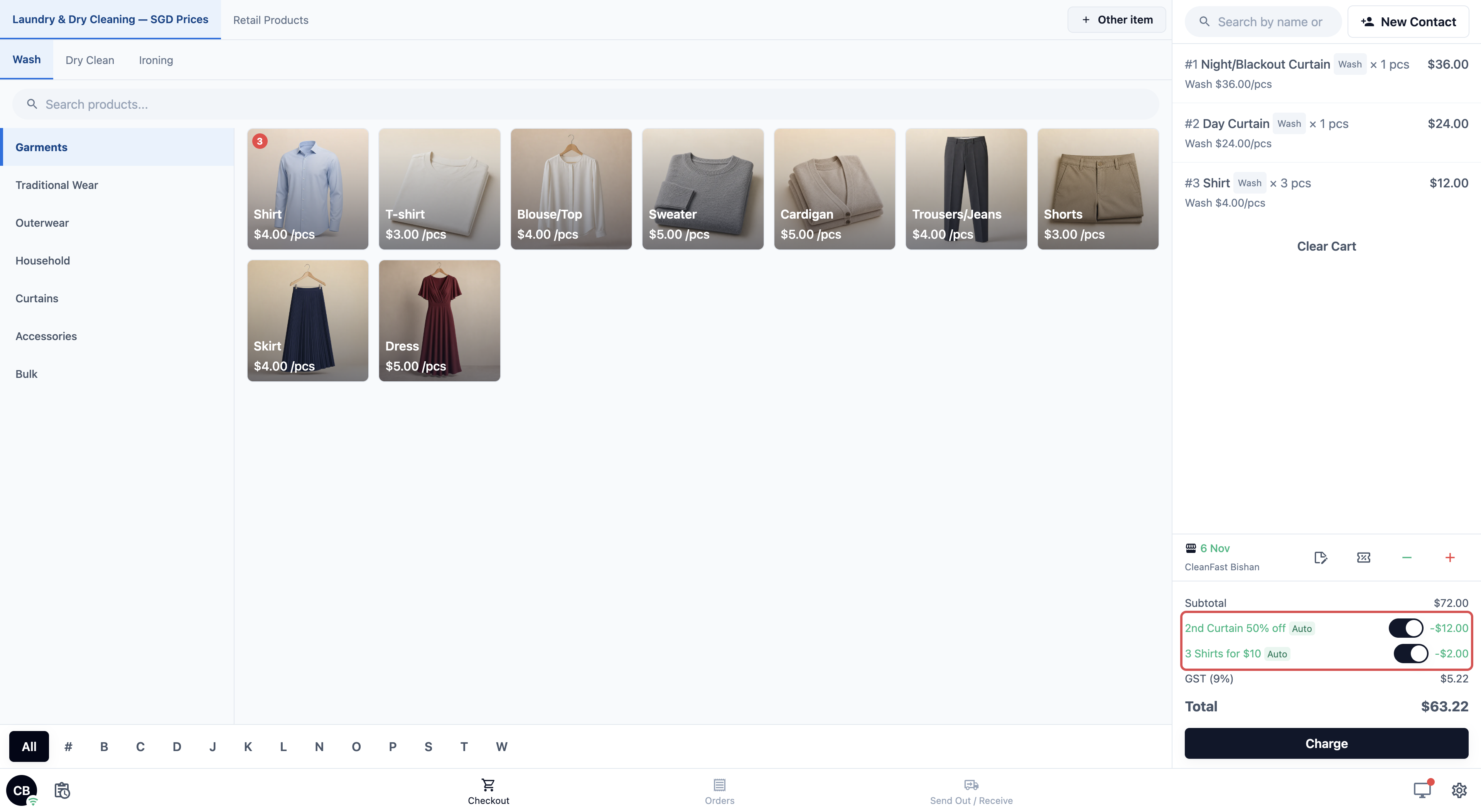
The cart's Auto tag and switch show on EasyBiz POS in the browser (POS Web). The POS app on tablets gets them with its next update.
**On your Online Store and Mobile App**
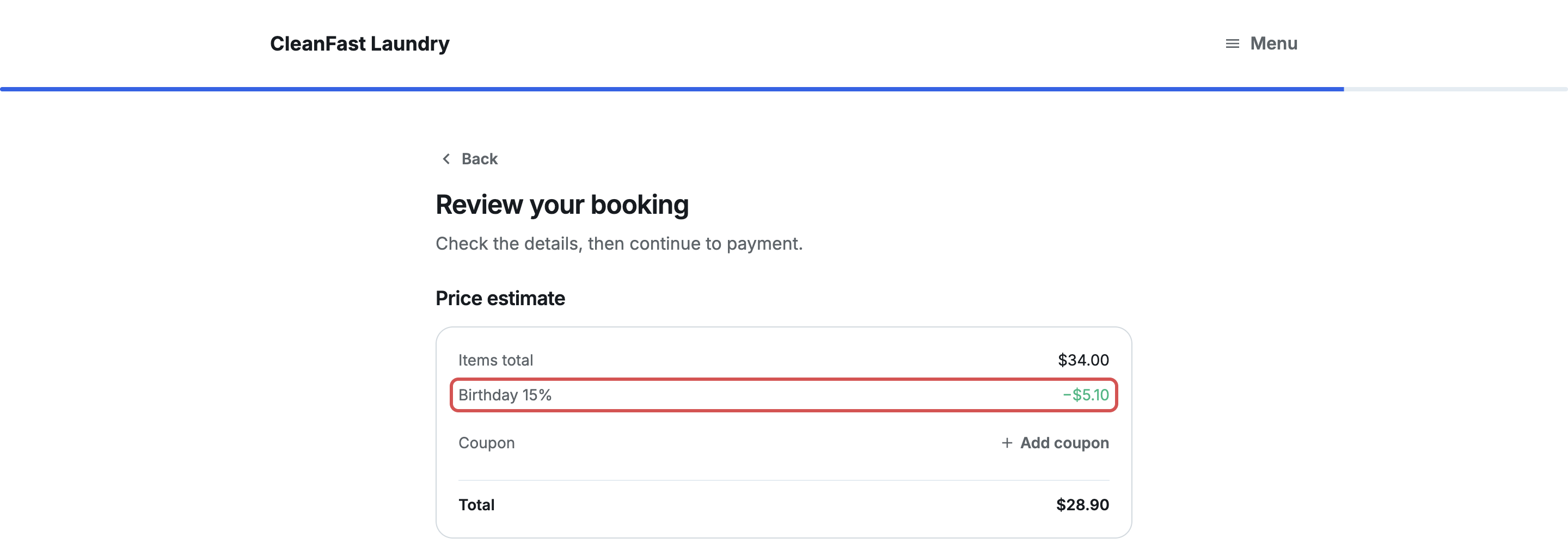
The discount comes off the booking on its own, and the customer sees it on the booking review before they confirm. First-order and birthday discounts show only after the customer signs in, because EasyBiz needs to know who they are.
**On the receipt**
The discount prints as its own line with the name you typed.
---
## Example: What the Customer Pays
These examples use 9% tax added on top of your prices.
**A new customer's first order (Welcome 10%)**
- 1 Comforter Wash: $28.00
- 4 Shirt Wash & Press at $4.00: $16.00
- Items: $44.00
- Welcome 10%: −$4.40
- After discount: $39.60
- Tax 9%: $3.56
- Total: $43.16
**A December sale with a minimum spend ($5 off $50)**
- Items: $52.00 (it reaches the $50.00 minimum spend)
- $5 off $50: −$5.00
- After discount: $47.00
- Tax 9%: $4.23
- Total: $51.23
**Curtains and shirts with two item offers that combine (2nd Curtain 50% off and 3 Shirts for $10)**
- 1 Night/Blackout Curtain Wash: $36.00
- 1 Day Curtain Wash: $24.00
- Shirt Wash × 3 at $4.00: $12.00
- Items: $72.00
- 2nd Curtain 50% off (50% of the $24.00 Day Curtain): −$12.00
- 3 Shirts for $10 ($12.00 down to $10.00): −$2.00
- After discounts: $58.00
- Tax 9%: $5.22
- Total: $63.22
For the full order of the sums, see [How Discounts, Surcharges and Tax Add Up on an Order](/docs/how-discounts-and-surcharges-add-up).
---
## Good to Know
- **Each order keeps the discount it qualified for.** The conditions are checked when the order is made. An order booked during a sale keeps its discount when it is priced after the sale ends. If the order is priced later, for example after items are counted at pickup, only the minimum spend is checked again.
- **Editing an order never adds a new automatic discount.** An item offer the order already has is worked out again on the edited items, so removing a curtain takes the curtain offer off.
- **Items paid with a prepaid package don't count toward item offers.** They are already paid for.
- **It never takes an order below its minimum order.** A minimum order is the lowest amount a customer pays for an order, even if the items come to less. If the order has a $30.00 minimum order, the discount stops at that amount, and the cart shows "Discount reduced: Minimum order applies". On a $32.00 order, a $5.00 discount takes off only $2.00: items $32.00, discount −$2.00, after discount $30.00, tax 9% $2.70, total $32.70.
- **Cancelled orders and training orders don't count** as a customer's earlier order, so practising on the POS with a customer's contact doesn't use up their first-order discount.
- **B2B agent orders** don't get automatic discounts. They are priced by the agent's own price list.
- **Changes apply to new orders** as soon as you save. Orders already made keep what they had.
---
## FAQs
**Can a surcharge apply automatically?**
> No. Surcharges are always added by staff. For an extra charge on certain items every time, use Price Rules › **Item Adjustments**. See [Setting Up Surcharges](/docs/setting-up-surcharges).
**Does a coupon or member discount replace an automatic discount?**
> No. A coupon and a member discount are separate, and they come off as well. A customer with a $5.00 coupon on their first order gets both the coupon and Welcome 10%. Only the minimum order can stop them. Coupons are set up in Coupons and member discounts on the membership plan. See [Setting Up Coupons and Online Promotions](/docs/setting-up-coupons) and [Setting Up Membership Plans](/docs/setting-up-membership-plans).
**Is a percentage discount worked out on the delivery or Express fee too?**
> No. A percentage automatic discount is worked out on the items only. On $40.00 of items with a $5.00 delivery fee, Welcome 10% takes off $4.00, not $4.50.
**My item offer did not come off. What should I check?**
> Check that the items in the cart are the exact items you picked in **Products**, and that there are enough pieces for a group or a set. If the offer counts a collection, check that the items are in that collection in Settings › **Collections**. An item added to an order before it joined the collection doesn't count on that order. If you picked **Service options that count**, the pieces must be done with that service, so a Dry Clean shirt doesn't count toward a Wash-only offer. Then check whether a discount higher in your list, that doesn't combine, came off instead.
**If I turn off the Discounts switch on a POS, do automatic discounts stop there?**
> No. That switch and the Apply Discounts permission only control the green − button, which staff use to add discounts by hand. Automatic discounts still come off. To stop one on a POS, limit its Sales channels to the shops where you want it.
**A customer's birthday was added today. Do they still get the birthday discount?**
> Yes, on their next order that month. The birthday is checked when each order is made, not when the discount was set up. Online, the customer also needs to be signed in.
**How do I stop an automatic discount?**
> Delete it from the three-dot menu on its row. For a discount on the order, you can also switch its **How it applies** back to **Staff add it at checkout**. Orders already made keep the discount.
**How do I see how much my discounts cost me?**
> Open the Discount Breakdown in [Reading the Sales Report](/docs/reading-the-sales-report).
---
## What's Next
You have set up the discounts that come off orders on their own, whether on the whole order or on certain items, with their conditions and their order in the list. Where you go next depends on what your shop needs:
- To see how your staff switch an automatic discount off for one order, and add discounts by hand, see [Giving Discounts and Surcharges at the POS and in the Console](/docs/giving-discounts-at-the-counter).
- To see how automatic discounts add up with coupons, staff discounts and tax on one order, see [How Discounts, Surcharges and Tax Add Up on an Order](/docs/how-discounts-and-surcharges-add-up).