## Why use Assignment Rules?
Without rules, every new booking sits in a central queue until someone manually drags it to a driver. With rules, bookings land in the right person's queue the moment they are created.
Rules only run when a booking is first created. If the order details change later, the assignment does not re-run automatically. Use manual reassignment for that.
---
## Where to Find It
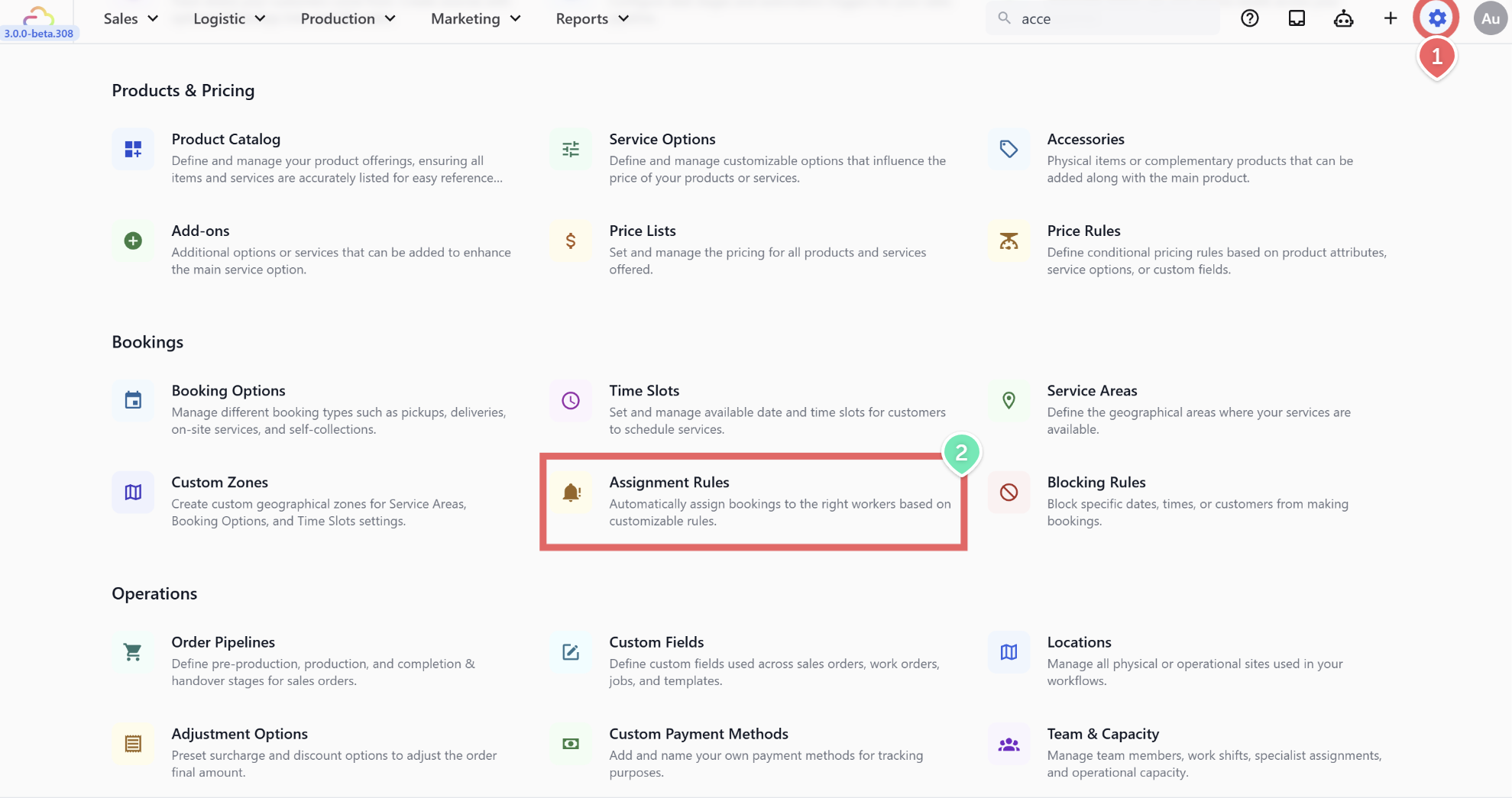
1. Click the ⚙️ Settings icon in the top-right corner.
2. Under the **Bookings** section, click Assignment Rules.
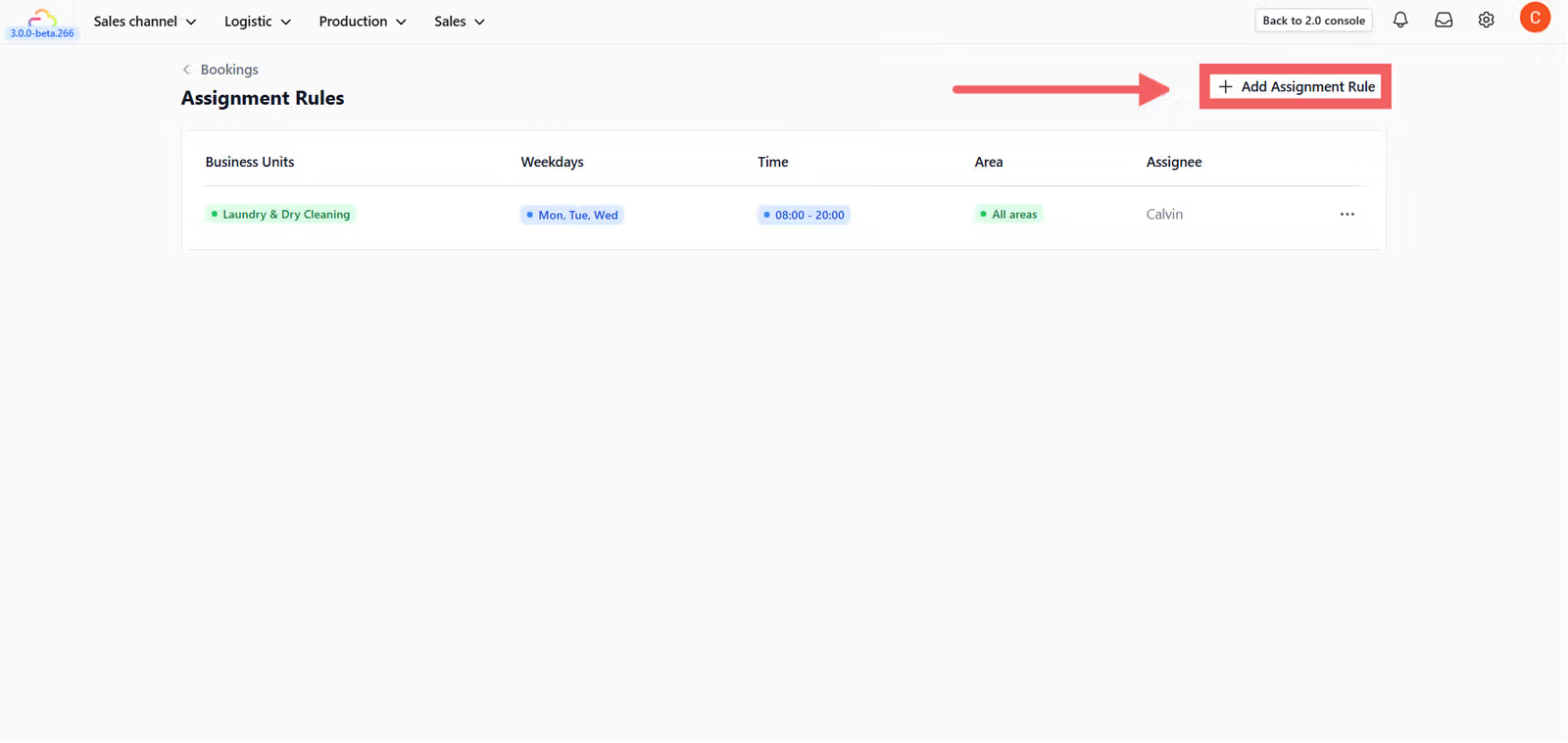
3. Click + Add Assignment Rule.
---
## The Five Fields Explained
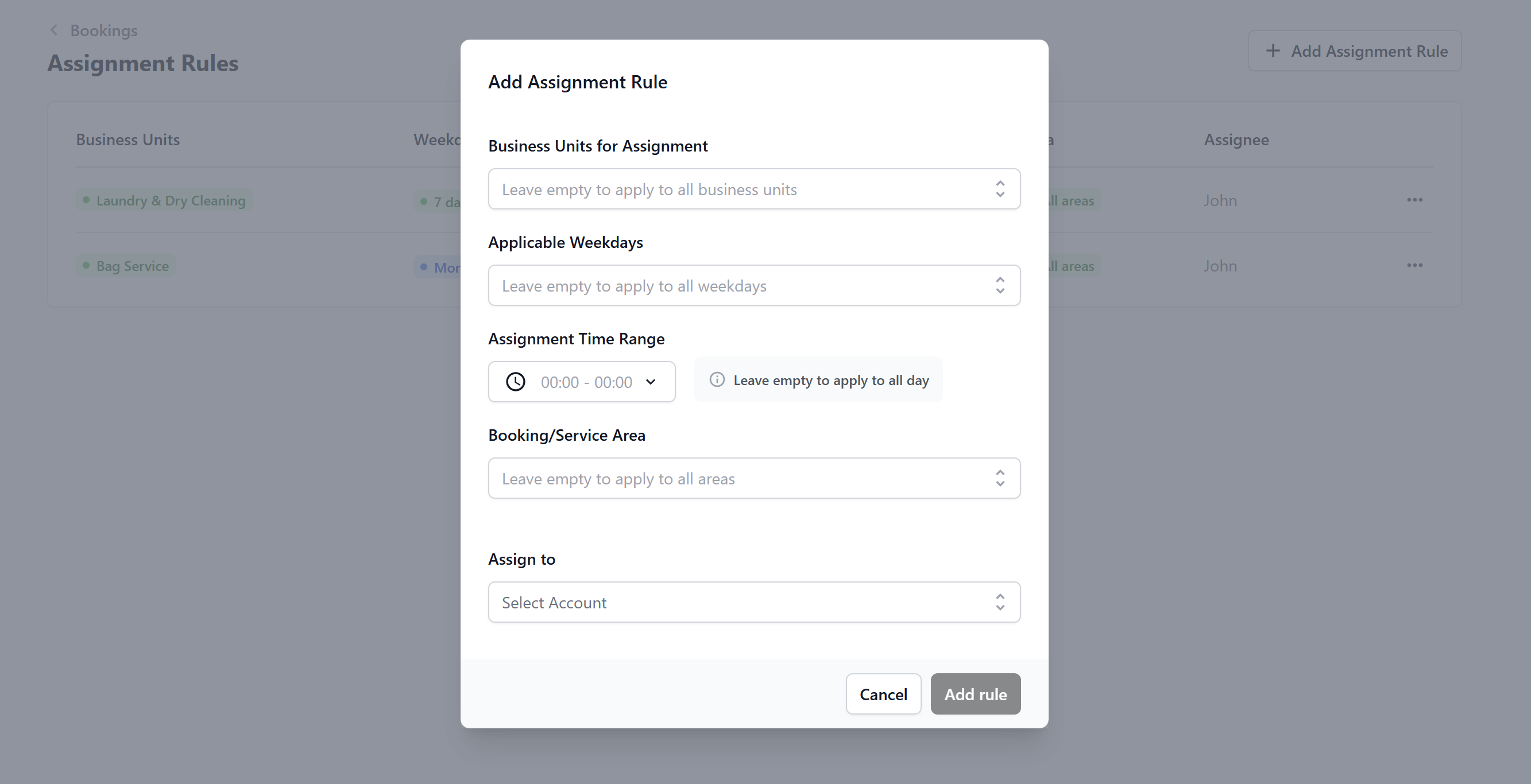
### Business Unit
| Pick this | Result |
| --- | --- |
| Empty | Rule applies to every business unit |
| One unit | Rule only fires on bookings from that unit |
| Multiple units | Rule fires on bookings from any of the picked units |
### Applicable Days
| Pick this | Result |
| --- | --- |
| Empty | Rule runs every day |
| Mon-Fri | Weekdays only |
| Sat and Sun | Weekends only |
### Assignment Time Range
| Pick this | Result |
| --- | --- |
| Empty | Rule runs all day |
| 09:00 to 13:00 | Morning shift only |
| 14:00 to 18:00 | Afternoon shift only |
### Booking / Service Area
| Pick this | Result |
| --- | --- |
| Empty | Matches any address |
| One zone | Only bookings from that zone match |
| Multiple zones | Matches any of the picked zones |
### Assign To
Required. Pick a team member from the account list. That person receives the booking.
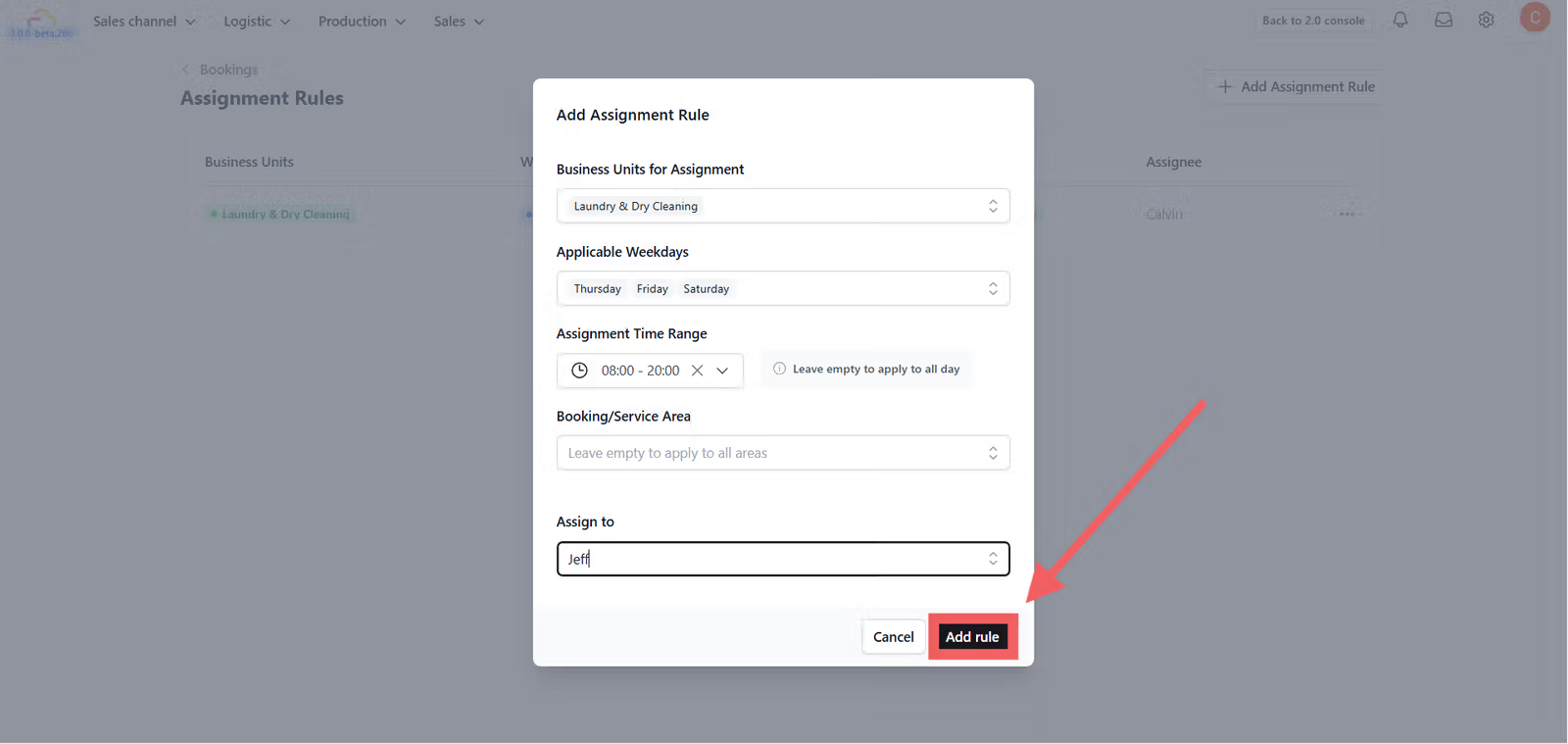
You do not need to fill every field. Leave anything you want to match as "any". A rule with only Assign To filled in will catch every new booking — useful as a catch-all at the bottom of your list.
## How the Matching Works
All conditions in one rule are combined with AND. The rule fires only when every condition you filled in is true. When more than one rule could match a booking, the first rule in the list wins. If no rule matches, the booking lands in the unassigned queue.
Order matters. Place your most specific rules at the top and broad catch-all rules at the bottom. Otherwise the catch-all captures everything before your specific rules get a chance to run.
## A Real Example
A laundry shop with two drivers sets up five rules:
| Rule | Zone | Shift | Assigned to |
| --- | --- | --- | --- |
| 1 | NORTH | Any time | Driver A |
| 2 | SOUTH | Any time | Driver B |
| 3 | CENTRAL | 09:00 to 13:00 | Driver A |
| 4 | CENTRAL | 13:00 to 18:00 | Driver B |
| 5 (catch-all) | Any | Any | Shop manager |
A central-zone morning booking goes to Driver A. A south-zone booking at any time goes to Driver B. Any booking outside the listed zones goes to the shop manager via the catch-all.
---
## FAQs
**Do I need Assignment Rules before I go live?**
> Use this only if you have two or more team members handling bookings. A one-driver shop does not need any rules.
**What if two rules could match the same booking?**
> The first one in the list wins. Always place specific rules before broad catch-all rules.
**What if no rule matches a booking?**
> The booking lands in the unassigned queue. Add a catch-all rule with only Assign To filled in at the bottom of your list to avoid this.
**Does changing an assignment rule update past bookings?**
> No. Rules only run the moment a booking is created. Use manual reassignment for bookings already on the calendar.
**Can one rule assign to two people?**
> No. Each rule assigns to one person. To share work between two drivers in the same area, split by time range — one rule for morning and one for afternoon.
**What if the assigned person is away?**
> The booking still lands in their queue. Reassign it manually from the order page. For longer absences, edit the rule and swap the Assign To person temporarily.
---
## What's Next
Your Bookings setup is now complete. Every new booking will land in the right driver's queue with the right time window and area rules applied. If you want to review how orders move through your system after a booking is confirmed, see Understanding Order Pipelines _(guide coming soon)_.