## Before You Start
- Connect your WhatsApp Business account first. See [Connect & Configure WhatsApp](/docs/connect-and-configure-whatsapp).
- You need access to **Integrations** in Settings, and permission to manage marketing settings. Shop owners have both.
- Have your logo ready as an image file. A square logo looks best, because WhatsApp shows it in a circle.
- If you set this up before: these are the same details as Step 2 of the old Connect & Configure WhatsApp guide. Nothing needs to be redone, and what you saved then is still showing.
---
## Overview
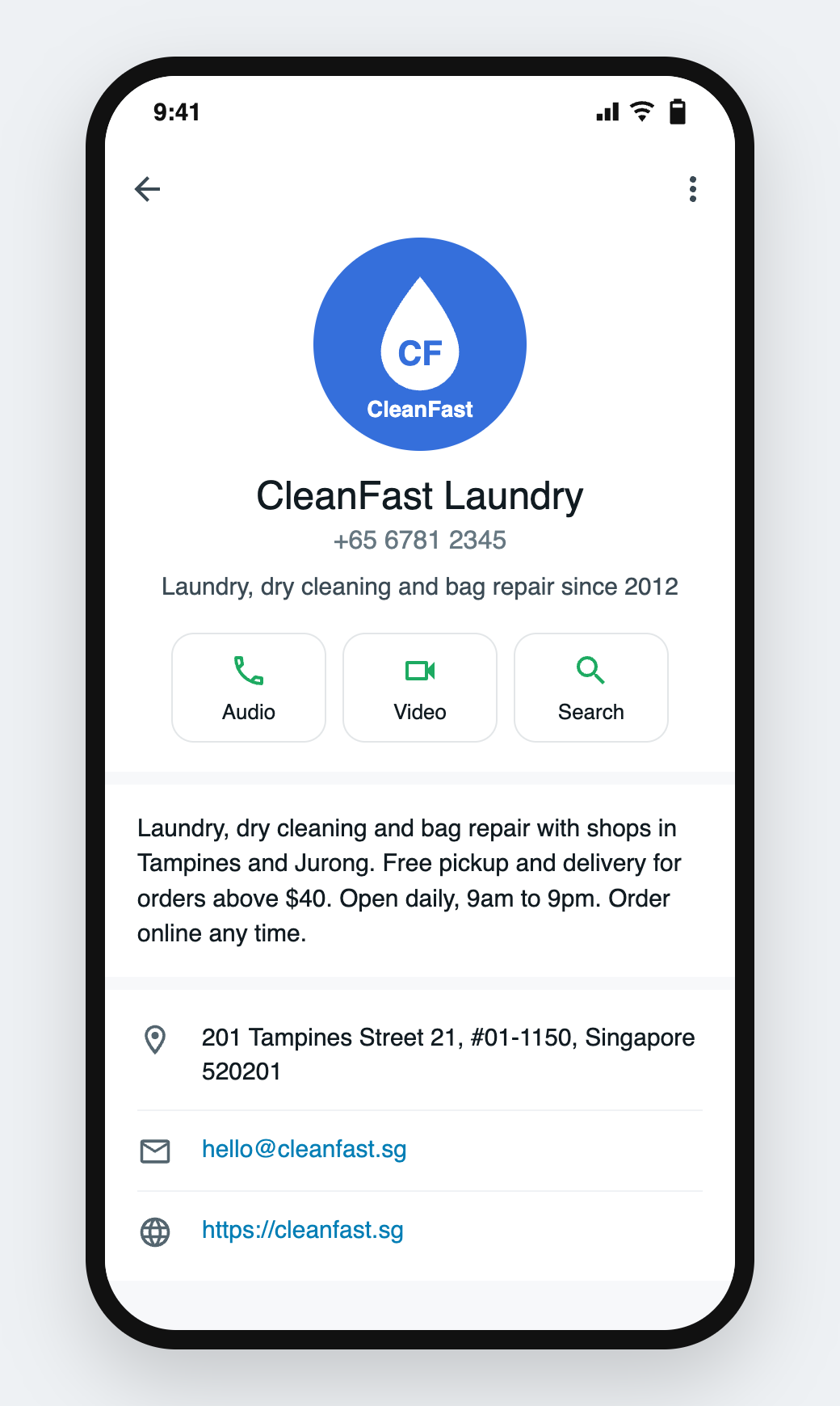
Your WhatsApp business profile is the page customers see when they tap your name at the top of a chat. It shows your profile picture, a one-line About, your address, a short description, your email and your website. EasyBiz lets you fill all of it in from the Console, without opening Meta's tools. A complete profile tells customers they are talking to a real shop, not a stranger. It also answers simple questions like "where are you?" before they need to ask.
**Where it works**
- **WhatsApp on your customers' phones:** the profile shows when a customer taps your name in a chat with your number.
- **Console:** you edit the profile on the **Integrations** page. Your staff see no change in the Inbox.
---
## Why set it up
Customers get messages from many numbers. A logo and a clear About line help them recognise you and trust the payment links and pickup reminders you send. Your address, email and website answer the questions staff otherwise type out again and again.
If you skip it, your chat shows a blank grey picture and an empty profile. Customers see your phone number and the name Meta approved for it, and nothing else.
---
## Where to find it
1. Click the ⚙️ Settings icon in the top-right corner.
2. Click Integrations. Owners find it in its own **Integrations** section; other users find it under the **Administration** section.
3. On the **WhatsApp Business** row, click Business Info.

Right after you connect WhatsApp, the **Business Info** window opens on its own. You can fill it in then, or close it and come back here any time.
---
## Setting it up
1. Click the profile picture box at the top and choose your logo.
2. Fill in the boxes below it.
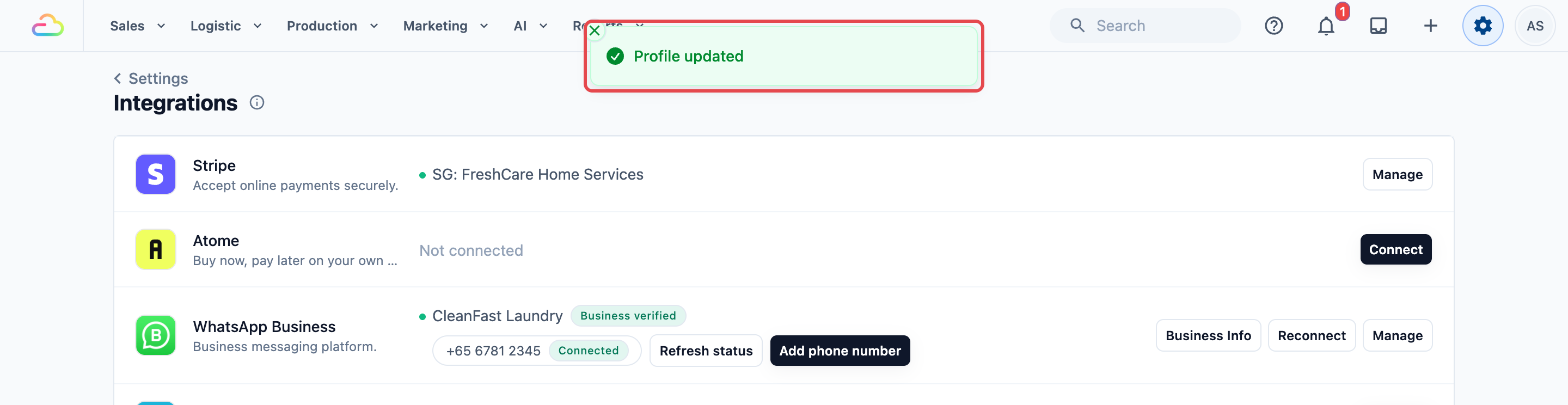
3. Click Update.
When you see *Profile updated*, your details are saved on WhatsApp.
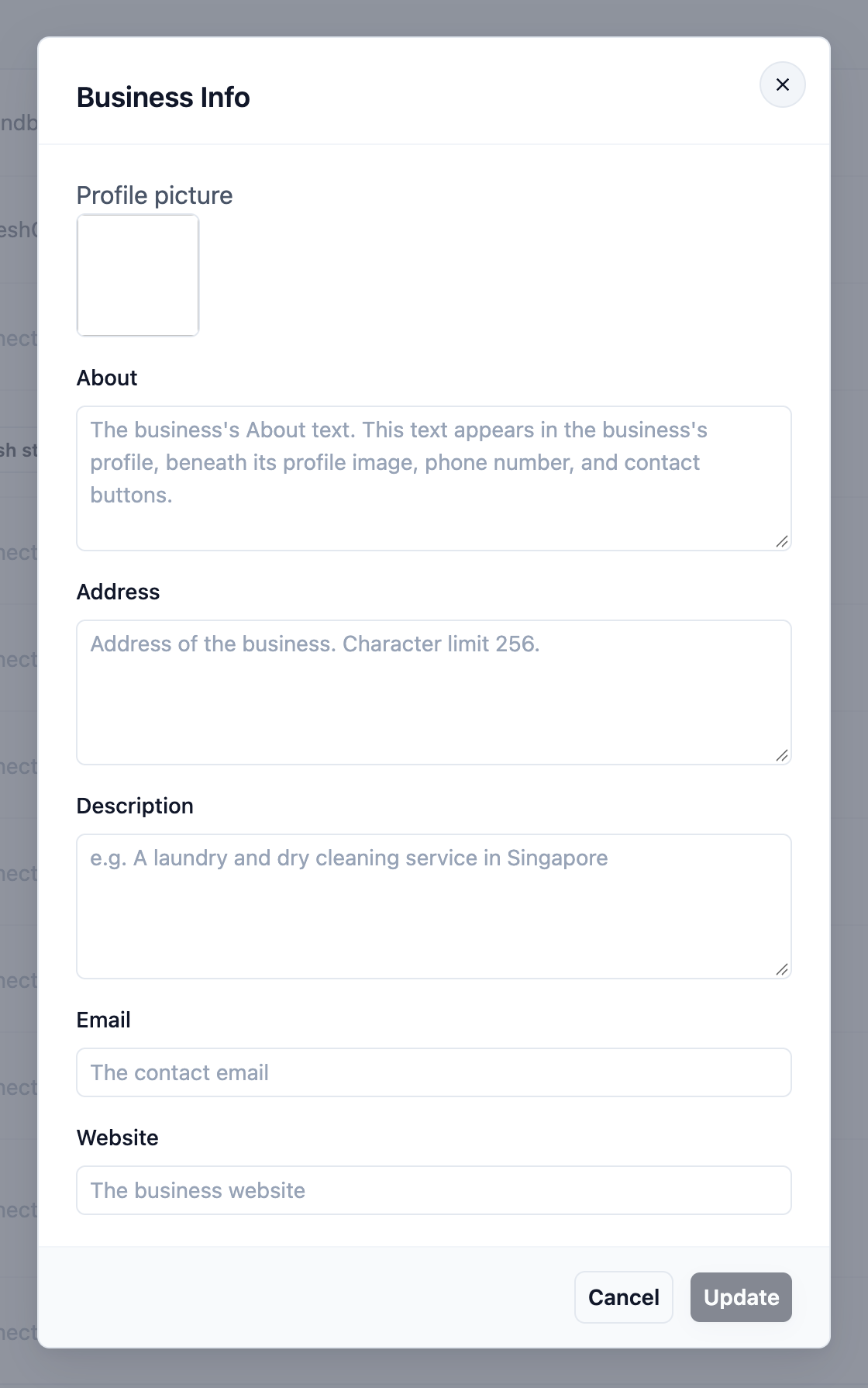
Choose the picture first, then type in the boxes. Picking a new picture after typing clears the text you typed but have not saved yet.
**Profile picture**
Your logo or shopfront photo. It appears as a circle beside your name in every chat.
**About**
One short line that says what you do. It shows right under your picture and phone number. For example: *Laundry, dry cleaning and bag repair since 2012*.
**Address**
Your shop address, up to 256 characters. If you have more than one shop, enter your main one and put the others in the Description.
**Description**
A short paragraph about your business, up to 512 characters: your services, opening hours, or how pickup and delivery work.
**Email**
The email address customers can write to.
**Website**
Your website or Online Store link. Customers can tap it from your profile. Start it with *https://*.
The profile you save here belongs to your default number, the first number on the WhatsApp Business row. Other numbers you add keep their own profile, which you change in Meta's WhatsApp Manager.
---
## Example setup
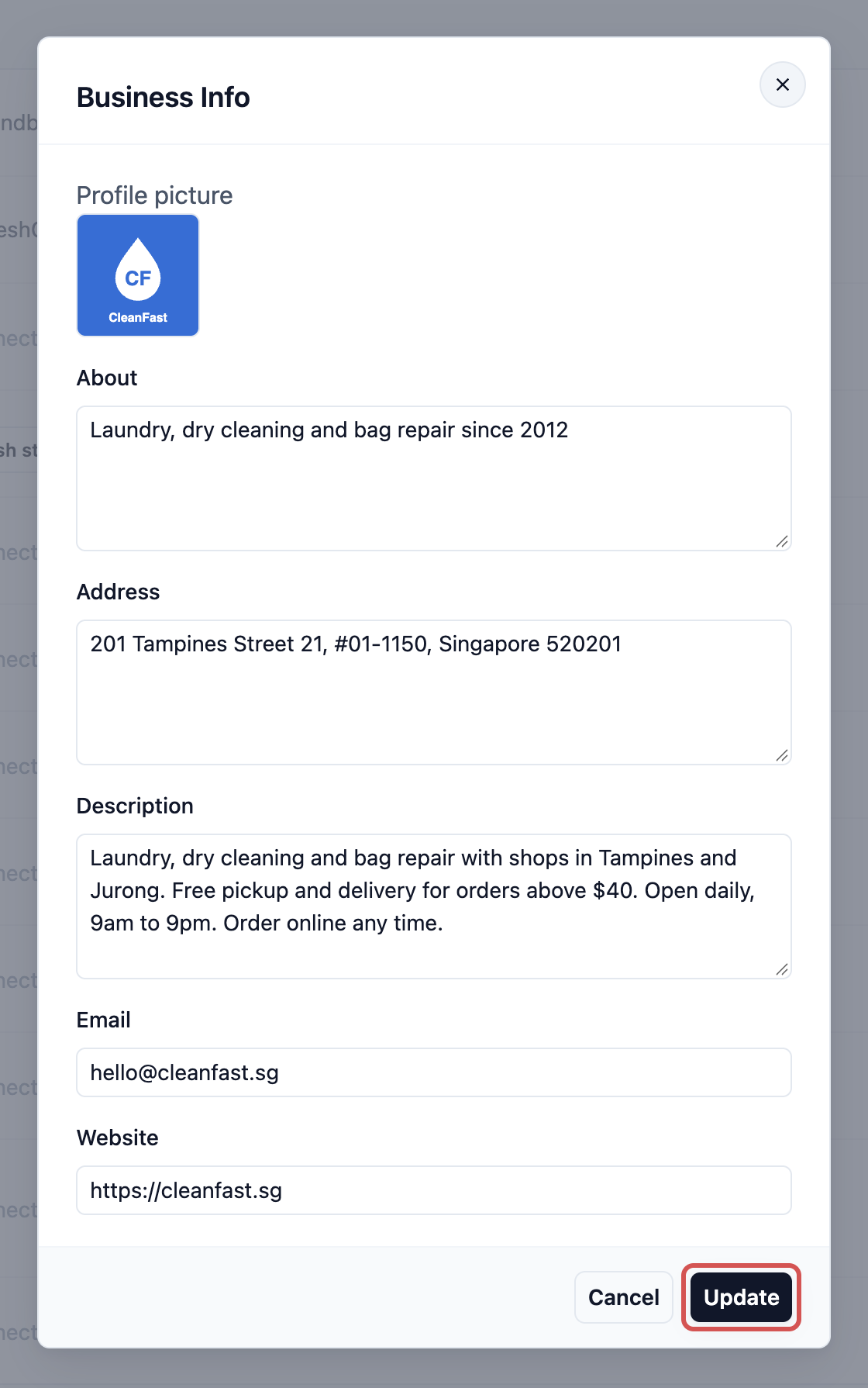
CleanFast Laundry fills in its profile like this:
- **Profile picture:** the blue CleanFast logo
- **About:** Laundry, dry cleaning and bag repair since 2012
- **Address:** 201 Tampines Street 21, #01-1150, Singapore 520201
- **Description:** Laundry, dry cleaning and bag repair with shops in Tampines and Jurong. Free pickup and delivery for orders above $40. Open daily, 9am to 9pm. Order online any time.
- **Email:** hello@cleanfast.sg
- **Website:** https://cleanfast.sg
---
## What customers see
A customer chatting with CleanFast Laundry taps the name at the top of the chat. They see the CleanFast logo, the About line under the phone number, then the description, address, email and website. They can tap the address to open it in their maps app, tap the email to write to CleanFast, or tap the website to start an order.
---
## FAQs
**Why does WhatsApp show my phone number instead of my business name?**
> The name at the top of the chat is your number's display name, not part of this profile. Meta reviews every display name, and until it approves yours, customers may see only your phone number. If your account shows Not verified on the Integrations page, completing business verification with Meta also helps your name show. See [Connect & Configure WhatsApp](/docs/connect-and-configure-whatsapp).
**I emptied a box and clicked Update, but the old text is still there. Why?**
> An empty box is not sent to WhatsApp, so whatever WhatsApp already shows stays. To change a line, type the new text over it instead of leaving it empty.
**The Update button is grey. What's wrong?**
> Nothing. It stays grey until you change something in the window. Edit a box or choose a new picture and it turns on.
**I have two WhatsApp numbers. Do both get this profile?**
> No. It goes on your default number only, the first number on the WhatsApp Business row. Each extra number has its own profile, which you edit in Meta's WhatsApp Manager. See [Connect Multiple WhatsApp Numbers](/docs/connect-multiple-whatsapp-numbers).
**Does this change my receipts, Online Store or brand details?**
> No. This profile only changes what customers see in WhatsApp. Your shop name and logo on receipts and the Online Store come from your brand settings, so update both when you change your logo.
**My staff got an error when they clicked Update. Why?**
> Saving the profile needs permission to manage marketing settings. Ask the owner to save it, or to give that staff member the permission.
---
## What's Next
Your WhatsApp profile now tells customers who you are and how to reach you. If you run more than one brand or outlet, continue to [Connect Multiple WhatsApp Numbers](/docs/connect-multiple-whatsapp-numbers) to add their numbers and handle every chat in one Inbox.