## Before You Start
- **Mini-Apps published** — You need at least one order-related Mini App published (e.g. "New Order: Pickup Only" or "New Order: Pickup & Delivery"). Your Mini Apps are configured in the Mini-Apps tab within WhatsApp settings.
- **Test Group** — Add at least one phone number in [General Settings](/docs/whatsapp-general-settings).
If you are new to auto reply rules, read [Setting Up Auto Reply Rules](/docs/setting-up-auto-reply-rules-for-your-whatsapp) first.
---
## When This Rule Fires
Pre-configured conditions:
- **App submitted** — Fires when a customer completes and submits a Mini App. You can leave it set to "any app" or narrow it to a specific Mini App.
- **New conversation** — The submission starts or occurs within a new conversation.
Set the app filter to your order-related Mini App(s) only. If you leave it on "Any app (leave empty for all)," this confirmation will fire for every Mini App submission — including scheduling and sign-ups.
---
## How to Set It Up
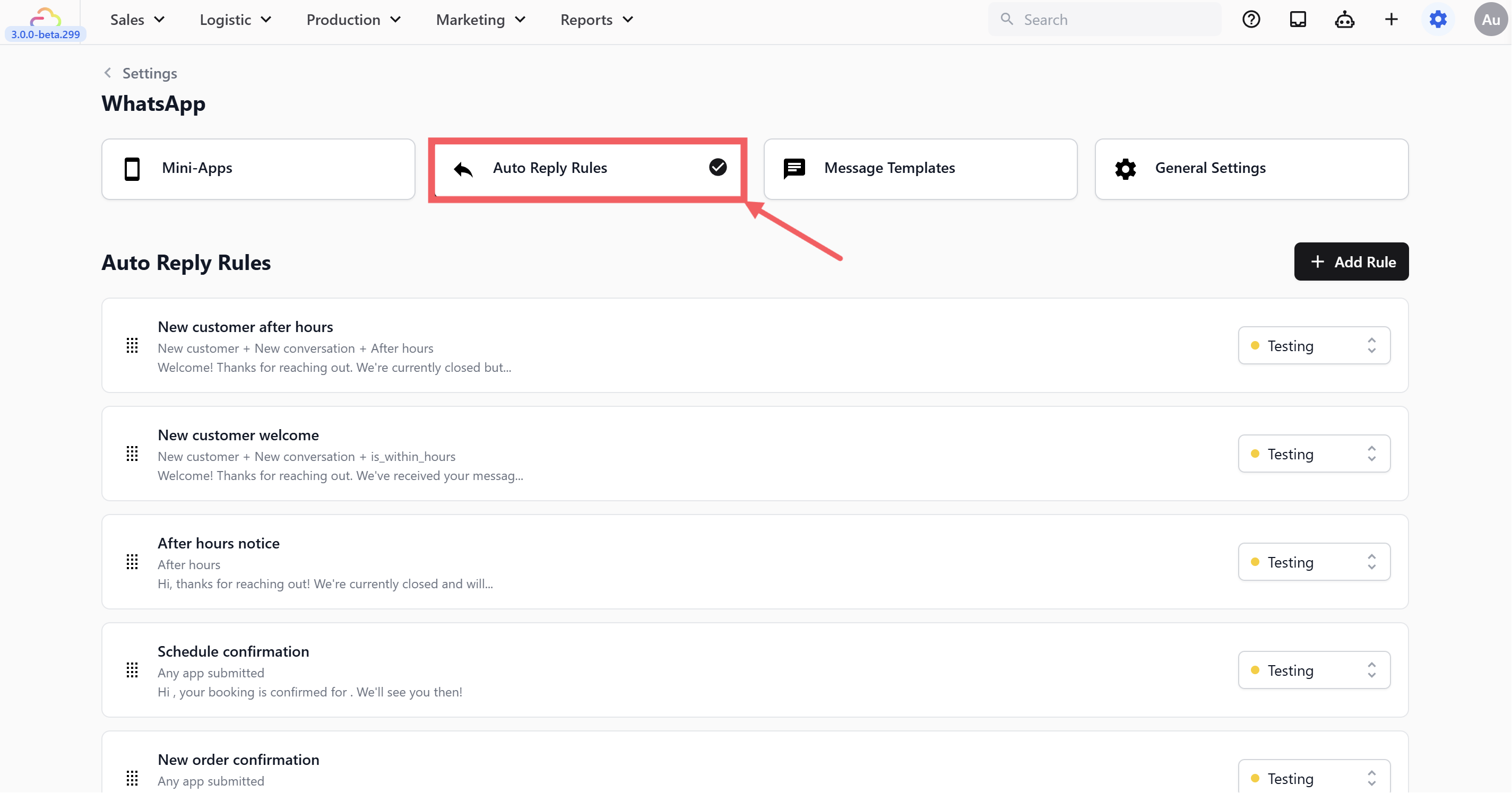
1. Go to **WhatsApp Settings** → Auto Reply Rules tab
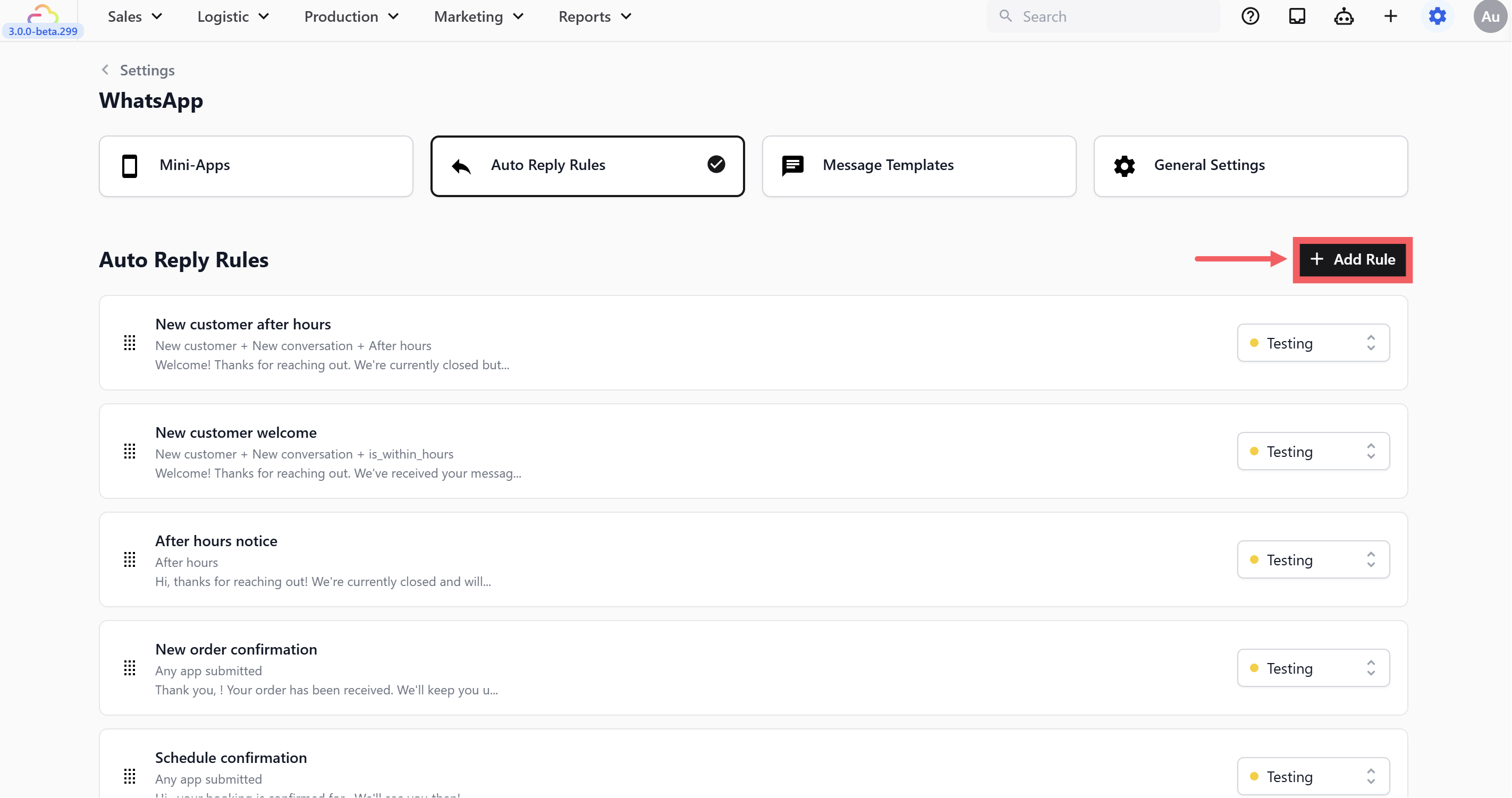
2. Click + Add Rule
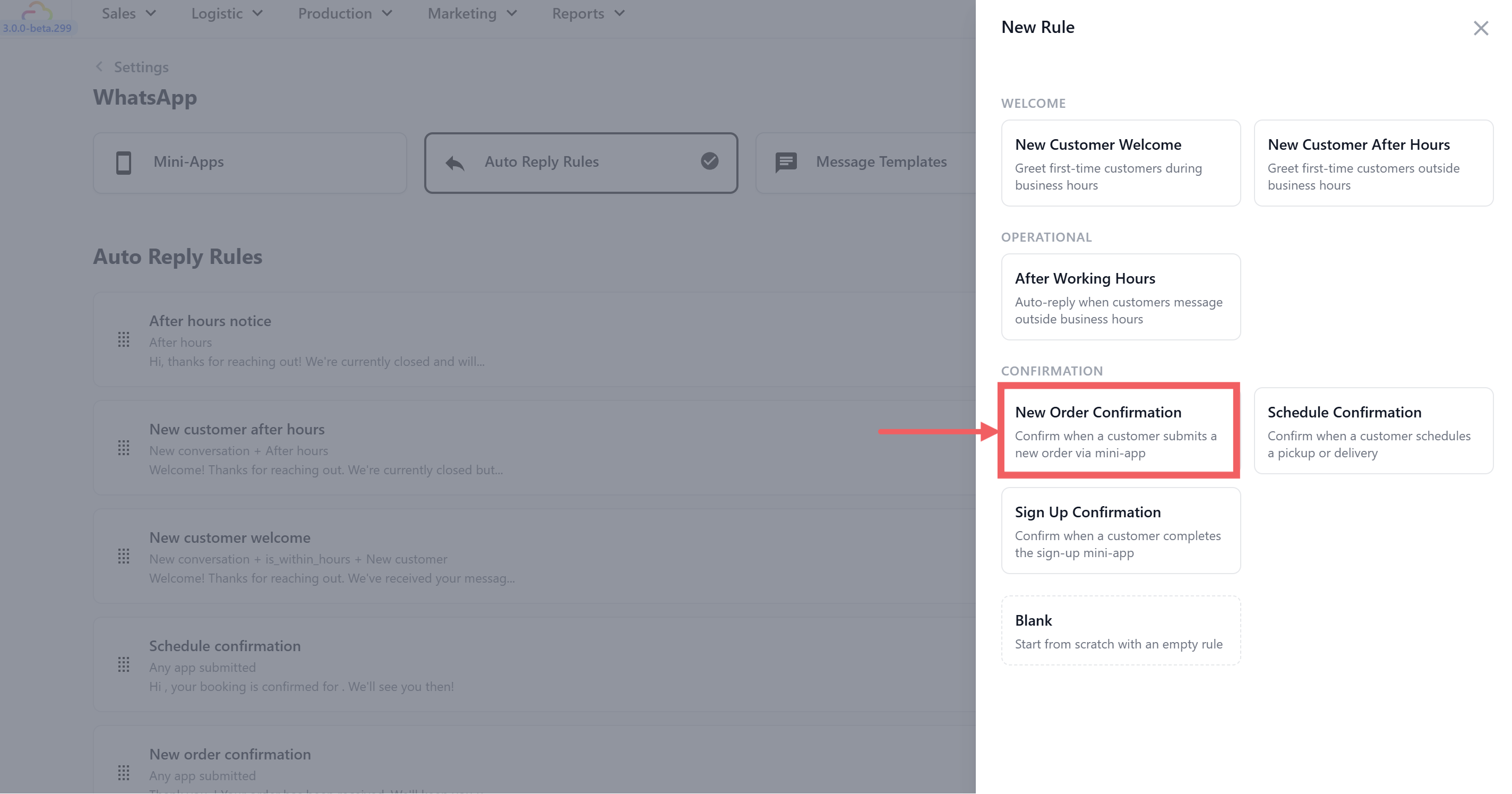
3. Under **Confirmation**, select **New Order Confirmation**
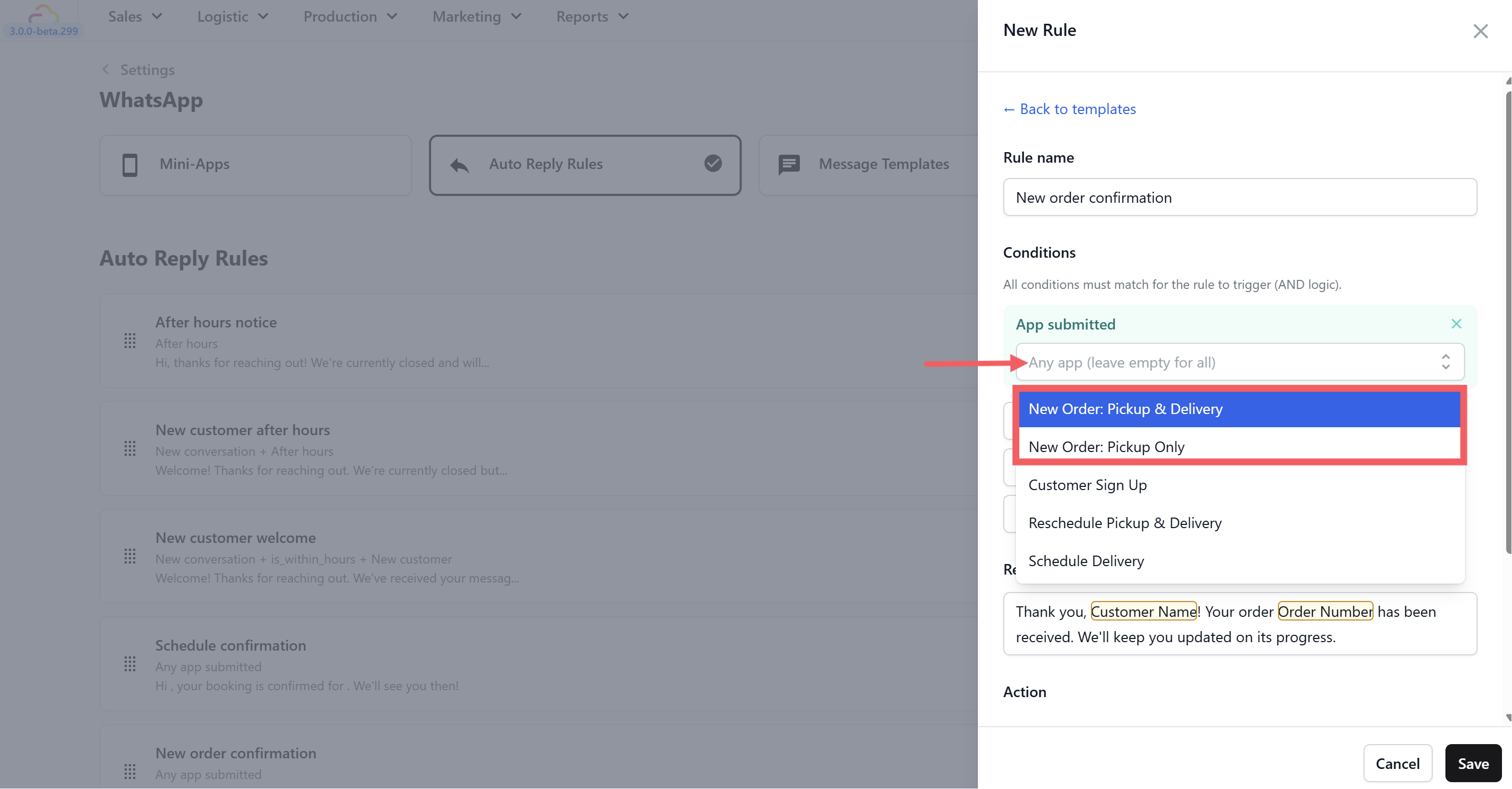
4. **Set the app filter** — click the app filter dropdown and select your order Mini App(s):
- **New Order: Pickup Only**
- **New Order: Pickup & Delivery**
Haven't set up your Mini Apps yet? Head to our [Mini Apps guides](/docs/what-is-a-mini-app) to get started first.
5. Edit the **reply message**(optional). The default is:
> "Thank you, @Customer Name! Your order @Order Number has been received. We'll keep you updated on its progress."
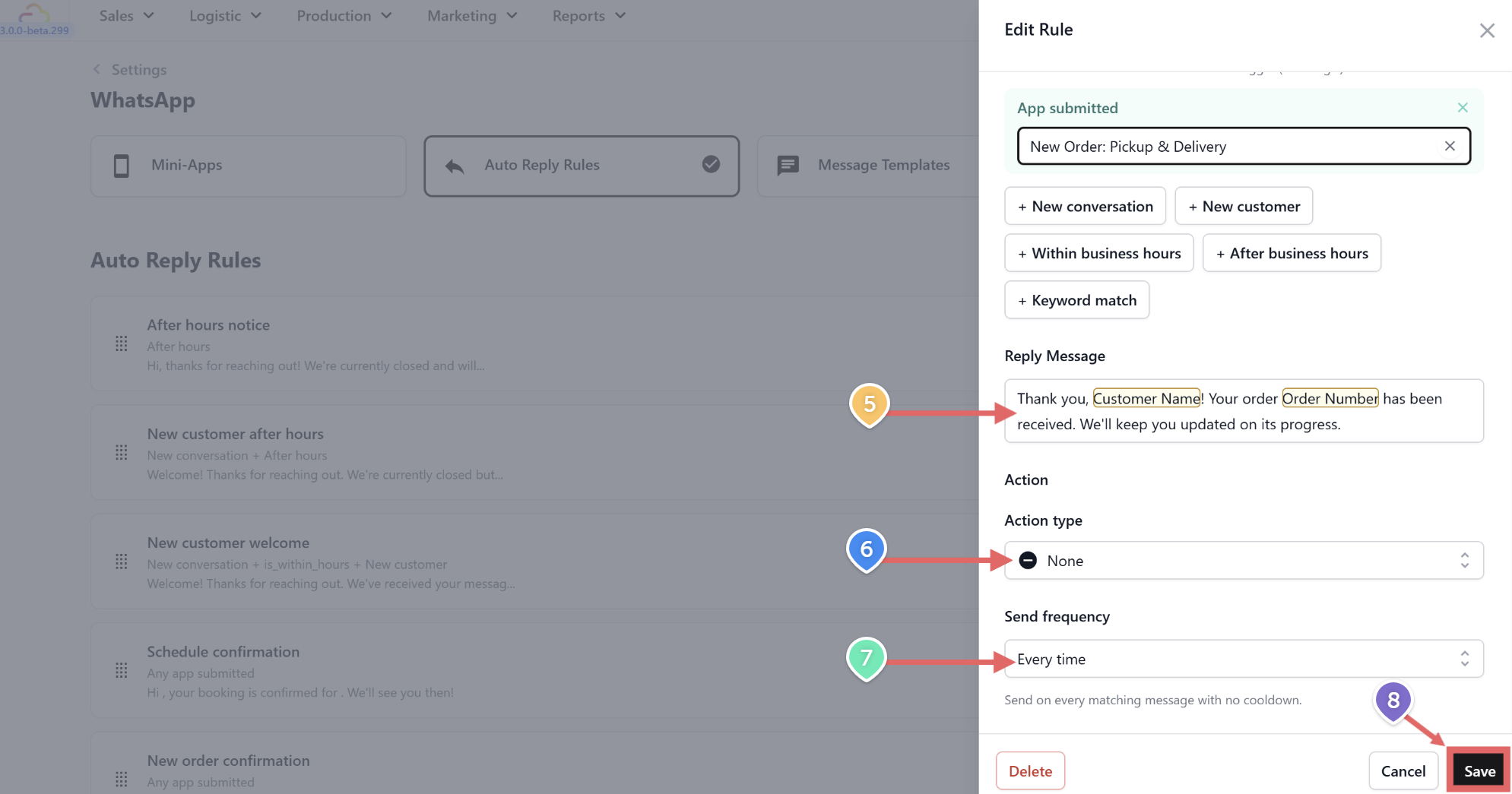
6. Set **Action type** — the default is **None**.
7. Set **Send frequency** to **Every time** — each order should get its own confirmation. A customer might place multiple orders in the same conversation.
8. Click Save.
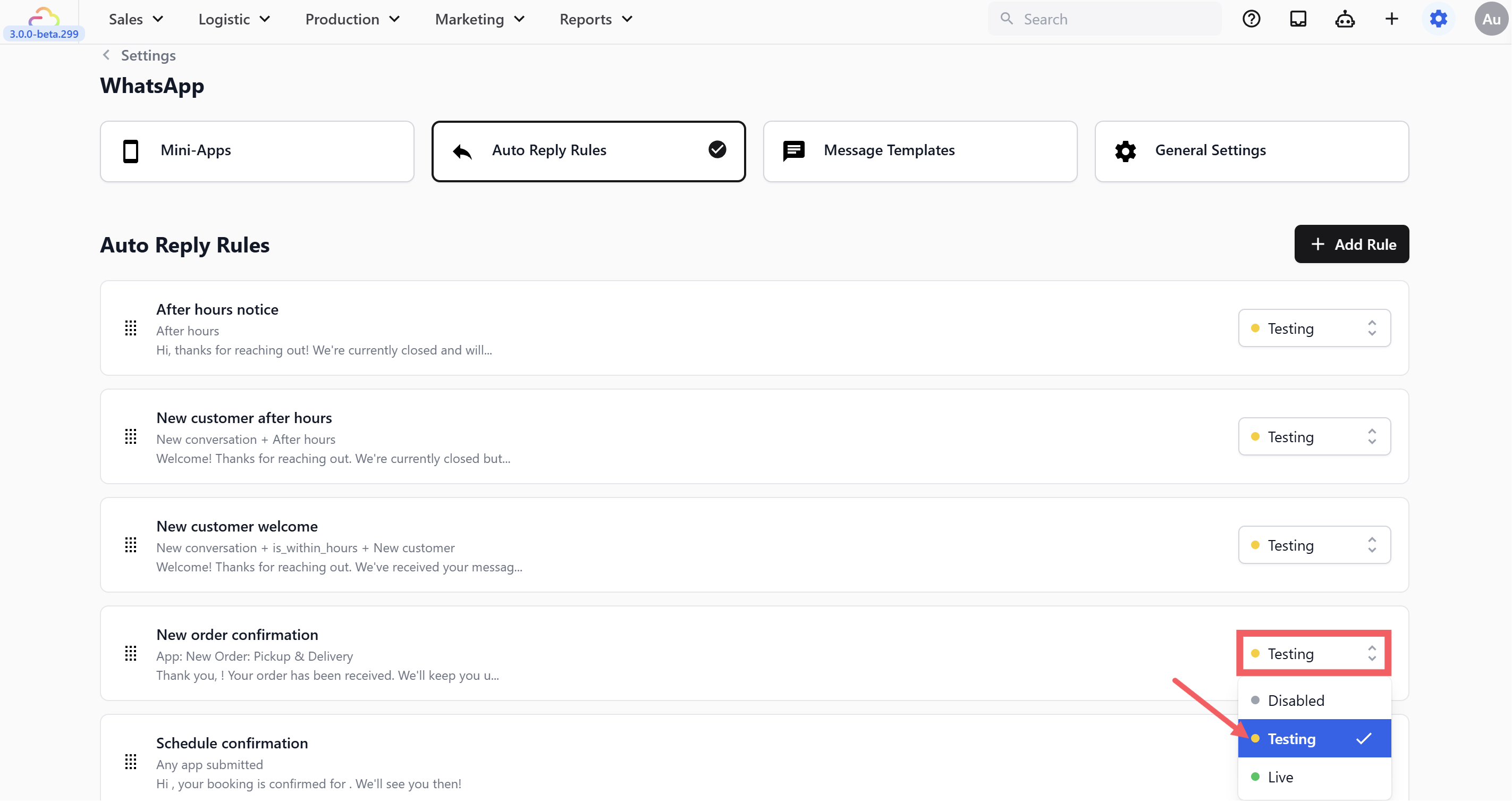
9. Set **Status** to **Testing**.
---
## Testing the Rule
1. Make sure the rule is set to **Testing** status
2. Confirm your test phone number is in the **Test Group** ([General Settings](/docs/whatsapp-general-settings))
3. From your test number, open your order Mini App on WhatsApp and submit a test order
4. You should receive the order confirmation with your name and order number filled in
5. Verify you **only** receive this confirmation — not a schedule or sign-up confirmation on top of it
If you receive multiple confirmations for a single order, check that your other confirmation rules ([Schedule Confirmation](/docs/schedule-confirmation), [Sign Up Confirmation](/docs/sign-up-confirmation)) each have their app filters set to specific Mini Apps too.
Once verified, switch the status from **Testing** to **Live**.
You can use New Order Confirmation and [Schedule Confirmation](/docs/schedule-confirmation) at the same time — just point each one at a different Mini App to avoid sending two messages for the same booking. For example, point New Order Confirmation at your Laundry Pickup form and Schedule Confirmation at your Reschedule form.
---
## What's Next
Now that customers get an instant order confirmation, continue to [Schedule Confirmation](/docs/schedule-confirmation) to set the follow-up that confirms their pickup or delivery time.