## Before You Start
- **Business Hours** must be enabled and configured in [WhatsApp General Settings](/docs/whatsapp-general-settings). This rule uses the "Within business hours" condition — it will not work correctly if Business Hours are disabled.
- **Test Group** — Add at least one phone number so you can verify the rule before going live. Also configured in [General Settings](/docs/whatsapp-general-settings).
If you are new to auto reply rules, read [Setting Up Auto Reply Rules](/docs/setting-up-auto-reply-rules-for-your-whatsapp) first to learn how conditions, priorities, and statuses work.
---
## When This Rule Fires
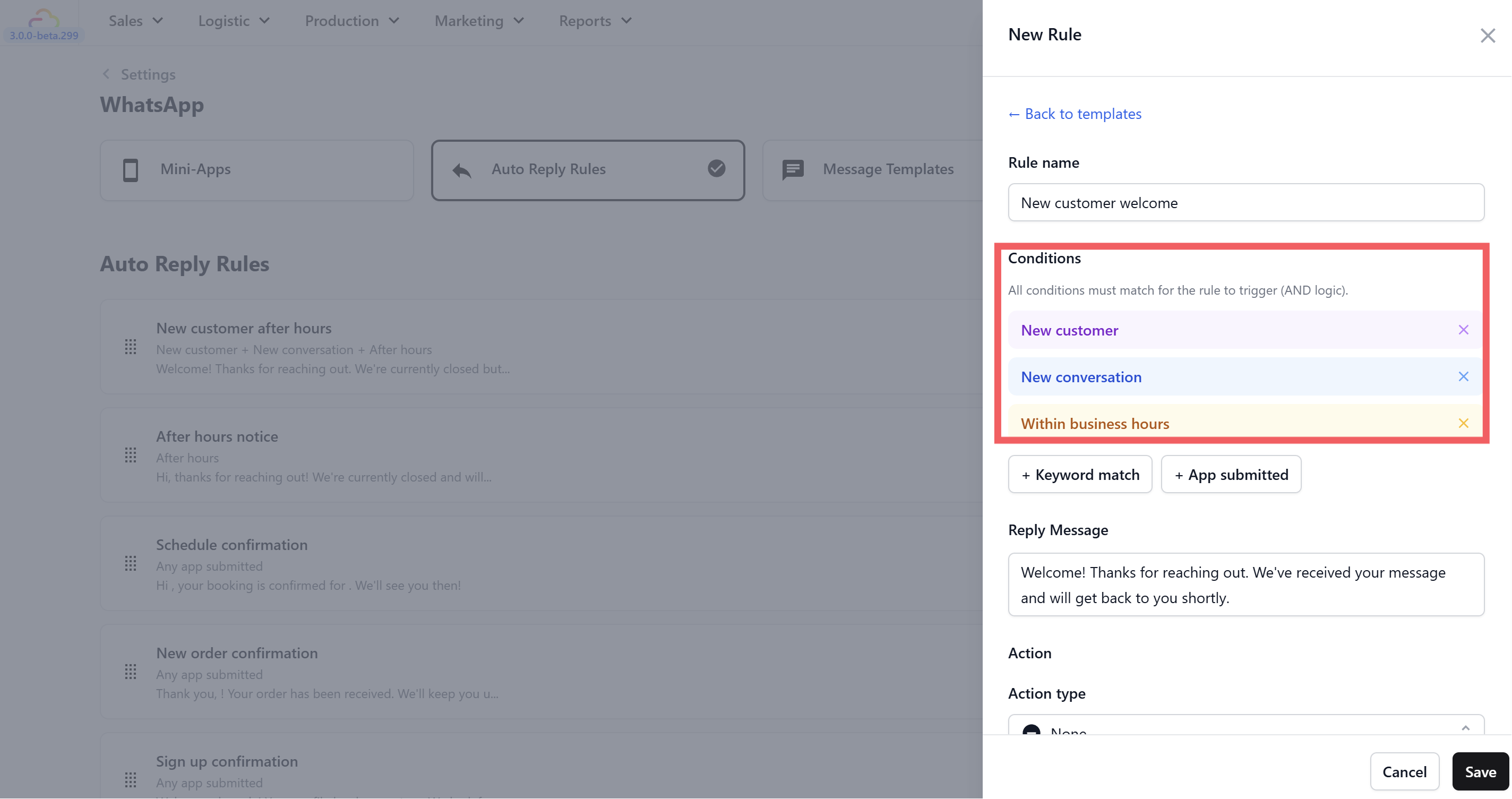
Pre-configured conditions (all must be true at the same time):
- **New customer** — The person has no existing profile in EasyBiz. This is their very first WhatsApp conversation with you.
- **New conversation** — It is the first message in a new conversation.
- **Within business hours** — The message arrives during your configured opening hours.
In plain terms: a brand-new customer messages you for the first time while your shop is open.
---
## How to Set It Up
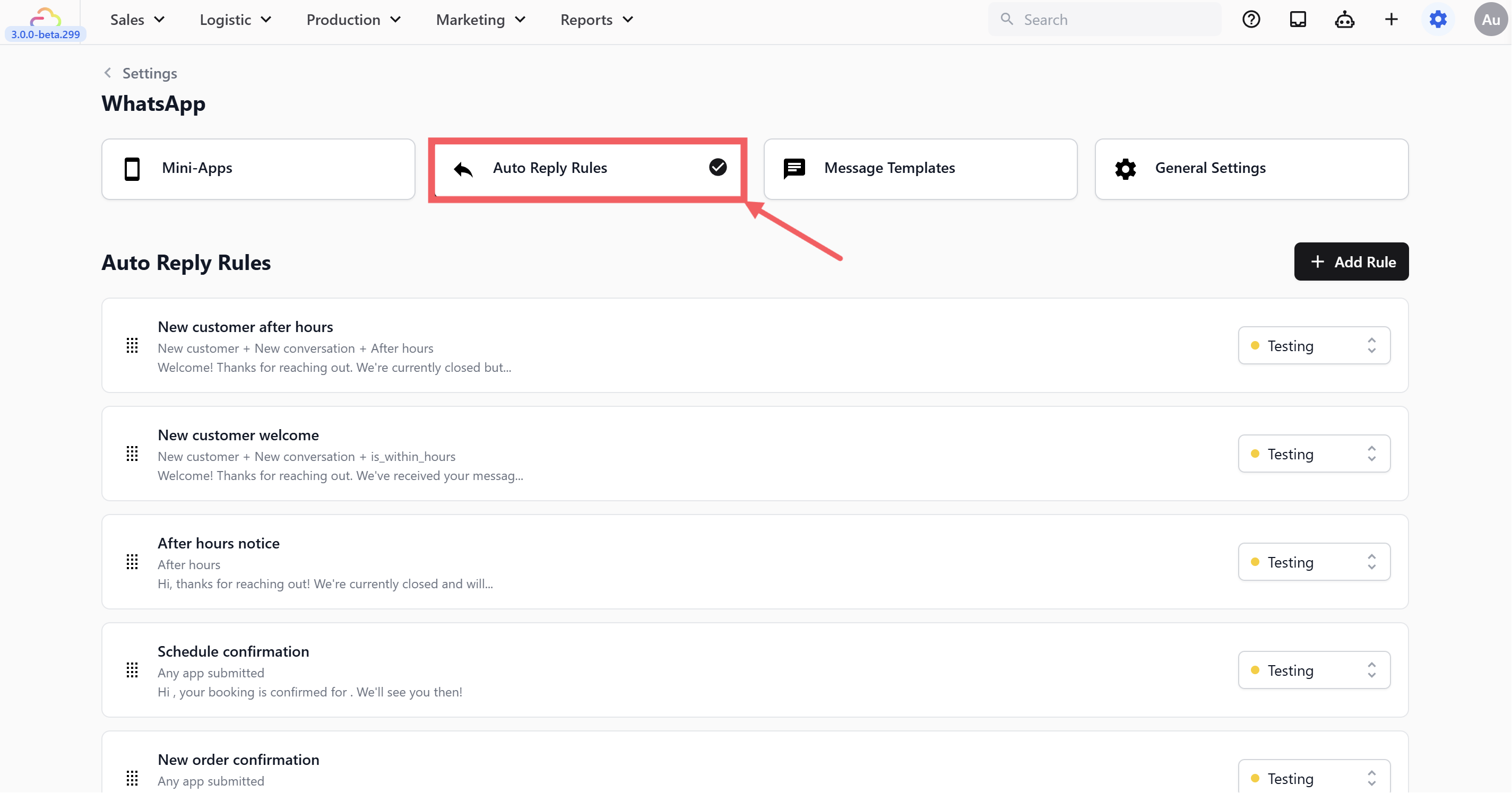
1. Go to **WhatsApp Settings** → Auto Reply Rules tab
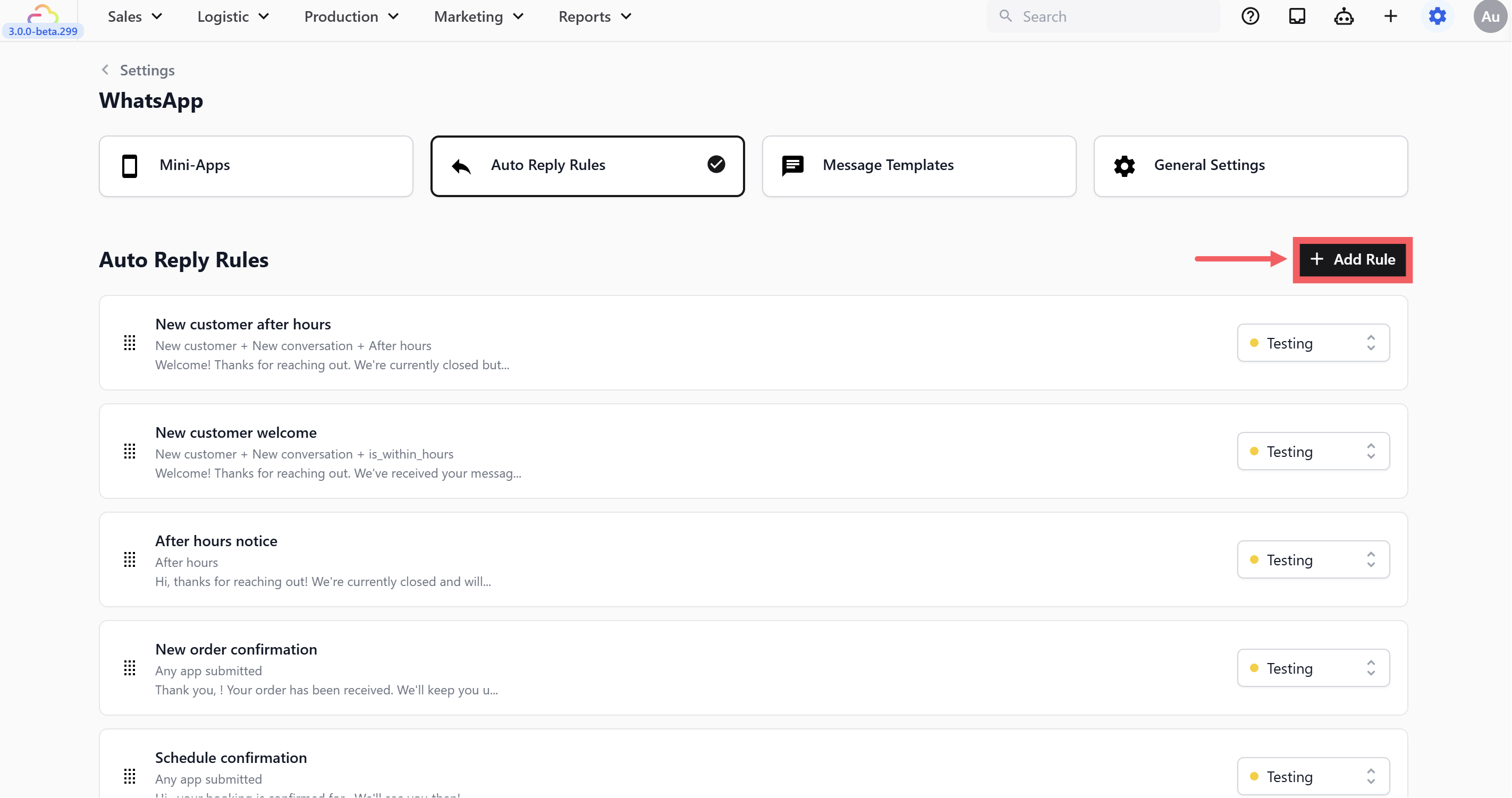
2. Click + Add Rule
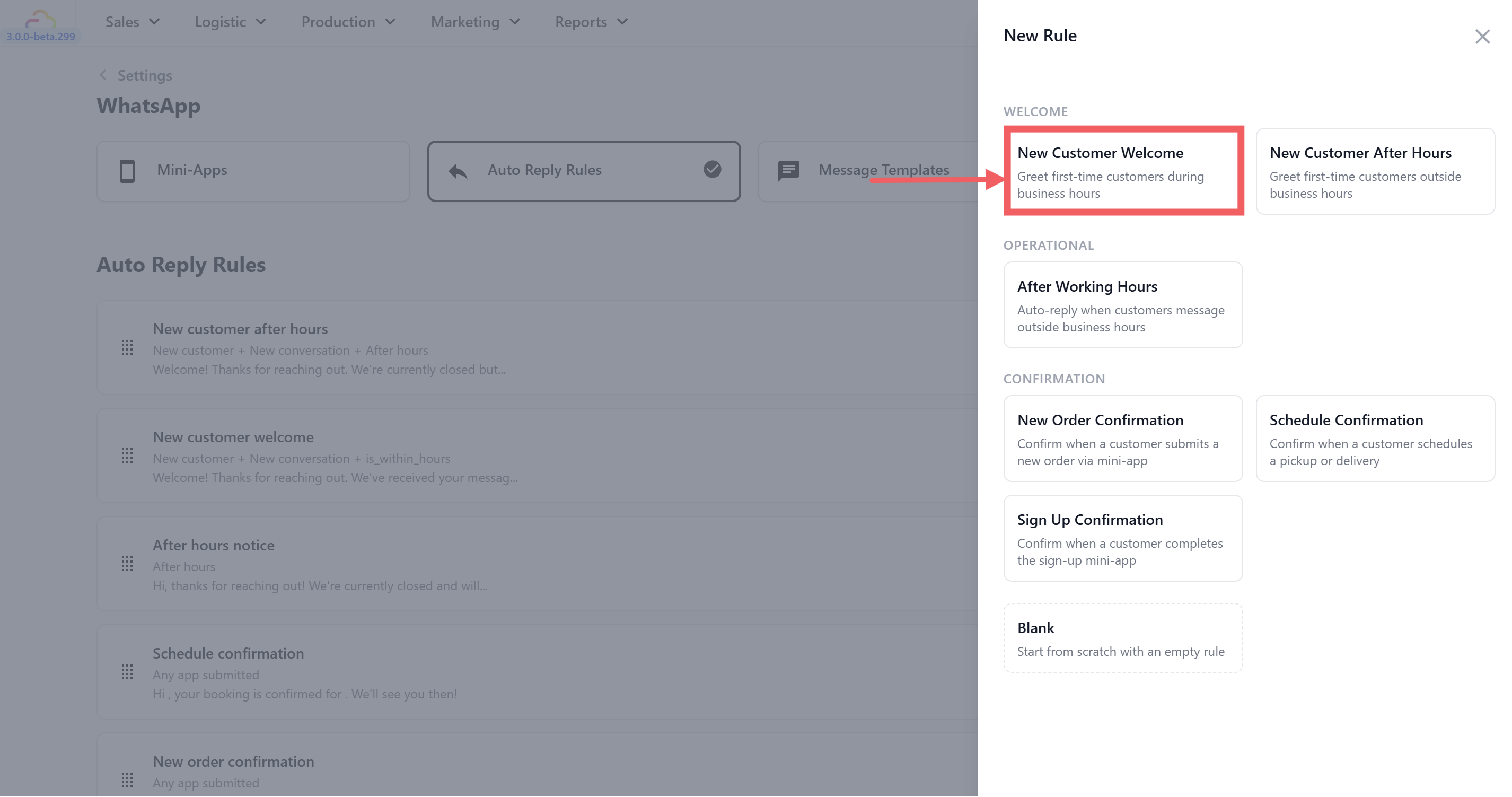
3. Under **Welcome**, select **New Customer Welcome**
4. The three conditions will be pre-configured for you.
5. Edit the **reply message** to match your business (optional). The default is:
> "Welcome! Thanks for reaching out. We've received your message and will get back to you shortly."
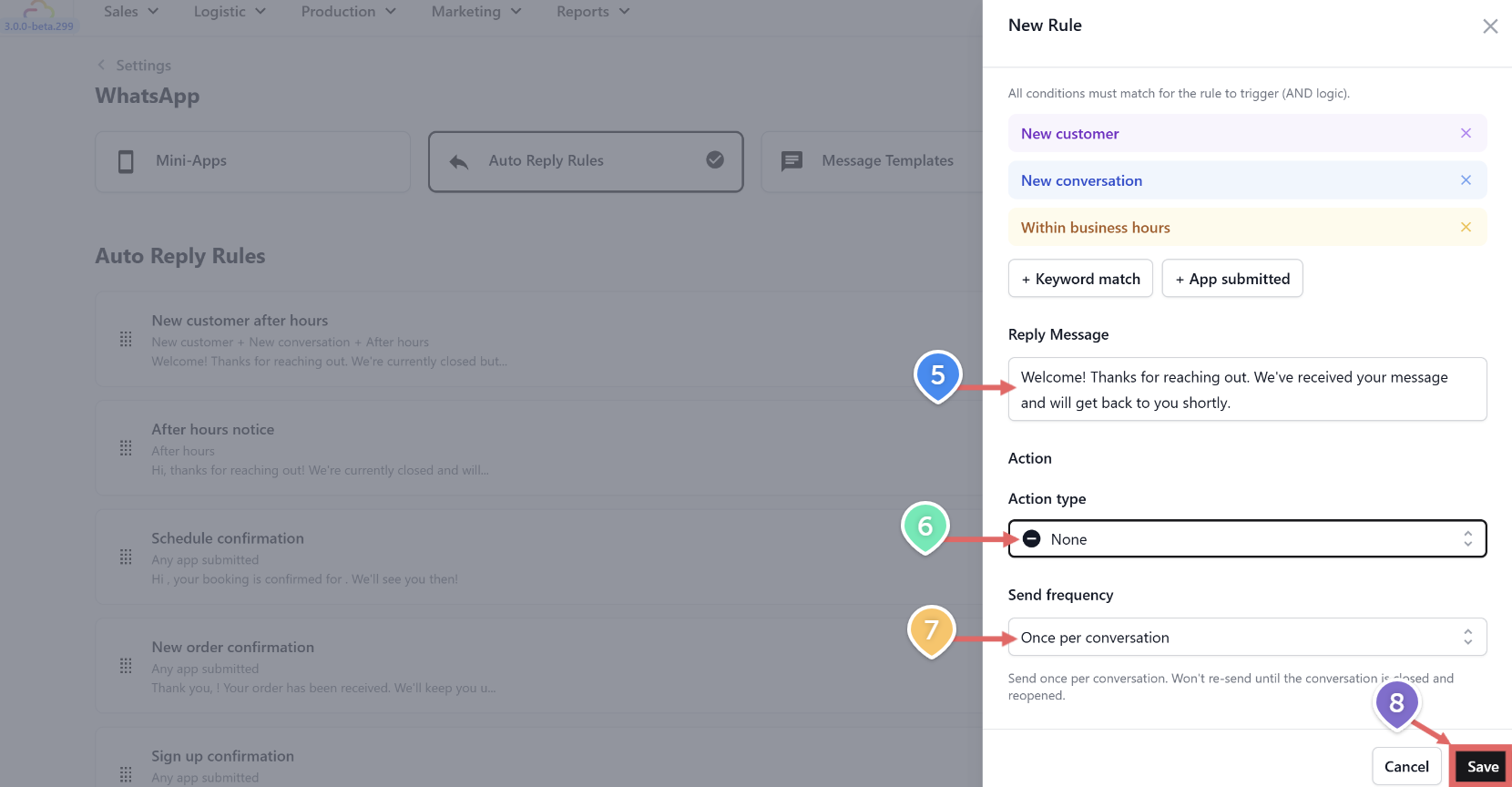
6. Set **Action type** — the default is **None** (plain text, no button).
7. Set **Send frequency** to **Once per conversation** — you only want this sent once, not on every message the customer sends.
8. Click Save.
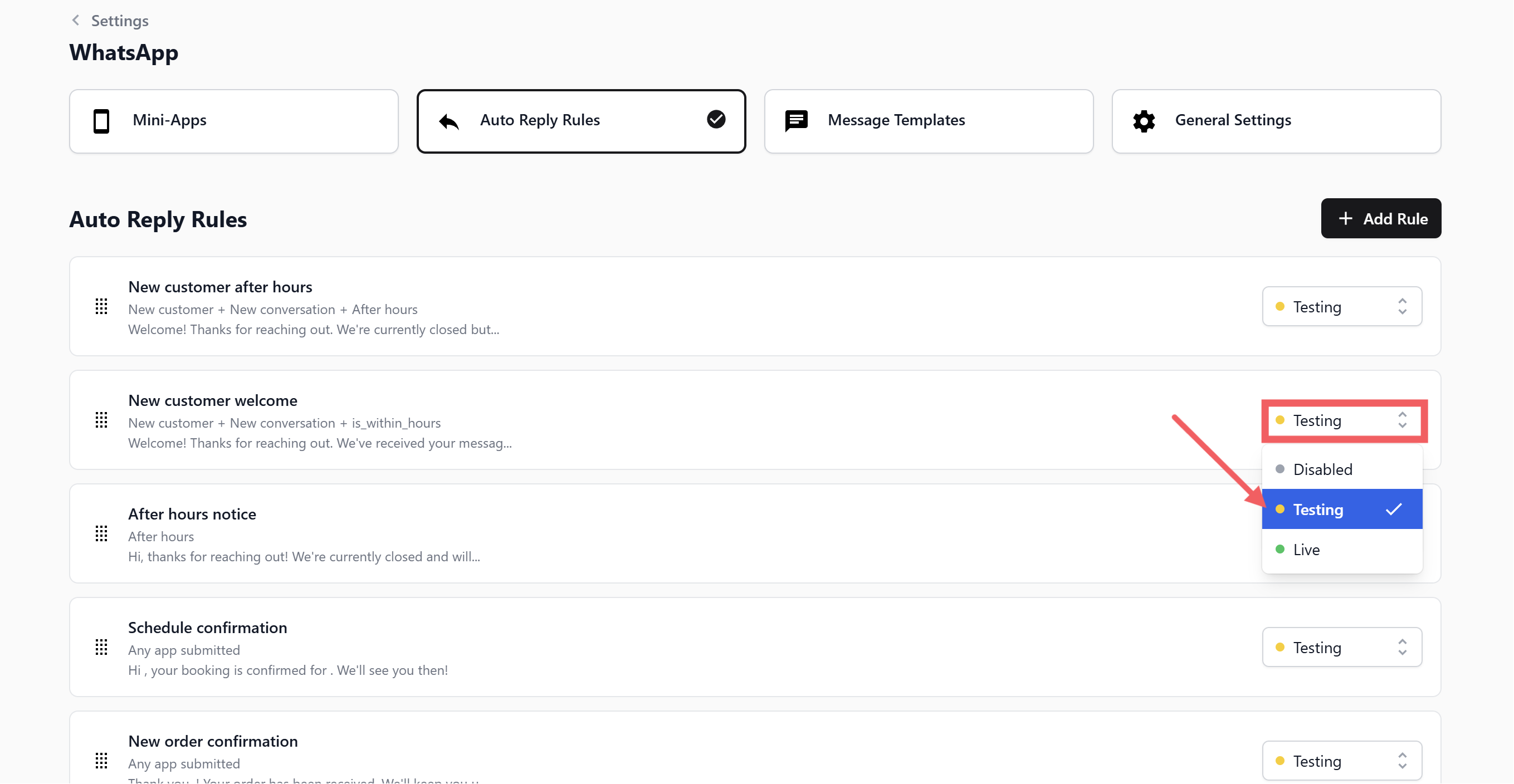
9. Set **Status** to **Testing**.
---
## Testing the Rule
1. Make sure the rule is set to **Testing** status
2. Confirm your test phone number is in the **Test Group** ([General Settings](/docs/whatsapp-general-settings))
3. During your configured business hours, send a WhatsApp message to your business number from your test phone
4. You should receive the welcome message instantly
If you do not receive the reply, check that:
- Business Hours are **enabled** in General Settings
- The current time falls **within** your configured opening hours
- Your test number is in the Test Group
Once verified, switch the status from **Testing** to **Live**.
---
## Rule Priority
Place this rule **below** the [New Customer After Hours](/docs/new-customer-after-hours) rule and the [After Hours Notice](/docs/after-hours-notice) in your rules list. Time-sensitive after-hours rules must sit above greeting rules so that any customer messaging at night gets the after-hours message first.
Recommended order:
1. After Hours Notice (top)
2. New Customer After Hours
3. **New Customer Welcome** (this rule)
Use the drag handle (⠿) on the left side of each rule card to reorder.
---
## What's Next
Now that new customers get a welcome during business hours, continue to [New Customer After Hours](/docs/new-customer-after-hours) to set the version that runs when your shop is closed.