## Why Is It Important to Map Payment Methods?
When a customer pays for an order in EasyBiz, the system records how they paid — whether it was by cash, credit card, QR code, or advance credit. But Xero does not automatically know where to record that payment. Without payment method mapping, Xero will not know which bank account or liability account the money belongs to, and your invoices may get stuck in the **Awaiting Payment** tab even though the customer has already paid.
By mapping your payment methods, you are telling EasyBiz where each type of payment should go in Xero. For example, "When a customer pays by VISA, record it in my bank account in Xero. When a customer pays by advance credit, record it in my Customer Advance Credit account." This ensures that every payment syncs to the correct account in Xero, your invoices move to the **Paid** tab automatically, and your bank reconciliation stays clean.
If a payment method is not mapped or is mapped to an incorrect account (e.g., a revenue or expense account instead of a bank or liability account), the payment sync will fail and the invoice will remain in Awaiting Payment. Make sure each payment method is mapped to an account that has **"Enable payments to this account"** turned on in Xero.
---
## Where to find this setting?
Go to **Settings → Business Portfolios**. Click your business → Click the **three dots**for Xero → **Settings**. Scroll down to the **Payment Method Mapping** section.
---
## Where Can I Find the Chart of Accounts in Xero?
1. Log in to your Xero account.
2. Click **Accounting** in the top navigation bar.
3. Select **Chart of Accounts** from the dropdown menu.
You will see the full list of your account codes, names, types, and tax rates. This is where you can check your existing codes or add new ones if needed.
If you are unsure about which account codes to use, we recommend consulting your accountant before configuring the mapping. Incorrect mapping may affect your financial reports in Xero.
---
## Common Mapping Examples
- **Bank / Credit Cards / Cash:** These methods represent real money entering your business.
- _Map to:_ Your **Business Bank Account** (e.g., Code 090).
- **Points / Vouchers:** These are non-monetary payments. You are "paying" for the service by giving value away, which is a marketing cost.
- _Map to:_ An **Expense Account** like Advertising (e.g., Code 400).
- **Advance Credit:** This represents money the customer gave you previously (Liability) that you are now using.
- _Map to:_ An **Expense Account** like Advertising (e.g., Code 400).
Any payment method left blank (unmapped) in these settings will result in the invoice syncing to Xero as "Unpaid" (Awaiting Payment)
The codes above (090, 400, 850) are just examples. For other payment methods, or if your business uses a custom setup, you can find the suitable code by checking your Chart of Accounts directly inside Xero.
---
## How to Map Your Payment Methods with Xero
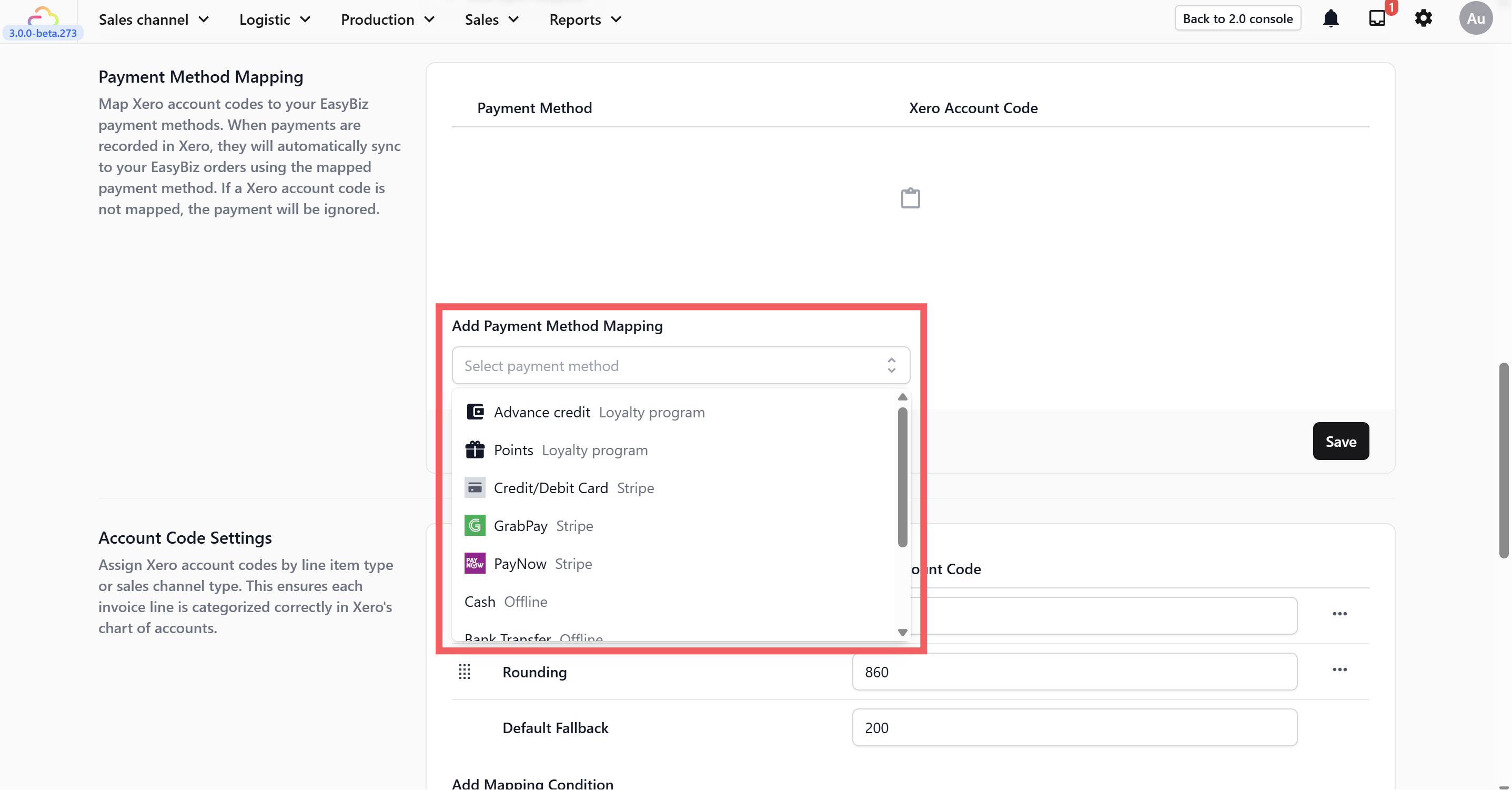
helo
In this guide, we will walk you through the account codes for **Advance Credit**, **Points**, and **Credit/Debit Card**. For any other payment method that counts as direct income to your business (e.g., Cash, PayNow), they all use the same bank account code — in this example, **090**.
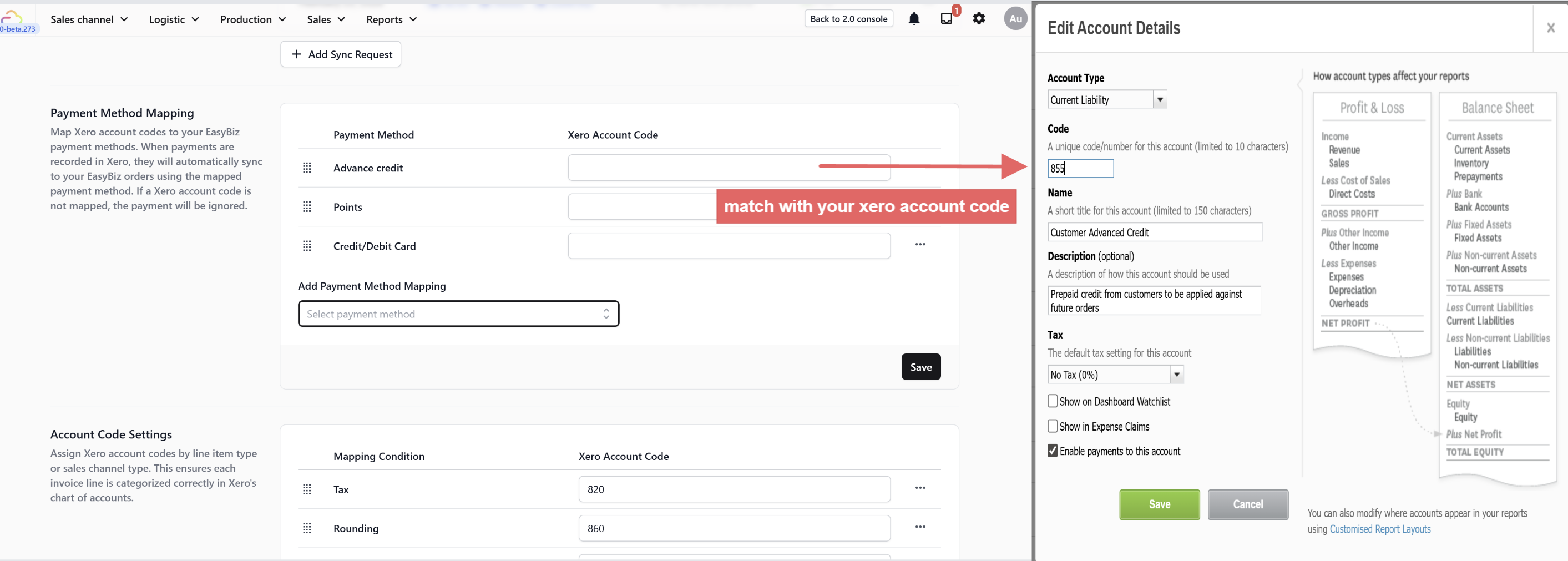
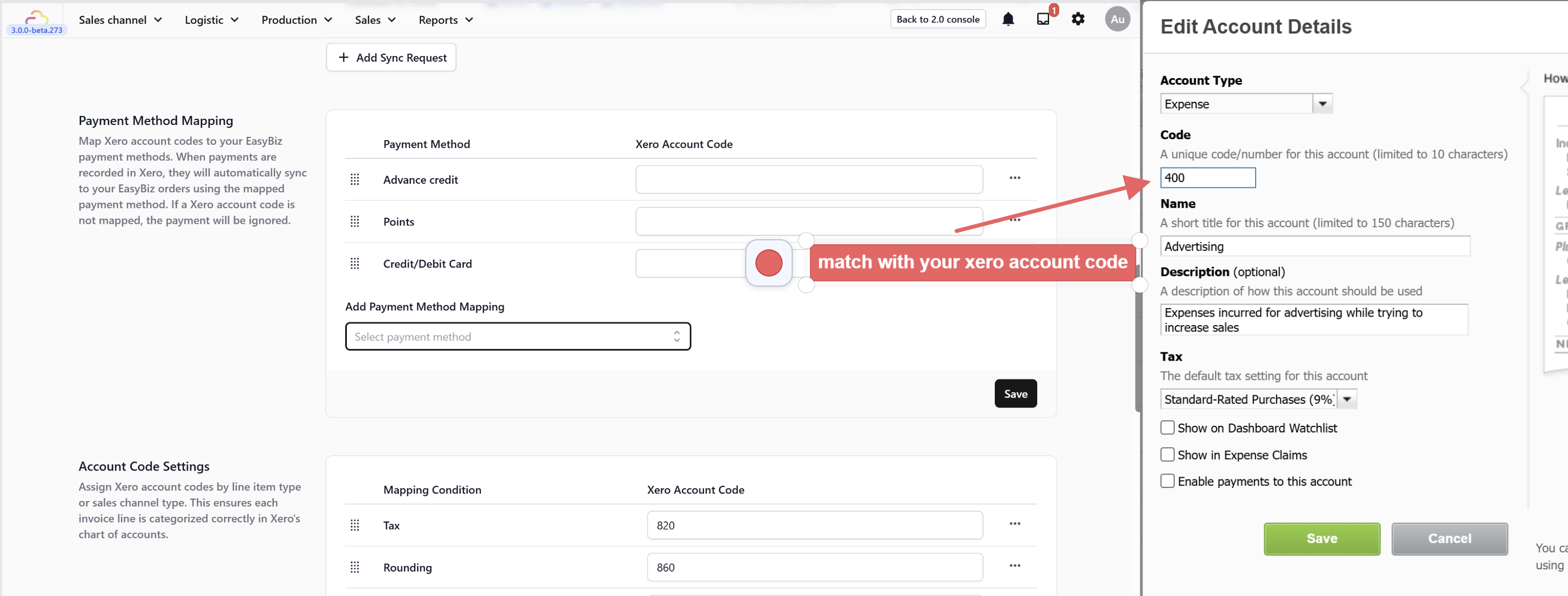
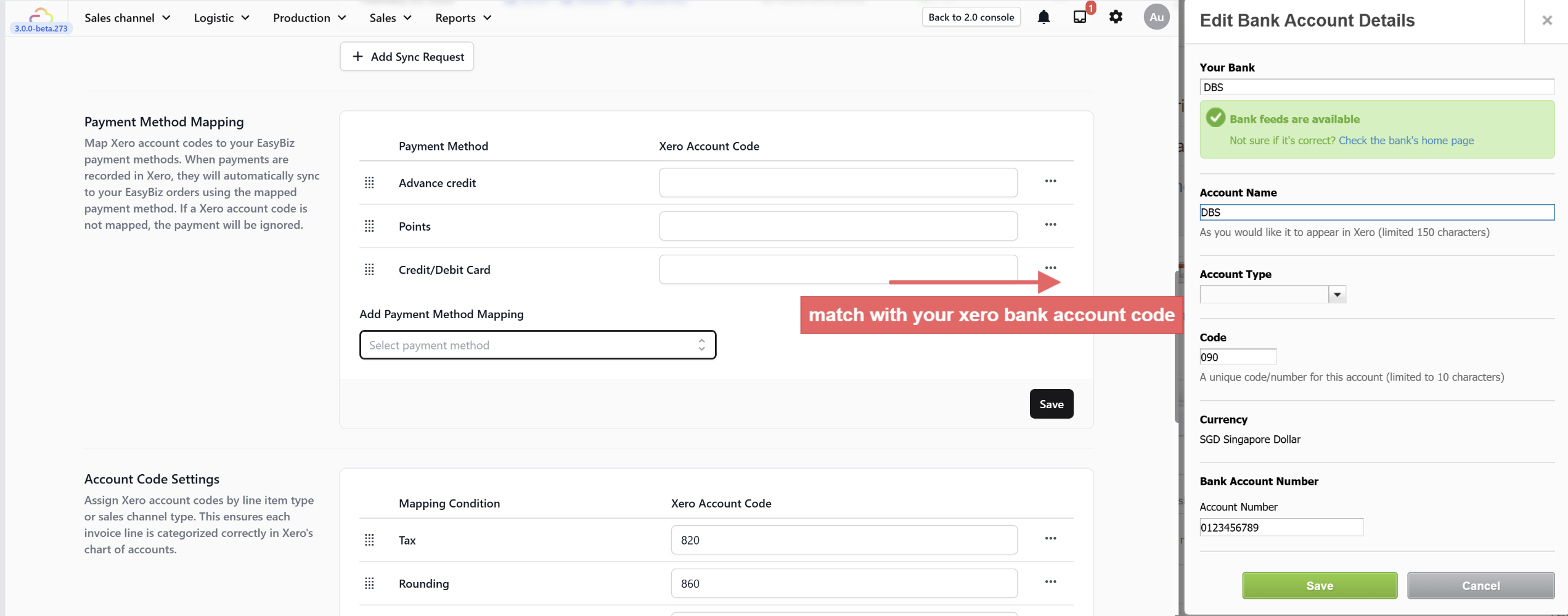
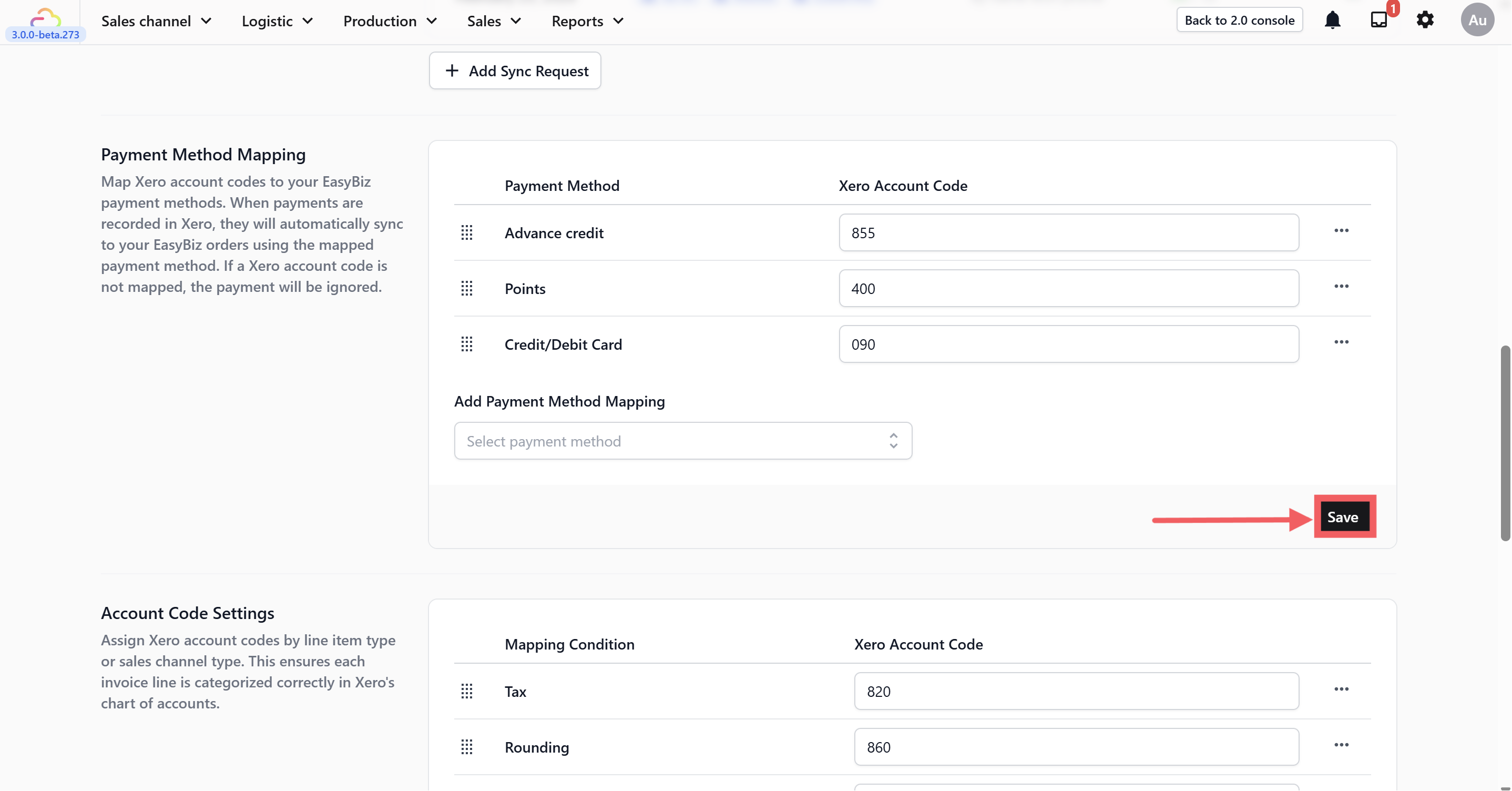
The account codes above (855, 400, 090) are examples and may differ depending on your Xero setup. Please refer to your own Chart of Accounts or consult your accountant if you are unsure.
---
## Watch: How to Map Your Payment Methods in Xero
> Prefer to follow along visually? Watch the full walkthrough below.
---
## What's Next?
Now that payments flow to the right accounts, continue to [Choosing the Right Contact Matching Method for Your Business](/docs/choosing-the-right-contact-matching-method-for-your-business) to decide how EasyBiz should pair customers with their Xero contact records.