## Why use the Shared Inbox?
- **No more missed messages** — All incoming chats appear in one place, visible to your whole team
- **Clear ownership** — Staff can assign chats to themselves so everyone knows who is handling what
- **Stay organised** — Filter by Pending, Unassigned, or All to see exactly what needs attention
---
## Handle unassigned chats
When a customer messages you for the first time, the chat appears in the Unassigned tab.
1. Click the Unassigned tab in your Inbox.
2. Select a chat to preview the message.
3. Click Attend (or Assign to me) to move it to your active list and start replying.
---
## Start a new conversation
You can reach out to customers in two ways:
- **Existing Customer:** Search for their name or phone number in the sidebar.
- **New Customer:** Click Start conversation, enter the country code and phone number, then click Start WhatsApp
You cannot send a free-form message to start a new conversation. You'll need to send an approved template first. See **Send a Template** below.
---
## Understand the 24-hour rule
WhatsApp only allows free-form messages within 24 hours of a customer's last reply. Here's what that means in practice:
- **Window open** — The customer replied to you recently. You can type and send freely.
- **Window closed** — The customer hasn't replied in over 24 hours. The text box will be locked and you'll need to send an approved template to re-open the conversation.
---
## Send a Template
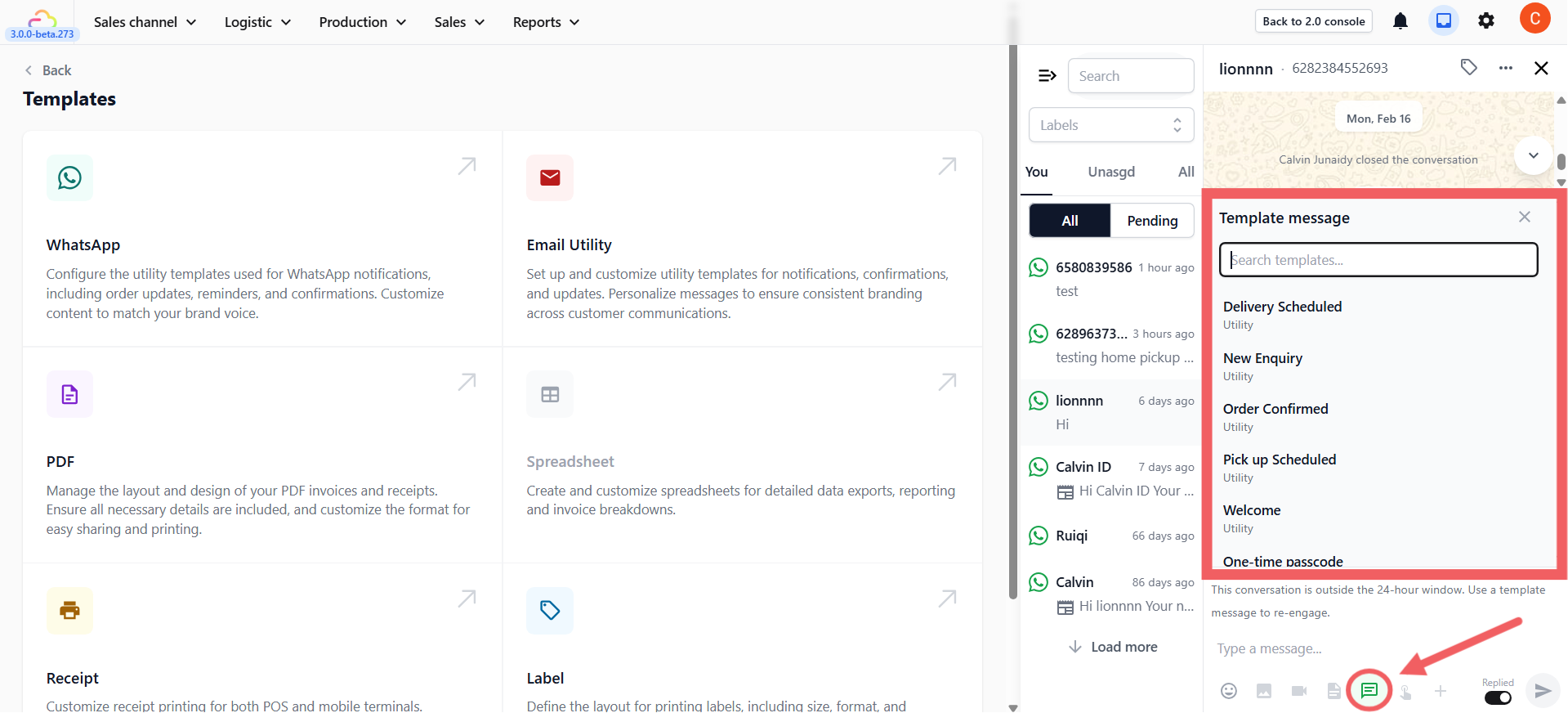
Use templates to start a conversation, send an order update, or re-open the 24-hour window.
1. Click the Template icon (the message bubble) in the toolbar.
2. Choose an approved template (e.g., _Welcome_).
3. If required, select the context (e.g., the specific Customer) to auto-fill the variables.
4. Click Send.
---
## Send free-form messages & Quick Replies
### Standard Free-form & Attachments
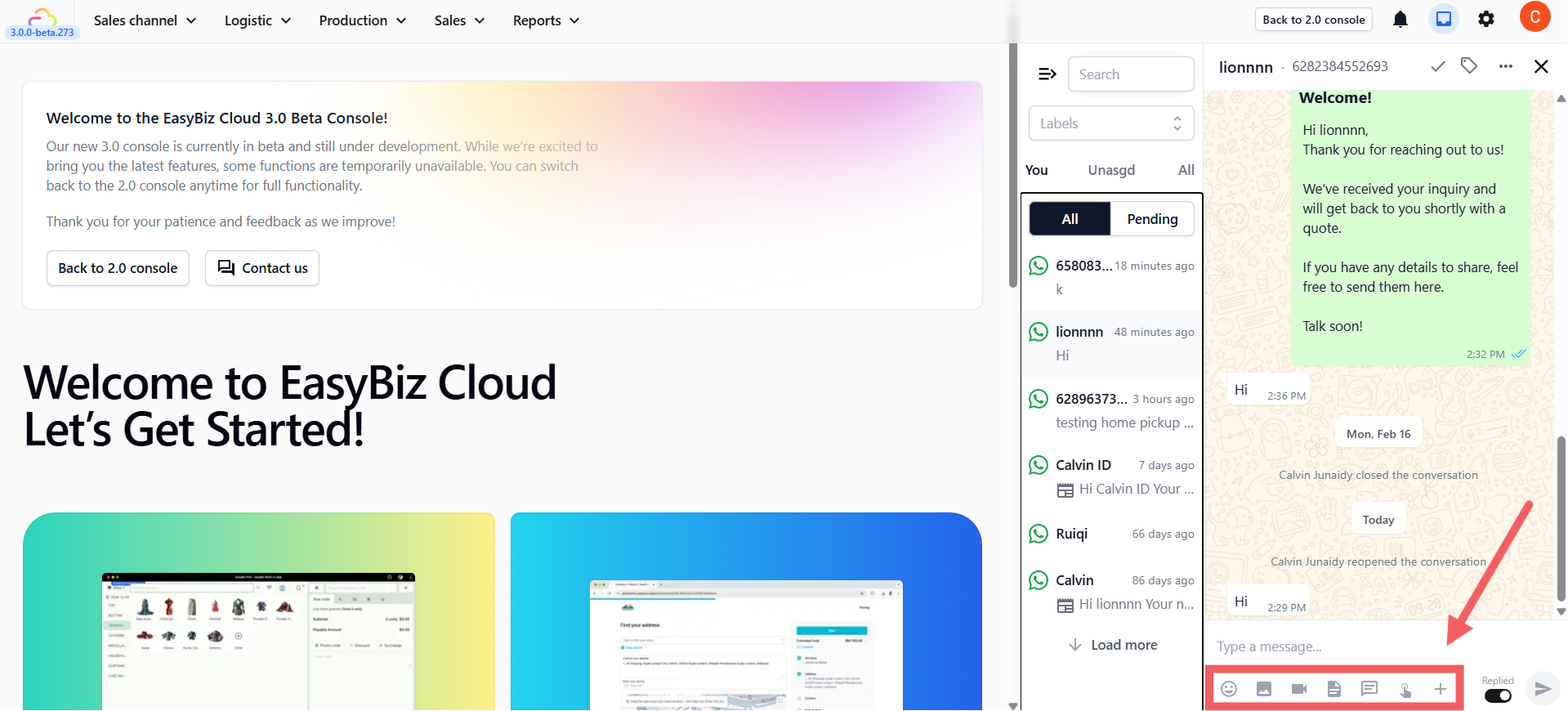
Type your message in the input box and hit Enter. Use the toolbar icons below the text box to quickly share attachments or use system features:
- **Emoji, Image, Video, Document:** Standard media sharing.
- **Template (Message bubble):** Send pre-approved WhatsApp templates.
- **Mini Apps (Pointing finger):** Send interactive Mini Apps forms to the customer. See [What is a Mini App](/docs/what-is-a-mini-app) to learn more.
- **Plus (+):** Click this to send order-related documents. Selecting this will prompt you to choose an order first, allowing you to send: **Order PayNow QR, Order Invoice, Order Receipt,** and **Order Photos**.
### Quick Replies
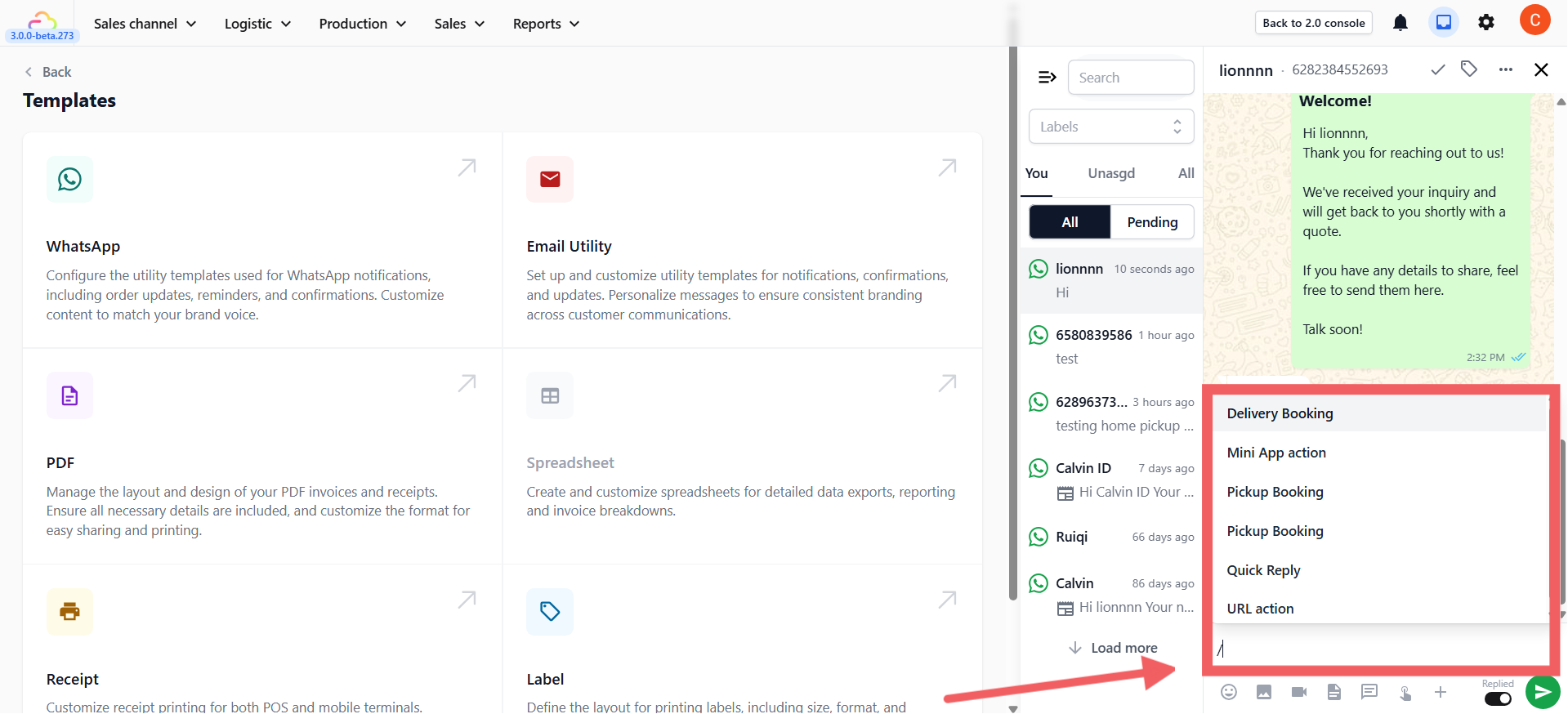
If the 24-hour window is open, you can quickly send pre-made standard replies (FAQs) to save time.
- Simply type `/` in the text box.
- A popup of your created Quick Reply templates will appear for you to choose from.
Quick Replies can only be sent when the 24-hour window is currently open.
---
## The 'Replied' Toggle & Pending Chats
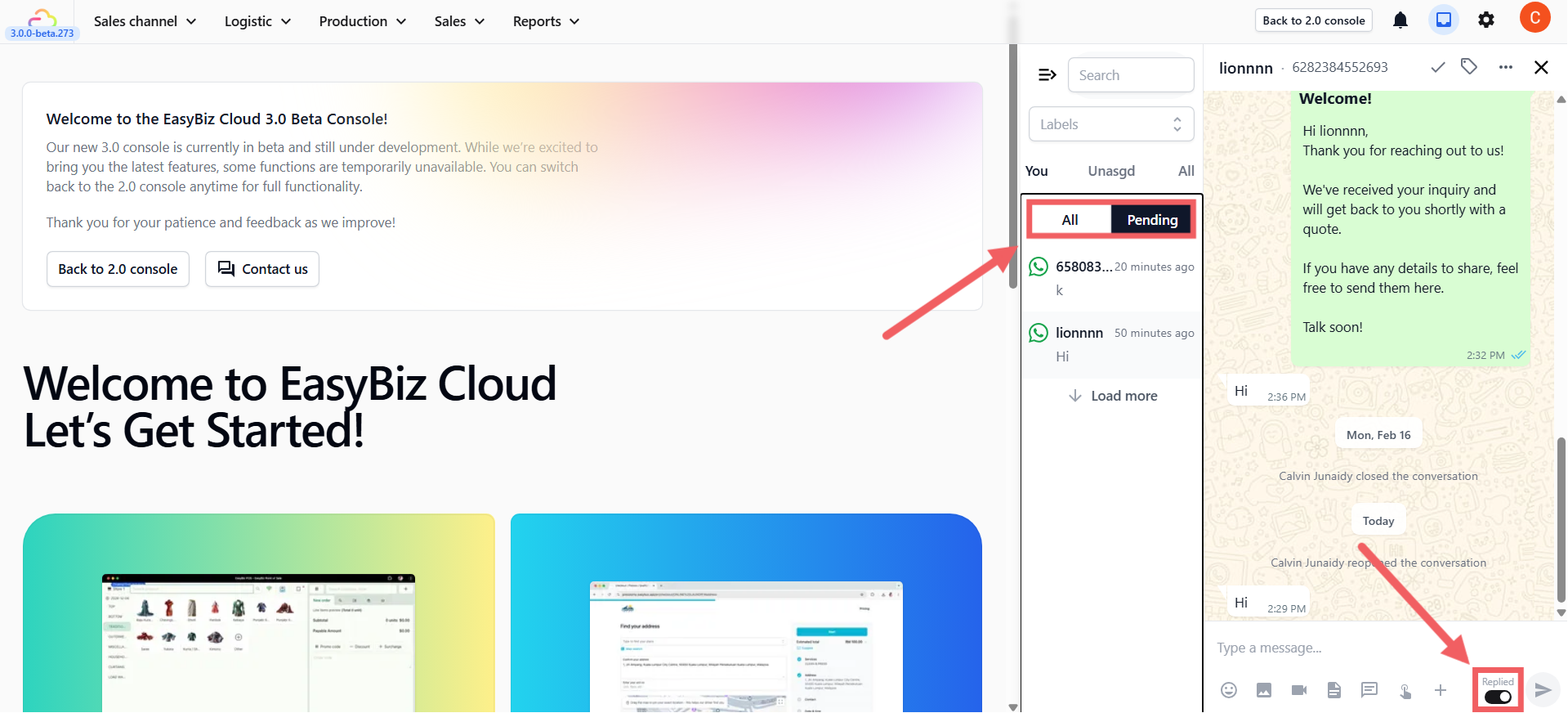
Next to the Send button, you'll see a **Replied** toggle. This helps your team track which conversations still need follow-up.
- **Replied (on)** — The conversation is marked as done for now
- **Pending (off)** — The conversation stays in your Pending list as a reminder that the customer still needs a final response
Use the **Pending** tab at the top of your sidebar to filter and find customers who are still waiting.
---
## Closing & Reopening Chats
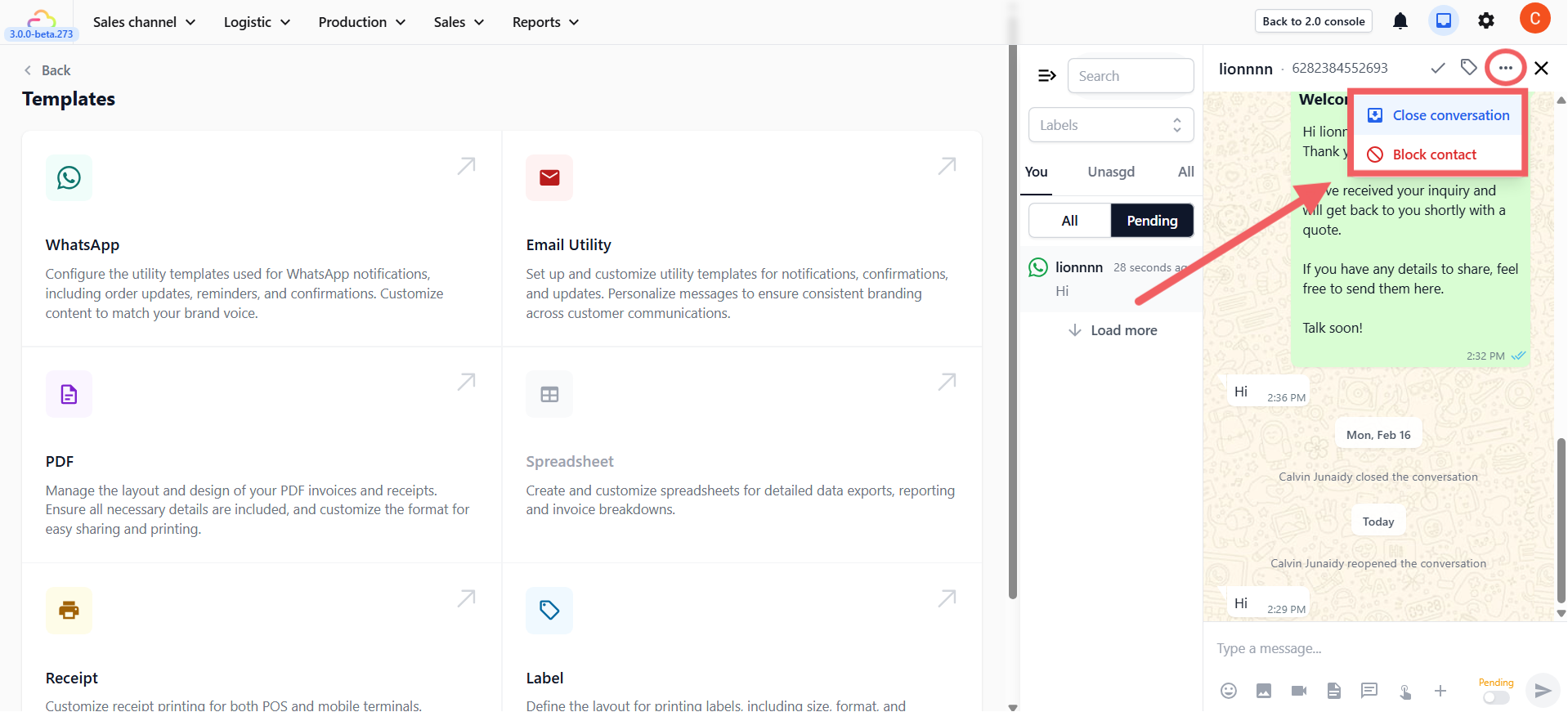
When a customer's issue is resolved, close the chat to keep your inbox tidy.
1. Click the **three dots (**•••**)** at the top of the chat
2. Select Close conversation
3. You can also choose to Block contact from this menu if necessary.
To reopen a closed chat:
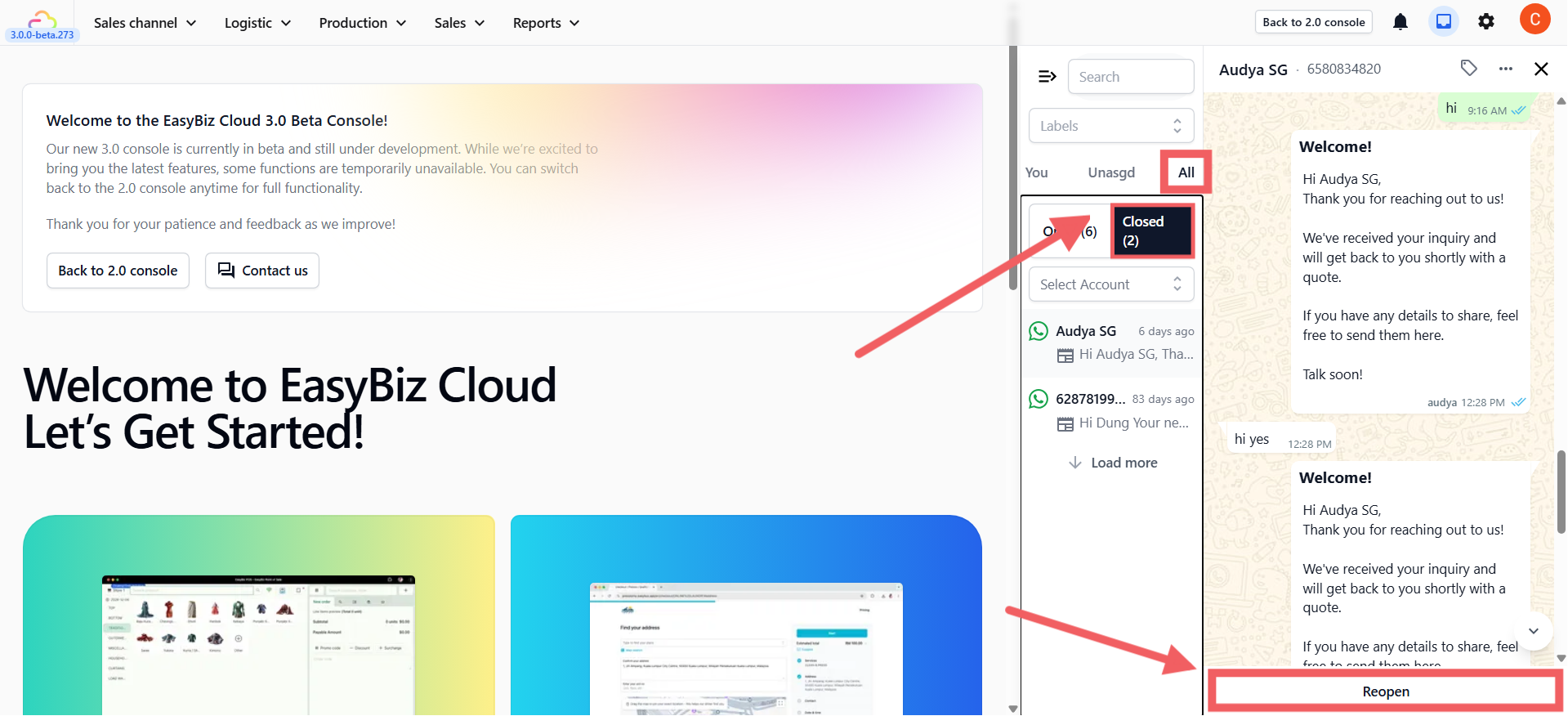
4. Click the All tab in the sidebar
5. Select the closed conversation
6. Click Reopen at the bottom.