## Where to Find Loyalty & Rewards
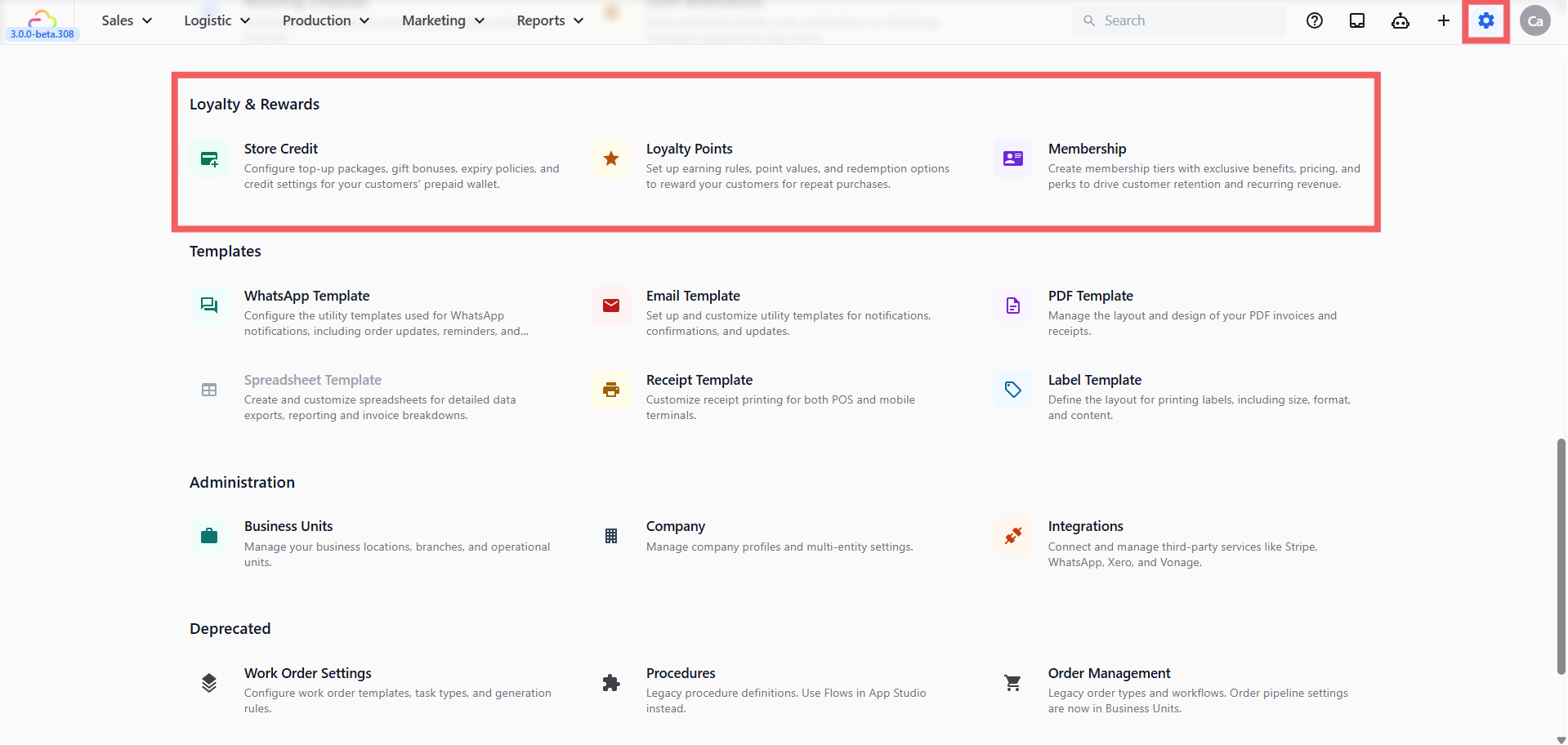
1. Click the ⚙️ Settings icon in the top-right corner.
2. Scroll to the **Loyalty & Rewards** section. You will see three entries: **Store Credit**, **Loyalty Points**, and **Membership**.
---
## Loyalty & Rewards at a Glance
### Store Credit
- **Use this when** → You want customers to prepay and spend their balance over multiple visits
- **What it does** → Customers top up at the counter, optionally with a bonus gift, and pay future orders from their wallet
- **See guide** → [Setting Up Your Store Credit Program](/docs/setting-up-your-store-credit-program)
### Loyalty Points
- **Use this when** → You want customers to earn points on what they spend and redeem them later for discounts or free items
- **What it does** → You set an earning rate, per-business-unit overrides, and a rewards catalog
- **See guide** → [Setting Up Your Loyalty Points Program](/docs/setting-up-your-loyalty-points-program)
### Membership
- **Available for** → Customers whose membership already exists in EasyBiz or was migrated from an earlier setup
- **What it does** → Shows the active plan on the customer record and applies its existing benefits to eligible orders
- **Current limitation** → Creating plans, enrolling customers, and collecting membership payments are not currently available
An eligible order can earn points, use store credit, and still receive an existing membership benefit when the customer already has an active or migrated membership.
---
## Where Should I Start?
For shops that want a result this week, start with Store Credit. It is the easiest to explain to walk-in customers and gives them a clear reason to pay upfront.
| If you want to | Start with |
| --- | --- |
| Get paid upfront and reward bigger top-ups | Store Credit |
| Run a points program | Loyalty Points |
| Check an existing or migrated membership | Membership record on the customer profile |
---
### FAQs
**Do I have to pick just one tool?**
> No. Store Credit and Loyalty Points are independent. Existing or migrated membership records also remain separate from both programs.
**Can a customer use store credit and points on the same order?**
> Yes. A single eligible order can deduct store credit, earn points, and apply an existing membership benefit.
**Will my Store Credit settings carry over once Loyalty Points is on?**
> Yes. Each tool stores its own settings. Configuring one does not change the others.
**Where do customers see their balance?**
> Balances are visible to your staff in the POS Credit tab and on the customer profile in the console.
---
## What's Next?
Now that you know what each tool does, choose where to start:
- To let customers prepay and top up at the counter, head to [Setting Up Your Store Credit Program](/docs/setting-up-your-store-credit-program).
- To reward customers with points on every order, head to [Setting Up Your Loyalty Points Program](/docs/setting-up-your-loyalty-points-program).
- For an existing or migrated membership, open the customer profile to confirm the active plan; its existing benefits apply to eligible orders.