## Where to Find It
In your EasyBiz Console, open the **Sales** menu in the top navigation and click Contacts.
Every row is one customer. Click any row to open that customer's full profile — orders, payments, loyalty, and more (see [Understanding the Contact Profile](/docs/understanding-the-contact-profile)).
Contacts are your **consumer** customers. Your **B2B agents** — companies you bill monthly — live on the separate **Agents** page and work differently. See [Introduction to B2B](/docs/introduction-to-b2b).
---
## What the List Shows
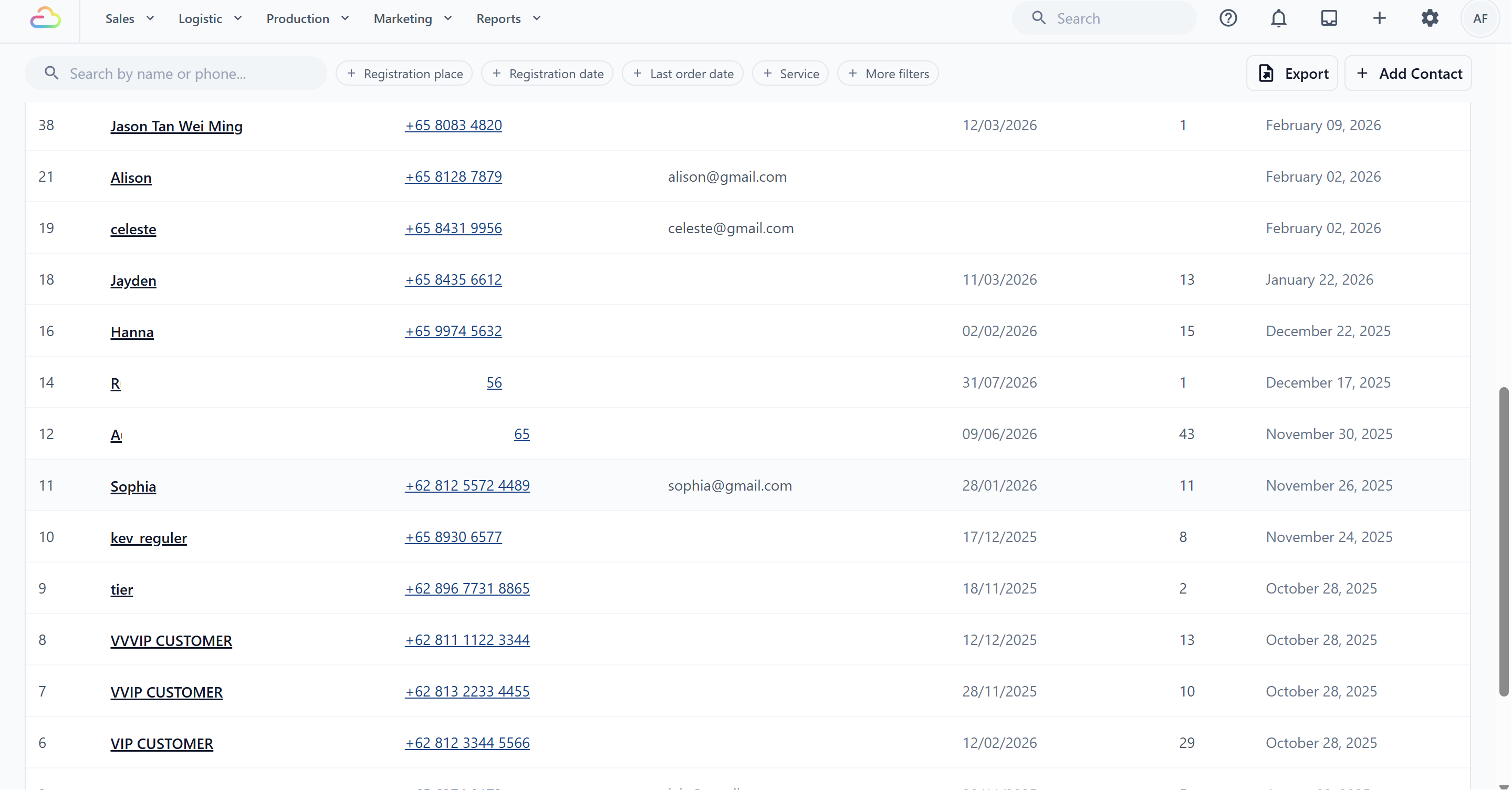
The default columns:
| Column | What it shows |
| --- | --- |
| # | The customer's number in your account |
| Name | Customer name |
| Phone | Phone number |
| Email | Email address |
| Last Order | Date of their most recent order |
| Orders | How many orders they have placed |
| Registered | When they became your customer |
The list loads 20 contacts at a time — click Load more at the bottom for the next batch. The columns themselves are customizable in your page settings, like other EasyBiz tables.
---
## Finding a Customer
Type into the **Search by name or phone** box. Both work:
- **By name** — partial names are fine; "tan" finds Tan Wei Ling.
- **By phone** — type the digits in any format; spaces and country codes are ignored.
---
## Filtering Your Customer Base
Filters turn the contact list into a simple customer analysis tool:
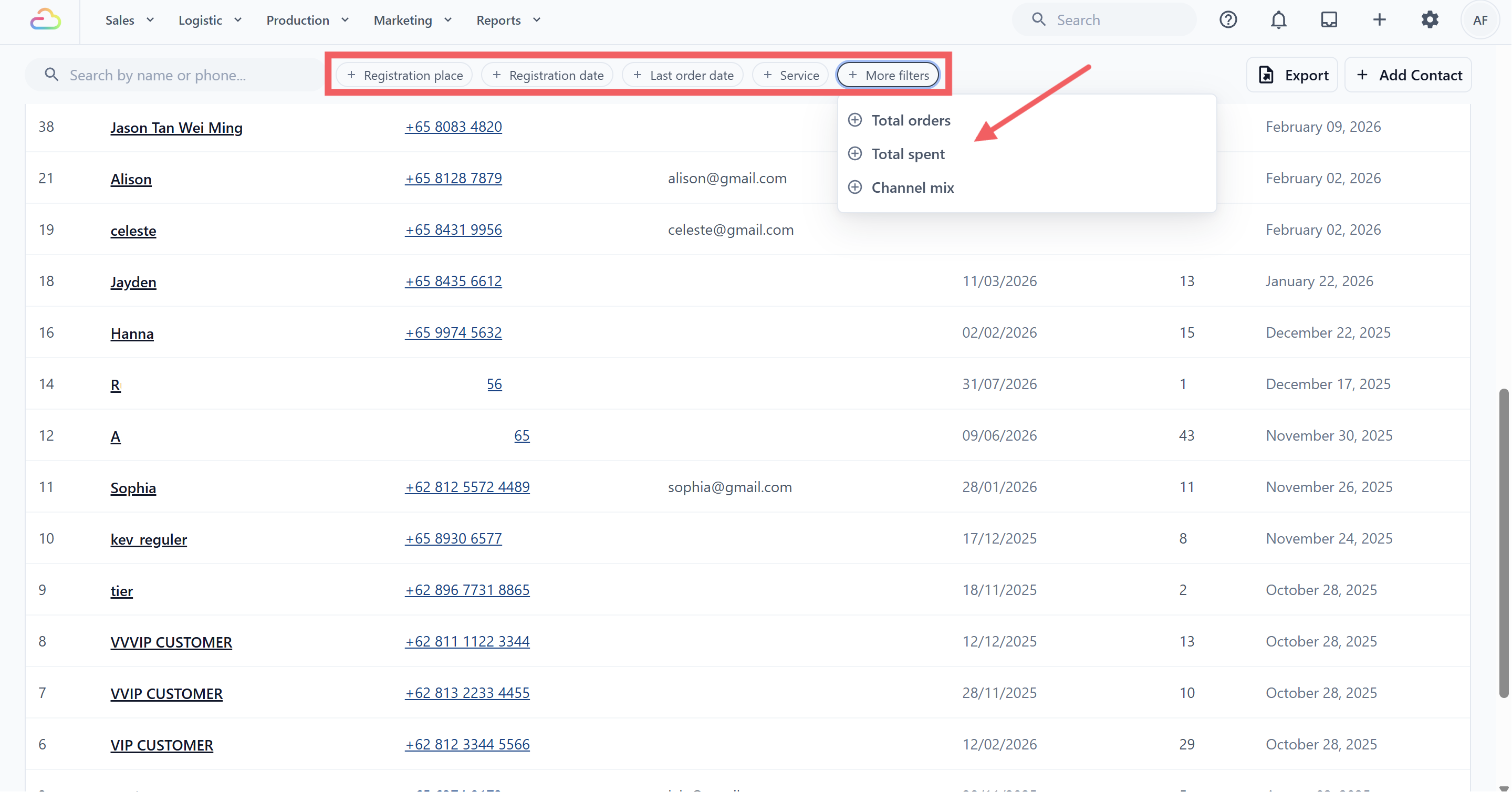
- **Registration place** — the sales channel where the customer was first registered.
- **Registration date** — when they joined.
- **Last order date** — great for spotting lapsed customers ("last ordered before March").
Under More filters:
- **Total orders** — for example, customers with 10+ orders.
- **Total spent** — your top spenders.
- **Channel mix** — whether the customer buys **POS only**, **Online only**, or **Both POS and online**.
Click Clear filters to reset everything.
To find regulars worth a win-back message: set **Last order date** to more than two months ago and **Total orders** to at least 5. That is your list of good customers who have gone quiet.
---
## Exporting Contacts
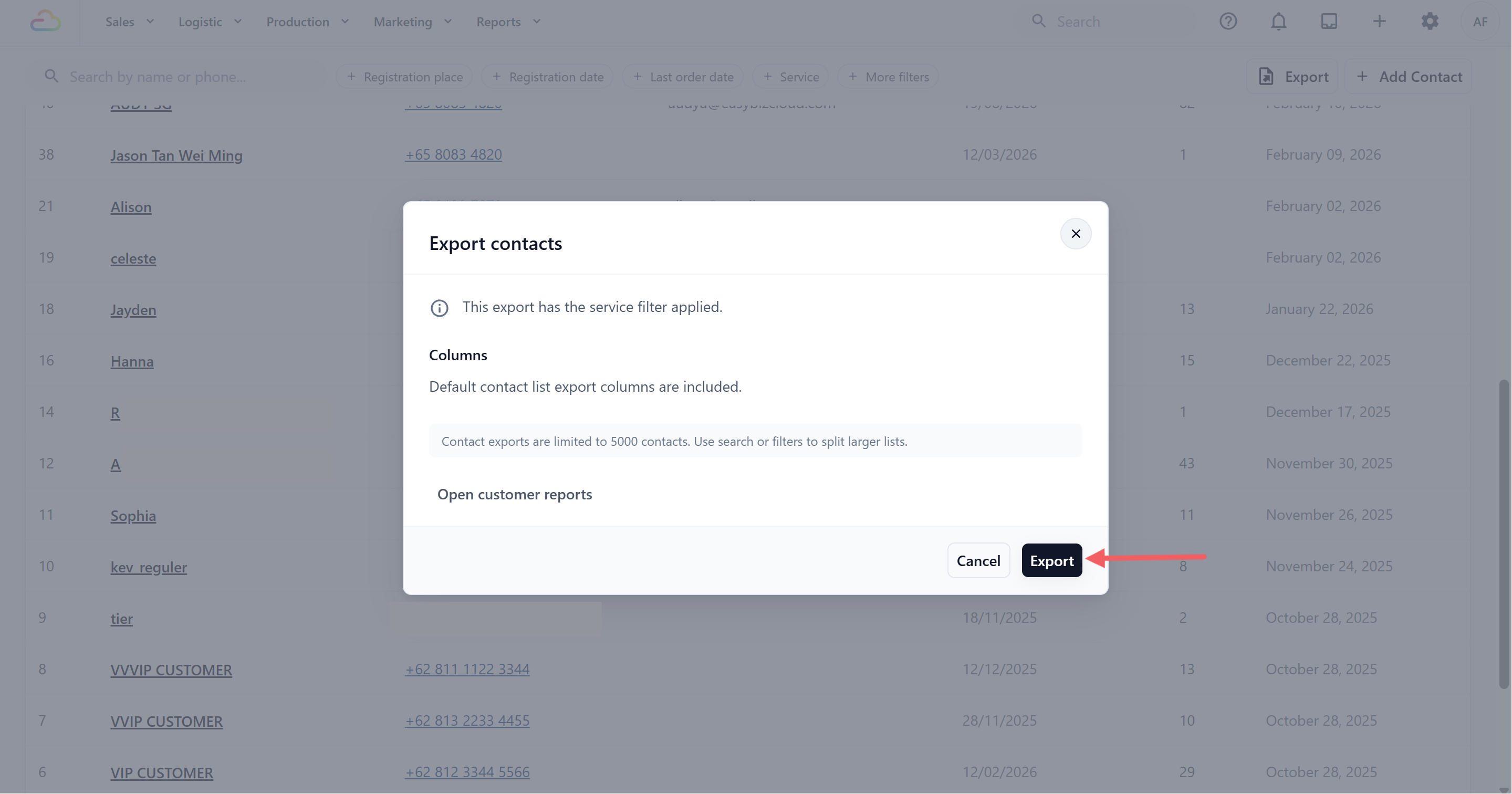
Click Export contacts to download the current view — the export respects whatever search and filters are active, so filter first, then export. Exports cover up to 5,000 contacts per file and appear in your **Downloads** area when ready.
---
## Adding Customers
Click Add Contact to register a customer from the Console — the button appears when your access includes customer editing. Customers are also created automatically when they order online or sign up through your online store, and your staff can register customers at the POS and in the staff app. See [Adding and Editing Contacts](/docs/adding-and-editing-contacts).
---
## FAQs
**Why don't I see the Add Contact button?**
> Your access level does not include customer editing. Ask your account owner to adjust your access — see [Granting the Right Access](/docs/granting-the-right-access-common-scenarios).
**Can I import customers from a spreadsheet?**
> There is no self-service import at the moment. If you are moving from another system, contact the EasyBiz team about bringing your customer list across as part of your onboarding.
**Is there a customer report?**
> Yes — the Contacts report under **Reports** complements this page for analysis, and the Export contacts button here gives you the raw list.
**Do online sign-ups appear here automatically?**
> Yes. Customers who register through your online store or place an online order are created as contacts automatically, with their registration place set to that channel.
---
## What's Next
Open any customer to explore their full profile — [Understanding the Contact Profile](/docs/understanding-the-contact-profile) — or learn how to register and edit customers in [Adding and Editing Contacts](/docs/adding-and-editing-contacts).