When you finish, you will know what a card is, which card type changes which screen, and which of the next articles your shop needs.
## Before You Start
- You need a Console login that can change your POS settings. **Cards** only shows in Settings for staff with access to **Point of Sale** settings. Owners always have it. To give a staff member access, see [Inviting Your Team and Managing Access](/docs/inviting-your-team-and-managing-access).
- You don't need anything else set up first. Every page already shows its details with the System Default card, so you can read this article before you add any card.
- If you set this up before: the block library in Settings is replaced by **Cards**. How an order, a contact, an item or a work order shows on your pages is now set here, in one place.
---
## Overview
A card is the short line of details that shows under an order, a contact, an item, a work order, a task or a driver's job. It lets your staff see what matters, such as a phone number, a due date or a customer note, without opening the record. You make a card once, and every page that picks it shows the same details. Until you pick your own card, each page shows the System Default card, so your POS works from day one. Cards only change how records look to your staff; they never change the order, the price or the customer's details.
---
## Where cards show
Cards show only to your staff. Customers never see them.
- **EasyBiz POS (your counter app):** the Orders list, the Checkout cart, an order's Work orders section and the tasks on each work order.
- **Console (EasyBiz in your computer's web browser):** the Checkout cart.
- **Staff apps on the EasyBiz Mobile App:** a staff app's Contact List and Order List, and a driver app's Job List.
---
## Why set it up
The System Default card shows the basics. That is enough for many shops. Your own card is worth a few minutes when staff keep opening records to find one detail. For example, counter staff open every contact to check whether the customer wants no starch, or drivers call the shop to ask for a gate code.
With your own card, that detail sits right under the name, on every page that uses the card. Staff work faster, and fewer special requests get missed. If you skip cards, nothing breaks: every page keeps showing the System Default card.
---
## Where to find it
1. Click the ⚙️ Settings icon in the top-right corner.
2. Under the **Library** section, click **Cards**.
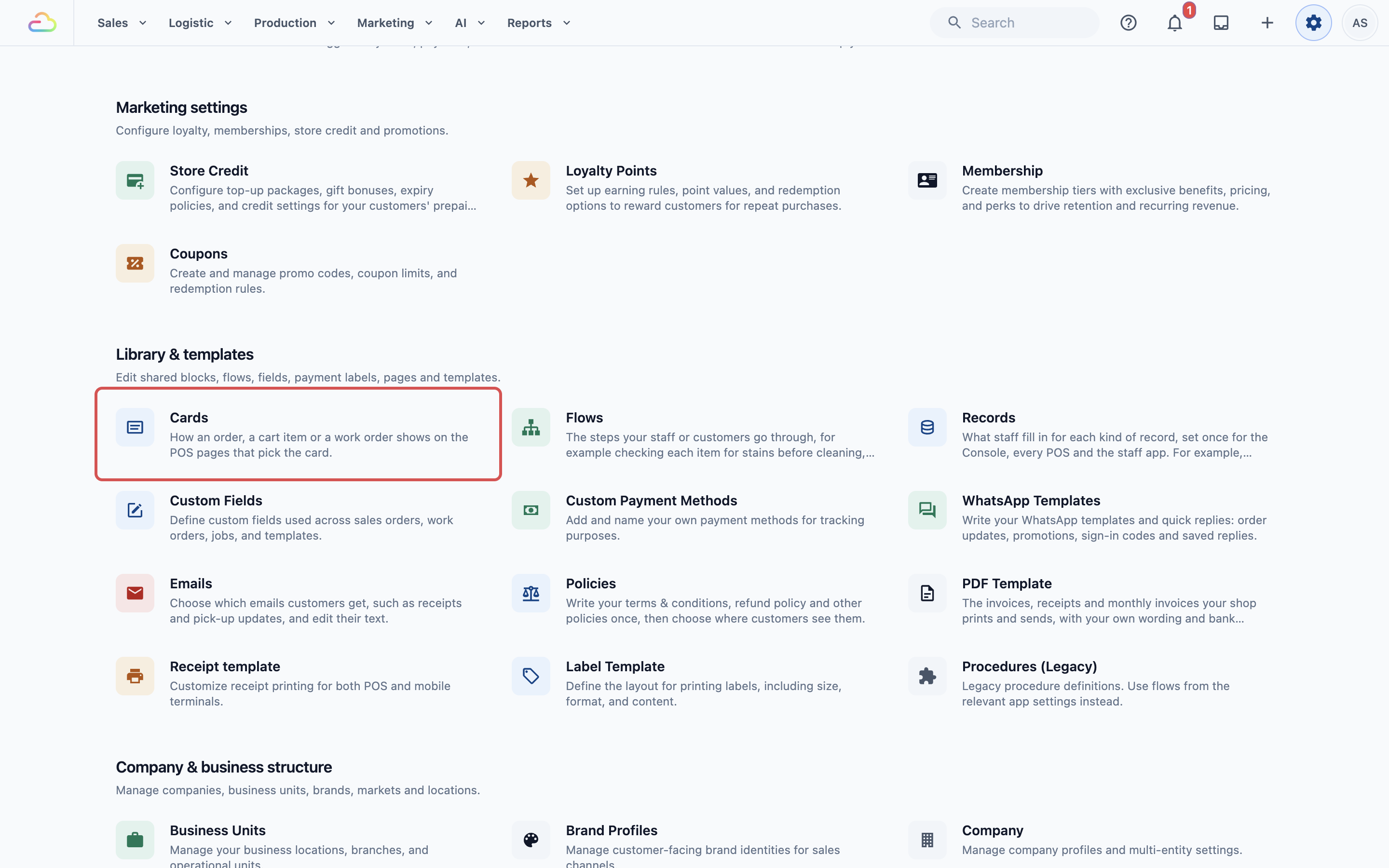
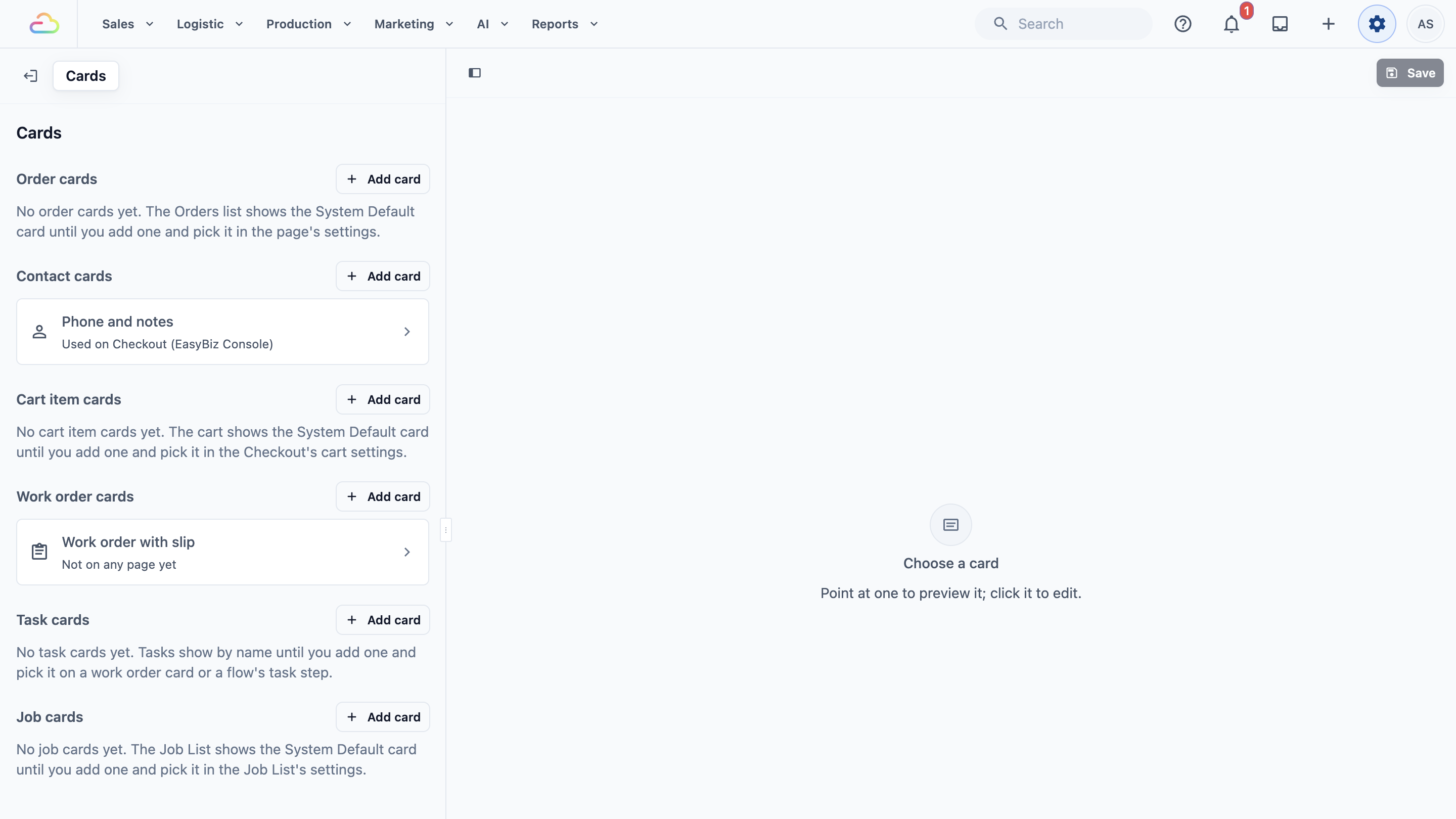
The Cards page opens. The list on the left shows your cards, one section for each card type. The preview on the right draws a card as staff see it once you point at one.
---
## The six card types
The page lists six card types, in this order. Each type changes a different part of your screens.
| **Card type** | **Where staff see it** |
| --- | --- |
| Order card | Each order in the Orders list. |
| Contact card | Under the contact's name in the Checkout cart, and in a staff app's Contact List. |
| Cart item card | Under the item's name in the Checkout cart. |
| Work order card | Each work order in an order's Work orders section. |
| Task card | Under the task's name, on a work order. |
| Job card | Each pickup, delivery or visit in a driver app's Job List, under the customer, time and address. |
Each section has an Add card button. A section with no cards yet tells you what its pages show until you add one.
Not every shop needs every type:
- **Work order and task cards** are only for shops that use work orders, such as sending items to a workshop or tracking each repair step. See [Setting Up Work Order and Task Cards](/docs/setting-up-work-order-and-task-cards).
- **Job cards** only matter if you have drivers doing pickups, deliveries or visits.
---
## System Default
The System Default card is the ready-made card every page shows until you pick one of your own. You don't create it, and you can't change it. Your own cards sit alongside it, so you can go back to System Default on any page at any time.
Adding a card on the Cards page does not change any screen by itself. A page changes only when you pick the card in that page's settings. See [Choosing Which Card Each Page Shows](/docs/choosing-which-card-each-page-shows).
Task cards work differently. Until you add a task card and pick it, tasks on a work order show by name only.
---
## About cards and the Used on line
When you open a card, its type shows at the top with an ⓘ icon. Point at the icon to see **About cards**, a one-line reminder of where this card type shows. For example, an order card says "How an order shows in the Orders list."
Under each card in the list, a second line says where it is used:
| **The line says** | **What it means** |
| --- | --- |
| Used on Orders (CleanFast POS) | The card is picked on these pages. It lists every page, in every app, that shows it. |
| Not on any page yet | The card is saved, but no page shows it yet. Staff still see the System Default card. |
| Not saved yet | The card is new and only saves when you click Save. |
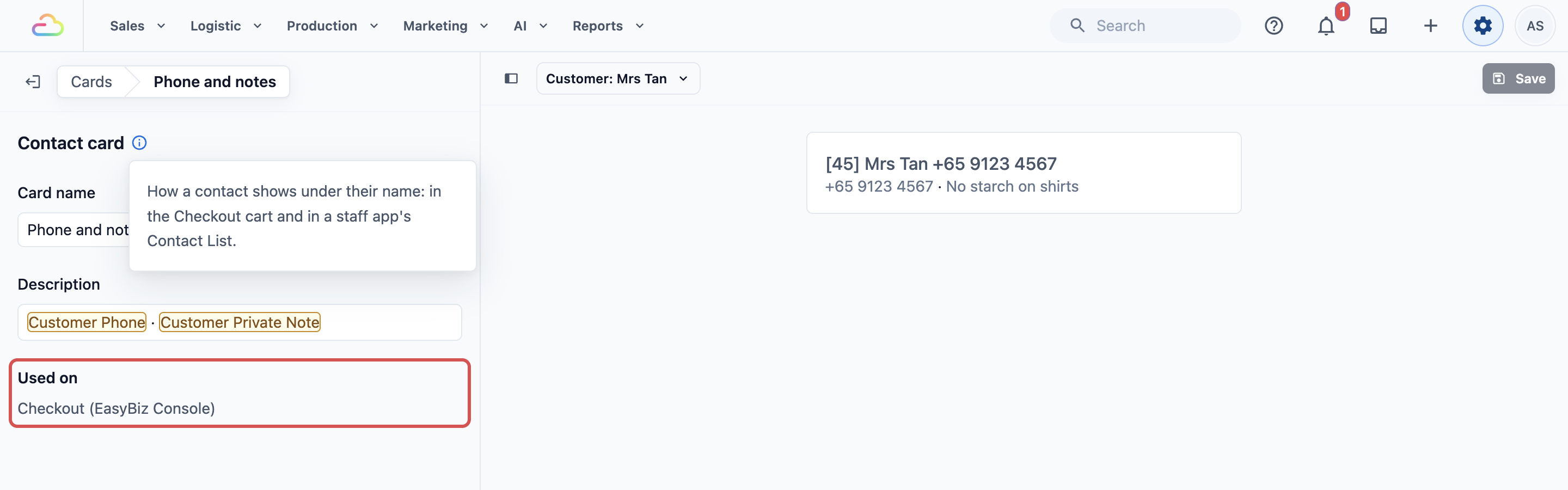
When you open a card, the **Used on** section at the bottom lists the same pages one by one. One card can be used on many pages at once. Editing it changes every page in that list as soon as you save, so check **Used on** before you change a card that is already in use.
---
## Example setup
CleanFast Laundry wants its counter staff in Tampines to see each customer's phone number and the "no starch" note in the cart, without opening the contact.
That is a **contact card**. CleanFast adds a contact card named *Phone and notes* that shows the customer's phone number and the note staff keep about them. Then it picks that card in the Tampines POS Checkout's cart settings.
Now, when Mrs Tan comes in and her contact is added to the cart, the counter staff see this under her name:
*9123 4567 · No starch on shirts*
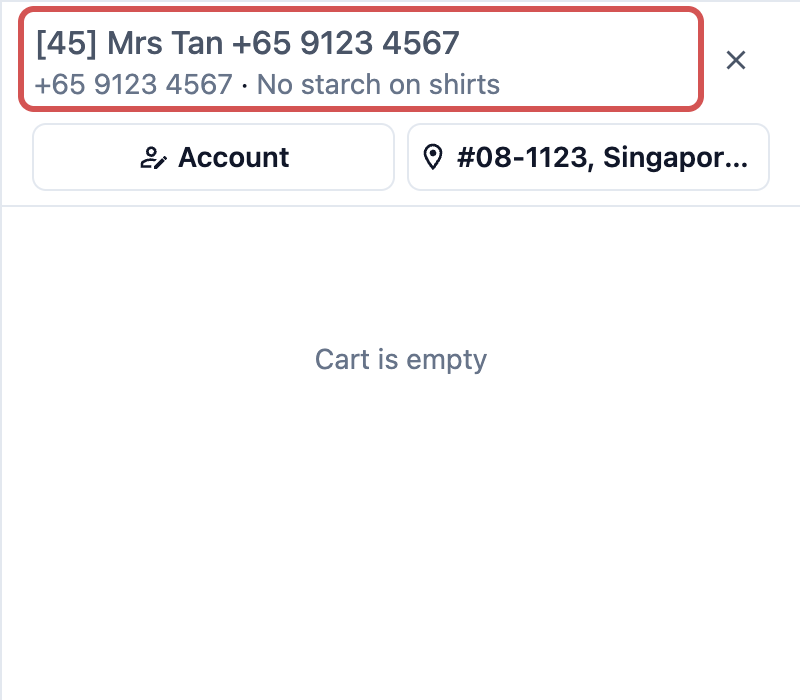
You'll build this card step by step in the next article.
---
## FAQs
**Do I need cards to use the POS?**
> No. Every page shows the System Default card until you pick your own, so you can take orders from day one. Add a card only when staff keep opening records to find the same detail.
**Does a card change my receipts or labels?**
> No. Cards only change how records look on your staff's screens. Printed receipts and labels come from your receipt and label templates. See [Setting Up Your Order Receipt](/docs/setting-up-your-order-receipt) and [Setting Up Your Item Labels](/docs/setting-up-your-item-labels).
**Do my customers ever see cards?**
> No. Cards show only on your staff's screens: the POS, the Console Checkout and your staff and driver apps. Your Online Store and customer app are not affected.
**If I change a card, does it change my past orders?**
> No. A card only changes how an order looks, never what is saved on it. After you save, past and new orders both show with the updated card on every page in its Used on list.
**I added a card but my POS looks the same. Why?**
> A new card shows "Not on any page yet" until you pick it in a page's settings. Until then, the page keeps showing the System Default card.
**Can two pages show different cards of the same type?**
> Yes. Each page picks its own card, so your POS Orders list can use one order card and a staff app's Order List another. The Used on line shows which pages use each card.
---
## What's Next
You now know what a card is, where each of the six types shows and how System Default and Used on work. Next, add your first card and see it in the preview: [Creating Your First Card](/docs/creating-your-first-card).