## Before You Start
- **WhatsApp connected:** connect your WhatsApp Business number first, as shown in [Connect and Configure WhatsApp](/docs/connect-and-configure-whatsapp). Live chat, TikTok Shop and email are optional extras, covered below.
- **Access:** you need to be the account owner, or have a Full seat with **CRM** switched on. Teammates without it don't see the Inbox icon. See [Inviting Your Team and Managing Access](/docs/inviting-your-team-and-managing-access).
- **This article only shows you around.** Picking up and replying to chats, starting a new chat, closing a chat and calling customers each have their own article in this group.
---
## Overview
The Inbox is the one place where every customer conversation with your shop arrives. Instead of checking a phone, a mailbox and an app, your staff work from one list. Tabs sort the chats into ones nobody has picked up yet, ones you are handling, and everything else. Search, labels and a number filter help you find any customer in a few seconds. The same chats show in the Console and at the POS, so your office and your counter always see the same thing.
---
## Where it works
- **Console:** the Inbox opens as a panel beside the page you are working on, so you can answer a customer without leaving an order.
- **POS:** the same chats show on the WhatsApp Chat page, which needs Professional POS. To add it, see [Set Up WhatsApp Chat on Your POS](/docs/set-up-whatsapp-inbox-on-your-pos). On the POS, the first tab is called Shop instead of You, and shows the chats that shop is handling.
- **Customers:** nothing changes for them. They keep writing to you the way they always do, and your reply goes back the same way.
---
## Why use it
- **No customer gets missed.** New chats wait in one tab with a count, until someone picks them up.
- **No double replies.** Each teammate sees the chats they are handling, and anyone can check who is handling the rest.
- **Waiting customers stand out.** Chats where the customer wrote last and nobody has answered yet are marked, so staff answer those first.
If nobody checks the Inbox, chats pile up in the New tab and customers wait. The red number on the Inbox icon keeps count, so it never goes unnoticed for long.
---
## Where to find it
1. Sign in to the Console.
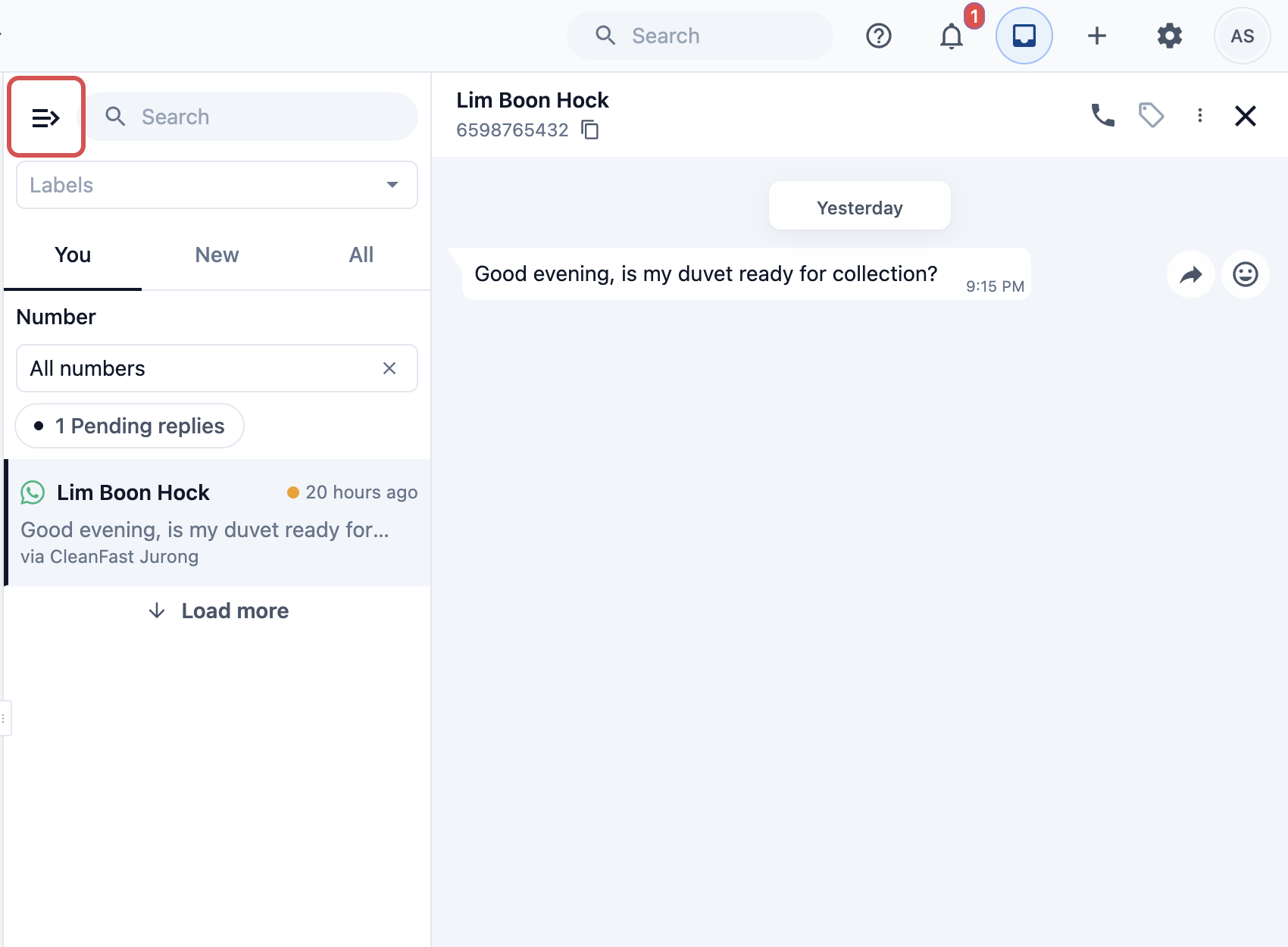
2. In the top bar, click the **Inbox** icon, between the 🔔 bell and the + button.
3. The Inbox opens as a panel on the right of your screen. Click the **Inbox** icon again to close it.

The red number on the icon counts your unread chats plus the chats waiting in the New tab.
The button at the top left of the panel, beside Search, switches between a wide view, with the chat list and the open chat side by side, and a narrow view that shows the list first and opens a chat over it.
---
## What arrives in the Inbox
Chats from every channel you connect come into the same list. A small icon on each chat shows where it came from.
**Channel**
| **Channel** | **Where customers write** | **How you set it up** |
|---|---|---|
| WhatsApp | Your WhatsApp Business number | Connected in **Settings › Integrations** |
| Live chat | The chat button on your Online Store and Mobile App. Your replies go back in the app, not by WhatsApp | [Setting Up the Contact Widget and Live Chat](/docs/setting-up-the-contact-widget-and-live-chat) |
| TikTok Shop | Buyer messages from your TikTok Shop | [Connect TikTok Shop Chat to Your Inbox](/docs/connect-tiktok-shop-chat-to-your-inbox) |
| Email | Emails sent to your shop's address. Your replies go out by email | [Connect Your Email to Your Inbox](/docs/connect-your-email-to-your-inbox) |
---
## The three tabs
The tabs sit at the top of the chat list. Each one shows a different set of chats.
**Tabs**
| **Tab** | **What it shows** |
|---|---|
| You | The open chats you are handling. A chat moves here once you pick it up or reply. |
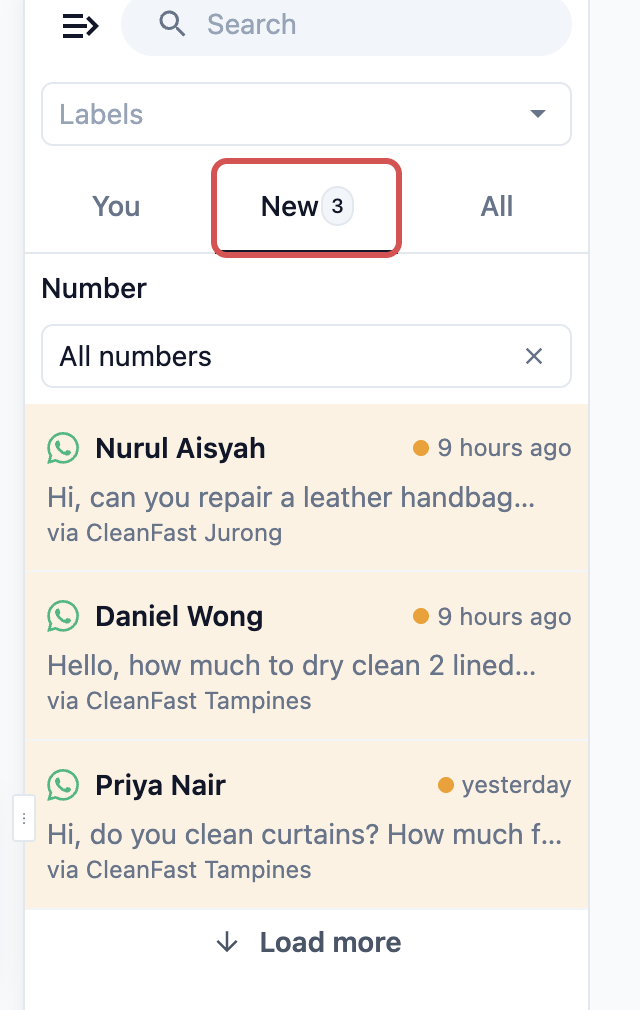
| New | Chats nobody in your team has picked up yet. The number beside it shows how many are waiting. |
| All | Every chat in your shop. Switch between Open and Closed chats, each with its count, and use **Select Account** to see the chats one teammate or one shop is handling. |
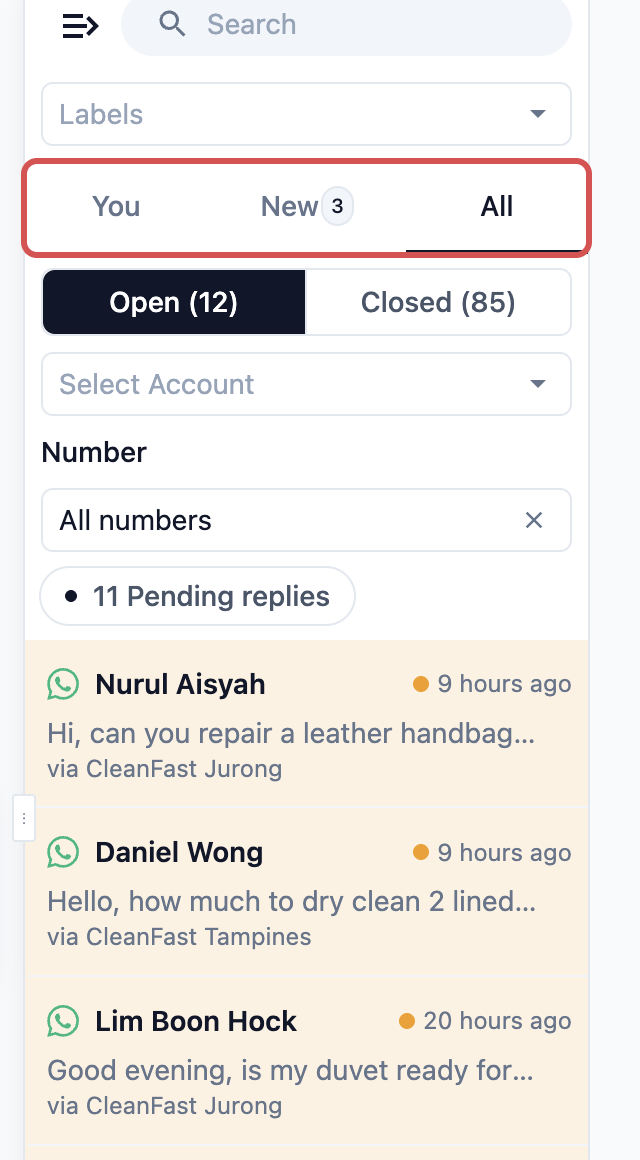
In **Select Account**, your teammates are listed under **Team** and your POS shops under **Shops**, because a reply sent from a POS is recorded under that shop. With Closed selected, it shows the chats that person or shop closed.
### Pending replies
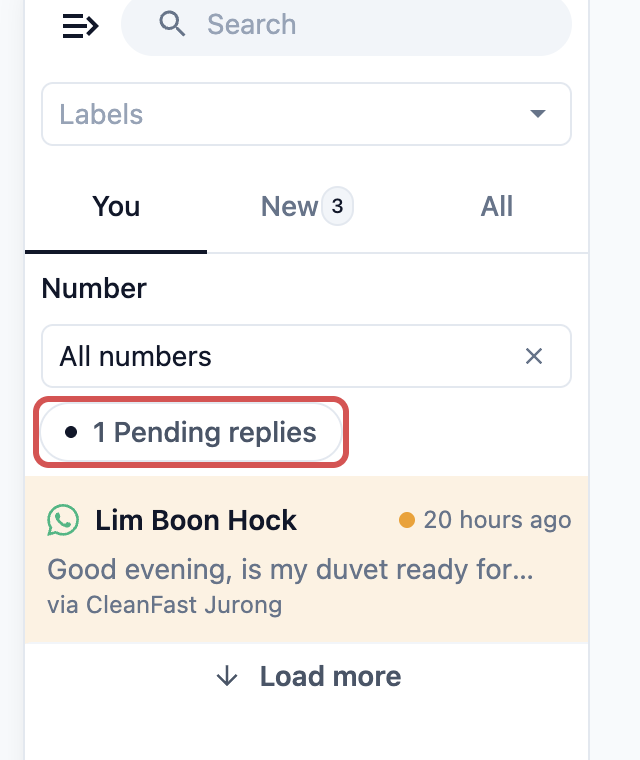
When customers are waiting for your answer, an orange Pending replies button with a count appears above the list on the You and All tabs. Click it to show only those chats, and click it again to see them all. Each waiting chat also has a light orange background and a small orange dot beside its time.
---
## Find a chat
### Search
Type a customer's name or phone number in **Search** at the top of the panel. Search looks through all your chats, open and closed, so the tabs hide while you search. Clear the box to bring the tabs back.
Search looks for one word. If a full name finds nothing, type the most unusual part of it, for example "Siew" for Tan Siew Ling. A phone number works with or without +65 and spaces.
### Labels
Under Search, open **Labels** and pick one to see every chat with that label, for example all chats labelled "VIP". The tabs also hide while a label is picked. **Manage labels** at the bottom of the list lets you add or rename labels.
### Number filter
Use this only if your shop has connected two or more WhatsApp numbers. A **Number** box then appears above the chat list. Pick a number to see only the chats that came in on it, or **All numbers** to see them all again.
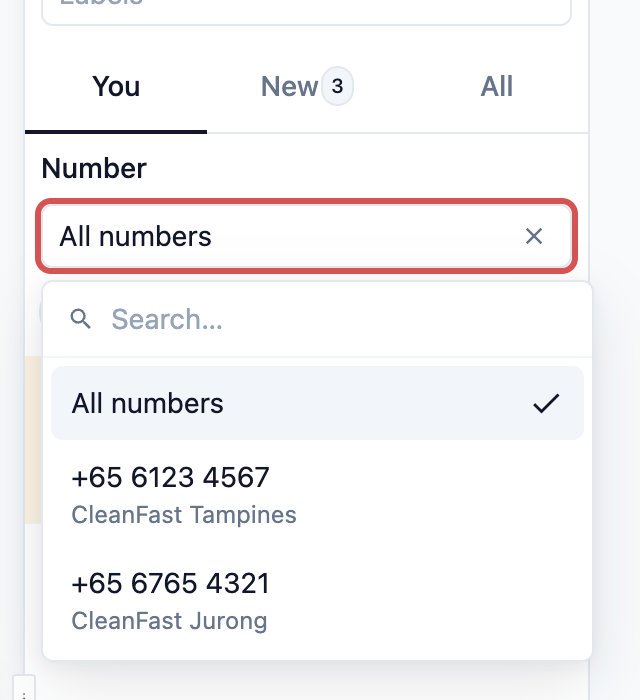
Each WhatsApp chat also shows which number the customer wrote to, for example "via CleanFast Jurong", under its last message. Your reply always goes out from that same number.
The Number box hides while you search or pick a label, because those already look through every number.
---
## Unread chats and sounds
- A chat with messages you haven't read shows its time in green and a green bubble with the number of new messages.
- While the Console is open in your browser, a sound plays when a customer sends a new message or a new chat arrives in New, even with the Inbox panel closed.
- Browsers stay silent until you click somewhere on the page after opening it. Click once on the Console when you start your shift so you hear new chats.
The Console and the POS show the same chats. A reply sent at the counter shows in the Console straight away, and the other way round.
---
## Example: a morning at CleanFast Laundry
CleanFast Laundry has two WhatsApp numbers, one for Tampines and one for Jurong. At 9:00 am, Aisha opens the Console and sees a red 4 on the Inbox icon.
1. She clicks the **Inbox** icon. The New tab shows 3: two customers asking about curtain cleaning prices and one asking about a bag repair quote.
2. The You tab shows the orange 1 Pending replies button. Mr Lim wrote last night to ask whether his duvet is ready, and nobody has answered yet.
3. She clicks Pending replies, sees "via CleanFast Jurong" on Mr Lim's chat, and answers him first.
4. A customer phones to ask about an older order, so she types "Lim" in **Search** and finds last month's closed chat.
---
## FAQs
**Who in my team sees which chats?**
> The owner and every teammate with a Full seat that has **CRM** switched on can open the Inbox and see every chat in the All tab. The You tab only shows the chats each person is handling. Counter staff without a seat see the chats on the POS WhatsApp Chat page instead.
**Does switching on CRM for a teammate cost more?**
> No. CRM is part of the Full seat, so switching it on or off for someone doesn't change your bill. Giving someone a new Full seat does.
**Why can't I see the Number filter?**
> It only shows when your shop has two or more WhatsApp numbers. It also hides while you search or pick a label, and when **Manage chats by deal stage** is on in **Settings › Deal Pipeline**.
**Why don't I see Open and Closed in the All tab?**
> When **Manage chats by deal stage** is on, chats close by themselves as their deals move on, so the All tab shows no Open and Closed buttons. Each chat shows its deal instead.
**Do Live chat replies go to the customer by WhatsApp?**
> No. A reply to a Live chat goes back to the customer in your Online Store or Mobile App, where they wrote to you. It doesn't use your WhatsApp number or cost a WhatsApp message fee.
**Why didn't I hear a sound for a new chat?**
> Your browser plays sounds only after you click somewhere on the Console page. Also check that your computer's sound is on and that the Console is open in a browser tab.
---
## What's Next
You now know your way around the Inbox: where to open it, what each tab shows and how to find any chat. Next, learn how to pick up a new chat and send your first reply in [Pick Up and Reply to Customer Chats](/docs/managing-conversations).