## Before you start
You need:
- **The basics of the Design Agent.** Read [Getting Started with the Design Agent](/docs/getting-started-with-design-agent) first. It shows where the Design Agent is and how to send it a request.
- **Your business details.** Your services, outlets, opening hours, prices and what makes you different. A few lines in your phone's notes are enough.
- **Or your current website's address**, if you already have a website, such as cleanfast.com.sg.
- **A few photos, if you have them.** Up to 4 with each message.
---
## What this guide covers
With the Design Agent, you don't build your website yourself. You describe your business, and it writes and designs every page. After that, you keep it up to date by asking for changes, the same way you'd message a designer.
The message you type to the Design Agent is called a prompt. A prompt is simply an instruction, written in your own words.
### Why do it this way
- **Minutes, not weeks.** No quotes or meetings with a web agency.
- **Changes whenever you need them.** New prices, a new outlet or a holiday closure take one message.
- **Small fixes cost nothing.** Changing words, a photo or a button's link yourself is free.
If you skip it, customers who search for your shop find old information or nothing, and many choose a shop that looks more established.
---
## Create a website by describing your business
1. In the Console menu, click AI.
2. Click Design Agent.
3. In the message box under **What should we make?**, describe your business. Include your services, outlets, opening hours, prices and the look you want.
4. To use your own photos, click the picture button under the box and choose up to 4.
5. Leave the quality on **Standard**.
6. Click Send.
7. If the Design Agent asks **What would you like to create?**, click A whole site.
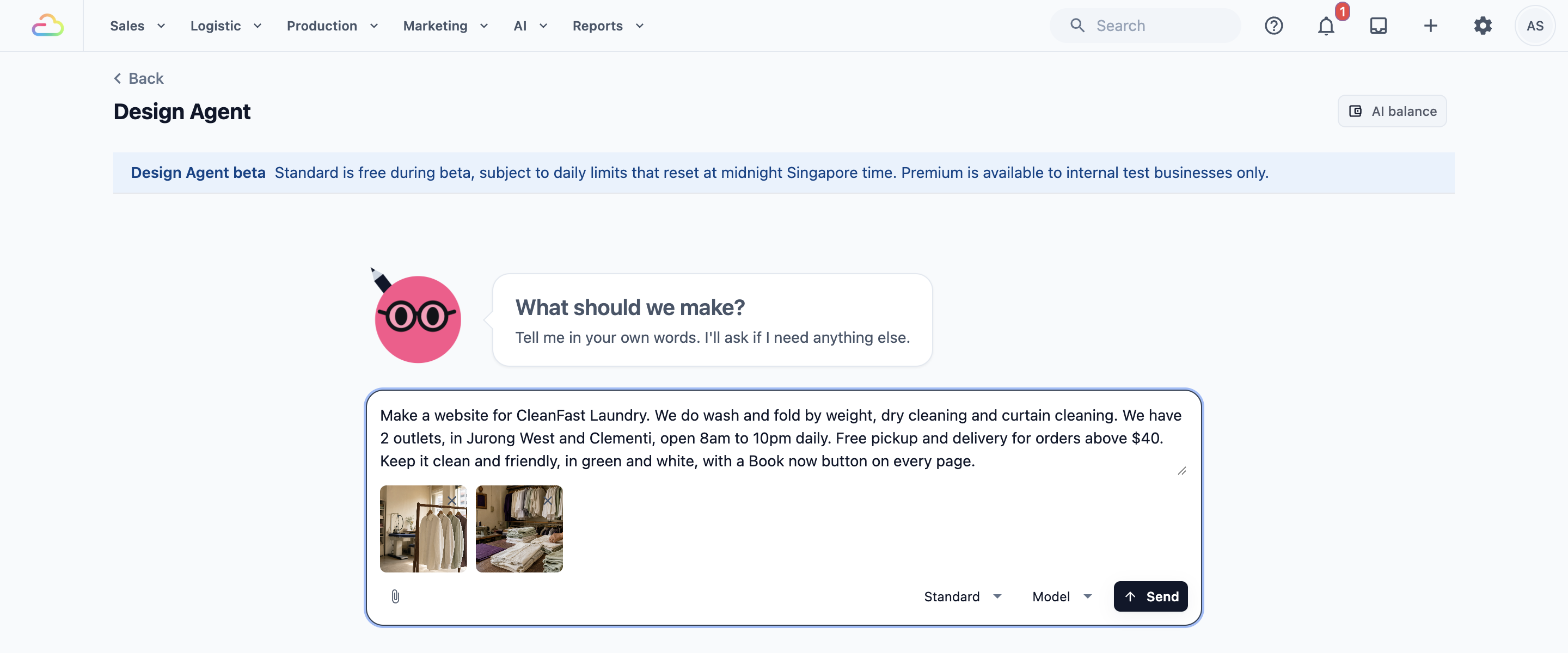
The Design Agent also reads details already in EasyBiz, such as your outlets, contact numbers and the prices your Online Store shows. Tell it anything else.
### What happens next
- **It may ask questions first,** such as which business or brand the website is for. Click an answer and then Continue, or type your own in **Answer here, or pick above**.
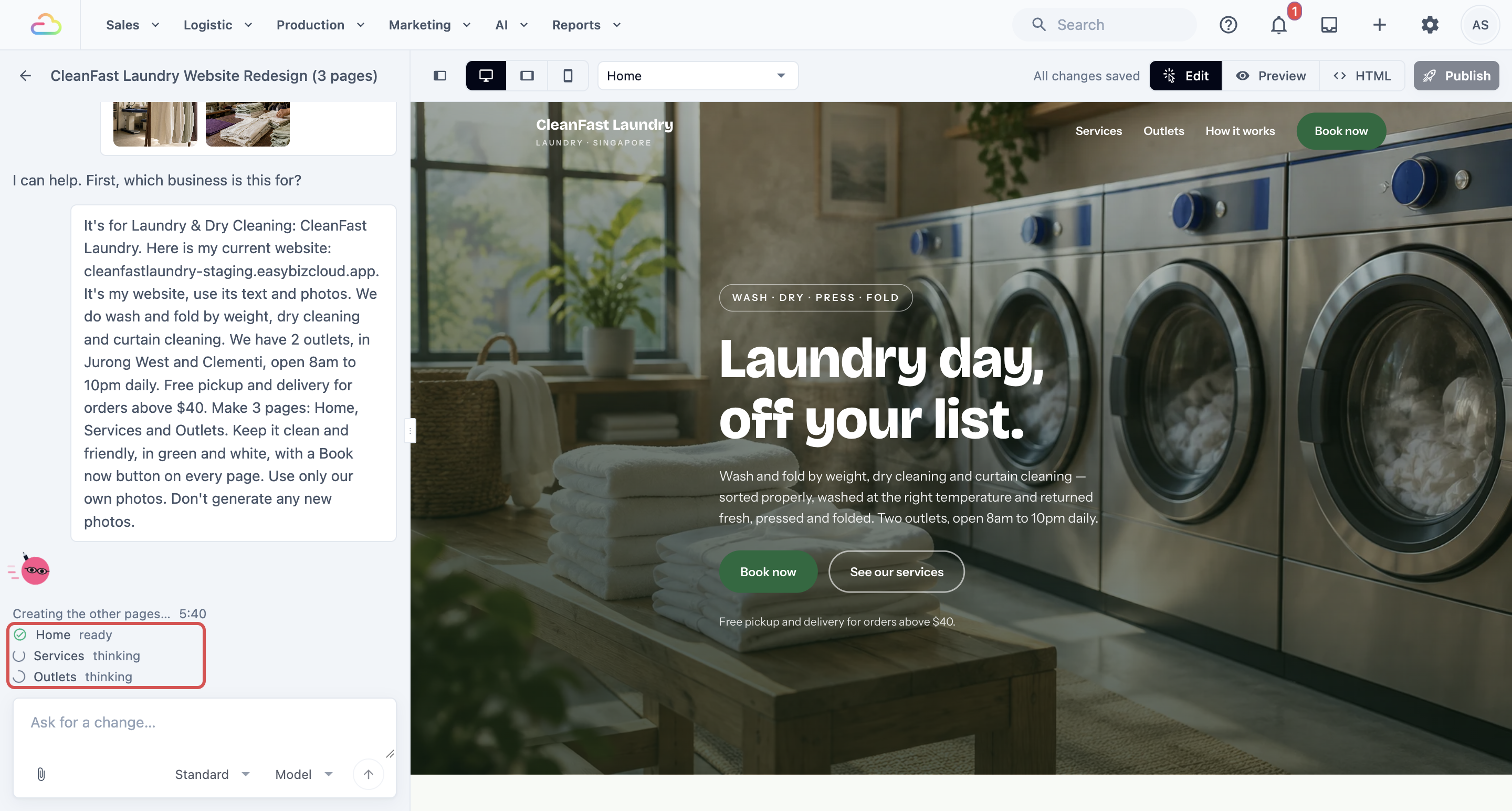
- **It plans your pages, then writes them.** Each page in the list shows where it is: **waiting**, **thinking**, **writing**, **photographs** or **ready**.
- **Each page takes two to three minutes.** You can leave and come back. Your website's card is under the Websites tab.
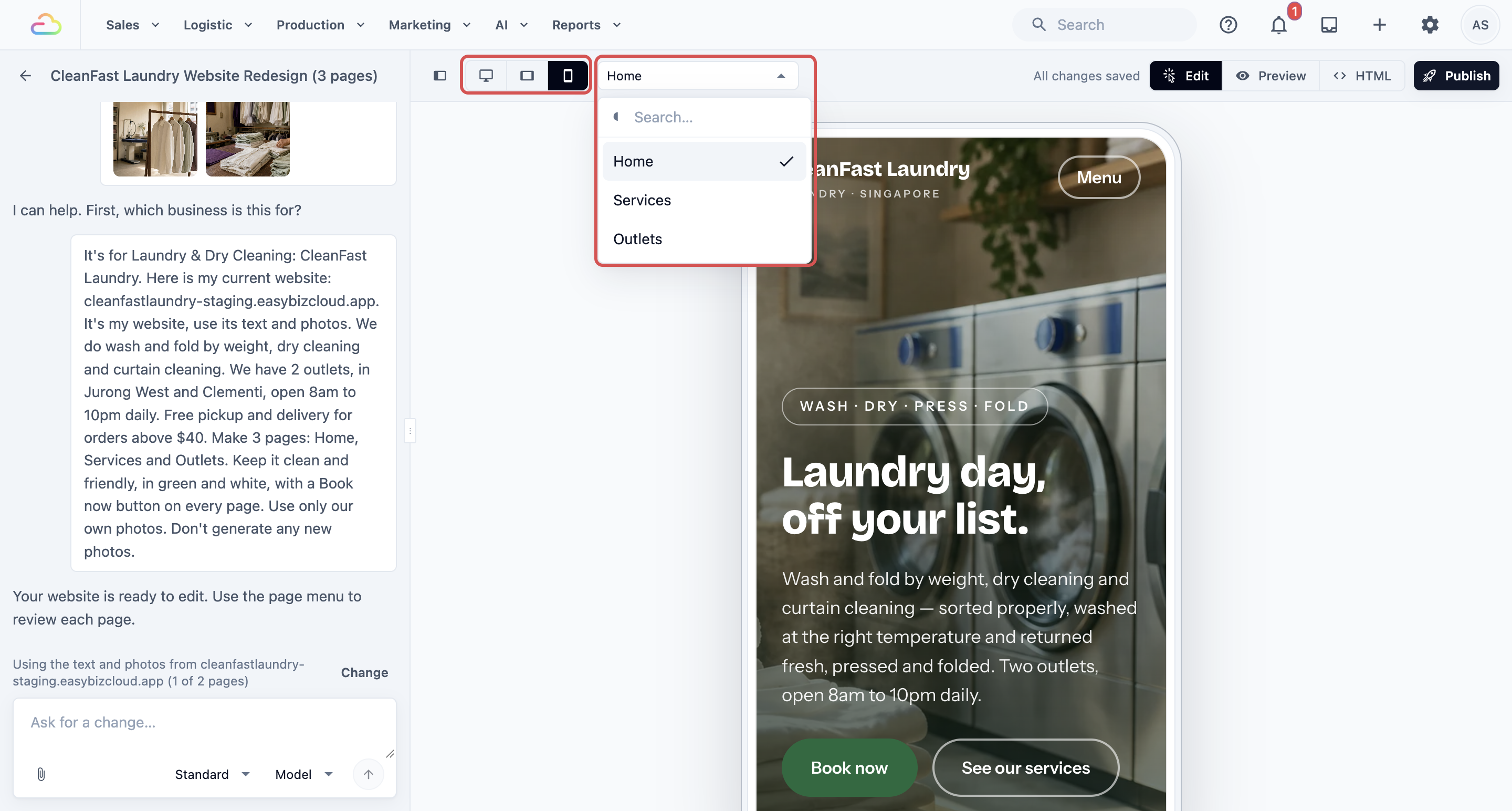
When it's done, use the **Page** list at the top to switch pages, and the screen-size buttons beside it to see your website on a computer, tablet and phone.
### A request you can copy
- "Make a website for CleanFast Laundry. We do wash and fold by weight, dry cleaning and curtain cleaning. We have 2 outlets, in Jurong West and Clementi, open 8am to 10pm daily. Free pickup and delivery for orders above $40. Keep it clean and friendly, in green and white, with a Book now button on every page."
---
## Make it look like your current website
Paste your current website's address in your request, and say clearly which of these you want:
| What you want | What to write | What the Design Agent does |
|---|---|---|
| A fresh design with your own words and photos | "Here is my current website: cleanfast.com.sg. It's my website. Use its text and photos and give it a fresh, modern look." | Builds a new design using your website's text and photos |
| The look of a website you like | "I like the look of sparkledry.com.sg. It isn't my website, only copy its style." | Copies the colours and layout, and writes about your business |
| An exact copy of your website | "Copy my current website exactly: cleanfast.com.sg" | Shows an import card, so you can bring your pages in as they are |
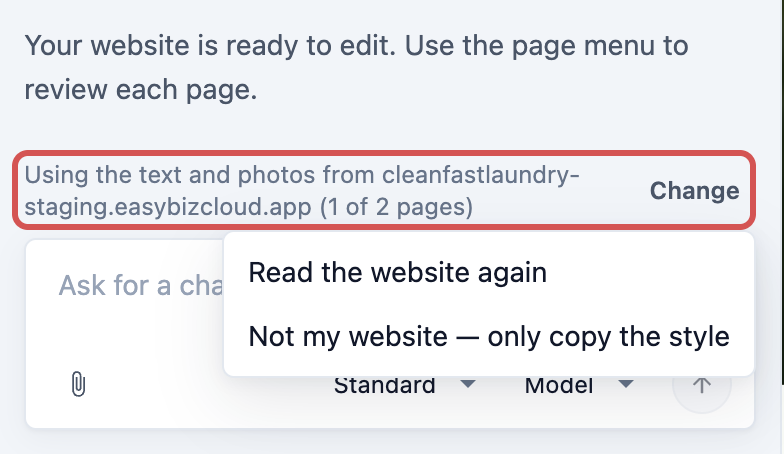
After it reads a website, a line above the message box says what it used, such as **Using the text and photos from cleanfast.com.sg** or **Copying the style of sparkledry.com.sg**. If that's wrong, click Change and choose the right option, or ask it to read the website again.
### Copy your website exactly
1. Start a new website. An exact copy only works in a website that has no pages yet.
2. Send your copy request, with your website's address.
3. On the card the Design Agent shows, check the **Website address**. If you have your website's files instead, click Upload website files.
4. Tick **This is my business's website**. This confirms you have the right to copy it.
5. Click Import website.
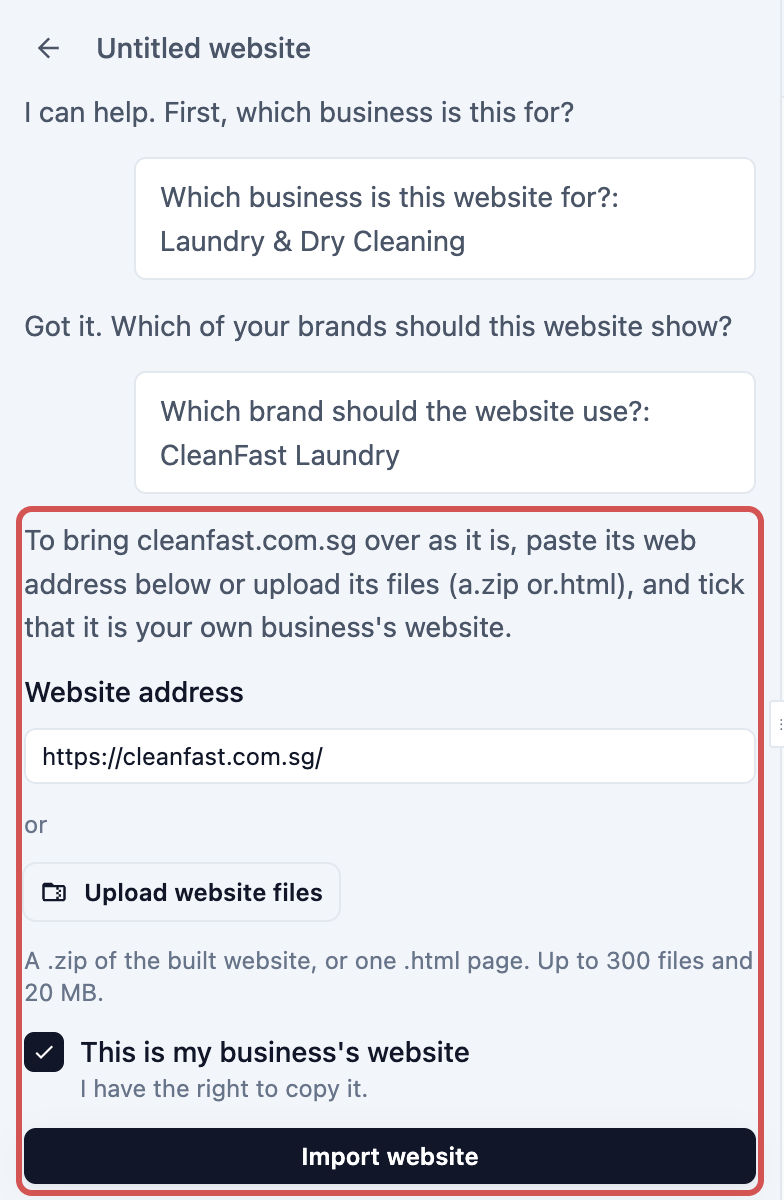
Copying can take a few minutes. **Import details** then lists anything it couldn't bring across.
Forms, maps, video embeds and chat widgets run on other companies' code, so they aren't copied. Ask the Design Agent to replace an enquiry form with a WhatsApp, call or email button.
---
## Ask the Design Agent for changes
1. In the Console menu, click AI.
2. Click Design Agent.
3. Click the Websites tab, then click your website's card.
4. In the **Page** list, choose the page you want to change.
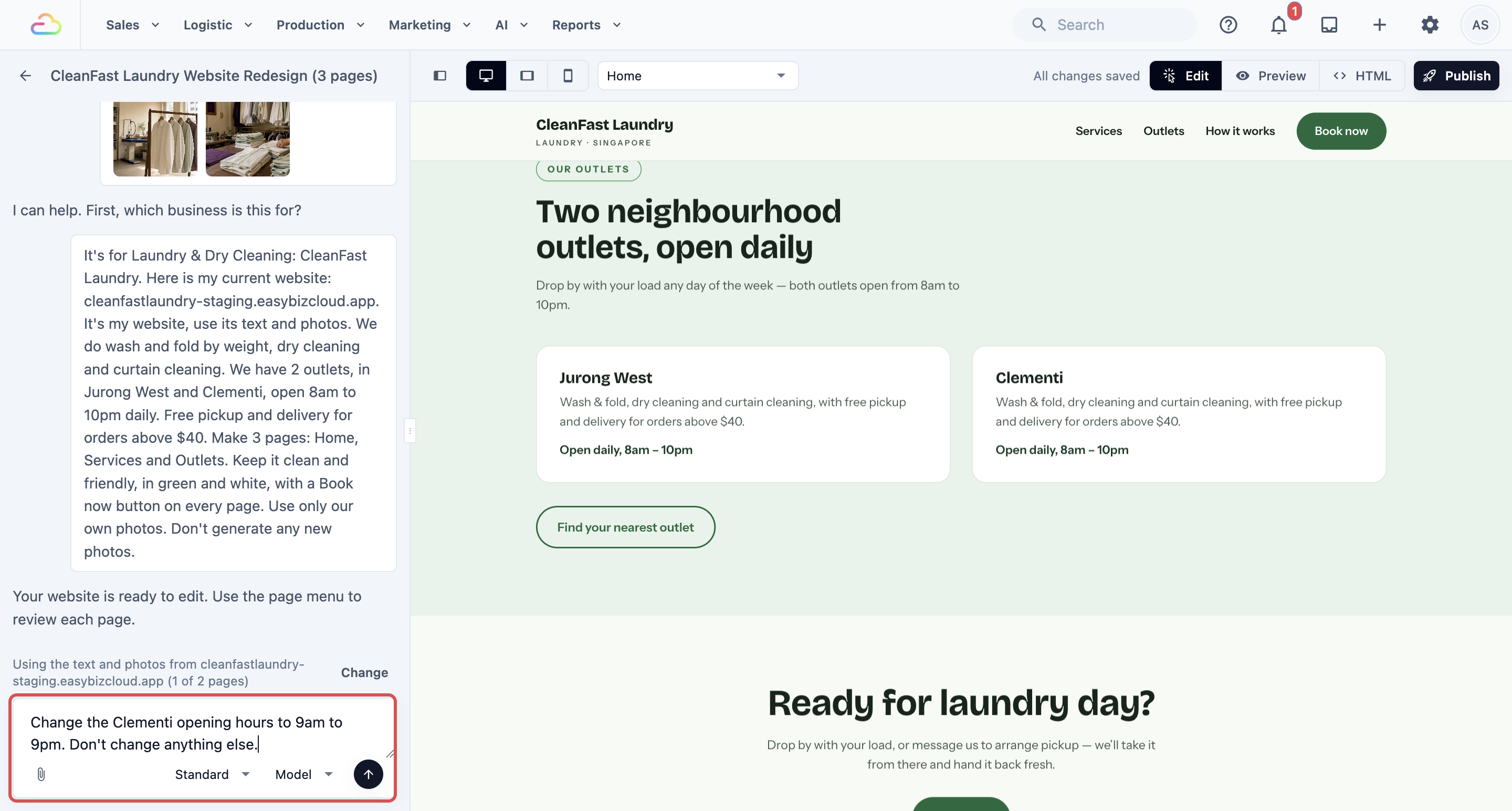
5. Type your request in the box that says **Ask for a change…**.
6. Click the send arrow.
The editor shows **Making the change…**, then the change appears on the page and is saved.
### How to write a good request
- **Say where.** Name the page and the part, such as "the top of the home page" or "the Services page".
- **Give exact words and numbers,** such as "Change curtain cleaning to $8 per panel".
- **One change at a time.** Check it, then ask for the next one.
- **Say what to keep.** Add "don't change anything else" when you only want one small change.
- **Say "on every page"** for a change to the whole website.
### Requests you can copy
- "Add a new page for curtain cleaning. Say we take curtains down and rehang them, and that prices start from $8 per panel."
- "On every page, change our Clementi opening hours to 9am to 9pm."
- "Add a Chinese New Year closure notice at the top of every page: closed 17 and 18 February."
### How to undo a change
There's no Undo button. To reverse a change:
- **Ask the Design Agent to put it back,** and say exactly what it should be: "Change the heading back to Fresh laundry, done for you."
- **For words you changed yourself,** type the old words back.
Changes stay in your draft. Customers keep seeing the version you last published until you click Publish again, so you can try a change and reverse it without them ever seeing it.
---
## Change one picture without redesigning the site
You can swap a photo yourself, for free:
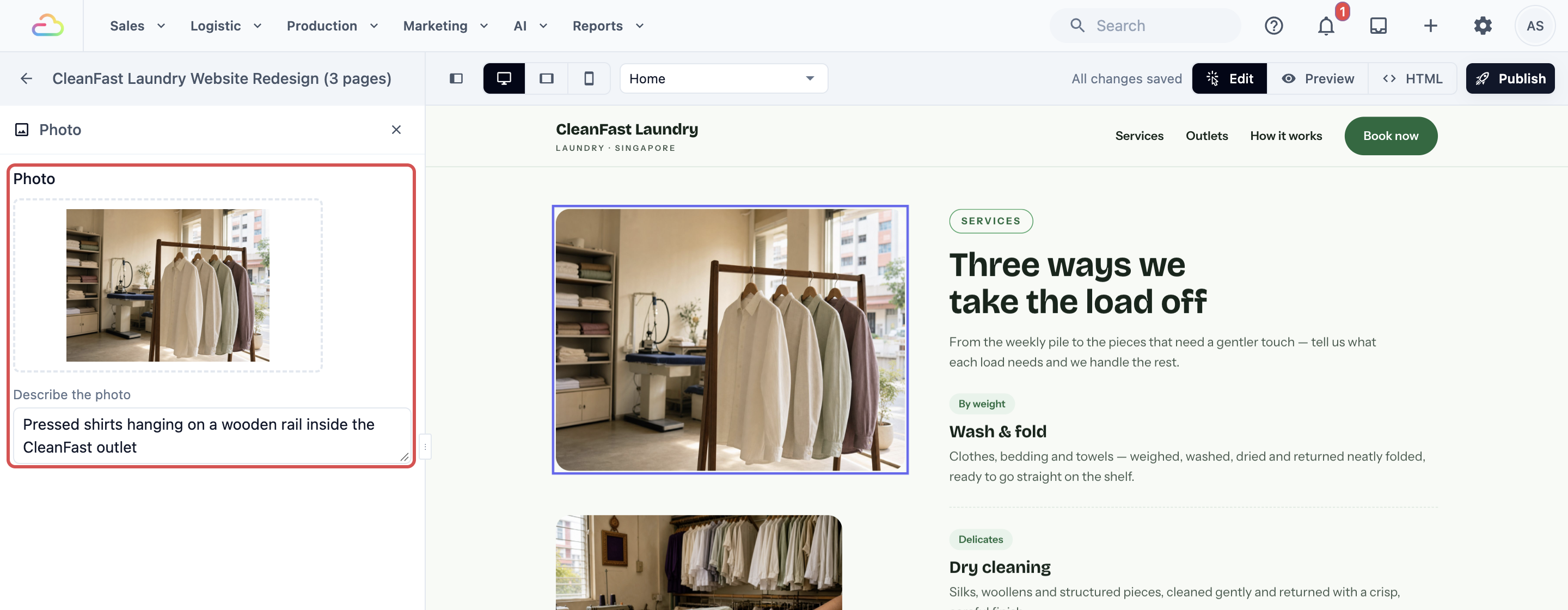
1. On the page, click the photo you want to change. The **Photo** panel opens on the left.
2. Click the photo under **Photo**. Your Media Center opens.
3. Upload a new photo, or pick one you've already uploaded.
4. Click Choose image.
5. Under **Describe the photo**, type what's in it, such as "CleanFast Laundry's Clementi outlet". Screen readers read it aloud, and it shows if the photo can't load.
Or ask the Design Agent. Attach the photo with the picture button and write: "Replace the photo at the top of the home page with this one. Don't change anything else." Photos you attach must be JPG, PNG, WebP or HEIC, up to 10 MB each.
---
## Small edits you can make yourself
1. On the page, click the words or the button you want to change. The **Words on the page** panel opens on the left.
2. Change the words under **Text**. Words in a special style, such as bold or a different colour, have their own box, so their style stays.
3. For a button or link, choose where it goes under **This button opens**.
4. Click the close button at the top of the panel when you're done.
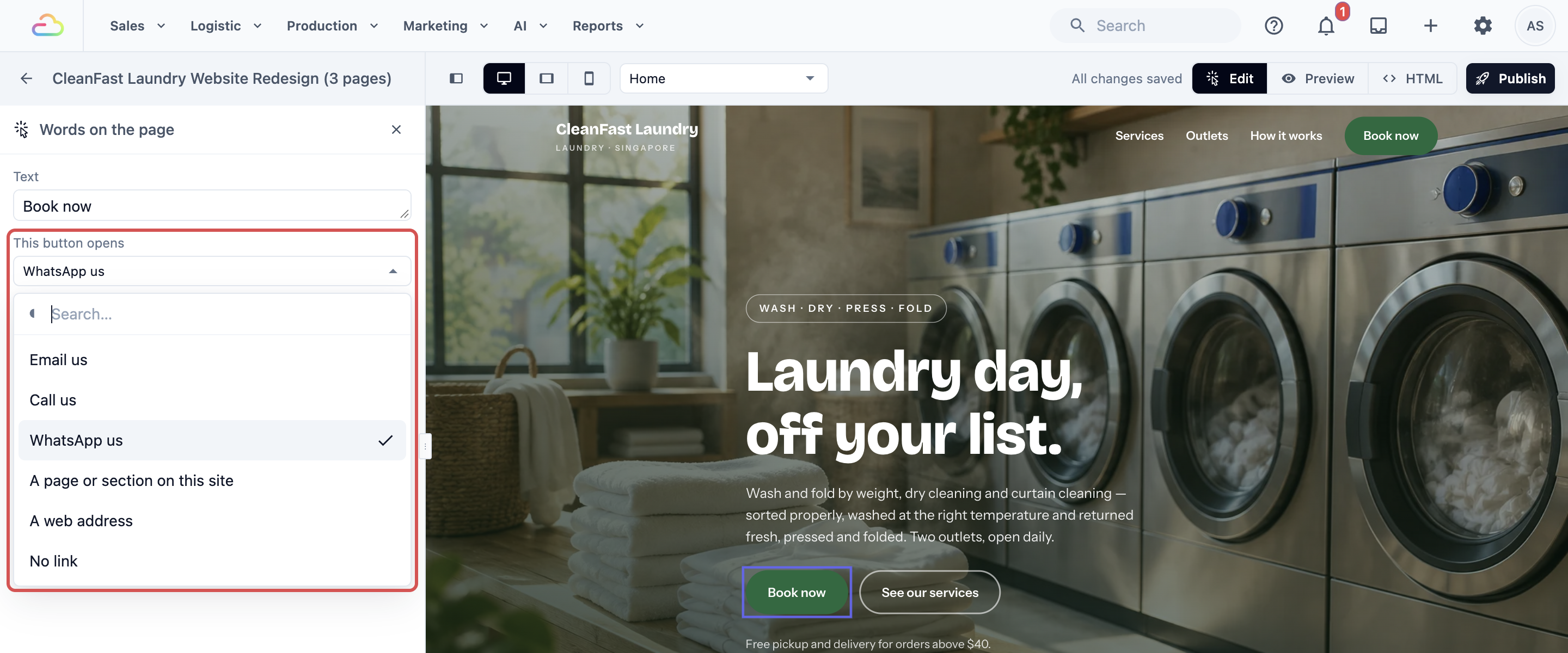
Your options under **This button opens**:
| Option | What it does |
|---|---|
| Email us | Opens an email to you |
| Call us | Calls your number from a phone |
| WhatsApp us | Opens a WhatsApp chat with you, with an optional message filled in |
| A page or section on this site | Jumps to another page or part of your website |
| A web address | Opens any other website, such as your Online Store |
| No link | Removes the link |
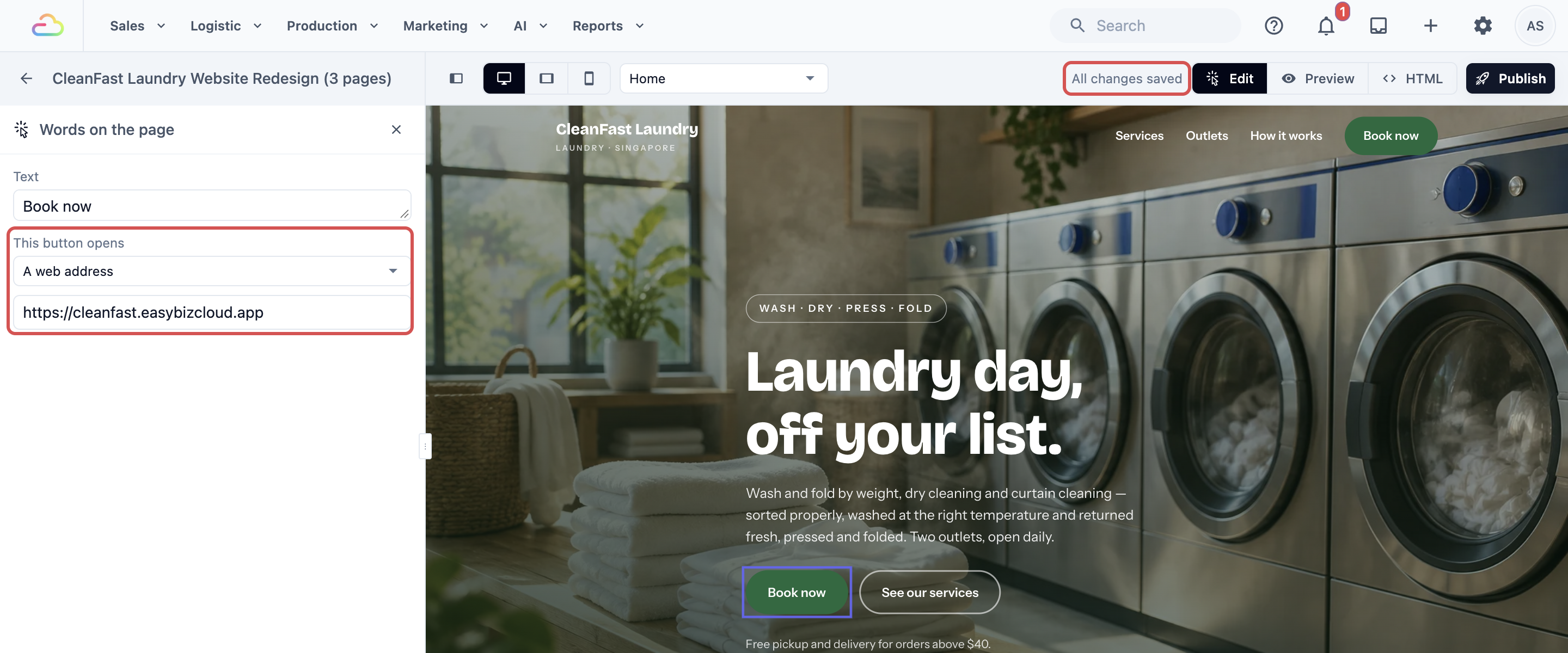
Your edits save by themselves. The top of the editor says **Saving…** and then **All changes saved**. If it says **Not saved**, click Retry save.
---
## Link your Book now button to your Online Store
Your website tells customers about your shop. Your Online Store is where they book and pay. A Book now button links the two.
The Design Agent doesn't know your Online Store's address. Unless you tell it, its buttons open WhatsApp, a call or an email. If you don't have an Online Store yet, see [Introduction to Online Store and Mobile App](/docs/introduction-to-online-store-and-mobile-app).
### Copy your Online Store's address
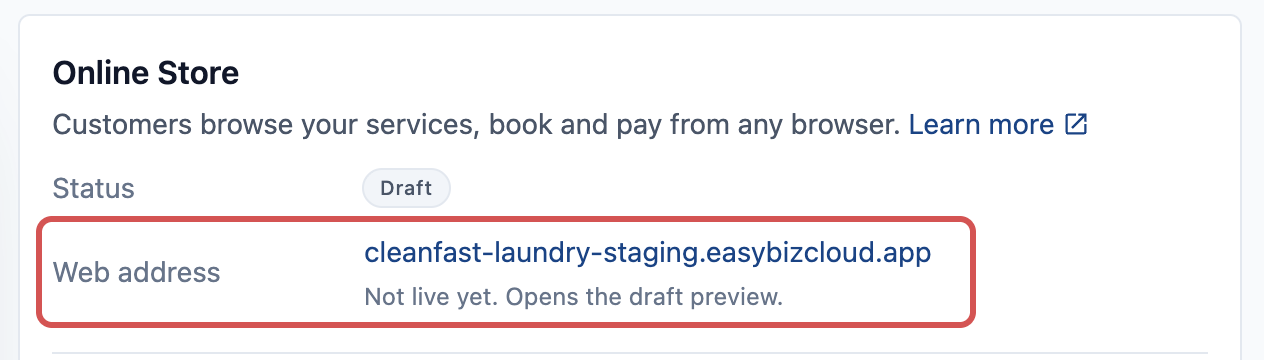
1. In the Console menu, click ⚙️ Settings.
2. Click **Sales channels**.
3. Click Online Store & Mobile App.
4. On your store's card, copy the address in the **Web address** row. It ends in .easybizcloud.app, or shows your own domain if you've linked one.
### Set the button
1. Open your website in the Design Agent, and click the Book now button on the page.
2. Under **This button opens**, choose A web address.
3. Paste your Online Store's address.
4. Click anywhere outside the box. The editor says **All changes saved**.
To change the button on every page at once, ask: "Link every Book now button on every page to cleanfast.easybizcloud.app." No Book now button yet? Ask: "Add a Book now button to every page that opens cleanfast.easybizcloud.app."
When everything looks right, publish your website. [Publishing Your Website and Linking Your Own Domain](/docs/publishing-and-hosting-your-website) shows how.
---
## Example: CleanFast Laundry
CleanFast Laundry has 2 outlets, in Jurong West and Clementi, and does wash and fold, dry cleaning and curtain cleaning. Mrs Tan, the owner, has an old website she can't update herself.
1. She opens the Design Agent and sends: "Here is my current website: cleanfast.com.sg. It's my website. Use its text and photos and give it a fresh, modern look in green and white. Add a page for curtain cleaning."
2. She checks the pages in the phone-size view and asks: "On the home page, make the pickup and delivery part stand out more."
3. She clicks the photo of her Clementi outlet and swaps it for a newer one from her Media Center.
4. She copies her Online Store's address and asks: "Link every Book now button on every page to cleanfast.easybizcloud.app."
5. She publishes the website.
### What customers see online
- On a phone or a computer, customers see her services, both outlets, opening hours and her shop photos.
- When they tap Book now, her Online Store opens, where they choose a service and a pickup time and pay.
- When Mrs Tan changes something later, customers see it only after she publishes again.
---
## FAQs
**Does editing use my daily limit?**
> Only requests to the Design Agent do, and a change to every page uses more than a small one. Your own edits to words, photos and links, and Publish, never use it, so you can keep editing after you reach the limit.
**Can I undo a change after I publish?**
> There's no button to go back to an earlier published version. Your live website stays as you last published it until you publish again. Fix the change in your draft, by asking the Design Agent or retyping it yourself, then click Publish again.
**Will my Online Store prices show on the website?**
> Only on pages where the Design Agent writes about prices. It reads the prices your Online Store shows customers, never your B2B contract price lists. They are written into the page, so they don't update by themselves when your price list changes. Ask "Update the prices on every page to match my current price list", then publish again. To check which prices your Online Store shows, see [Showing Your Prices Online](/docs/showing-your-prices-online).
**Does copying my current website change or close it?**
> No. The Design Agent only reads it. Your old website stays online until you link your domain to the new one. See [Publishing Your Website and Linking Your Own Domain](/docs/publishing-and-hosting-your-website).
---
## What's next
You've created your website, given it the look you want, changed words and pictures, and linked your Book now button to your Online Store. Next, make a page for a single promotion or ad in [Creating Landing Pages for Promotions and Ads](/docs/creating-landing-pages).