## What Is the Customer-Facing Display?
The Customer-Facing Display is a second screen that sits on the counter facing your customer. It's paired to your POS terminal and mirrors what's happening in the cart — every item added, every price, and the running total — all in real time.
When no order is being processed, the display can show your own posters or promotional images on a rotating carousel, turning the idle screen into a mini advertisement board for your shop.
---
### Why do you need it?
Without a customer-facing display, your customers are staring at the back of your POS screen while your staff rings them up. They can't see what's being charged until they get a receipt — and by then, it's too late to catch mistakes.
With a Customer-Facing Display:
- **Customers see what they're paying for.** Every item and price appears on their screen as it's added — building trust and reducing disputes.
- **Mistakes get caught early.** If a wrong item or price shows up, the customer can flag it before checkout is completed.
- **Your idle screen works for you.** When no order is active, the display rotates through your promotional posters or media — free advertising right at the counter.
- **It's simple to set up.** Just a second device, the EasyBiz POS app, and a 6-digit code to pair them.
---
## Before You Start
- A **tablet or phone** to use as the customer-facing display (a separate device from your POS terminal).
- The **EasyBiz POS app** installed on **both** devices — your POS terminal and the display device.
- Both devices should be connected to the internet.
---
## Setting Up the Customer-Facing Display
---
### Add Pages for the Customer-Facing Display
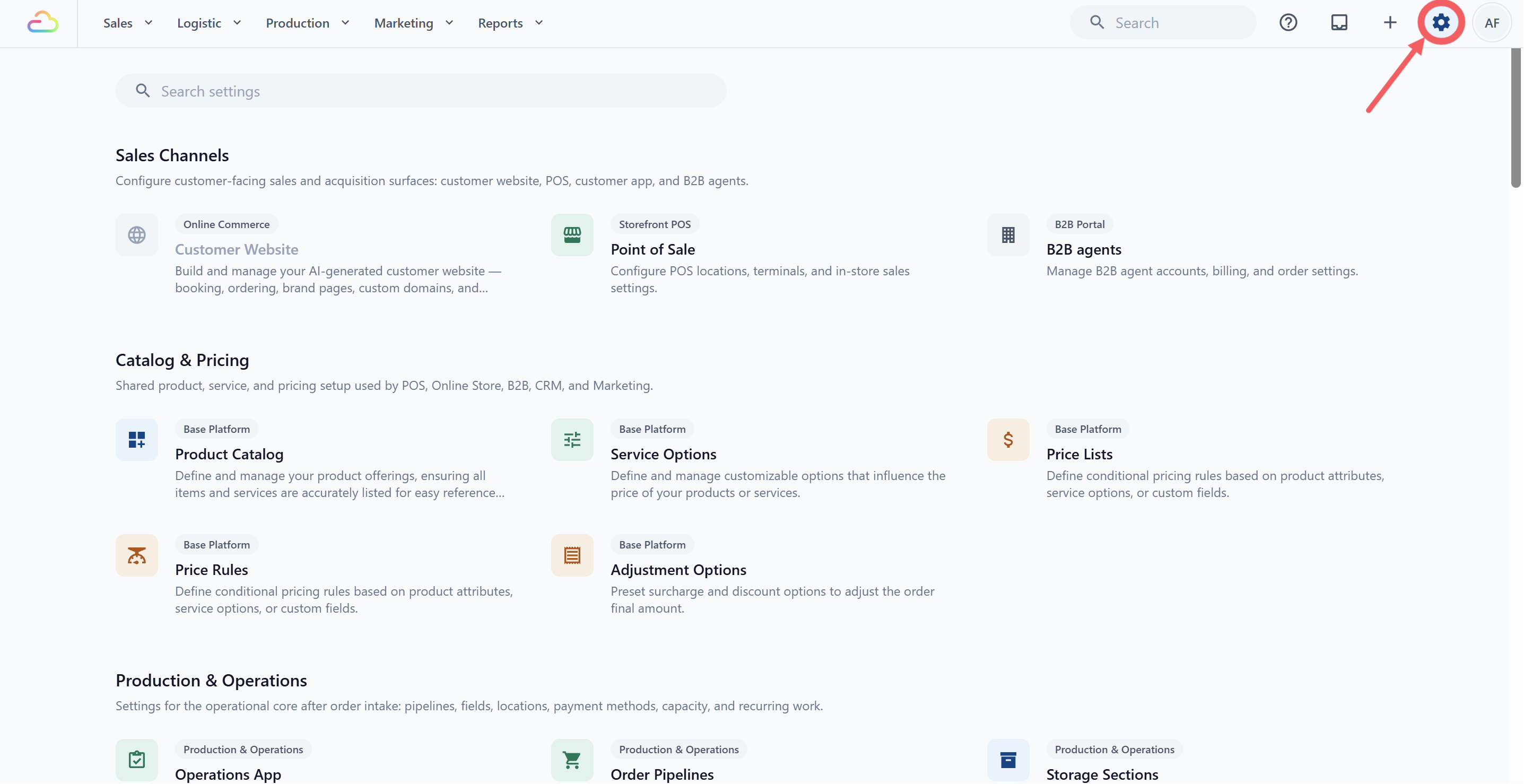
1. Click the ⚙️Settings icon.
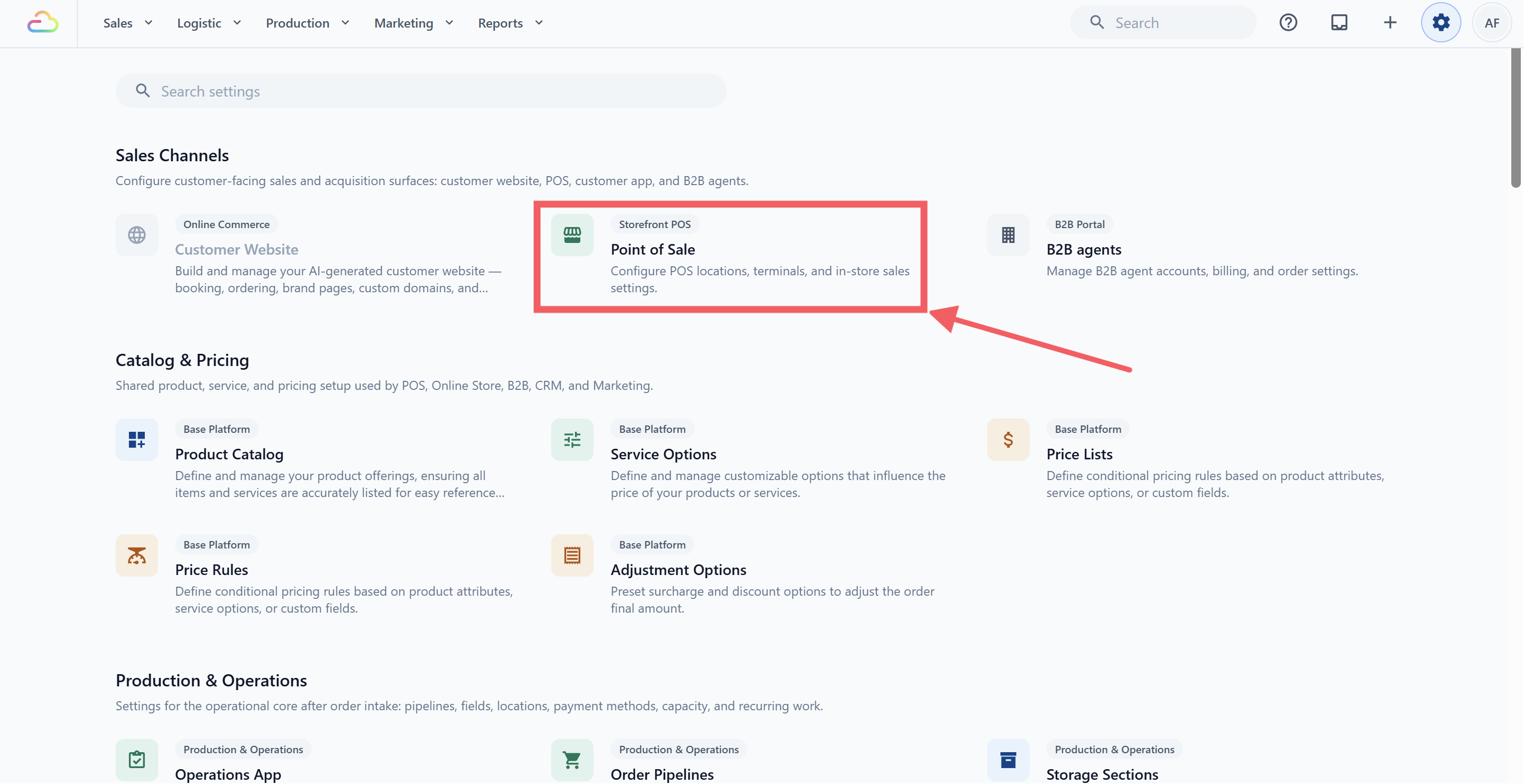
2. Under the Sales Channels section, click Point of Sale.
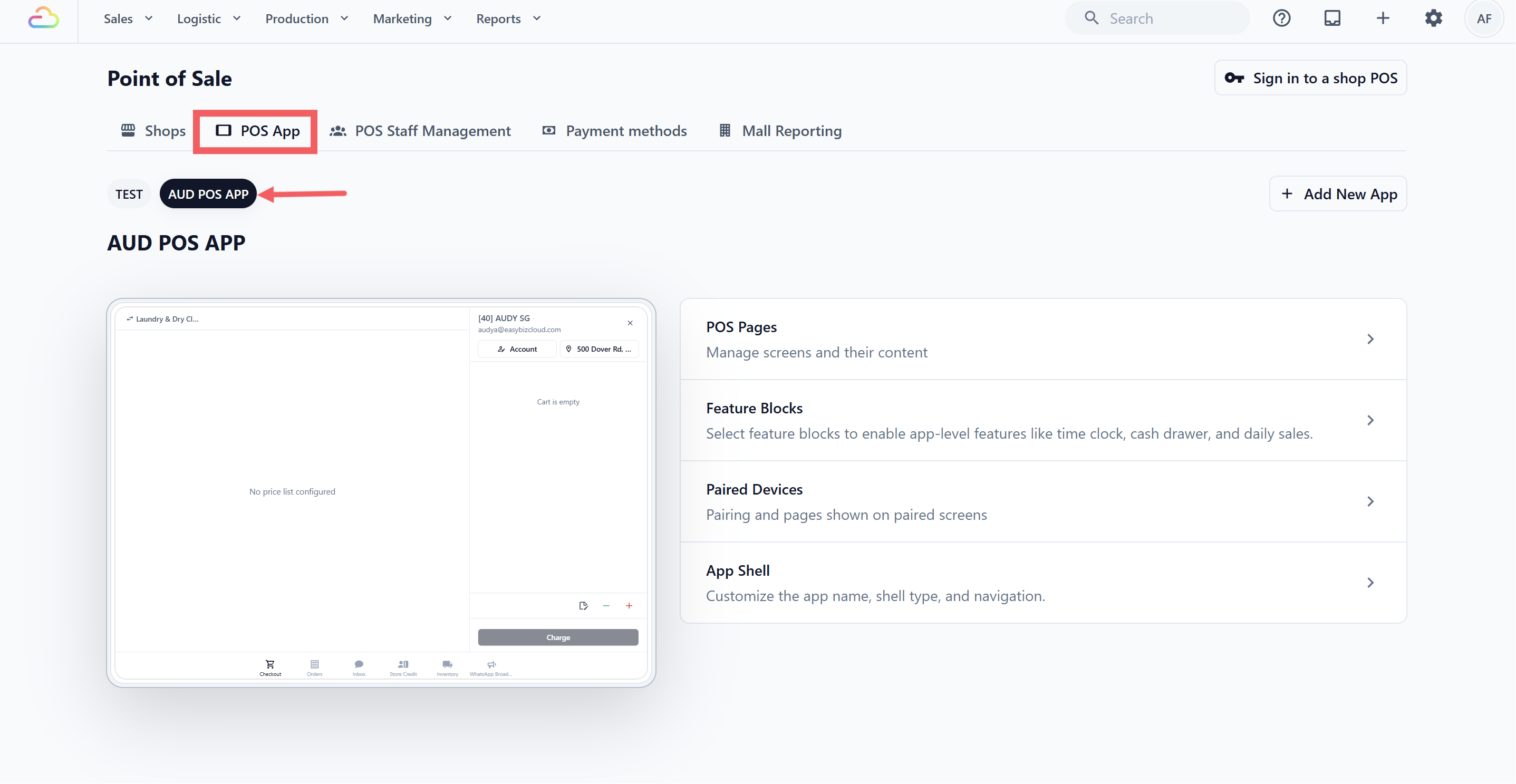
3. Open the POS App tab, then choose your app to open it.
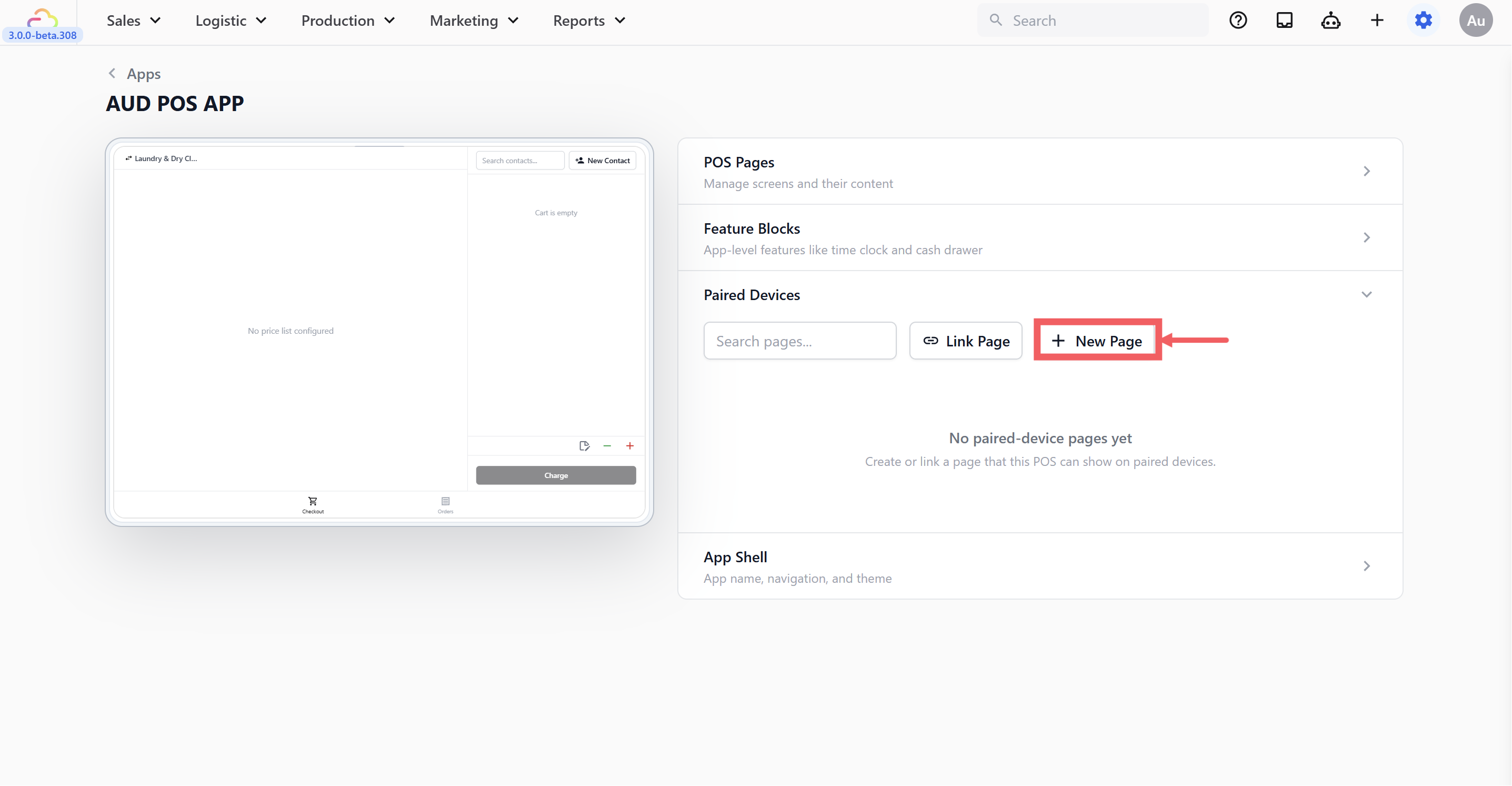
4. Under Paired Devices, Click + New Page to create a new customer-facing display page.
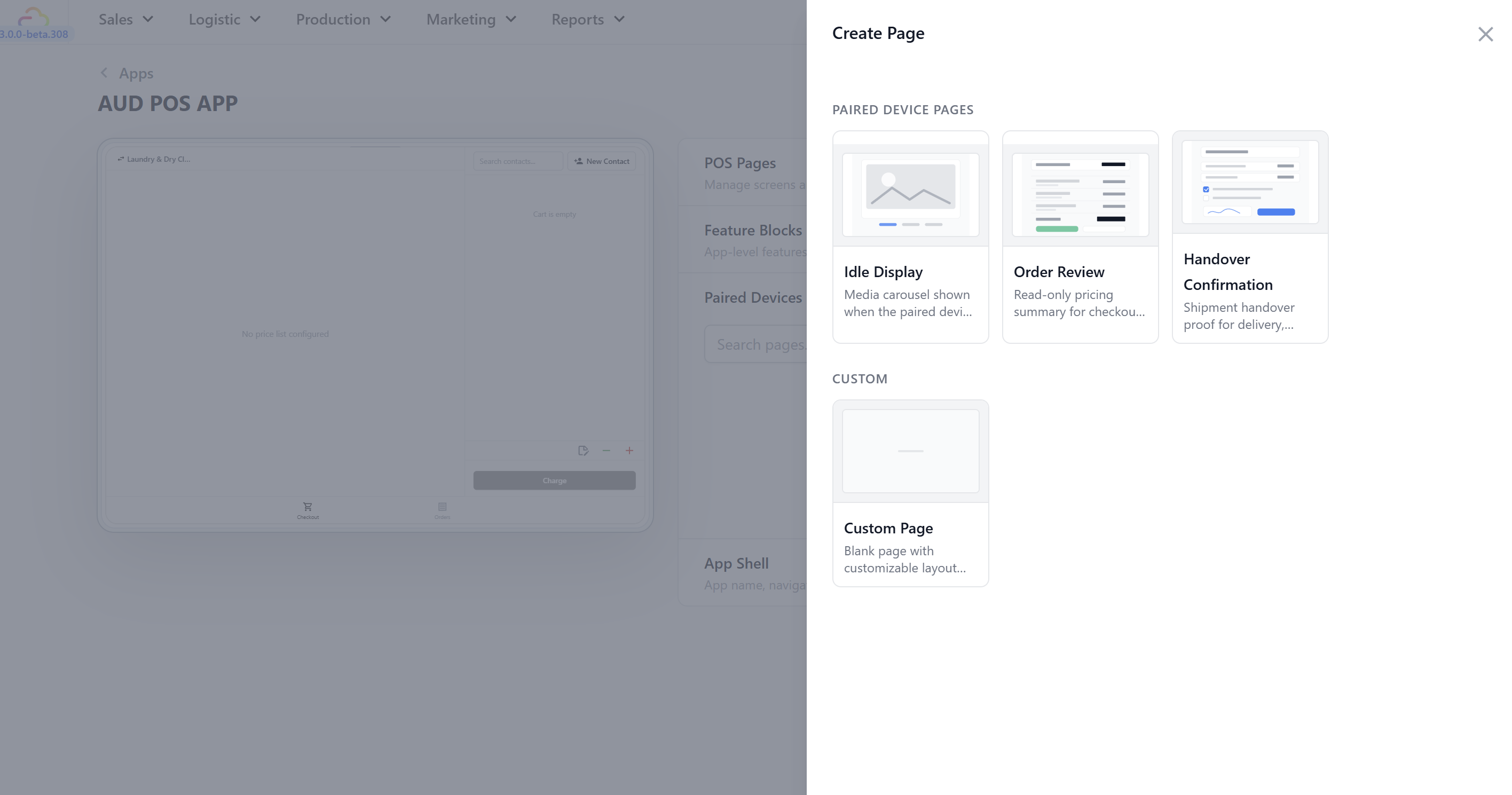
5. Choose the page type you want to add:
- **Idle Display** — shows posters or promotional media when the customer-facing display is not being used for an active order.
- **Order Review** — shows the customer's cart, item prices, discounts, and total while staff are checking out an order.
- **Handover Confirmation** — shows a confirmation screen for pickup, delivery, or collection handover, including confirmation steps such as signature or checklist items.
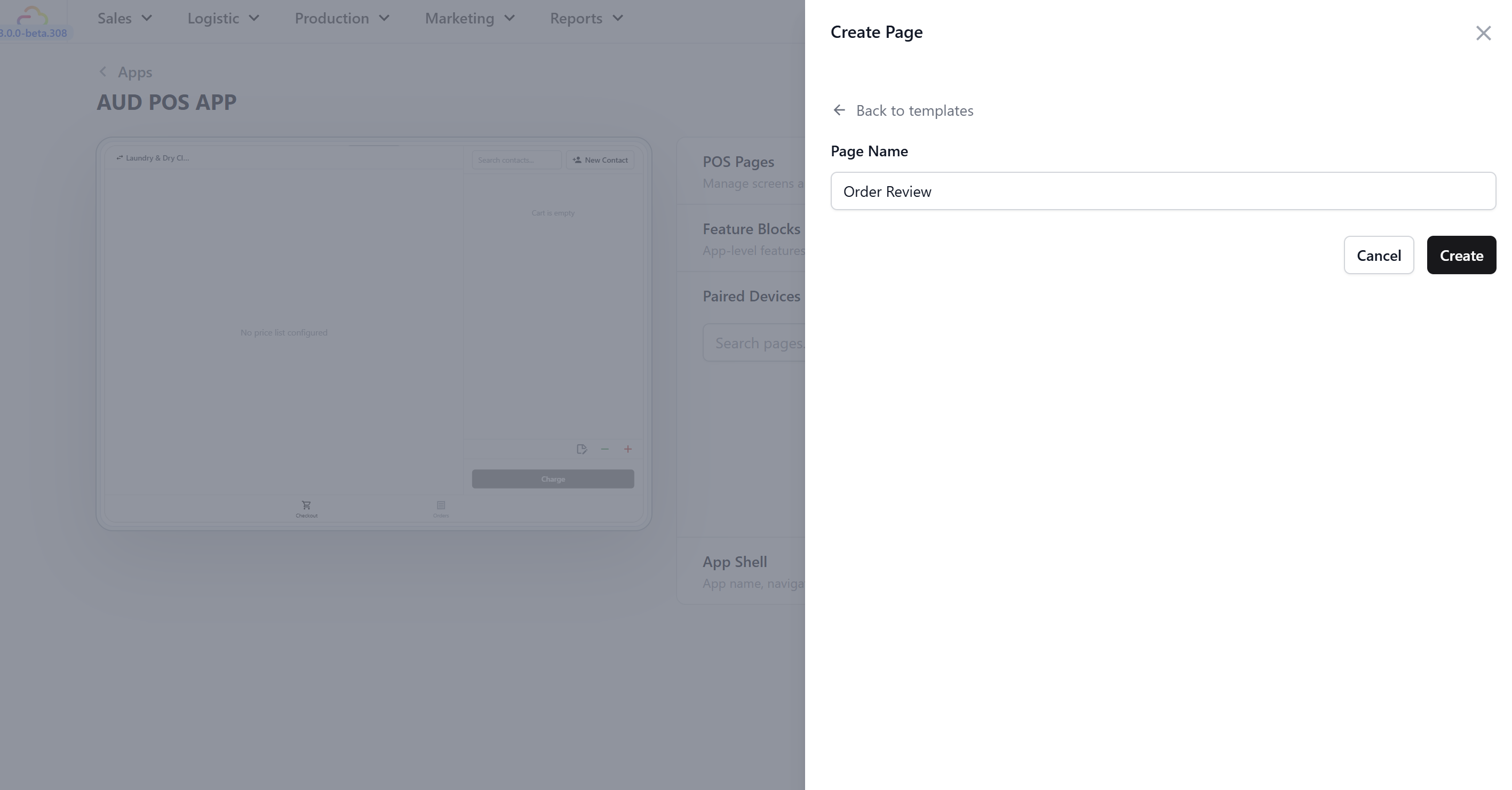
6. Enter a page name, then click Create.
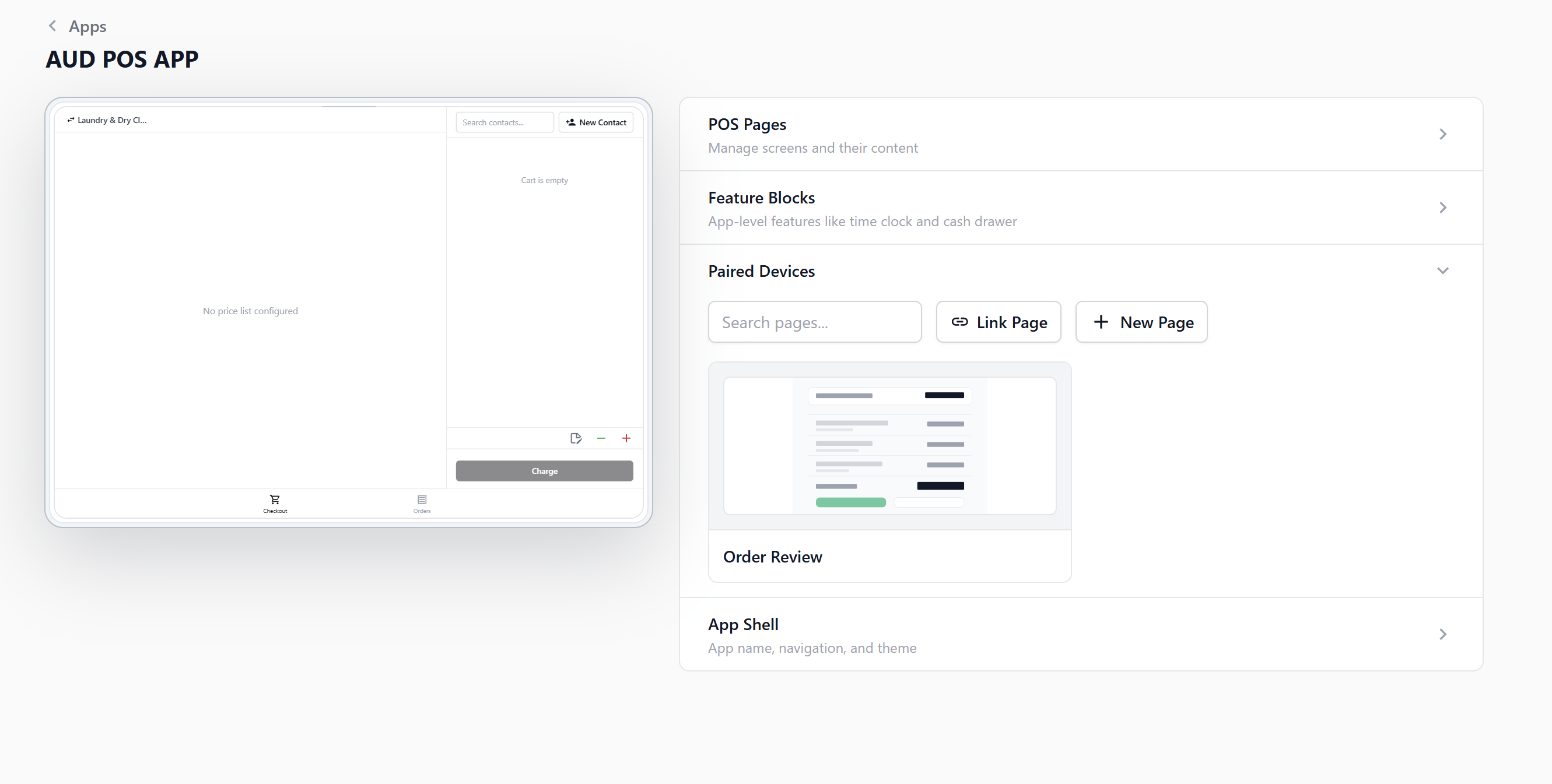
7. The page will appear under Paired Devices. Click the page card if you need to edit its content.
8. If the page already exists, click Link Page instead, then select the page you want to add to this POS app.
---
### Prepare the Display Device
1. Open the **EasyBiz POS mobile app** on the device you want to use as the customer-facing display.
2. You will see a 6-digit code to pair with the EasyBiz POS Desktop App.
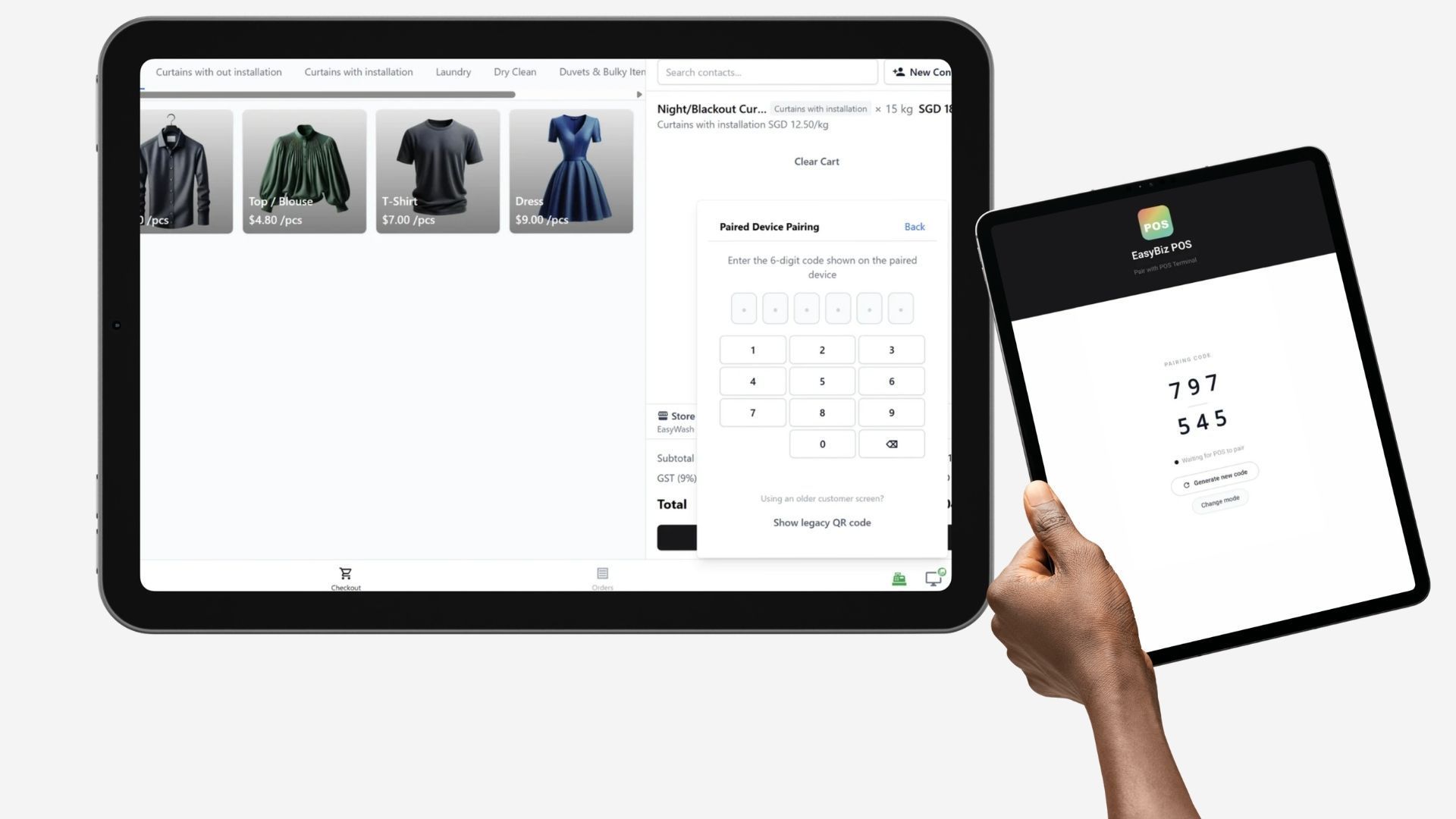
You can find the EasyBiz POS mobile app on your device’s Play Store or App Store.
---
### Pair from Your POS Terminal
1. On your **POS device**, tap the Customer Screen icon in the toolbar.
2. Click on Re-pair Device.
3. Input the 6-digit code provided from the EasyBiz POS Mobile App.
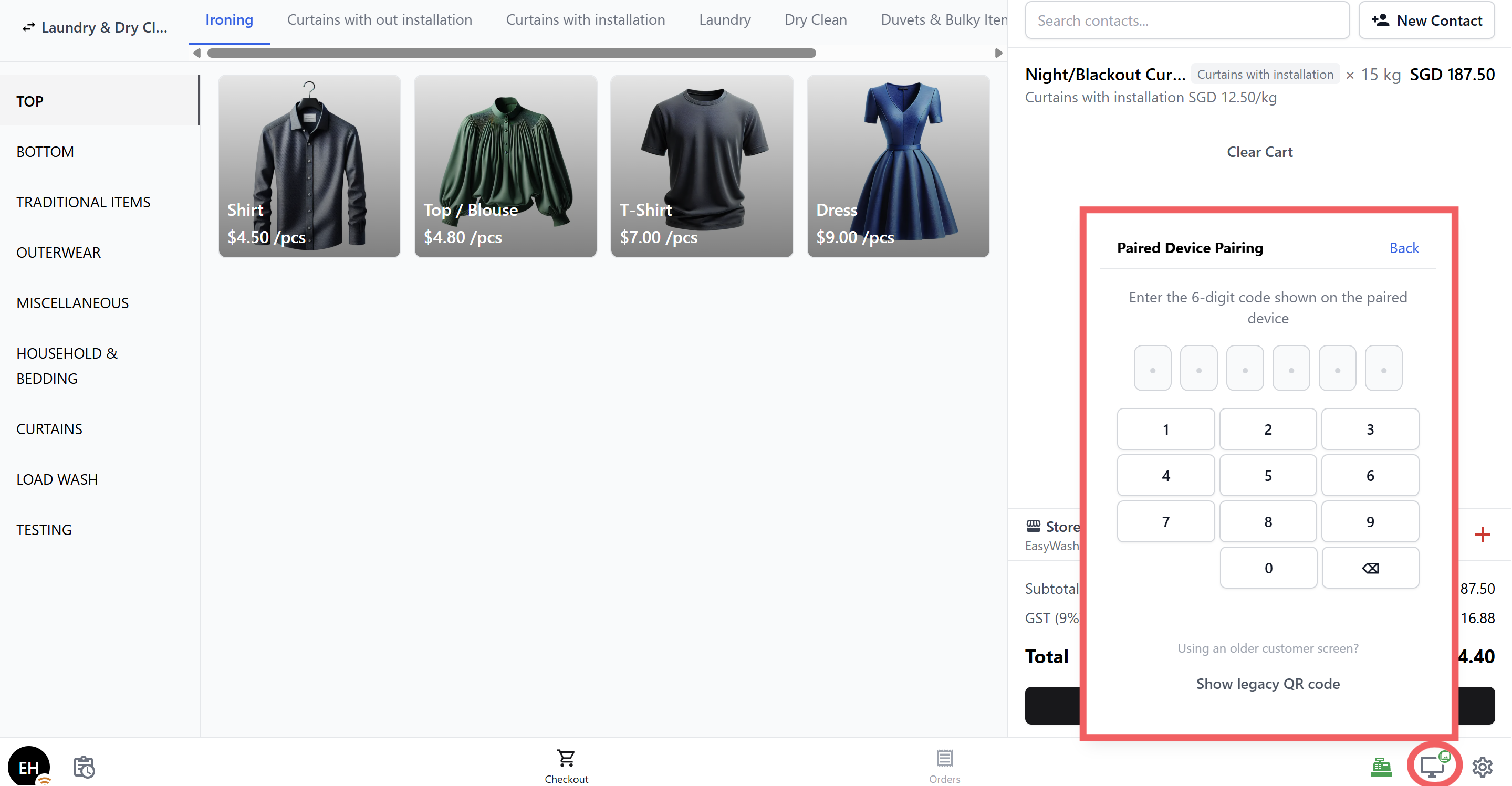
That's it — your two devices are now connected!
### Choose What to Show on the Display
After pairing, you can pick the display mode from the same POS panel:
| Display mode | What it shows |
| --- | --- |
| Order Review | The customer's cart in real time — items, prices, and totals update live as your staff adds items. |
| Idle (Poster Carousel) | Your configured media or promotional posters, shown on a rotating carousel when no order is active. |
---
## How Your Staff Will Use It
Once paired, the customer-facing display works automatically in the background:
1. **During checkout:** As your staff adds items to the cart on the POS, the customer sees each item appear on their screen — with the item name, price, and a running total at the bottom.
2. **Between orders:** When the cart is empty and no order is active, the display switches to the poster carousel, rotating through your promotional images.
3. **No extra taps needed.** Your staff don't need to do anything differently — they just use the POS as normal and the display updates on its own.
---
## FAQs
**How do I re-pair the display later (e.g., after a restart)?**
> Tap the **Customer Screen** icon on your POS and select **Re-pair Device**. Then follow the same pairing steps — get the code from the display, enter it on the POS.
**Can I use any device as the customer display?**
> Yes — any tablet or phone that can run the EasyBiz POS app will work. A tablet is recommended for a better viewing experience.
**What if my display device is running an older version of the app?**
> A **QR code** option will also appear on the POS pairing panel as an alternative to the 6-digit code. You can use either method to pair.
**Do both devices need to be on the same Wi-Fi?**
> Both devices need an internet connection, but they don't necessarily need to be on the same Wi-Fi network. The pairing works over the internet.
Position the display device at an angle where customers can comfortably see it while standing at the counter. A small tablet stand works great for this.