## What is an Account Code in Xero?
An account code is a unique number assigned to each account in your Xero system. It acts as a label that tells Xero where to categorize a transaction. For example, code 200 means "Sales Revenue," code 820 means "GST," and code 860 means "Rounding." When EasyBiz syncs an invoice to Xero, it uses these codes to put each part of the invoice in the right place.
---
## What is a Chart of Accounts in Xero?
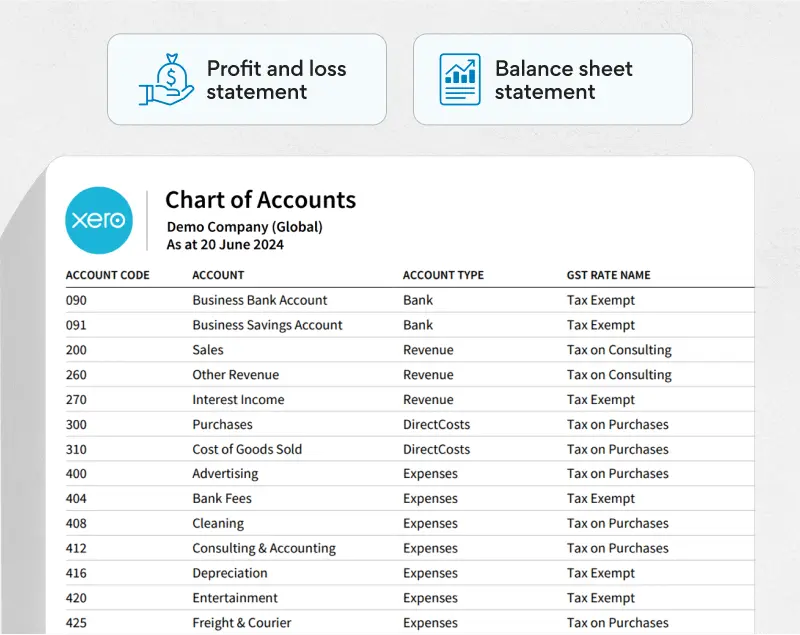
A Chart of Accounts is the full list of all the account codes in your Xero organization. Think of it as a filing system for your money — every dollar that comes in or goes out gets filed into one of these accounts. It includes categories like Revenue, Expenses, Assets, and Liabilities, and each category contains individual accounts with their own codes.
---
## Where Can I Find the Chart of Accounts in Xero?
1. Log in to your Xero account.
2. Click **Accounting** in the top navigation bar.
3. Select **Chart of Accounts** from the dropdown menu.
You will see the full list of your account codes, names, types, and tax rates. This is where you can check your existing codes or add new ones if needed.
If you are unsure about which account codes to use, we recommend consulting your accountant before configuring the mapping. Incorrect mapping may affect your financial reports in Xero.
---
## Where to find this setting?
Go to **Settings → Business Portfolios**. Click your business → Click the **three dots**for Xero → **Settings**. Scroll down to the **Account Code Settings** section.
---
## Step-by-Step: Mapping Your Account Codes
Before your invoices can sync correctly to Xero, you need to tell EasyBiz which Xero account codes to use for things like tax, rounding, and revenue. This is done through Account Code Mapping.
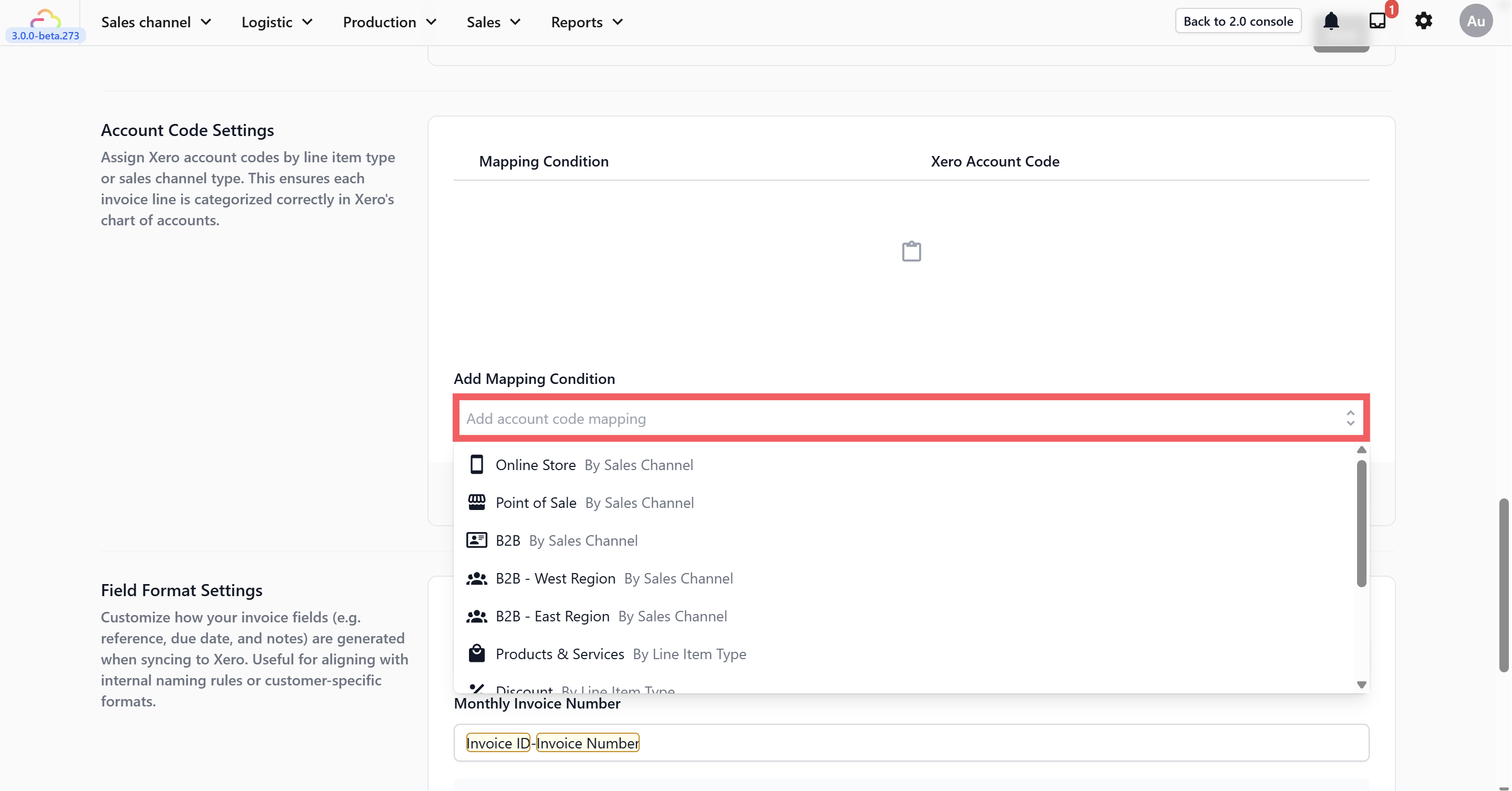
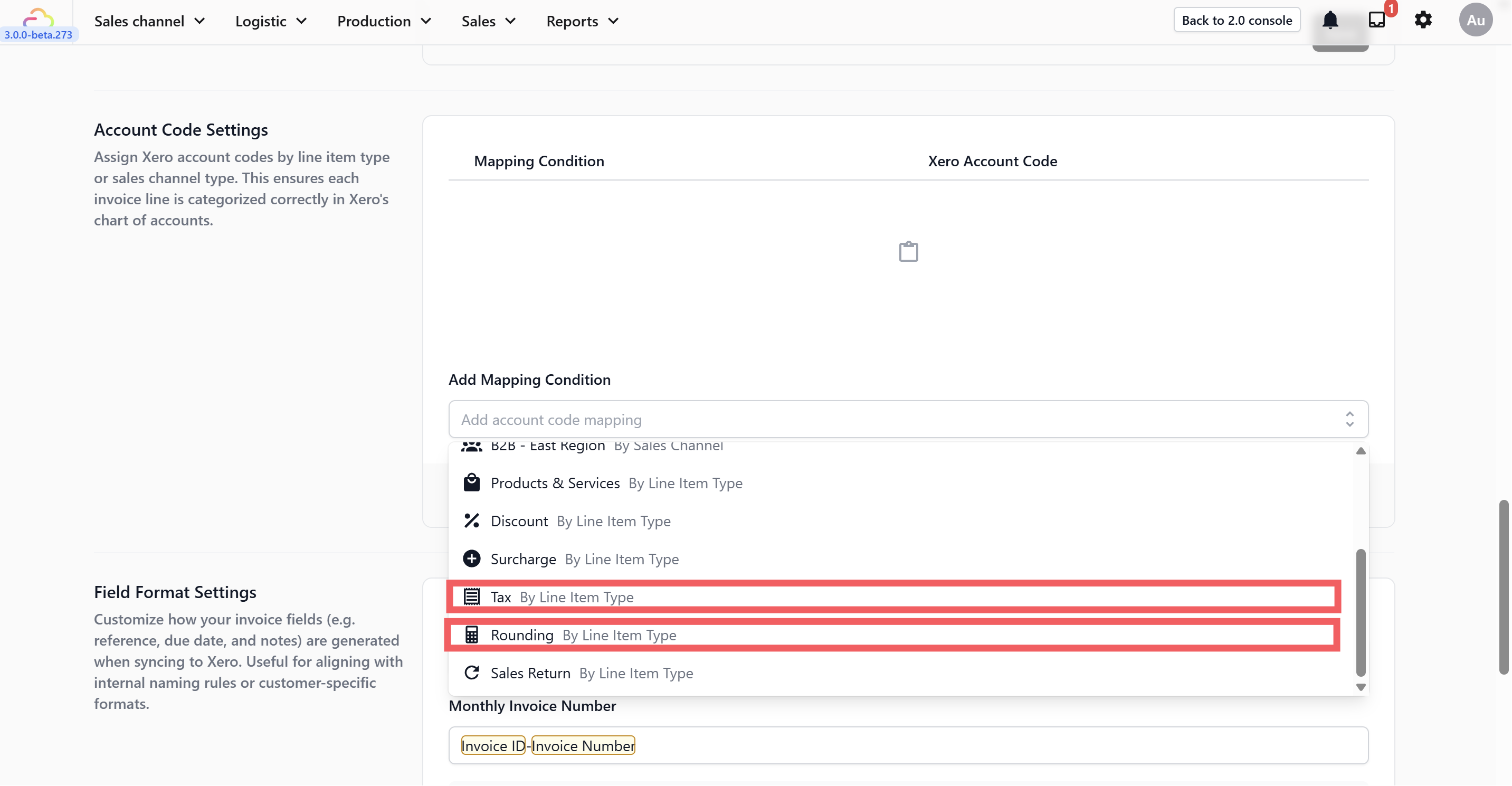
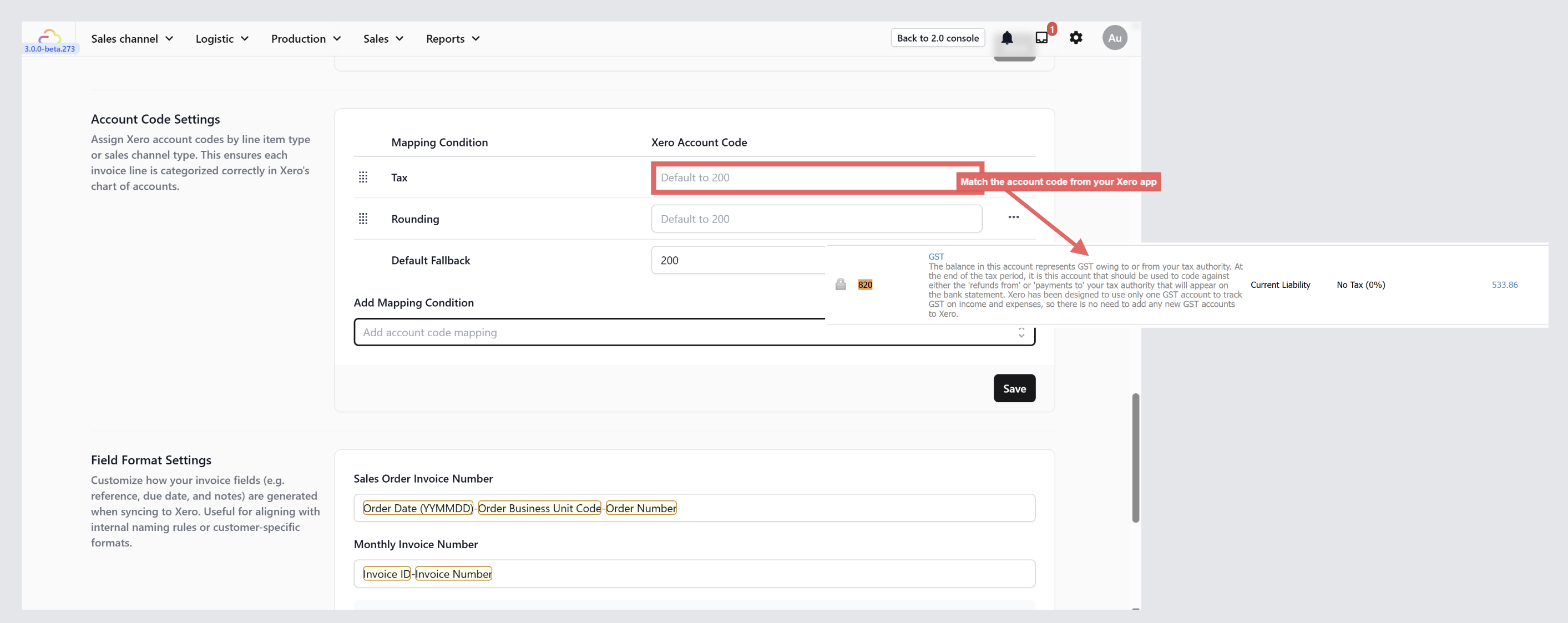
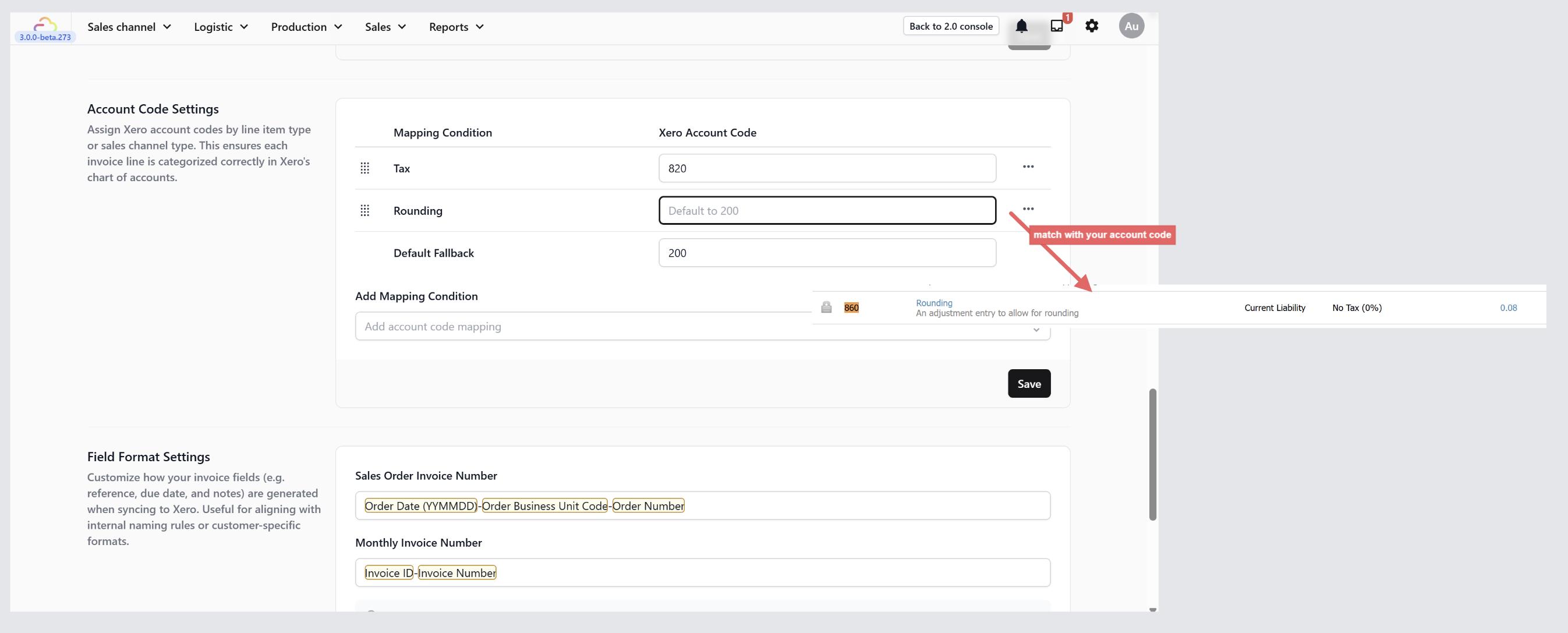
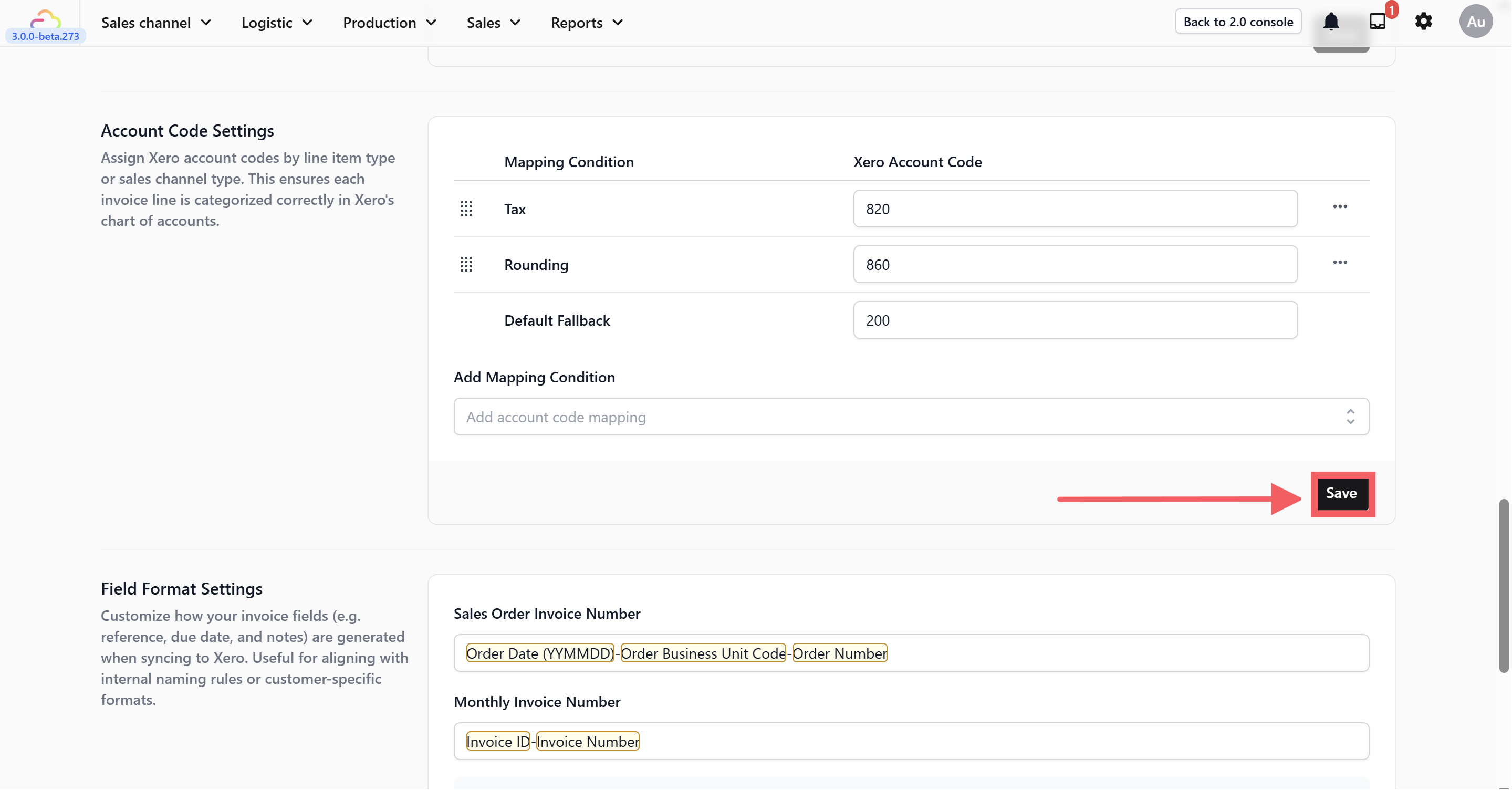
The account codes above (820, 860, 200) are based on Xero's default Chart of Accounts. If your accountant has customized your Chart of Accounts, your codes may differ. Please check with your accountant before making changes.
---
## What's Next?
Now that your account codes are mapped, continue to [Mapping Payment Methods](/docs/mapping-payment-methods) to make sure cash, card, and other payments land in the correct Xero bank accounts.