Your staff choose, for each order, whether the customer collects it at a shop or gets it delivered, and on which day, in a few taps at the counter.
---
## Before You Start
- Your owner has switched on Store pickup, Home delivery or both for the business unit. See [Offering Home Delivery and Store Pickup at the POS](/docs/offering-home-delivery-and-store-pickup-at-the-pos).
- You know your way around the Checkout page. See [How to Get Around Your POS Screen](/docs/how-to-get-around-your-pos-screen).
This article is for counter staff. You don't need access to Settings.
---
## Overview
Every order you take at the counter has a Delivery / Pickup row in the cart. It says how the customer gets their items back, and when. Most walk-in orders stay on Store pickup at your own shop, with the date the POS fills in. When a customer wants delivery, a different shop, or another date, you change the row before you charge. You can also change it later on the order, until it is completed.
---
## Why it matters
- **The customer leaves with a date.** They know when to come back, or when to expect the driver, so they don't call to ask.
- **The right charge every time.** Picking an Express date or a delivery option adds its extra charge to the bill on its own.
- **The order goes to the right place.** A delivery goes to your drivers, and an order collected at another shop shows up in that shop's list.
If you leave the row as it is, the order uses Store pickup at your shop with the first date offered, with no extra charge.
---
## Reading the Delivery / Pickup row
The row sits in the cart, under the items and above the totals.
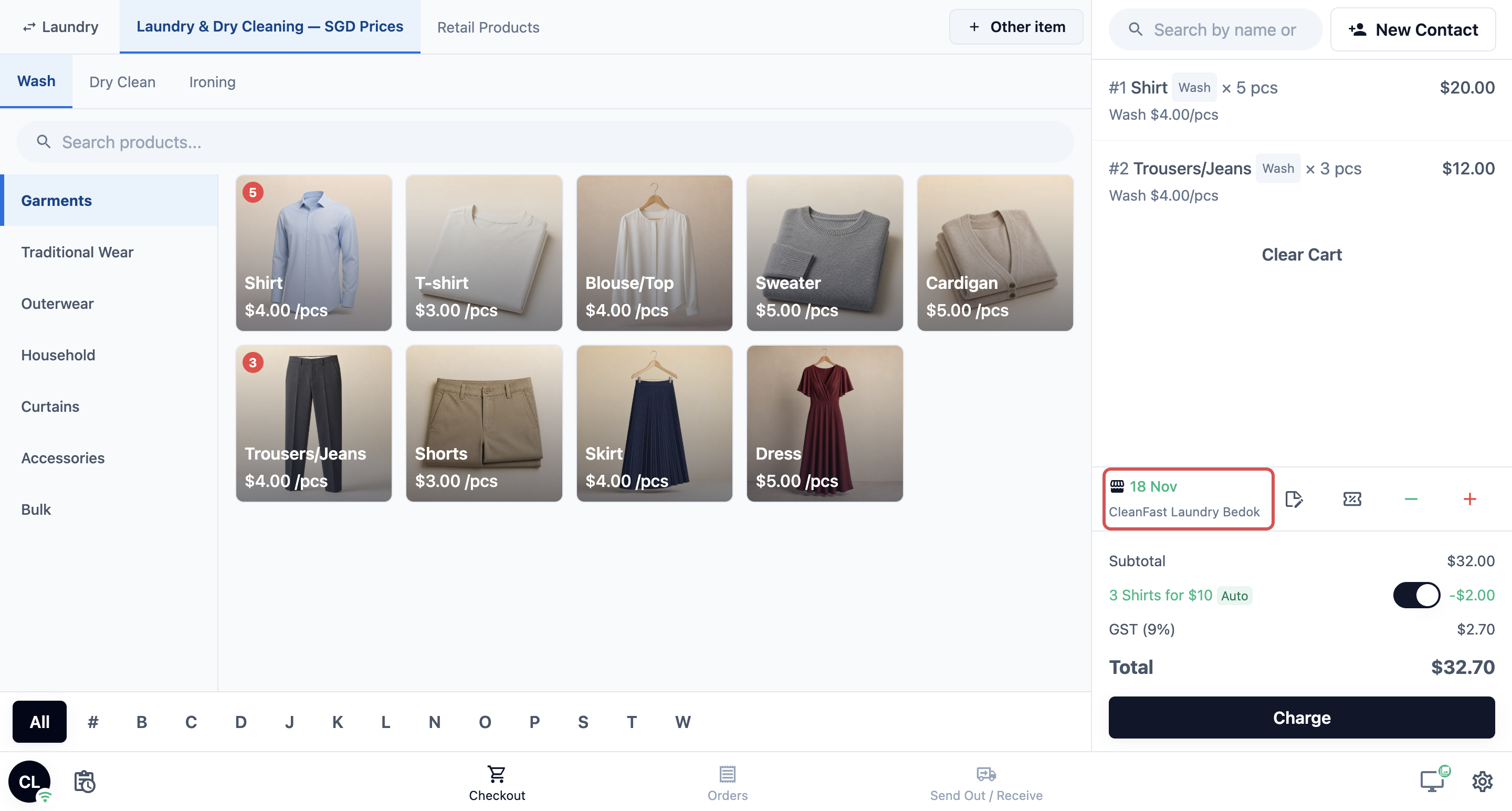
| **What you see** | **What it means** |
| ----- | ----- |
| Shop icon with a green date | Store pickup on that date, no extra charge |
| Shop icon with an orange date and an amount, for example 22 Oct (+$8) | Store pickup on a faster date that adds a charge, such as Express |
| Shop icon with no date | Your shop hasn't set collection dates. You can still charge the order as normal |
| House icon with a date and the customer's address | Home delivery on that date |
| No row at all | The business unit has no pickup or delivery switched on. Charge the order as normal |
---
## Choosing Store pickup or another shop
1. Tap the Delivery / Pickup row. The **Fulfillment Type** panel opens.
2. Under Store Pickup, tap the shop where the customer will collect. Your own shop is marked "(Current store)".
3. Tap a date on the calendar. Each date shows its option, for example Normal or Express +$8.
4. Tap Confirm.
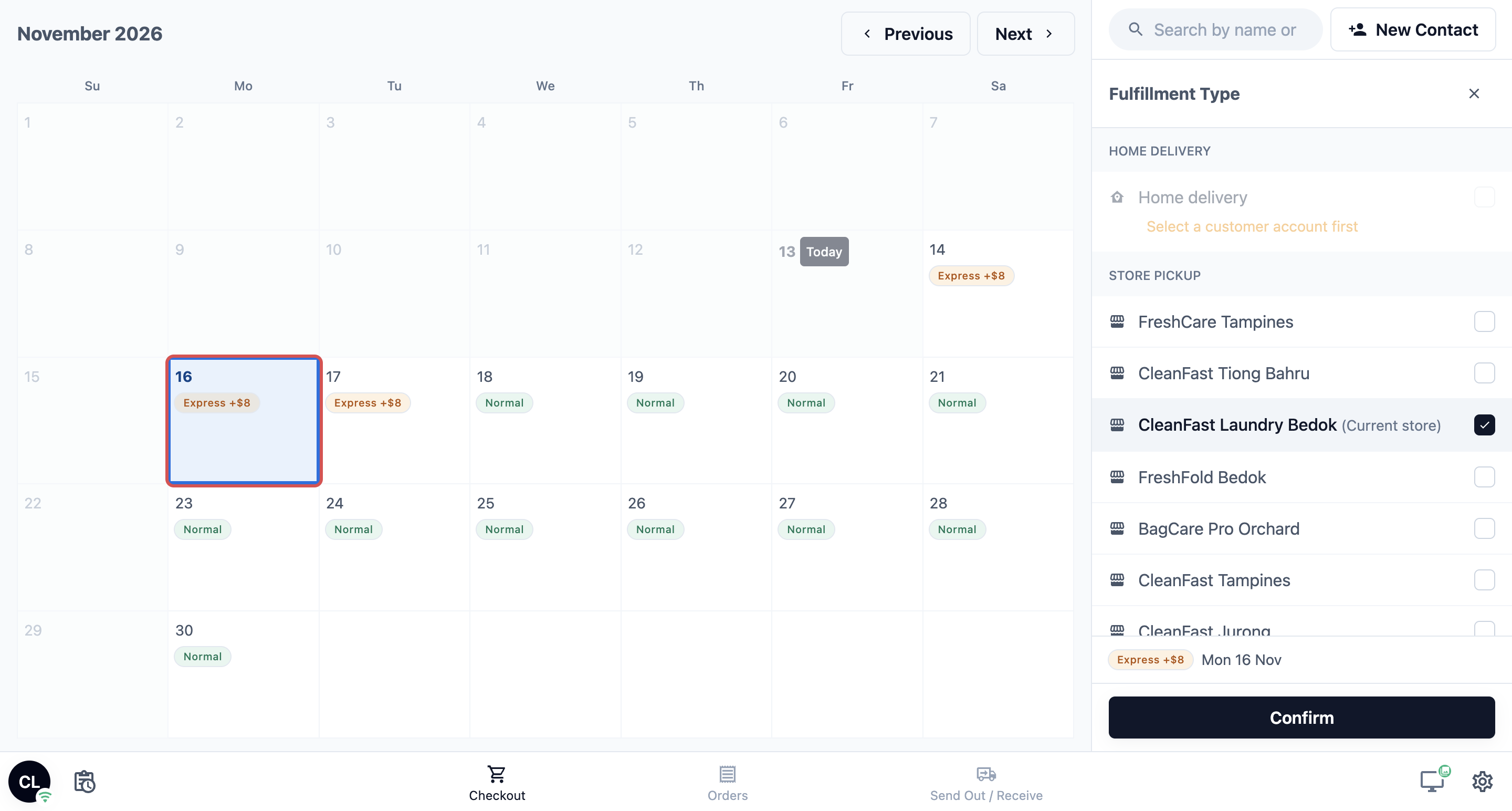
If your shop has no collection dates set up, there is no calendar. Tap the shop, then tap Confirm if the panel is still open.
---
## Choosing Home delivery
1. Pick the customer for the order first. A delivery needs a customer and their address.
2. Tap the Delivery / Pickup row.
3. Under Home Delivery, tap the delivery option. The customer's address shows below it.
4. Tap a date, then a time window if your shop uses them.
5. Tap Confirm.
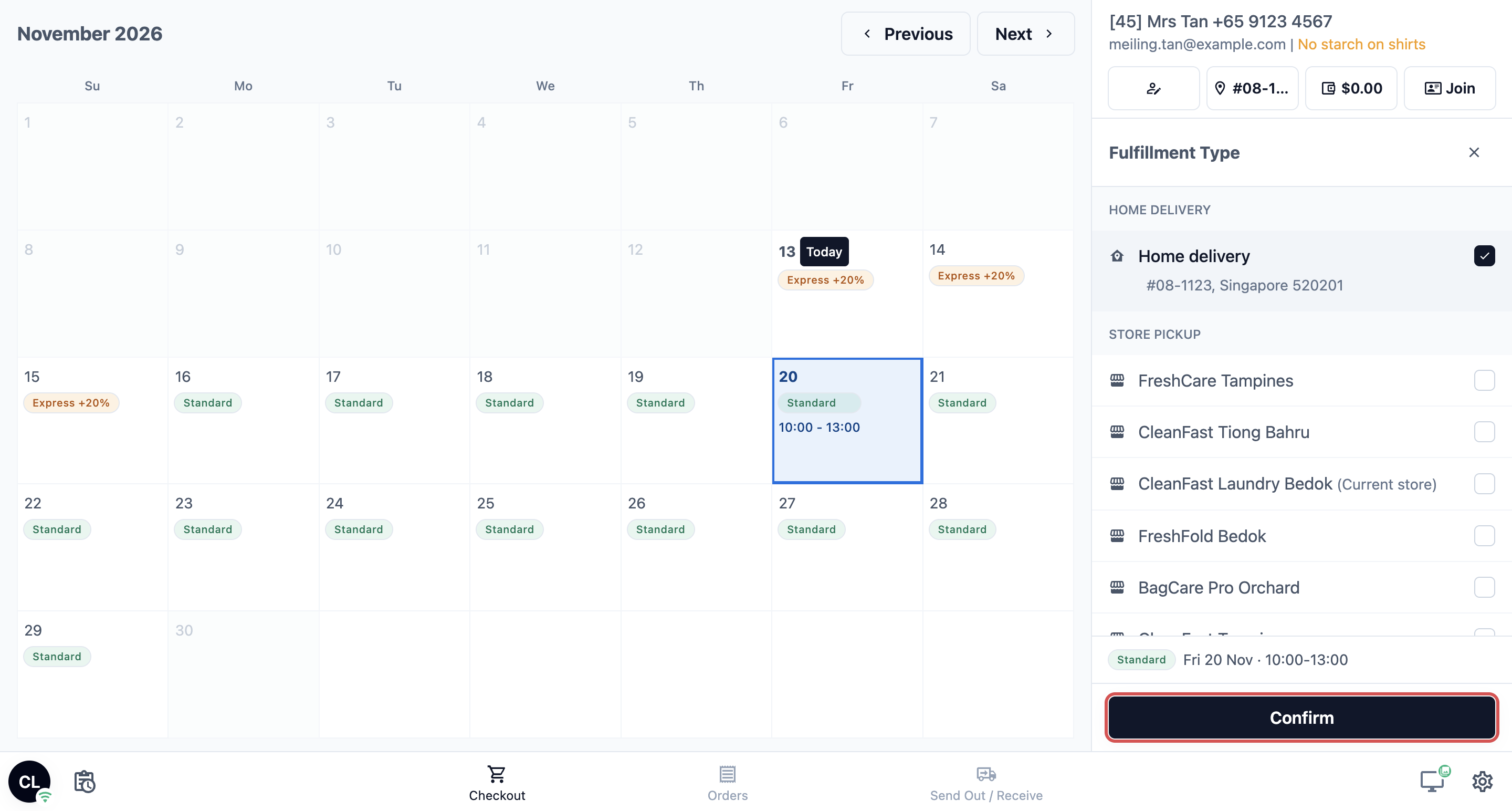
What you might see:
| **Message or sign** | **What to do** |
| ----- | ----- |
| "Select a customer account first" | Pick or add the customer, then tap the row again |
| "Add a delivery address first" | Add an address to the customer's account, then tap the row again |
| No dates appear | The address is outside the areas your shop delivers to. Offer store pickup instead, or ask your manager |
---
## Changing it after the order is taken
A customer who paid for collection can still ask for delivery, or the other way round.
1. Open the order on the **Orders** page.
2. Scroll to the **Completion & Handover** section.
3. Tap Change.
4. Choose Home delivery or a shop under Store pickup, then pick a date.
5. Tap Update.
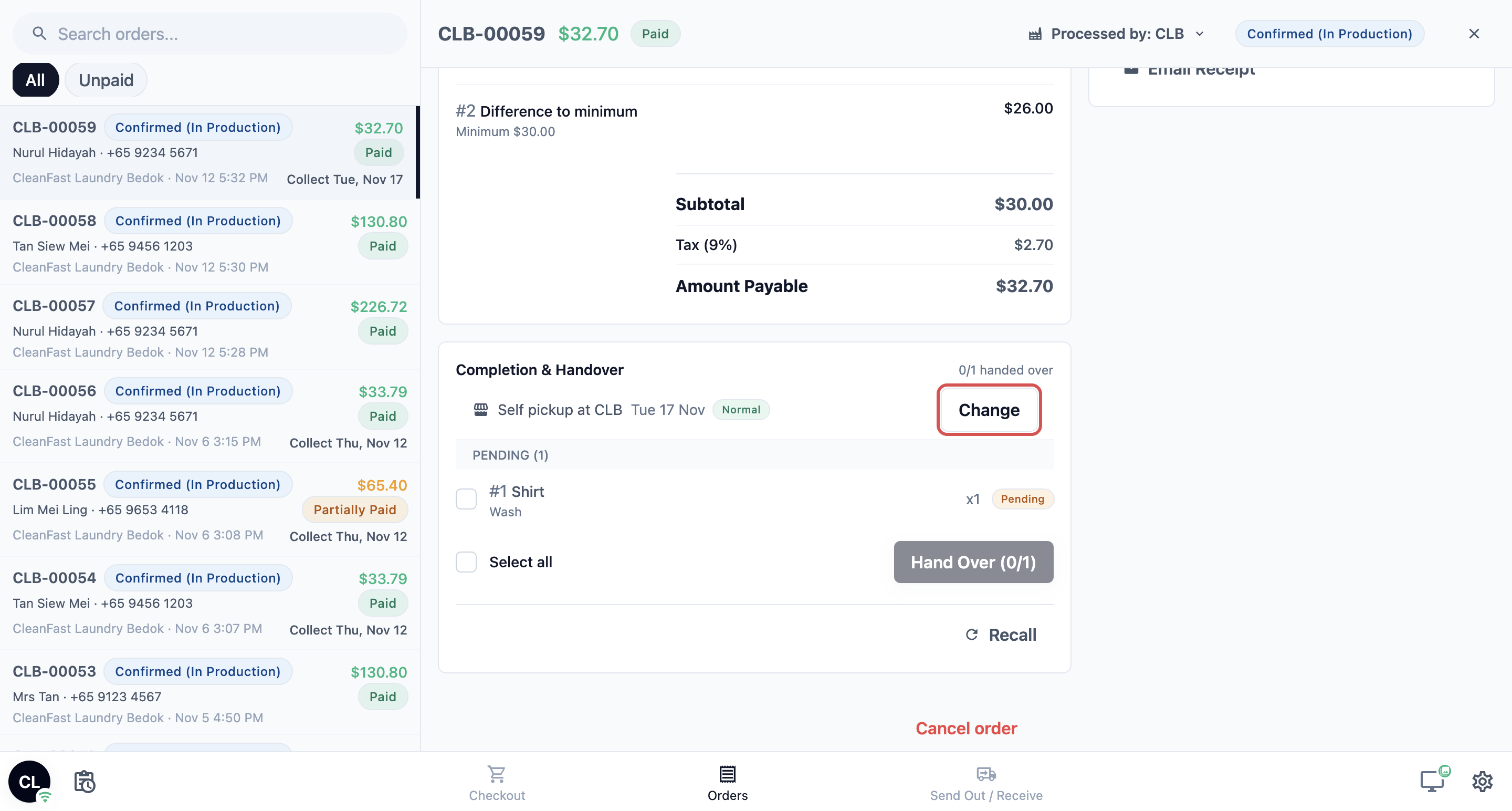
You can't change it once the order is completed or cancelled.
---
## Example
Mrs Tan drops off 5 shirts at CleanFast Laundry Tampines on Wednesday 21 October. The row shows Store pickup, 26 Oct. She needs them for Friday, so staff tap the row, tap 23 October (Express +$8) and tap Confirm:
- 5 shirts at SGD 4.00: SGD 20.00
- Express: SGD 8.00
- Total: SGD 28.00
On Thursday she calls to ask for delivery to her flat in Bedok instead. Staff open her order, tap Change in Completion & Handover, choose Home delivery, pick Friday 10:00 - 13:00 and tap Update. The order now shows Deliver with Friday's date.
---
## FAQs
**Can I charge an order with no collection date?**
> Yes. The date helps you plan, but the order works without it. You hand it over as normal when the customer collects.
**Where do I see the orders due today?**
> On the Collection page, if your shop has added it. Tap today on its calendar. See [Offering Home Delivery and Store Pickup at the POS](/docs/offering-home-delivery-and-store-pickup-at-the-pos).
**The customer will collect at our other shop. Will that shop see the order?**
> Yes. Pick that shop under Store Pickup. The order shows in that shop's order list for them to hand over.
**Does the customer pay the balance on delivery?**
> If the order isn't fully paid, staff or the driver collect the rest at handover. See [Collecting the Balance at Pickup or Delivery](/docs/collecting-the-balance-at-pickup-or-delivery).
**Why is the row missing when I edit an existing order?**
> The row is hidden while you edit an order's items. Change pickup or delivery from the order's Completion & Handover section instead.
---
## What's Next
You can now set how and when each customer gets their order back. Next, take payment for the order with every method your shop offers, in [Collecting Payment at Checkout](/docs/collecting-payment-at-checkout).