## Before You Start
- **Business Hours** must be enabled and configured in [WhatsApp General Settings](/docs/whatsapp-general-settings). This rule uses the "After business hours" condition.
- **Test Group** — Add at least one phone number in [Whatsapp General Settings](/docs/whatsapp-general-settings).
If you are new to auto reply rules, read [Setting Up Auto Reply Rules](/docs/setting-up-auto-reply-rules-for-your-whatsapp) first.
---
## When This Rule Fires
Pre-configured condition:
- **After business hours** — Any incoming message that arrives outside your opening hours.
That is the only condition. Unlike the [New Customer After Hours](/docs/new-customer-after-hours) rule, this one does not require the customer to be new or the conversation to be new. It matches **anyone** messaging after hours — new or returning.
---
## How to Set It Up
1. Go to **WhatsApp Settings** → Auto Reply Rules tab
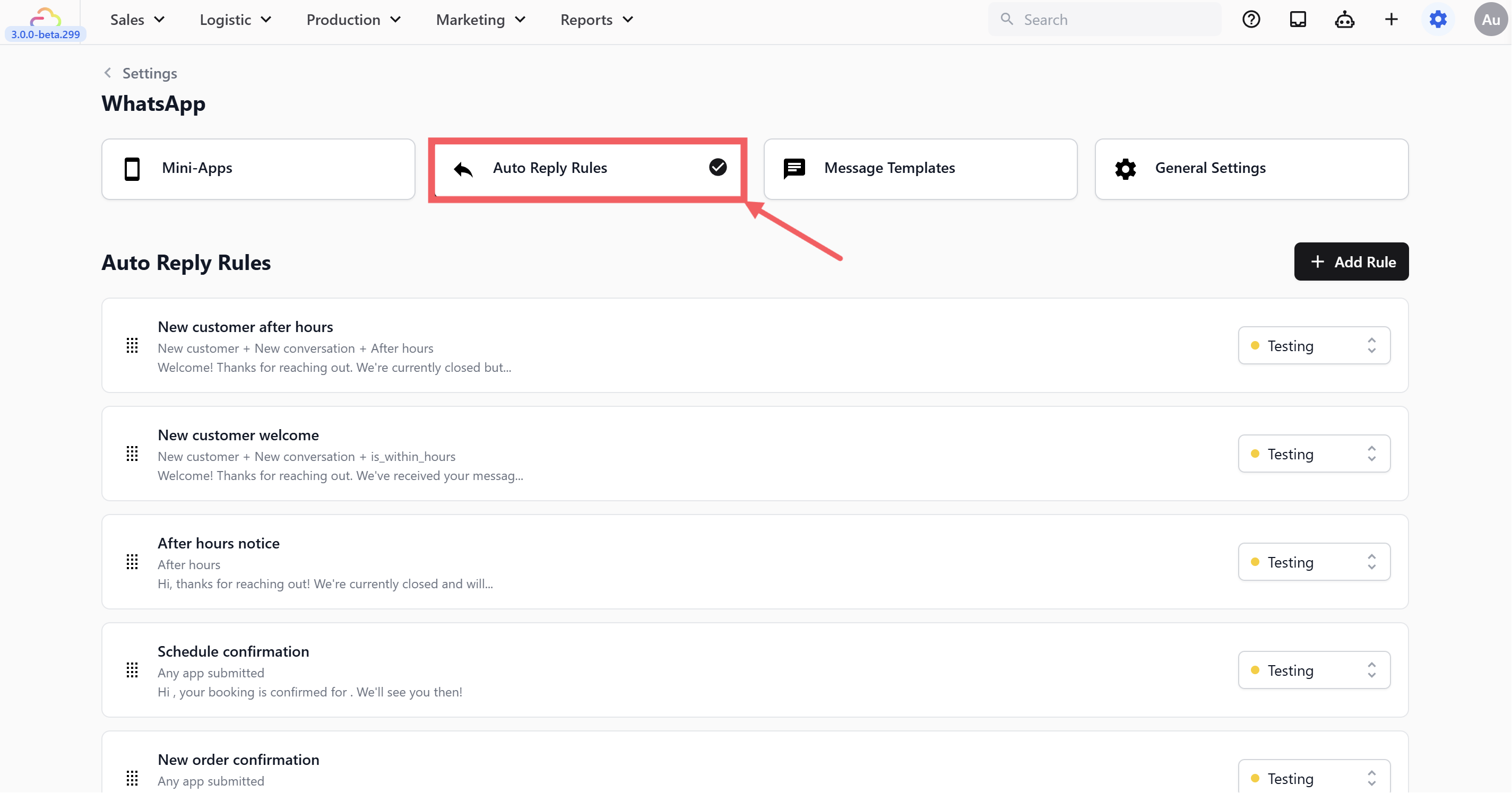
2. Click + Add Rule
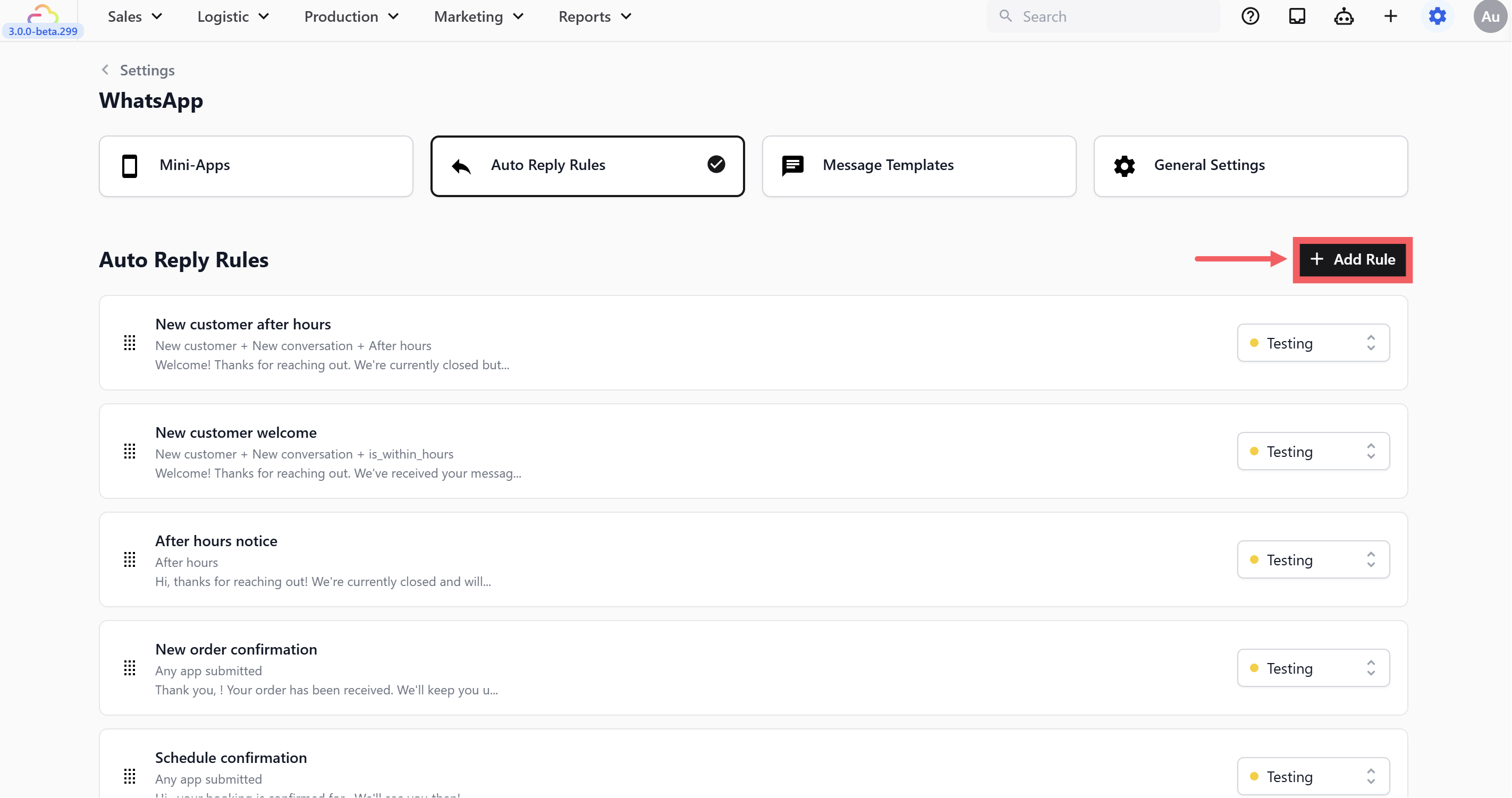
3. Under **Operational**, select **After Working Hours**
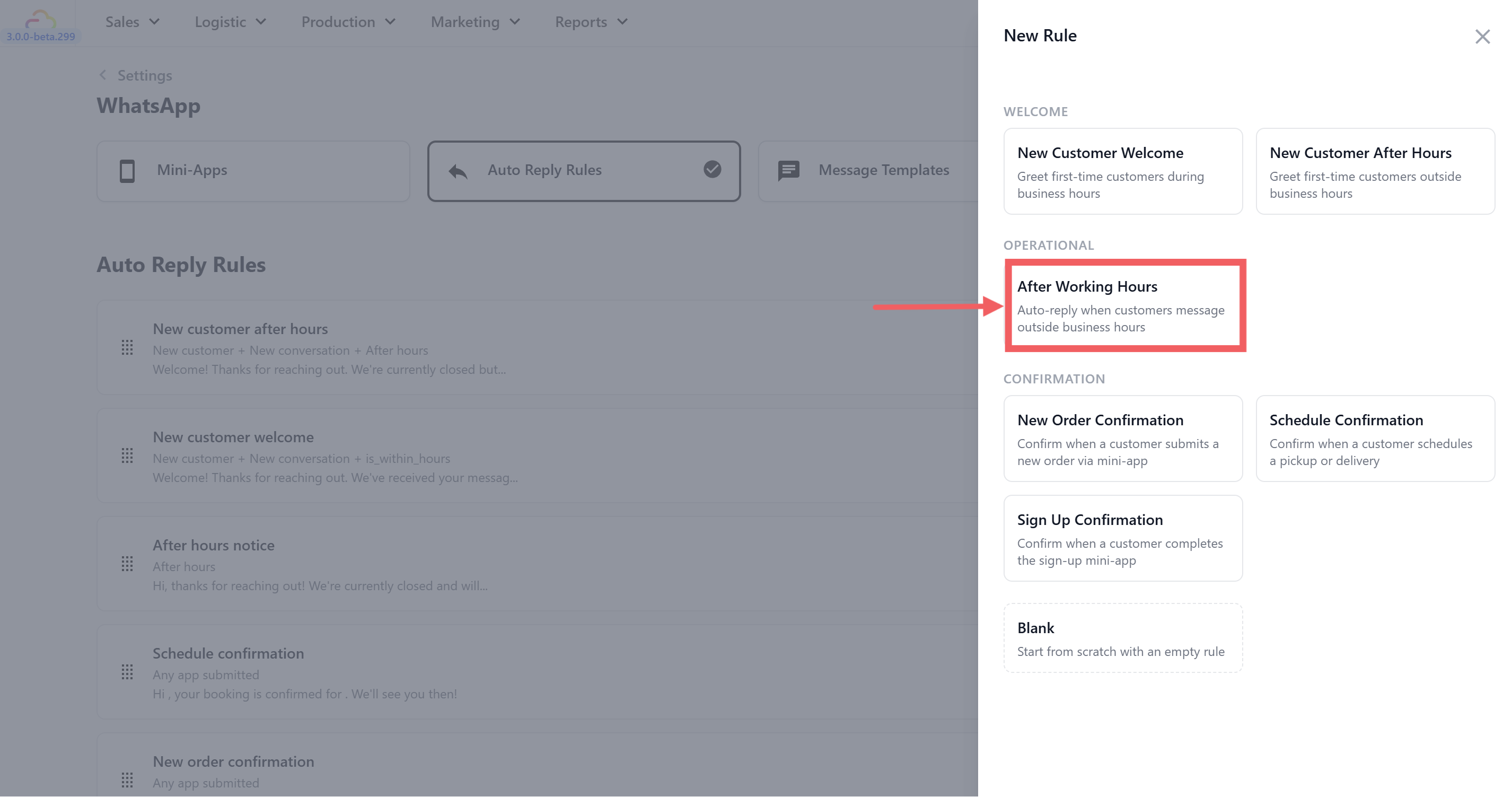
4. The "After business hours" condition will be pre-configured.
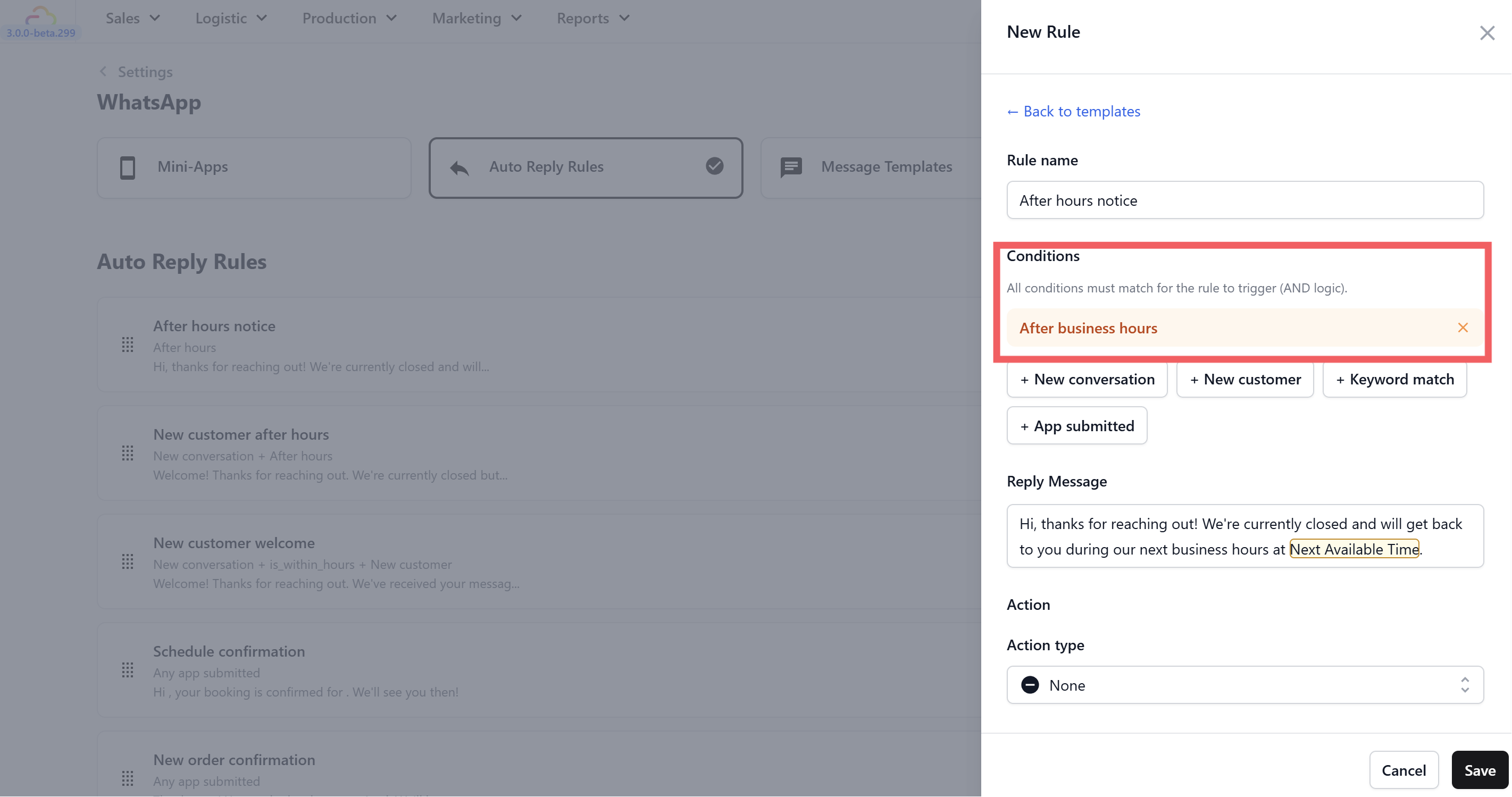
5. Edit the **reply message**(optional).The default is:
> "Hi, thanks for reaching out! We're currently closed and will get back to you during our next business hours at @Next Available Time."

6. Set **Action type** — the default is **None**. See the upgrade tip below for a better option.
7. Set **Send frequency** to **Once every 24 hours** — this prevents the same customer from receiving the after-hours message multiple times in one evening if they send more than one message.
8. Click Save.
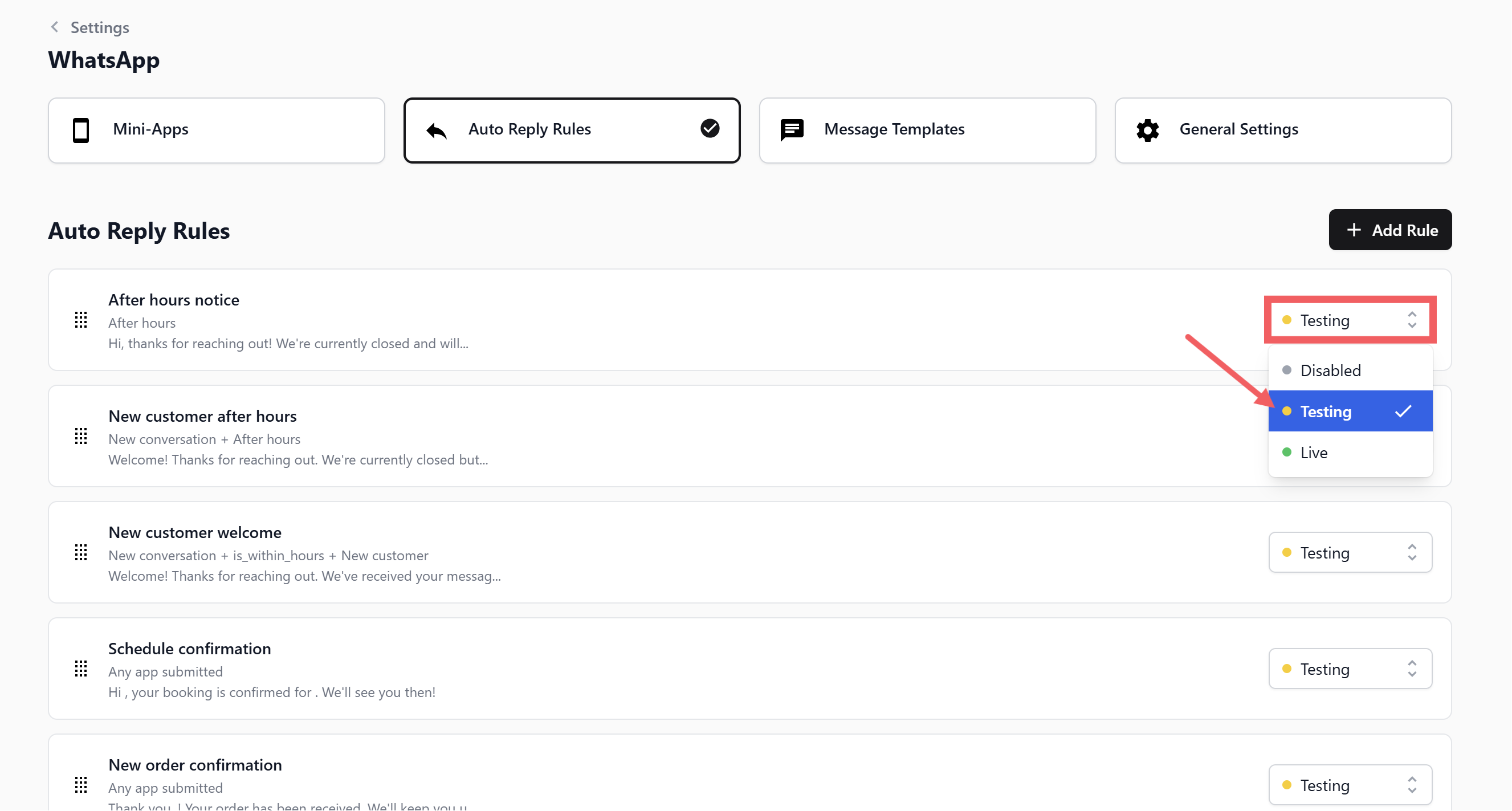
9. Set **Status** to **Testing**.
---
## Rule Priority
Put this rule at the **very top** of your rule list. It must sit above all greeting rules so that any customer messaging at night gets the after-hours message first — not a daytime welcome.
Recommended order:
1. **After Hours Notice** (this rule — top)
2. New Customer After Hours
3. New Customer Welcome
4. (Other auto reply rules below)
---
## Testing the Rule
1. Make sure the rule is set to **Testing** status
2. Confirm your test phone number is in the **Test Group** ([General Settings](/docs/whatsapp-general-settings))
3. **Outside** your configured business hours, send a WhatsApp message from your test phone
4. You should receive the after-hours notice with the next opening time filled in
5. Send a second message a few minutes later — if you set the frequency to "Once every 24 hours" or "Once per conversation" you should **not** receive the reply again
Once verified, switch the status from **Testing** to **Live**.
---
## What's Next
Now that all after-hours messages are covered, continue to [New Order Confirmation](/docs/new-order-confirmation) to set up the auto-reply that confirms a customer's order the moment it is placed.