## What this template does
A package label goes on each bag or box of finished items when an order is packed. It tells your staff and drivers whose order it is, and how many bags belong together. An item label tags each single piece. A package label tags the whole bag.
It helps you:
- Hand the right bags to the right customer at collection.
- Show how many bags make up one order, such as 2/3, so none are left behind.
- Give drivers the customer's name and address on the bag.
**Can I skip this?** Yes, if you hand orders back without bags or boxes. Shops with delivery or many bags per order should set it up.
---
## Before you start
- **[Setting Up Your Item Labels](/docs/setting-up-your-item-labels)**: the editor works the same way, so start there.
- **[Connecting Your Printers to the POS](/docs/connecting-your-printers-to-the-pos)**: pair a label printer for package labels.
- **[Introduction to Business Units](/docs/introduction-to-business-units)**: each business unit chooses its own package label.
---
## Item label or package label?
| | Item label | Package label |
| --- | --- | --- |
| Goes on | Each garment or item | Each bag or box |
| Printed when | The order comes in [CHECK: when item labels print] | The order is packed |
| Counts | Pieces, such as 2/5 | Bags, such as 1/3 |
| Usual size | 110mm wide, 8 to 20mm tall | 60mm x 40mm |
| Shows the address | No | Yes |
---
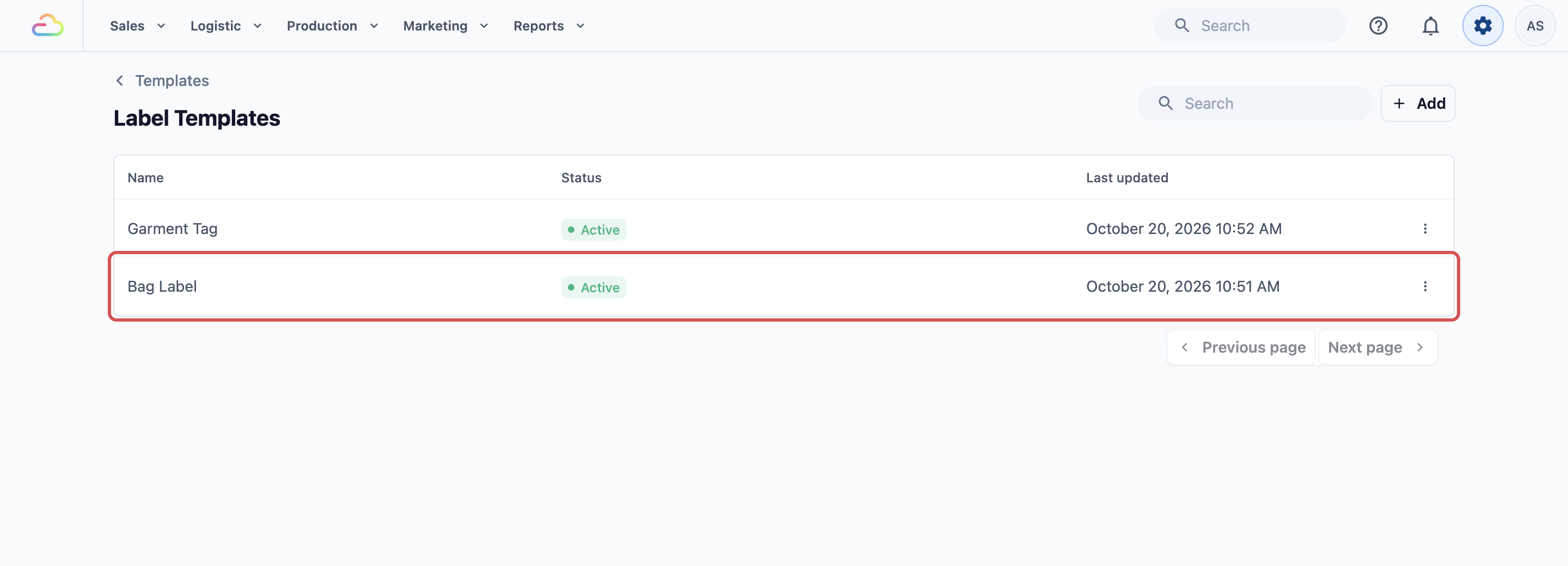
## Open the Label Templates page
1. Click the ⚙️ Settings icon in the top-right corner of the console.
2. Under the **Library** section, click Label Template.
3. The **Label Templates** page opens.
---
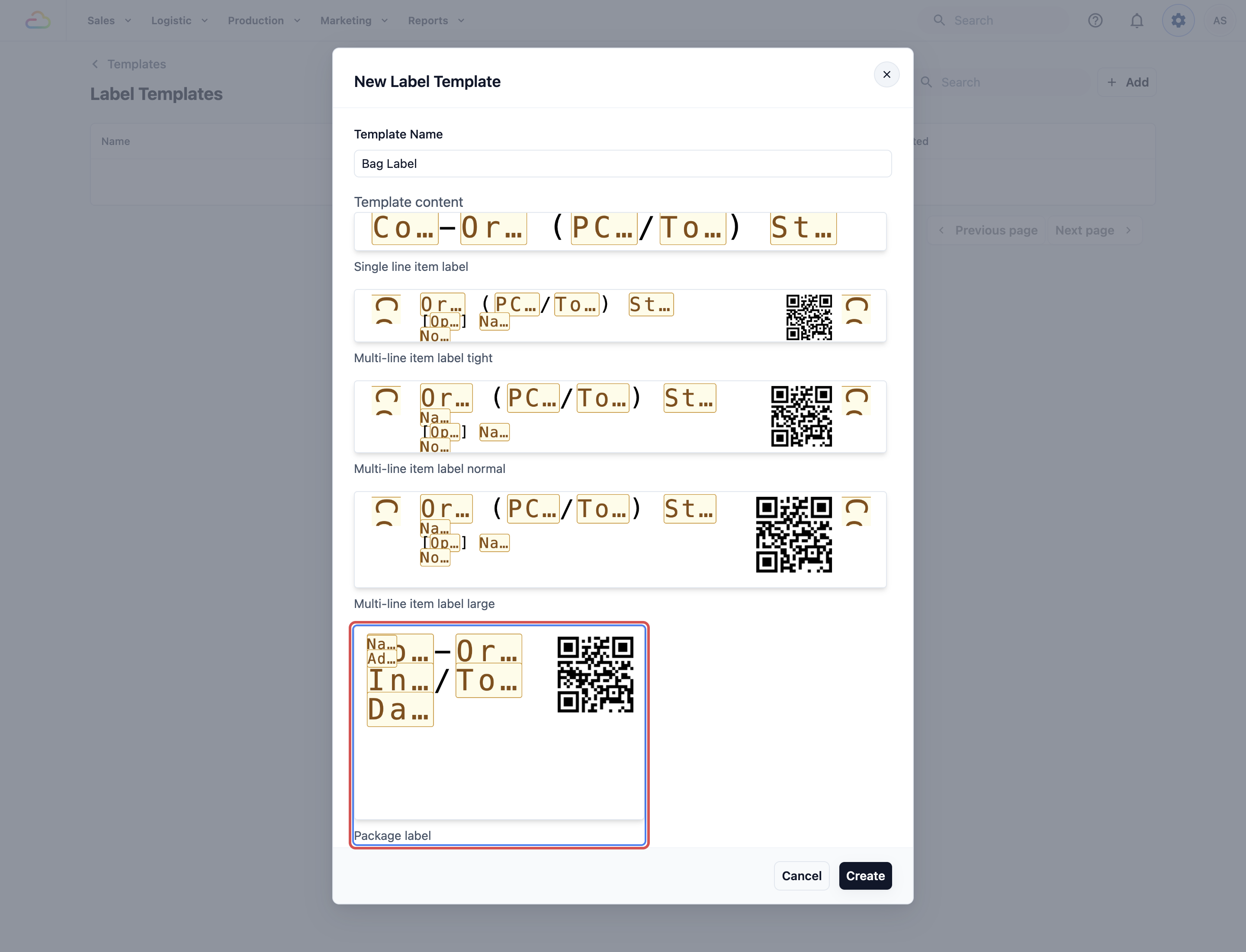
## Create your package label
1. Click + Add in the top right.
2. Type a **Template Name**, for example "Bag Label".
3. Under **Template content**, click the **Package label** card.
4. Click Create. The editor opens.
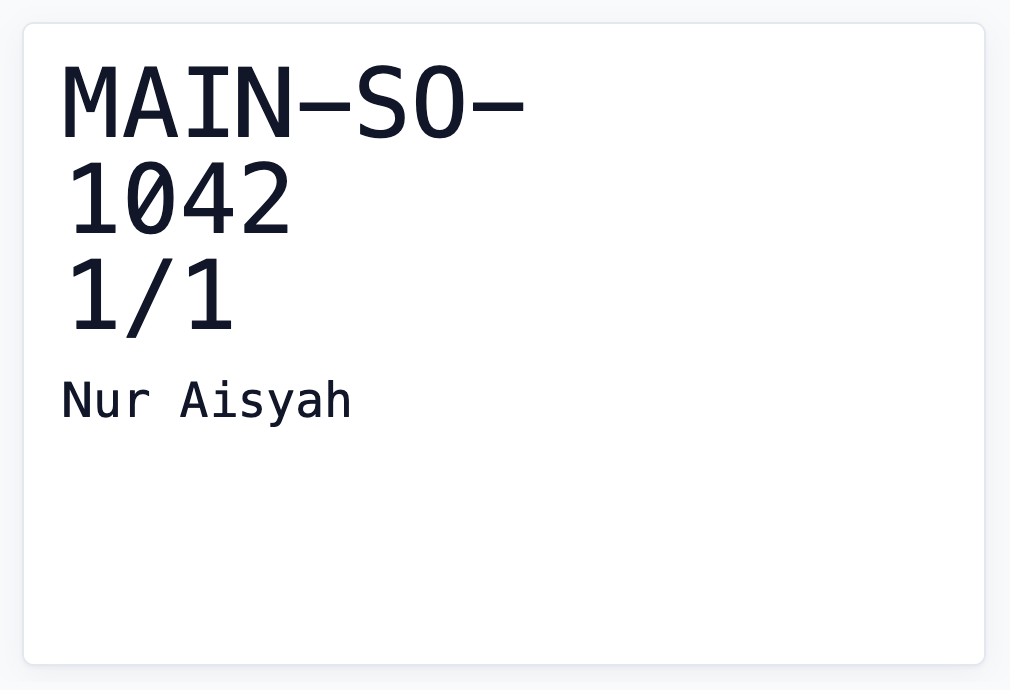
The ready-made package label is 60mm wide and 40mm tall, with a 2mm gap. It prints:
- The sales channel code and order number, such as VINZ1-00113.
- The package number out of the total, such as 1/3.
- The package date. [CHECK: whether this is the packing date or the collection date]
- A QR code for the package.
- The customer's name and address.
---
## Set the label size and change the layout
The settings work the same as for item labels.
1. Set **Label width**, **Label height** and **Label gap** to match your roll.
2. Check **Printing direction** and **Darkness level**.
3. Click a part of the label to edit it in the **Block** tab.
4. Click Save. You will see "Label template updated".
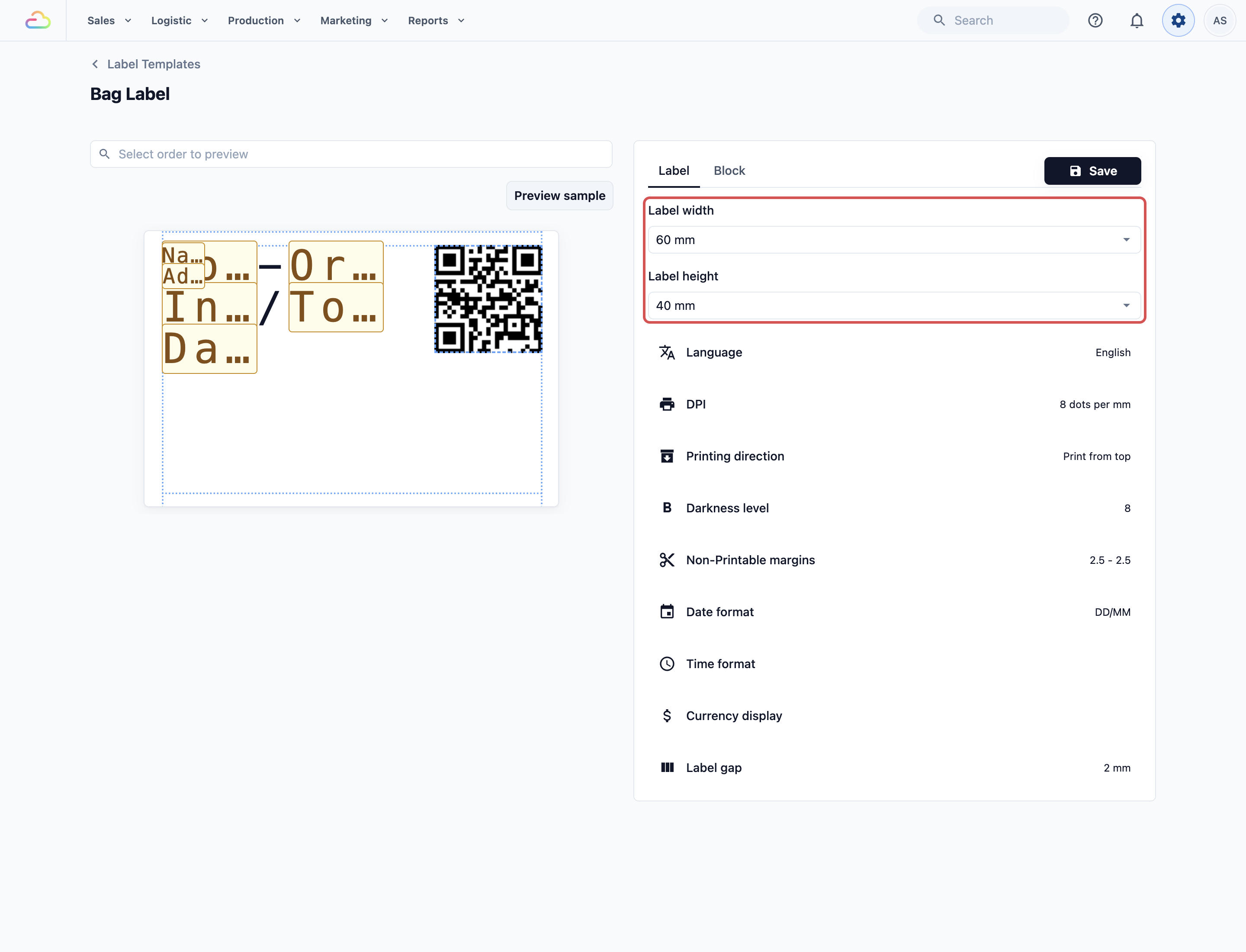
The address prints on the outside of the bag. Preview a real delivery order first, so long addresses do not get cut off.
---
## Preview a packed order
1. Click Preview sample to see made-up details.
2. Or click **Select order to preview** and pick an order that has been packed.
3. Choose a bag from the list, such as "Package #1".
4. Click Print labels to print a test. [CHECK: which printer package labels use when printed from the console editor]
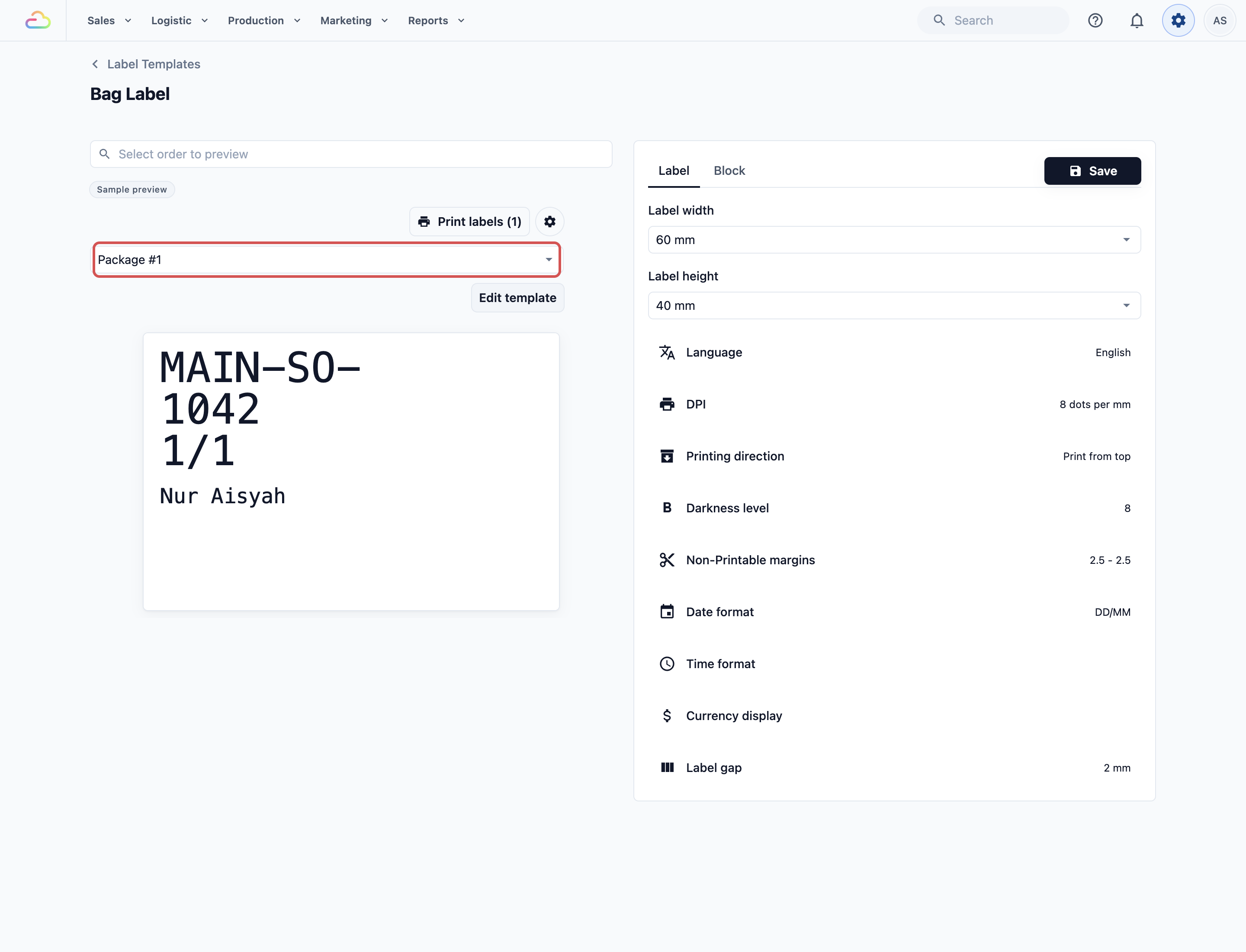
If you see "This order has no packages to preview.", the order has not been packed yet. Pick a packed order instead.
---
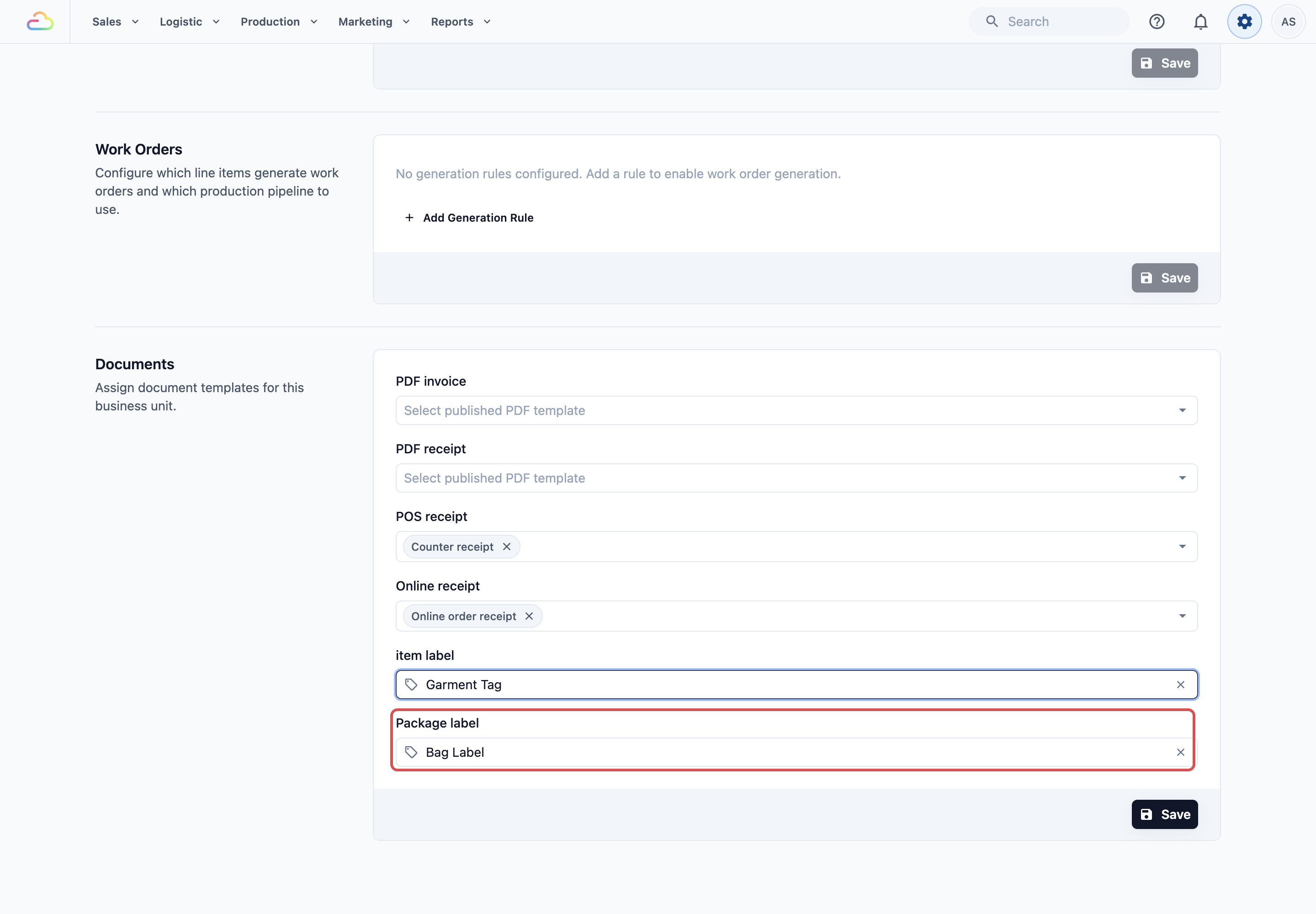
## Choose the label for each business unit
1. Click the ⚙️ Settings icon.
2. Under the **Administration** section, click Business Units.
3. Open the business unit, then click the **Documents** tab.
4. Under **Labels**, open **Package label** and choose your template.
5. Click Save. You will see "Document settings updated".
---
## Printing package labels
Staff print package labels once an order is packed. [CHECK: where staff pack orders and print package labels (POS, Workflow app or both)] [CHECK: how staff set the number of bags]
The staff mobile app has a separate **Package Label printer** slot from the **Item Label printer**. So a counter can use a bigger printer for bags and a small one for tags.
---
## Example setups
- **Sunshine Laundry:** delivers most orders, so the bag label shows the customer's address in large text for drivers.
- **Prestige Dry Cleaners:** customers collect in store. They removed the address and made the order number bigger, so staff find bags fast.
- **Bag Doctor Repairs:** packs each repaired bag in its own box and uses the QR code to check the box out at collection.
---
## What your customers see
Your customers see the label on the outside of their bag or box. It shows your sales channel code, their order number, which bag this is, the date, and their name and address.
---
## FAQs
**Can I use the same template for items and bags?**
> No. Item labels and package labels are separate templates, and each card can only be used for its own type.
**Why does the preview say "This order has no packages to preview."?**
> The order has not been packed yet. Choose an order that has been packed.
**Can I remove the customer's address?**
> Yes. Select the address block and delete it, then save.
**Can each business unit use a different package label?**
> Yes. Each business unit chooses its own package label under Documents, Labels.
---
## What's next
Your labels are ready. Next, set up the PDF invoices and receipts your customers get for their orders. See [Setting Up Your Invoice and Order PDFs](/docs/setting-up-your-invoice-and-order-pdfs).