## What this template does
A PDF template sets the layout of the invoice and receipt files your customers get for an order. The invoice asks for payment. The receipt confirms a payment. Each business unit (one of the services you run, such as Laundry) picks which PDF invoice and PDF receipt it uses.
It helps you:
- Show your company name, address, email and phone on every file
- Give your customers a clear list of items, totals and the amount due
- Keep the same look on every invoice and receipt you send
**Can I skip this?** Yes, if you never send invoices or receipts by email or PDF. Most shops start with the ready-made layout and only change the wording.
---
## Before you start
- **[Creating and Configuring a Company](/docs/creating-and-configuring-a-company)**: the PDF prints your company's legal name, address, email and phone from here.
- **[Setting Up Business Unit Documents](/docs/setting-up-business-unit-documents)**: each business unit chooses its own PDF invoice and PDF receipt.
---
## Open the PDF Templates page
This part is done in the console (the EasyBiz website your office uses), not on the POS.
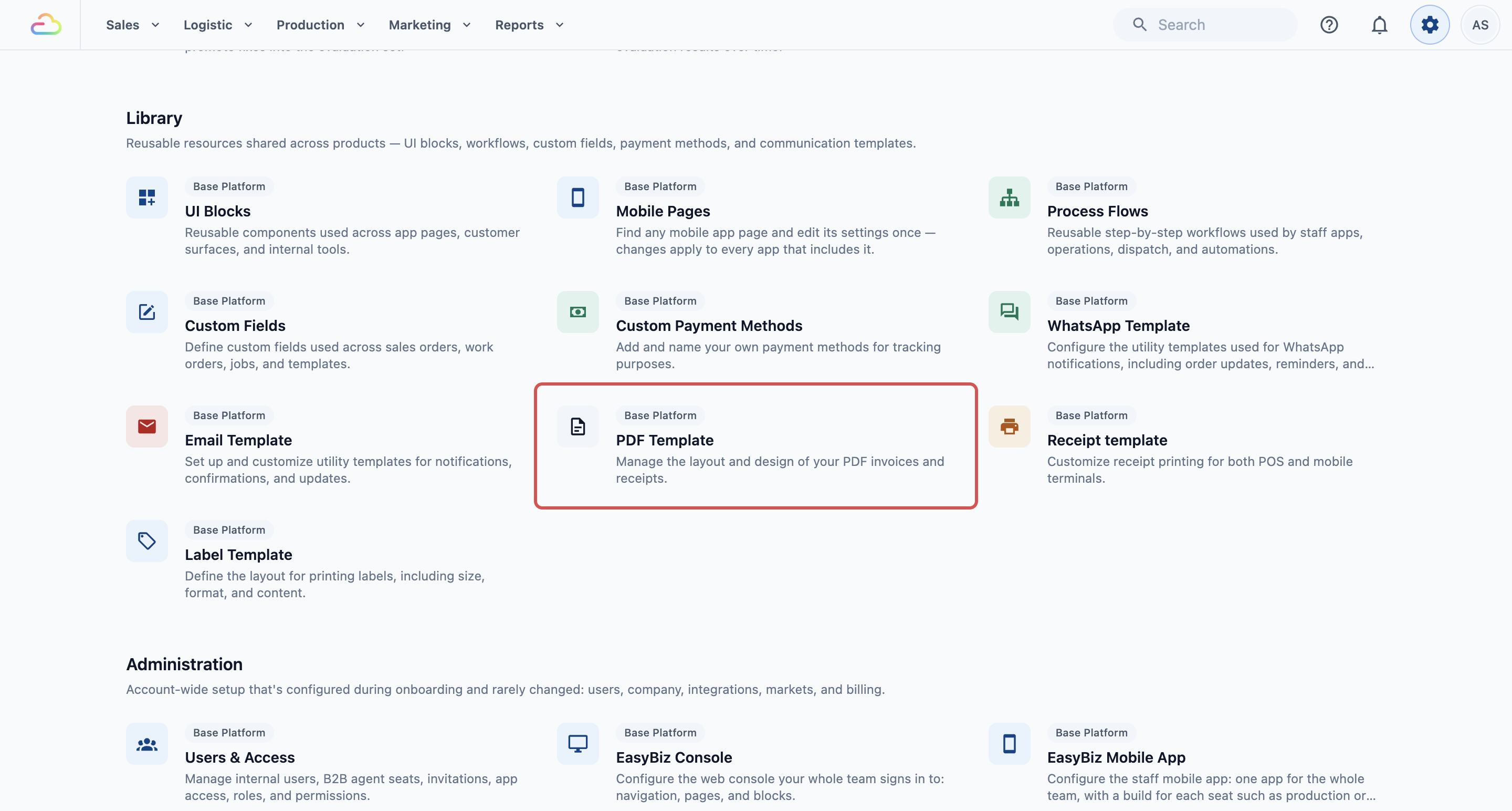
1. Click the ⚙️ Settings icon in the top-right corner.
2. Scroll to the **Library** section.
3. Click PDF Template.
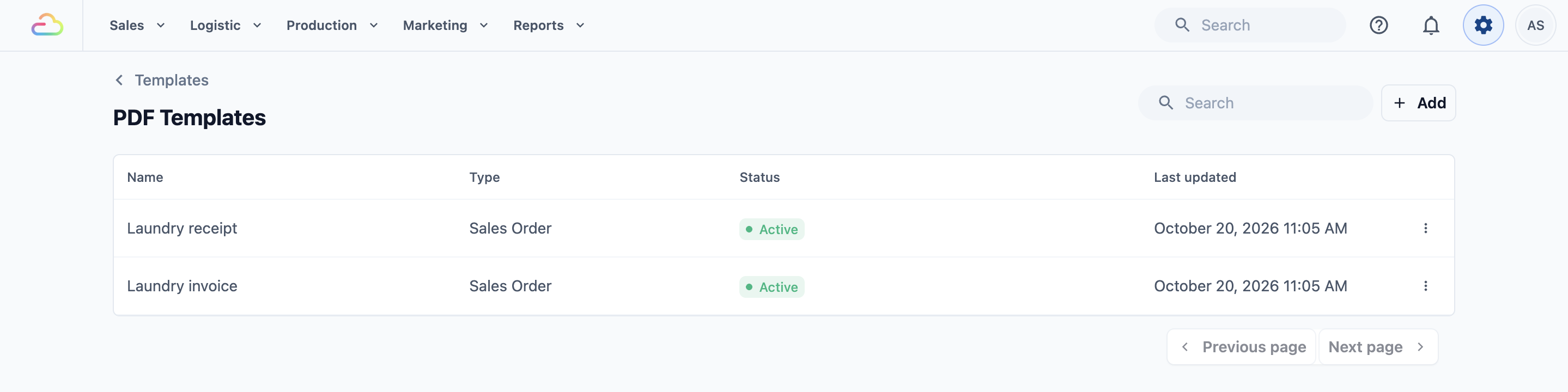
The page that opens is called **PDF Templates**. It lists every PDF layout you have. The **Type** column shows what each one is for, and the **Status** column shows whether it is in use.
---
## Create a new PDF template
You only need this if you want a second layout. To change your current one, skip to the next section.
1. On the PDF Templates page, click Add.
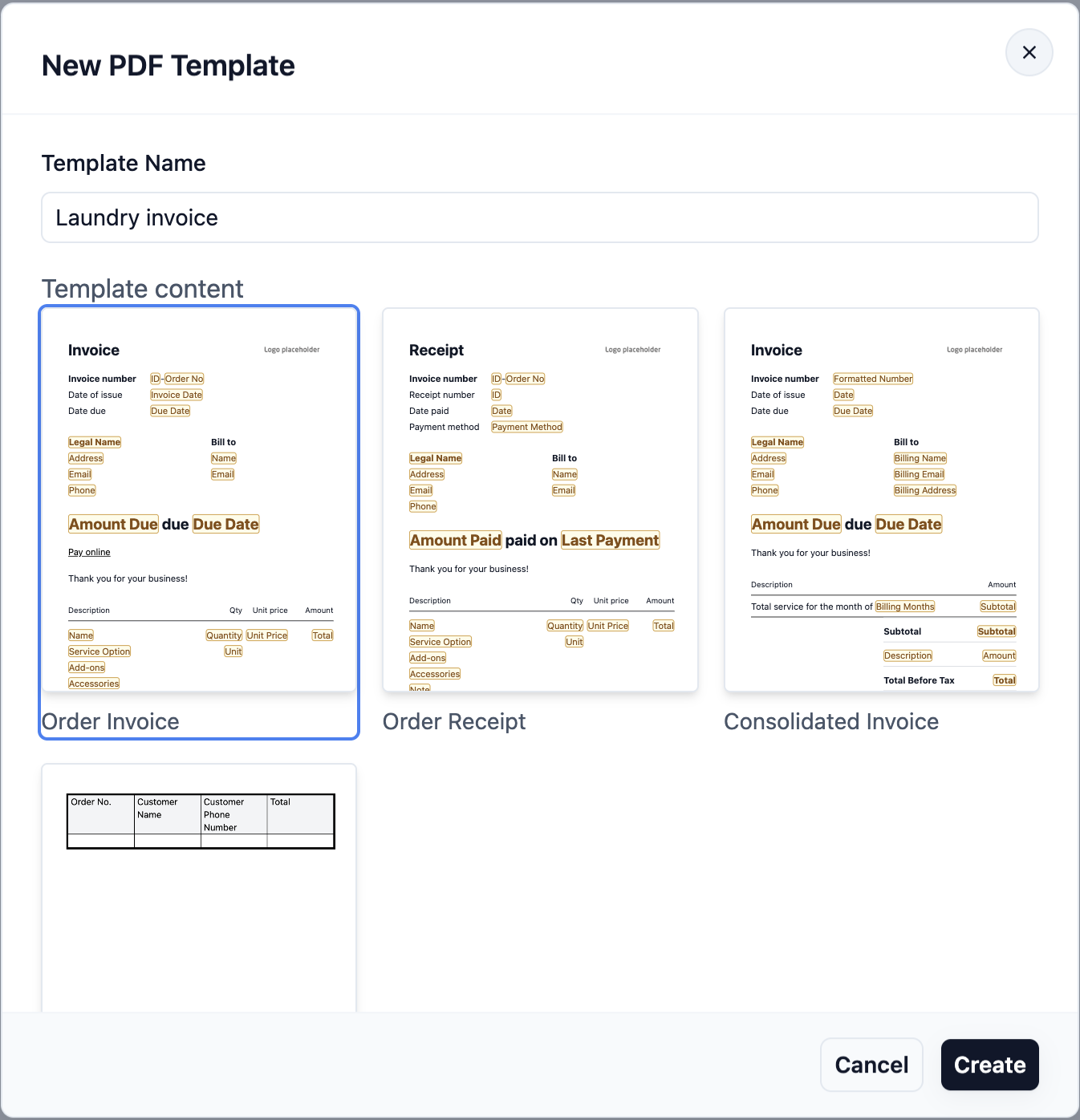
2. In **Template Name**, type a name your staff will recognise, such as "Laundry invoice".
3. Under **Template content**, click the ready-made layout you want to start from.
4. Click Create.
| Option | What it means |
| --- | --- |
| Order Invoice | Asks your customers to pay for 1 order. Shows the amount due and the due date. |
| Order Receipt | Confirms a payment for 1 order. Shows the receipt number, date paid and payment method. |
| Consolidated Invoice | 1 invoice covering many orders over a date range, mainly for business customers. |
| Consolidated Invoice Breakdown | The order-by-order list that goes with a consolidated invoice. |
This article covers Order Invoice and Order Receipt.
---
## Change the layout and wording
1. On the PDF Templates page, click the template's name.
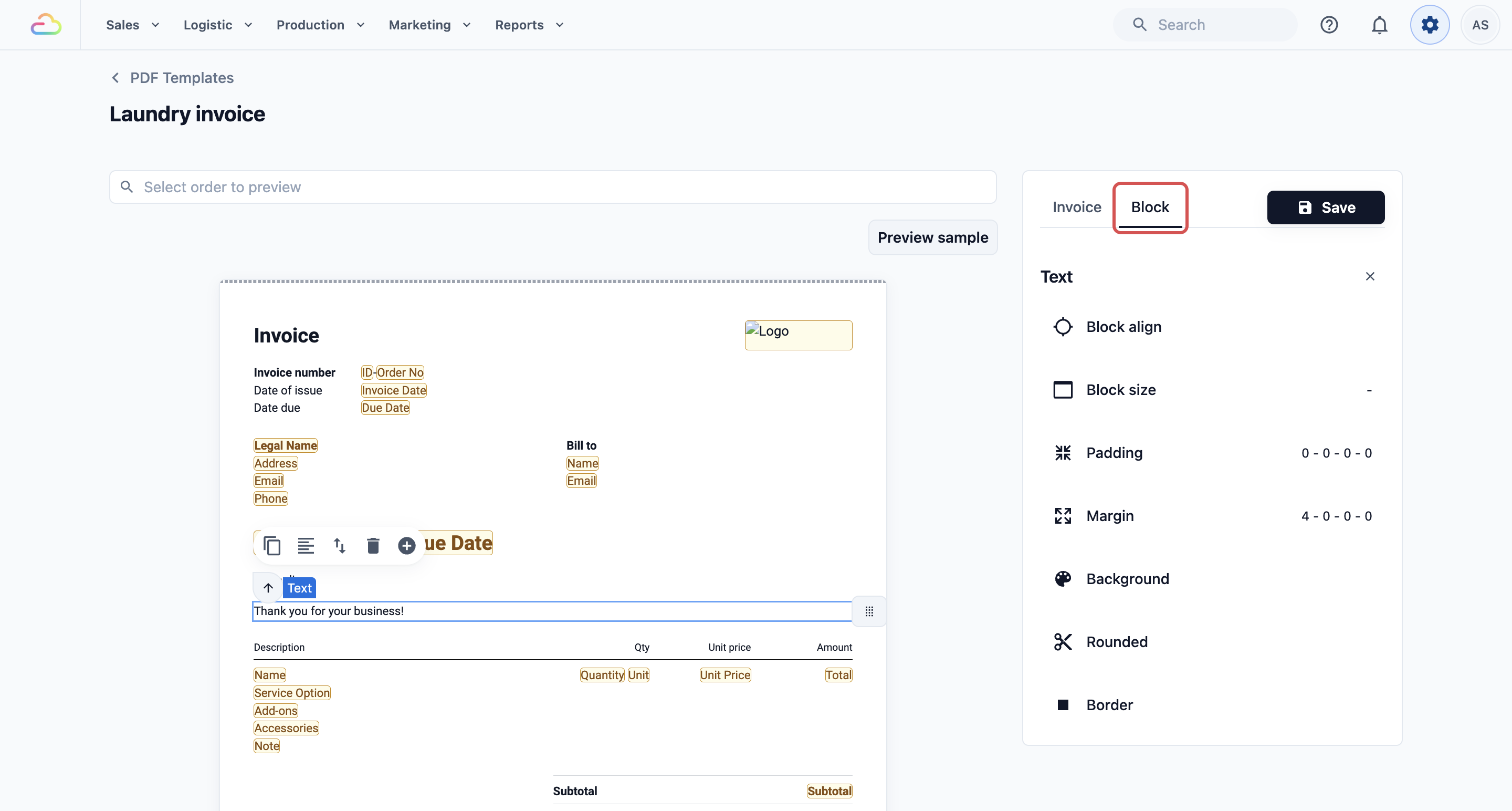
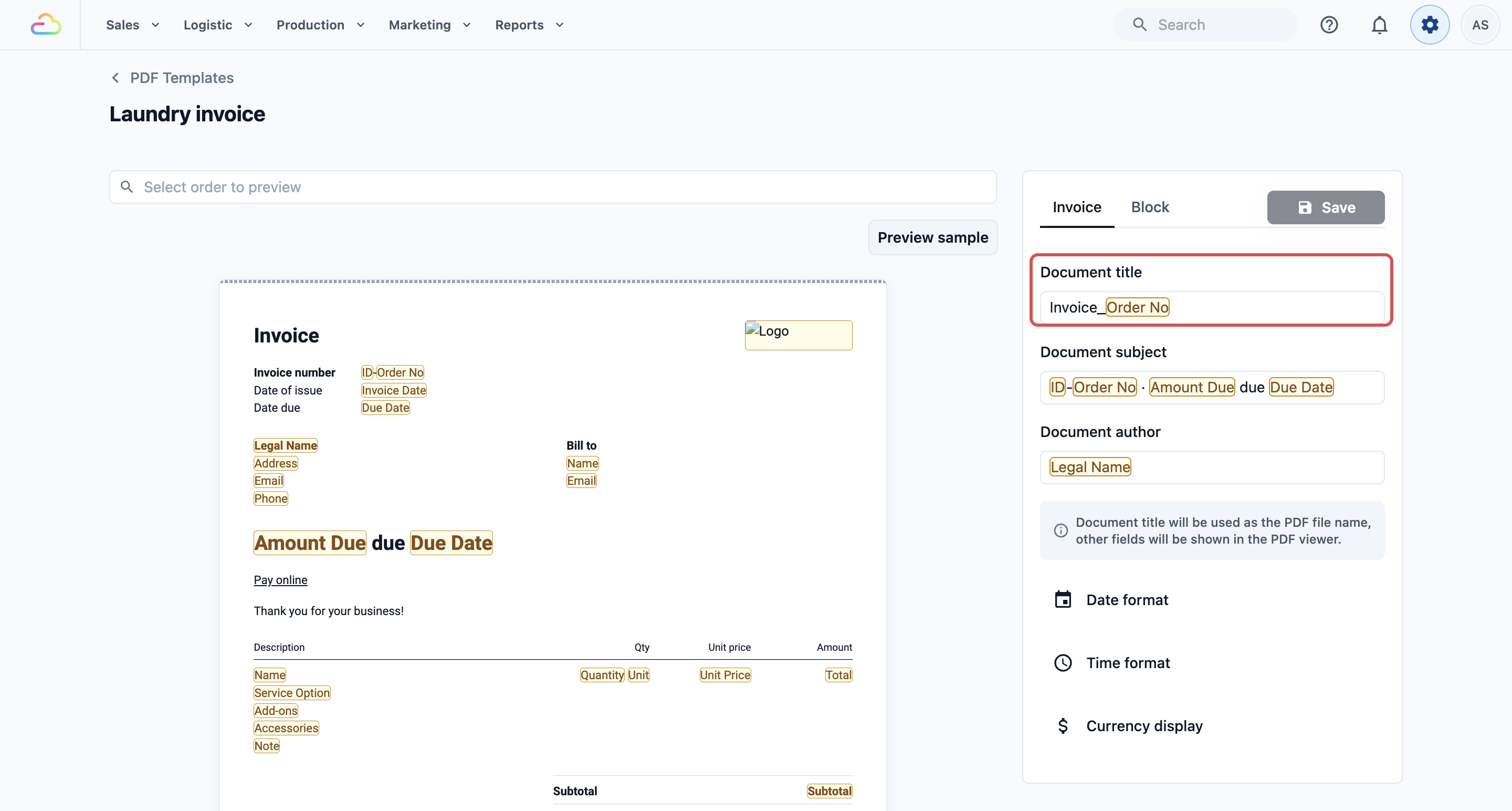
2. The editor opens. The left side shows a preview of the file. The right side has 2 tabs: Invoice and Block.
3. Click Edit template above the preview.
4. Click the part of the page you want to change, such as the title or the "Thank you for your business!" line. A block is one piece of the page, like a heading or a row of text.
5. Make your change in the Block tab.
6. Click Save.
Grey words such as the order number or customer name are placeholders. They fill in with each order's real details. To add one, type @ in a text block and pick it from the list.
### Set the file name
1. Click the Invoice tab.
2. Check **Document title**. This becomes the file name your customers see, such as "Invoice_10234".
3. **Document subject** and **Document author** show only in the customer's PDF viewer. You can leave them as they are.
---
## What the ready-made layout shows
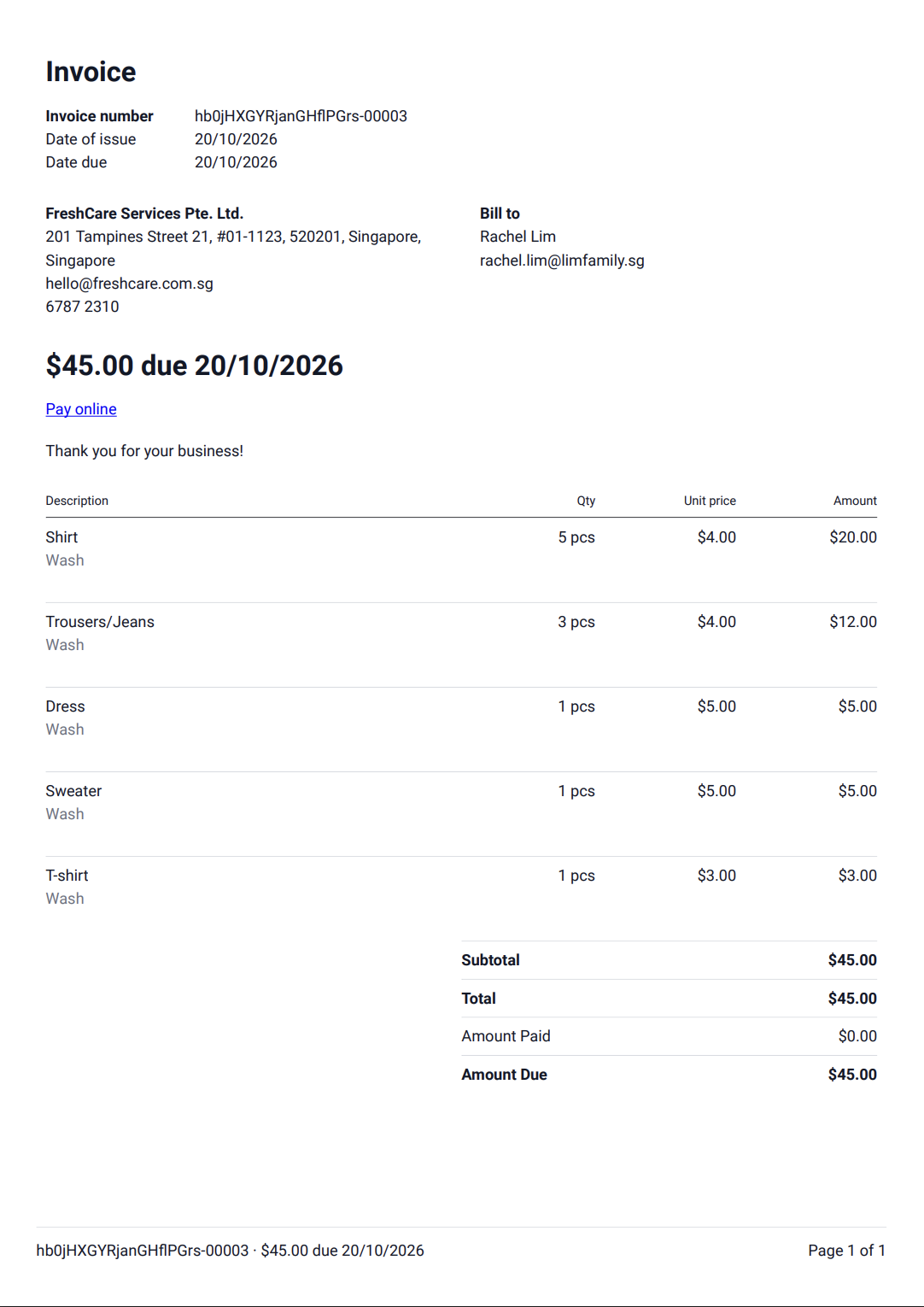
The Order Invoice starts with:
- The word "Invoice" and your logo at the top
- **Invoice number**, **Date of issue** and **Date due**
- Your company details on the left, and **Bill to** with the customer's name and email on the right
- A large line such as "S$45.00 due 30 Oct 2026"
- A "Pay online" link
- An item table with **Description**, **Qty**, **Unit price** and **Amount**
- **Subtotal**, any discounts or surcharges, **Total**, **Amount Paid** and **Amount Due**
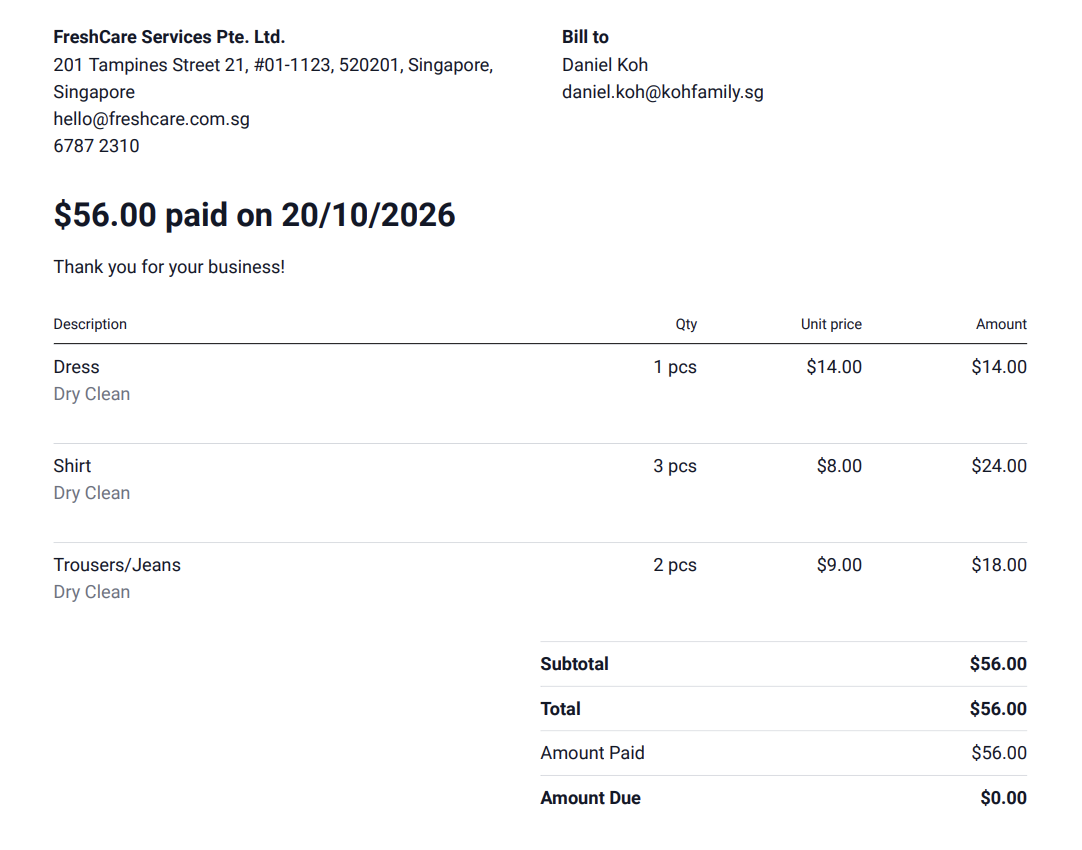
The Order Receipt shows **Receipt number**, **Date paid** and **Payment method** instead of the due date. It has no Pay online link.
Your GST registration number isn't on the ready-made layout. To show it, enter it under Settings › Company › **Tax registration number**. Then type @ in a text block, for example under your company details, and pick **Company Tax Number**.
---
## Preview before you use it
The preview starts with a made-up order, marked **Sample preview**. You can also check a real order.
1. Click the **Select order to preview** box above the preview.
2. Search for a recent order and pick it.
3. Check the names, amounts and dates.
4. Click Preview sample to go back to the made-up order.
If you see "Failed to generate preview", reload the page and try again. This only appears after you pick a real order and its details can't load. The sample order never shows it.
- Your internet connection dropped. Check it and reload the page.
- You were signed out. Sign in again and pick the order again.
- Your account can't open that order. Ask an admin, or pick a different order.
Once saved, your changes apply to the next PDF your customers get. Always preview a real order before you save, so your customers never get a file with missing details.
---
## Choose which PDF each business unit uses
1. Click the ⚙️ Settings icon.
2. In the **Administration** section, click Business Units.
3. Click the business unit, such as Laundry.
4. Click the Documents tab.
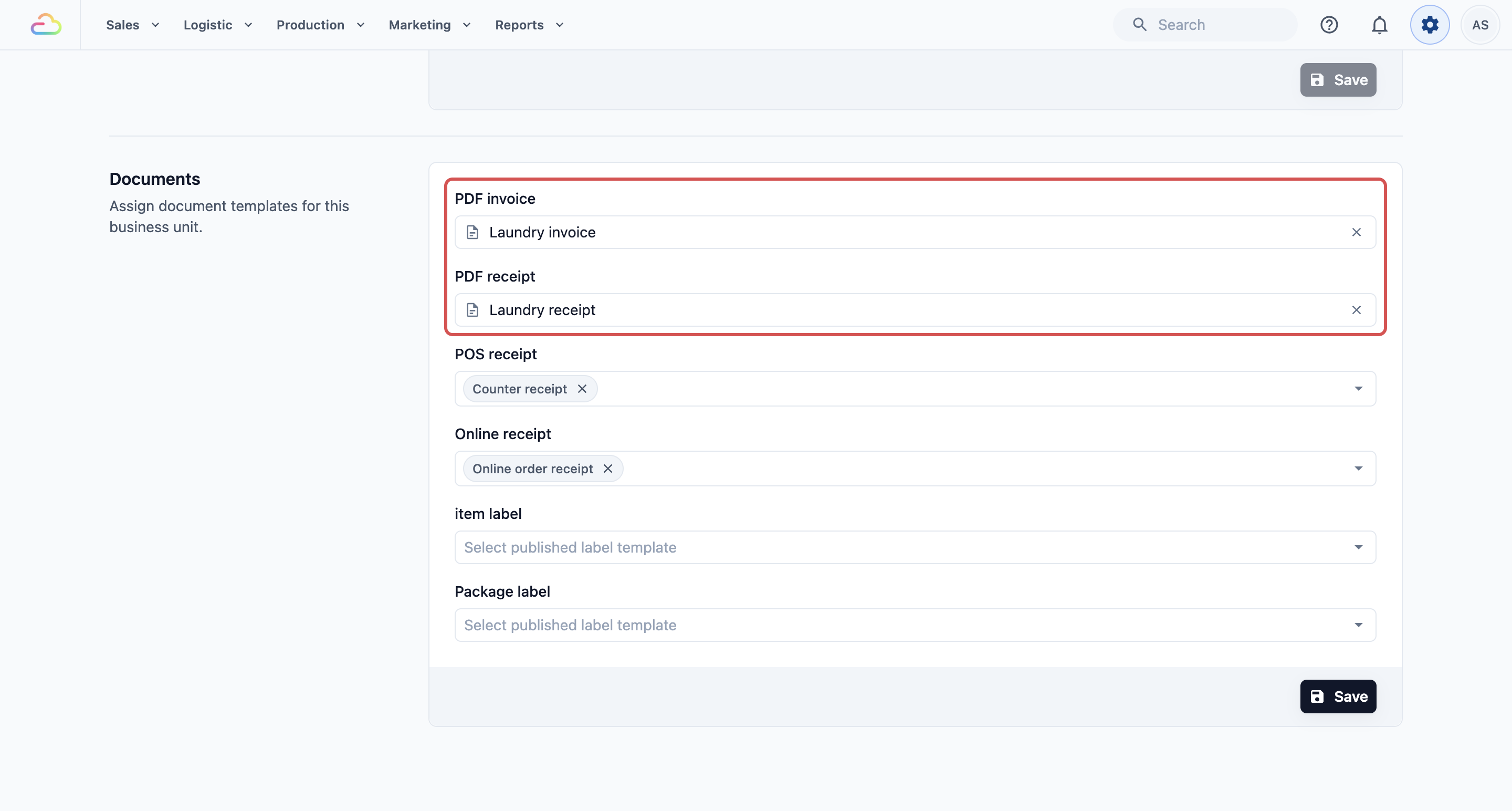
5. Find **PDF documents**.
6. In **PDF invoice**, pick the invoice template.
7. In **PDF receipt**, pick the receipt template.
8. Click Save. You'll see "Document settings updated".
---
## Example setups
- **Sunshine Laundry** kept the ready-made Order Invoice and Order Receipt. They only changed "Thank you for your business!" to "Thank you! Collect within 30 days."
- **Ah Hock Aircon Services** made a second invoice called "Aircon invoice" with a note about their 90-day service warranty. Their Aircon business unit uses it, while their Laundry unit keeps the standard one.
- **Mei Ling Alterations** removed the Pay online link because all their customers pay at the counter.
---
## What your customers see
Your customers get a 1-page PDF, usually attached to an email. It has your logo, your company details, their name, the items and the totals. The file is named after the **Document title**, such as "Invoice_10234".
---
## FAQs
**Do I need a different PDF for each business unit?**
>No. Several business units can use the same template. Make a second one only if the wording must differ.
**Where does my company address come from?**
>From your Company settings. Change it there, and every PDF picks up the new details.
**Can I delete a PDF template?**
>Only one that nothing is using. If you see "The template is currently using by Laundry, please remove the template before deleting it.", pick another template for that business unit first.
**Does changing the template change old invoices?**
>A PDF you have already sent or downloaded does not change. EasyBiz makes a new PDF each time one is opened or sent, so if you open or resend a past order after saving, that new PDF uses the new layout and your current company details. The order's items and amounts stay the same.
**Can staff open the invoice on the POS?**
>Yes. The order screen on the POS can show the **Invoice PDF**. If you see "No invoice template is configured for this business unit.", pick one in the Documents tab.
---
## What's next
Your PDFs are ready. Next, set up the emails that carry them to your customers. See [Setting Up Your Customer Emails](/docs/setting-up-your-customer-emails).