## Before You Start
You need an Online Store or a Mobile App. The Announcement bar shows on both. The footer is on the Online Store only. See [Adding a Store and Turning On the Online Store or Mobile App](/docs/adding-a-store-and-turning-on-online-store-or-mobile-app).
## Open the Store Editor
1. Go to ⚙️ Settings › **Sales channels** › Online Store & Mobile App.
2. On your store, click Edit Online Store & Mobile App. With only one product on, it says Edit Online Store or Edit Mobile App.
---
## Announcement Bar
The bar sits above the header on your Online Store, and at the top of the page in your Mobile App. It is hidden while customers book, pay or sign in.
1. Under **Navigation**, click Announcement bar.
2. Type your **Message**, up to 120 characters. For example: "Closed 9–12 Feb for Chinese New Year. Orders resume 13 Feb."
3. Under **Opens**, choose the page the bar opens when tapped, or leave it on **No link**.
4. To show it only for a while, tick **Show only between two dates** and pick the **First and last day**. The bar shows from the first day to the end of the last day.
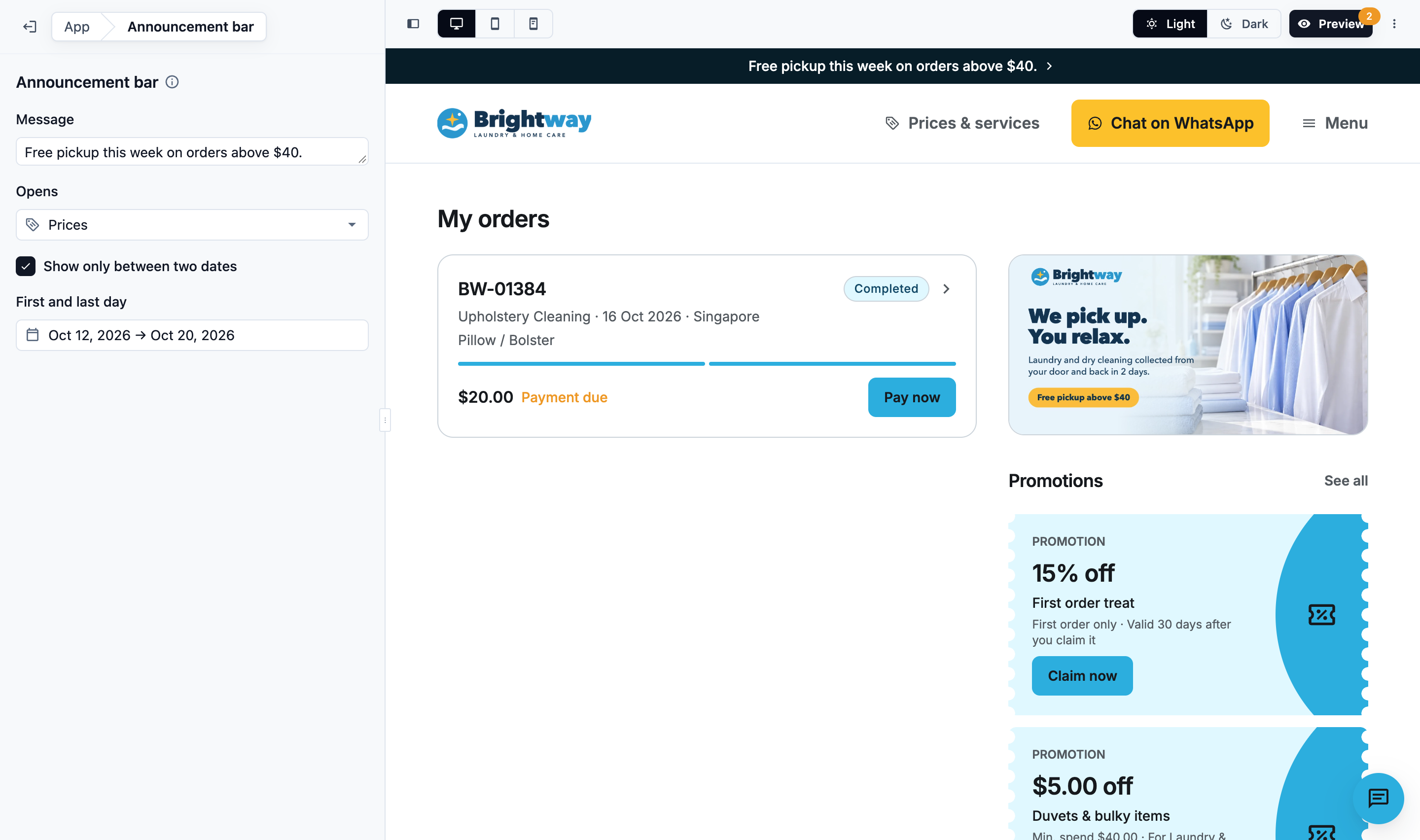
Each change saves by itself and shows in the editor's preview straight away. The preview shows the bar whatever its dates.
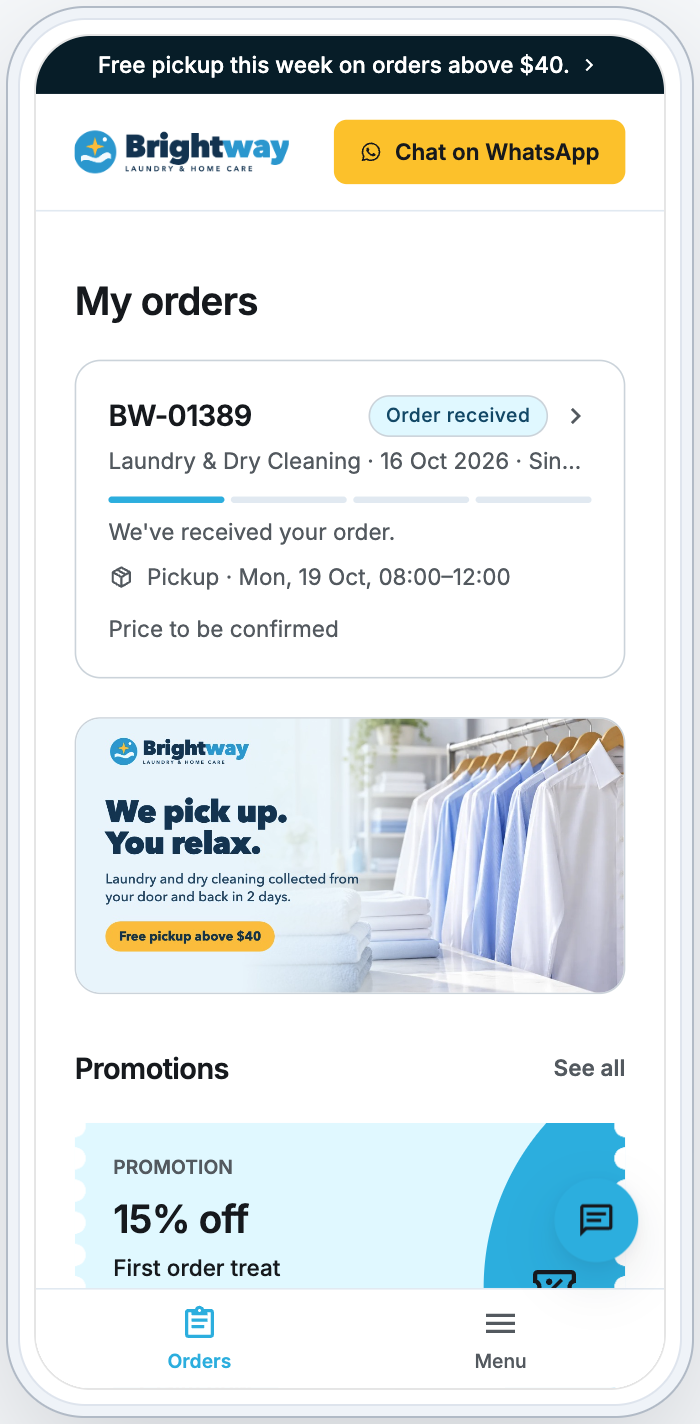
To remove the bar, clear the message.
---
## Footer
The footer is at the bottom of every page of your Online Store. It always shows your copyright line, like "© 2026 Brightway Laundry. All rights reserved.", and the language picker. A store that sells in more than one country also shows the customer's country beside the language picker, so they can change it. You can add two links:
| Field | What customers see | What to enter |
| --- | --- | --- |
| Privacy policy link | A **Privacy policy** link | A page on your own website, like yourwebsite.com/privacy |
| Terms link | A **Terms** link | A page on your own website, like yourwebsite.com/terms |
1. Under **Navigation**, click Footer.
2. Enter one or both links. You can leave out `https://`; EasyBiz adds it.
A link left empty is not shown. A link must be a secure web page (https), or the field says "Enter a web page address, like yourwebsite.com/privacy".

Once your Mobile App is in the App Store or Google Play, the footer also shows its download badges. They link to your app's listing. You don't need to publish for them.
The footer is on your Online Store only. The Mobile App has no footer; its customers change language, and country in a store that sells in more than one, on their **My account** page.
On your Online Store and in your Mobile App, the **Menu** ends with a small **Powered by EasyBiz Cloud** line and the version number. It helps EasyBiz support when you report a problem.
---
## Languages Your Customers See
Your Online Store and Mobile App come in **English** and **简体中文**. There is nothing to set up.
- The store opens in the customer's phone or browser language. Any other language opens in English.
- On the Online Store, customers switch language with the picker in the footer.
- In the Mobile App, they switch it under **Language** on their **My account** page.
- The store remembers their choice on that phone or browser.
EasyBiz translates its own words, like page names, buttons, steps and messages. You can't rename pages. Text you wrote, such as your announcement, service names and contact greeting, shows exactly as you wrote it.
---
## Make It Live
Your changes are saved, but customers see them only after you Publish:
1. Click Preview and check the store.
2. Click Publish.
The Announcement bar goes live on the Online Store and the Mobile App when you publish each one. See [Edit, Preview and Publish Your Online Store](/docs/edit-preview-and-publish-your-online-store).
---
## FAQs
**Can I schedule the bar for a sale weekend?**
> Yes. Tick **Show only between two dates** and pick the first and last day. Customers see it only on those days. Publish before the first day.
**Can I show the bar on some pages only?**
> No. It shows on every page except while customers book, pay or sign in.
**Does the bar show in my Mobile App if I have no Online Store?**
> Yes. The bar shows in the Mobile App too, at the top of the page. Publish the Mobile App to make it live.
**Can I turn Chinese off?**
> No. Both languages are always available, and each customer picks their own.
**Can I set my own font or footer colour?**
> No. Your store's colours come from your Brand Profile, and it uses EasyBiz's standard typeface. See [Creating and Assigning a Brand Profile](/docs/creating-and-assigning-a-brand-profile).
---
## What's Next
Let customers message you from any page: [Setting Up the Contact Widget and Live Chat](/docs/setting-up-the-contact-widget-and-live-chat).