## Before You Start
You need an Online Store or Mobile App. See [Adding a Store and Turning On the Online Store or Mobile App](/docs/adding-a-store-and-turning-on-online-store-or-mobile-app).
- **Live chat** needs nothing else. Chats arrive in your Inbox.
- **WhatsApp** needs a WhatsApp number. If your WhatsApp is connected to EasyBiz, the widget fills in that number for you. See [Connect & Configure WhatsApp](/docs/connect-and-configure-whatsapp).
---
## Set Up the Contact Widget
1. Go to ⚙️ Settings › **Sales channels** › Online Store & Mobile App.
2. On your store, click Edit Online Store & Mobile App. With only one product on, it says Edit Online Store or Edit Mobile App.
3. Under **Navigation**, click Contact widget.
4. Type a **Greeting**, or leave it empty to use "Hi there 👋 How can we help you today?".
5. Switch on Live chat, WhatsApp, or both.
6. If you switched on WhatsApp, check the **WhatsApp number**. When none was saved, the widget fills in the number connected to your Inbox, so those chats arrive there too.
7. Drag the two rows into the order you want customers to see them.
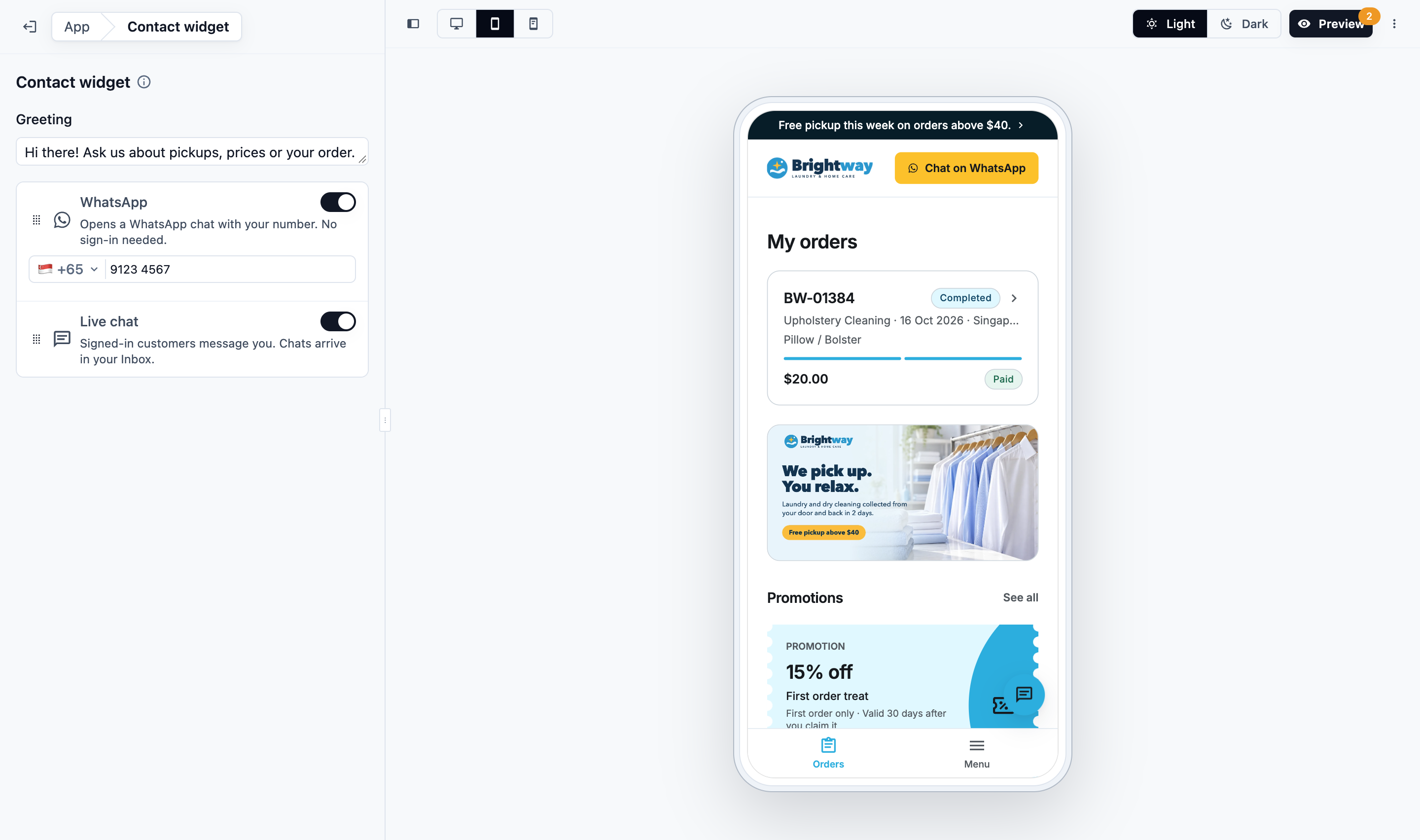
Each change saves by itself and shows in the editor's preview straight away.
| What you switch on | What the button does |
| --- | --- |
| Live chat only | Opens the chat |
| WhatsApp only | Opens WhatsApp with your number. No sign-in needed |
| Both | Shows your greeting, then **Chat with us** and **Chat on WhatsApp** in your order |
| Neither | No button is shown |
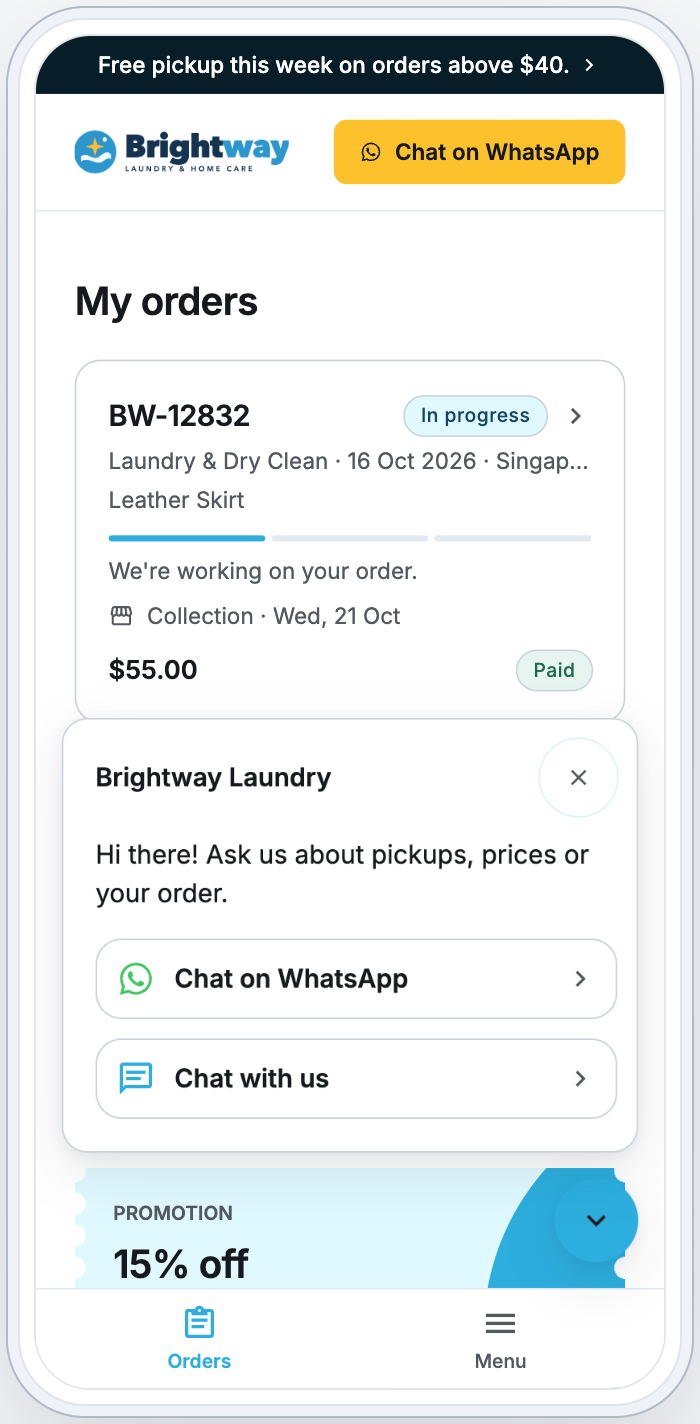
The button is hidden while customers book, pay or sign in, so it never covers those buttons.
---
## How Live Chat Works
1. A customer taps the button and chooses **Chat with us**. If they are not signed in, they sign in first, then the chat opens.
2. Their message arrives in your Inbox, under **New** and **All**, marked with a web icon.
3. Your team replies from the Inbox, as with any other chat. See [Managing Conversations Inbox](/docs/managing-conversations).
4. The customer sees the reply in the chat.
### Reply Status
- **When the chat is closed:** the button shows the number of new replies and a preview of the latest one.
- **In your Inbox:** the ticks on a reply work like WhatsApp's.
- **Delivered** means the customer's store or app showed the reply.
- **Read** means they opened the chat.
### Push Notifications
If customers turn on notifications, they get each reply as a push notification in the Mobile App or their browser. Tapping the notification opens the chat.
- The store asks them about notifications the first time they send a message.
- They can switch them off under **My account** › **Notifications** › **Messages from** your store.
- On an iPhone, browser notifications only work after the customer adds your store to their Home Screen.
### Email Reminders
If your reply is still unread after about 10 minutes, EasyBiz emails the customer a link that opens the chat.
- Further replies before they open the chat don't send more emails.
- Once they have opened the chat, the next reply they leave unread can send a new email.
- If they last wrote from the Mobile App, the email asks them to open the app instead.
- Customers with no email on their account don't get an email.
WhatsApp opens outside your store, in the WhatsApp app or WhatsApp Web, with "Hi, I have a question." typed in. Those chats reach your Inbox only if that number is connected to EasyBiz.
---
## Make It Live
Your changes are saved, but customers see them only after you Publish:
1. Click Preview and try the button.
2. Click Publish.
The widget goes live on the Online Store and the Mobile App when you publish each one. See [Edit, Preview and Publish Your Online Store](/docs/edit-preview-and-publish-your-online-store).
---
## FAQs
**Why must customers sign in to use Live chat?**
> So your team knows who they are talking to, and the customer can see your reply later. WhatsApp needs no sign-in.
**Who on my team sees these chats?**
> Everyone who can open the Inbox, as with your WhatsApp chats.
**Can I use a different WhatsApp number from the one connected to my Inbox?**
> Yes. Type any number in the **WhatsApp number** field. Chats to a number that is not connected to EasyBiz do not reach your Inbox.
**Does the button show on every page?**
> Yes, except while customers book, pay or sign in.
**How many reminder emails does a customer get?**
> One for each time your replies go unread. Opening the chat resets it, so a later unread reply can send another.
---
## What's Next
Learn more about your team inbox: [Managing Conversations Inbox](/docs/managing-conversations).