## Before you start
- Decide the plan: its fee, how long it lasts, and the percent off members get.
- To sell it online, you need an Online Store or Mobile App that takes an online payment method, such as card or PayNow. See [Taking Payments on Your Online Store](/docs/payments-on-your-online-store).
---
## How it works
- While the membership runs, the member gets a percent off their orders, at your counter and online.
- A customer holds one membership at a time.
- Customers pay the fee to join, at your counter or online. Each payment adds one term.
- Nothing renews by itself. Customers renew online, or your staff renew it.
- A plan with no fee isn't sold. Your staff add it to a customer at no charge, for example for staff or VIP customers.
---
## Create a plan
1. Click the ⚙️ Settings icon, then under **Marketing settings**, click Membership.
2. Click Add Plan.
3. Fill in the fields below.
4. Click Add Plan at the bottom of the form to save it. When you edit a plan later, the button says Save.
| Field | What it means |
|---|---|
| Plan name | What customers and staff see, for example "Gold" |
| Term (months) | How long one term lasts, for example 12. Leave it empty for a membership with no end date |
| Fee | One fee for each currency your markets use. Leave a currency empty to not sell the plan in it. A plan with no fee is added by staff at no charge |
| Sell at the POS | Staff sell the plan on the POS **Membership** page. It can be switched on once the plan has a fee |
| Sell online | Customers join and pay on your Online Store and Mobile App. It can be switched on once the plan has a fee |
| Terms (optional) | Shown to the customer before they pay. It appears once the plan has a fee |
| Benefits | What members get. See below |
**Sell at the POS** and **Sell online** both start off.
### Benefits
Each benefit is a **Percent off**, up to 100%, with where it applies:
- **Business units:** leave empty for every business unit. When you choose a unit, you can also choose some of its service options. Then only those services get the discount, and other lines in the order are charged in full.
- **Sales channels:** leave empty for every shop and online channel.
Click + Add Benefit to add another one, for example a different percent off for another business unit. When more than one benefit fits an order, the member gets the one that takes the most off.
Each Online Store is its own sales channel. If you limit a benefit to some sales channels, include your store's channel, or members won't get that discount on your store.
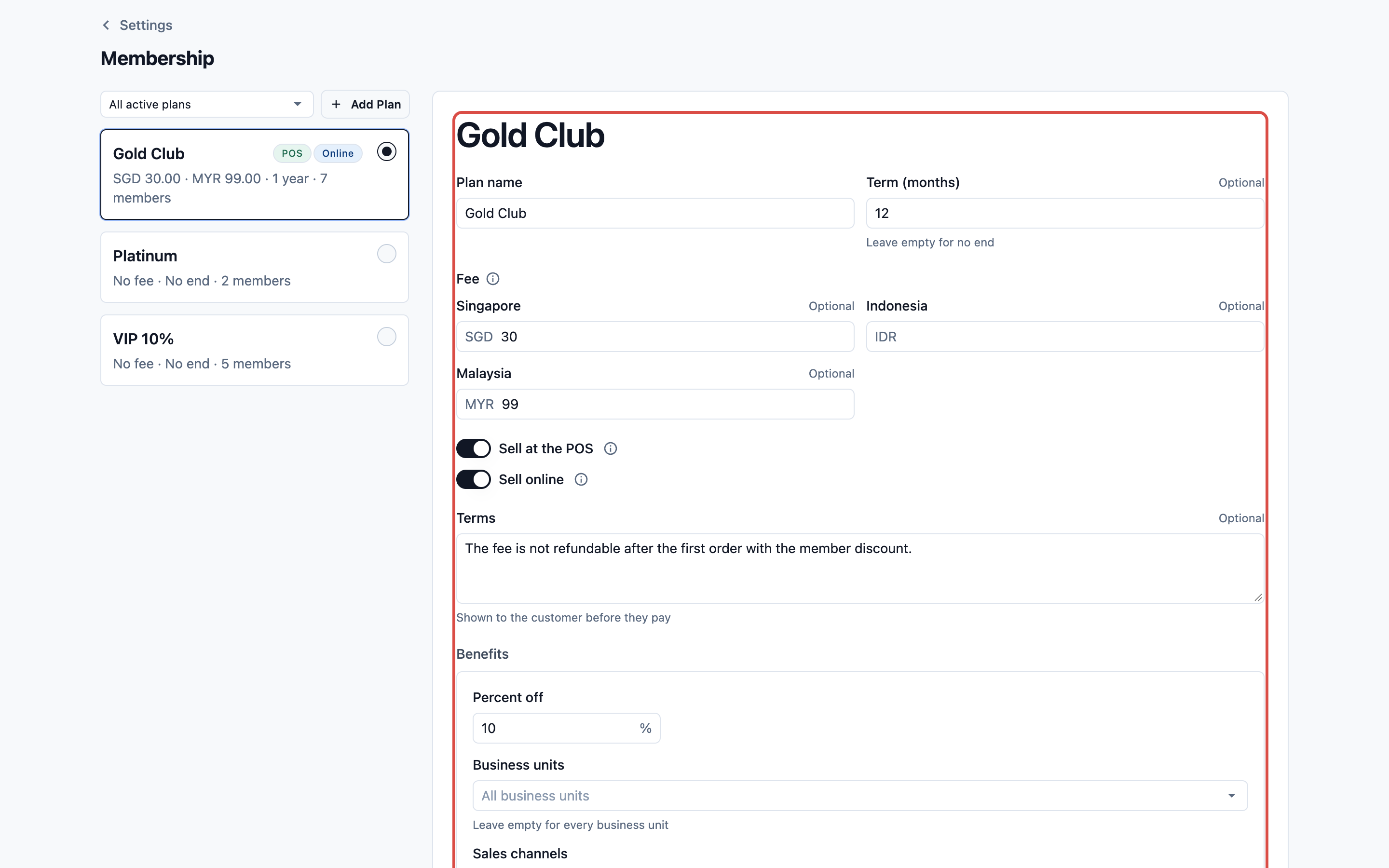
Brightway Laundry creates **Gold**: Term 12 months, fee $60, 10% off the Laundry & Dry Cleaning business unit, every sales channel, with Sell at the POS and Sell online on. Mei joins on 1 Oct 2026, so she is a member until 1 Oct 2027. She renews on 20 Sep 2027, and her membership now runs until 1 Oct 2028: renewing early loses nothing.
---
## Sell it on your Online Store and Mobile App
1. In the plan, turn on **Sell online** and save.
2. Go to ⚙️ Settings › **Sales channels** › Online Store & Mobile App.
3. On the store card, click Edit Online Store. The button says Edit Mobile App or Edit Online Store & Mobile App when those are on.
4. Under **Pages**, click Membership.
5. Turn on **Sell memberships**.
6. Optional: open the **Orders** page, click Add card under **Cards** and choose **Membership**. It shows a plan to join to customers who are not members.
7. Preview your store, then publish it. See [Edit, Preview and Publish Your Online Store](/docs/edit-preview-and-publish-your-online-store).
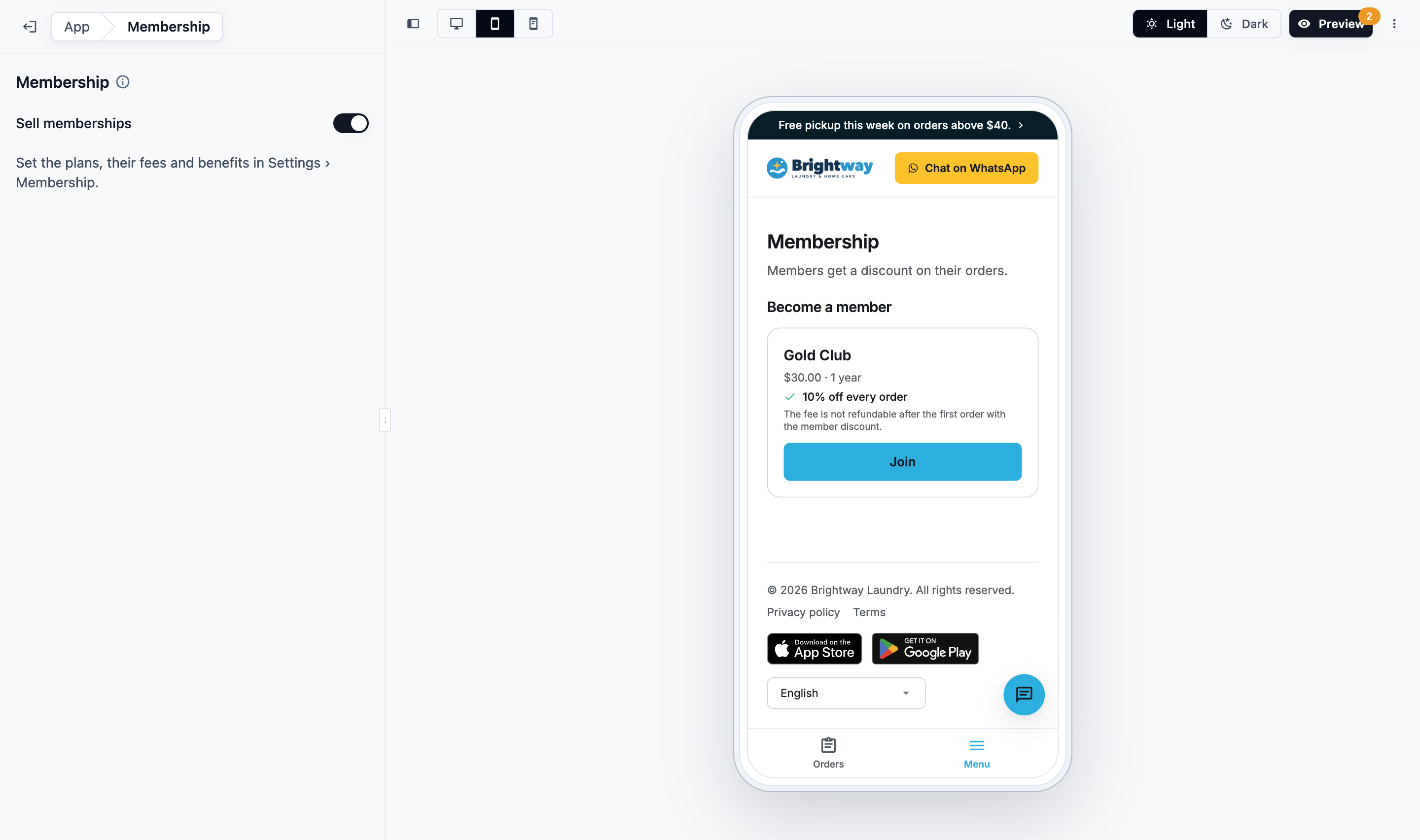
The Membership page lists the plans with **Sell online** on and a fee in the store's currency. Customers pay with an online method from your store's Payment page, or with a saved card. Store credit and your custom methods can't pay for a membership. If your store has no online method, the page tells customers they can join at the shop.
In your store's Preview, you can see the Membership page, but **Join** takes no payment there.
---
## What your customers see
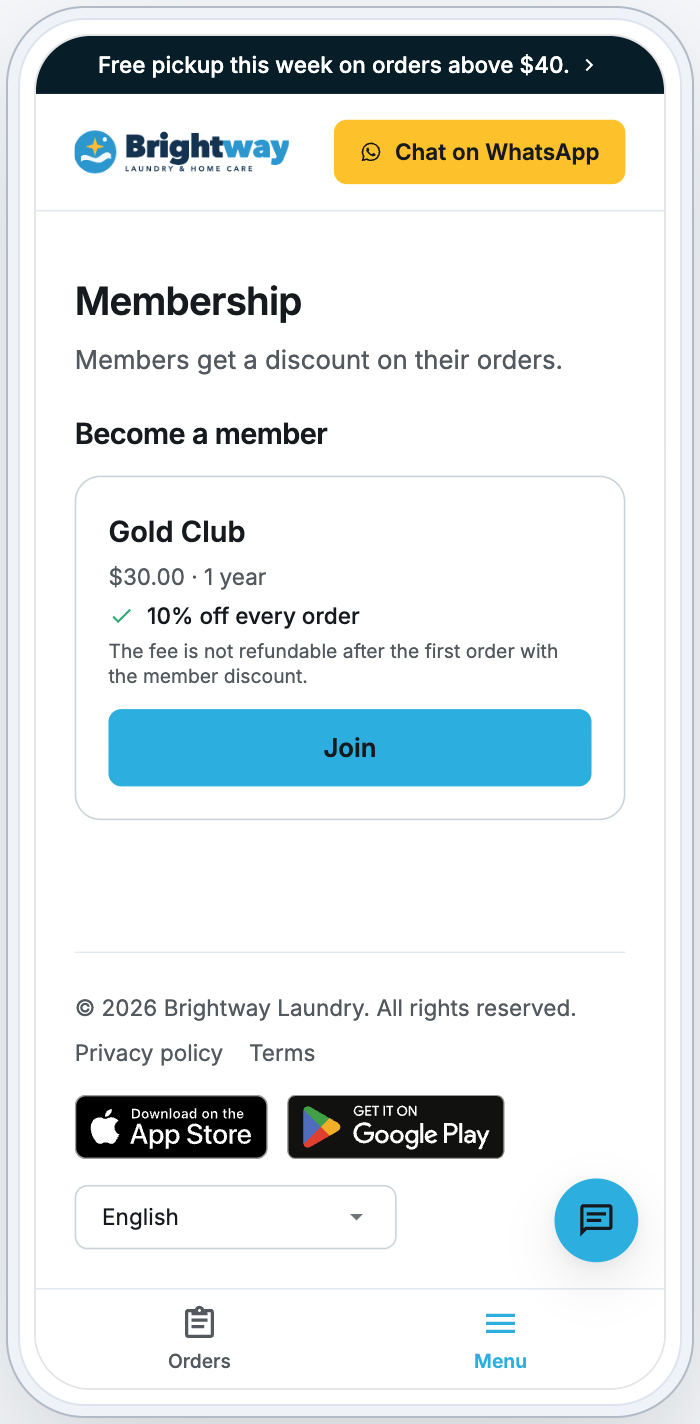
1. Customers open **Membership** from your store's menu. They sign in to see the page.
2. Under **Become a member**, each plan shows its fee and term, what members get (for example "10% off Laundry & Dry Cleaning"), your terms and Join.
3. **Join** opens the payment page, which says when the membership starts, for example "Starts today, for 1 year".
4. Once it is paid, they see **You're a member**. The Membership page then shows their member card: the plan, **Active**, what they get and "Valid until" its end date.
5. When they book, the review shows the discount, for example "Gold member discount (10%)", and takes it off the total. On a booking priced after pickup, it says the discount comes off the final bill.
### Renewing
- In the last 30 days of a membership, the card says when it ends, with Renew and the price. Renewing adds a term after the current end date, so renewing early loses nothing.
- After it ends, the card says **Expired** and the date it ended, with Renew. Paying then starts a new membership from that day.
- If the plan isn't sold online any more, the card says "Ask the shop to renew."
- A membership with no end date has nothing to renew.
A member who wants a different plan sees "You're a member of Gold. Ask the shop to change your plan."
---
## Coupons and member discounts
A member can also use a coupon on the same order:
- A **Fixed Amount** coupon comes off on top of the member discount.
- A **Percentage** coupon doesn't: only one percentage discount applies to an order, so the member gets the discount that takes more off. A coupon that isn't used stays in their account.
Neither discount takes the total below the minimum order. See [Setting Up Coupons and Online Promotions](/docs/setting-up-coupons).
---
## Sell and manage memberships as staff
**At the POS:** staff sell a plan on the **Membership** page. The customer is a member from the day they pay.
**In the Console:** open the contact. In the **Loyalty** section, click **Membership**. There you can:
- Add membership: choose a plan. A plan with a fee opens the sale with a payment, as on the POS. A plan with no fee is added straight away.
- Renew: adds a term after the current end date.
- End membership: the member discount stops now. The fee isn't refunded.
- **History**: every membership the customer has had, with each term and its fee. To refund the latest fee, click ⋯ › Refund on it.
Refunding a whole fee ends the membership. If that fee paid for a renewal that hasn't started yet, only that term is taken back. A partial refund leaves the membership running.
---
## Change, archive or delete a plan
Open the plan in the list, change it and click Save. Your changes apply to later sales and renewals. Customers who are already members keep the plan as they bought it until they renew.
To stop selling a plan:
- **Delete** removes a plan no customer has ever had. It can't be undone.
- **Archive** is for a plan customers have had. It can no longer be sold or added, and its members keep it until it ends. You can unarchive it later.
---
## FAQs
**Can a customer have two memberships?**
>No. A customer holds one membership at a time. To move a member to another plan, end their current membership first, then add the new one.
**Does a membership renew by itself?**
>No. Customers renew on the Membership page, or your staff renew it from the contact or sell it again at the POS.
**What happens when a membership ends?**
>The discount stops after its last day. The customer can renew or join again, online or at your counter.
**Why doesn't a member get their discount on my Online Store?**
>Check the plan's benefits. Their **Sales channels** must be empty or include your store's channel, and their **Business units** must be empty or include the unit the customer books.
---
## What's next
To choose how customers pay on your Online Store and Mobile App, see [Taking Payments on Your Online Store](/docs/payments-on-your-online-store).