## Before You Start
You need 2 things ready before you choose your documents:
1. Your receipt printer and label printer connected to the POS. See [Connecting Your Printers to the POS](/docs/connecting-your-printers-to-the-pos).
2. Your receipt, PDF and label templates created and published. A template is the design of a document: what it shows and where. Only published templates can be chosen here. See [Customising Invoice Templates](/docs/customise-invoice-templates).
---
## What the Documents tab is
The Documents tab is where you choose which design each business unit uses for its paperwork. It has 3 sections:
- **Terminal receipts:** The receipts printed on your receipt printer.
- **PDF documents:** The invoice and receipt files sent to your customers.
- **Labels:** The tags and bag labels printed on your label printer.
Each section has its own Save button. Saving one section doesn't change the others.
It helps you:
- Print the right terms for each kind of service, without staff picking a design.
- Send customers a tidy, branded invoice and receipt.
- Tag every piece, so nothing gets mixed up in production.
- Label every bag, so the right order goes back to the right customer.
---
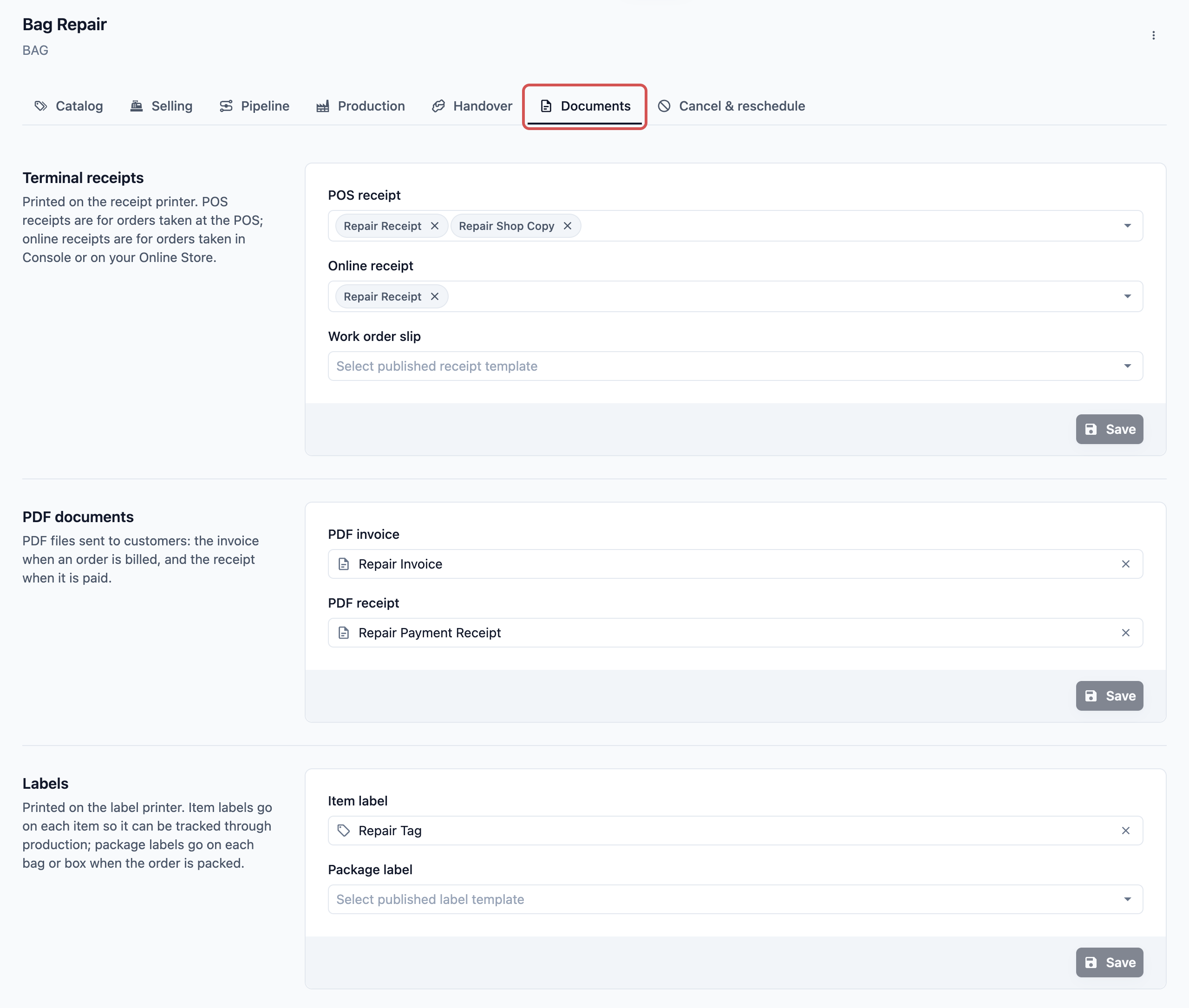
## Open the Documents tab
1. Go to :gear: Settings > Business Units.
2. Click the business unit.
3. Click the Documents tab.
---
## Terminal receipts
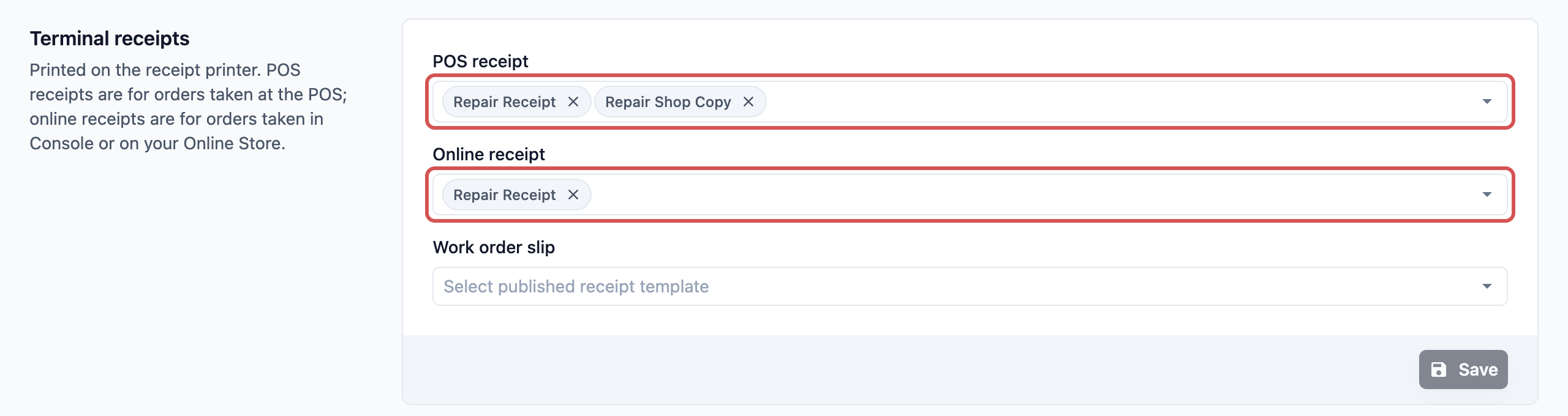
Terminal receipts are printed on your receipt printer. There are 2 fields:
- **POS receipt:** Used for orders your staff take at the counter on the POS.
- **Online receipt:** Used for orders taken in Console or booked on your Online Store.
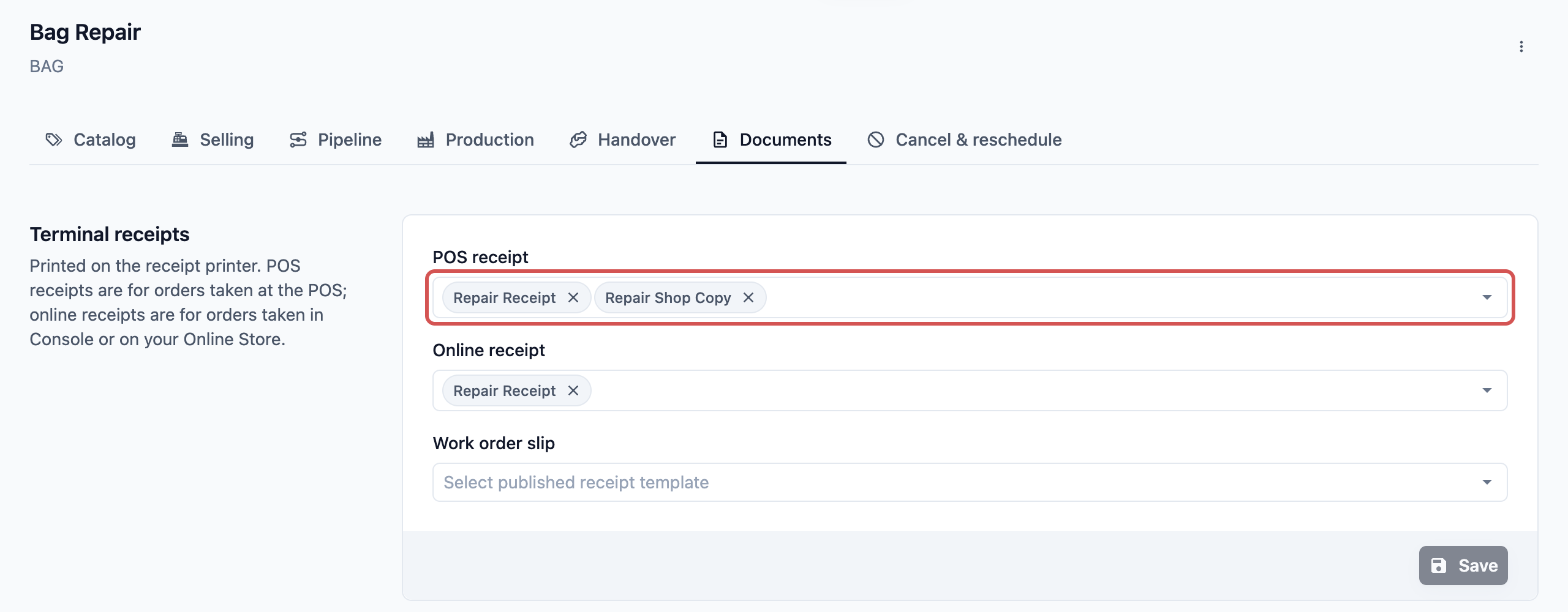
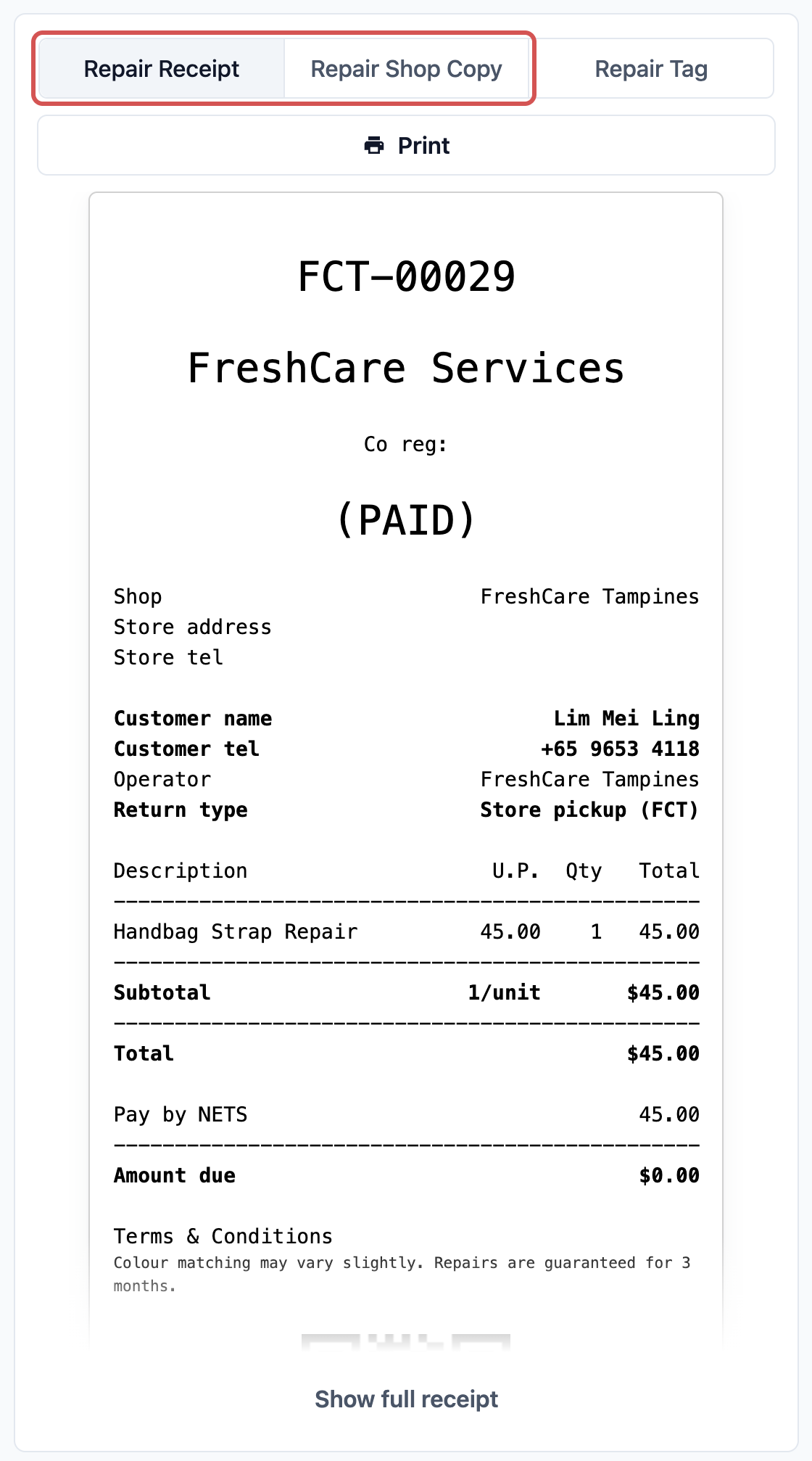
You can pick more than one receipt in each field. For example, a customer copy and a shop copy. On the POS, each receipt you pick appears as its own tab when staff open the order to print.
**Can I skip this?** If a field is empty, orders of that kind get no receipt. When staff try to print one, the POS shows "No customer receipt is configured for this business unit."
To set it up:
1. In the **Terminal receipts** section, click **POS receipt**.
2. Pick one or more receipts from the list.
3. Click **Online receipt** and pick one or more receipts.
4. Click Save.
You see "Document settings updated".
---
## PDF documents
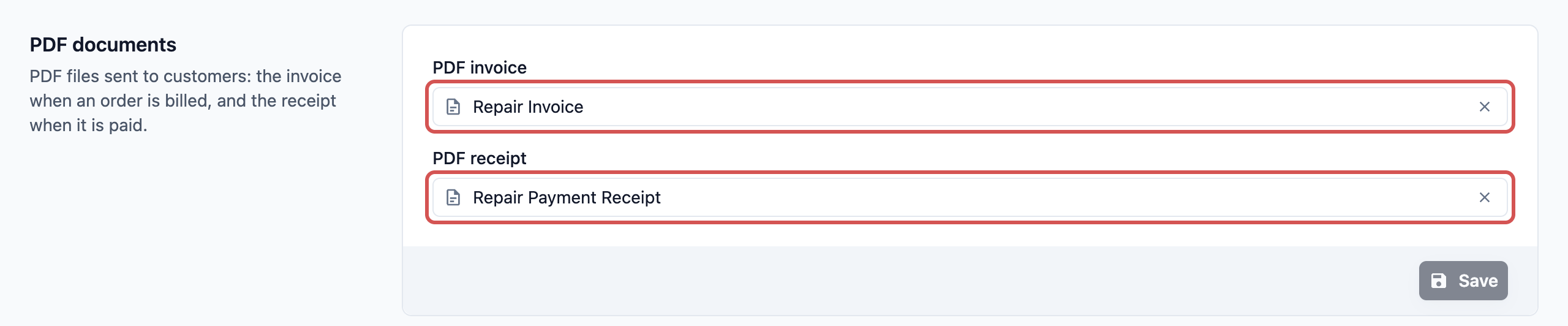
PDF documents are files your customers receive on their phone or computer. There are 2 fields:
- **PDF invoice:** Sent when an order is billed, so the customer knows how much to pay.
[4:32 PM]- **PDF receipt:** Sent when the order is paid, as proof of payment.
**Can I skip this?** Yes. If a field is empty, EasyBiz uses its standard invoice or receipt design. Pick your own only if you want your logo, terms or layout on it.
To set it up:
1. In the **PDF documents** section, click **PDF invoice** and pick your invoice.
2. Click **PDF receipt** and pick your receipt.
3. Click Save.
To go back to the standard design, clear the field and click Save.
---
## Labels
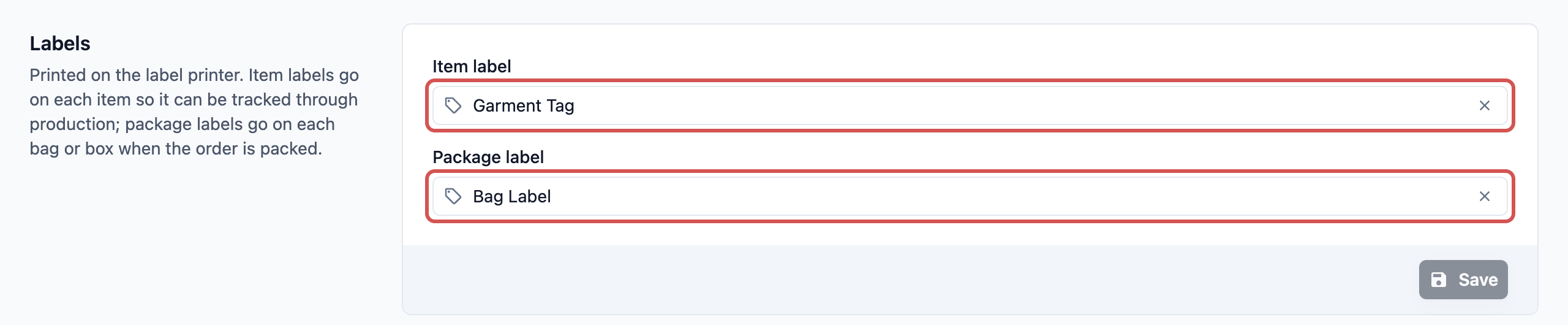
Labels are printed on your label printer. There are 2 fields:
- **Item label:** A tag for each piece, such as each shirt in a laundry load. It lets your staff track every piece through production.
- **Package label:** A label for each bag or box when the order is packed. It shows which order the bag belongs to.
You pick one design for each field.
**Can I skip this?** If **Item label** is empty, staff can't print tags for this business unit. The POS shows "No item label is configured for this business unit." If **Package label** is empty, no bag labels are printed.
To set it up:
1. In the **Labels** section, click **Item label** and pick your tag design.
2. Click **Package label** and pick your bag label design.
3. Click Save.
---
## Example: one shop, 2 kinds of receipts
CleanFast Laundry also repairs handbags. It has 2 business units, Laundry and Bag Repair. The owner wants each receipt to show the right terms.
**Laundry business unit**
- **POS receipt:** "Laundry Receipt", with collection terms: "Please collect within 30 days."
- **Online receipt:** "Laundry Online Receipt".
- **PDF invoice and PDF receipt:** Left empty, so the standard designs are used.
- **Item label:** "Laundry Tag", one per garment.
- **Package label:** "Laundry Bag Label".
**Bag Repair business unit**
- **POS receipt:** "Repair Receipt" and "Repair Shop Copy", with repair terms: "Colour matching may vary slightly. Repairs are guaranteed for 3 months."
- **Online receipt:** "Repair Receipt".
- **PDF invoice:** "Repair Invoice", with the shop's logo.
- **Item label:** "Repair Tag".
- **Package label:** Left empty, because each bag goes back in its own dust bag.
Here's what the staff see on the POS:
1. A customer drops off a handbag. The staff member takes the order in the Bag Repair business unit and charges it.
2. She opens the order to print. She sees 2 tabs, "Repair Receipt" and "Repair Shop Copy", plus the "Repair Tag".
3. She prints the customer's receipt with the repair terms, the shop copy and the tag for the bag.
4. Later, a laundry customer drops off 12 shirts. The receipt shows the collection terms instead, and 12 Laundry Tags print.
---
## FAQs
**I changed my label design, but the POS still prints the old one. Why?**
>Changes to a template stay in a draft until you publish them. Open the template in Templates and publish it again. If the POS still shows the old design, close and reopen the POS.
**Why did the POS print 12 tags for one laundry load?**
>The POS prints one tag for every piece. When staff key in the number of pieces at the Enter Pieces step, that number decides how many tags print. See [Asking for Details on Each Item](/docs/setting-up-line-item-steps).
**Do the PDFs go out on WhatsApp or email by themselves?**
>Only if your automatic invoice and receipt messages are switched on. This tab picks the design. Your messages decide whether the file is sent, and on which channel. See [Automatic Order Notifications Explained](/docs/automatic-order-notifications-explained).
**Why do orders from my corporate customers print a different receipt?**
>Orders taken for a B2B agent use the receipts and labels set on that agent, not the ones on the business unit. See [Add an Agent](/docs/add-an-agent).
**Why can't I find my new template in the list?**
>The list only shows published templates. Labels are also split by type, so a bag label design doesn't appear under Item label. Publish the template, then come back to the Documents tab.
---
## What's Next
You've now chosen the receipts, PDF documents and labels for this business unit, so every order prints and sends the right paperwork. There's one tab left. In the next article, you'll decide whether customers can cancel or move a booking by themselves, and up to which stage your staff can cancel an order. Continue to [Letting Customers Cancel or Move a Booking](/docs/setting-up-cancel-and-reschedule).