## Before You Start
Make sure you can open **Settings → CRM → Deal Pipeline**. If you cannot, ask the person who manages staff access.
Decide which steps your team follows when handling enquiries. Staff accounts must already exist if you want to choose **Stage Type Owners**.
You do not need any deals to set up your pipeline.
Read [Get started with deals](/docs/get-started-with-deals) first.
---
## What is a sales pipeline?
A **sales pipeline** is the series of steps your team follows to turn a customer enquiry into a sale. A **stage** tells staff how far an enquiry has progressed—for example, whether they are still checking the customer’s needs or waiting for the customer to accept a quote.
A customer asks about cleaning a stained handbag. Staff assess the bag, give a price and wait for the customer’s decision. These are the steps in Maple Bag Care’s pipeline.
The standard stages are **New Enquiry**, **Quoted**, **Won** and **Lost**. Keep them if they suit your shop. Add a stage only when it helps—for example, **Assessment** for bags that need checking before you can quote.
---
## Understand stage names and types
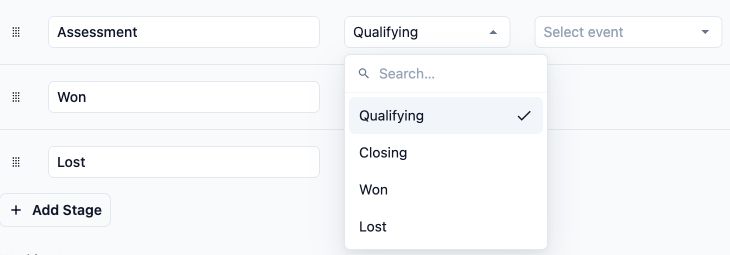
The **Name** is what staff see on the board. The **Type** tells EasyBiz how to handle deals in that stage, including owner assignment and reporting.
| Type | What staff are doing |
| --- | --- |
| **Qualifying** | Checking what the customer needs. |
| **Closing** | Helping the customer decide whether to proceed. |
| **Won** | Recording a successful sale. |
| **Lost** | Recording an enquiry that is not proceeding. |
Several stages can share a type. For example, **New Enquiry** and **Assessment** can both be **Qualifying**.
**Changing a stage’s name does not change its type.** A stage named “Won” must also have the **Won** type to work as a Won stage.
---
## Check before changing an existing pipeline
Your changes affect the whole team’s pipeline.
- **Rename:** Existing deals stay in the stage and staff see its new name. Renaming alone does not remove its automatic movement settings.
- **Reorder:** Existing deals stay in their stages. The column order changes, which can also affect automatic movement.
- **Remove:** Deals are not deleted or moved elsewhere. They lose their matching board column. **Move all deals out before removing a stage.**
- **Change type:** This changes how EasyBiz handles the stage. Do not use it to move or close existing deals.
Check any automatic movement settings before reordering, removing or changing a stage’s type. For help moving deals, see [Keep track of your deals](/docs/keep-track-of-your-deals).
To save, every stage needs a name, and the pipeline must include at least one **Won** stage and one **Lost** stage.
---
## Set up your stages
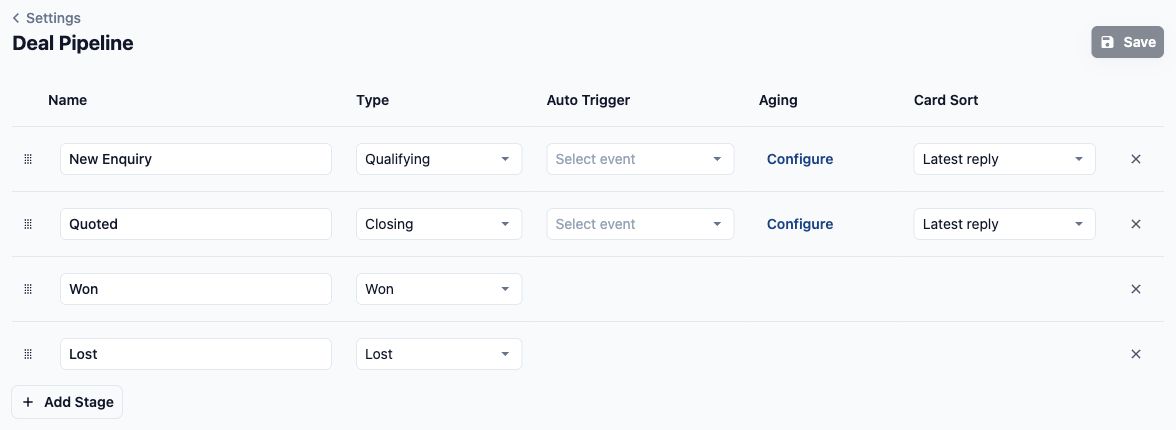
### 1. Open Deal Pipeline settings
1. Open **Settings** in EasyBiz Console.
2. Find the **CRM** section.
3. Select **Deal Pipeline**.
4. Review the existing rows before making changes.
### 2. Choose a simple set of stages
For Maple Bag Care, the owner chooses these five stages:
| Stage name | Type | What staff should understand |
| --- | --- | --- |
| **New Enquiry** | Qualifying | The customer has asked about a service. |
| **Assessment** | Qualifying | Staff need to check the bag's condition and suitable treatment. |
| **Awaiting Customer Decision** | Closing | Staff have explained the service and price and are waiting for a decision. |
| **Won** | Won | The enquiry has become a sale. |
| **Lost** | Lost | The enquiry is no longer proceeding. |
This gives staff a separate place for assessments without making the board complicated.
### 3. Edit the stage rows
1. Edit **Name** on an existing row to change its displayed wording.
2. Select the appropriate **Type**.
3. Select **Add Stage** if you need an extra step, then enter its name and type.
4. Drag the rows into the order your team follows. For this example, place **Assessment** between **New Enquiry** and **Awaiting Customer Decision**.
5. Keep **Won** and **Lost** at the end.
When adapting an existing pipeline, rename suitable rows instead of removing and recreating them. This keeps existing deals linked to their stages.
### 4. Review automatic movement and card order
For **Qualifying** and **Closing** stages, check these two settings:
**Auto Trigger** moves a deal forward automatically when a selected event happens. It is set on the stage the deal leaves, so stage order matters. For a simple new setup, you can leave it blank. Review existing triggers before changing them.
**Card Sort** controls which deals appear first in a column:
- **Latest reply:** Most recent replies first.
- **Oldest in stage:** Deals waiting longest in that stage first.
- **Newest in stage:** Deals that entered the stage most recently first.
Maple Bag Care chooses **Oldest in stage** for Assessment to help staff notice waiting enquiries.
### 5. Review the other settings
Keep the current settings if they suit your shop.
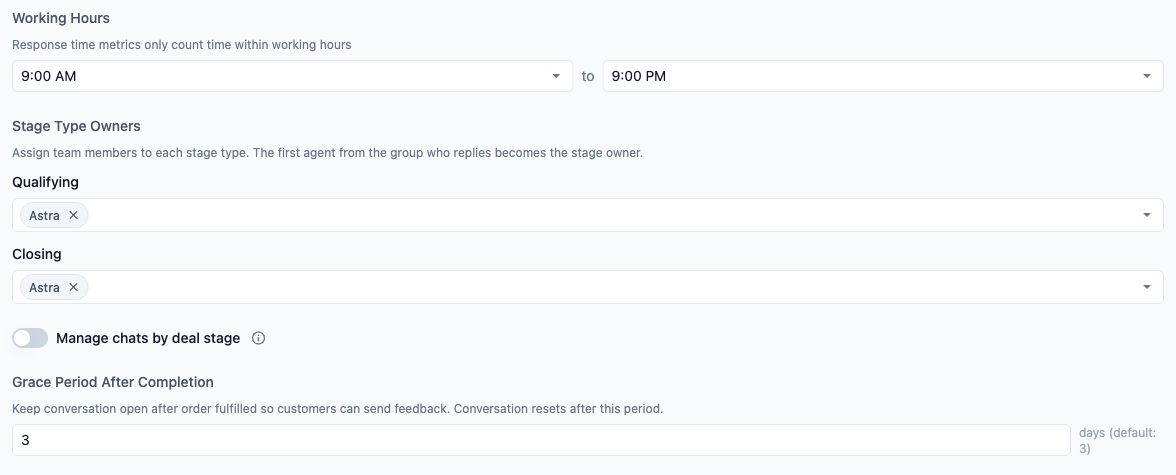
- **Working Hours:** Set when staff handle enquiries. EasyBiz uses these hours to calculate response times. Customers can still message outside these hours.
- **Stage Type Owners:** Choose eligible staff for Qualifying and Closing. The first eligible person to reply becomes the stage owner. Stages with the same type share this staff group.[3:20 PM]- **Aging:** Select **Configure** to group deals by how long it has been since the customer replied. **Auto Lost** can also mark inactive deals as Lost automatically. Leave it off if you want staff to decide when to close each enquiry.
- **Grace Period After Completion:** Choose how long a conversation stays open after an order is fulfilled. The displayed default is **3 days**, giving customers time to send feedback.
For this basic setup, Maple Bag Care does not add ageing groups or enable Auto Lost.
### 6. Save and check the board
1. Check that every stage has a name and the correct type.
2. Check the order of the rows and any existing Auto Trigger settings.
3. Select **Save** on the settings page.
4. Look for the **Deal stages updated** confirmation.
5. Open **Deals** and check the board.
For Maple Bag Care, the board should show:
**New Enquiry → Assessment → Awaiting Customer Decision → Won → Lost**
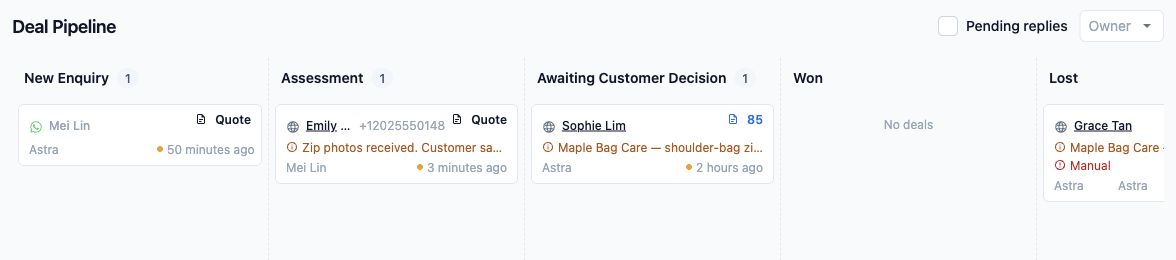
Staff now share the same stage names and order. Renaming or reordering stages does not itself move existing deals through the pipeline.
Customers do not see this internal settings screen or deals board. However, automation connected to deals can affect customer conversations, so review those settings before changing them.
---
## FAQs
**Will renaming a stage affect automation?**
>Renaming an existing saved stage keeps its connection to existing deals and configured triggers. Changing its type, changing its position or deleting and recreating it is a different change and needs a separate automation review.
**Does removing a stage delete its deals?**
>No. However, it does not move them into another stage either. Move the deals first so they remain visible in the appropriate board column.
**Can everyone who handles deals change the pipeline?**
>Do not assume that access to daily deal work includes access to pipeline settings. Staff need access to the Deal Pipeline settings page. Ask the person who manages staff permissions if the page is unavailable.
---
## What’s next?
Your pipeline is ready for daily use. Make sure your team understands what each stage means, then continue to [Keep track of your deals](/docs/keep-track-of-your-deals).