## Before You Start
### Required
- Access to the Repeat orders settings page in EasyBiz Console.
- An available **sales channel**, meaning the store or app the orders belong to.
- An available **business unit**, meaning the type of work your shop handles, such as laundry or bag repair.
- The customer’s details and the correct service address. You can select an existing customer or create one during setup.
- An agreed repeat pattern and service time. For pickup and delivery work, have both time windows ready.
### Optional
- A saved customer card or store credit for automatic payment. You can leave payment unset and collect it as usual.
- A specific staff member to receive the jobs.
- Instructions that should appear on every order or job.
- An end date or a limit on how many orders to create.
You do not need an existing order to create this setup.
---
## Open the Setup Screen
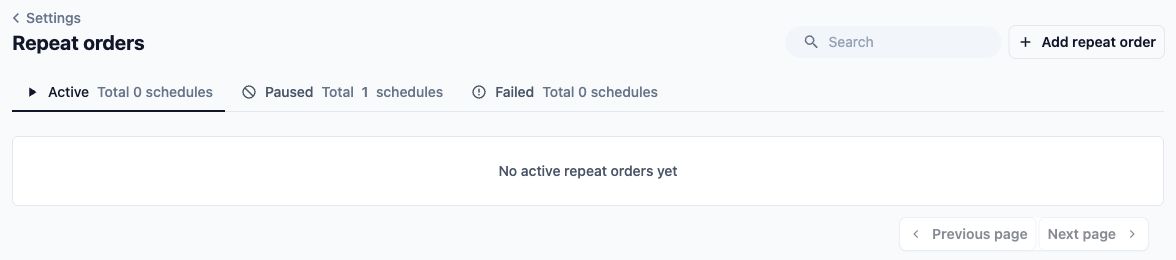
1. Open Settings in EasyBiz Console.
2. Select Repeat orders.
3. Select Add repeat order.
The **Add Schedule** window opens. A schedule is the saved set of instructions EasyBiz uses to create future orders. The window has Address, Repeat and Defaults tabs.
---
## Choose Who the Orders Are For
1. In **Sales channel**, choose the store or app these orders belong to. The list contains the online channels available to your account.
2. In **Business unit**, choose the type of work. The list comes from your business units that are available for new work.
3. In **Customer**, search for and select the customer. If they are new, select New Customer and complete their customer details.
4. Open the Address tab. Selecting an existing customer brings in their default address, if they have one.
5. Check the address carefully. If you need a different address, select Change, then use **Find address** to search for it and select a result.
6. Check **Address line 1**, **Address line 2** and **Postal code**. Include the unit or floor in **Address line 2** where needed.
For the example in this article, Fresh Fold Laundry is setting up a weekly pickup for the fictional customer Jamie Tan. Use a fictional customer record and its prepared example address when following the walkthrough in a training environment.
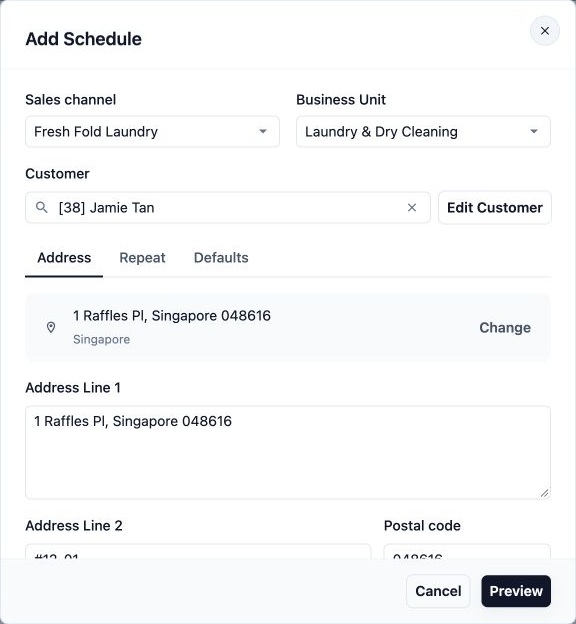
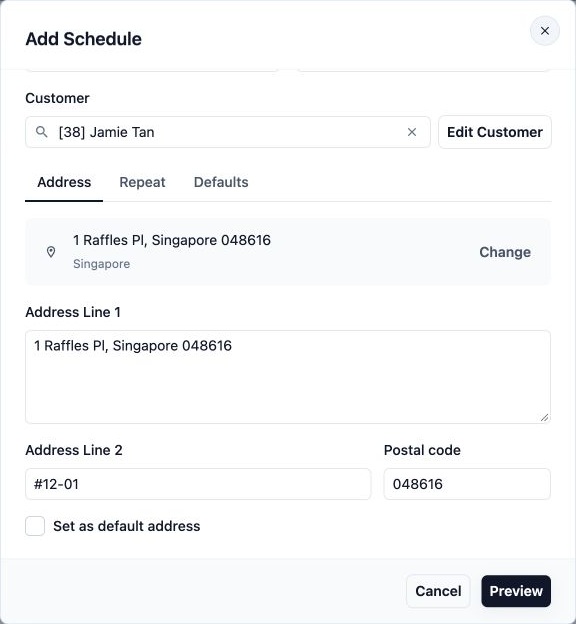
The address saved here is the address used for this repeat setup. It is not a choice that the customer must make again for every occurrence.
Saving a new address here also saves it for the customer. It becomes their default if they do not already have one. The Set as default address checkbox does not replace an existing default through this setup.
---
## Set When Orders Repeat
1. Open the Repeat tab.
2. Choose **Pickup repeat frequency** for pickup and delivery work, or **Repeat frequency** for other work.
3. Complete the day or date field that appears.
4. Enter the service time window.
5. If delivery fields appear, choose how many days after pickup delivery should happen and enter its time window.
### Choose the Repeat Pattern
| Frequency | What you choose |
| --- | --- |
| Every day | A service time window each day |
| Every week | A weekday and time window each week |
| Every 2 weeks, Every 3 weeks or Every 4 weeks | A weekday and time window, with that many weeks between occurrences |
| Every month | A date from the 1st to the 28th and a time window |
| Every 2 months, Every 3 months or Every 4 months | A date from the 1st to the 28th and a time window, with that many months between occurrences |
For weekly repeats, the weekday field is **Pickup day** or **Scheduled day**. For monthly repeats, it is **Pickup date** or **Scheduled date**. Monthly dates stop at the 28th so the selected date exists in every month.
The time field is **Pickup time** or **Scheduled time**. Enter the start and end of the service window.
### Add Delivery Timing When Shown
**Delivery day after pickup** offers **Same day**, **Next day**, or 2 to 14 days after pickup. **Delivery time** sets the return time window.
For Fresh Fold Laundry, use **Every week**, **Friday**, and a pickup window of **10:00 AM to 12:00 PM**. Choose **Next day** for delivery and a delivery window of **2:00 PM to 4:00 PM**.
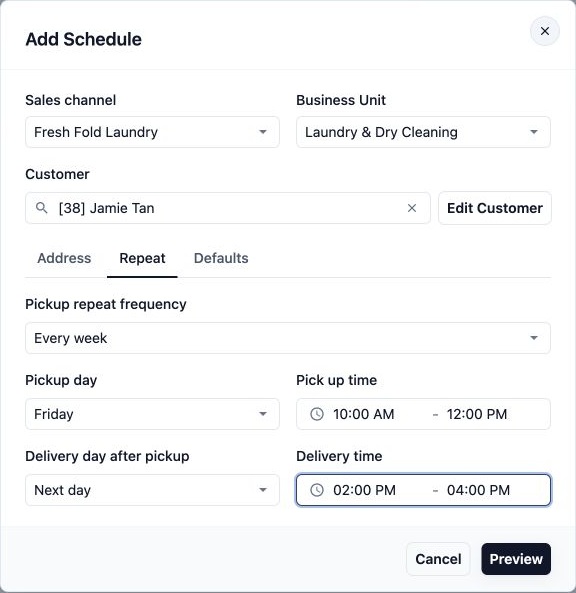
These are the times when the work happens. You choose when the order is created in the preview later.
The setup uses the time zone attached to your signed-in Console account. There is no separate time-zone selector in this window. Check that your account uses the intended local time before saving.
---
## Choose the Order Details
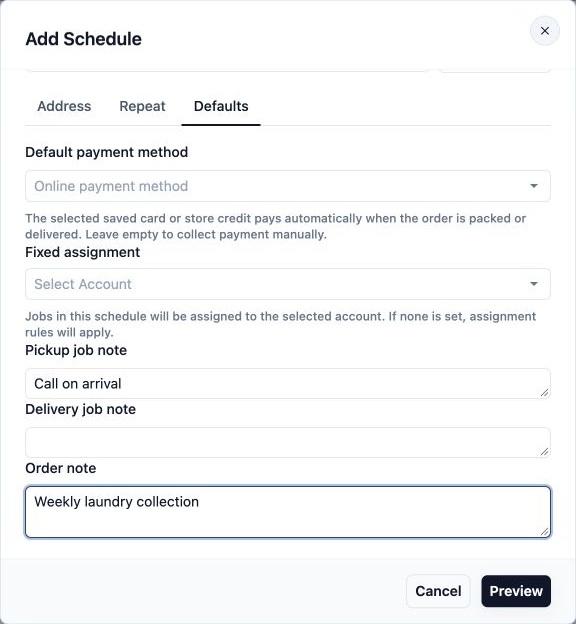
1. Open the Defaults tab.
2. Choose a **Default payment method**, or leave it empty to collect payment manually. Available choices include the customer’s saved cards and **Store Credit**.
3. Leave **Fixed assignment** empty to use your normal staff assignment rules, or select the staff member who should receive these jobs.
4. Add instructions in **Pickup job note** and **Delivery job note** when those fields appear. For work without pickup and delivery, the field is **Job note**.
5. Add an **Order note** if your staff need an instruction on every order.
A job is a task within the order, such as collecting or returning the customer’s items. Job notes belong to those tasks; the order note belongs to the order as a whole.
For Fresh Fold Laundry, leave payment and fixed assignment empty. Enter “Call on arrival” as the pickup job note and “Weekly laundry collection” as the order note. Leave the delivery job note empty.
This screen does not let you select products, quantities or prices. Orders created from this new staff setup start without line items. Your staff add the actual items and confirm the price as they handle each order.
Selecting a saved card or store credit does not take payment when you save the repeat setup. It tells EasyBiz how to collect payment automatically when the resulting order is packed or delivered.
---
## Review and Save
### Choose When Each Order Is Created
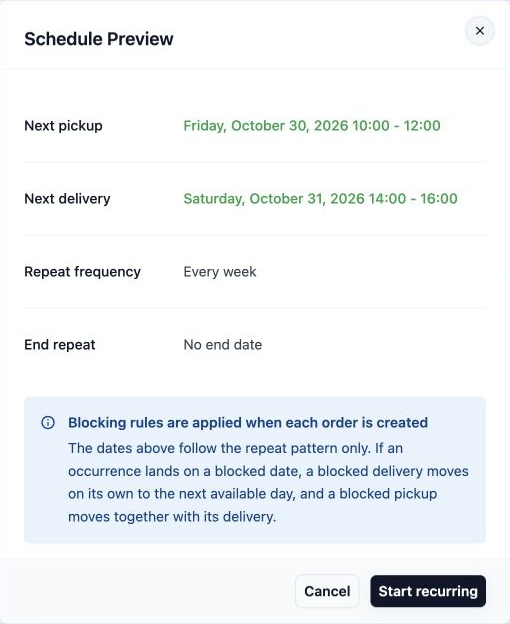
1. Select Preview to open **Schedule Preview**.
2. Check **Next pickup** and **Next delivery**, or **Next schedule** for work without pickup and delivery.
3. Check **Repeat frequency**.
4. Set **Create the recurring order**. Choose **On the schedule day**, or between 1 and 9 days before the scheduled service.
5. Set **At** to the time of day the order should be created.
6. Set **Start from** to the date from which EasyBiz should find the first matching occurrence.
7. Choose **End repeat** and complete any extra field it shows.
| End repeat option | What it means |
| --- | --- |
| No end date | The setup continues without a preset end |
| End after X occurrences | Enter the number of orders to create in Number of Occurrences |
| End by date | Choose an End date; a scheduled occurrence after that date is not included |
**Start from** is used to find the first service occurrence. It is not a promise that the order will wait until that date to appear: your advance-creation setting can create it earlier.
For the example, choose **2 days before schedule**, **09:00**, a future Friday as **Start from**, and **No end date**. Save before that week’s Wednesday at 9:00 AM if you want the first pickup to be that Friday.
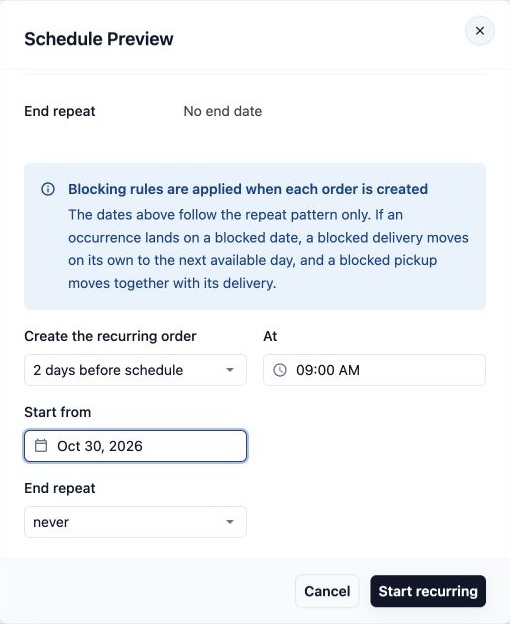
If an occurrence’s order-creation time has already passed, a new setup advances to a later occurrence. Always read the next dates shown in the preview after changing these fields.
Your rules for unavailable service dates are applied when each order is created. A blocked date can change the actual pickup or delivery date, so the preview does not guarantee that every occurrence will use the displayed pattern unchanged.
### Save and Check the Result
1. Review the customer, address, service windows and defaults before proceeding.
2. In **Schedule Preview**, check the next dates, creation timing and ending choice.
3. Select Start recurring.
4. Look for the confirmation **Recurring schedule started**.
5. On the Active tab, find the new customer’s row.
6. Check **Repeat** and **Next schedule**. Check **Process In** for the countdown to order creation.
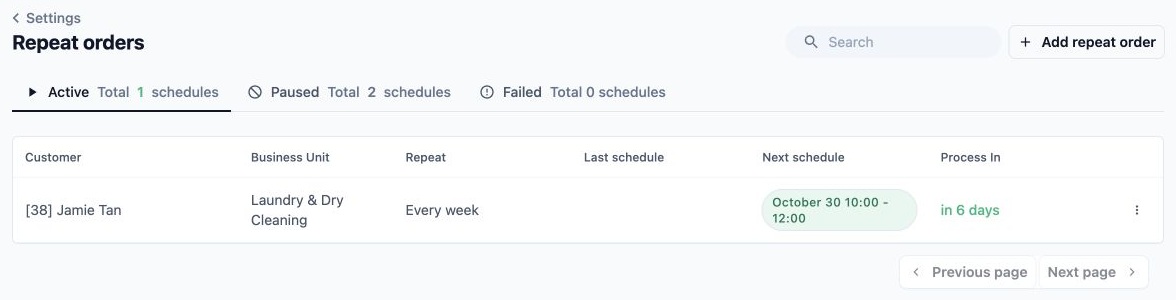
**Next schedule** tells you when the service is due. **Process In** tells you when EasyBiz is due to create its order. **Last schedule** gains the previous occurrence’s date and order number after an order has been created.
Saving activates the repeat setup. It does not itself create the first order.
---
## Example Walkthrough: Fresh Fold Laundry
Jamie Tan wants laundry collected every Friday and delivered on Saturday. Fresh Fold Laundry wants each order created two days before pickup so staff have time to prepare.
### 1. Choose the customer
Open **Settings → Repeat orders → Add repeat order**.
Select:
- Fresh Fold Laundry's available online sales channel
- Its laundry business unit
- Jamie Tan's customer record
On the **Address** tab, check Jamie's address.
### 2. Set pickup and delivery
On the **Repeat** tab, set:
- **Pickup:** Every week, Friday, 10:00 AM to 12:00 PM
- **Delivery:** Next day, 2:00 PM to 4:00 PM
On the **Defaults** tab:
- Leave payment and fixed assignment empty.
- Enter "Call on arrival" in the pickup job note.
- Enter "Weekly laundry collection" in the order note.
### 3. Choose when orders are created
Select **Preview**, then set:
- **Create orders:** 2 days before schedule, at 09:00
- **Start from:** A future Friday
- **End date:** No end date
Check that the preview shows Friday pickup and Saturday delivery. Then select **Start recurring**.
In this example, EasyBiz creates the order on Wednesday at 9:00 AM for Friday's pickup. Save the setup before that time and check that no blocked dates affect the schedule.
### 4. Check the active setup
Open **Active**, find Jamie's row, and check **Next schedule** and **Process In**.
The repeat setup appears immediately. The order appears in the normal orders list when its creation time arrives. Staff can then add the laundry items and confirm the price.
If the store's **Repeat orders** page is enabled, Jamie can sign in with the matching customer account to see the repeat setup. The next order only appears when its creation time arrives.
---
## FAQs
**Will this setup replace an order the customer has already booked?**
>No. Creating a repeat setup does not replace or link an existing booking. A separately booked order and a repeat order can both exist for the same day. Check for an existing booking before choosing the first occurrence.
**Will changing the customer’s address later update this repeat automatically?**
>No. The repeat keeps its saved address. A later change to the customer’s address record does not automatically replace the address in this setup.
**Must customers be allowed to book this business unit repeatedly online before staff can create a repeat?**
>No. Staff can choose business units available for new work. The store’s customer-facing repeat settings separately control what customers can set up themselves online.
**Why can a colleague see Repeat orders while I cannot?**
>The page’s availability depends on your account’s access and the features available to your business. Ask the person who manages your staff access to check your permissions for the page and the sales channel you need.
---
## What’s Next
You have created a repeat setup, checked its next service date and confirmed when EasyBiz should create the first order. Continue with [Manage your repeat orders](/docs/manage-your-repeat-orders) to learn how to handle ongoing changes.