## Before You Start
Make sure you have:
- Access to both the Sales Report and the Payments Report. If **Sales** or **Payments** is missing from your **Reports** menu, your account does not have it yet. See [Report Access for Staff](/docs/report-access-for-staff).
- Read [Reading the Sales Report](/docs/reading-the-sales-report), so you know where to find the Sales Summary card.
---
## Your Sales Book and Your Cash Book
Your shop keeps two books in EasyBiz.
**Sales Report = your sales book.** It counts the work you agreed to do for customers, once the price is confirmed. It does not check whether the customer has paid.
**Payments Report = your cash book.** It counts the money customers actually paid you, by cash, card, bank transfer or store credit, on the day they paid. It does not check when the work was sold.
On most days, the two books move together. A customer drops off a handbag, your staff set the price and the customer pays at the counter. That order adds the same amount to both reports on the same day.
The totals split apart when the sale and the money happen on different days, or when money comes in that is not a sale at all.
Comparing the two helps you decide:
- How much money customers still owe you, and whether to chase it.
- Whether the money in your drawer and bank is right for the month.
- Whether a gap is normal timing, or something to check with your staff.
Without this check, any gap between the two totals looks like missing money. You could spend an evening hunting for cash that was never lost.
---
## Deposits, Credit Top-Ups and Unpaid Orders
These are the everyday reasons your two totals differ:
- **Unpaid orders.** An order counts as a sale once its price is confirmed, even if the customer only pays on collection next week. The amount still owed is a receivable, meaning money a customer owes you. It is in this month's Sales, and it reaches Payments only when the customer pays. See [Tracking Receivables](/docs/tracking-receivables).
- **Payments for older orders.** When a customer collects and pays for last month's order, the money counts in this month's Payments. The sale stays in last month.
- **Deposits.** A deposit is a part payment made before the work is done. It counts in Payments on the day it is paid. If the order's price is still to be confirmed, for example a bag repair waiting for a quote, the sale only counts once your staff set the price. So the deposit and the sale can land in different months.
- **Credit top-ups.** A credit top-up is money a customer pays in advance to load store credit into their account. It counts in Payments on the day of the top-up. It is not a sale yet. The sale counts later, when the customer uses the credit on an order.
- **Monthly bills for business customers.** Orders from agents, meaning business customers who order through their own account, count as sales on the order date. Their money arrives when they pay their monthly bill, often in the next month.
- **Returns and refunds.** A sales return lowers Sales on the day of the return. A refund is money you give back, and it lowers Payments on the day you give it back.
- **Tax and rounding.** Net Sales leaves out tax. Payments include tax, because customers pay the full amount. So always compare the Sales Summary **Total**, not Net Sales, with your payments.
---
## Open Both Reports for the Same Month
1. In the top menu, click Reports .
2. Click Sales .
3. At the top right, click Monthly and pick the month you want to check.
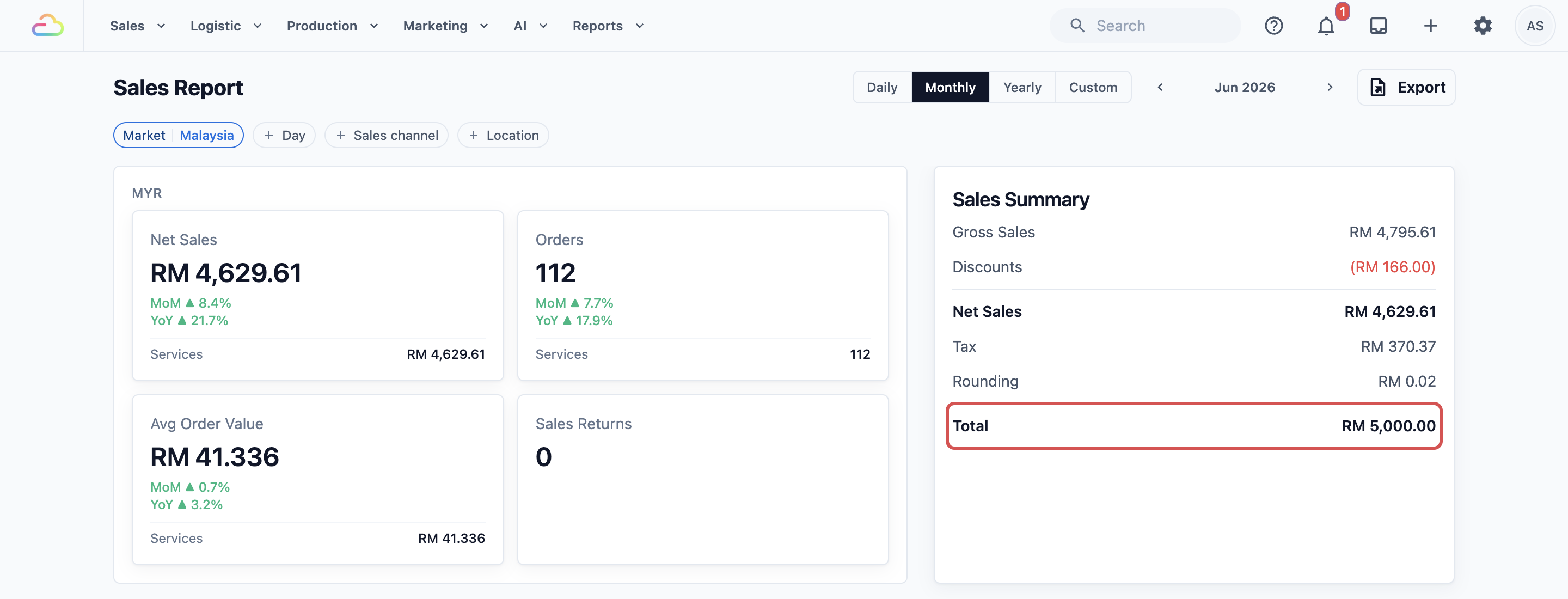
4. In the **Sales Summary** card, note the **Total**. This is what customers were charged for that month's sales, including tax.
5. In the top menu, click Reports again.
6. Click Payments . The Payment Report opens.
7. At the top right, click Monthly and pick the same month.
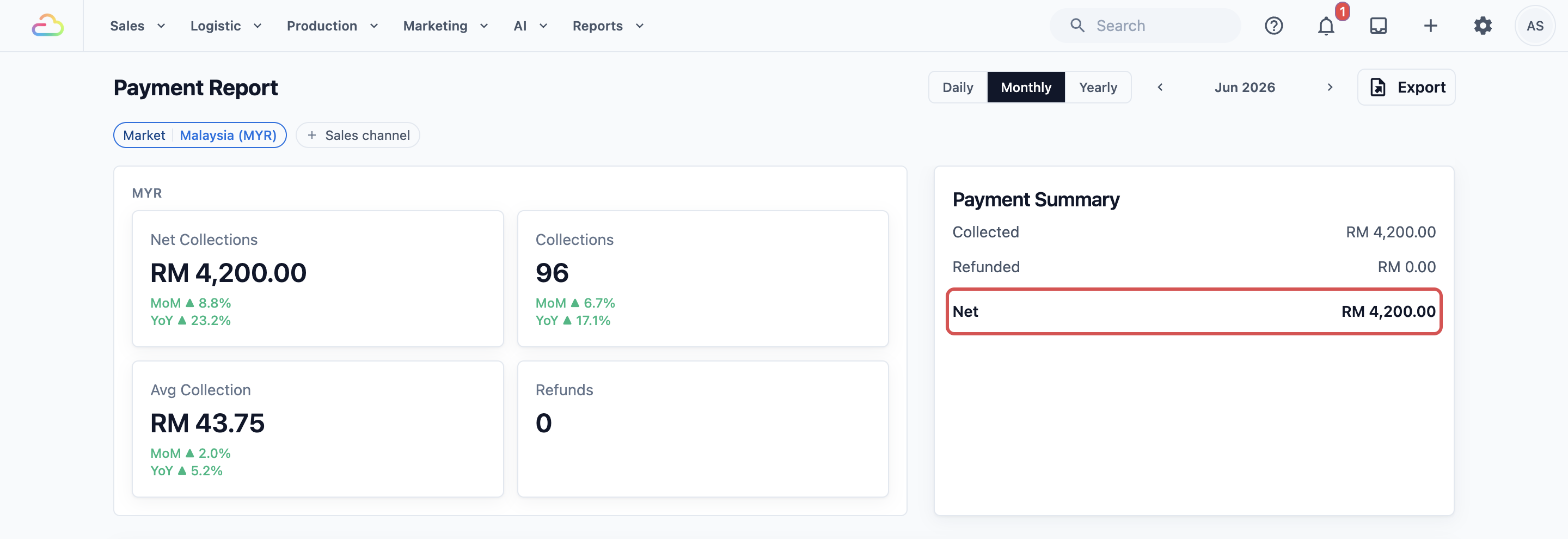
8. In the **Payment Summary** card, note the **Net**. This is the money **Collected**, minus the money **Refunded**.
If you use the **Market** or **Sales channel** filter, pick the same one in both reports. A sales channel is a place where you take orders, such as your shop counter or your app. If the filters differ, you are comparing different parts of your business.
The Payments Report has more to it than the summary. You can learn every card and table in [Reading the Payments Report](/docs/reading-the-payments-report).
---
## See What the Money Was For
The Payments Report can show you which payments were not for orders at all.
1. On the Payment Report, scroll down to the **Payments by Method** table.
2. Above the table, click Subject .
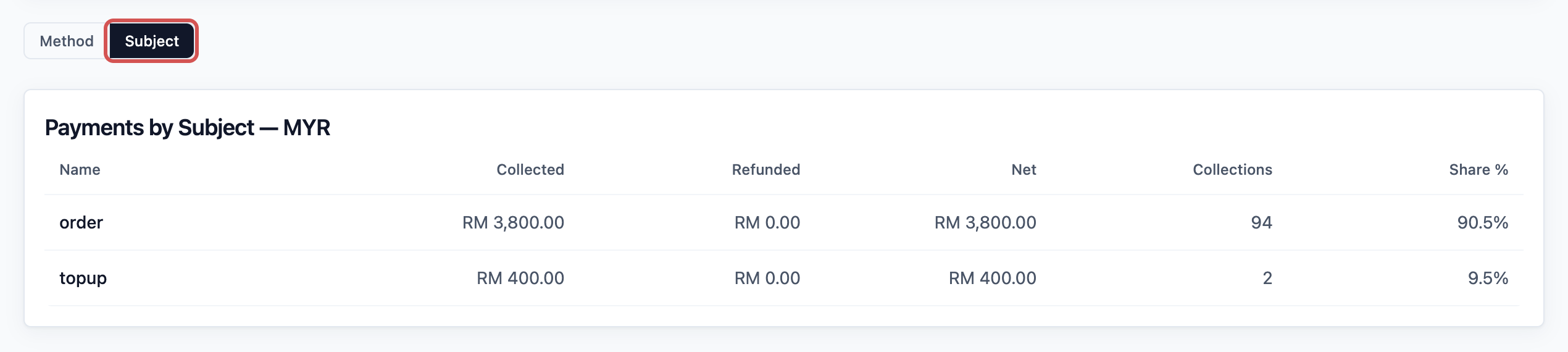
Each row shows what the money was paid for:
- **order**: payments for orders.
- **topup**: credit top-ups.
- **invoice**: monthly bills paid by business customers.
- **membership**: membership fees, if you sell memberships.
The **topup** and **membership** rows are money in your hand with no matching sale yet.
---
## How to Reconcile the Two
To reconcile means to check that the gap between two numbers is fully explained.
1. Start with the Sales Summary **Total** for the month.
2. Take away what customers still owe on this month's orders.
3. Add payments received this month for orders sold in earlier months, including monthly bills from business customers.
4. Add deposits paid on orders whose price is not confirmed yet.
5. Add the **topup** and **membership** rows from the Payments by Subject table.
The result should match the Payment Summary **Net**. If a gap remains, check one day at a time:
1. On the Payment Report, click Daily and pick the day.
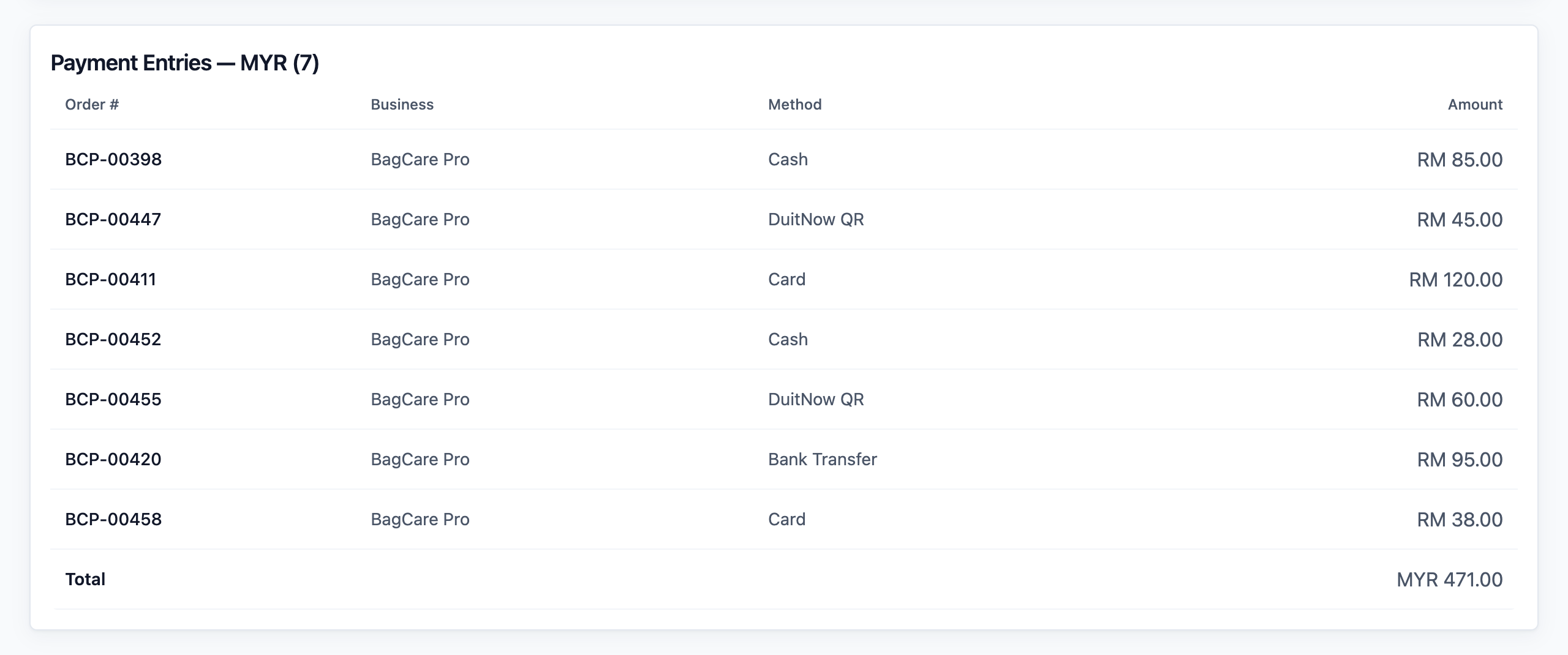
2. Scroll to the bottom, to the **Payment Entries** table. It lists every payment that day, with the **Order #**, **Business**, **Method** and **Amount**.
3. Open the Sales Report for the same day and compare it with the **Order Entries** table there.
---
## Example: BagCare Pro Finds Its RM 800
BagCare Pro is a bag repair shop in Petaling Jaya. At the end of June, the owner sees Sales of RM 5,000 but only RM 4,200 collected. That is RM 800 short.
1. She opens Reports , then Sales , clicks Monthly and picks June. The Sales Summary **Total** is RM 5,000.
2. She opens Reports , then Payments , clicks Monthly and picks June. The Payment Summary **Net** is RM 4,200.
3. She checks her receivables. Customers still owe RM 1,750 on June orders. Most of it is for restored bags that are ready but not yet collected.
4. In the Payment Entries for early June, she finds RM 300 paid for May orders.
5. Five bag repairs are still waiting for a quote. Their customers paid RM 250 in deposits.
6. She clicks Subject . The **topup** row shows RM 400 from two regular customers who loaded credit.
Her working: RM 5,000 minus RM 1,750, plus RM 300, plus RM 250, plus RM 400 equals RM 4,200.
Every ringgit is explained. Nothing is missing. The owner asks her staff to send collection reminders for the ready bags, so the RM 1,750 comes in next month.
---
## FAQs
**Do credit top-ups count as sales?**
>No. A top-up counts in the Payments Report, in the **topup** row, on the day it is paid. The sale only counts when the customer uses the credit on an order. So a month with many top-ups shows more payments than sales, and the following months can show the opposite.
**Where do refunds show?**
>In the Payments Report, a refund shows in the **Refunds** card and the **Refunds** table on the day you gave the money back, with its method and reason. In the Sales Report, the returned work shows in the **Sales Returns** table. They are two separate records: one for the work, one for the money.
**Why does store credit appear as a payment method?**
>When a customer pays an order with store credit, EasyBiz records it as a payment, so credit shows in the **Payments by Method** table. Over time, the same money appears twice in Payments: once at the top-up and again when the credit is spent. To see only new money, take the **Net** and subtract the store credit row.
**Can I compare a custom date range in the Payments Report?**
>No. The Payments Report has only Daily , Monthly and Yearly , and it has no Day or Location filter. Compare whole days, months or years, and leave those Sales Report filters off when you compare.
**Can last month's sales total still change after I compare it?**
>Yes, until the month is closed. Closing means locking a period so its sales no longer change, and later corrections move to the next open day. Close the month after you reconcile it. See [Closing a Sales Period](/docs/closing-a-sales-period).
---
## What's Next
You can now explain the gap between your sales and your payments, line by line. Next, learn how to lock a month once its numbers are right in [Closing a Sales Period](/docs/closing-a-sales-period).