## Before you start
- You need to be the account owner, or have the **Users & Access** permission. You can't change your own report access, so ask the owner or another admin to change yours.
- Each staff member who opens reports needs a **Full seat**. A seat is the licence that lets one person sign in to the Console, the back-office website where you run your business.
- To see what each report is for, read [Reports Overview](/docs/reports-overview) first.
---
## Why report access is limited
Some reports show money. They show how much you sold, how much your customers paid, and how much store credit they still hold. Most of your staff don't need these numbers to do their job.
Report access lets you decide who sees your takings. Your supervisor can check the work done in the factory without seeing what the shop earned. Your counter staff can serve customers without seeing your monthly sales.
Without it, you have two bad choices. Either everyone sees your money, or your staff can't use any reports at all.
---
## Which reports each product opens
A Full seat opens up to four products. Think of a product as one area of your business in EasyBiz. Each product has its own switch on the staff member's page.
- **Sales**: the Production, Contacts, Deals and Notifications reports. With **Sales figures & reports** turned on, it also opens the Sales, Payments and Credits reports, plus the E-Invoice report for businesses in Malaysia.
- **CRM**: the Contacts, Deals and Notifications reports.
- **Production**: the Production report.
- **Field Service**: no reports. It is for drivers and on-site workers who do assigned jobs.
**Sales figures & reports** is the money switch. Turn it off and the staff member keeps Sales for taking orders, but loses the reports that show money.
---
## Turn report access on or off for a staff member
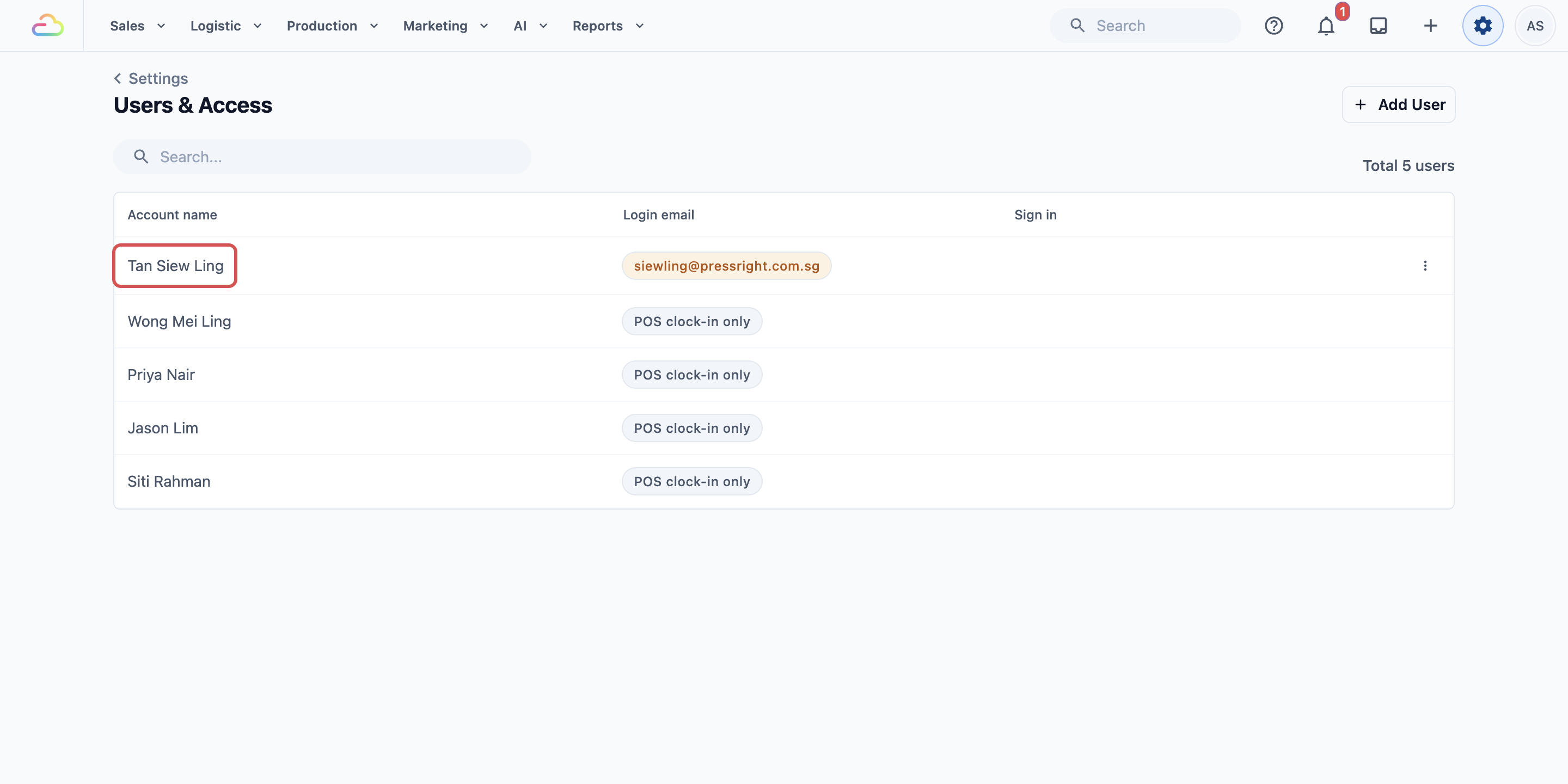
1. Click ⚙️ Settings.
2. Under **Administration**, click Users & Access.
3. Click the staff member's name.
4. Find the **Seats** section. Check that the **Full seat** switch is on.
5. If it is off, turn it on and click Assign seat. This adds one Full seat to your bill.
The four products appear inside the Full seat card: **Sales**, **CRM**, **Production** and **Field Service**.
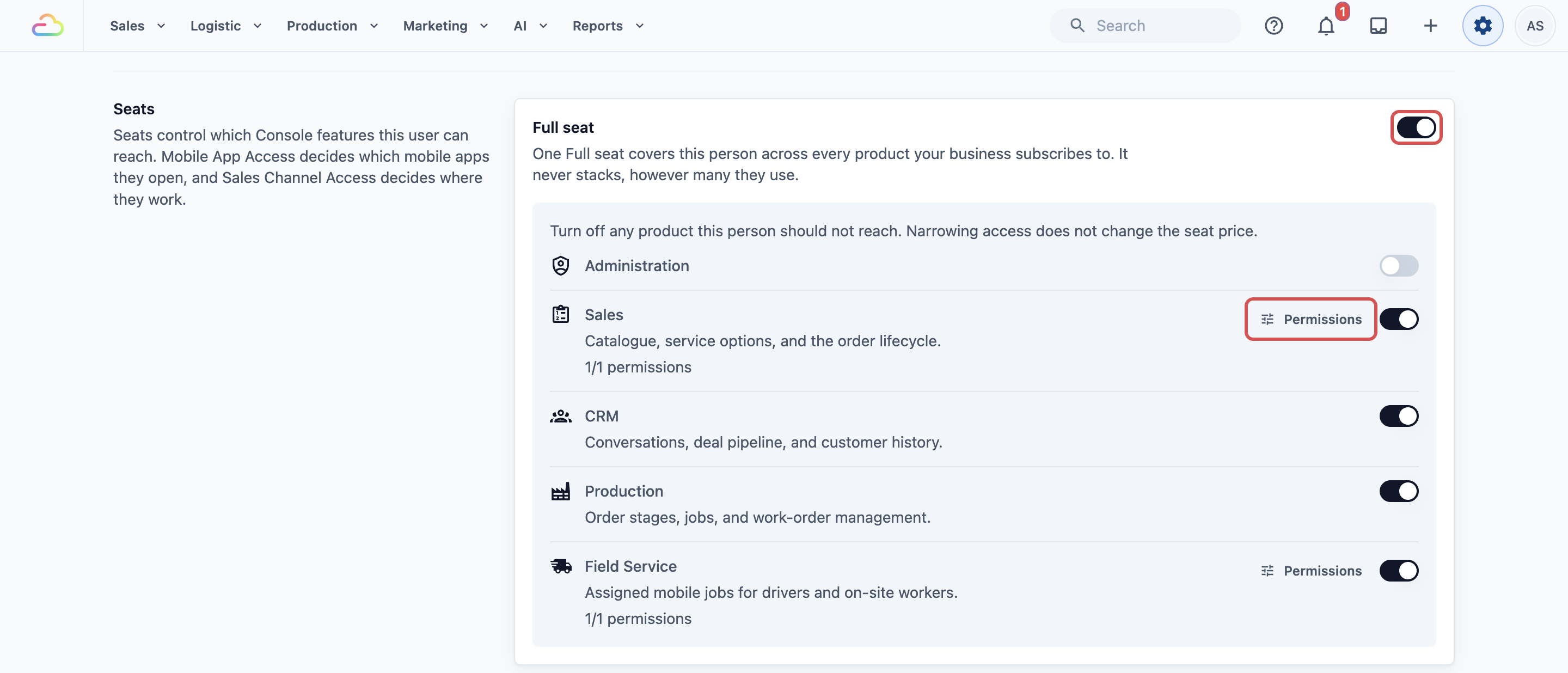
6. Turn on each product this staff member needs, and turn off the rest. Each switch saves straight away.
7. Next to **Sales**, click Permissions. You only see this button while Sales is turned on.
8. Turn **Sales figures & reports** on to show the money reports, or off to hide them.
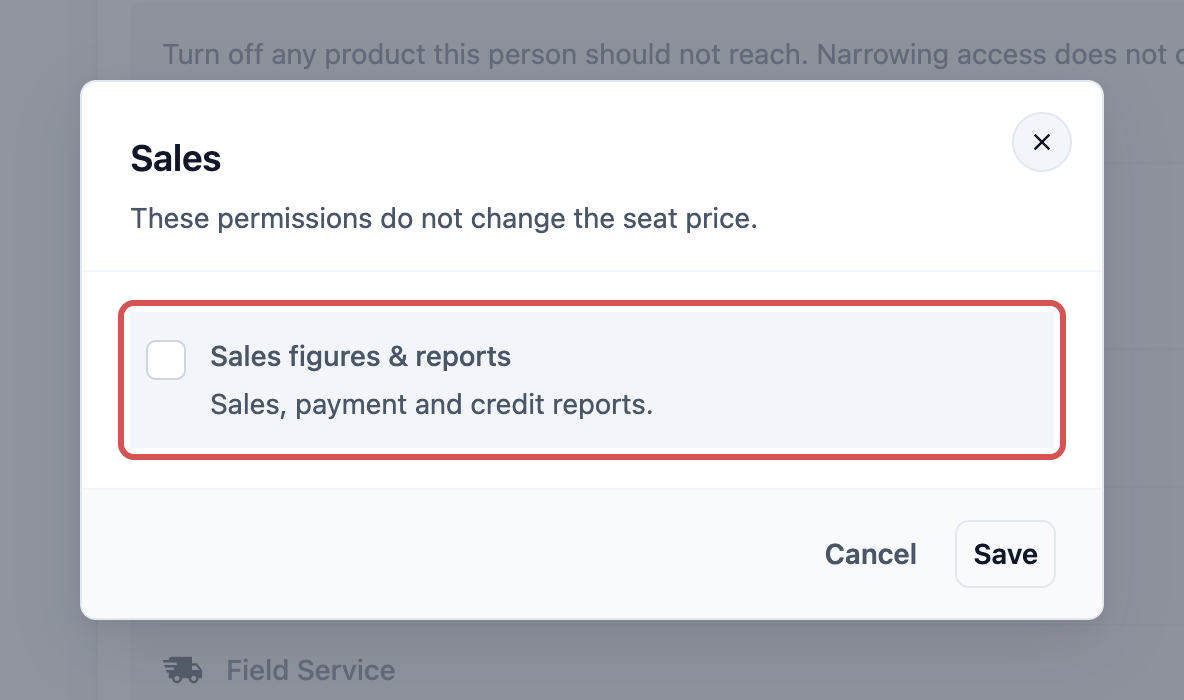
9. Click Save.
A message says **Seat permissions updated**. The Sales row now shows how many permissions this staff member has, such as **0/1 permissions**.
---
## What your staff see without access
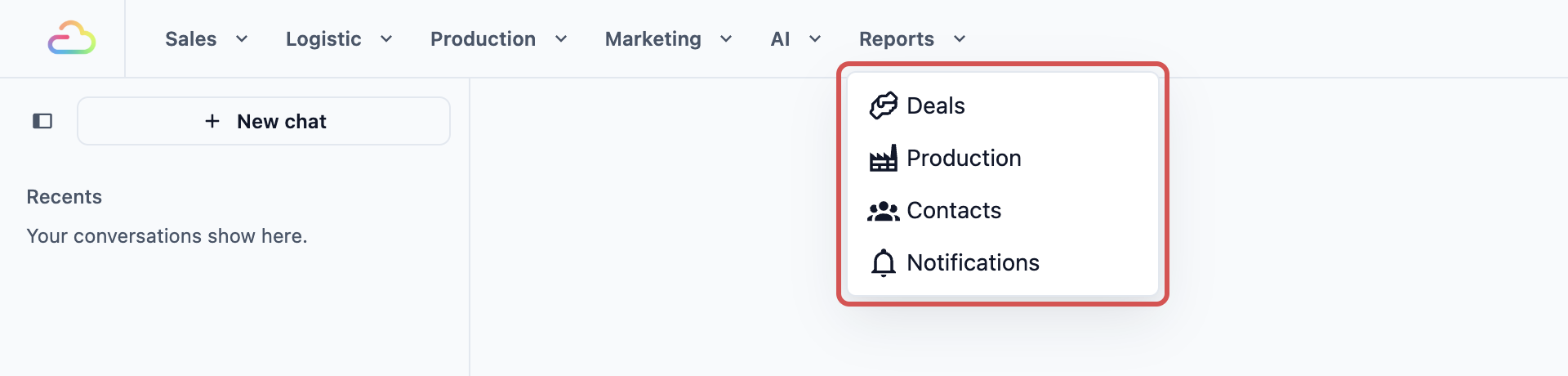
- **The report is gone from their Reports menu.** They only see the reports their products open.
- **A saved link doesn't help.** If they open a report page they don't have access to, the report doesn't load for them.
- **Their daily work carries on.** Hiding reports doesn't stop them taking orders, serving customers or doing production work.
---
## Example: PressRight's supervisor
PressRight Laundry has two outlets and a small ironing team. The owner wants supervisor Siew Ling to check how many items her team finished each day. She should not see the shop's takings.
1. The owner opens ⚙️ Settings, then Users & Access, then clicks **Siew Ling**.
2. Her Full seat is already on. The owner keeps **Sales** on, because Siew Ling also takes orders at the counter.
3. The owner turns on **Production** and turns off **CRM** and **Field Service**.
4. Next to **Sales**, the owner clicks Permissions, turns off **Sales figures & reports** and clicks Save.
Now Siew Ling's Reports menu shows **Production**, but not **Sales** or **Payments**. She can check her team's output every morning, and the shop's takings stay with the owner. You'll learn to read that report in [Reading the Production Report](/docs/reading-the-production-report).
---
## FAQs
**Does giving report access cost an extra seat?**
> No. One Full seat covers one person, whatever they use. Turning products or Sales figures & reports on and off never changes the price. Your bill only changes when you give a Full seat to someone who doesn't have one, or take one away.
**Can a staff member see only one outlet?**
> Partly. On their page, **Sales Channel Access** decides which outlets they work in. A sales channel is any place you take orders, such as an outlet or your online store. Choose Selected sales channels and pick their outlet. The money reports aren't split by this setting, so if a staff member must not see other outlets' takings, keep **Sales figures & reports** off.
**Why does it say I can't change my own seat permissions?**
> To stop anyone giving themselves more access, nobody can change their own seats or permissions. Ask the account owner or another user with the Users & Access permission to do it for you.
**Why is the Production switch greyed out?**
> If the row says **Not included in your subscription.**, your plan doesn't include Production yet. Contact us to add it.
**Can I hide the money reports from the owner account?**
> No. The owner account always sees every report, so it has no Permissions button. To share money reports safely, give each person their own sign-in instead of sharing the owner's.
---
## What's next
Continue to [Report Periods and Filters](/docs/report-periods-and-filters) to choose which dates and outlets a report shows.