## Before You Start
Make sure you have:
- Access to the Sales Report. If **Sales** is missing from your **Reports** menu, your account does not have it yet. See [Report Access for Staff](/docs/report-access-for-staff).
- A basic feel for choosing a period and filters. See [Report Periods and Filters](/docs/report-periods-and-filters).
---
## What the Sales Report Is
The Sales Report is your shop's sales book. It adds up every order your shop has sold and shows the money by day, month or year.
A sale is the value of the work you agreed to do for a customer. It is not the cash you collected. A customer who has not paid yet still counts as a sale. Cash collected lives in the Payments Report.
The Sales Report helps you decide things like:
- Which days need more staff at the counter.
- Whether this month is better or worse than last month.
- Which sales channel (a place where you take orders, such as your shop counter, your app or a mall outlet) brings in the most money.
Without it, you only see one order at a time. You would have to guess which days are busy and whether your discounts and returns are eating into your sales.
---
## Open the Sales Report
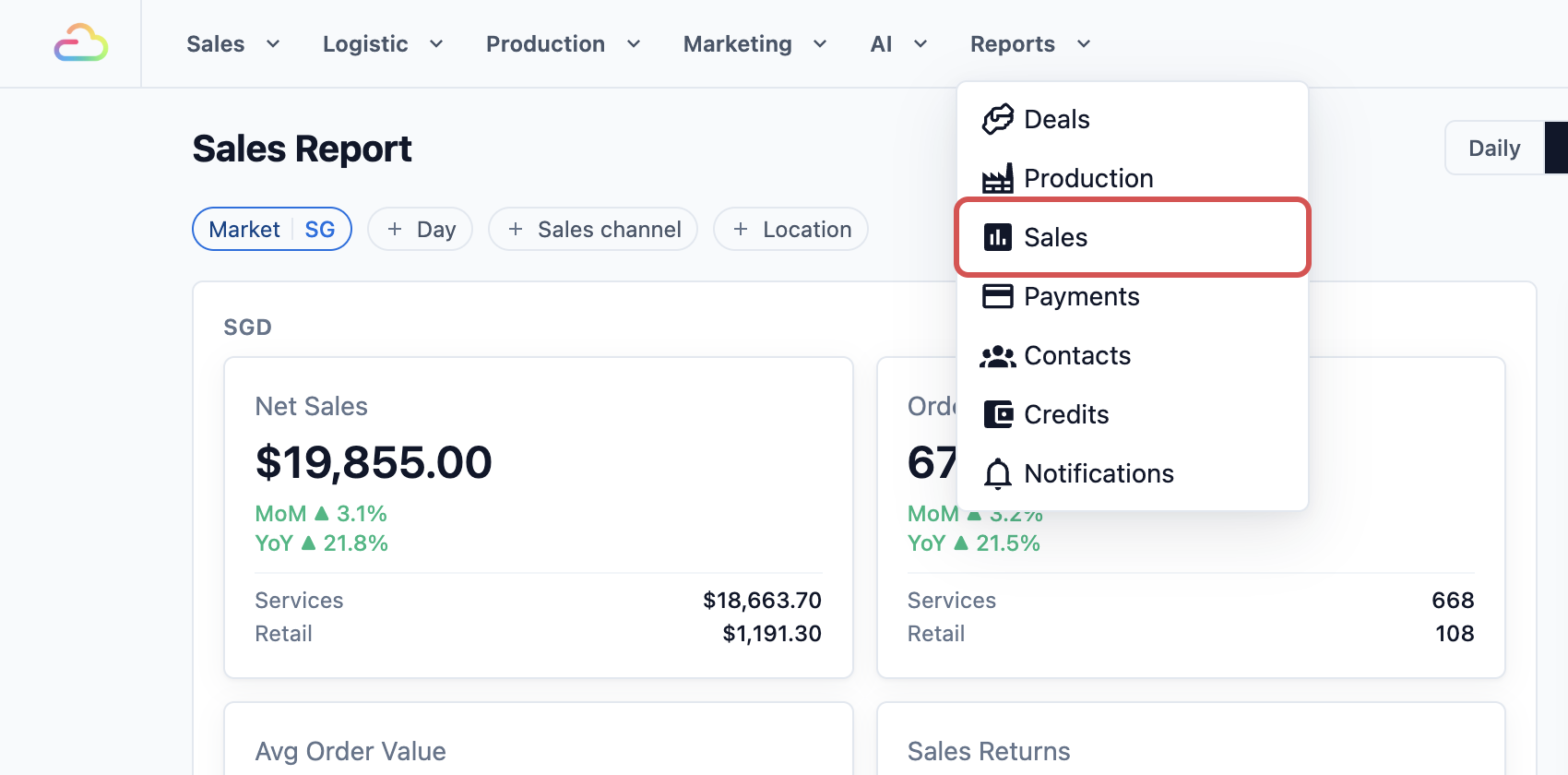
1. In the top menu, click Reports .
2. Click Sales .
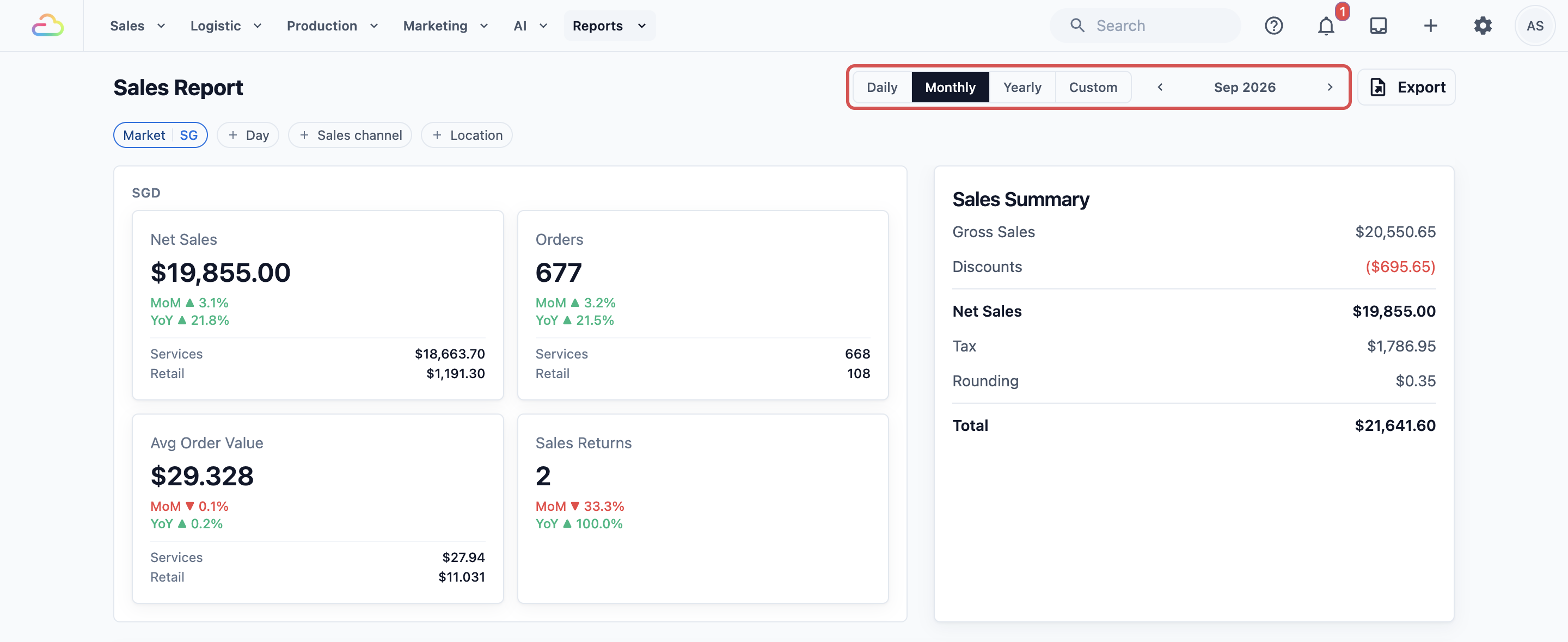
3. At the top right, choose how much time to look at: Daily , Monthly , Yearly or Custom .
4. Next to it, pick the day, month or year you want. In Custom, pick a start and end date, up to 366 days.
5. Below the title, use the filters to narrow the report:
- **Market**: the country you are looking at, for example Singapore or Malaysia. Each market is shown in its own currency.
- **Day**: only some days of the week, for example Saturdays. This appears in Monthly and Custom views.
- **Sales channel**: one place where orders are taken.
- **Location**: one physical shop.

---
## Read the Summary Cards
The top of the page has two cards.
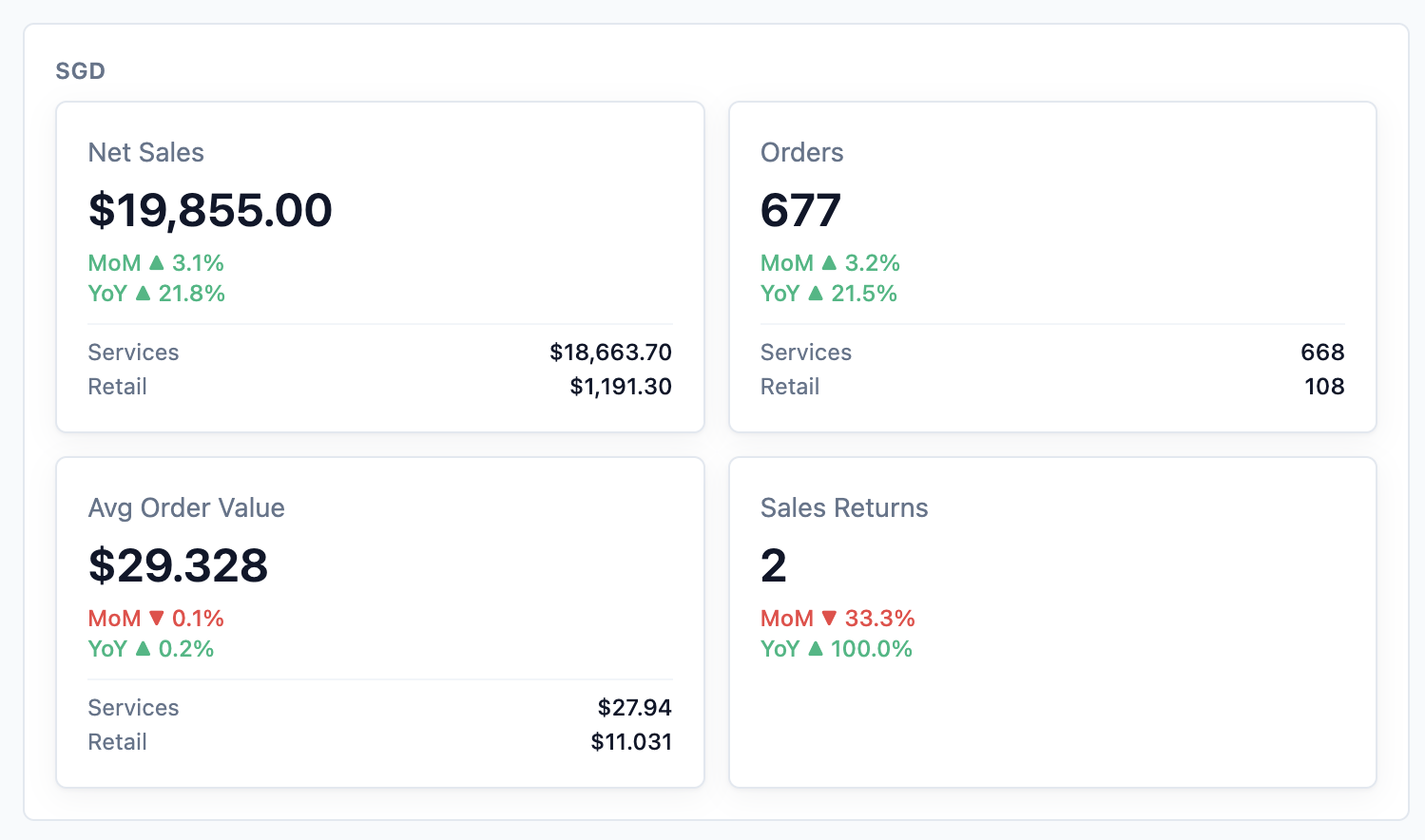
The first card has four boxes:
- **Net Sales**: your sales after discounts.
- **Orders**: how many orders were sold.
- **Avg Order Value**: the average amount of one order.
- **Sales Returns**: how many returns were made.
Under each number is a small arrow that compares it with an earlier period. Green going up means better. Red going down means lower. The labels tell you what it is compared with:
| Label | Compared with |
| ----- | ----- |
| DoD | The day before (Daily view) |
| WoW | The same day last week (Daily view) |
| MoM | The month before (Monthly view) |
| YoY | The same month or year last year |
When you look at the current month, the report compares only the same number of days. So on the 10th, you see 1 to 10 this month against 1 to 10 last month. This keeps the comparison fair.
If your shop sells both services and retail products, each box also shows a **Services** and a **Retail** line.
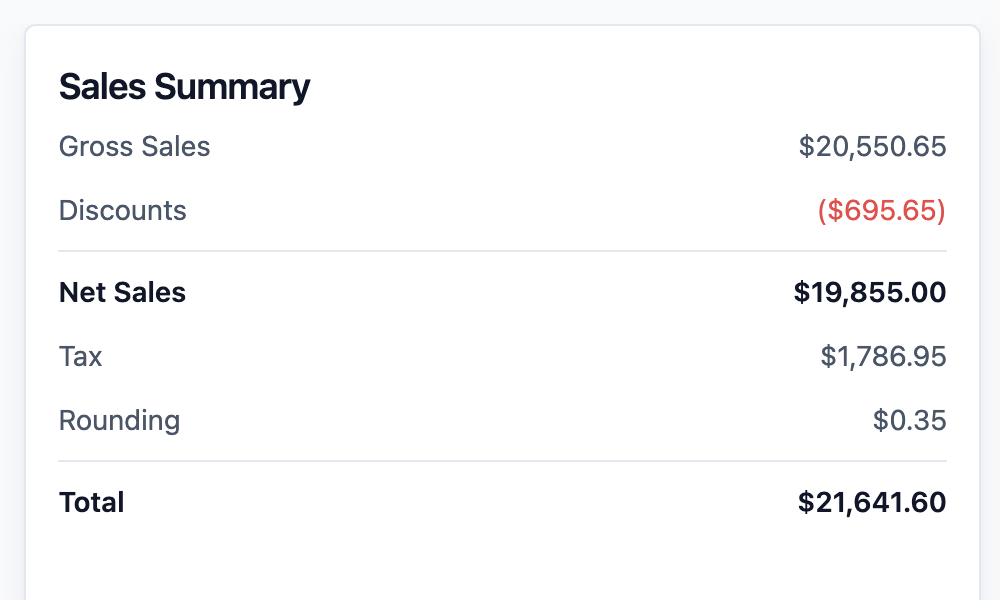
The second card is the **Sales Summary**. It shows how your sales add up:
- **Gross Sales**: sales before any discount.
- **Discounts**: money taken off with discounts and promotions.
- **Net Sales**: Gross Sales minus Discounts.
- **Tax**: GST or SST on the sales.
- **Rounding**: small cash rounding adjustments.
- **Total**: what customers were charged in the end.
---
## Read the Trend Chart
Below the cards is a bar chart.
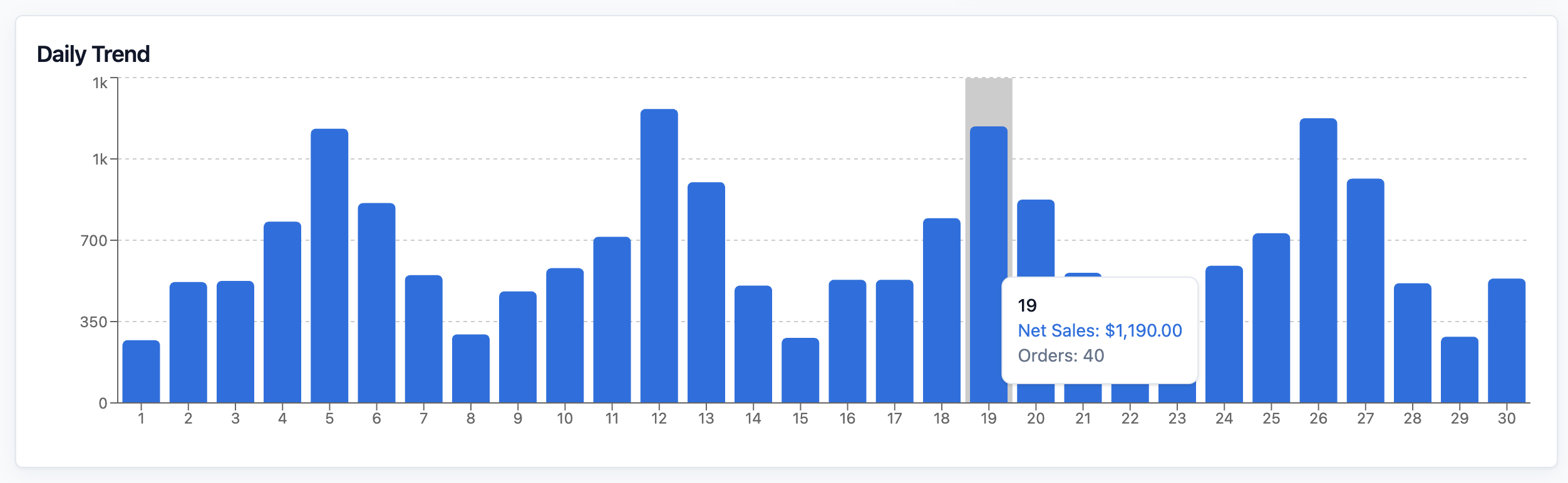
- In Monthly and Custom views, it is called **Daily Trend**. Each bar is one day.
- In Yearly view, it is called **Monthly Trend**. Each bar is one month.
- In Daily view, there is no chart, because there is only one day to show.
Taller bars mean more sales. Hover over a bar to see that day's exact amount.
---
## Read the Breakdown Tables
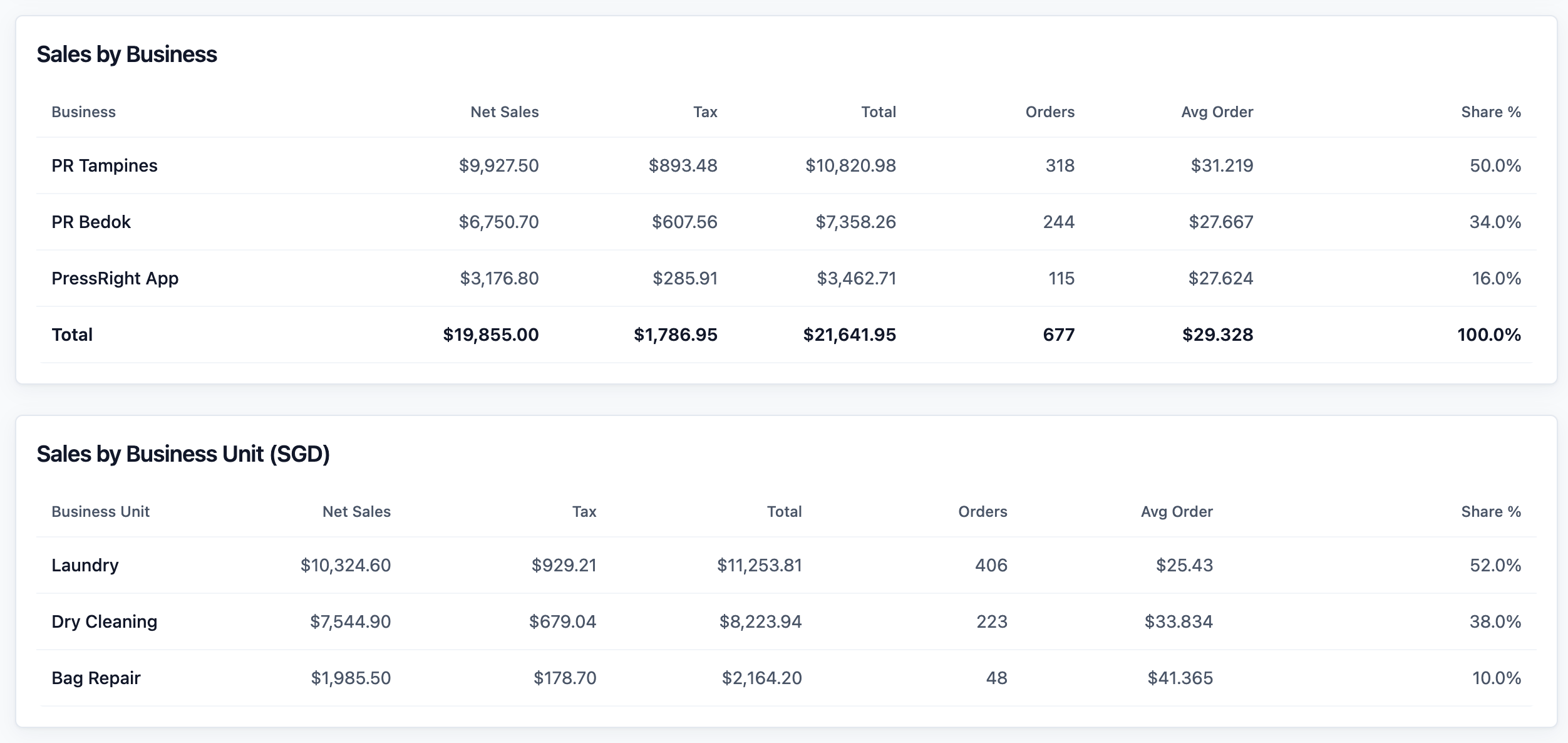
Scroll down to see where your sales came from. Most tables show Net Sales, Orders and a Share % of the total:
- **Discount Breakdown**: each discount or promotion, how many times it was used and how much it took off.
- **Sales by Business**: sales for each sales channel.
- **Sales by Company**: shown only if you run more than one company.
- **Sales by Business Unit**: sales for each line of service, for example Laundry or Bag Repair.
- **Sales by Lead Source**: where the customer came from, for example walk-in or WhatsApp.
- **Net Sales by Service Items** or **Retail Products**: your best-selling items. Use the buttons above the table to switch between them.
A table with nothing to show is hidden.
---
## Read the Sales Returns Table
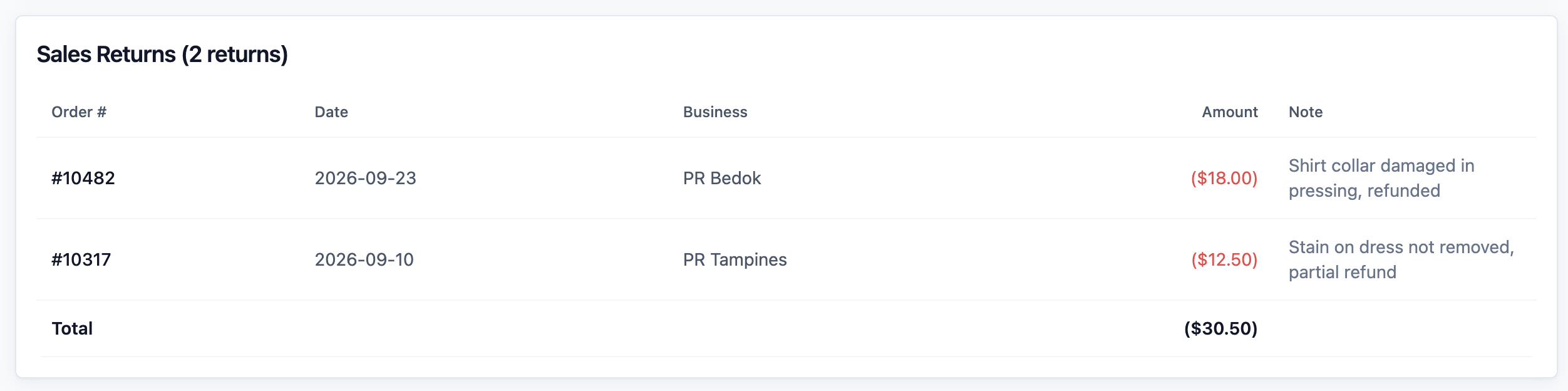
A return is when you give money back or cancel part of an order after it was sold, for example a refund for a damaged shirt. Returns are listed in their own table called **Sales Returns**, with the number of returns in its title.
It shows the **Order #**, the **Date** of the return, the **Business** (sales channel), the **Amount** taken off and any **Note** your staff wrote.
A return is recorded on the day it was made. It does not change the original sale's day. So a return made in June for a May order lowers June's sales, not May's.
---
## Check One Day's Orders
To see every order behind one day's number:
1. Click Daily .
2. Pick the day.
3. Scroll to the bottom to the **Order Entries** table.
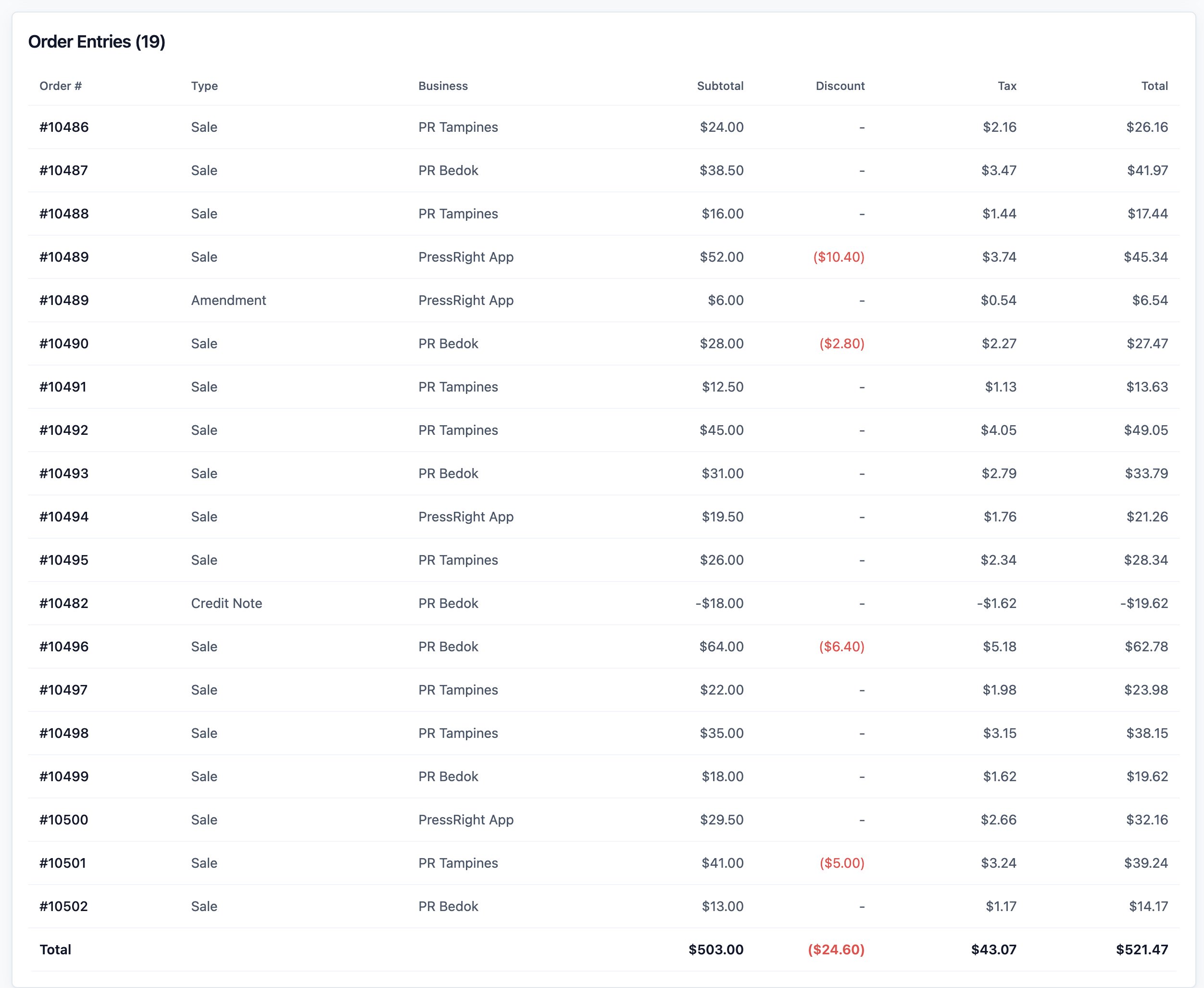
The **Type** column tells you what each line is:
| Type | What it means |
| ----- | ----- |
| Sale | A new order sold |
| Amendment | A change to an order that was already sold, for example an item added |
| Credit Note | A return |[12:26 PM]| Void | A cancelled order or a cancelled return |
---
## Example: PressRight Finds Its Busiest Day
PressRight Laundry has two staff at the counter every day. The owner wants to know if that makes sense.
1. She opens Reports , then Sales , and clicks Monthly for last month.
2. In the **Daily Trend** chart, the Saturday bars are clearly the tallest. Tuesday bars are the shortest.
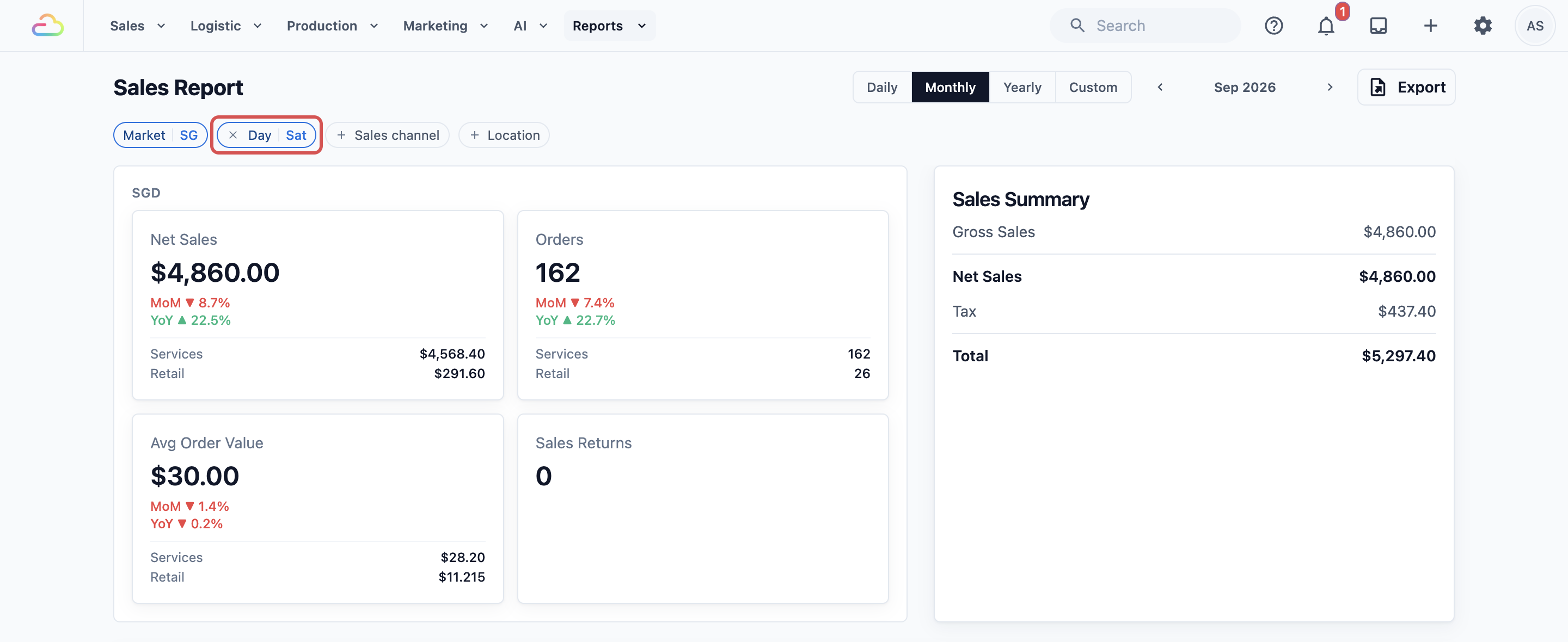
3. In the **Day** filter, she picks **Sat**. The summary cards now show only Saturdays: S$4,860 Net Sales from 162 orders.
4. She changes the Day filter to **Tue**. Tuesdays show S$1,420 from 51 orders.
PressRight now knows Saturdays bring in more than three times Tuesday's sales. The owner adds a third staff member on Saturdays and moves one staff member to ironing on Tuesdays.
---
## FAQs
**Does a sale count when the order is created or confirmed?**
>When the price is confirmed. An order with a final price counts as soon as it is confirmed. An order created with the price "to be confirmed" (for example, a bag repair waiting for a quote) only counts once the price is set, and it counts on that day. Payment has nothing to do with it. Unpaid orders still count.
**Why does an order appear on a different date than expected?**
>There are three common reasons. The price was confirmed on a later day than the order was taken. The sales period for that day was already closed, so the sale was moved to the next open day. Or it is a return, which counts on the day of the return. See [Closing a Sales Period](/docs/closing-a-sales-period).
**Are B2B (agent) orders included?**
>Yes. Orders from agents, meaning business customers who order through their own agent account, are included. Unlike shop orders, they always count on the order date, even if the price is confirmed later. This keeps them in line with the agent's monthly bill.
**Why doesn't Net Sales match the cash in my Payments Report?**
>Sales counts work sold, and payments count money received. A customer who pays a deposit today and the rest next week shows up in different places in each report. See [Sales vs Payment Totals](/docs/sales-vs-payment-totals).
**Some of my orders are missing from the report. Why?**
>Sales channels marked as test channels are left out of the Sales Report. Also check the Market, Sales channel and Location filters. Each market is shown separately in its own currency.
**I see a yellow message about unresolved entries. What does it mean?**
>Some sales could not yet be placed in a market or currency, so they are not in the totals. Contact support with the date shown in the message, and they can fix it.
---
## What's Next
You can now read your sales by day, month and year, and find your busiest days. Next, learn why your sales and payment totals are different, and which one to trust for what, in [Sales vs Payment Totals](/docs/sales-vs-payment-totals).