## Before You Start
Make sure you have:
- Access to the Credit Report. If **Credits** is missing from your **Reports** menu, your account does not have it yet. See [Report Access for Staff](/docs/report-access-for-staff).
- Store credit turned on for your shop. Store credit is money a customer pays you in advance, kept in their account to spend on later orders. Their account balance is called a wallet.
- A basic feel for choosing a period and filters. See [Report Periods and Filters](/docs/report-periods-and-filters).
---
## What the Credit Report Is
The Credit Report is your shop's prepaid credit book. It shows how much credit your customers still hold, and how credit came in and went out during a month or a year.
Every dollar of unused credit is a promise. Your customer has already paid, and your shop still owes them the work.
The Credit Report helps you decide things like:
- Whether you have enough capacity and cash to serve the credit your customers still hold.
- Whether a top-up promotion actually brought money in.
- Whether you are giving away too much free credit as gifts or compensation.
- Whether customers are letting credit expire, which can lead to complaints.
Without it, you only see one customer's balance at a time. You can't tell how much your shop owes in total, or whether free credit is quietly adding up.
---
## Open the Credit Report
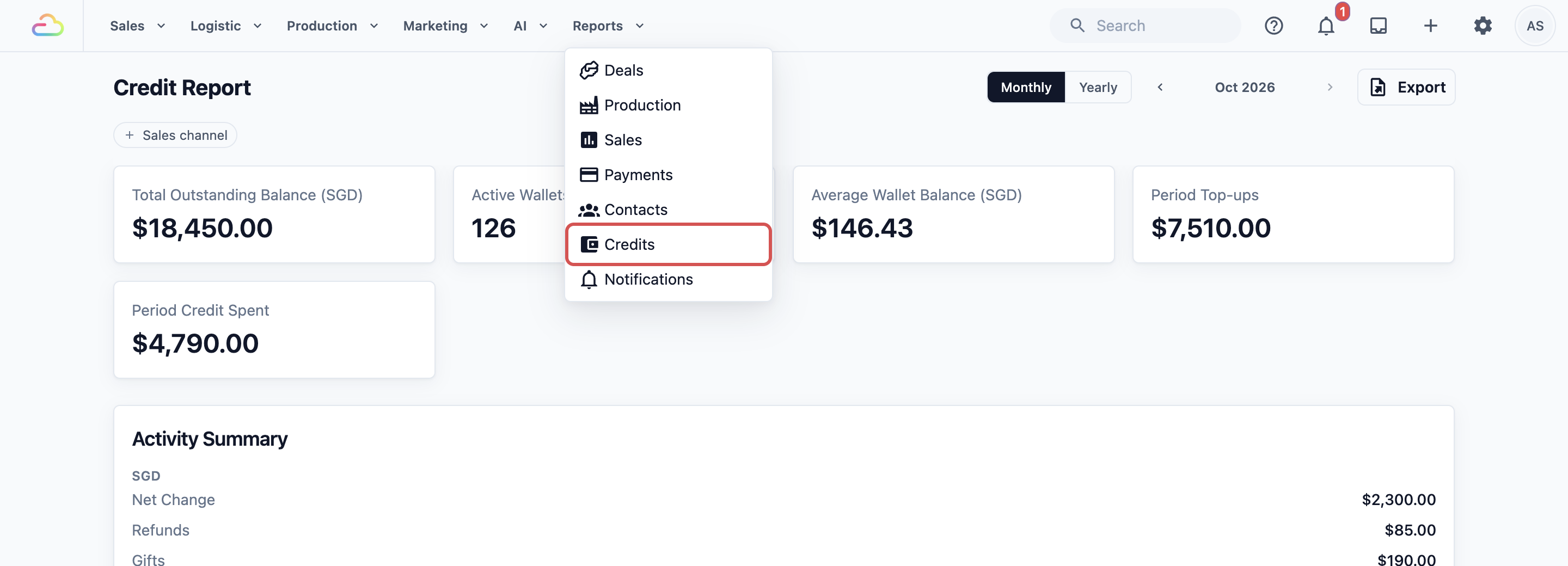
1. In the top menu, click Reports .
2. Click Credits .
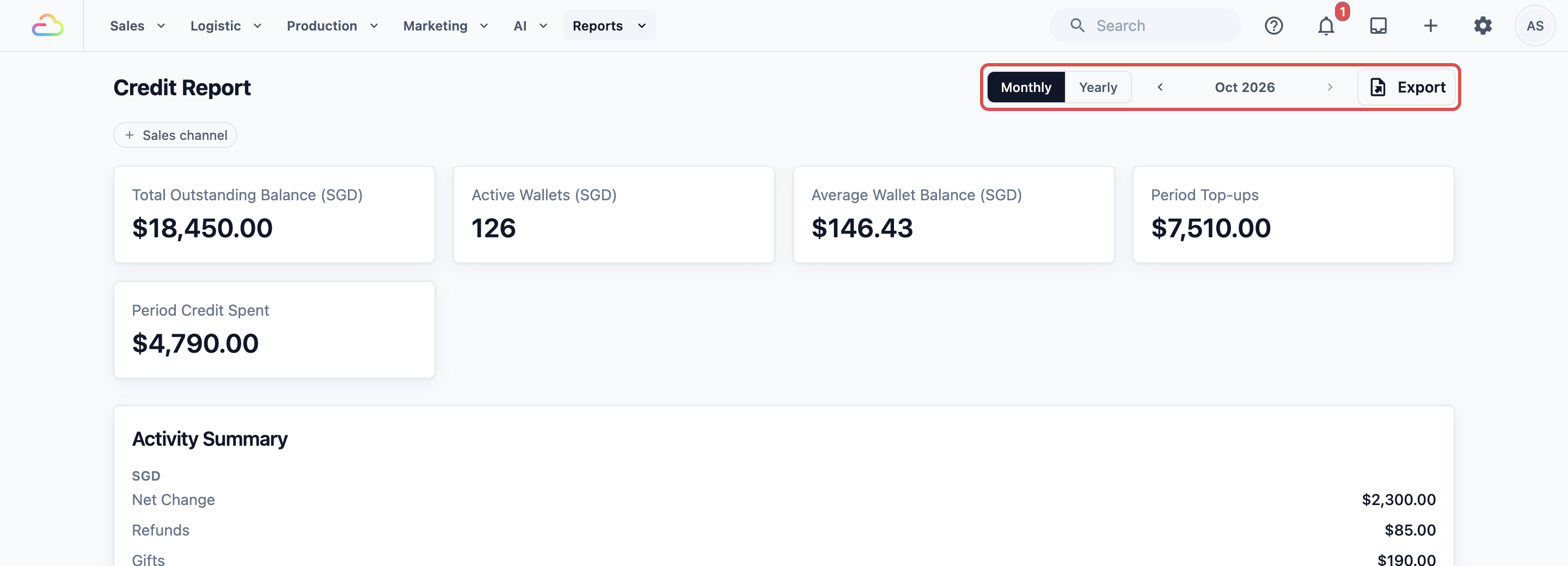
3. At the top right, choose Monthly or Yearly .
4. Next to it, use the arrows to pick the month or year you want.
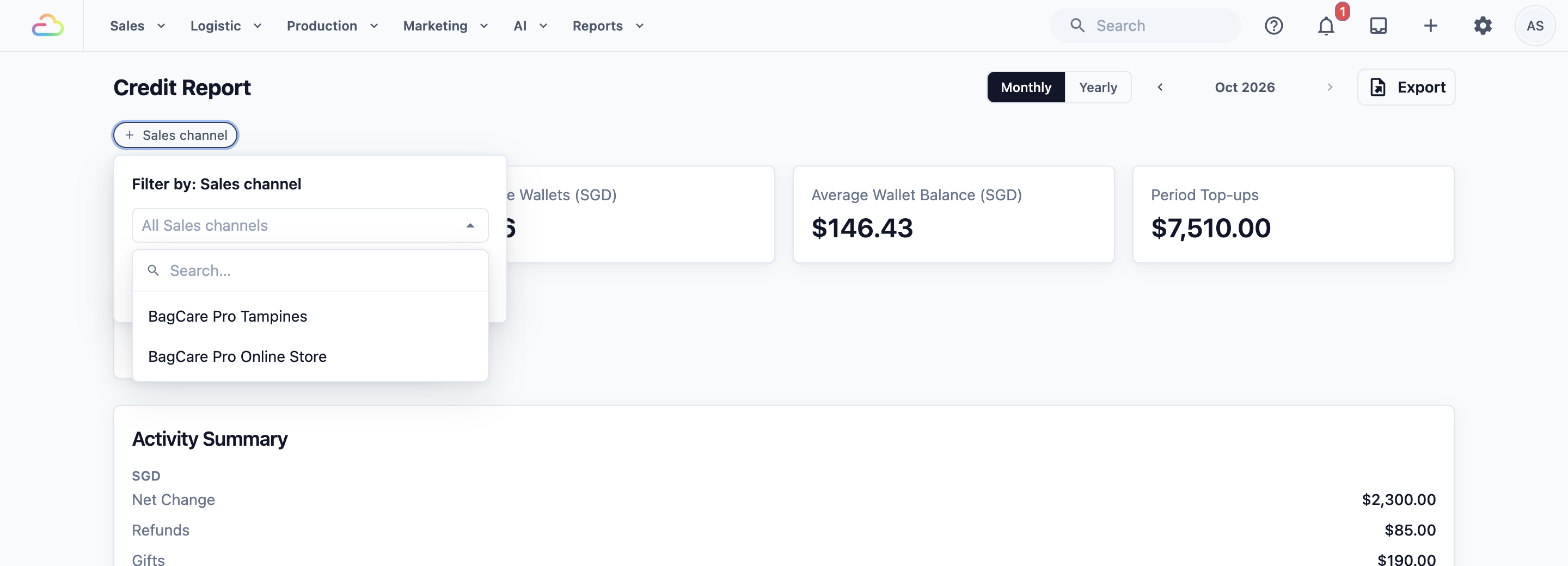
5. To look at one place only, click the **Sales channel** filter below the title and pick it. A sales channel is one place where you take orders and payments, such as your shop counter, your app or a mall outlet.
---
## Read the Credit You Still Owe Customers
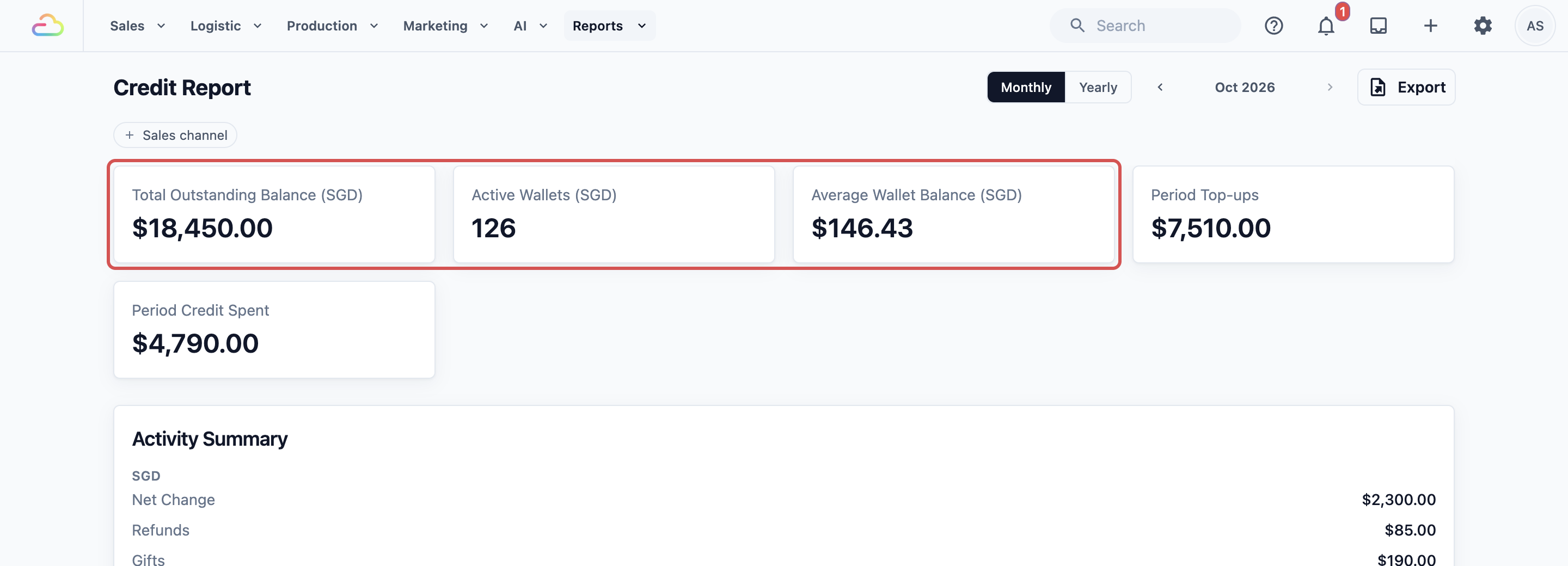
The first three cards show your credit as it stands right now. They do not change when you pick another month, year or sales channel.
- **Total Outstanding Balance**: all the unused credit your customers hold today. This is the credit you still owe them.
- **Active Wallets**: how many customers have credit left to spend.
- **Average Wallet Balance**: the average credit left per customer. It is the Total Outstanding Balance divided by Active Wallets.

---
## Read Credit In and Out for the Period
The next two cards cover only the month or year you picked.
- **Period Top-ups**: all the credit added to customer wallets. This includes top-ups customers paid for, and also credit your shop added for free, such as refunds, gifts, compensation and cash back.
- **Period Credit Spent**: the credit taken out of wallets, mostly when customers paid for orders with credit.
To see only the top-ups customers actually paid for, use the **Top-ups by Payment Method** table further down.
---
## Read the Activity Summary
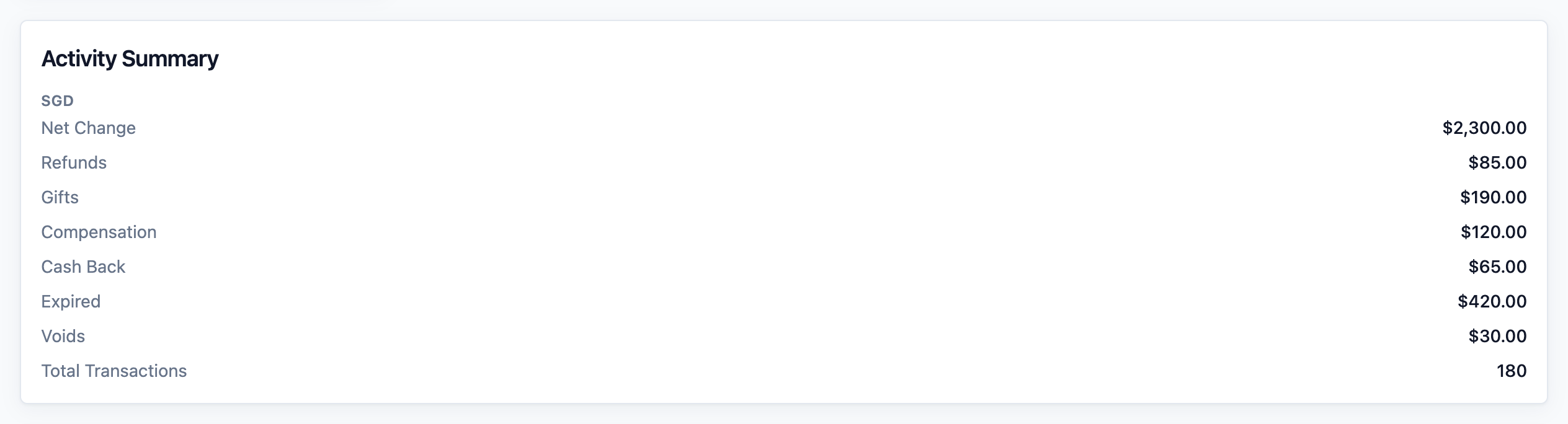
The **Activity Summary** card breaks the period down by type. It shows:
- **Net Change**: how much the credit your customers hold went up or down in this period. It is the credit added, minus the credit spent and the credit that expired.
- **Refunds**: money you gave back as credit instead of cash, for example for a cancelled order.
- **Gifts**: free credit your staff gave, for example as a birthday treat.
- **Compensation**: credit your staff gave to make up for a problem, for example a late order.
- **Cash Back**: credit given back on a purchase as a reward.
- **Expired**: credit that passed its expiry date and was removed from wallets.
- **Voids**: credit your staff removed from a wallet, for example to correct a mistake.
- **Total Transactions**: how many credit movements happened in the period.
---
## Read the Tables
Below the summary are up to three tables. Each title ends with the currency, for example SGD.
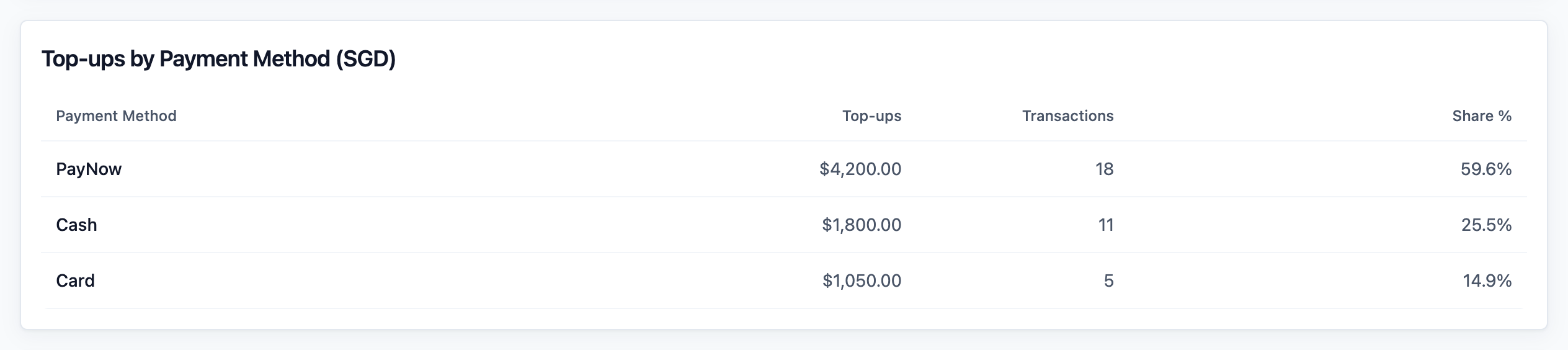
**Top-ups by Payment Method** shows the top-ups customers paid for, split by how they paid, for example Cash, PayNow or Card. It shows **Top-ups**, **Transactions** and **Share %**. It only appears in a period with paid top-ups.
**Credit Activity by Business** shows credit for each sales channel. Each row shows **Top-ups**, **Spends**, **Expired**, **Net**, **Transactions** and **Share %**. This table is hidden when you pick one sales channel in the filter.

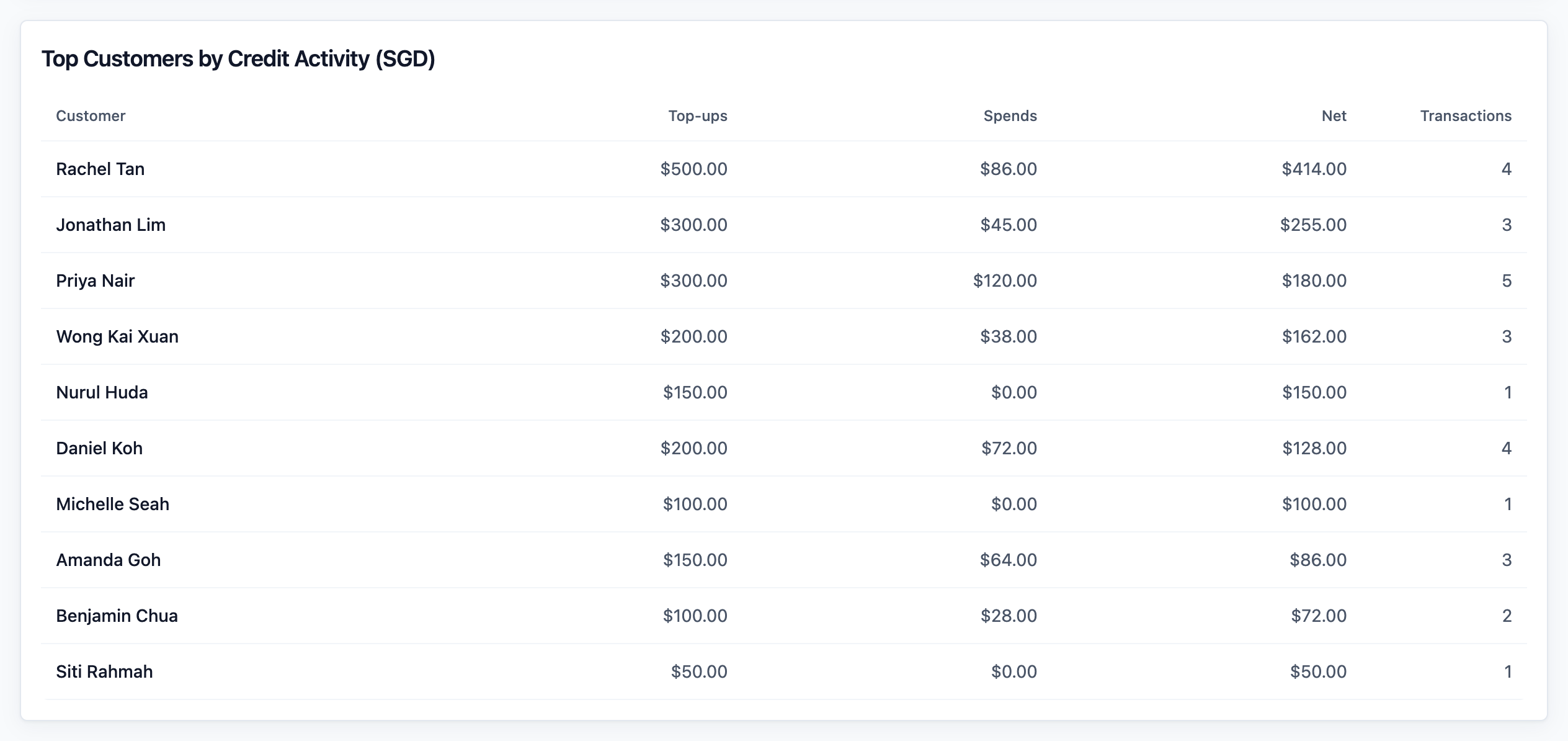
**Top Customers by Credit Activity** lists up to 50 customers with credit movements in the period. It shows their **Top-ups**, **Spends**, **Net** and **Transactions**, with the biggest Net at the top. Here too, Top-ups includes free credit your shop gave them.
---
## Download a Credit List
To export, which means download the report as an Excel file:
1. At the top right, click Export .
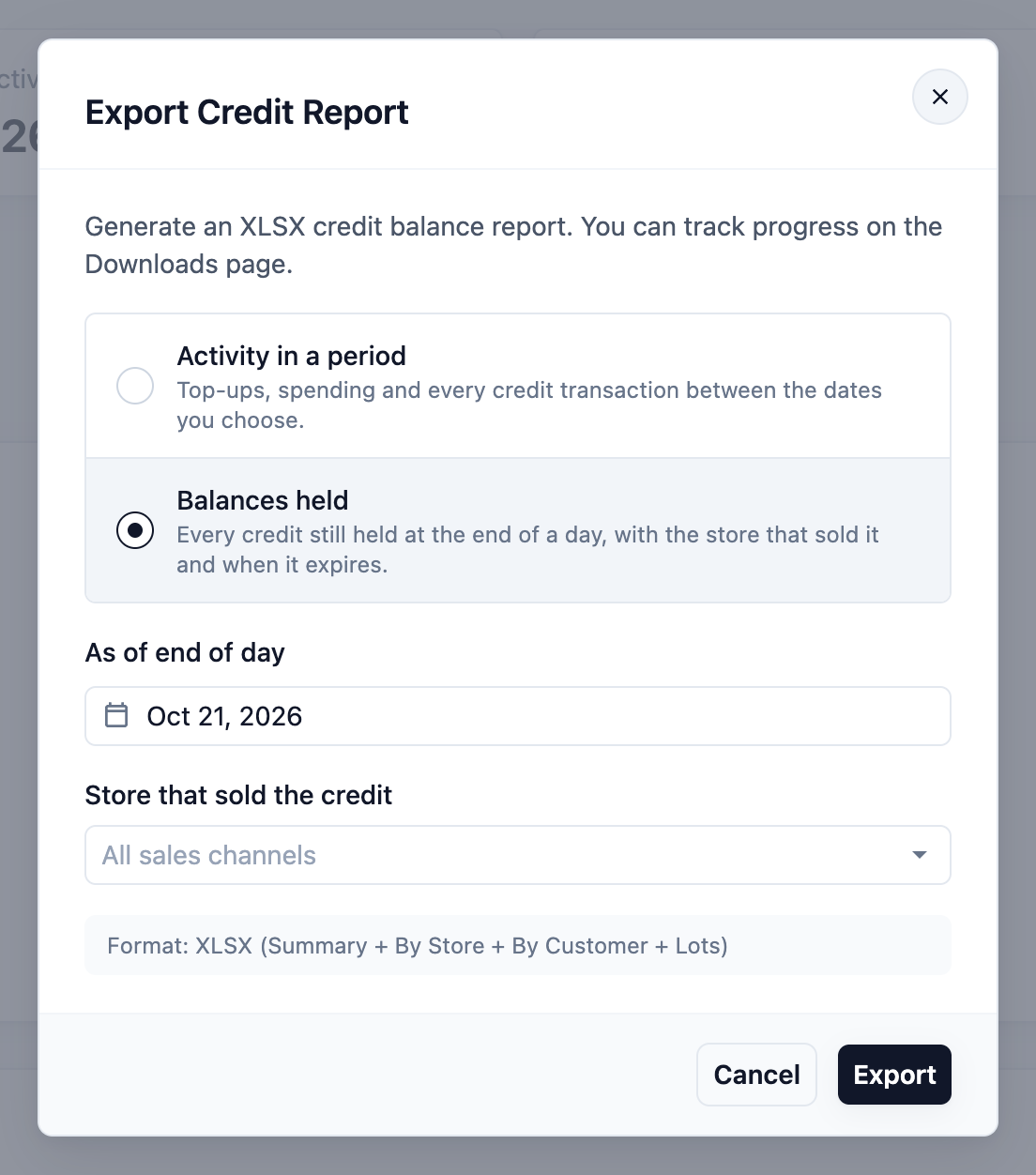
2. In the **Export Credit Report** window, choose what you need:
- **Activity in a period**: top-ups, spending and every credit transaction between the dates you choose.
- **Balances held**: every credit still held at the end of a day, with the store that sold it and when it expires.
3. Pick the **Date range**, or the **As of end of day** date for Balances held.
4. Click Export .
The file is prepared in the background. You collect it from the Downloads page. See [Exporting Reports and Downloads](/docs/exporting-reports-and-downloads).
---
## Example: BagCare Pro Checks Its Unused Prepaid Credit
BagCare Pro lets customers top up credit at its counter and in its online store. Before planning a new top-up promotion, the owner wants to know how much credit customers have not used yet.
1. She opens Reports , then Credits , and stays on Monthly for this month.
2. **Total Outstanding Balance** shows S$18,450.00 across 126 **Active Wallets**. The **Average Wallet Balance** is S$146.43.
3. In the **Activity Summary**, **Net Change** is S$2,300.00. Unused credit grew this month, so customers are topping up faster than they spend.
4. **Expired** shows S$420.00. She makes a note to remind customers before their credit runs out.
5. **Gifts** and **Compensation** add up to S$310.00. That is free credit her staff gave away, so she checks it matches what she approved.
She decides not to run the promotion yet. Her shop already owes S$18,450.00 of work, and she wants customers to use that credit first.
---
## FAQs
**Is unused credit counted as sales?**
>No. A top-up is money received, so it shows in your Payments Report, not your Sales Report. The sale is counted when the customer places an order, whether they pay with credit or not. See [Sales vs Payment Totals](/docs/sales-vs-payment-totals).
**When does credit expire?**
>It depends on your Store Credit settings. **Default credit expiry** sets how long paid credit lasts, from 30 days to 5 years, or no expiry. **Default gift credit expiry** can give free credit a shorter life. Each top-up or gift keeps the expiry date it got when it was added, so a change only affects credit added afterwards. Expired credit is removed within the hour and shows under **Expired**.
**Why doesn't Period Top-ups match the top-ups in my Payments Report?**
>Period Top-ups also counts credit your shop added for free, such as refunds, gifts and compensation. No money came in for those. The **Top-ups by Payment Method** table shows only paid top-ups, so its total is the one to compare with your Payments Report.
**Why doesn't the balance change when I pick another month or sales channel?**
>Total Outstanding Balance, Active Wallets and Average Wallet Balance always show today's figures for your whole shop. To see the credit held on an earlier day, export **Balances held** with that date.
**Why is Expired higher than I expected?**
>Free credit often expires sooner than paid credit, if you set a shorter gift credit expiry. Customers may not notice it running out. To see whose credit expired, export **Activity in a period** for that month. It lists every credit transaction, including each expiry.
---
## What's Next
You can now see how much credit you owe your customers and how it moves each month. Next, learn how to check the messages your shop sends to customers in [Reading the Notifications Report](/docs/reading-the-notifications-report).