## How customers pay
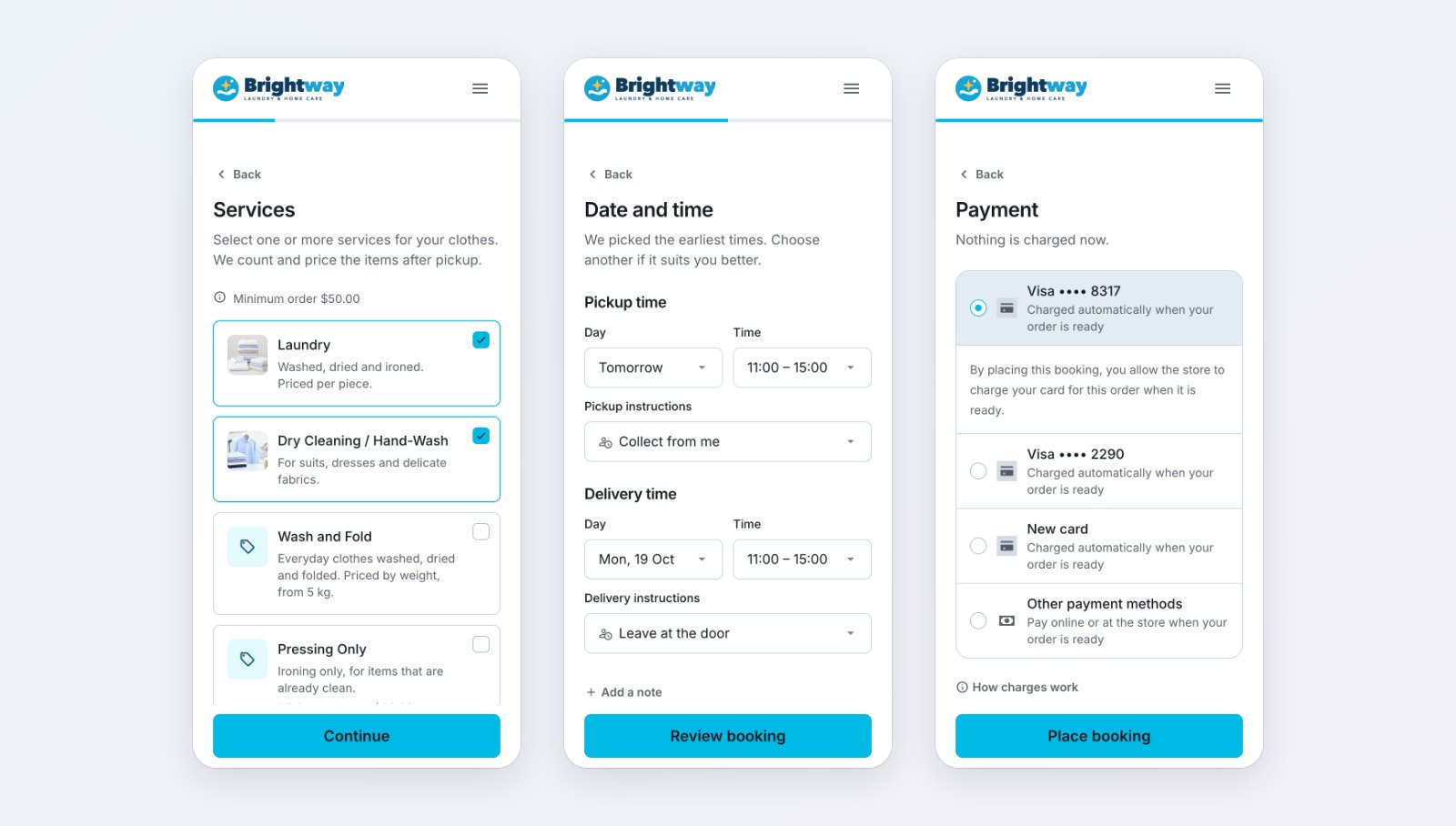
- **At booking, nothing is charged.** On the booking's **Payment** step, customers choose a saved card or add one, or choose **Store credit**. The card or credit pays automatically when the order is ready. They can also choose **Other payment methods** and pay later.
- **After booking,** customers pay from their order with Pay now once the price is confirmed.
- **Without signing in,** customers pay from a **Payment Link** or **Tracking link** your staff send them.
---
## Connect a payment provider
1. Go to ⚙️ Settings › Integrations.
2. Connect one or more:
- **Stripe:** click Connect and follow Stripe's steps. See [Connecting Stripe to EasyBiz](/docs/connecting-stripe-to-easybiz).
- **HitPay:** click Connect, then enter your **API Key** and **Webhook Salt**. See [Connecting HitPay to EasyBiz](/docs/connecting-hitpay-to-easybiz).
- **Atome:** click Connect. Atome works in Singapore and Malaysia, so the dialog has a section for each of those countries you sell in. Each country has a **Live** and a **Test** set. Enter the **API key** and **API password** Atome gave you, then click Check and save.
On your own Atome account, customers can pay with Atome only once the **Live** set for their country is saved. A **Test** set never takes a real customer's payment.
A method must also be on in the provider's own account. The store editor lists only the Stripe methods that Stripe has activated on your account. Switch HitPay methods on in your HitPay dashboard.

---
## Choose the methods customers see
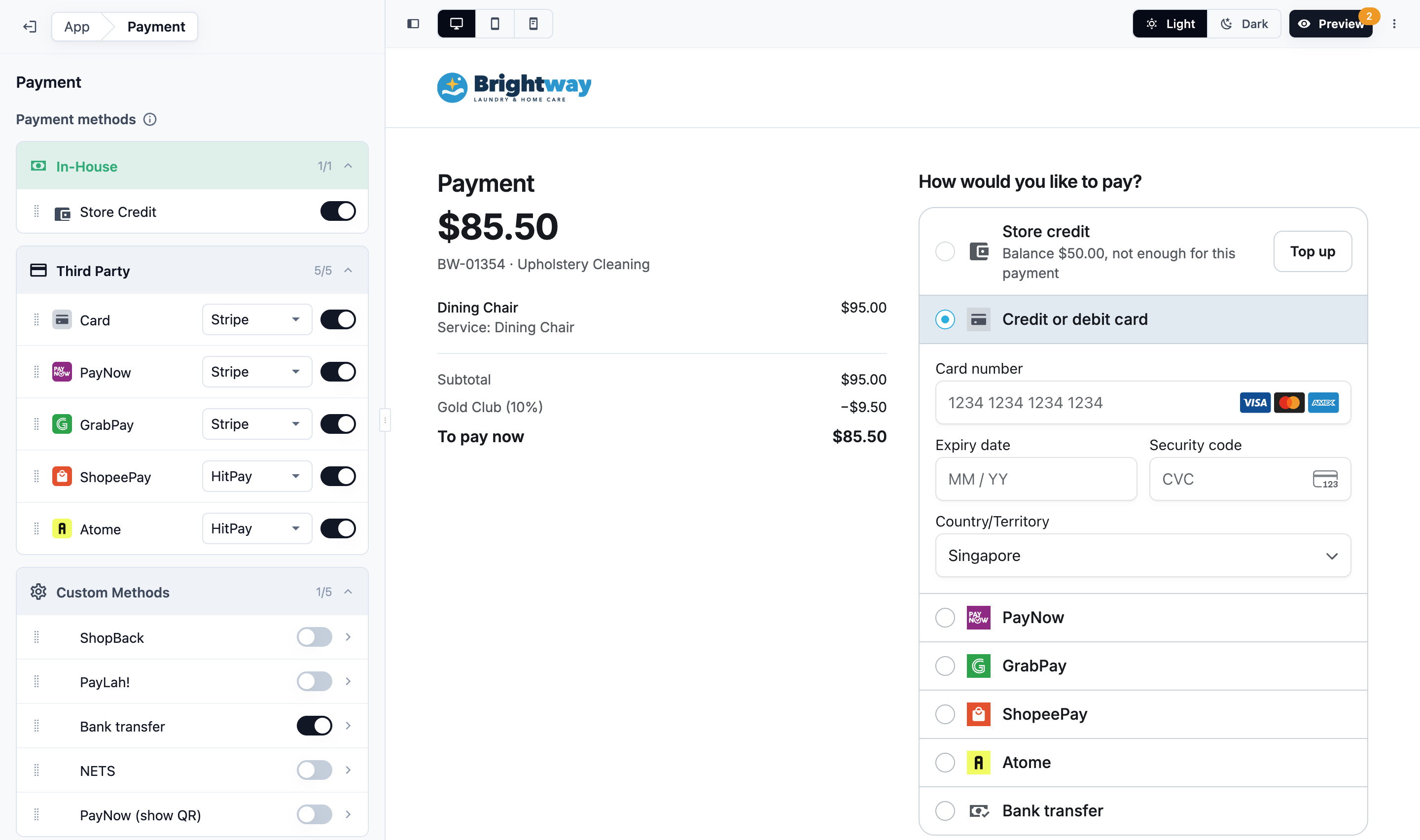
1. Open the store editor and, under **Pages**, click Payment. See [Edit, Preview and Publish Your Online Store](/docs/edit-preview-and-publish-your-online-store).
2. Under **Payment methods**, turn on each method you want and choose the provider it runs through.
3. Drag the methods into the order customers should see them.
| Section | Methods |
|---|---|
| In-House | **Store Credit**. Shown when your Wallet page is on |
| Third Party | The methods your connected providers take (below) |
| Custom Methods | Your own methods, such as a bank transfer or ShopBack (below) |
| Provider | Methods it takes online |
|---|---|
| Stripe | Card, PayNow (Singapore), GrabPay, and FPX (Malaysia) |
| HitPay | Card, PayNow (Singapore), GrabPay, ShopeePay, Atome, and in Malaysia FPX and Touch 'n Go eWallet |
| Atome | Atome, on your own Atome account |
Each method runs through the provider you choose for it. For example, you can take PayNow through HitPay and cards through Stripe.
**Line item description:** the details shown under each item of the order being paid. Type **@** to add the item's details, such as its colour or brand. A line whose details are empty is left out.
Publish the store to make your changes live.
---
## Let customers save a card at booking
Each business unit's last booking step is **Payment**. Set it on the editor's **Checkout** page › the unit › **Payment** row:
| Payment at booking | What customers can do |
|---|---|
| **Card optional** (default) | Choose their store credit, a saved card or a new card, or choose **Other payment methods** |
| **Card on file required** | Choose or add a card. They can't book without one, and store credit doesn't count as one |
Customers see the Payment step when Card runs through Stripe or HitPay, when they already have a saved card, or when they can pay with store credit. Saved cards use the provider you chose for Card.
- **Stripe:** customers type their card on the step.
- **HitPay:** customers click Add card and add it on HitPay's secure page. HitPay keeps each card under the customer's email. A customer with no email on their account sees "Add your email in Contact details to save a card." Until they add one, they can't book a unit set to **Card on file required**.
**Store credit** shows when your Wallet page is on, **Store Credit** is on in Payment, and the customer has a balance. It shows their balance and "Paid automatically when your order is ready". The step starts on the customer's default card, or on store credit when they have no card.
Under the card they see: "By placing this booking, you allow the store to charge your card for this order when it is ready." With store credit they see: "By placing this booking, you allow the store to pay this order from your store credit when it is ready. If your credit doesn't cover it then, you pay another way." **How charges work** opens the steps you write on the Payment row.
**Card on file required** needs Card switched on for Stripe or HitPay. With HitPay, click Check HitPay on the Payment row first. It makes sure your HitPay account can save cards, without charging anything. If it says your account can't save cards (GIRO only), ask HitPay to turn on cards for recurring billing, then check again. Until then, customers can't add a card when they book; they pay with your other payment methods.
In your store's **Preview**, the Payment step works as customers see it, and a Card on file unit asks for a card. A card you save there is a real card, kept on the customer account you signed in with. Nothing is charged in Preview: its orders are test (`#T`) orders. Store credit isn't offered in Preview.
See [Letting Customers Book Online](/docs/letting-customers-book-online).
---
## When a saved card is charged
The saved card is charged **once**, for the balance, after the price is confirmed and when the order is ready:
- every item is packed; or
- the order is handed over at the counter; or
- a delivery or on-site service job is completed.
A pickup never charges. If the order is already packed or handed over when you confirm the price, **Confirm Price** charges it. The order page tells the customer which card "will be charged automatically when your order is ready".
Nothing is charged for test (`#T`) orders, voided or paid orders, or while the price is still to be confirmed.
Store credit chosen at booking pays at the same moments, from the customer's own credit: the whole balance, or nothing if their credit doesn't cover it.
### If a charge fails
- Your staff get an "Auto payment failed" notification, and the Console shows **Card charge failed** with the reason. It clears when the order is paid, cancelled or voided.
- The customer's order says "We couldn't charge … automatically. Please pay now." with Pay now.
- To message the customer too, add a rule for the **Payment failed** event in ⚙️ Settings › Customer Notifications. See [Order Updates for Online Customers](/docs/order-updates-for-online-customers).
A declined card isn't tried again for the same amount. Staff can charge it again: on the order, click Collect (or **Collect Payment** at the POS) and choose **Card on file**.
When store credit doesn't cover the balance, nothing is taken and the order stays unpaid. Your staff get the same notification, and the Console shows **Store credit payment failed**. It is tried again at the next of the moments above, so a top-up in between pays it.
---
## Customers paying an order
Pay now shows on an order with an amount due when your store takes a payment online for it: an online method or a custom method switched on in your Payment page for the order's country. Without one, the order shows the amount due and "You can pay when your order is collected or delivered." For a service visit, it says "You can pay at your service visit."
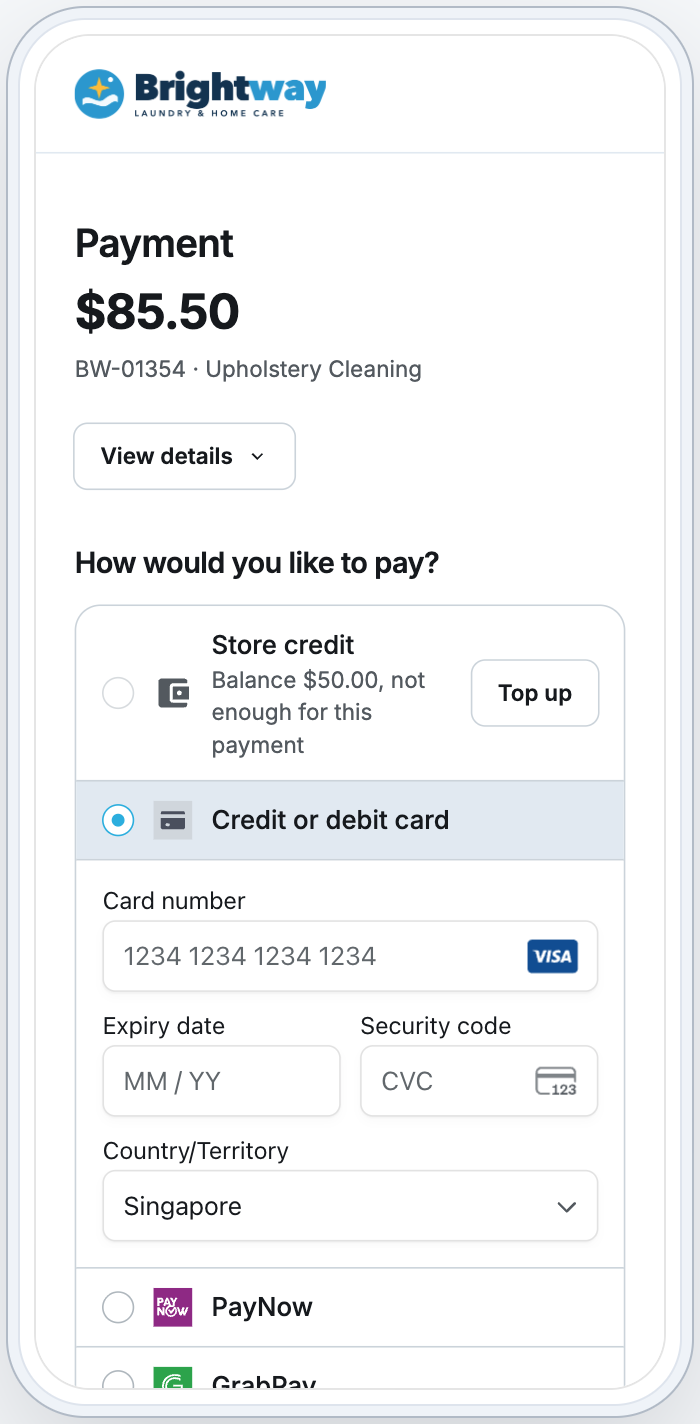
On their order, customers click Pay now and see **How would you like to pay?**, in this order:
1. **Store credit**, with their balance. If it isn't enough, they can top up.
2. Their **saved cards**.
3. Your Payment page methods, in your order.
4. Your custom methods.
| Method | What the customer does |
|---|---|
| Card | Types the card, or uses a saved one |
| PayNow | Scans the QR with their banking app. The page waits for the payment |
| GrabPay, ShopeePay, Atome, Touch 'n Go eWallet, HitPay card | Click **Continue to …** and pay on the provider's page |
| FPX (Malaysia) | Chooses their bank and pays from it |
When it is paid, the customer sees **Payment received** and the order is marked paid in the Console.
---
## Your own methods, with a payment screenshot
Use custom methods for payments your staff confirm, such as a bank transfer, PayLah or ShopBack.
1. Add the method in ⚙️ Settings › Custom Payment Methods.
2. In the store editor, open Payment and click the method under **Custom Methods**.
3. Turn on **Customers can pay this way**.
4. Fill in:
- **How to pay:** the steps, for example "Transfer to DBS 123-456789-0, using your order number as the reference".
- **QR code or account picture** (optional).
- **Show a PayNow QR for each order** (optional): a QR with the amount due and the order number, made from your company's UEN in Settings › Company. For orders in Singapore dollars.
- **Ask for a screenshot of the payment:** customers must attach one before they can tell you they paid.
The customer pays, attaches the screenshot and clicks I’ve paid. They see **Payment submitted**.
**Approve or reject it**
1. Go to **Sales** › Payments. The payment shows **Pending Review**.
2. Click ⋯ › Approve or reject.
3. Check the screenshot and your bank account, then click Approve or Reject.
Approve marks the order paid. Reject leaves the order to be paid again.
---
## Store credit, top-ups and membership
- **Store credit:** customers pay with their balance when the Wallet page is on and **Store Credit** is on in Payment: from their order, or automatically when the order is ready if they chose it at booking.
- **Top-up packages:** turn on **Sell online** for a package in ⚙️ Settings › Store Credit. Customers buy it on the Wallet page with an online method. See [Setting Up Your Store Credit Program](/docs/setting-up-your-store-credit-program).
- **Membership:** turn on **Sell online** for a plan in ⚙️ Settings › Membership. It can be turned on once the plan has a fee. Then, in the store editor, open the **Membership** page, turn on **Sell memberships** and publish. Members get their discount on the booking review. See [Setting Up Membership Plans](/docs/setting-up-membership-plans).
---
## Payment Link and Tracking link
Both open the order on your Online Store, where the customer can pay without signing in.
- **Payment Link:** on an order with an amount due, under **Amount due**, click Payment Link. Your browser's share menu opens, so you can send it on WhatsApp or by email. A browser with no share menu copies the link instead: "Link copied to clipboard".
- **Tracking link:** click Tracking link at the top of the order, then Copy, Open or Send on WhatsApp. Anyone with the link can follow the order, and pay it once the price is confirmed.
A link goes to the Online Store of the order's brand in the order's market. If there is none, the Console asks you to add one. If your brand still has a legacy online store, the Payment Link opens it until your customers move. After they move, payment links customers already have from the legacy store open the same order's payment page on your new store. See [Your Online Store (Legacy)](/docs/online-store-legacy-overview).
If the order's price isn't confirmed yet, the Console asks you to confirm it first.
---
## Saved cards in My account
Customers manage their cards in **My account** › **Payments**: add a card, make one the default, or remove one. The tab shows when you take cards online through Stripe or HitPay. A removed card is no longer charged for their orders.
---
## FAQs
**Is anything charged when a customer books?**
>No. A card is only saved, and store credit is only chosen. They pay when the order is ready.
**Can a customer pay part by credit and part by card?**
>No. One payment uses one method.
**Can I refund an online payment?**
>Yes, from the order's payment row: ⋯ › Refund. It refunds the payment's whole remaining amount. A Stripe, HitPay or Atome payment goes back through that provider, and a store credit payment goes back to the customer's credit. A custom method, such as a bank transfer, is only recorded as refunded: send the money back yourself.
>
>**Refund** shows only when refunds are on, and they are off (**Disabled**) by default. To turn them on, go to ⚙️ Settings › EasyBiz Console › **Console Pages** › **Order detail**. Click the **Payment** section, set **Refund Mode** to **Same Day Only** or **Unrestricted**, and save. See [Processing Refunds and Returns](/docs/processing-refunds-and-returns).
**A customer paid, then my staff returned an item. What does the customer see?**
>Their order page lists the return and the new total. When they paid more than the new total, it shows **Refund due** for the difference until you refund it, for example with Refund overpaid on the order.
**Can customers pay with Apple Pay or Google Pay?**
>No. Customers type their card, or choose a saved one.
**Why can't a customer pay with Atome?**
>On your own Atome account, Atome is offered only in a country whose **Live** set is saved. It also needs the customer's mobile number, so customers with no mobile number on their account don't see it. And it needs an address: the customer's saved address, or else your shop's.
**Which methods work in the Mobile App?**
>The same methods as your Online Store. With Stripe, a new card is added in Stripe's card form, which opens over the app. HitPay and methods such as GrabPay open the provider's page, then return to the app.
---
## What's next
To see online orders arrive, confirm their price and get them paid, see [Handling Online Orders in the Console](/docs/handling-online-orders-in-the-console).