## Before you start
- **A store with its Online Store or Mobile App turned on.** See [Adding a Store and Turning On the Online Store or Mobile App](/docs/adding-a-store-and-turning-on-online-store-or-mobile-app).
- **A company in the store's market.** Customers pay this company.
- **An idea for a short code**, if you want your own. For example, your brand initials, such as "CFL" for CleanFast Laundry.
---
## Check or change your billing company
The billing company is the company your customers pay. Its details appear on their receipts and invoices, so your customers always see the right company name. You choose it when you first turn on the Online Store or Mobile App, so every store has one.
To check it, open ⚙️ Settings › **Sales channels** › Online Store & Mobile App. Each store card shows the brand, its market and, under the brand, the company that bills its customers.
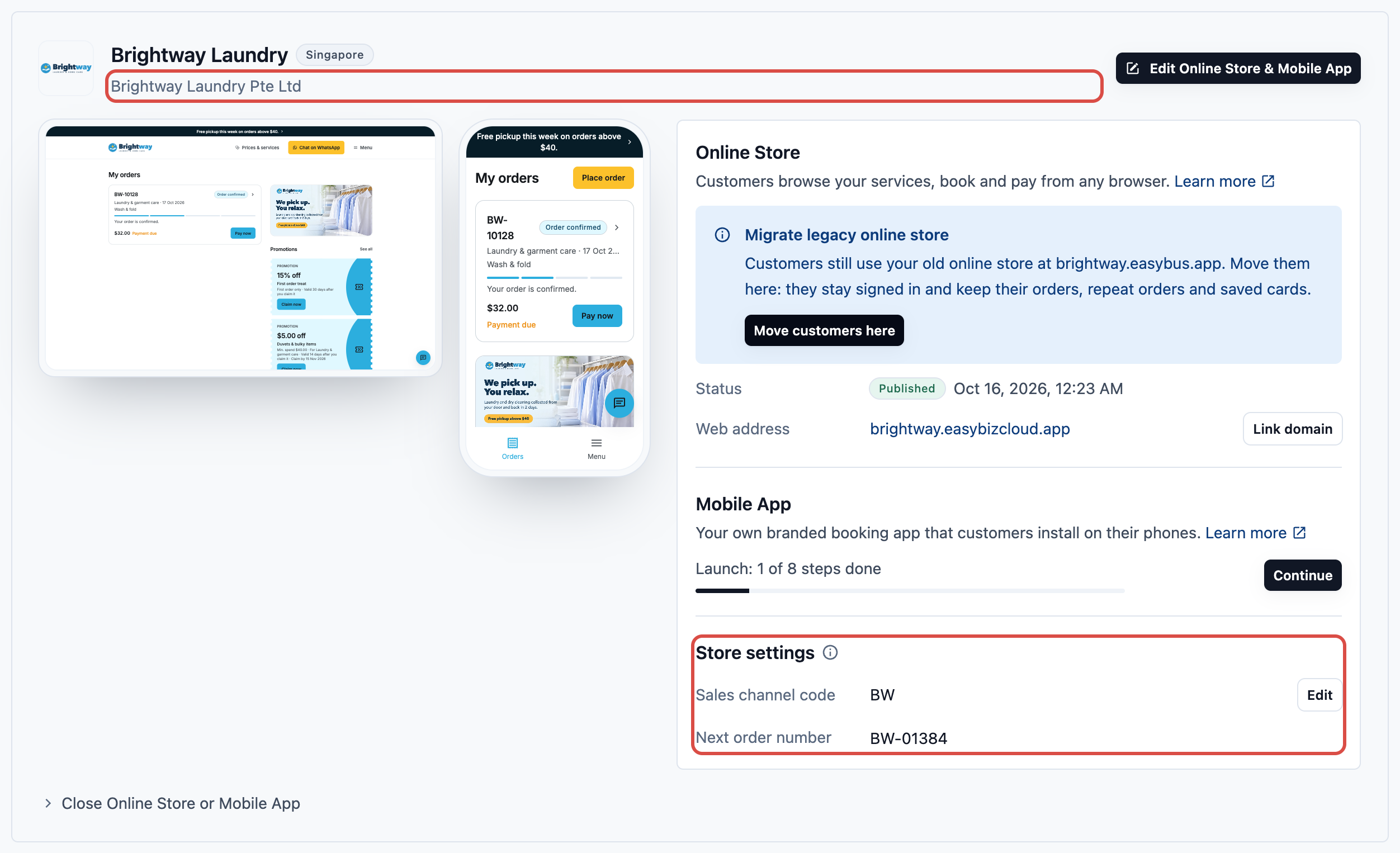
To change it:
1. On the store card, click Edit Online Store (or Edit Mobile App, or Edit Online Store & Mobile App). This opens the store editor.
2. Under **App settings**, click Company & Locations.
3. Choose a company in the **Billing company** field.
Once your store is live, a new billing company reaches your customers only after you Publish (send your changes to customers). Check that company's details first, because they will appear on every receipt after that.
**Took over your old online store?** Then you can't change the billing company here. **Company & Locations** says **Set on your sales channel**: your store takes orders on your old online store's sales channel, which your staff and WhatsApp orders also use, so it keeps that channel's company and Locations. See [Your Online Store (Legacy)](/docs/online-store-legacy-overview).
---
## Set your sales channel code
The sales channel code is a short name for this store. It goes in front of every order number from this store. This helps you tell online orders apart from shop orders at a glance. It also keeps your reports clear when you run more than 1 store.
A new store gets a code made from your brand name: the first letters of its first 4 words, such as "BW" for Brightway Laundry, or the first 3 letters of a one-word name. You can change it any time. Without a code, orders are simply numbered like #00001, and the card shows "Not set".
1. In **Store settings**, click Edit next to **Sales channel code**.
2. Type your code in the **Online store code** box. Letters change to capitals by themselves.
3. Click Save.
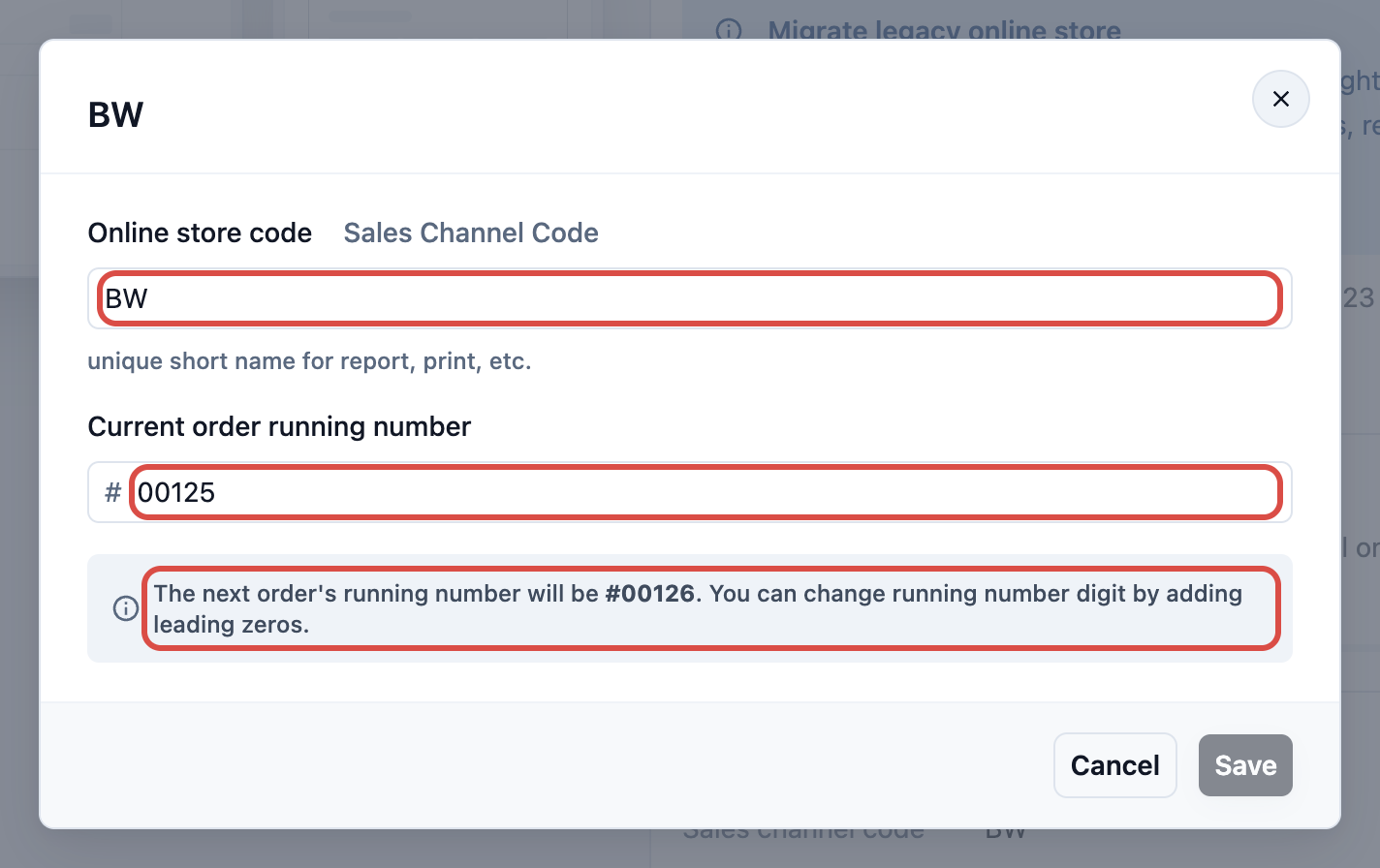
You see "Sales channel code saved". The change applies right away, without publishing.
Each code must be different from your other sales channels. If you see, for example, "Sales Channel Code BW is already taken", another channel already uses it. Type a different code.
---
## Choose your next order number
**Next order number** shows the number your next online order will get. With a code, it looks like BW-00026. Without a code, it looks like #00026.
This setting is optional. If you leave it alone, a new store's orders start from 00001. Changing it is useful when you move from another system and want to carry on numbering from where you stopped.
To change it:
1. In **Store settings**, click Edit next to **Sales channel code**. The same window holds the order number.
2. In **Current order running number**, type the number of your **last** order, not your next one.
3. Read the line under the box. It tells you the next order's running number.
4. Click Save.
**Choose how many digits your order numbers have.** The number of digits you type sets the length of every new order number. For example, if your last order was 123:
| You type | Next order number |
|---|---|
| 123 | #124 |
| 00123 | #00124 |
| 000123 | #000124 |
The line under the box shows the exact next number before you click Save.
Moving from another system? Type the last order number you used there. Your new online orders then carry on from the next number.
Your store then uses your old online store's sales channel. Its code and order numbers are shared with the orders your staff and WhatsApp take on that channel, so a change here changes their numbers too.
---
## Example setups
The owner sets the code to "CFL" and types 00450, the last number from her old booking form. Her next online order is CFL-00451, so her staff know it is an online pickup.
The owner uses the code "SRA". The website and the app share it, so every online alteration order starts with SRA, whichever one the customer used.
CoolAir has 2 companies. Before customers pay S$80 for a servicing visit, the owner checks that "CoolAir Services Pte Ltd" is the billing company on the store card. That way, the right company name and details print on every receipt.
---
## What your customers see
Mei books a wash-and-fold pickup on her phone.
1. Mei opens the app and books her pickup.
2. She sees "Booking confirmed", with her order number. If you set a sales channel code, the number starts with that code, for example BW-00026.
3. Receipts and invoices for her order show your billing company's name and details.
Mei never sees the word "code". She only sees a tidy order number that she can quote if she messages the shop.
If Mei books on the Online Store instead, she gets the same kind of order number. Both use the same settings.
---
## FAQs
**Do I need to Publish after changing the code or order number?**
>No. The sales channel code and next order number apply right away, without publishing. The next new order uses them.
**Will changing my code rename my old orders?**
>No. Each order keeps the code it was given when it was placed. Only new orders get the new code.
**Can my Online Store and Mobile App have different codes?**
>No. They share 1 set of store settings, so both use the same code and number series.
**Can 2 stores use the same code?**
>No. Each code must be unique. If another channel already uses it, you see "Sales Channel Code … is already taken".
**Why can't I change my billing company?**
>Your store took over your old online store's sales channel, so **Company & Locations** says **Set on your sales channel**. The store keeps that channel's company, which your staff and WhatsApp orders also use.
**Does changing these settings cost anything?**
>No. Changing the billing company, code or order number is free. For how your Online Store and Mobile App are billed, see [Adding a Store and Turning On the Online Store or Mobile App](/docs/adding-a-store-and-turning-on-online-store-or-mobile-app).
**I typed my next number, but orders start 1 higher. Why?**
>The box asks for your **last** order number. Type 1 less than the number you want next. Then check the line under the box before saving.
---
## What's next
Your store now bills through the right company, and its orders carry a clear code and the number you chose. Next, set up the pages your customers see, then preview and publish: [Edit, Preview and Publish Your Online Store](/docs/edit-preview-and-publish-your-online-store).