## Before you start
To use the editor, add your store, then turn on your **Online Store** (your website), your **Mobile App**, or both. [Learn how](/docs/adding-a-store-and-turning-on-online-store-or-mobile-app)
---
## Open the editor
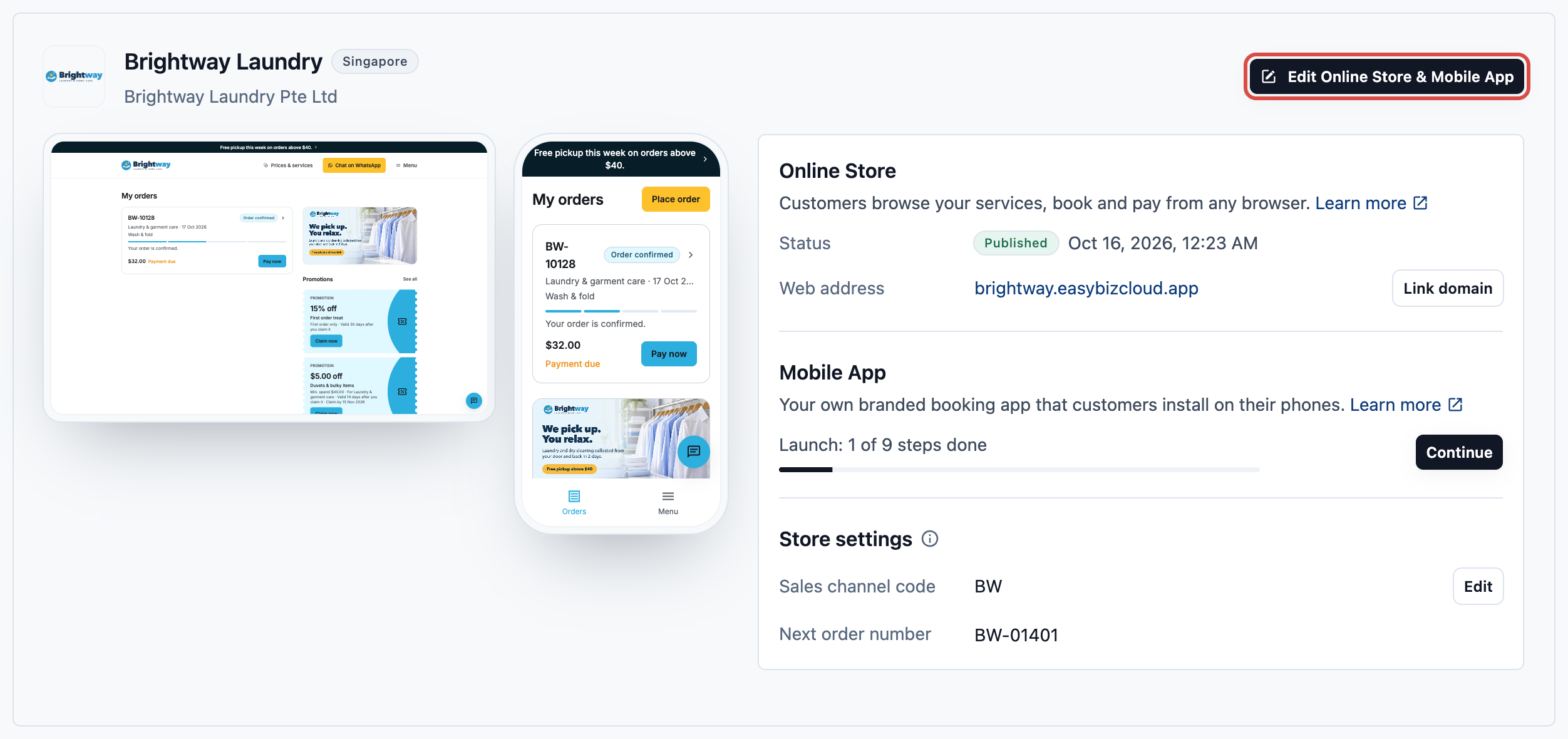
1. Go to ⚙️ Settings › **Sales channels** › Online Store & Mobile App.
2. On the store card, click Edit Online Store & Mobile App. With only one product on, it says Edit Online Store or Edit Mobile App.
The editor has its settings on the left and a live preview on the right. The left side lists **Pages**, **Navigation** and **App settings**. Above the preview:
- **Web · Desktop** shows your Online Store as it looks on a computer.
- **Web · Phone** shows your Online Store as it looks on a phone.
- **Mobile app** shows your Mobile App.
- **Light** and **Dark** change only the preview.
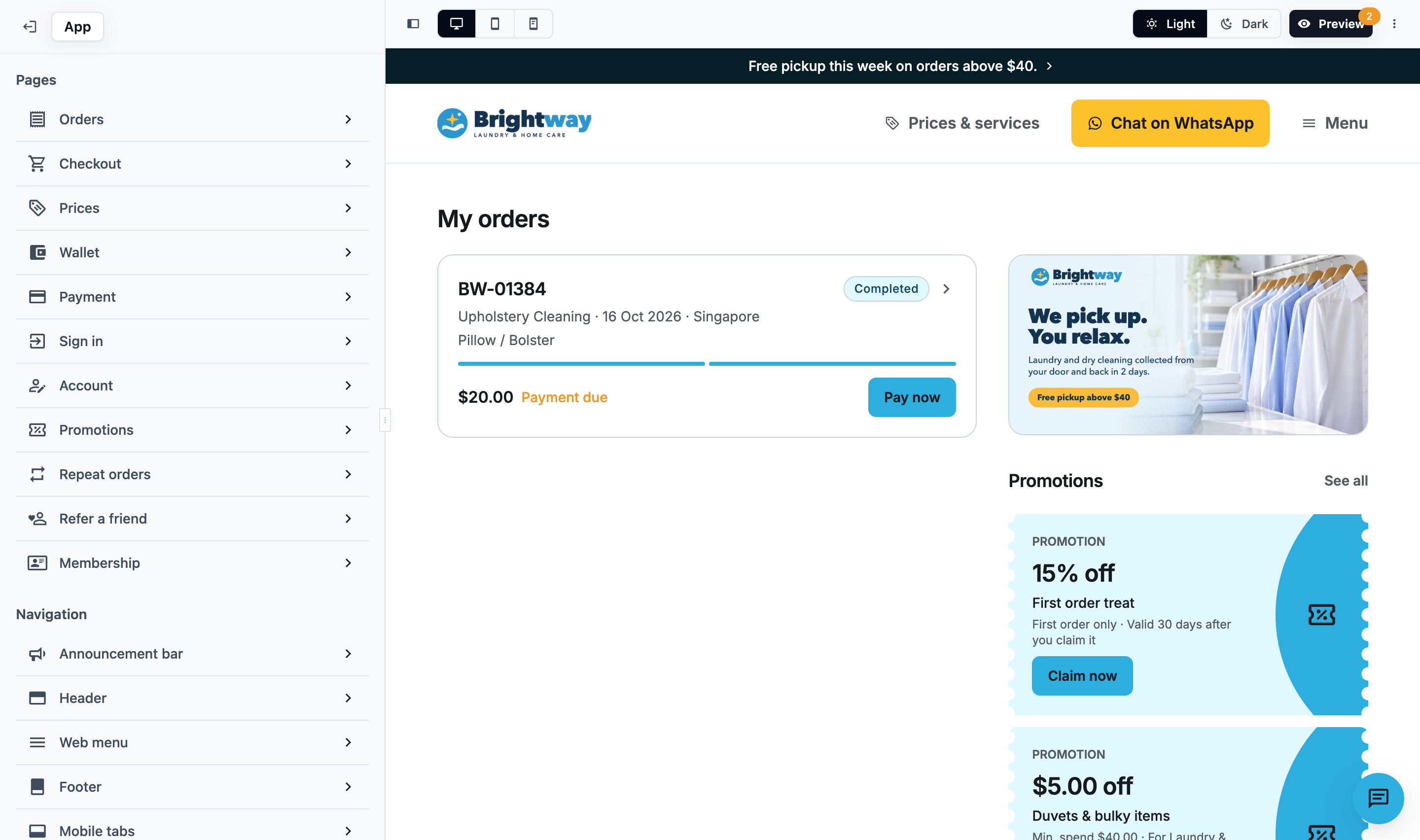
Your Online Store and Mobile App follow each customer's own phone or computer setting for light or dark mode. In dark mode, your Online Store shows the dark logos from your Brand Profile, if you added them.
---
## Pages
| Page | What you set |
|---|---|
| Orders | Your store's front page, where customers follow their orders. Add cards beside the orders, such as a promotion photo or your offers. See [Setting Up Your Orders and Account Pages](/docs/setting-up-your-orders-and-account-pages) |
| Checkout | Which business units customers can book, and each unit's booking steps. See [Letting Customers Book Online](/docs/letting-customers-book-online) |
| Prices | Which business units show their prices, in your order. See [Showing Your Prices Online](/docs/showing-your-prices-online) |
| Payment | The payment methods customers can use. See [Taking Payments on Your Online Store](/docs/payments-on-your-online-store) |
| Account | **Customers can change their name**. See [Setting Up Your Orders and Account Pages](/docs/setting-up-your-orders-and-account-pages) |
| Sign in | How customers sign in and sign up. See [Customer Sign-In and Sign-Up](/docs/customer-sign-in-and-sign-up) |
| Wallet, Promotions, Repeat orders, Refer a friend, Membership | Optional pages. Open one and switch it on: **Offer a wallet**, **Offer promotions**, **Offer repeat orders**, **Offer referrals** or **Sell memberships**. A page that is off shows **Hidden** |
---
## Navigation
| Setting | What it does |
|---|---|
| Announcement bar | A short message at the top of every page. [Learn how](/docs/setting-up-your-announcement-bar-footer-and-languages) |
| Header | The buttons at the top of your website (see below) |
| Web menu | The pages listed under your website's **Menu** button. Drag to change the order |
| Footer | Links to your privacy policy and terms |
| Mobile tabs | The tabs at the bottom of a phone screen, in the Mobile App and on your website. Pick up to 3 pages. All other pages go under **Menu** |
| Contact widget | A chat button for Live chat and WhatsApp. [Learn how](/docs/setting-up-the-contact-widget-and-live-chat) |
Header, Web menu and Footer only appear when your Online Store is on. If you turn off a page, it leaves the menu too.
A new store starts with Orders, Prices and Account as its Mobile tabs. Booking is never a tab. Customers open it with the **Place order** button.
### Header buttons
Your website's header has two buttons:
- **Primary button:** filled, beside the menu.
- **Secondary button:** outlined, before the primary button. It shows only on a computer.
A new store's Primary button is **Place order**, which opens booking. Its Secondary button is **Prices & services**.
For each button, choose what it opens: one of your pages, **WhatsApp**, or **No button**.
- A button that opens booking says **Place order**. A WhatsApp button says **Chat on WhatsApp**.
- For these two, you can pick other **Button text**: **Book now**, **Book a pickup**, **Book a repair** or **Get a quote**.
- A button that opens any other page shows that page's name.
To add a WhatsApp button, first turn on WhatsApp in the Contact widget. Header buttons show only on your website, not in the Mobile App.
---
## App settings
**Company & Locations**
Choose the company your customers pay. Then turn on the Locations that take online orders, and leave shop-only Locations off. Customers don't pick a Location. Their address decides which Location serves them.
**App name & icon**
The name and icon of your Mobile App. Your website uses the same icon. [Learn how](/docs/launch-your-mobile-app)
**Store icon**
Only for stores without the Mobile App. This picture shows on your customer's home screen and browser tab. Click Upload or generate or Create from brand logo. Until you choose one, the icon is made from your brand logo, or its first letter.
**Google Analytics**
Add your GA4 ID to track visitors on your website. [Learn how](/docs/adding-google-analytics-to-your-online-store)
Moved over from an old online store? Company & Locations will say **Set on your sales channel**. These settings stay as they are, because your staff and WhatsApp orders also use them.
Your web address and custom domain are on the store card, not in the editor. [Learn how](/docs/adding-a-store-and-turning-on-online-store-or-mobile-app)
---
## Your changes save automatically
Every change saves by itself as a draft. Customers keep seeing your last published version until you publish.
Once a product is live, its store card shows **Unpublished changes**, and the Preview button shows how many changes are waiting.
Some changes reach customers without a Publish:
- **Store settings** on the store card (sales channel code and next order number) apply right away.
- Your Brand Profile's **brand name** and **logo** show at the next page load. Its **colours** go out with your next Publish.
- Settings outside the editor apply when you save them: booking options, time slots, service areas, minimum orders, Cancel & reschedule and coupons.
---
## Preview your next release
Preview lets you try your store the way customers will get it, before you publish.
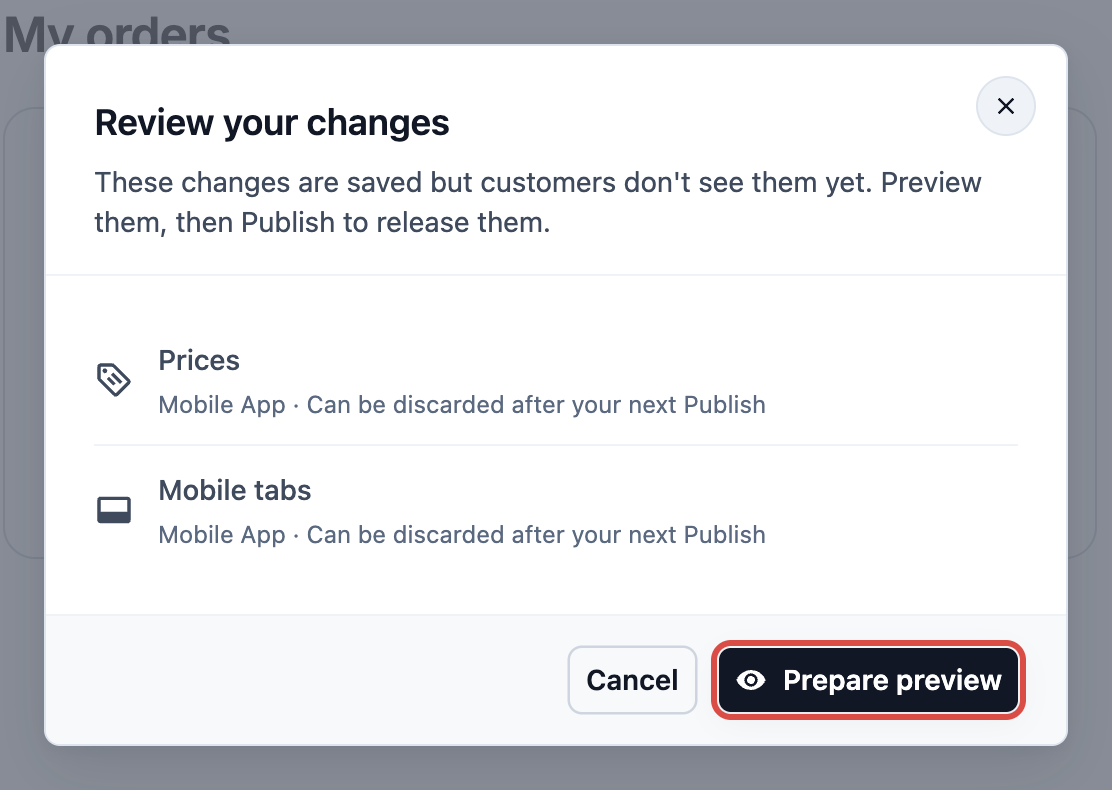
1. Click Preview at the top right.
2. Check your changes. Click Discard on any change you don't want. If nothing is live yet, this step is skipped.
3. Click Prepare preview.
### What happens in Preview
Preview works like your live store, except that nothing is paid:
- **Sign-in is real.** Signing in opens the customer account for that email or mobile number, or creates one, and sends a real sign-in code. Use your own email or number.
- **Bookings are test orders.** Their order numbers include **#T**, and nothing is charged.
- **Saved cards are real.** A card you add is saved with Stripe or HitPay on your store's account, and stays on that customer's account. It is never charged for a test order.
- **No other payments.** Preview doesn't sell top-ups or memberships, offers no **Pay now**, and doesn't use store credit.
While you're signed in, Sign out at the top right lets you try again as someone new.
To see your test orders, go to **Sales** › **Orders** in the Console and click Training. Cancel them when you're done. See [Handling Online Orders in the Console](/docs/handling-online-orders-in-the-console).
If something isn't ready for customers yet, such as missing prices, service areas or time slots, a warning bar shows at the top of the preview. Click Configure on the bar to fix it.
Every service customers can book needs booking steps, such as address, date and time, and contact details. If one has none, you can't preview or publish. Open the **Checkout** page and add its steps, or turn that service off.
When you're finished, click Edit to go back to editing.
### Try the Mobile App on your phone
Your Mobile App opens on your phone inside **EasyBiz Workflow**, the app your team uses. In Preview, choose **Mobile app** above the preview. The **Try the real app on your phone** card beside it shows these steps:
1. Get the **EasyBiz Workflow** app. Scan the code for your phone with its camera.
2. Open it and sign in with the account you use for EasyBiz.
3. Tap **Menu**, then **Preview Customer App**, then your store. It opens as your customers will see it.
4. To leave, tap the round eye button, then **Exit preview**.
- The eye button's menu shows your brand, and **Orders: Test, nothing charged**.
- Your store appears in **Preview Customer App** once its Mobile App is turned on and you have clicked Preview in the Console.
- A newer Preview reloads the app on your phone. Publishing ends the preview.
- If you close EasyBiz Workflow, it opens in the preview again, until you tap **Exit preview**.
- Anyone on your team who is signed in to EasyBiz Workflow can open it.
While you edit, the same card has Preview on your phone, which starts Preview. To set up the app for your team, see [Install and Sign In to EasyBiz Workflow](/docs/getting-the-easybiz-app-for-your-team).
---
## Publish
You publish from Preview, so customers get exactly what you tried.
1. In Preview, click Publish.
2. Each product has its own card. Click Publish Online Store, Publish Mobile App, or both.
Online Store customers see the change within about 2 minutes. The Mobile App shows it right away. Publishing one product leaves the other as it is.
### Publishing for the first time
- **Online Store:** your website goes live and its billing starts today. Only staff with billing access can do this.
- **Mobile App:** the button says Launch your app. It publishes your app; you build the app later, in step 8 of Launch your app. Then follow the steps to put your app on the App Store and Google Play. Billing starts when your app first appears in one of these stores, but this first Publish also needs billing access. [Learn how](/docs/launch-your-mobile-app)
Either first Publish needs an active EasyBiz trial or subscription. The Mobile App also needs a price plan that includes it. If it doesn't, Publish says "Your price plan does not include Mobile App. Ask EasyBiz to move you to the current plan, then publish."
Changed your app's name or icon? The button will say Publish and build app, because the app has to be built again.
Your Online Store and Mobile App share some settings: sign-in, checkout steps, and Company & Locations. If you change one of these and publish only one product, the change still applies to both. The product's card in Publish tells you when this happens.
If something changed after you previewed, Publish asks you to preview again. Click Preview again, then publish.
Customers don't see anything you edit until you publish. Preview first. If a release goes wrong, use Version history to go back to an earlier version.
---
## Go back to an earlier version
1. In the editor, click ⋮ › Version history.
2. Choose **Web** (your Online Store) or **Mobile App**.
3. Click Restore on the version you want, and confirm.
Customers get the restored version at once, for that product only.
---
## FAQs
**I made changes, but customers still see the old store. Why?**
>Changes are a draft until you publish. Click Preview, then Publish.
**Why is there no Publish button?**
>Publish shows only in Preview. Click Preview first.
**Is the sign-in in Preview a test account?**
>No. Preview opens the real customer account for the email or mobile number you use, or creates one. Cards you save there are really saved. Only the orders are test orders, and nothing is charged.
**Publish says I need billing access.**
>A first Publish starts billing: the Online Store's at once, the Mobile App's from its first day in a store. Ask someone with billing access to publish.
**Publish says "Taking Online Store live needs an active trial or subscription."**
>Your EasyBiz trial or subscription isn't active. Click Open Billing in the message. The same applies to the Mobile App.
**Publish says "Your new version isn't live yet."**
>Click Retry on the Online Store card. Customers keep the previous version until it goes live.
**Can my team try the store before customers do?**
>Yes. Anyone who can open the editor can use Preview. Anyone signed in to EasyBiz Workflow can open Preview Customer App. Orders are test orders and nothing is charged.
**Where do I find my store's web address?**
>On the store card in Settings › Online Store & Mobile App, in the **Web address** row.
---
## What's next
Choose what customers fill in when they book: [Letting Customers Book Online](/docs/letting-customers-book-online).