## Before You Start
Setting up a Brand Profile is mostly a matter of having the right pictures ready before you begin. The form itself only takes a few minutes, but it asks for your logo in a few different versions, so it is worth spending five minutes gathering your files first.
There are two things to sort out beforehand.
- **Access to the page.** Brand Profiles sit in the **Company & business structure** part of Settings, and they need that access. Being able to open the rest of Settings does not automatically include it, so if you cannot see the page, ask your account owner to add it to your account in Users & Access.
- **Your logo files.** If you can, go back to whoever designed your logo and ask for the original files. A designer normally keeps a PNG with a see-through background and an SVG, and between them those two cover almost every box on this page.
If the original files are long gone, that is perfectly normal, many businesses only have the version sitting on their signboard photo or their Facebook page. Start with the file you have, fill in the first box, and swap in a better one whenever you get it. Changing a logo later takes a few seconds and updates everywhere at once.
Only **Brand name** must be filled in. Every logo box and the accent colour are optional, and the other settings start with a default. Fill in what you have — nothing breaks if a box is left empty.
---
## What You Can Upload
Every image on this page goes through the Media Center, which accepts **PNG, JPEG, SVG and WebP** files. One file can be up to **20 MB** in size, and up to **36 megapixels** with no side longer than **12,000 pixels** — far more room than a logo will ever need. The size worth aiming for is around **512 pixels**, which is what EasyBiz recommends on the form itself.
The file type matters more than the size, so it is worth knowing the difference:
- **PNG** — the safe everyday choice. It keeps a see-through background, so your logo sits on any colour without a white box around it.
- **SVG** — the best choice if your designer has one. It stays sharp at any size, on a phone screen or a printed invoice.
- **JPEG** — works, but it **cannot** be see-through. A JPEG logo prints with a white rectangle behind it. Use it only if you have nothing else.
- **WebP** — accepted, and fine if that is what you were given.
Do not stretch a small logo to make it bigger before uploading. Blowing a 100-pixel image up to 512 makes it blurry, and it stays blurry on every receipt and every page. Upload the small one as it is, or get the original file.
---
## Create a Brand Profile
1. Click the ⚙️ Settings icon in the top-right corner.
2. Under the **Company & business structure** section, click Brand Profiles.
3. Click Add Brand Profile in the top-right of the page.
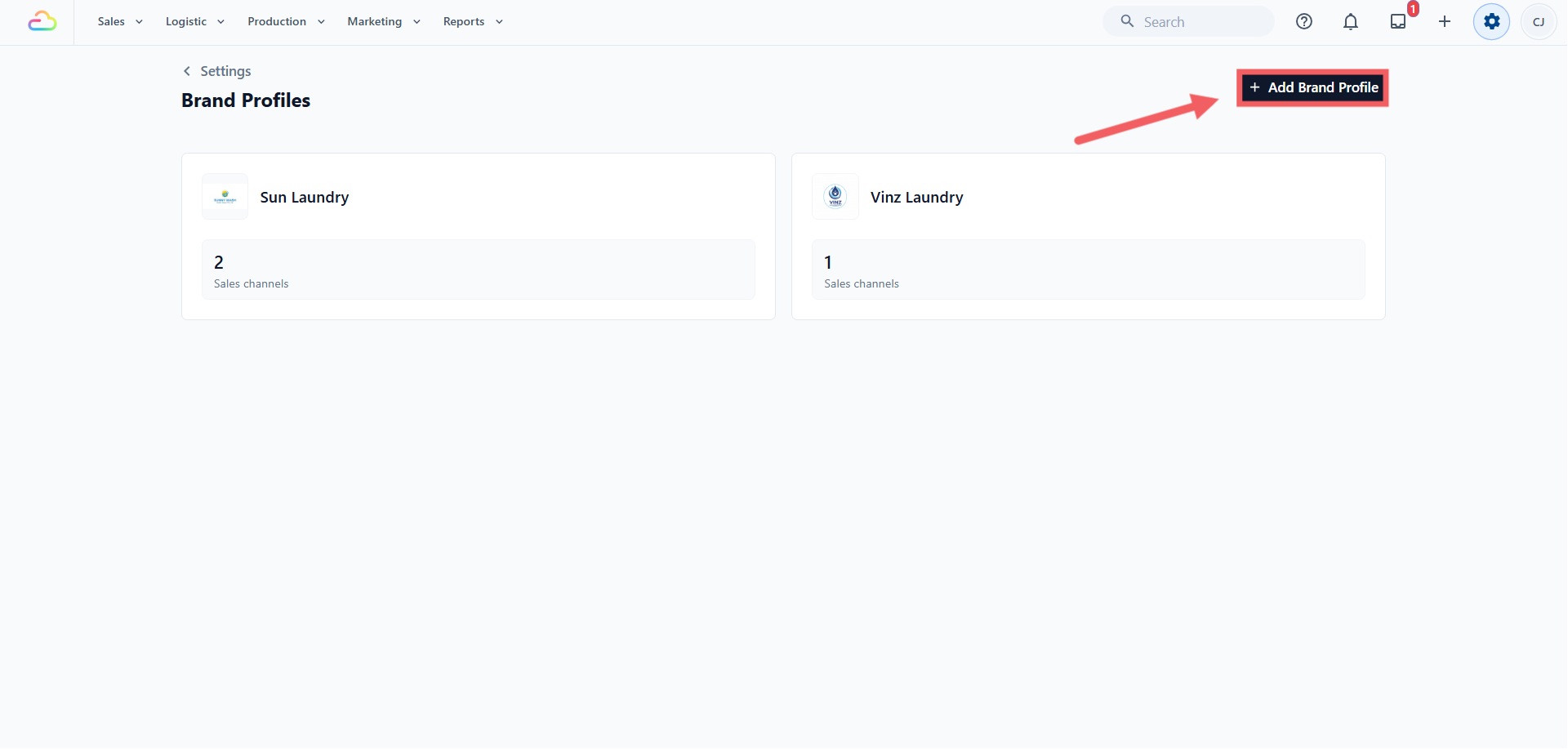
4. Type the brand name your customers know, for example "Sunny Wash".
5. Click Create Brand Profile.
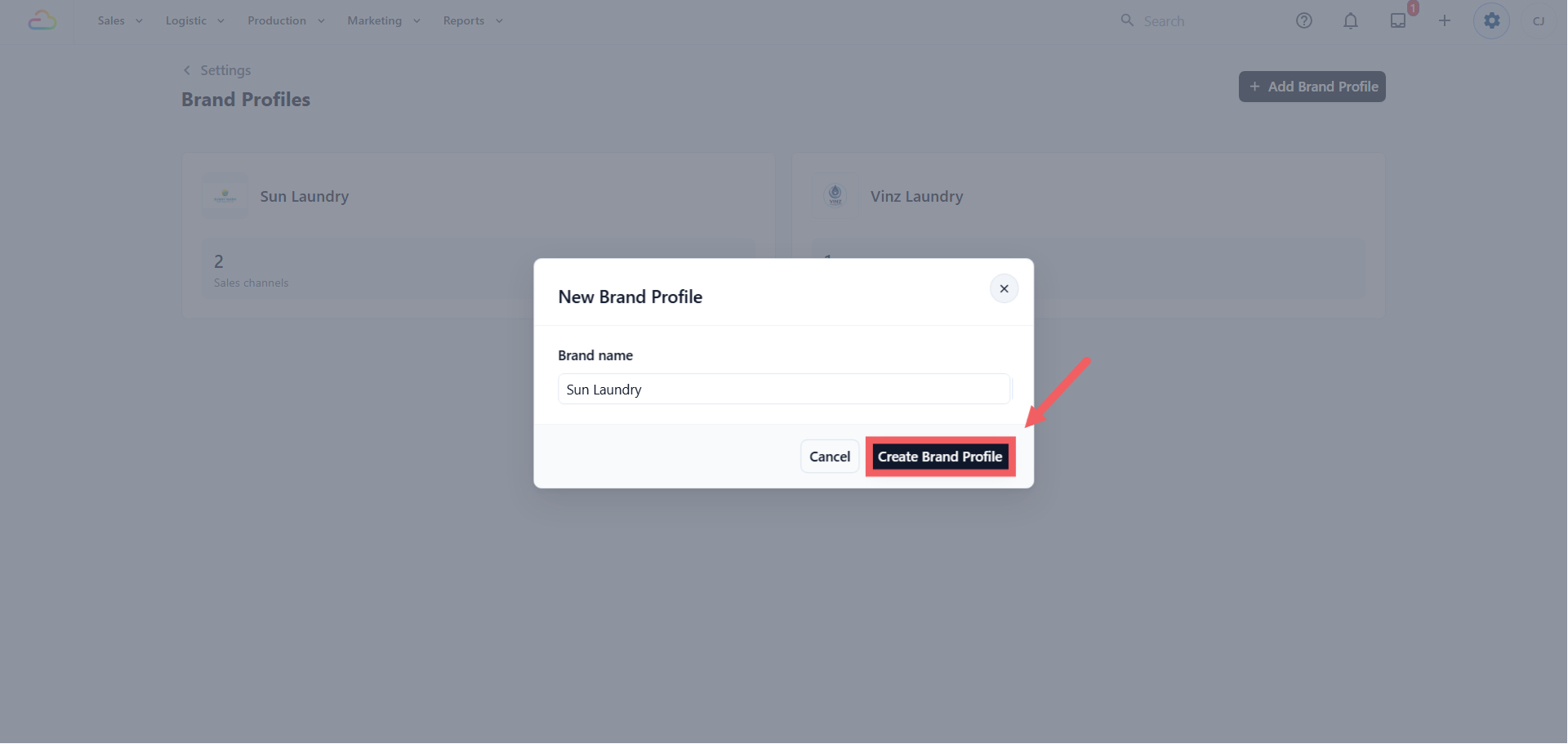
The profile opens straight away so you can add the logos and colours.
---
## Brand Profile Section
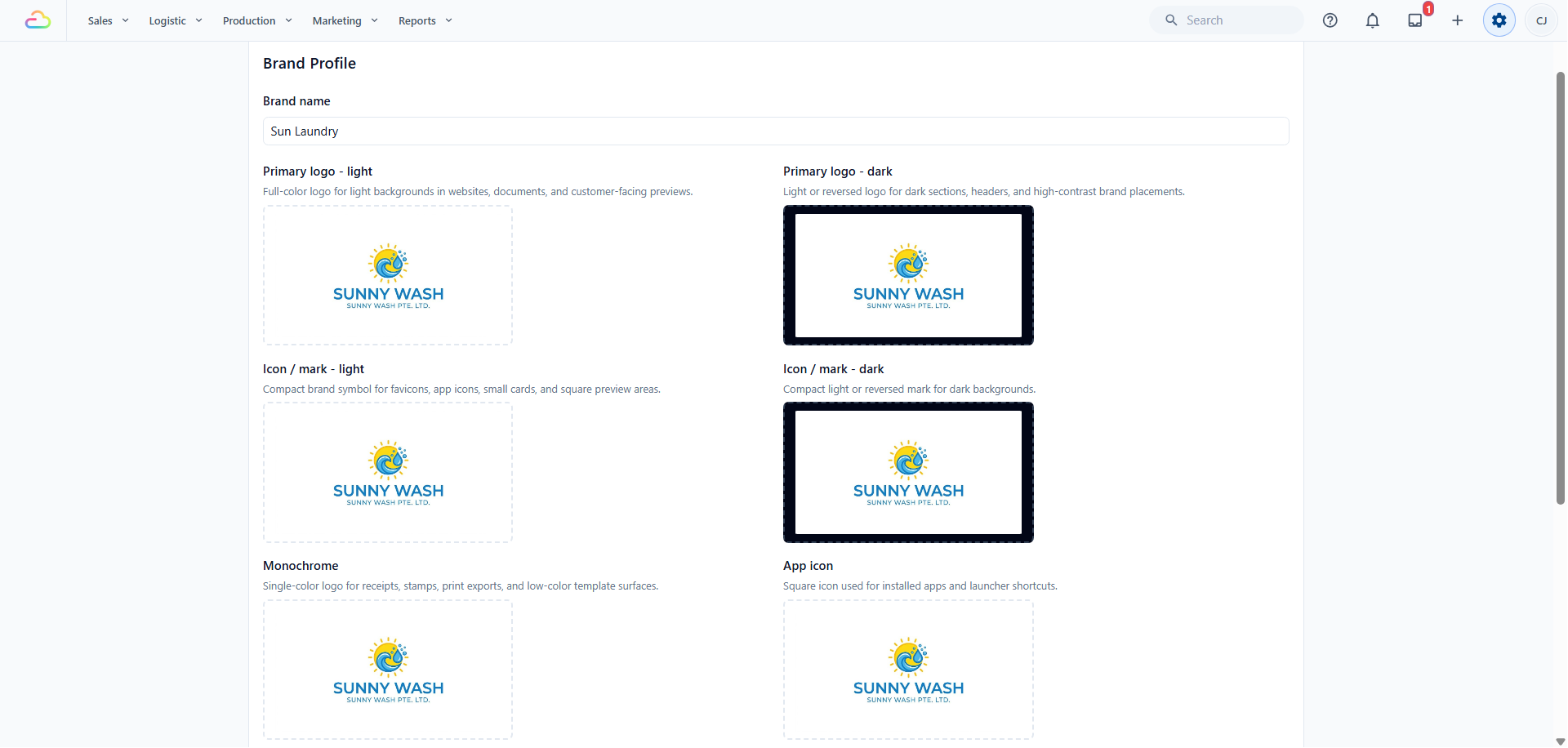
This is the top half of the page: your brand name and six logo boxes. Read the table across — what the box is called, where your customer sees it, what to put in it, and what EasyBiz does if you leave it blank.
| Field on the form | Where your customer sees it | What image works best | If you leave it empty |
| --- | --- | --- | --- |
| Brand name | Receipts, your Online Store, order pages and app screens | Type it exactly as you want it printed, capital letters and all. Required — you can change it later | You cannot save. This is the only compulsory field |
| Primary logo - light | Your Online Store, order pages, PDF documents and previews on white or light backgrounds | Your normal full-colour logo. PNG with a see-through background, or SVG. At least 512 pixels on the long side | An EasyBiz default logo is used instead |
| Primary logo - dark | The same places, but on dark headers and dark sections | The same logo in white or a light colour, so it does not disappear on black. If your logo is already light, upload the same file here | Your light logo is used, and may be hard to see on a dark background |
| Icon / mark - light | Browser tabs, small cards and any square space too small for the full logo | Just the symbol from your logo, without the words. Square, 512 x 512. Trim the empty space around it so it does not look tiny | Your primary light logo is squeezed into the square instead |
| Icon / mark - dark | The same small square spaces, on dark backgrounds | The same square symbol in white or a light colour | Your light mark is used |
| Monochrome | Printed receipts, stamps and print exports | A one-colour version, normally solid black on a see-through background. Bold, simple shapes only | Your primary light logo is used, which usually prints as a grey smudge |
| App icon | Your Mobile App's icon, which is made from it when you turn the app on. Also your Online Store's browser tab and home-screen icon, while the store has no app icon or **Store icon** of its own | Square, 512 x 512 PNG. Phones round off the corners, so keep your artwork away from the edges | Your icon / mark is used, and if there is none, your primary logo. With no logo at all, your brand's first letter on your primary colour. A wide logo shows as your brand's first letter in the browser tab |
To add an image, click the box, pick or upload the file in the Media Center, then choose it. To remove one, use the clear button on the image.
You do not need six different designs. Start with two: your normal logo in **Primary logo - light**, and a square version in **Icon / mark - light**. That already covers your Online Store, your receipts, the browser tab and the phone shortcut. Add the white and black versions when your designer sends them.
A laundry shop has one logo file. They upload it as **Primary logo - light**, save a square crop of just the symbol as **Icon / mark - light**, and ask their designer for a plain black version for **Monochrome**. Three files, and every screen and receipt looks right.
Each store has one icon. When you turn on the Mobile App, EasyBiz makes the app's icon from this Brand Profile (the **App icon**, else the **Icon / mark**, else your logo), and your Online Store's browser tab and home-screen icon use it too. A store without the Mobile App uses the **Store icon** you choose in its editor, or else this Brand Profile's logos.
Changing a logo here later doesn't change your Mobile App's icon, or a Store icon you chose. To update one, open the store's editor and click App name & icon (or Store icon) under **App settings**. Click Create from brand logo or Upload or generate, and check the preview of the home-screen icon and the browser tab, which shows your brand name. Your Online Store shows a new icon after your next Publish.
---
## Brand Colors Section
Two colours and a neutral tint. They are used on your Online Store and Mobile App, not on your printed receipts.
| Field on the form | Where your customer sees it | How to choose it | If you leave it empty |
| --- | --- | --- | --- |
| Primary color | Buttons, links and the options a customer selects on your Online Store and Mobile App | Any colour you like. It does not have to be a colour from your logo — pick something dark enough that white writing on a button is still easy to read | A default blue is used |
| Accent color | The main button in your Online Store's header, such as Place order | A second colour that stands out beside your primary one. Optional. Click Clear to remove it | Your primary colour is used for that button too. Nothing looks broken |
| Neutral tint | The grey behind text and borders | **Cool** leans blue, **Warm** leans beige, **Pure** is plain grey | **Cool** |
To set a colour, click the colour box and pick one, or type the code your designer gave you, for example #2563EB. That six-character code starting with # is called a hex code — every designer and printer uses them.
If you type a code that is not a proper hex code, EasyBiz saves a default colour instead of what you typed. Check the small colour box beside the field before you save — it always shows the colour that will really be used.
Click Save at the top of the page when you are done. Save stays greyed out until you change something, and it will not let you save with an empty brand name.
There is no font setting. Your Online Store and Mobile App use EasyBiz's standard typeface.
Your Online Store and Mobile App show a new brand name or logo within a few minutes, with no Publish. New colours and a new neutral tint reach customers the next time you Publish the store. Until then, the change is listed in the store editor under Preview › **Review your changes** as **Brand style**, "Edited in your Brand Profile". See [Edit, Preview and Publish Your Online Store](/docs/edit-preview-and-publish-your-online-store).
---
## Assign the Brand Profile
A Brand Profile does nothing until something points at it. Everything below starts from the ⚙️ Settings icon in the top-right corner, so you never have to hunt around the menus.
| Where to assign it | How to get there | What it changes |
| --- | --- | --- |
| A point of sale shop | Settings → Sales channels section → Point of Sale → open the shop → Shop profile → Brand Profile | The brand that counter shows on screen and prints on its receipts |
| Your Online Store and Mobile App | Settings → Sales channels section → Online Store & Mobile App → Add Online Store → **Brand** and **Market** | The store's name, logos, colours and neutral tint |
| An online store (legacy) | Settings → Deprecated section → Online Store (Legacy) → open the store → Store profile → Brand Profile | The brand on that store's receipts |
On a shop or a legacy store, the Brand Profile sits just under the name and code fields. Pick the profile you want and save that section.
An Online Store is made for one brand in one market, so you choose the brand when you add the store, and it stays with that store. The Online Store & Mobile App page asks you to create a Brand Profile first if you have none. See [Adding a Store and Turning On the Online Store or Mobile App](/docs/adding-a-store-and-turning-on-online-store-or-mobile-app).
Every Sales Channel must have a Brand Profile. You can move a shop or a legacy store from one profile to another, but you cannot leave it blank. An archived profile cannot be picked.
---
## Archive a Brand Profile
Brand Profiles are archived, not deleted, so past documents still make sense.
1. Open the Brand Profile.
2. Scroll to the bottom and click Archive Brand Profile.
3. Confirm.
An archived profile no longer appears when you are choosing a profile, and it cannot be assigned to anything new.
Archiving is refused while anything still points at the profile. The Brand Profiles list shows how many sales channels use each profile — check that number first. A company or a customer website still linked to it will also block archiving, even though the page only warns you about sales channels. A Brand Profile used by an Online Store or Mobile App cannot be archived.
---
## FAQs
**I only filled in one logo box. What shows up everywhere else?**
> EasyBiz uses the closest one you did fill in. The square mark falls back to your primary logo, the black-and-white version falls back to your light logo, and the app icon falls back to the mark. A white-on-dark version falls back to the colour one. Nothing is left blank, but the stand-in may not look its best, which is why the extra versions are worth adding later.
**Does a Brand Profile change the name on my tax invoice?**
> No. The registered Company name, registration number and address still print for legal purposes. The Brand Profile changes the brand your customer sees.
**If I change a logo or a colour later, do my old receipts change?**
> Anything printed or sent from now on uses the new one, including a reprint of an old order. Files you already downloaded or emailed keep the old logo.
**Must my brand colour match my logo?**
> No. Pick whatever colour you want customers to see on your buttons and links. Many shops use their logo colour simply because it is familiar, but nothing forces it.
**I changed my colours but my Online Store looks the same.**
> New colours reach your Online Store and Mobile App the next time you Publish them. Open Settings → Online Store & Mobile App, open the store's editor, then click Preview, check your changes and Publish.
**Can two shops under one Company print different logos?**
> Yes. Give each shop its own Brand Profile and each prints its own logo, even though both belong to the same Company.
**My logo has a white box around it on my Online Store. Why?**
> That happens with a JPEG file, because JPEG cannot store a see-through background. Ask for the same logo as a PNG or an SVG and upload that instead.
**Why can I not archive this profile?**
> Something is still assigned to it — a shop, a legacy online store, a customer website or a company. Reassign each one, then archive. A Brand Profile used by an Online Store or Mobile App cannot be archived.
**Who can edit Brand Profiles?**
> Anyone who can open the **Company & business structure** settings. It is granted separately from general settings access.
---
## What's Next
Go back to [Introduction to Brand Profiles](/docs/introduction-to-brand-profiles) for the difference between a Company and a Brand Profile, or continue to [Creating and Configuring a Company](/docs/creating-and-configuring-a-company).