## Before you start
- **The right access.** The account owner, or a teammate whose role can manage billing, connects Stripe.
- **Details about your business.** Stripe's own sign-up asks for them.
- **An Online Store or Mobile App**, so customers can pay online. See [Adding a Store and Turning On the Online Store or Mobile App](/docs/adding-a-store-and-turning-on-online-store-or-mobile-app).
---
## Connect Stripe
1. Go to ⚙️ Settings › Integrations.
2. On the **Stripe** row, click Connect.
3. EasyBiz creates a Stripe account for your business and opens Stripe's sign-up. Follow Stripe's steps.
4. When you finish, Stripe brings you back to **Integrations**.
Once Stripe has your account, the Stripe row shows your business name (or email) with a green dot, and its button changes to Manage.

It is your own Stripe account: payments go into it, and you see them in your Stripe Dashboard.
### When Stripe asks for more details
Stripe sometimes needs more details about your business. The Console then shows a **Stripe needs more information** alert. Click Manage on the Stripe row to open Stripe's form and complete them.
If you leave them too long, the alert says **Stripe details are overdue**. Stripe may then restrict card payments or payouts until you complete them.
---
## Choose the Stripe methods customers can use
| Method | Where it works |
|---|---|
| Card | Every market |
| PayNow | Singapore |
| GrabPay | Singapore and Malaysia |
| FPX | Malaysia, in ringgit |
A method shows in the store editor only once Stripe has activated it on your account.
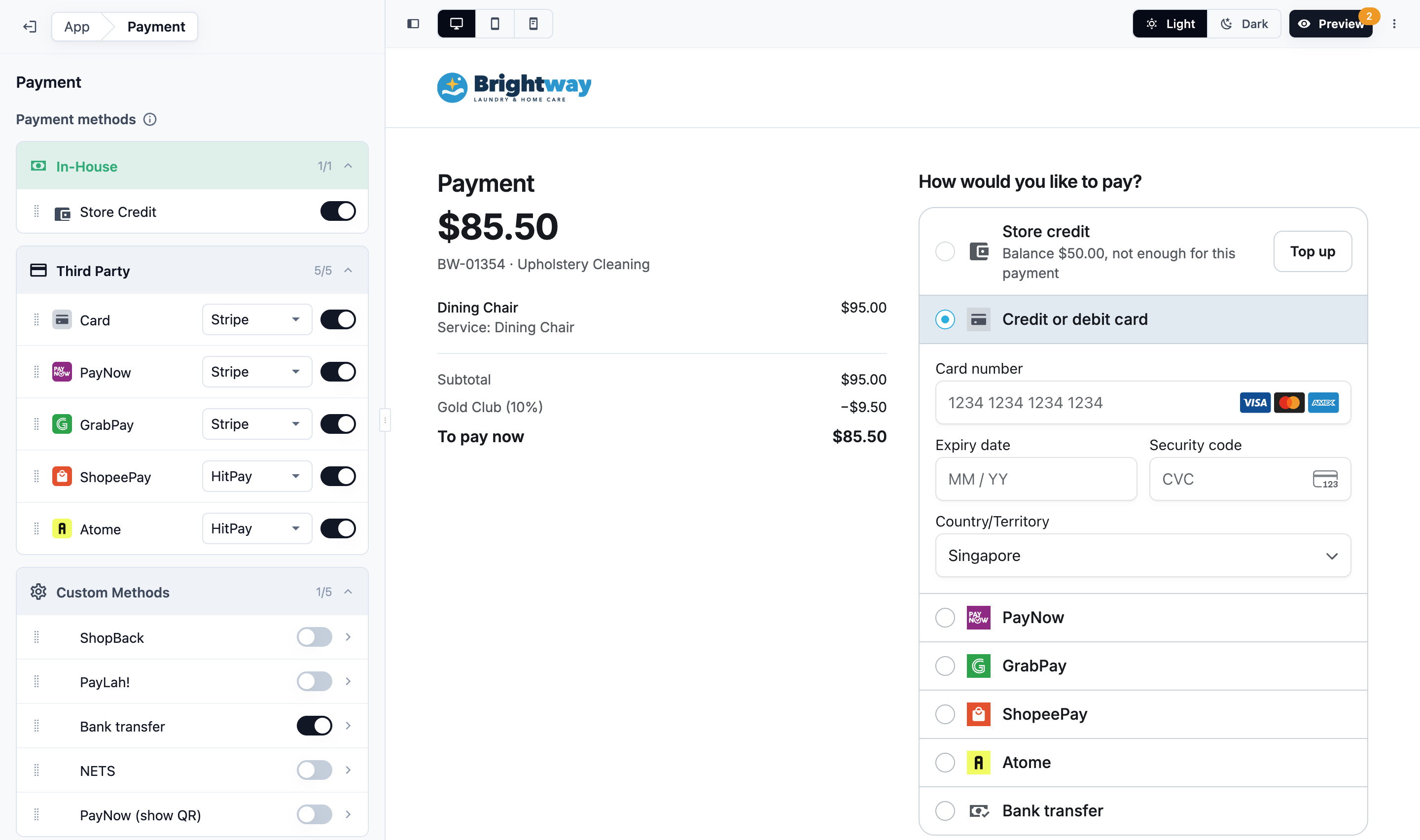
1. Open the store editor and, under **Pages**, click Payment. See [Edit, Preview and Publish Your Online Store](/docs/edit-preview-and-publish-your-online-store).
2. Under **Third Party**, turn on each method and choose **Stripe** as its provider.
3. Drag the methods into the order customers should see them.
4. Preview your store, then publish it.
With Card on Stripe, the Payment page says "Customers can save cards with Stripe and pay with them in one step." Nothing else needs checking: you can set a business unit to **Card on file required** straight away. See [Letting Customers Book Online](/docs/letting-customers-book-online).
---
## What your customers see
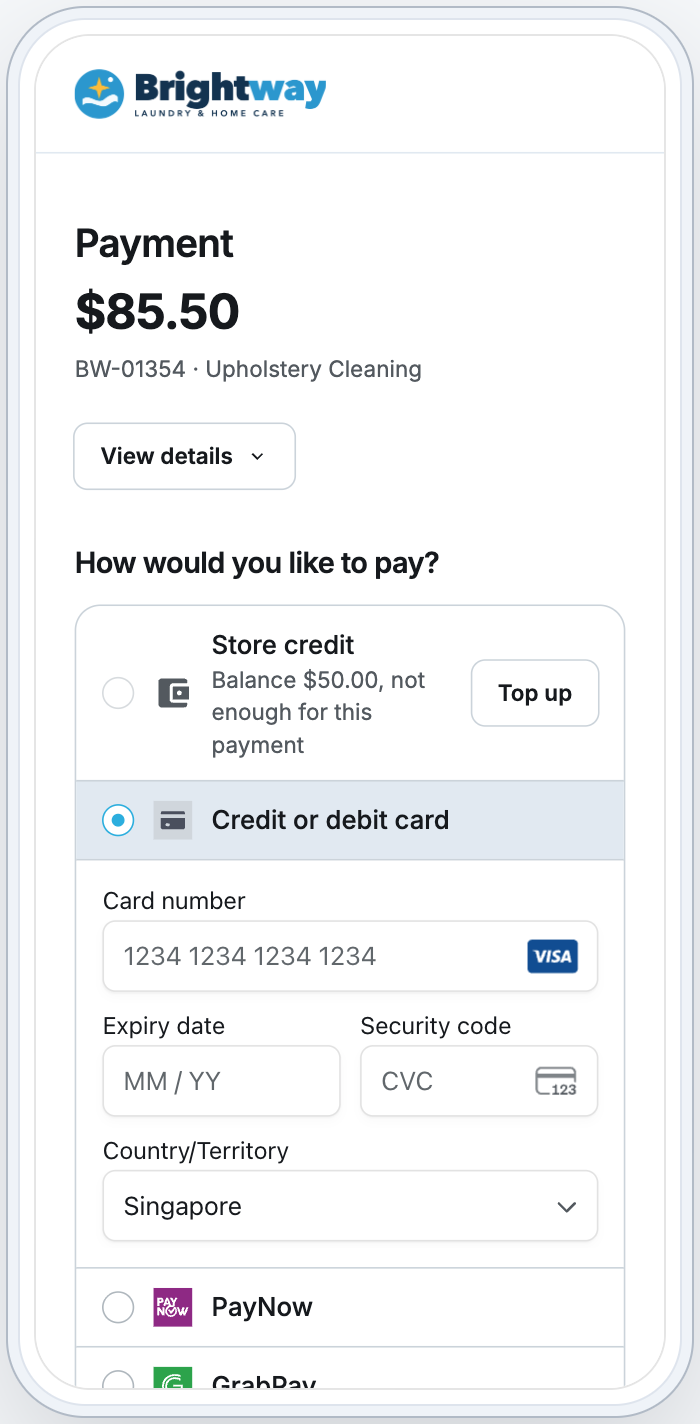
- **At booking:** on the **Payment** step, customers type a new card into the card form, or choose a saved card. Nothing is charged then. The card is charged automatically when the order is ready.
- **Paying an order:** after Pay now, customers choose **Credit or debit card** and type their card, or use a saved one. **PayNow** shows a QR to scan with their banking app. **GrabPay** opens GrabPay's page. With **FPX online banking**, they choose their bank, then pay on the bank's page.
- **When the bank asks:** if the customer's bank wants to confirm a card payment, its check opens over the page.
- **In the Mobile App:** a new card opens Stripe's card form over the app.
- **In My account › Payments:** customers add a card, make one the default, or remove one.
---
## Chargebacks
When a customer disputes a Stripe card payment with their bank:
1. The Console shows a **Chargeback opened** alert.
2. The dispute is listed under **Sales** › Disputes, with its amount, fee, reason, status and the date evidence is due.
3. Click the dispute to see its details and timeline.
4. To respond, click Submit evidence in Stripe. You send your evidence in your Stripe Dashboard.
If you lose the dispute and the customer later pays you back another way, open the dispute and click Record recovery.
---
## FAQs
**Who pays Stripe's fees?**
>Stripe charges its fees for each payment to your own Stripe account. Stripe's website lists its rates for your country.
**Why isn't PayNow, GrabPay or FPX on my Payment page?**
>The store editor lists only the methods Stripe has activated on your account. A method appears once Stripe activates it. PayNow is for Singapore, and FPX for Malaysia in ringgit.
**Can I use Stripe and HitPay together?**
>Yes. Each method runs through the provider you choose for it on the Payment page, for example PayNow through HitPay and cards through Stripe. Saved cards use the provider you chose for Card.
**Can customers pay with Apple Pay or Google Pay?**
>No. Customers type their card, or choose a saved one.
**Can I refund a Stripe payment?**
>Yes, from the order's payment row: ⋯ › Refund. The money goes back through Stripe. Refunds must be turned on first. See [Taking Payments on Your Online Store](/docs/payments-on-your-online-store).
---
## What's next
To choose every way customers can pay, including saved cards and your own methods, see [Taking Payments on Your Online Store](/docs/payments-on-your-online-store).