## What this template does
Your Invoice, Payment reminder and Receipt emails can carry a PDF file. The PDF is the invoice or receipt your customers can save or print. Before you let an email go out, you can send a test copy to yourself and check it in your own inbox.
It helps you:
- Give your customers a proper invoice or receipt file with every payment email
- Catch typing mistakes before your customers see them
- Check how the email looks on your own phone
**Can I skip this?** You can skip the PDF if your customers don't need a file. Don't skip the test. It takes 1 minute and stops mistakes reaching your customers.
---
## Before you start
- **[Setting Up Your Invoice and Order PDFs](/docs/setting-up-your-invoice-and-order-pdfs)**: the attachment uses your PDF templates.
- **[Setting Up Your Customer Emails](/docs/setting-up-your-customer-emails)**: write and save the email before you attach a PDF.
---
## Open the Emails page
This part is done in the console (the EasyBiz website your office uses).
1. Click the ⚙️ Settings icon in the top-right corner.
2. Scroll to the **Library** section.
3. Click Emails.
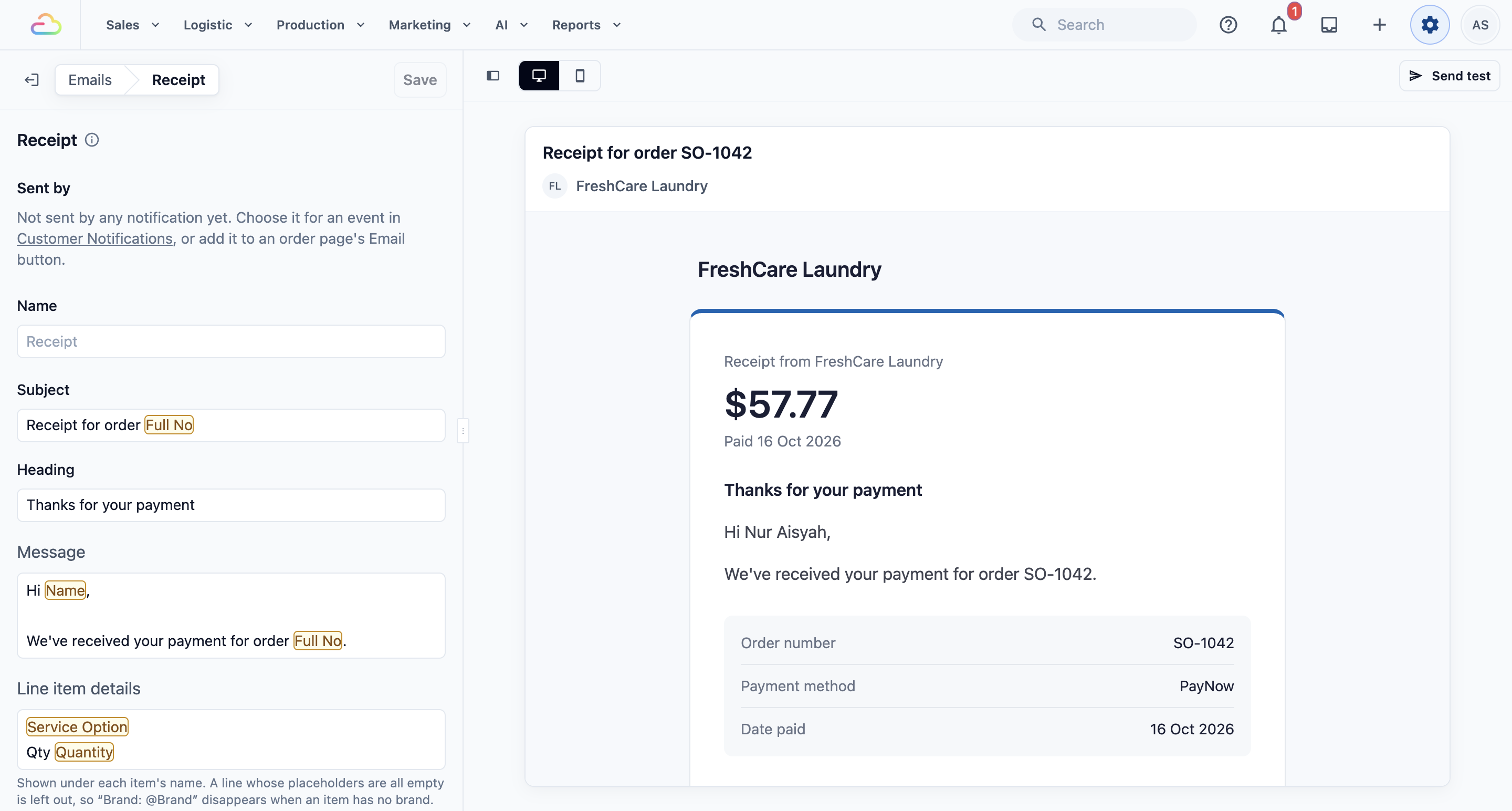
4. Click the email you want, such as **Receipt**.
---
## Attach the invoice or receipt PDF
Only the **Invoice**, **Payment reminder** and **Receipt** emails have this setting.
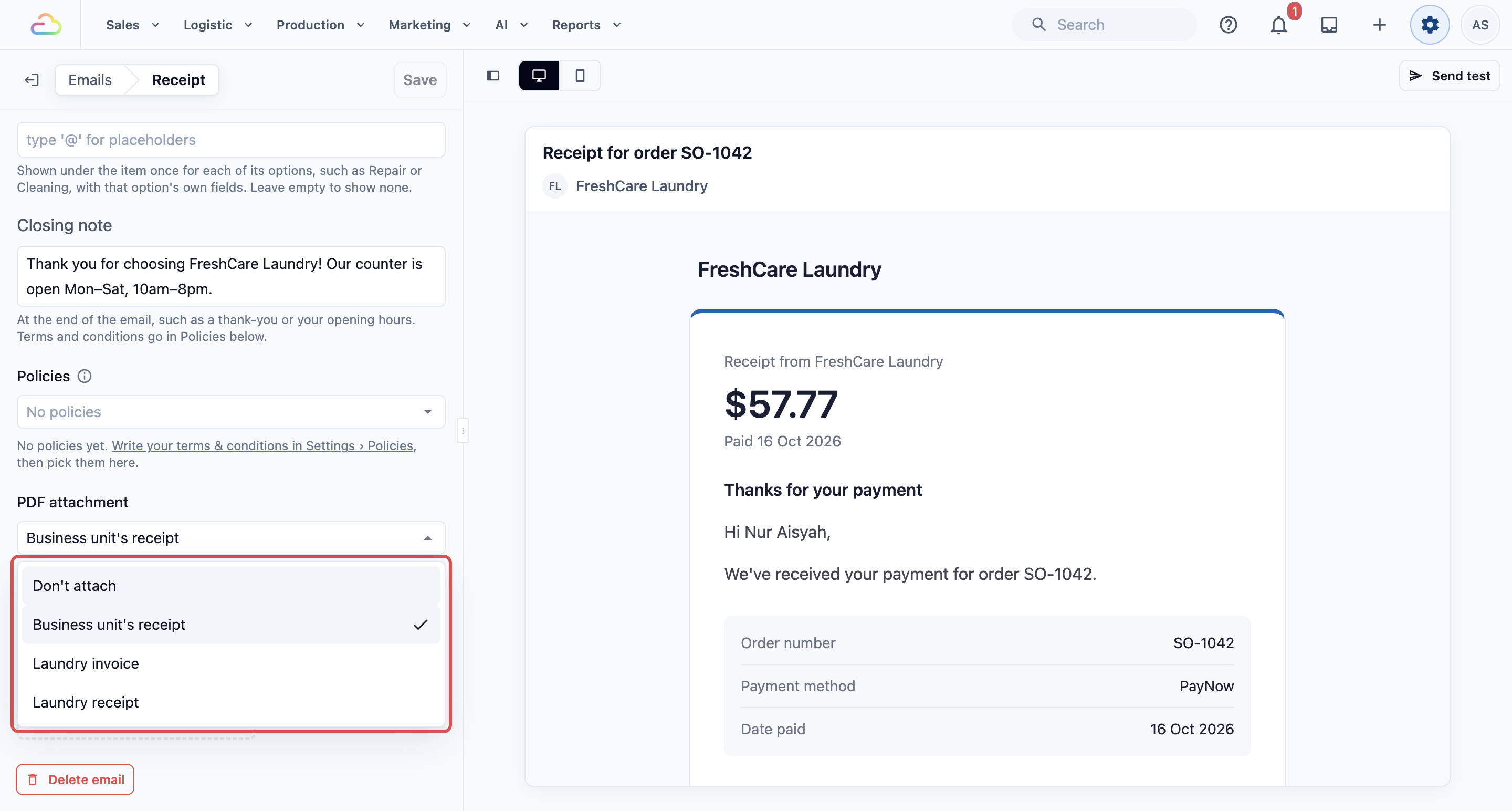
1. Scroll down to **PDF attachment**.
2. Pick an option from the list.
3. Click Save. You'll see "Emails saved".
| Option | What it means |
| --- | --- |
| Business unit's invoice / Business unit's receipt (default) | Attaches the PDF chosen for the order's business unit. Laundry orders get the Laundry PDF, aircon orders get the aircon PDF. |
| A named PDF template | Always attaches that 1 template, whatever the business unit. |
| Don't attach | Sends the email with no PDF. |
The Invoice and Payment reminder emails attach an invoice. The Receipt email attaches a receipt. The file name comes from the PDF's **Document title**, such as "Invoice_10234".
Keep the default "Business unit's" option if you run more than 1 service. Each order then gets the right PDF without any extra setup.
---
## Send yourself a test
A test email uses a made-up order. Nothing is saved to any real order.
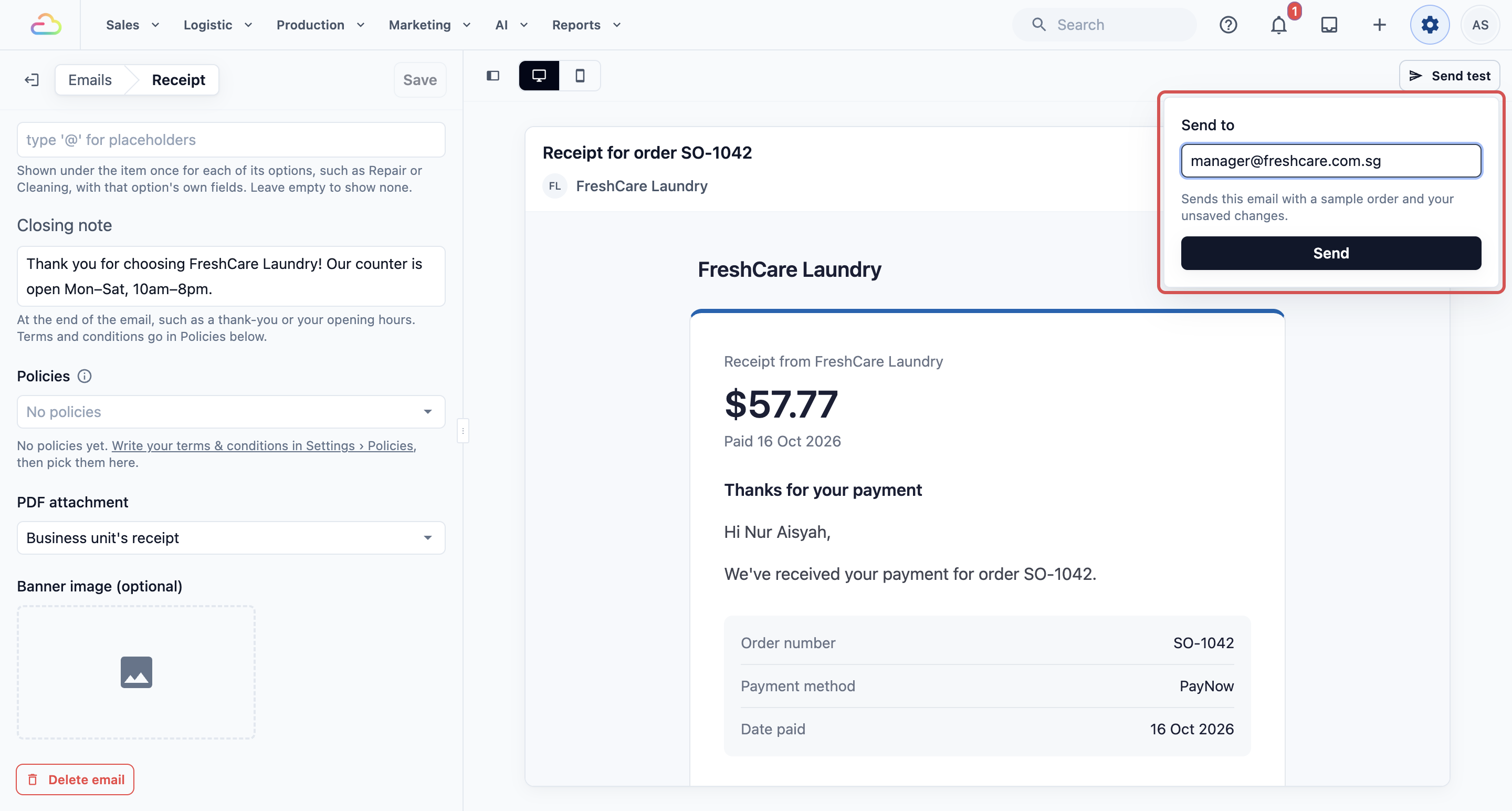
1. With the email open, click Send test.
2. Check the address in **Send to**. It starts with your own sign-in email.
3. Change it if you want the test to go to someone else, such as your shop manager.
4. Click Send. You'll see "Test email sent to …" with the address.
5. Open your inbox. The subject starts with "[Test]".
The test includes your unsaved changes. You can test first and save after.
If the email has a PDF attachment set, the test includes it too, filled with the made-up order. Open it to check your PDF.
Only send tests to your own or your team's email addresses. Never put a customer's address in **Send to**, because they will get the made-up order.
---
## Check the test email
Open the test on your phone and your computer. Check:
1. The subject and heading read well.
2. Your logo and brand name are right.
3. The message has no typing mistakes.
4. Your policies show at the end, if you added them.
5. The PDF opens and shows your company details, if it is attached.
If something is wrong, fix it on the Emails page and send another test.
---
## Send an email from an order
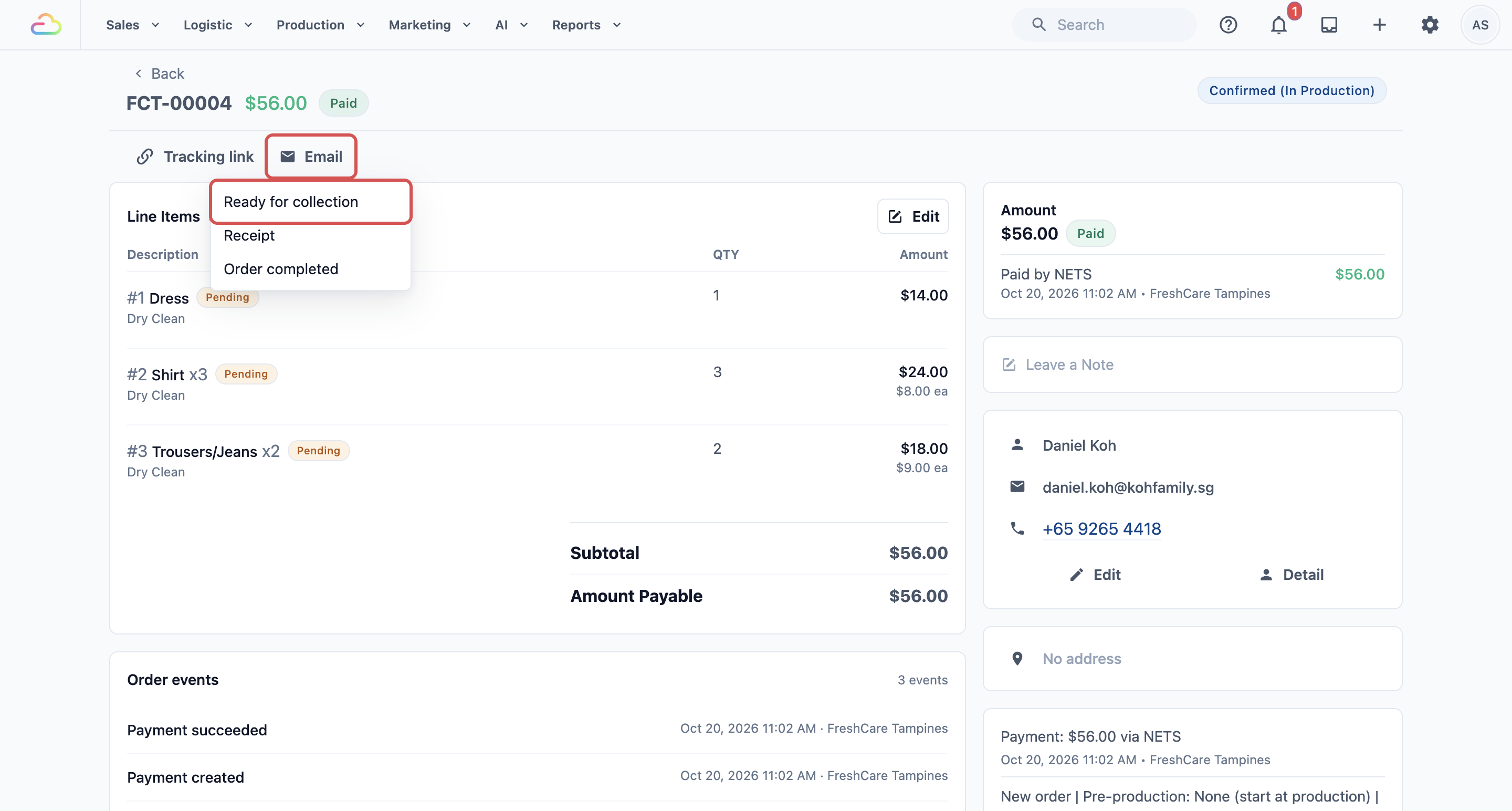
Some emails, such as **Ready for collection**, are sent by staff from the order.
1. Open the order.
2. Click Email.
3. Pick the email.
4. Check the address in **Send to**.
5. Click Send.
You'll see "Email Sent". Later the status can change to "Delivered" or "Opened".
The Email button sits at the top of the order page. It only shows after an admin adds Email to the order page's **Quick Actions** (⚙️ Settings › Blocks) and picks which emails staff can send. If no email is picked, the button is greyed out.
---
## Example setups
- **Sunshine Laundry** attaches the business unit's receipt to every Receipt email. Their customers keep it for company claims.
- **Mei Ling Alterations** chose "Don't attach" for the Receipt email, because their customers only want a short thank-you.
- **Ah Hock Aircon Services** sends every test to the owner and the office manager before saving a change.
---
## What your customers see
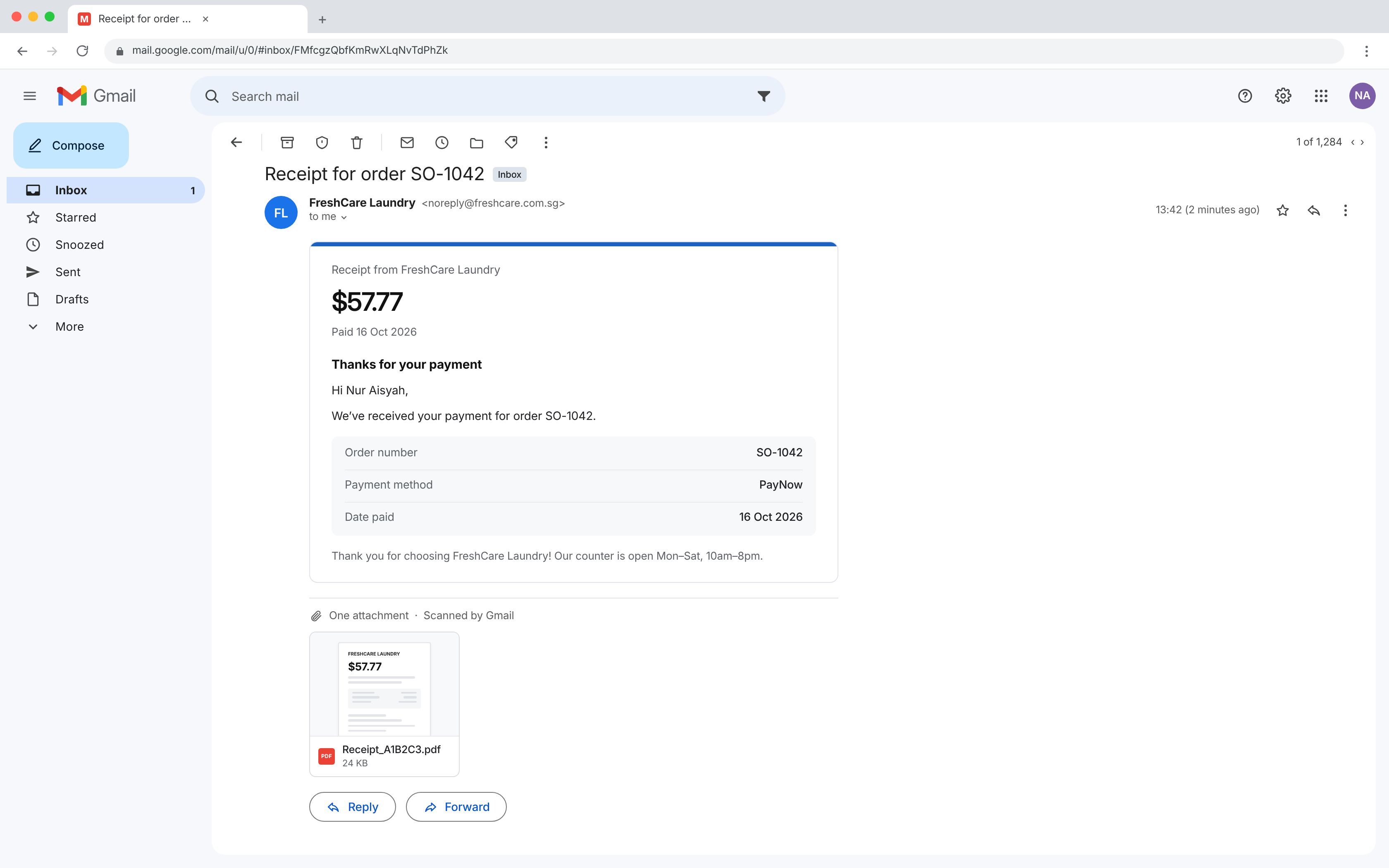
Your customers get the email with a PDF file at the bottom, named like "Receipt_A1B2C3" or "Invoice_10234". They can open, save or print it. Test emails never reach your customers unless you type their address.
---
## FAQs
**Why don't I see PDF attachment on my email?**
>Only the Invoice, Payment reminder and Receipt emails can attach a PDF.
**Does the test use a real order?**
>No. It uses a made-up sample order, so no real customer is affected.
**Can I preview a real order on the Emails page?**
>No. The preview always uses a sample order, with your own logo and brand name. To see a real order's email, send it from the order.
**Why is my PDF template missing from the list?**
>The list only shows PDF templates that are published and print an order. Open the template and click Publish, then reopen the email.
**What if a test doesn't arrive?**
>Check your spam folder. Then check the **Send to** address and try again.
---
## What's next
Your emails and attachments are ready. To change the look of the attached file, go back to [Setting Up Your Invoice and Order PDFs](/docs/setting-up-your-invoice-and-order-pdfs).