## Before You Start
- You need an Online Store. See [Adding a Store and Turning On the Online Store or Mobile App](/docs/adding-a-store-and-turning-on-online-store-or-mobile-app).
- You need a Google Analytics 4 property with a web data stream. Your **measurement ID** starts with `G-`. Find it in Google Analytics under **Admin** › **Data streams**.
---
## Add Your Measurement ID
1. Go to ⚙️ Settings › **Sales channels** › Online Store & Mobile App.
2. On your store, click Edit Online Store. If the Mobile App is on too, the button says Edit Online Store & Mobile App.
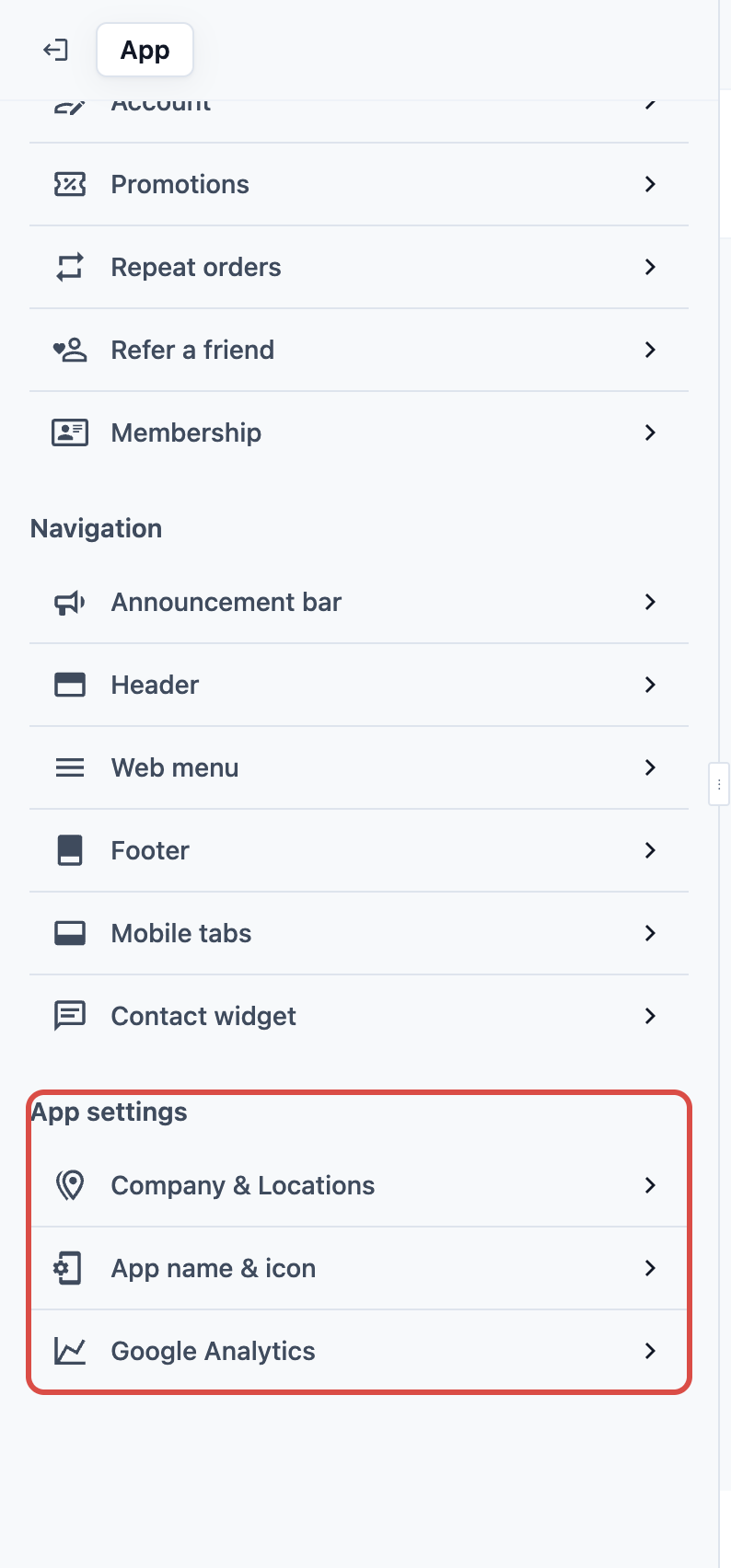
3. Under **App settings**, click Google Analytics.
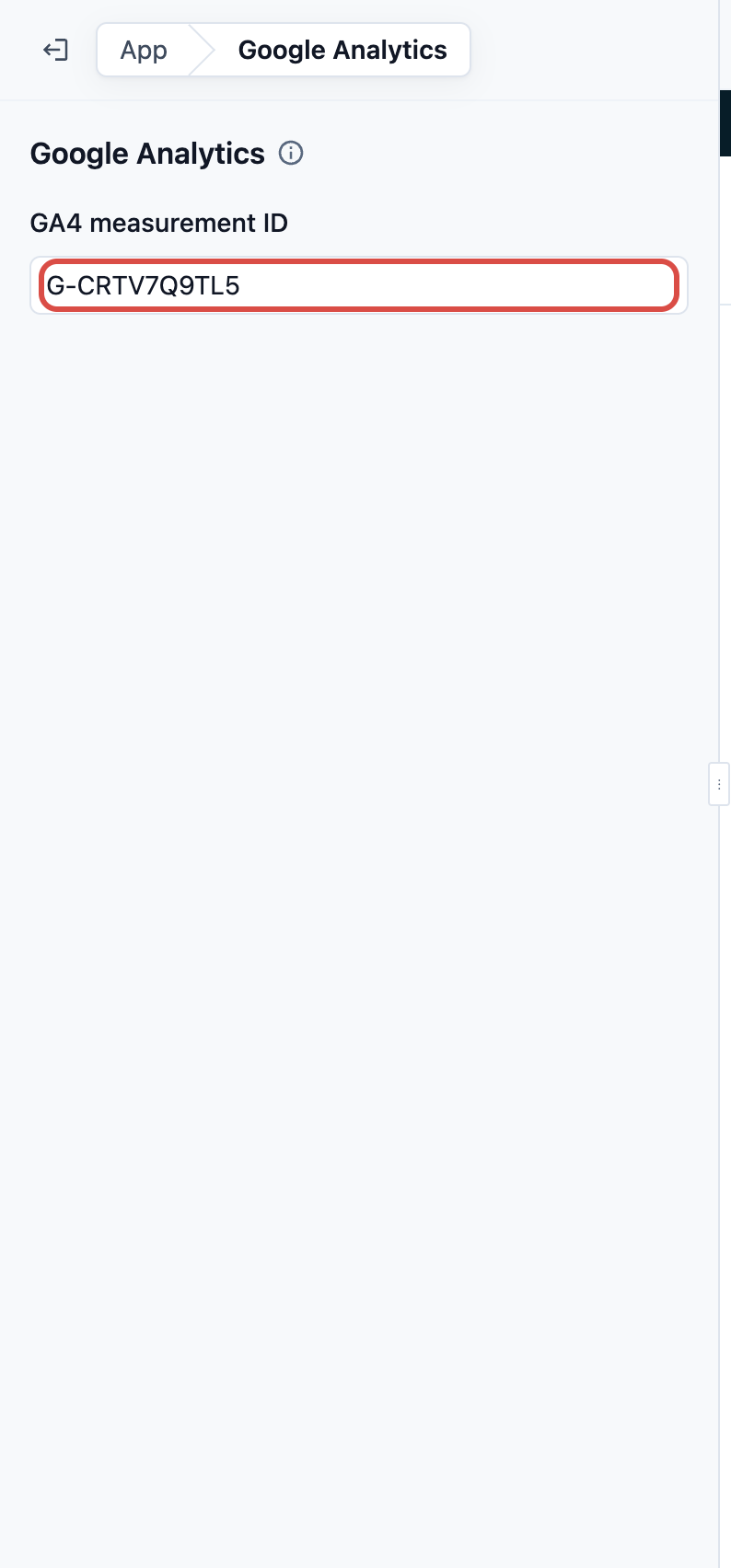
4. Enter your **GA4 measurement ID**, for example `G-XXXXXXXXXX`.
The ID saves by itself once it is complete. If it is not a GA4 ID, the field says "Enter a GA4 measurement ID like G-XXXXXXXXXX."
5. Click Preview, then Publish. The ID goes live with your next Publish of the Online Store. See [Edit, Preview and Publish Your Online Store](/docs/edit-preview-and-publish-your-online-store).
To stop sending data, clear the field and Publish again.
---
## What Your Store Sends
| Sent | Not sent |
| --- | --- |
| Visits to your store's pages | Customer names, emails or phone numbers |
| Each booking, as a **purchase** event with the order's ID in EasyBiz | The order's amount, because many bookings are priced after pickup |
- The order's ID is not its order number. It is the 20-character code at the end of the order's web address in the Console.
- Visits that start from your store's own links are counted, such as a link that opens a business unit's booking or prices, an offer or the chat. So are links tagged for your ads with `utm_source`, `utm_medium`, `utm_campaign`, `utm_term`, `utm_content` or `utm_id`, or with a Google, Meta, TikTok or Microsoft click ID.
- Visits that start from an order tracking link, a payment link or a friend's referral link are not counted, because those links carry the key that opens the order or the friend's code. Nor are visits from a link with any other added parameter, so tag your own links with the `utm_` tags above.
- The Mobile App sends nothing to Google Analytics.
- Test orders placed in Preview send nothing.
In Google Analytics, mark **purchase** as a key event. You can then import it into Google Ads to count the bookings your ads bring in.
---
## FAQs
**Can I add Google Tag Manager or a Meta Pixel?**
> No. The Online Store takes a GA4 measurement ID only. Tag Manager and pixels can run any code on your sign-in, checkout and payment pages, so they are not offered.
**Does the purchase event include the price?**
> No. Many bookings are priced after pickup, so the event carries only the order's ID.
**How do I find the order behind a purchase event?**
> The event's transaction ID is the order's ID in EasyBiz, not its order number. Open an order in the Console: its web address ends with the same code.
**I added my ID but Google Analytics shows nothing.**
> The ID goes live only after you Publish the Online Store. Check that you published after adding it, then visit your store and look at **Realtime** in Google Analytics.
**I have a legacy online store. Does this apply?**
> No. This setting is for the new Online Store only. It doesn't change your legacy store. See [Your Online Store (Legacy)](/docs/online-store-legacy-overview).
---
## What's Next
Learn how publishing works: [Edit, Preview and Publish Your Online Store](/docs/edit-preview-and-publish-your-online-store).