## Before you start
- **A Brand Profile** for the brand customers will see: its name, logo and colours. See [Creating and Assigning a Brand Profile](/docs/creating-and-assigning-a-brand-profile).
- **A market** for the country you sell in, with at least one Location, and **a company** in that market. Customers pay this company, and its details appear on their receipts and invoices. See [Setting Up a Market](/docs/setting-up-a-market).
- **Billing access** for the first Publish of each product, and to close a product that was published.
---
## Open the page
1. Click ⚙️ Settings.
2. Under **Sales channels**, click Online Store & Mobile App.
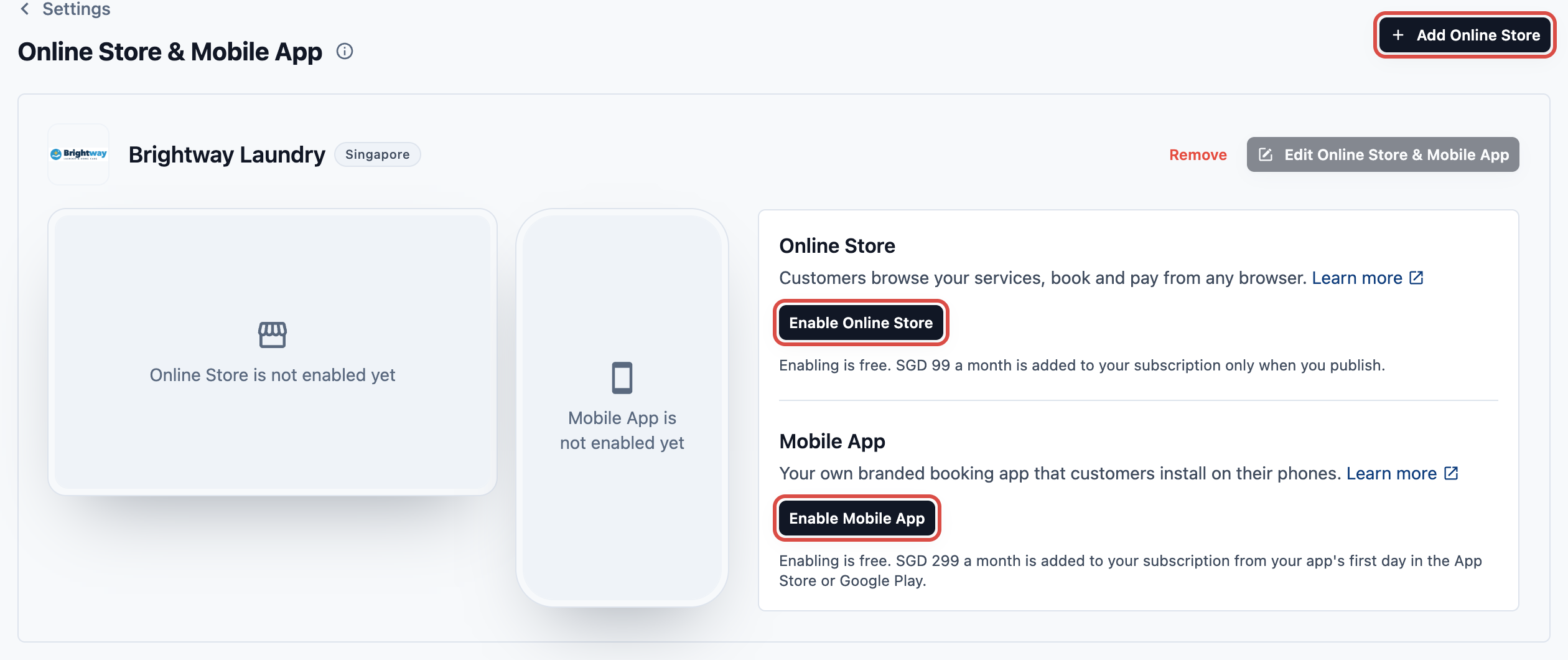
You see one card for each store. With no store yet, the page says **No Online Store yet**. With no Brand Profile yet, it says **Create a Brand Profile to start your Online Store and Mobile App setup.** Click Manage Brand Profiles to make one first.
---
## Add a store
1. Click Add Online Store.
2. **Brand:** choose the brand. With only one brand, it is chosen for you.
3. **Market:** choose the market it sells in. A market where this brand already has a store shows **Has a store** and can't be chosen. With only one market left, it is chosen for you.
4. Click Add Online Store.
The new store's card appears with the Online Store and Mobile App both off. Nothing is live and nothing is billed.
To sell the same brand in another country, add another store for that market. Each store is self-serve at its usual price. Several Locations in one country share one store.
Want 1 Online Store or Mobile App to serve several countries? That needs an EasyBiz MAX agreement.
---
## Turn on the Online Store or Mobile App
Each product has its own button on the store card.
1. Click Enable Online Store or Enable Mobile App.
2. The first product you turn on opens **Enable your Online Store** (or **Enable your Mobile App**). Fill in:
- **Billing company:** the company customers pay. Only companies in the store's market are listed. With only one, it is chosen for you.
- **Locations that take online orders:** shown only when the market has two or more Locations, with none ticked. Tick the Locations that pick up, deliver or serve online orders. Leave a Location that only runs a shop unticked. Enable stays off until you tick at least one.
- **Web address** (Online Store only): the address customers open, ending in `.easybizcloud.app`. It starts as your brand name. Use 3–32 lowercase letters, numbers and single hyphens. The field says **This address is available.**, **This address is already taken.** or **This address is reserved. Please choose another.** It may offer other addresses under **Available instead:**.
3. Click Enable.
The second product shares the first one's billing company and sales channel, so it asks for less. The Mobile App turns on straight away. The Online Store asks only for its web address.
You can't change the web address after you turn on the Online Store. Once the store is live, you can link your own domain instead (see below). The billing company and Locations can change later, in the editor's **App settings** › **Company & Locations**.
Your brand already has an online store from the old system? The first product you turn on takes over its sales channel, so choose the company that store bills under. Locations aren't asked for: the store uses that sales channel's. See [Your Online Store (Legacy)](/docs/online-store-legacy-overview).
### Your Mobile App's icon
When you turn on the Mobile App, EasyBiz makes its icon and splash screen from your Brand Profile: its **App icon**, else its **Icon / mark**, else its logo. With no logo it can use, the icon is your brand's first letter on your **Primary color**.
A logo you add or change in your Brand Profile later doesn't change the app's icon. To update it, open the editor's **App settings** › App name & icon and click Create from brand logo. See [Launch Your Mobile App](/docs/launch-your-mobile-app).
---
## What you see for each store
The card shows the brand, its market and, under the brand, the company that bills its customers.
**Online Store**
| Row | What it shows |
|---|---|
| Status | **Draft** until the first Publish, then **Published** with the date, and **Unpublished changes** while you have edits customers don't see yet |
| Web address | Your store's address. Before the first Publish it says **Not live yet. Opens the draft preview.** Once the Online Store is live, Link domain (or Manage domain) is beside it |
**Mobile App**
Until your app is in the App Store or Google Play, the card shows only how far your launch has got: **Launch: 2 of 9 steps done**, a progress bar, and Launch your app. The button says Continue once you have marked a step. You build and download your app in Launch your app.
Once your app is in a store, the Mobile App shows:
| Row | What it shows |
|---|---|
| Status | **Published** with the date, and **Unpublished changes** while you have edits customers don't see yet |
| App build | Your Android build, and your iOS build once EasyBiz has set it up |
| Store listing | Your App Store and Google Play links. Edit changes them |
See [Launch Your Mobile App](/docs/launch-your-mobile-app).

To change the pages, click Edit Online Store on the card. It says Edit Mobile App or Edit Online Store & Mobile App when those are on. See [Edit, Preview and Publish Your Online Store](/docs/edit-preview-and-publish-your-online-store).
---
## Store settings
Once a product is on, the card shows **Store settings**. They are shared by the Online Store and the Mobile App, and they apply right away, without publishing.
| Setting | What it is |
|---|---|
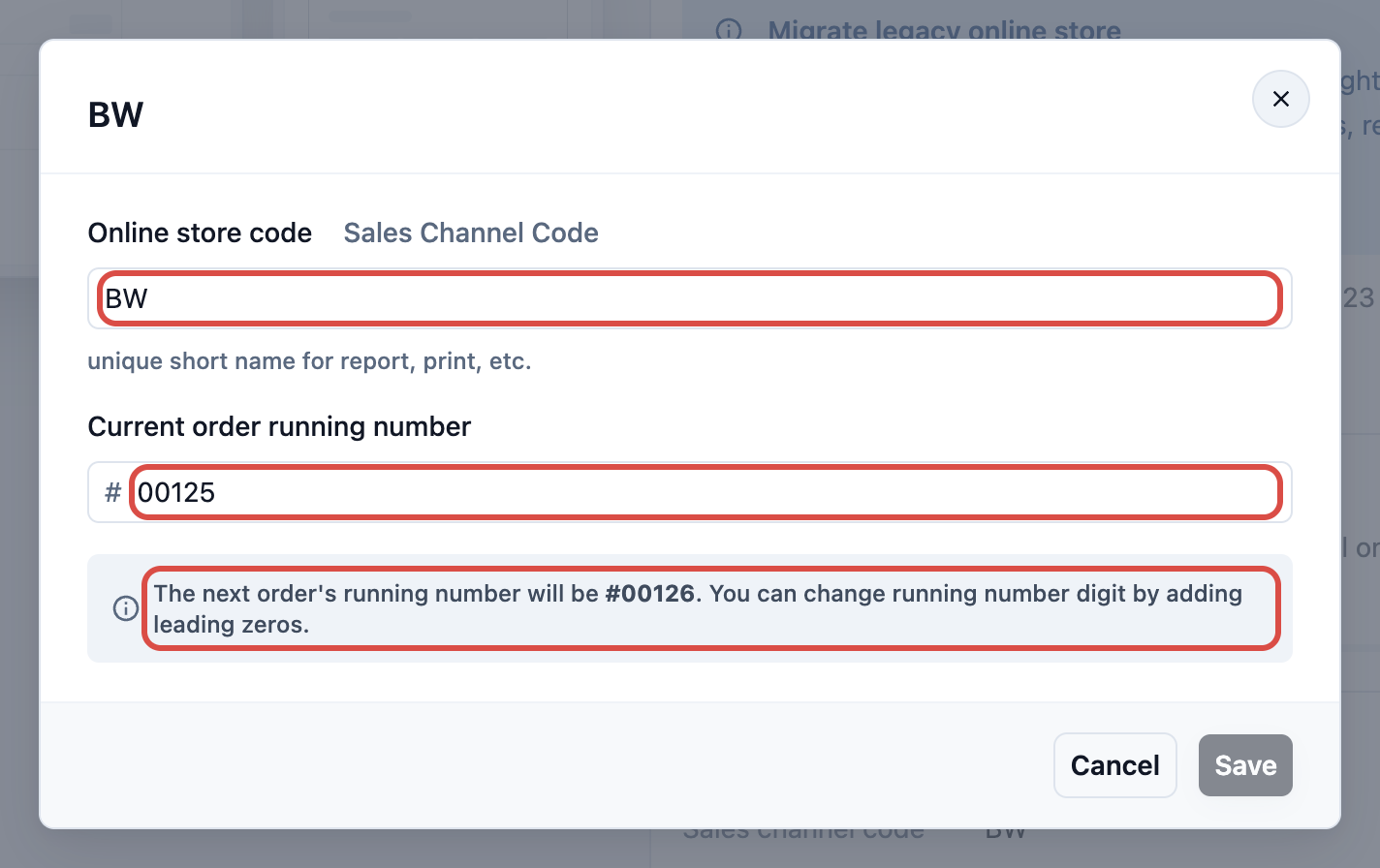
| Sales channel code | The short code in front of this store's order numbers, for example `BW` |
| Next order number | The number the next online order gets, for example `BW-00006` |
To change them:
1. Next to **Sales channel code**, click Edit.
2. Change the **Online store code**, or the **Current order running number**.
3. Click Save.
See [Store Settings: Billing Company, Sales Channel Code and Order Numbers](/docs/online-store-settings-billing-company-and-order-numbers).
---
## When billing starts
Turning a product on, editing and Preview are free.
- **Online Store:** added to your subscription at its first Publish. The list price is SGD 99 a month.
- **Mobile App:** added to your subscription from your app's first day in the App Store or Google Play. The list price is SGD 299 a month.
When your price plan sells the product, the note under each Enable button shows its monthly price for your account.
The first Publish of either product needs an active trial or subscription. Otherwise Publish says **Taking Online Store live needs an active trial or subscription.** (or the same for the Mobile App). The Mobile App's first Publish also needs a price plan that includes it. If yours doesn't, Publish says **Your price plan does not include Mobile App. Ask EasyBiz to move you to the current plan, then publish.**
See [Introduction to Online Store & Mobile App](/docs/introduction-to-online-store-and-mobile-app).
---
## Close your Online Store or Mobile App
Closing stops customers using the Online Store or the Mobile App. Your pages stay, and you can turn it on again on this page.
1. Under the store card, click **Close Online Store or Mobile App** (with one product on, it says **Close Online Store** or **Close Mobile App**).
2. Click Close Online Store or Close Mobile App.
3. Type the brand name exactly as shown.
4. Click the button again to confirm.

What happens depends on whether it was published:
**If it was published:**
- Your Online Store stops opening at its address. Customers who installed your app see that your store is unavailable.
- If it was billed, its billing stops the same day.
- Only someone with billing access can close it.
- To reopen it later, click Enable, then Publish.
A Mobile App counts as published from its first Publish, even before it is in the App Store or Google Play.
**If it was never published:**
- It's switched off and leaves the editor, Preview and Publish. An Online Store's web address is freed up.
- If no order was ever placed on its sales channel (test orders count) and the other product doesn't use it, the sales channel is deleted too, with its code and order counter. Turning the product on again starts a new sales channel, with order numbers from 00001.
- When neither product is on and neither was ever published, Remove shows on the card again.
---
## FAQs
**I added a store by mistake. Can I delete it?**
>Yes, if neither its Online Store nor its Mobile App was ever published. Close any product that is on, then click Remove on the store card. This also deletes its draft pages.
**Why can't I choose a market?**
>The brand already has a store there (**Has a store**). Open that store's card instead.
**Why can't I click Enable?**
>Check that a billing company is chosen and, when your market has two or more Locations, that at least one is ticked. For an Online Store, also check that the web address is available.
**Can one store sell in two countries?**
>Not on its own. Add a store for each country. One store serving several countries needs an EasyBiz MAX agreement.
**Can I change my web address later?**
>No. Link your own domain instead, once the store is live.
**Why is there no Link domain button?**
>It shows once your Online Store is live, and only to staff who can manage sales channels. Publish the store first. See [Edit, Preview and Publish Your Online Store](/docs/edit-preview-and-publish-your-online-store).
**Can I use my own domain? Does it cost extra?**
>Yes (Online Store only), at no extra cost. Your .easybizcloud.app address keeps working too. Publish your Online Store first, then see [Connecting Your Own Domain](/docs/connecting-your-own-domain).
**I changed my logo. Why does my Mobile App still show the old icon?**
>The app's icon is made once, when you turn the app on. Open **App settings** › App name & icon in the editor and click Create from brand logo.
---
## What's next
Set up your pages and booking steps, then preview and publish: [Edit, Preview and Publish Your Online Store](/docs/edit-preview-and-publish-your-online-store).